)
or https:// means you've safely connected to the .gov website. Share sensitive information only on official, secure websites.
)
or https:// means you've safely connected to the .gov website. Share sensitive information only on official, secure websites.


- 1.4.18 Electronic Products and Services Support (EPSS) Managers Guide
- 1.4.18.1 Programs Scope and Objectives
- 1.4.18.1.1 Background
- 1.4.18.1.2 Authority
- 1.4.18.1.3 Program Management and Review
- 1.4.18.1.4 Program Controls
- 1.4.18.1.5 Acronyms
- 1.4.18.1.6 Related Resources
- 1.4.18.1.7 Help Desk Support
- 1.4.18.2 EPSS Business Measures
- 1.4.18.3 The Manager's Roles
- 1.4.18.4 Leadership
- 1.4.18.5 Administrative Guidelines
- 1.4.18.5.1 Recurring Duties of the EPSS Manager
- 1.4.18.5.1.1 Daily Duties
- 1.4.18.5.1.2 Weekly Duties
- 1.4.18.5.1.3 Monthly Duties
- 1.4.18.5.1.4 Periodic Duties
- 1.4.18.5.1.5 Annual Duties
- 1.4.18.5.2 Leave Administration
- 1.4.18.5.2.1 Leave Scheduling Process
- 1.4.18.5.2.2 Leave Counseling
- 1.4.18.5.3 Conduct Counseling
- 1.4.18.5.4 Employee Performance
- 1.4.18.5.4.1 Monitoring and Reviews
- 1.4.18.5.4.2 Managers
- 1.4.18.5.4.3 Telephone/Paper Monitoring
- 1.4.18.5.4.4 Feedback and Follow-Up
- 1.4.18.5.4.5 Sharing Reviews
- 1.4.18.5.4.6 Verint
- 1.4.18.5.4.7 Access to Recorded Calls
- 1.4.18.5.4.8 Centralized Quality Review System (CQRS)
- 1.4.18.5.4.9 Training
- 1.4.18.5.1 Recurring Duties of the EPSS Manager
- 1.4.18.6 Non-Evaluative or Coaching Reviews
- 1.4.18.6.1 Non-Evaluative Monitoring
- 1.4.18.6.2 Side by Side Monitoring
- 1.4.18.6.3 EPSS Phone Certification Plan
- 1.4.18.6.4 EPSS Paper Certification Process
- 1.4.18.7 Operational Review Overview
- 1.4.18.7.1 Operations Support Staff Conducting Reviews
- 1.4.18.7.2 Department, Operation or Front Line Manager
- 1.4.18.8 E-help Support System (EHSS) Guidelines
- 1.4.18.8.1 Business Entitlement Access Request System (BEARS)
- 1.4.18.8.1.1 Systems Used by EPSS Assistors
- 1.4.18.8.1.2 Roles in the Employee User Portal (EUP)
- 1.4.18.8.2 Creating and Updating Interactions/Incidents
- 1.4.18.8.3 Managing Your Worklist
- 1.4.18.8.4 Monitoring E-mail in EHSS
- 1.4.18.8.5 EHSS Change Control Board
- 1.4.18.8.6 EHSS Solutions
- 1.4.18.8.6.1 Solutions Due to Program Changes
- 1.4.18.8.6.2 Solutions for New Products
- 1.4.18.8.1 Business Entitlement Access Request System (BEARS)
- 1.4.18.9 Infrastructure Update Project (Finesse/CTIOS/IPBlue Desktop application) Telephone System Guidelines
- 1.4.18.9.1 Infrastructure Update Project (Finesse/CTIOS/IPBlue Desktop ) Assistance
- 1.4.18.9.2 Unified Contact Center Environment (UCCE) Supervisor Features
- 1.4.18.9.2.1 Managing Features
- 1.4.18.9.3 Staffing Requirements
- 1.4.18.9.3.1 Adherence
- 1.4.18.9.3.2 Availability and Efficiency
- 1.4.18.9.3.3 Average Handle Time
- 1.4.18.9.3.4 Average Wrap Time
- 1.4.18.9.3.5 Idle Reason Codes
- 1.4.18.9.3.6 Scheduling Employees on the Telephones
- 1.4.18.9.3.7 End of Day Procedures
- 1.4.18.9.3.8 Aceyus Reports
- 1.4.18.10 Reports
- 1.4.18.10.1 EHSS Reports
- 1.4.18.10.2 Infrastructure Update Project (Finesse/CTIOS/IPBlue Desktop application) Reports
- 1.4.18.11 EHSS Business Continuance and Disaster Recovery
- 1.4.18.12 Miscellaneous Procedures
- 1.4.18.12.1 Organization, Function, and Program (OFP) Codes
- 1.4.18.12.2 Subscribing to QuickAlerts
- 1.4.18.12.3 EPSS Communications
- 1.4.18.12.4 Personally Identifiable Information (PII)
- 1.4.18.12.5 Customer Engagement
- 1.4.18.12.5.1 Business Requirements
- 1.4.18.12.5.2 Training Requirements
- 1.4.18.12.5.3 Funding Requirements
- 1.4.18.12.5.4 The Process
- 1.4.18.12.6 Discovered Remittance
- 1.4.18.12.7 Guidance for Creation and Maintenance of Job Aids/Desk Guides
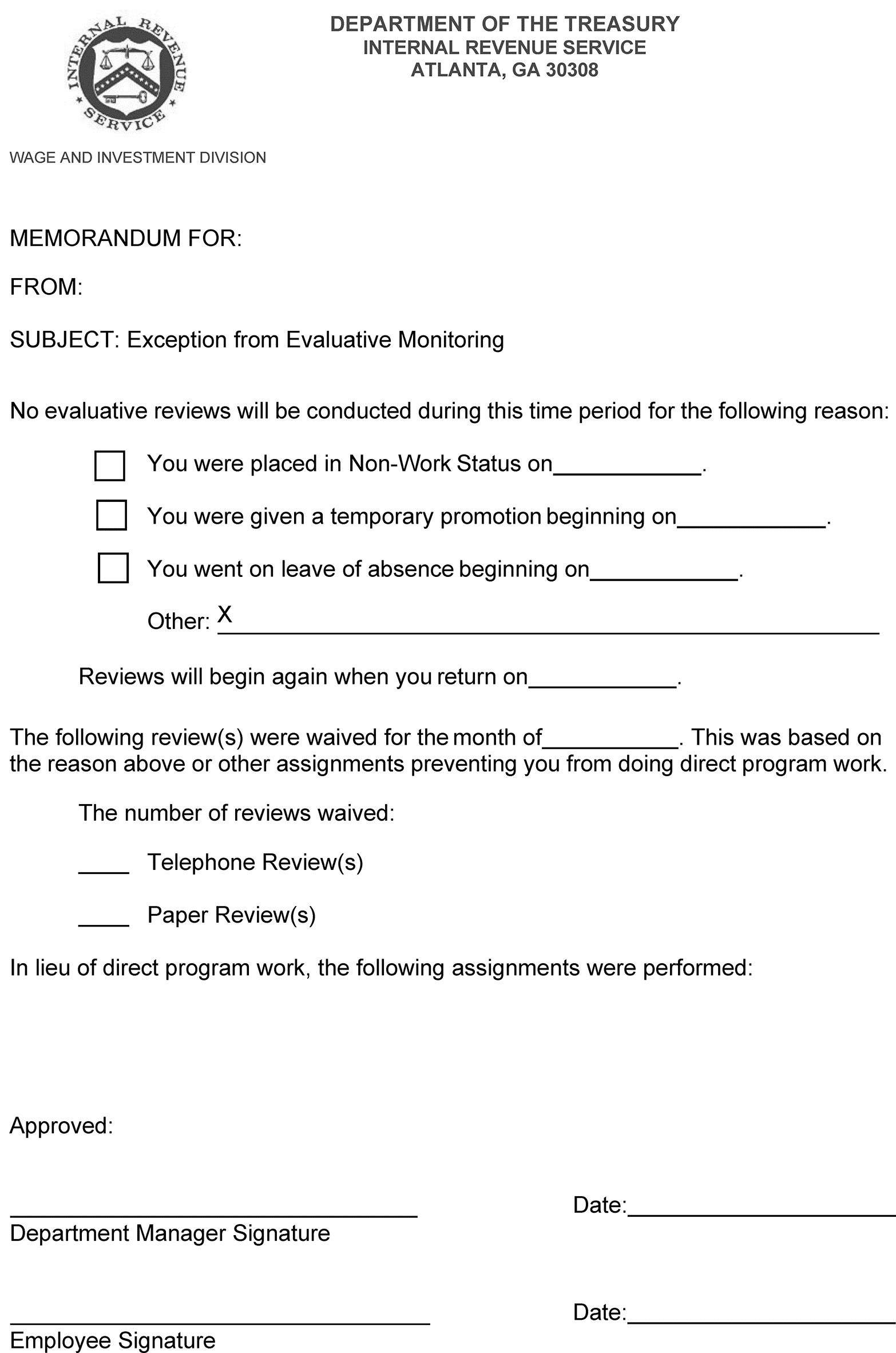
- Exhibit 1.4.18-1 EPSS Review Waiver Memorandum
- 1.4.18.1 Programs Scope and Objectives
Part 1. Organization, Finance, and Management
Chapter 4. Resource Guide for Managers
Section 18. Electronic Products and Services Support (EPSS) Managers Guide
1.4.18 Electronic Products and Services Support (EPSS) Managers Guide
Manual Transmittal
July 30, 2024
Purpose
(1) This transmits revised IRM 1.4.18, Resource Guide for Managers, Electronic Products and Services Support (EPSS) Managers Guide.
Material Changes
(1) IRM 1.4.18.1, Programs Scope and Objectives - IPU 24U0233 issued 02-08-2024. In (5), removed Certified Acceptance Agent (CAA) Application and in (6), removed Acceptance Agents, as EPSS no longer supports the IRS Acceptance Agent Program.
(2) IRM 1.4.18.1, Program Scope and Objectives - Replaced Wage and Investment with Taxpayer Services.
(3) IRM 1.4.18.5, Administrative Guidelines - IPU 23U0870 issued 08-02-2023. Updated mandatory briefings link.
(4) IRM 1.4.18.5.4.1, Monitoring and Reviews - In (6), reworded 2nd sentence for clarity and added reference to National Agreement. In (7) and (11), removed specific references to TSO, FIRE, FS, IFS, PSS Managers for clarity. In (7)(c), added Operations Chief approval needed. In (8), removed reference to Verint Evaluations. In (9), removed Section 4. In (11), removed Verint Reports.
(5) IRM 1.4.18.5.4.2, Managers - In (1), (5) and (6), added Operations managers, and removed Verint Report for clarity. In (2), removed Verint Evaluation.
(6) IRM 1.4.18.5.4.6, Verint - In (3), replaced Information Return Specialized Review Group with TSO Phones.
(7) IRM 1.4.18.5.4.8, Centralized Quality Review System (CQRS) - In (1) and (2), added TSO telephones. In (2) (b), updated Master Attribute Job Aid title.
(8) IRM 1.4.18.5.4.9, Training - Removed extraneous content in (1) and (2) based on training coordinator review.
(9) IRM 1.4.18.8.1.1, Systems Used by EPSS Assistors - IPU 23U0469 issued 03-29-2023. In (1)(d) added description of new Information Returns Intake System (IRIS).
(10) IRM 1.4.18.8.1.1, Systems Used by EPSS Assistors - IPU 24U0233 issued 02-08-2024. In (1), removed Real Time System (RTS) as EPSS no longer supports the IRS Acceptance Agent Program.
(11) IRM 1.4.18.8.1.2, Roles in the Employee User Portal (EUP) - IPU 23U0469 issued 03-29-2023. In (1) in Figure 1.4.18-1, added three IRIS BEARS Roles and removed AESD, AMNT, ASUP, AUSD, RURD, and RVRD BEARS Roles that are no longer needed due to program changes.
(12) IRM 1.4.18.9.3.1, Adherence - IPU 23U1052 issued 01-23-2023. In (2) Updated non-phone duty sign on instructions to replace E-help assistors with assistors.
(13) IRM 1.4.18.11, EHSS Business Continuance and Disaster Recovery - In (5) added 819 to TSO Applications.
(14) IRM 1.4.18.12.3, EPSS Communications - Changes made to streamline content and clarified EPSS Communications are intended for EPSS employees only.
(15) IRM 1.4.18.12.4, Personally Identifiable Information (PII) - In (1) reworded for clarity. In (2) added updated information. In (3) added IRS source link.
(16) Various updated links and minor grammatical and editorial changes throughout the IRM. Updated Wage and Investment to Taxpayer Services throughout.
Effect on Other Documents
IRM 1.4.18 dated 12-09-2022 (effective 12-14-2022) is superseded. The following IRM Procedural Updates (IPUs), issued from January 23, 2023, through February 08, 2024, have been incorporated into this IRM: 23U0152, 23U0469, 23U0870, and 24U0233.Audience
Managers of Electronic Products and Services Support employeesEffective Date
(07-30-2024)Related Resources
Managers will use this IRM in conjunction with IRM 3.42.7, EPSS Help Desk Support, IRM 3.42.9, IRS e-file of Information Returns, IRM 3.42.20, Preparer e-file Hardship Waiver Requests, and IRM 21.3.11, Information Returns Reporting Procedures, which provide policies and procedures for Electronic Products and Services Support assistors and other users.
Charlotte A. Trout
Acting Director, Electronic Products and Services Support
Taxpayer Services Division
-
Purpose: To provide managers with techniques and guidelines for managing employees in Electronic Products & Services Support (EPSS). EPSS is a stand-alone organization reporting to the Director, Customer Accounts Services (CAS) in the Taxpayer Services (TS) Division. EPSS is a centralized office for the management of the Internal Revenue Service (IRS) electronic products and services within TS CAS. The EPSS vision is: "Advance IRS electronic business opportunities to meet the changing demands of the future while delivering a positive customer experience. " The mission statement is: Support customer-valued e-solutions for Service-wide electronic products and services. Visit the EPSS web site at EPSS (irs.gov)
-
Audience: Managers in Electronic Products & Services Support located in Andover, Atlanta, Austin, Cincinnati, Lanham/Seabrook, Martinsburg, and Ogden.
-
Policy Owner: Director, Electronic Products and Services Support (EPSS).
-
Program Owner: Operations Support, Electronic Products and Services Support, Taxpayer Services (TS).
-
EPSS supports the following programs:
-
Affordable Care Act (ACA) Form Acceptance
-
ACA electronic filing of Forms 1094/1095-B and Forms 1094/1095-C
-
Electronic filing of tax returns
-
e-services includes IRS e-file Application, Transcript Delivery System (TDS), and Taxpayer Identification Number (TIN) Matching
-
Electronic Federal Tax Payment System (EFTPS)
-
System for Award Management (SAM)
-
Foreign Account Tax Compliance Act (FATCA) Online Registration
-
Filing Information Returns Electronically (FIRE)
-
Free File Fillable Forms
-
-
Below is a list of EPSS customers:
-
Affordable Care Act (ACA) Providers
-
Circular 230 Practitioners
-
Department of Defense
-
Electronic Return Originators
-
Employers
-
Enrolled Agents
-
FATCA Online Registration Users
-
Financial Institutions
-
Government Agencies
-
Government Contractors
-
Intermediate Service Providers
-
Income Verification Express Service (IVES) Users
-
Large Corporations
-
Low Income Tax Clinics (LITC)
-
Payers or Issuers
-
Registered Return Preparers
-
Reporting Agents
-
Software Developers
-
State Tax Administration Agencies
-
Tax Assistance Centers (TAC)
-
Tax Counseling for Elderly (TCE) Offices
-
Transmitters
-
Volunteer Income Tax Assistance (VITA) Sites
-
-
Electronic Products and Services Support (EPSS) managers provide leadership and direction to employees responsible for inquiries received via telephone, correspondence (paper) and e-mail.
-
Electronic Products and Services Support (EPSS) is guided by the following legal and regulatory authorities.
-
IRC 7803(a)(3), Taxpayer Bill of Rights. Additional information can be found on the IRS.gov website at https://www.irs.gov/taxpayer-bill-of-rights
-
Policy Statement 1-236 Fairness and Integrity in Enforcement Selection. See IRM 1.2.1.2.36
-
-
Managers manage work programs and ensure EPSS work is completed according to procedural guidelines contained in applicable IRMs.
-
Managers refer to guidelines outlined in other IRMs such as:
-
Part 1, Organization, Finance and Management
-
IRM 3.42.4, IRS e-file for Business Tax Returns
-
IRM 3.42.5, IRS e-file of Individual Income Tax Returns
-
IRM 3.42.7, EPSS Help Desk Support
-
IRM 3.42.8, E-Services Procedures for Electronic Products and Services Support
-
IRM 3.42.9, IRS e-file of Information Returns
-
IRM 3.42.10, Authorized IRS e-file Providers
-
IRM 3.42.20, Preparer e-file Hardship Waiver Requests
-
IRM 21.3.11, Information Returns Reporting Procedures
-
-
Managers are knowledgeable in the use of various tools/resources used by EPSS employees. Examples of these tools/resources include:
-
e-help Support System (EHSS)
-
Servicewide Electronic Research Program (SERP)
-
SERP Job Aids
-
-
The IRS uses access control measures to provide protection from unauthorized alteration, loss, unavailability or disclosure of information. Access control will follow the principle of least privilege and separation of duties. This IRM provides guidance for managing access to protected data and for reviewing adherence to data security and procedural guidelines.
-
Managers are required to review administrative, privacy, security and safety practices according to the responsibilities outlined in this IRM in conjunction with other applicable IRMs and IRS guidance.
-
Acronyms are identified in specific subsections of this IRM. Some of the most common or frequently used acronyms are listed below.
Acronym Definition ACA Affordable Care Act Aceyus Aceyus provides/displays team, site and Enterprise level of information on the telephone traffic, ready agents, level of service (LOS), abandoned calls and VCR busy. BEARS Business Entitlement Access Request System CQRS Centralized Quality Review System CCB Change Control Board CJE Critical Job Elements DM Department Manager EFTPS Electronic Federal Tax Payment System EHSS e-help Support System EPF Employee Performance File EQRS Embedded Quality Review System ESAM External Services Authorization Management EUP Employee User Portal FATCA Foreign Account Tax Compliance Act FIRE Filing Information Returns Electronically IEP Integrated Enterprise Portal IR TCC Information Returns (IR) Application for Transmitter Control Code (TCC) ITM Integrated Talent Management Finesse/CTIOS/IPBlue Desktop application Infrastructure Update Project SADI Secure Access Digital Identity SEID Standard Employee Identifier SERP Servicewide Electronic Research Program SETR Single Entry Time Reporting SPRG Specialized Product Review Group TDS Transcript Delivery System TM Team Manager
-
The EPSS website EPSS (irs.gov) is an excellent resource for EPSS managers.
-
The Human Capital Office (HCO) offers a wealth of managerial tools and information via a page on their website entitled, New Manager Orientation Support Center, which is found at: http://hco.web.irs.gov/apps/leads/nmo.html Examples of tools found on this resource page include:
-
Welcome to Management
-
Performance Management
-
Leadership Development
-
Systems Help for Managers
-
Time & Attendance Guidance
-
-
Another excellent managerial tool is iManage https://irsgov.sharepoint.com/sites/iManage. iManage is a virtual community for IRS managers. It contains targeted information, advice and interactive features to help you work more efficiently. The iManage site automatically grants access to employees coded as managers in HRConnect. You cannot access the site if you are not coded as a manager.
-
EPSS is staffed by employees with extensive knowledge of IRS electronic products. Some tasks performed in the position require a very specialized skill set.
-
EPSS escalation path for assistance is as follows:
-
Level 1 - The assistor is the first point of contact for customer issues. The Level 1 assistor maintains contact directly with the customer and interfaces with internal support groups as necessary. Level 1 handles all issues within the scope of their training and authority. They are responsible for documenting the Interaction in a detailed and complete manner. Typical issues include, but are not limited to, failed transmissions, rejected returns, and assistance with Internet-based applications. If an issue is beyond the scope of Level 1, the Interaction is transferred/escalated to Level 2 or as instructed in the solution.
-
Level 2 - The employee has more experience, knowledge and training needed for resolution of an issue. Level 2 personnel include but are not limited to Information Technology (IT) specialists, leads, managers, business analysts, etc. Level 2 resolves issues and follows up with the customer to ensure all issues have been resolved to the customer's satisfaction. Typical issues include, but are not limited to, error code issues resulting from web products, e-services trouble shooting, and communication and connectivity issues not resolved at Level 1. Level 2 will engage Level 3 as necessary.
-
Level 3 - Personnel interfaces with internal groups, not external customers. System administrators and developers handle issues which may include but are not limited to, web server availability, undocumented hard code errors, etc.
-
-
EHSS is the primary tool for recording customer interaction and trouble-ticketing. With e-mail EPSS manages and tracks communication with customers, from arrival through resolution. The e-mail function provides for intelligent routing, service-level management and reporting, and allows for content analysis techniques and keyword searches to automate problem identification. EPSS is a full service support network skilled in providing technical assistance to external customers who encounter problems using IRS electronic products.
-
It is essential to establish quantitative performance measures for the proper operation of any organization. EPSS has established measures to support and reinforce the achievement of the IRS' mission statement and strategic goals. The IRS Balanced Measures are essential.
-
The three areas of measurement are:
-
Customer Satisfaction – The telephonic survey provides the IRS with the ability to analyze customer feedback. This allows EPSS to monitor satisfaction and instantly know which aspects of the e-services applications have the greatest impact on overall customer satisfaction and customer retention.
-
Employee Satisfaction – EPSS uses the IRS Workgroup Questionnaire to identify successes and improvement opportunities to increase employee satisfaction, employee engagement while achieving higher productivity through a quality work environment.
-
Business Results – EPSS developed and implemented business measures to provide information on current performance, determine if goals are met, and identify improvement opportunities. The results from the measures are communicated to customers, stakeholders, and other interested parties.
-
-
The EPSS business measures and their definitions are below. EPSS Business Measure Goals are in the annual program letter.
-
Customer Accuracy - Giving the correct answer with the correct resolution. This measure is a weighted score to reflect the relative volume of the e-help Phones Specialized Product Review Group (SPRG).
-
First Contact Resolution (FCR) – The percentage of customer interactions resolved on first contact.
-
Level of Service – The relative success rate of tax professionals who call seeking assistance from an e-help Desk or Technical Services Operation (TSO) employee.
-
Average Speed of Answer – A measure of the average number of seconds customers waited in an assistor queue seeking assistance from the e-help Desk or TSO.
-
Third Party and Business e-Transactions - The sum of all e-services transactions processed through the Integrated Enterprise Portal (IEP) by third parties.
-
Number of Information Returns Filed Electronically - Total number of information returns processed electronically – includes Form 1098, Form 1099, Form 5498, Form W-2G, Form 1042-S, and Schedule K-1 (excludes Form W-2 and Form 1099-SSA/RRB received from SSA).
-
Percent of Information Returns Filed Electronically - The percent of information returns processed that were electronically filed – includes Form 1098, Mortgage Interest Statement, Form 1099, Form 5498, Form W-2G, Form 1042-S, and Schedule K-1 (excludes Form W-2 and Form 1099-SSA/RRB received from SSA).
-
-
Broadly stated, EPSS managers fulfill three broad roles:
-
Leading employees to achieve a goal
-
Executing administrative responsibilities
-
Scheduling and controlling the assigned workload
-
-
Leadership is the art of motivating a group of people to act towards achieving a common goal. As a team leader in the EPSS organization, your role significantly impacts the achievement of the program objectives. You are expected to take ownership of all program assignments and be knowledgeable of all policies and procedures outlined within this IRM as well as other applicable IRM references.
-
It is important you lead by example. The workgroup will follow your leadership when they view you modeling what you communicate. Leadership requires you model the highest standards of ethics and integrity. A workgroup is reflective of its leadership. A positive attitude will influence your employees and their contributions.
-
Leadership involves coaching and mentoring your employees. As you identify opportunities for performance improvement, it is your role as a leader to assist employees in improving performance through coaching, mentoring, and providing timely feedback. As a leader at the IRS, you are to lead using the balanced measures approach by considering customer satisfaction, employee satisfaction, and business results. See IRM 1.4.18.2, "EPSS Business Measures" .
-
A major objective of IRS Leadership Development is promoting and supporting continuous learning. See the following web site for information on leadership development: http://hco.web.irs.gov/devtrain/LEAD/readprog.html.
-
General administrative guidelines for all IRS managers are found in IRM 1.4 4, Resource Guide for Managers.
-
In the event employees need to take equipment out of the building to work from a telework location (e.g., home), the manager must keep a record of all equipment being removed for telework use. As part of this record and when available, managers must record the barcodes of the laptop, monitor(s) and the serial number of the lock for the laptop. If the employee has an extra monitor they are keeping at the telework location that needs to be notated.
-
Managers are responsible for following and ensuring employees adhere to the Clean Desk Policy, as outlined in IRM 10.5.1.5.1. Managers must be continually alert and proactive in protecting sensitive but unclassified data (including personally identifiable information (PII) and tax information). Managers are required to secure all sensitive employee personnel and taxpayer data and ensure it is locked in cabinets or drawers.
-
Internet and intranet web sites contain the most up-to-date information. There are also sites designed to assist with the development of managers and their employees. A few of the many helpful sites are shown below:
-
IRS Intranet Home Page/ https://irssource.web.irs.gov/Pages/Home.aspx – Provides the starting point for research.
-
Mandatory Briefings Mandatory Briefings - Home (sharepoint.com) – Provides information on the delivery of mandatory employee briefings. Employees utilize the Integrated Talent Management (ITM) system to take the briefings. The ITM system automatically updates their learning history as they finish each briefing and tracks their progress.
-
Joint Operations Center (JOC)https://irsgov.sharepoint.com/sites/JOC/ – Provides links to service, support, and technology for all telephone, correspondence, and electronic media for Joint Operations Center customers.
-
Enterprise Telephone Data (ETD) Reporting http://etd.ds.irsnet.gov/ – Provides links to reports to assess business and employee performance.
-
Emergency Information SERP - Emergency Procedures - AM Research Portal (irs.gov) – Provides information regarding assault/threat incidents, bribery attempts, Potentially Dangerous Taxpayer (PDT), significant incidents, sexual harassment, bomb threats card, personal safety, safety and security overview, and suicide threats.
-
-
The work in EPSS is often fast-paced and intense. Managers must continually be cognizant of the conduct and performance of permanent and returning seasonal employees, as well as the progress of any new hires. At the same time, an acceptable level of service must be provided to customers and an acceptable level of inventories maintained.
-
A ready knowledge of administrative procedures is essential. Procedures must be implemented timely so resources can be best utilized. Thus, it is critical managers be alert to tasks that occur at regular intervals.
-
The following sections provide a breakdown of some of those tasks and the intervals at which they should be performed. Though not all inclusive, it serves as a quick reference guide of managerial duties. For detailed instructions, always refer to the National Agreement or other appropriate resource materials.
-
Perform the following duties daily:
-
Check voice mail – Check personal voicemail for important messages. This is important at the beginning of the shift when employees may call in if they are unable to come to work.
-
Check e-mail – Check e-mail throughout your shift. You may wish to set Microsoft Outlook to notify you when messages are received.
-
Attend conference calls – Because EPSS sites are in different locations around the country, conference calls are one of the primary means of communication. Attend calls promptly and submit agenda items when appropriate prior to the meeting.
-
Escalate program issues - Escalate program issues to the appropriate Operations Support (OS) analyst for research/resolution. Do not send technical program issues directly to an external analyst or to the Quality Team, EHSS Solutions Lead, etc., as this will delay the response.
-
Reply timely to items requiring a response – Items requiring a response may be received in meetings or more frequently by e-mail. Respond within the requested time frame, even if the response is "none," "NA," "no comment," or "negative."
-
Sign BEARS requests – Employees can request access to a system, have a profile unlocked, or a password reset through the Business Entitlement Access Request System (BEARS). When an employee makes a request, you will receive an e-mail notification. Signing these requests is a priority.
-
Maintain attendance roster – Attendance and leave usage will be recorded daily to help identify developing issues. When a leave issue problem is detected, counseling and documentation will be initiated.
-
Evaluative Review – Review and complete documentation for interactions and telephone calls for each employee. You may wish to complete some each day. See IRM 1.4.18.5.4.1, "Monitoring and Reviews" .
-
Review and Share Centralized Quality Review System (CQRS) Defects – If you disagree with the defect charged, ensure your rebuttal is submitted to the Quality Team no later than ten business days from the date the call was reviewed by CQRS. If you agree with the defect, share the review with the employee. Refer to IRM 1.4.18.5.4.8, "Centralized Quality Review System (CQRS)" .
-
Monitor Aceyus reports – Use this tool to manage lunches, breaks, confirm the number of assistors on the telephone, and reassign staffing as needed. Inform any obstacle to upper management and the operation's telephone system analyst that will prevent adherence to the telephone schedule. The operations telephone analyst will notify the program analyst if needed. See IRM 1.4.18.9.3.8, "Cisco Unified Intelligence Center (CUIC)" .
-
Review Daily Aceyus Reports – Use these tools to identify and address areas of concern, such as extended or frequent idle periods and excessive wrap times. See IRM 1.4.18.10.2, "Infrastructure Update Project (Finesse/CTIOS/IPBlue Desktop application) Reports" .
-
Monitor EHSS – Monitor EHSS for open Interactions/Incidents and new Contribute Knowledge Article requests. Ensure EHSS worklist and leads worklist items are being assigned timely and elevated issues are being resolved. Respond to escalation emails. Ensure Contribute Knowledge Articles are returned to the assistor when appropriate or submitted to the EHSS Solutions Lead (in EHSS) for consideration.
-
Counsel employees – Complete performance and conduct counseling as required. See IRM 1.4.18.5.3," Conduct Counseling" , and IRM 1.4.18.5.4," Employee Performance" .
-
Records Management – Ensure IRS records are appropriately managed, retained, and archived in accordance with IRM 1.55.6.19, "Records and Information Management" , series for records retention and disposition requirements before documents can be destroyed. Refer to Document 12990, "Records Control Schedules" (RCS) for the National Archives and Records Administration (NARA) approved records disposition to prevent unauthorized/unlawful destruction of records. Refer to Document 12829, "General Records Schedules" (GRS), for the NARA issued disposal authorizations for temporary administrative records common to all Federal agencies.
-
-
Perform the following duties weekly:
-
Review Forecast Staffing Requirements – Review the forecast upon receipt and daily, if necessary, to ensure adherence. Inform your department manager (DM) of any obstacles that will prevent you from meeting the schedule, such as scheduled meetings or training, or completing paper inventories.
-
Review Verint Inbox – Review the Verint inbox to ensure all employees appear in the list of team members and calls are populating for each employee.
-
SETR records - Managers are required to ensure that employees time is input correctly into Single Entry Time Reporting (SETR) and ensure employees time is charged to the correct Organization Function Program (OFP). Managers are responsible for validating their employees SETR Time and Attendance records. Changes that were signed by Close of Business (COB) Friday of each pay period must be entered, final validation, and SETR signed again no later than 10:00 a.m. Local Standard Time on Monday after the pay period has closed.
-
Perform Auto 2787 Overtime Reconciliation – Overtime, compensatory and holiday hours worked, must be requested, authorized and funds approved in advance. After the hours are worked, the Form 2787-A "Authorization and Report of Overtime Worked" is submitted to the appropriate managers for signature. The report must be input and completed no later than COB Tuesday following the end of the pay period. A separate report must be prepared for compensatory time worked. Be sure to use the correct authorization number for each report.
-
Aged Interactions/Incidents - Review aged case reports for closures or updates.
-
IDRS Online Reports Services (IORS) - Managers must access the Integrated Data Retrieval System (IDRS) Online Reports Services (IORS) system at https://iors.web.irs.gov/ on a weekly and monthly basis to perform required electronic security reviews for employees with access to the IDRS system.
-
Security Audit & Analysis System (SAAS) - The Security Audit and Analysis System (SAAS) implements a data warehousing solution to provide on-line analytical processing of audit trail data. The system enables IRS and Treasury Inspector General for Tax Administration (TIGTA) to detect potential unauthorized accesses to IRS systems and will provide analysis capabilities and reporting on data for all modernized and some current processing environment applications.
-
-
Perform the following duties monthly:
-
Prepare annual evaluations – Annual ratings must be issued on a monthly basis between October and June. The due date is determined by the last digit of the employee's social security number (SSN). Develop a listing of all team employees based on their SSNs to ensure no employee is omitted.
-
Prepare progress reviews – All employees must receive at least one progress review, at least 60 days before the end of the rating cycle. See National Agreement, Article 12, Section 2K at https://irsgov.sharepoint.com/sites/EmployeeResources/SitePages/National-Agreement.aspx.
-
Consider employees for career ladder promotions – Employees in career ladder positions will be promoted in the first pay period after they become minimally eligible to be promoted and they are capable of satisfactorily performing at the next higher level. It is the manager's responsibility to track career ladder promotions and ensure personnel actions are completed timely. IRS Source has a link to a Career Ladder Promotion Calculator at https://irsgov.sharepoint.com/sites/EmployeeResources/SitePages/Pay5.aspx to help identify when the promotion is due. See National Agreement, Article 13, Section 8 at http://hco.web.irs.gov/lrer/negagree/natagree/index.html. The employee must be notified 60 days prior to the eligibility date of the career ladder promotion if the employee is not fully successful. A signed copy of the documentation will be placed in the Employee Performance File (EPF) or mailed to an employee in non-work status.
-
Create Weekly/Bi-Weekly Phone Schedules - Use the Forecast Staffing Requirements to create an employee phone schedule that incorporates phone, non-phone, meetings, training, breaks, and lunches.
-
-
Perform the following duties periodically:
-
Correct personnel/payroll problems – Promptly address any employee concerns regarding personnel or payroll. Employees may initiate an inquiry themselves or contact you for assistance. Contacts (calls or online requests through Internal Revenue Workflow Optimization, Request, and Knowledge System (IRWorks) to the ERC will be diligently tracked. Provide detailed information on the service ticket to better assist the Human Resources technician who will respond to your inquiry.
-
Direct Travel – The Operation Support manager is responsible for directing travel, approving travel expense estimates, and the expenses incurred. Official travel must be consistent with the assignment and not for personal preference or convenience. Travel questions and concerns will be resolved prior to beginning a trip. See IRM 1.32.1, "IRS Local Travel Guide" and IRM 1.32.11," IRS City-to-City Travel Guide" .
-
Submit Release/Recall schedules – The department management will coordinate Return-to-duty schedules in accordance with the 2022 National Agreement Article 14, Release/Recall Procedures. Seehttps://irsgov.sharepoint.com/sites/EmployeeResources/SitePages/National-Agreement.aspx for additional information.
-
Request vacation schedules – Request vacation schedules quarterly from all employees, however, requests may be denied if approval would cause a severe workload interruption. See IRM 1.4.18.5.2.1," Leave Scheduling Process" , and the National Agreement, Article 32, Section 3C at https://irsgov.sharepoint.com/sites/EmployeeResources/SitePages/National-Agreement.aspx for additional information.
-
Prepare for an operational review – Operational reviews can be conducted any time during the year. Ensure record keeping is up-to-date and employee’s EPFs and drop folders contain current documentation.
-
Prepare commitments and self-assessments – Prepare commitments at the beginning of the rating period. Keep a drop file of achievements. Prepare a self-assessment based on the Performance Management System's critical performance expectations for your mid-year and annual evaluations. Your manager will provide guidance as needed.
-
-
Perform the following duties annually:
-
Conduct Critical Job Elements (CJEs) Meeting – Meet with employees annually to share your expectations. Communicating your expectations helps build trust with your workgroup and helps them work cooperatively with you and with one another. As the manager you will determine what the content of the meeting should be. Suggested topics include (not all inclusive): Critical Job Elements (CJEs), How to submit Leave Request, Time Reporting, Work Procedures, Important deadlines, Communication channel or Communication protocol, Ask what’s working and what should change, Solicit their ideas and let them know as the manager you value their opinions. A receipt for the expectations will be signed and placed in the employee's drop file, along with other conduct documentation. The National Treasury Employees Union (NTEU) will be notified of the meeting.
-
Assign employees to a performance plan – Provide employees with a copy of their performance plan, which includes the Retention Standard and Critical Job Elements (CJEs), annually. This can be shared during Expectation Meetings.
If you receive new employees this can be shared in an Expectations Meeting. Ensure Form 6774, "Receipt of Critical Job Elements and Fair and Equitable Treatment of Taxpayers Retention Standard" , is signed and kept in the employee's EPF. Meet individually with leads to communicate additional expectations for them. Provide training on managerial duties so they can act for you in your absence. Performance related documents should be placed in the EPF per Employee Performance File Guide for Managers https://irssource.web.irs.gov/Lists/General%20News/DispItemForm.aspx?ID=907. -
Conduct Mandatory Employee Briefings – The IRS uses online delivery tools and offers mandatory briefings for managers and employees. See National Agreement at https://irssource.web.irs.gov/Lists/General%20News/DispItemForm.aspx?ID=907.
-
Ethics Overview for Service and Counsel Employees
-
Facilities Management and Security Services Physical Security
-
Information Systems Security Refresher
-
No FEAR Act Briefing Refresher
-
Privacy, Information Protection and Disclosure Refresher
-
Records Management Awareness
-
UNAX Awareness
-
Risk Management Awareness
-
RRA ‘98 Section 1204 (only if you’re a Section 1204 manager or employee)
-
Uniformed Services Employment and Reemployment Rights Act (only for managers and designated employees)
-
-
Telework - Managers and employees have equal responsibility for ensuring a successful telework agreement. Managers are responsible for understanding and following telework policies as outlined in IRM 6.800.2, Telework Program, including IRM 6.800.2.5, Preparing for Weather or Other Safety-Related Conditions, and National Agreement. Managers should:
-
Know the rules for BU and NBU employees.
-
Ensure all teleworking employees have a signed IRS Telework Agreement for Non-Bargaining Unit (NBU) (Form 11386-B) or IRS Telework Agreement for Bargaining Unit (BU) (Form 11386) prior to commencing telework.
-
Review all Telework Agreements (excluding BU Ad Hoc) every year.
-
Ensure employees report to their official Post of Duty (POD) (official duty station) at least twice per pay period. (This requirement may be excluded during emergency conditions, such as building closures due to weather, pandemic, etc.).
-
Certify time and attendance of teleworking employees which includes the Telework Indicator in SETR and the number of telework hours routinely worked match the type of Telework (Frequent, Recurring, Ad Hoc) listed on the Telework Agreement.
Managers must refer to IRM 6.800.2, Telework Program and National Agreement, Article 50, Section 4 to obtain all telework guidelines, procedures, and manager’s responsibilities.
-
-
Managers must consider the enterprise workload and staffing needs by application prior to planning, scheduling, and approving annual leave.
-
Managers must balance the need to accomplish the work of the organization with accommodating employees who want to use leave. Annual leave must be granted or denied dependent on the workload of the unit. Sick leave must be used according to its intended purpose.
-
It is important to address leave issues early and consistently. A leave problem results whenever an employee fails to meet or follow the manager's expectations regarding leave.
-
Schedule employee vacations and other leave in such a way as to minimize the effect on the accomplishment of the work. When there are conflicts, grant preference to employees with the most service as determined by enter on duty (EOD) date. When it is anticipated call volumes will be greater than usual, use discretion when granting leave.
-
Review and approve leave using either a yearly or quarterly calendar following these general guidelines:
-
If using a yearly calendar, request employees submit completed calendars no later than February 1st.
-
If using a quarterly calendar (January – March, April – June, July – September, October – December), request employees complete the quarterly calendar 60 days before the quarter begins. All leave will be approved/denied 30 days before the beginning of each quarter.
-
Consider atypical conditions on a case-by-case basis no matter which method is used.
-
Leave scheduling is done based on adherence.
-
-
For additional policies on leave issues, the following resources are available:
-
Office of Personnel Management (OPM) – Leave Home Page – https://www.opm.gov/policy-data-oversight/pay-leave/leave-administration/
-
National Agreement – https://irsgov.sharepoint.com/sites/EmployeeResources/SitePages/National-Agreement.aspx
-
IRM 6.630.1, "Absence and Leave "
-
-
Leave usage will be monitored frequently. Counsel employees with leave issues as problems occur. Leave requests are approved or denied in accordance with the 2022 National Agreement.
-
Take the following steps to address a leave problem:
-
Leave Reminders – After recognizing a problem exists, bring the problem to the employee's attention in an informal discussion. Use a memorandum to ensure the employee understands leave guidelines as noted in the 2022 National Agreement, articles 32 and 34. Encourage the employee to participate in developing a solution to the problem.
-
Memorandum for the Record – If satisfactory improvement is not made, counsel the employee again. Explain how the employee is not in compliance.
-
Leave Restrictions – If the problem continues, discuss the situation with your DM and contact your Labor Relations (LR) specialist for guidance. A "Leave Restriction" letter may be necessary.
-
-
Follow the direction of your manager and LR specialist regarding issuing any counseling memorandums.
-
Most employees report to work on time, adhere to office rules, and have a positive attitude. Sometimes, however, there are exceptions. On these occasions, managers must take steps to address the problems.
-
The three rules for effective conduct counseling and documentation are to be fair, consistent, and specific. Address conduct issues immediately and document your counseling sessions.
-
Always make sure you provide the necessary details: who, what, where, when, why, and how. Make your documentation clear and concise. Before scheduling your counseling session, contact your LR specialist to determine if the employee has a right to union representation at the counseling session. Your LR specialist can also provide guidance on how much advance notice is required to provide the employee with sufficient time to contact a steward if the employee has a right to representation, and the employee wants representation at the counseling session.
-
To plan for your counseling session, ask yourself the following questions:
-
What is the situation? Be very specific and look for facts.
-
What do I know about the employee?
-
What do I hope to accomplish in this discussion?
-
How will I open the session, ask questions, discuss follow-up plans, and conclude the discussion?
-
-
The following steps may be helpful when counseling employees about their conduct:
-
Describe the situation in detail. Use specific, observable facts to describe exactly what the employee did.
-
Explain what the employee should have done.
-
Refer to guidance such as Operations Expectations or Document 12011, "Internal Revenue Service Ethics Handbook" .
-
Ask for the employee's assistance. This should be very clear. For example, "I need your help in resolving this."
-
Discuss a specific action plan for follow-up.
-
Sign and date the documentation. The employee will also sign. The employee's signature only indicates receipt, not agreement, with the documentation.
-
Provide the employee with a copy and place the original in the employee's "drop" file.
-
-
Follow the direction of your DM or LR specialist regarding the issues below:
-
Forward employee counseling memos on conduct issues to your DM and LR specialist, when appropriate, for review prior to sharing them with employees.
-
As the leader of your workgroup, you are responsible for the development of your employees. Clear, fair, and consistent communication is essential. What you say, or do not say, impacts your employees' performance, which in turn impacts business results. Ensure you provide consistent communication to your employees on their performance. Employees want and need to know how they are doing so they can learn and grow.
-
As a part of the IRS Performance Management System, supervisors must continuously monitor employees' progress against critical job elements, identify deficiencies, and initiate corrective actions. Observations must be documented throughout the performance period. This will aid you when completing the mandatory mid-year progress reviews and annual evaluations.
-
Employee performance while on the phone has two components: reviewing the call audio and screens, if available, through Verint and capturing review documentation in an Embedded Quality Data Collection Instrument (DCI). Evaluating an employee's performance has two components: reviewing documentation made in appropriate systems (e.g., EHSS) and monitoring telephone calls on Verint. For additional information on the use of Verint see IRM 1.4.16.5.3.2," Contact Recording" .
-
EPSS managers conduct the following types of review:
-
Telephone reviews
-
Case (paper, e-mail) reviews
-
IDRS (Security)
-
Clerical reviews (Form 3210, "Acknowledgement and Follow-Up" , mail receipt, distribution etc.)
-
Non-evaluative reviews
-
-
Telephone reviews, case reviews, and reviewing documentation are performed for the following reasons:
-
To make an objective assessment of an employee’s performance on an ongoing basis and to ensure adequate information is available for mid-year and annual appraisals.
-
To protect the rights of customers.
-
To identify training needs.
-
-
All reviews must be documented in writing and shared with the employee. Focus performance reviews on effective case and call resolution according to IRM guidelines. Emphasize the importance of quality service as well as the efficiency of case work and telephone calls. For telephone calls, managers will determine whether the handle time is appropriate to the call reviewed, considering hold time, wrap time, and talk time. Calls will also be reviewed to assess professionalism. Always provide IRM references to assist with training needs and IRM clarification. When reviewing phone calls, Timeliness and Professionalism attributes are subjective; managers must consider the situation and complexity of the call when making determinations.
-
A manager narrates the review using enough detail to support their assessment. Clearly identify to the employee actions taken (or not taken) to accomplish the CJEs. Embedded Quality Review System DCI is used to identify the CJE for each action the employee addressed during the call. Provide examples of what the employee said and examples of what could have been said. See National Agreement Article 12 Section 12.
-
Perform the required monitoring and paper reviews each month. Department managers and/or operations managers must set review requirements for their call sites. Conduct a balance or mix of these reviews (telephone and paper reviews) throughout the year relative to an employee's work assignments. When necessary, conduct side-by-side non-evaluative reviews for skill development.
-
E-help and TSO Customer Service Section management will conduct a minimum of two telephone reviews per employee per month. If employees work paper (including e-mail, forms, correspondence etc.) managers will conduct one paper review per employee per month.
-
All managers will conduct monthly reviews on all employees and document the date their reviews were conducted.
-
If for some reason reviews cannot be conducted on an employee, an EPSS Review Waiver Memorandum must be approved by the Department Manager or Operations Chief and placed in the Employee's EPF. See Exhibit 1.4.18-1.
-
Retain and file review sheets in each employee's contact monitoring folder for operational reviews. Refer to Document 12990, "Records Control Schedules" (RCS) for records retention and disposition requirements in paper and electronic format.
-
-
Evaluative telephone monitoring will focus on whether or not the assistor handled the call and documented the case according to IRM guidelines (e.g., provided sufficient detail in the description or used Knowledge Management to determine the correct solution). Review results must be linked directly to the employee's CJEs. Use the appropriate Specialized Product Review Group (SPRG), in EQRS to record results of a review.
-
Time frames for sharing feedback are covered in the National Agreement, Article 12, Section 9. Evaluative recordation will be shared with the employee "within fifteen (15) workdays of the time the supervisor becomes aware, or should have been aware, of the event which it addresses." If the employee has provided incorrect information to a taxpayer, the Employer will inform the employee as soon as possible. See National Agreement, Article 12, Section 9, at https://irsgov.sharepoint.com/sites/EmployeeResources/SitePages/National-Agreement.aspx
-
Evaluative reviews must be conducted by a manager or an individual in an official acting manager capacity. Leads may provide supplemental evaluative recordation; however, the manager must share the review with the employee. The lead must sign the documentation as the reviewer and the manager must concur with and sign the review prior to sharing with the employee.
-
Obtain the employee's signature on the Embedded Quality Review System DCI. Allow the employee to make a copy and file the original copy in the employee's contact monitoring folder. When it is time for a progress review or the employee's annual appraisal utilize EQRS to compile data for a specific period. Refer to Document 12829, "General Records Schedules" (GRS) 1 for guidance on records retention and disposition of Employee Personnel Folders (EPF).
Always sign and date the documentation before sharing it with the employee. Your documentation is only valid if you have signed it. The employee's signature only indicates receipt, not agreement, with the document. If the employee refuses to sign, indicate "Employee Refused to Sign" on the signature line.Note:
EQRS is a standardized data repository with trend analysis capabilities and reporting capabilities to use for employee evaluations.
-
Department/Operations managers must ensure team managers conduct sufficient telephone monitoring and case reviews to provide employees with a well-documented evaluation. An EQRS Report is available for this purpose.
-
Managers must use the approved EQRS DCI for each applicable SPRG.
-
Develop a method for recording the pertinent facts of the call. Ensure all information needed to determine if a call/case is correct or incorrect is captured.
-
Conduct a minimum of three evaluative reviews per month (two phone and one paper) for each employee.
-
Department/Operations managers provide monthly feedback to front line managers regarding adherence to the review requirement. This feedback addresses number of reviews conducted for each employee, type of review (paper, phones, targeted) and types of errors identified.
-
If for some reason reviews cannot be conducted on an employee, an EPSS Review Waiver Memorandum must be approved by the Department/Operation managers and placed in the Employee's EPF. See Exhibit 1.4.18-1 EPSS Review Waiver Memorandum.
-
IRM 1.2.10.10, "Policy Statement 1-44" , includes the use of monitoring employee telephone conversations for evaluative and training purposes.
-
Telephone/Paper monitoring is an important review within the EPSS organization. When monitoring, managers can determine whether the employee:
-
Addressed disclosure issues
-
Treated the customer with respect, courtesy and fairness
-
Followed EHSS procedures
-
Resolved the call/case per IRM guidelines
-
Provided an accurate answer
-
Applied appropriate communication skills
-
-
When problems are consistently identified during the monitoring/reviewing process, managers will determine the best course of action to correct the problems (e.g., On-the-Job Instruction(OJI), IRM review, on-line courses, etc.)
-
Review results may reveal strengths and weaknesses of employees and identify the need for additional managerial monitoring to evaluate employee performance. Managerial monitoring must be performed independently from Product Reviews. Product Review results cannot be used to evaluate employees.
-
Product Review data is used to identify trends, problem areas, and overall site quality.
-
Sharing monitoring results is a two-way communication. The Employee Feedback Report or Verint Evaluation are available for this purpose and must be used. When sharing the review, managers must determine if the employee agrees with their assessment.
If an employee ... Then ... Agrees -
Commend the positive aspects of the performance.
-
Discuss areas for improvement.
Disagrees -
Obtain the cause of disagreement.
-
Commend the positive aspects of the performance.
-
Discuss openly to resolve disputed issues.
-
Discuss areas for improvement.
-
Develop a plan to improve performance.
-
-
Share results of phone monitoring within three workdays. If incorrect information is provided, the results must be shared as soon as possible. If you do not meet these time frames, (e.g., due to unexpected leave, etc.), notate the reason on the review sheet.
-
Obtain the employee's acknowledgment on the designated form. Allow the employee to make a copy and file the original copy in the Employee's EPF. Sanitize all taxpayer data containing a SSN or name.
-
Management may request to download a recorded contact. Requestors must clearly state the reason for download on Form 13817, "Request for Downloaded Contact" . In general, requests for downloads are to retain the call for a period longer than the system retention period (60 days) or to provide a copy of the contact to another party, when necessary (TIGTA, Labor Relations, etc.). Download the call when the Employee disagrees over the content of the contact and the Manager and Employee cannot reach an agreement.
-
Verint is a system that captures and stores incoming toll-free telephone contact with customers for the purpose of possible subsequent review; known as contact recording. It is used to perform required random reviews (performance and product) of incoming telephone contacts. Screen capture is provided for 10 percent of all calls. When screen capture is available, case research and actions taken in online systems are shown simultaneously with voice recording. The data is stored by employee Agent Number for a maximum of 60 days.
-
Review the inbox for your team each week and ensure recorded calls for each employee are present. If calls for an employee actively taking calls are not present in the inbox, notify your Business Application Administrator (BAA) immediately. Choose the most current calls in your inbox for review. This ensures feedback is timely, especially when incorrect information was provided to a caller.
-
Use the EQRS e-help/TSO Phone (SPRG) Data Collection Instrument (DCI) to prepare written recordation of all calls reviewed for evaluative purposes. The performance aspects in each tool are aligned with the employee's performance plan. After listening to the call, complete the DCI or Verint and enter any necessary remarks. During evaluative feedback sessions, employees will be able to review the entire conversation and see their on-screen actions.
-
If the caller indicates they do not wish to be recorded, the assistor must disable the recording using the Verint Agent Monitoring icon on the start task bar and select Stop Monitoring to stop recording. These calls will not be evaluated. To ensure assistors are not abusing this feature to prevent their contacts from being recorded, managers can search Verint under the "Intelliquality" field by taking the following steps:
-
Under "Data Range" select the dates or the number of days to be searched.
-
Under the "Contact Data Section" go to the "StopOnDemand" box, and highlight StopOnDemand.
-
Under "Site," select the desired site.
-
Click on Search.
-
-
Managers and reviewers requiring access to Verint must submit a BEARS request to access their site or the site they will be reviewing. The Business Application Administrator (BAA) in the site will approve the form and add the manager/reviewer to the Verint database. For the BAA to do this, an e-mail identifying the group number and members is necessary.
Note:
Cisco Unified Intelligence Center (CUIC) contains information on each manager and assistor in a site and identifies the group to which they belong. It is very important the CUIC database be updated with any changes of managers or assistors (i.e., move to other groups, leave the service, etc.). Send an e-mail to the BAA with the name, login name, SEID, Finesse/CTIOS/IPBlue Desktop application Login Number, group number and manager’s name to have the change implemented.
-
Employees may request access to a recorded call used for evaluative purposes and may listen to the call on official time.
-
At an employee's request, the manager will meet within two (2) business days to listen to and discuss a recorded call together.
-
If the call could lead to adverse action (e.g., disclosure error) the employee may request NTEU representation; however, they must request and receive permission under IRC 6103 (b) (4) (A) to listen to calls.
-
The Centralized Quality Review System (CQRS) staff performs product reviews (non-evaluative) on e-help and TSO telephones. Reviews address the five (5) quality measures:
-
Customer Accuracy – Giving the correct answer with the correct resolution. "Correct" is measured by providing the customer a correct response or resolution to the case or issue, with the necessary case actions or case disposition taken. This measures accuracy from the "customer's point of view."
-
Regulatory Accuracy – Adhering to statutory/regulatory process requirements when making a determination on taxpayer accounts/cases.
-
Procedural Accuracy – Adhering to non-statutory/nonregulatory internal processing requirements when making a determination on taxpayer accounts/cases.
-
Professionalism – Promoting a positive image of the Service by using effective communication techniques.
-
Timeliness – Resolving an issue in the most efficient manner using proper workload management and time utilization techniques.
-
-
CQRS reviews are performed using the Specialized Product Review Group (SPRG) for e-help Telephones or TSO Telephones.
-
Managers will receive a spreadsheet showing all reviews performed by CQRS. Managers who disagree with a defect will complete the attached rebuttal sheet and adhere to the due dates provided in the e-mail with the daily DCIs from Workforce Planning, Training and Quality (WPTQ). This will ensure rebuttals are forwarded to CQRS timely. More guidance regarding rebuttals to CQRS can be found in IRM 21.10.1.8.7, "CQRS Defect Rebuttal Procedures - Electronic Products and Services Support."
-
The manager will share the review with or without defects with the employee. When sharing reviews with employees it is a good idea to have the e-help Telephones or TSO Telephones Master Attribute Job Aid (MAJA) available.
-
-
EPSS training requirements can be found on the EPSS Training SharePoint at https://irsgov.sharepoint.com/sites/WICASEpss-Train/SitePages/Home.aspx. Each site has a Training Coordinator who is required to complete the following:
-
Complete the site training plan by the date set by the WPTQ analyst.
-
Notify WPTQ analyst of any changes to the plan.
-
Verify all required courses are listed as completed in their employees’ training history on the Integrated Talent Management (ITM) system.
-
-
The WPTQ Analyst will monitor the training schedule to completion.
-
Managers are expected to provide timely training that an EPSS assistor will need to be proficient in their job.
-
All front line managers must take all courses with employees. Attending the training on an annual basis will ensure you are proficient and will enable you to coach and monitor employees, handle elevated customer issues, and address problems that may develop.
-
Managers, technical leads or a skilled journey level employee can perform non-evaluative monitoring on the following:
-
Telephone calls
-
Paper Inventory reviews
-
Specific issues (e.g., disclosure)
-
-
The primary purpose of a non-evaluative review is to help the employee develop and enhance their job skills. Effective non-evaluative reviews foster open lines of communication between the employee, the manager, and the technical lead. This enables the manager and/or their lead to receive or provide employee feedback and transfer operational goals informally.
-
Non-evaluative or coaching reviews do not contain a written rating. Share the results orally. Some documentation is appropriate to establish it occurred. EQRS or Verint may be used to track employee development for this purpose. Have the employee initial and date the document. Allow the employee to make a copy and file the original copy in the employee's EPF file per http://hco.web.irs.gov/perfmgmt/perfplan/cjepp/EmployeePerfFile.html.
-
Non-evaluative reviews are conducted for several reasons (e.g., identify training needs, improve performance, etc.).
-
Non-evaluative target reviews help focus on issues causing high error rates.
-
When implementing major procedural revisions, non-evaluative reviews can help managers determine if additional procedural reviews, discussion during team meetings, or additional training may be needed.
-
Non-evaluative reviews can assist the manager and employee determine progress from training and coaching.
-
When an employee is having difficulty dealing with a caller, non-evaluative monitoring allows the manager to assist the employee, if needed.
-
You can accomplish non-evaluative monitoring by utilizing periodic side-by-side reviews, when deemed appropriate, or requested by an employee. Apply this technique when circumstances merit an in-depth discussion for training purposes.
-
You may delegate this non-evaluative review to your technical lead or an On-the-Job Instructor (OJI). Periodically, delegate this non-evaluative review to an experienced assistor to foster an inclusive environment.
-
The intention of the certification plan is to provide EPSS Managers a process of documenting their employee's performance. Following the goals and objectives of the outlined plan below will provide consistency throughout the Enterprise. As stated in IRM 1.4.18.4, Leadership, "Leadership involves coaching and mentoring your employees. As you identify opportunities for performance improvement, it is your role as a leader to assist employees in improving performance through coaching, mentoring, and providing timely feedback. As a leader at the IRS, you are to lead using balanced measures by considering customer satisfaction, employee satisfaction, and business results" .
-
After completion of Recruit Training, employees will receive an On-the-Job Instructor (OJI) Period which consists of the following:
-
New employee double plugs with an experienced assistor (1/2 of Course length time recorded under OFP 990-59250).
-
Experienced assistor double plugs with new employee while they take calls (time recorded under OFP code 750-42730 for e-help and OFP code 750-12730 for TSO).
-
On the Job Instructors (1 to 5 ratio).
-
Certification.
-
-
During the OJI period the coach will complete the minimum of two OJI Phone Feedback Forms for each employee and provide to the manager, to identify training deficiencies and recognize opportunities for improvement. The OJI Phone Feedback Form will be shared with the employee to provide feedback on their progress.
-
At the completion of the OJI process, a review of 3 calls (3 calls = 1 attempt) will be performed for each assistor, the manager/lead should perform reviews on three different types of calls in Verint. The reviews will be entered into EQRS as Non-Evaluative with a comment in the Remarks/Feedback section as Certification Process.
-
A successful certification is based on the following guidelines, the assistor works independently and achieves Customer Accuracy (100%, no errors), Regulatory Accuracy (100%, no errors), and Procedural Accuracy (85%).
-
If the assistor is unsuccessful after 3 attempts (a total of 9 calls) the manager will develop a performance improvement plan (action plan) based on the managers assessment, training needs along with the employee’s feedback. If after 90 days the assistor is unsuccessful, the manager will contact their Department Manager to make them aware of the progress the assistor has made and provide any extenuating circumstances.
-
Future attempts to certify the assistor will now be evaluative in EQRS. Monitor the employees progress by observation, feedback and EQ reports. Frequent meetings and written documentation is critical at this point to provide the employee feedback on their performance.
-
After completion of Paper Training, employees will receive an OJI Period which will consist of:
-
Working live cases with an OJI coach available to assist with questions (½ of course length time recorded under OFP Code 990-59250)
-
Coaching
-
Certification
-
-
During the OJI period, the coach will be available to help assistors while working cases. The number of cases will be contingent upon the program volumes. The cases worked during the OJI period will be 100% reviewed by coaches/leads.
-
At the completion of paper training and OJI, a review of paper cases will be performed for each assistor. The number of cases will be contingent upon the program volumes, however no less than a minimum of 10 reviews should be completed. The manager or lead will perform the review and complete the Email and Paper Review Template. Managers will meet with the assistor to review the Email and Paper Review Template and provide feedback.
-
A successful certification is based on these guidelines; the assistor works cases Independently and achieves an 85% overall accuracy rate.
-
Unsuccessful Certification - If the assistor is unsuccessful after three attempts to certify, the manager will develop a performance improvement plan (action plan) based on the manager’s assessment, training needs, along with the employees’ feedback. If after 90 days the assistor is unsuccessful, the manager will contact their Department Manager, make them aware of the progress the assistor has made and provide any extenuating circumstances.
-
Future attempts to certify the assistor will need to be evaluative in EQRS. Monitor the employee’s progress by observation, feedback and EQ reports. Frequent face to face meetings and written documentation is critical at this point to provide the employee feedback on their performance.
-
Phone/Paper - contact LR for guidance on the proper procedures for corrective action concerning probationary and non-probationary employees. Managers should keep their Department Managers aware of the certification process and the progress of assistors.
-
An Operational Review is an in-depth review and analysis of a particular program or function.
-
Reviews are conducted by the Operation Support staff (analyst).
-
Operations Support Staff (analyst) conducting reviews will:
-
Evaluate and assess
-
Identify areas to improve
-
Establish target dates for improvement
-
Identify and praise accomplishments
-
Provide a follow-up on action items
-
-
The review will address:
-
Workload management practices
-
Personnel management practices
-
Administrative practices
-
-
Compare the above practices to the following:
-
Mission statement
-
Policies and regulations
-
National Agreement
-
Memos of Understanding (MOUs)
-
Program letters
-
Business measures and goals
-
-
Prepare a schedule of planned reviews at the beginning of each fiscal year and no later than November 1st. Provide the schedule to the operation manager, or director, as appropriate.
-
Request the information needed from the manager 30 days in advance, so all information is available at the start of the review. This may include the following items:
-
Employee Performance Files (EPF)
-
Personnel Files
-
Drop Files (including meeting minutes)
-
Training Files
-
Employee Survey Satisfaction results
-
Work Planning and Control (WP&C) data
-
Aged case listings
-
Sample of closed cases
-
Sample of open cases
-
Average handle time reports
-
Adherence reports
-
Transfer reports
-
Aceyus reports
-
Security reviews
-
Totally Automated Personnel System (TAPS) data
-
Leave tracking
-
Evaluation/Mid-year tracking
-
Quality/Productivity/Improvement Initiatives
-
Engagement Plans/Activities
-
-
It is recommended when reviewing a Team Manager (TM) you review a minimum of six EPFs; a technical lead, one team clerk/management and program assistant and four assistors if applicable. Try to review EPFs of employees with different levels of experience.
-
It is recommended when reviewing a DM you review at least half of all EPFs of those who directly report to the DM, plus samples of employees' EPFs from teams within that department.
-
When completing technical portions of the review such as the closed case reviews, obtain assistance if needed. Operations managers may also obtain assistance from the Operation Support staff to assist with department reviews.
-
Allow enough time to perform the review, write the report, and share feedback from the final report to the manager or director as appropriate.
-
Promptly document the operation review in a memorandum to the appropriate manager or department head. Include the following in the memorandum:
-
Summary of the observations (positive and negative)
-
Recommendations and action items
-
Follow-up dates
-
-
Maintain a copy of the memorandum in the office files and one in the manager's EPF. Be sure to follow-up timely with the manager on action items. Document all follow-up actions.
-
The Operational Review will cover the following:
-
Personnel management practices
-
Workload management, administrative, privacy, security, and safety practices
-
Manager's organization
-
-
Review personnel management practices of maintaining Employee Personnel Files (EPF), Drop files and Personal/Training files for the following:
-
Critical Job Elements (CJEs) and Form 6774, "Receipt of Critical Job Elements and Fair and Equitable Treatment of Taxpayers Retention Standard"
-
Seasonal agreements (if applicable)
-
Training and OJT documentation
-
Evaluative reviews, including content, scope and amounts (front line manager)
-
Mid-year progress reviews (front line manager)
-
Performance reviews (department manager)
-
Operation reviews (department and operations manager)
-
Evaluations
-
Poor performance handling
-
Awards
-
Non-evaluative reviews and coaching
-
Position management
-
Leave administration
-
Employee development
-
Communication including team meetings
-
Employee satisfaction
-
-
Review Workload Management Practices for the following:
-
Quality of work performed in function (phones and paper). For example, acknowledgement and follow-up of Form 3210.
-
Timeliness of work performed in function (paper)
-
Expectations for phone functions
-
Utilization of lead employee
-
-
Review Administrative, Privacy, Security, and Safety Practices, including the following:
-
Time reporting
-
UNAX completed or scheduled for all employees
-
Prevention of Sexual Harassment (POSH) completed or scheduled for all employees
-
Release/Recall correctly updated
-
Rules of Conduct meetings held
-
Security reviews
-
Correctness of TAPS information
-
-
Review Manager's organization effectiveness:
-
Timeliness of controlled responses
-
Effectiveness of method for managing tasks or assignments
-
Completeness, thoroughness, timeliness of reviews, projects, etc.
-
-
The primary tool for documenting customer contacts is the e-help Support System (EHSS). Contacts are documented as Interactions and used to capture and track information such as who is reporting the problem, the nature of the problem, and the solution to the problem (including failed solutions). This provides a consolidated and synchronized view of the customer’s contact history with EPSS.
-
EHSS is a tailored version of HP Service Manager software. It is utilized by the e-help Desk, e-services Level 2, TSO, various internal policy owners, and other support personnel. The system contains:
-
Downloaded select customer data from Third Party Data Store (TPDS)
-
All electronic product types supported by the e-help Desk and TSO
-
Problem types associated with each electronic product
-
A knowledge database to guide an assistor through issue identification and resolution
-
Formal tracking and reporting of issues (providing information about the customer, problem, and resolutions (both successful and unsuccessful attempts).
-
Downloaded select customer data (Form 1099 data) from Transmitter Control Database (TCB) and Special Projects database (Form 8027 and Form 1042-S).
-
-
EHSS allows for:
-
Documented completion of issues
-
Analysis of documented issue type in order to improve offerings and service
-
Alternative communication methods (i.e., e-mail for external customers)
-
-
The system is configured with multiple web and application servers. If an application or web server fails, the system will continue to operate without interruption. There is a stand-by system that can be brought up and made available for use if the production system fails. If the production system becomes non-operational, users will be notified by an EPSS Communication.
-
BEARS is an automated way to request access to Information Technology (IT) systems and applications. It provides faster access and automates the process of annual re-certification. To access BEARS, click on the BEARS link https://bears.iam.int.for.irs.gov/home/Index. View the Online User Guides. If you have questions, call the Help Desk at 866-743-5748.
-
Managers will ensure compliance with Federal Information Systems Management (FISMA) and IRS policy related to systems security and will ensure the timely removal of employees from IRS systems/applications when they no longer require access.
-
To provide support to electronic product users, the assistors use the following systems:
-
e-help Support System (EHSS) – The tool for customer interaction and ticketing.
-
Employee User Portal (EUP) – EUP is a Web hosting infrastructure. It supports an Intranet portal allowing IRS employees to access business applications and data (e.g., e-services, and Modernized e-file (MeF)). Employee's registration and authentication are required. The EUP communicates with backend application systems (modernization and legacy) via Application Message and Data Access Service (AMDAS). The EUP infrastructure is located on the IRS Intranet.
-
Filing Information Returns Electronically (FIRE) System - The FIRE system is the means by which transmitters can file information returns electronically with the IRS. Also, transmitters can file Form 8809, "Application for Extension of Time to File Information Returns" , through online fillable forms.
-
Information Returns Intake System (IRIS) - Issuers or transmitters may use IRIS to submit Form 1099 series information returns to the IRS. Filers can use the platform to create, upload, edit, and view information, and download completed copies of 1099 series forms for distribution and verification.
-
Infrastructure Update Project (Finesse/CTIOS/IPBlue Desktop application) Telephone System – The method of delivery for phone calls to EPSS functions.
-
Integrated Data Retrieval System (IDRS) – IDRS is Real Time processing that uses various command codes, and daily, weekly, and periodic support processing for various systems (e.g., Centralized Authorization File (CAF), Fact of Filing (FOF)).
-
Preparer Waiver Database (PWR) - PWR database is a data input system which stores the information contained on Form 8944, "Preparer e-file Hardship Waiver Request."
-
Tax Return Data Base (TRDB) – TRDB contains tax return source information for electronically filed tax returns. It also contains electronically filed tax forms. It is the legal repository for all electronically filed returns for Tax Year 1998 and beyond. Beginning with Tax Year 2002, it also contains transcribed portions of paper returns. Returns filed through the Modernized e-file (MeF) system may not show on TRDB and are accessed through EUP.
-
External Customer Data Store (ECDS) – ECDS is used to record and monitor the information about electronic return originators, transmitters, software developers, and Intermediate Service Providers, who have applied to participate in e-file.
-
Transmitter Control Database (TCB) – The TCB contains data for transmitters/payers of information returns filed electronically.
-
-
TSO assistors use various menus on the IRP Home Page system.
-
Managers will determine which roles the employee needs and ensure employees have the appropriate roles needed to perform the work on the e-help Desk:
Figure 1.4.18-1
BEARS Role Product Role Name User Title Comments AASU Application - E-file Approve Suitability E-help Supervisor, E-help Tax Examiner User who changes the suitability status of the organization and/or individuals. ACMN Application - E-file Create and Maintain Notices E-help Supervisor, E-help Systems Administrator User who creates or modifies notices to organizations and individuals. AERA Application - E-file Enter and Revise e-file Application E-help Data Entry Clerk, E-help Supervisor, E-help Tax Examiner User who enters the information received from third party (on Form 8633 or telephone contact) to create or update TPDS. AVEA Application - E-file View e-file Application E-help Data Entry Clerk, E-help Supervisor, E-help Tax Examiner User who views application details but does not have permission to edit. ICMCU ICM ICM Customer Updates E-help Data Entry Clerk, E-help Supervisor, E-help Tax Examiner User who adds, updates, and maintains customers, contacts and addresses. PROD User IRIS-TCC MVEA Application – IRIS View Access for the IRIS Application for TCC EPSS Tax Examiner/Lead, EPSS Supervisor This role is for individuals who need to view the IRIS Application for TCC. PROD User IRIS-TCC MERA Application – IRIS View/Edit Access for the IRIS Application for TCC EPSS Tax Examiner/Lead, EPSS Supervisor This role is for individuals who need to view and/or edit the IRIS Application for TCC. (Do not need MVEA if you have MERA.) Prod User CSR Employee Portal (Customer Service Representative Portal (CSRP) IRIS CSR Portal Review IRIS transmissions EPSS Tax Examiner/Lead, EPSS Supervisor This role is for EPSS employees who need to review and assist with IRIS transmissions. MADM Application - TIN TIN Matching Employee IRS employee User who supports customer inquiries regarding participation and/or status. TDAU TDS General E-help Supervisor, E-help Tax Examiner User who enters the information for an external user including firm/organization name along with information that belongs to the Principal or Responsible Official. TDUS TDS General E-help Supervisor, E-help Tax Examiner User who requests TDS product(s) by product type via an interactive session and may view all transaction history. MEF BOE BUSINESS OBJECTS USER GROUP PROD (BUSINESS OBJECTS ENTERPRISE (BOE) SERVER FARM) Business Objects Enterprise (BOE) MeF Help Desk PRD E-help Desk, Help Desk User User who pulls reports from the MeF filed returns. Needed to resolve Form 8453 Binary Attachments. MEFHLP MeF MeF Help Desk PRD E-help Desk, Help Desk User Needed for testing returns. MEFHLP_PR MeF MeF Help Desk PRD E-help Desk, Help Desk User User who accesses and reviews acknowledgements and tax returns/extensions (accepted/rejected). INTNTACKSTAT_PR MeF MeF Internet Ack Status PRD E-help Desk, Help Desk User User who accesses and reviews acknowledgements for returns filed via the Internet. MEFADTRPT_PR MeF MeF Audit Trail Reports PRD E-help Desk, Computer Operations, MeF Team Event tracking is the ability to look into the system to locate where in the processing any tax return is. Audit report category PMAR is used to capture performance information, users need to complete a BEARS request. A2A MEF MeF Help Desk PRD E-help Desk, Help Desk User Automated System Enrollment (A2A System Enrollment) -
In addition to the above EUP roles, managers must ensure employees have the following appropriate roles:
Figure 1.4.18-2
Roles System Comments (Site) Control– D Web CTDWA Control D Web Access OIRSC Control–D Web CTDWA Needed for Assistors working Form 1041 e-filed returns. EMS HELP DESK EMS Electronic Management System IDRS–(SITE) IDRS Integrated Data Retrieval System
-
EPSS assistors use EHSS as a tool for customer interaction and ticketing. EHSS allows EPSS to develop a complete view of a customer’s contact history. EPSS policy requires each contact with the customer be captured in a new or existing Interaction/Incident. This policy is necessary for the following reasons:
-
Efficient customer service can be provided.
-
The number of electronic products continues to grow.
-
Documented history for e-services must be established.
-
-
Efficient customer service: Interactions/Incidents are as significant to contact management as audit trails are to tax case management. If resolutions are not successful, it would be inefficient to start over with the customer to resolve the issue. Attention must be given to the way we handle each contact (i.e., opening and documenting the Interaction/Incident with the caller on the line versus entering the data after the caller has hung up). We must work toward increased efficiency.
-
Growth of electronic products: The implementation of e-services was a primary driver for the design of the e-help Desk. As e-services and e-file continue to grow, issue tracking will become increasingly important. Because of the many products now available, duplicate issues/contacts can be made to the e-help Desk that, if tracked, can be resolved simultaneously. For example: One customer can make separate contacts to resolve both an e-file issue and an e-services issue. If follow-up with the customer is required, both issues can be resolved with the same contact.
-
Documented history for e-services and other new products: New products, specifically e-services, depend solely on information created from Interactions/Incidents. Documented history for e-services does not exist as it does for e-file. As customers call in with problems, the issues are captured in Interactions. The documented resolutions for the Interactions/Incidents are captured in the Knowledge Management database.
-
If there is an Interaction/Incident on your worklist, either work it or transfer it to a technical lead or an assistor.
-
Follow-up to ensure the Interaction/Incident has been worked.
-
Once a week, you will receive the Weekly Aged Report. This allows you to ensure open cases are being worked. In addition, this will help you identify employees needing assistance with their assigned cases. See IRM 3.42.7.12.1, "Reviewing the Worklist" , for assistor instructions.
-
E-mail is an additional channel for communicating with the e-help Desk and TSO. A mailbox has been created on EHSS and the e-mail address has been provided to the following external customers, among others:
-
Foreign Account Tax Compliance Act (FATCA)
-
States
-
Software Developers
-
Free File Fillable Forms
-
-
Employees in Stakeholder Partnerships, Education and Communication (SPEC) are internal users. They send e-mail inquiries on behalf of external customers.
-
TSO assistors utilize the e-mail function to resolve electronic filing questions and problems.
-
When customers send an e-mail, confirmation is sent advising them their e-mail has been received by EPSS. They are advised to look for an acknowledgement e-mail containing an Interaction/Incident number within 30 minutes. The customer is advised they will be contacted within 48 hours regarding their issue or question.
-
Appoint members of the workgroup to be responsible for reviewing the worklist and working e-mail cases. Review the e-mail worklist at least every hour to ensure cases are being worked in a timely manner. Cases resulting from e-mail will be worked within (2) hours of receipt.
-
See IRM 3.42.7.12.2, "E-mail Function" , for assistor instructions.
-
Records created within e-mail systems, which meet the criteria of a federal record, are subject to the same retention periods as the paper or hard-copy versions. Therefore, these records must be retained electronically according to the NARA-approved disposition authority or printed and associated with the appropriate record keeping system. Refer to IRM 1.15.6, "Managing Electronic Records" , for guidance on managing all e-mail records in an appropriate electronic system that supports records management and litigation requirements, including the capability to identify, retrieve, and retain the records for as long as they are needed.
-
The mission of the Change Control Board (CCB) is to review, plan, assess, prioritize, and disposition Change Requests (CRs) for the e-help Support System (EHSS). The CCB is a committee that reviews, approves, or rejects changes impacting policy, system, and processes initiated from EHSS stakeholders. The CCB includes representatives from the e-help Desk and Technical Services Operation (TSO).
-
CRs will be submitted to the CCB on Form 14507, EHSS Change Request, with adequate justification/documentation. The originator’s manager must review the request for accuracy, content, and completeness and complete the “Manager of Originator” section of the CR form. The manager will approve or disapprove the request. If the CR is not approved, the manager will document the reason and return to the originator. If the CR is approved, the manager will e-mail the completed CR to the CCB Coordinator and the Products and Services Support Manager.
-
The CCB will ascertain the benefits and the impact of proposed changes and the recommendation will be voted on and approved/disapproved by a quorum of CCB members. Approved requests will be signed by the CCB Chair Person and maintained by the CCB Coordinator. Closing activities may include issuing a directive, implementing actions to be completed or forwarding recommendations to appropriate functions.
-
EPSS is responsible for managing the content of the solutions database. Each product the e-help Desk and TSO supports has several associated solutions. Operations Support (OS) Analysts have ownership of solutions associated with their assigned programs. The OS analyst may coordinate new solution content with the Policy Owner.
-
Managers/leads must follow all guidance in IRM 3.42.7.10.1, "Contribute Knowledge" . It is critical that Contribute Knowledge Articles are to be reviewed and the request be returned to the assistor or submitted to the Solutions Lead (in EHSS) for consideration in a timely manner.
-
To maintain the solution database, EPSS has established Solutions Subject Matter Experts (SMEs). SMEs are provided by the TSO and E-help Operations Chiefs identified by specialized technical skill. SMEs can be solicited by analysts for assistance with solution updates that contain significant program changes.
-
The Solutions lead is an analyst from the Program Management (PM) staff. The Solutions lead coordinates with Policy Owners to ensure products supported by EPSS have accurate and valid solutions in EHSS.
-
The responsibilities of the Solutions SMEs include:
-
Coordinating time off assigned duties with their manager when contacted by an analyst for assistance.
-
Reviewing and editing of provided Word files for the solution.
-
Responding via reply e-mail to the analyst with the updated Word file attached.
-
Copying their manager on the e-mail.
-
-
The responsibilities of the Solutions lead include:
-
Assigning contribute knowledge action for follow-up to responsible analyst.
-
Providing Word file(s) for solution(s).
-
Updating EHSS with analyst edits and requesting analyst review in EHSS.
-
Working with OS analysts and Policy Owners to certify active solutions.
-
Monitoring the status of all solutions being developed and revised.
-
Returning or assigning Contribute Knowledge articles.
-
Making the final determination on whether or not an update or new solution is needed.
-
Notifying the assistor of the final disposition (e.g., rejected with reason for rejection, adopted, referred, etc.).
-
Providing quality control to ensure solutions have been input and updated correctly.
-
-
New or revised solutions are necessary for various reasons:
-
A user determines EHSS does not contain an appropriate solution or an existing one needs to be revised.
-
A Policy Owner makes program changes during the year.
-
A new product is added to those supported by EPSS.
-
An internal procedural change is made.
-
-
EPSS analyst with solution responsibility determines when an EPSS Communication associated with solution update is necessary. The analyst follows procedures found at the SERP EPSS Research Portal.
-
When changes are made to an existing product, the Policy Owner must notify the program analyst. If a substantial number of changes are made, a new e-help Solution Template may be required. Annual IRM updates can also result in necessary changes.
-
OS analysts may contact the policy owner of the product or service supported by a solution for additional or updated information. Contact may also occur to gain the policy owners concurrence with changes.
-
When a new product is added to EPSS, the Policy Owner will follow the procedures in the Customer Engagement Document and submit all necessary documents. See IRM 1.4.18.12.5," Customer Engagement" for more information.
-
After new solutions are created, reviewed and approved, the Policy Owner will submit them to the Solutions lead.
-
It is difficult to determine what types of calls will be received for new products; therefore, new solutions will be created as needed by following the procedures in IRM 3.42.7.10.1, "Contribute Knowledge" .
-
EPSS uses the Finesse/CTIOS/IPBlue Desktop Application and software which provides monitoring capabilities, data base records, and management information. The Infrastructure Update Project (IUP) TeleSet Supervisor key provides managers access to expanded features such as:
-
Leaving messages for employees (each site will have its own policies based on voice port availability)
-
Monitoring agents (listening in on calls in progress)
-
Notifying agents (notifying an agent whom you are monitoring to call you)
-
Monitoring trunks (monitoring conversations on specific trunks)
-
Monitoring specific IUP application groupings
-
Determining the availability of agents
-
-
The manager will be given permissions on Finesse/CTIOS/IPBlue Desktop to access abilities using the Supervisor button. Using the Supervisor button allows you to monitor telephone calls and trunk lines.
-
The system administrator/telephone analyst (SA/TA) is a valuable resource person regarding the features of the IUP system.
-
Managers must coordinate with their SA/TA on any activity limiting the site's ability to deliver its commitment for scheduled Automated Call Distributor (ACD).
-
The SA/TA provides assistance on the following:
-
Information about system operations and call routing
-
Explanation of various Finesse/CTIOS/IPBlue Desktop reports
-
Identification of data availability and creating reports
-
Assessment of current call site performance
-
Networking information
-
Monitoring procedures
-
Assistance with Enterprise Telephone Data (ETD)
-
IUP equipment repair
-
Database changes
-
-
Supervisors use the Finesse/CTIOS/IPBlue Desktop TeleSet to perform the following tasks:
-
Monitoring – Monitor a live conversation for review purposes.
-
Notifying – Alert an employee to a problem during a live conversation.
-
Making an agent available – Although this feature is available, managers should not place an employee into AVAILABLE state.
-
Performing Side-by side-monitoring – Utilize a second telephone jack on the employee's TeleSet.
-
-
To monitor a call through Finesse/CTIOS/IPBlue Desktop application, sign on to your TeleSet and perform the following steps:
-
Press "SUPERVISOR" key.
-
Enter the extension of the assistor to be monitored.
-
Press "ENTER." The display on TeleSet LCD will show "Monitoring Extension 5555 NOTIFY."
-
Press the "RELEASE" key to end the monitoring session.
-
-
Manager monitoring, the manager must monitor available systems to see if an employee is scheduled on the phone but in an unavailable state (i.e., idle, long wrap, etc.) are on.
-
Side-by-side monitoring, also known as "double jacking," is used to review telephone calls for training purposes. It can be used to improve work processes or as coaching conducted as part of a performance improvement plan. It is an excellent introduction to the job for new assistors working with experienced employees.
-
The manager provides a key role in maintaining the accuracy of the Finesse/CTIOS/IPBlue Desktop application database. Managers will remain in contact with their respective EPSS telephone systems analyst (SA) or headquarters telephone analyst (TA) for any changes needed
-
E-help and TSO managers will communicate employee changes to the SA staff by updating the e-help TSO staff list. Submit changes to the SA staff using the "Employee Change Request" form located on the e-help Operation Share Point site. Complete all required fields. Complete optional fields for team moves, extension adds or deletes, and tour of duty (TOD) changes. Submit the form using the e-mail button located on the form.
-
The site SA communicates the changes to JOC through the WPTQ analyst. Be sure to allow enough time for the SA to communicate this information to the JOC. The JOC time-lines are as follows:
-
1 - 5 Changes – Request completed within one (1) business day
-
5 - 25 Changes – Request completed within five (5) business days
-
25 - 100 Changes – Request completed within ten (10) business days
-
-
Weekly call demand projections are developed by the WPTQ staff analysts for e-help and TSO at an Enterprise level during the Work Planning phase for the fiscal year. The telephone system analyst will use the following factors to segment work to the various sites. Required staffing for each site is determined by taking into consideration factors such as:
-
Call volumes
-
Average handle times
-
Abandon rate
-
Slippage
-
-
In generating staffing requirements for EPSS, the WPTQ analyst considers the requirements from an enterprise perspective. The adherence of each individual site to the schedule is important and impacts the performance of the e-help Desk Operation and TSO.
-
The system administrator/telephone analyst creates a projected forecast for each site. The projected site forecast is a half-hourly tool which is a Microsoft Excel spreadsheet providing staffing requirements.
-
Management will use the half-hourly forecast to create individual phone schedules for their employees. Assign the appropriate number of assistors to the telephones.
-
Skill Groups are the skilled groups of assistors providing service to the customer. Applications are the services we provide. The JOC uses an Intelligent Call Router to distribute calls to appropriate skill groups (agent groups) to provide services (applications) to the customer.
-
Adherence is used to identify if the number of agents required by the e-help operation and TSO are available for the time periods specified in the schedule. It is also used to identify if the call site meets the overall telephone schedule provided to them. Adherence is measured by the number of ready assistors signed on to the Finesse/CTIOS/IPBlue Desktop application system, either taking a call or involved in the completion of a call. Assistors in IDLE status are not included when adherence is determined.
-
Managers are responsible for ensuring the required number of assistors are signed on the telephones to meet adherence.
-
Assistors will sign on when their tour of duty (TOD) begins and remain signed on until their TOD ends.
-
Assistors temporarily away from their work areas are required to use the correct idle reason code.
Exception:
If ... Then ... An employee is in an all-day training session They will not sign on at all. An employee is assigned to non-phone duty at their workstations Assistors will remain signed on to their assigned extension and use reason code 3. An employee is assigned to non-phone duties after signing on at the beginning of their TOD which will result in an absence from their workstation for remainder of their TOD They will sign off the telephone.
-
-
The telephone schedule allows the team manager to monitor and maintain team adherence. An individual schedule will be given to all assistors so they know when they are required to be on the telephones.
-
Individual adherence impacts the entire enterprise adherence. Recognize employees with good adherence. Promptly address employees with adherence problems.
-
When an employee is not meeting their assigned telephone schedule, take the following steps:
-
Remember to look at each situation individually
-
Address the problem directly with the employee
-
Use results of your personal observations to validate your assessment
-
Offer guidance in how to correct the problem
-
-
If the problem continues, take these steps:
-
Prepare a written assessment of the problem
-
Describe exactly how the employee is failing to meet a specific CJE or conduct expectation
-
Refer to prior verbal discussions in the documentation
-
Offer guidance in how to correct the problem
-
-
A determination to counsel verbally or with documentation will be made on a case-by-case basis. Factors to consider include whether or not the employee has displayed the behavior before and whether or not you observed the behavior. Failure to adhere to the schedule may be either a performance problem or a conduct problem. Contact your DM or LR specialist for guidance.
-
Regardless of the type of equipment in your area, there is data to assist you in evaluating the service provided to customers and to determine the availability and efficiency of the telephone staff.
-
Managers and systems analysts (SA) must determine if the staff is available as scheduled.
-
Managers must ensure their employees are signed on to the telephone system and taking calls when scheduled. This improves level of service (LOS) and customer satisfaction.
-
Level of Service can be affected by one or more issues, such as:
-
Extended read and meet times
-
Tardiness
-
Leaving early
-
Higher than expected attrition for day (e.g., sick leave)
-
Scheduled breaks not being followed
-
Unauthorized breaks
-
Extended breaks or lunch periods
-
Unanticipated workload
-
-
The SA must make daily real-time adjustments to the schedules based on the actual demand and actual staffing.
-
Use the available resources to assist you in scheduling to meet peak staffing requirements.
-
Use available data to assist in monitoring and analyzing efficiency. This includes
-
Idle and Sign on Times
-
Average Handle Time (AHT)
-
Average Wrap Time
-
-
Average Handle Time (AHT) impacts scheduling assumptions. Unnecessary talk time compromises program goals and increases the amount of abandoned calls. It could be an indicator additional training in conversation control is needed.
-
Identify Assistors who may be using excessively long or short times in handling calls. Monitor a few of their calls to identify problems such as:
-
Training deficiency
-
Failing to keep call brief while maintaining standards of courtesy and full service
-
Placing a call on hold during the research process when it is inappropriate, instead of arranging for a call back
-
Answering a large volume of unusually complex questions
-
Failing to provide a complete or accurate response
-
-
Wrap is used to complete a call after the customer has been released. Wrap will only be used to complete actions related to the previous call. As most systems are updated while on-line or on hold with the caller, use of wrap time will be minimal except in rare instances.
-
Use wrap time or use reported wrap time to gauge if your staff is coping effectively in a telephone environment. This will assist you in determining the amount of time your staff is unavailable for calls.
-
Possible reasons for high percentages of wrap time are:
-
Level of training
-
Extensive research for call backs
-
Excessive requirements in reporting call backs
-
Minor illness (e.g., headache) which caused the assistor to take short rest periods between calls
-
Excessive conversation among assistors
-
Excessive research
-
-
"Idle" is a Finesse/CTIOS/IPBlue Desktop application status assistors must use when not in "Available" or "Wrap-Up" status.
-
When assistors are not available for incoming calls (e.g., meetings, breaks, read time, lunch, part-day training), they will go into idle to indicate their status using the appropriate reason code in IRM 3.42.7.14.1.1, "Reason Codes for Idle" .
-
To ensure adherence, monitor employee statuses using the appropriate system.
-
If an employee fails to properly use the idle reason codes, counsel them according to the guidelines in IRM 1.4.18.9.3.1,"Adherence" .
Caution:
Reason codes are to be used solely for real time management of call volume. Do not use them for evaluating individual performance (e.g., to prepare a formal appraisal, performance indicator, or as an evaluative recordation, nor to make any comparisons, cross-references or reconciliation with SETR entries).
-
Consider the following when you schedule telephone assignments:
-
Break/lunch schedules
-
Leave schedules
-
Training schedules
-
Team meeting schedules
-
Level of Service
-
-
Attempt to assign an equal amount of telephone duty to each assistor.
-
Remember although a schedule has been provided by the Systems Analyst, adjustments may need to be made during the day. TSA will notify you if you need to increase or reduce staffing based on call volume, unanticipated emergency at another site, or other issues that may arise affecting the Enterprise’s ability to adequately staff the telephones.
-
Assistors are required to sign on to Finesse/CTIOS/IPBlue Desktop application at the beginning of their TOD and remain signed on until their TOD ends. While signed on to Finesse/CTIOS/IPBlue Desktop application, assistors will use the Idle Reason Codes found in IRM 3.42.7.14.1.1, "Reason Codes for Idle" . Exceptions to the requirement to sign into Finesse/CTIOS/IPBlue Desktop application are as follows:
-
Assistors in all day training sessions will not sign on at all.
-
Assistors who attend training, meetings, or other situations, which will result in an absence from their workstation at the beginning of their TOD will not sign on until they are at their workstations.
-
Assistors who report to their workstation at the beginning of their TOD, but thereafter attend training, meetings or other situations resulting in an absence from their workstations until the end of their TOD, will sign off when they leave their workstation.
-
-
Managers will allow assistors to sign off Finesse/CTIOS/IPBlue Desktop application up to 12 minutes (0.2 hours) prior to the end of their shift to conduct end-of-the-day activities including completion of SETR input, etc. Managers may approve more time on an as needed basis.
-
On rare occasions, a call may go past an assistors TOD. If this happens, the assistor will notify their manager or lead immediately. The manager or lead will determine how best to handle the call and can offer Credit, Compensatory, or Overtime (if available) to the assistor as a resolution.
-
Aceyus is a software program used to view reports from a server collecting call and non-call activity. Reports may show real-time or historical system data. Aceyus also supports the creation or modification of personal reports based on existing templates. You can work with Intelligent Contact Management (ICM) software reports directly from the browser on your PC.
-
Aceyus stores multiple fields of information about every call transaction in its database. Aceyus also stores information about non-call events, such as agents remaining in the Idle state and logon times. Reports can include historical or real-time data. Historical data tells you about calls during a specific period. Real-time data tells you what agents are doing now; in other words, it is a snapshot of the current activity. Real-time data is typically updated in 15 second intervals.
-
Reports may include printed tables and charts of call activity information on specific areas of the Call Distribution System. Reports can be used to monitor the telephone system, agent skill group performance and agent performance data.
-
In Aceyus, the IRS.STND folder stores templates for reports that can be filtered, edited and grouped to present data for your customized personal reports. Views can be applied to your reports to present data with commonly used fields. Reports can be saved in your personal folders. Only you can view the reports in your Personal folder.
-
Each Business Operating Division (BOD) has designated report writers who can develop new Aceyus Reports and schedule reports to be run upon the request of the site Telephone System Analyst (TSA).
-
Reports are used by management in EPSS and by product owners to track and address issues. Some reports are run daily; others are run on a weekly basis. There are also adhoc reports run when a customer wants specific information not provided by the regular reports.
-
There are two types of reports used in e-help:
-
EHSS reports give a manager case statistics on either an assistor or a product. EHSS reports are provided to managers on a weekly basis. They can also be accessed from the EPSS web site at https://serp.enterprise.irs.gov/databases/portals.dr/epss/epss_default.htm.
-
Finesse/CTIOS/IPBlue Desktop application reports give a manager call activity statistics on an individual assistor or workgroup.
-
-
Business Object Reports (BOE) can be created through ESAM to collect e-file application data and assist with workload management.
-
Reports are indicators of an individual's performance but may not be used alone for evaluative purposes. Use reports to determine the need for further monitoring and/or assistance.
-
The following reports are available in EHSS:
-
Open/Closed Interaction Report - Shows all open and closed Interactions by Site and Assistor. The open cases are still assigned to the assistor and will also show in the Open Age Interaction Report. The closed cases are those opened and closed within the week.
-
Open/Closed Incident Report (Telephone Report) - Same as open and closed Interaction report only will show the open/closed Incident.
-
Open Aged Interaction Report - Shows all open Interactions and how long they have been open by an assistor or provider group.
-
Open Aged Incident Report - Same as open aged Interactions, only will show open Incident.
-
Open Aged Incident by Provider Group Report (Telephone) - Shows the number of Incidents over seven (7) days old assigned to a provider group.
-
Product/Problem Type (Telephone Report) - Shows the number of Interactions opened under each Product broken down by Problem Type.
-
Closed Interactions with Additional E-mail Response Report - Shows the e-mail responses previously closed however, the customer is responding to the closed e-mail.
-
-
EHSS also provides a list of Dashboard Reports providing a real time look at the system. It allows the user to see an overview and the functionality to drill down to a particular Interaction or Incident. Below is a list of reports:
-
EPSS Open Inventory Report (Paper) - Is for each site and TSO. It shows all open paper cases. This report can be exported into Excel.
-
Product Report - Weekly/Cum Chart - This chart/graph shows the Interactions opened for the week (last seven (7) days) and year to date. The user can link into any section of the chart for more details. The volume is shown when hovering over a section of the chart.
-
Provider Group Aged Incidents Report (Telephone) - This chart/graph shows the aged Incidents by provider group. The user can link into any section of the chart for more details. The volume is shown when hovering over a section of the chart.
-
Weekly Aged Interaction Report by Provider Groups Chart - Shows the number of aged Interactions by person and provider group. It allows the user to link into the aged Interaction case or export to Excel.
-
Open E-mail Interactions Report by Provider Group Chart - Shows the open e-mail Interactions by provider group. The user can link into any provider group by clicking within the chart/graph to see the details of the case.
-
Resolved on First Contact Report - Shows if an Interaction was resolved on first contact. It allows the user to link into the Interaction and can be exported into Excel.
-
Year to Date (YTD) Source Report - Shows the source used to open all Interactions. It shows the Business Unit, Provider Group, Product, Problem Type, date opened, and closed. It can be exported into Excel.
-
Inventory by OFP and Problem Type Report (Paper) - Shows the weekly inventory counts for each OFP (Product) and its related sub program (Problem Type). It will show the Receipts, Closures, Ending Inventory, Aged Incidents, Rolling Inventory, and the Average Days to Close.
-
Inventory by OFP Report (Paper) - Shows the weekly inventory counts for each OFP (Product). It will show the Receipts, Closures, Ending Inventory, Aged Incidents, Rolling Inventory, and the Average Days to Close. It’s used to report volumes to Batch/Block Tracking System (BBTS).
-
-
Managers will review each report to determine if organizational and/or team goals are being met. Determine reason aged cases are open for more than seven (7) days. If there is no valid reason for the open case, managers will discuss it with the assistor. Instruct employees not to use any products marked "Inactive" on the product report.
-
Finesse/CTIOS/IPBlue Desktop application activity reports are used by team managers to determine the status of telephone activity. The employee snapshot report is received weekly.
-
The EPSS telephone systems analysts (SA) runs these reports and automatically schedules them for delivery via e-mail or server. The analyst has the capability of running adhoc reports for various time-frames or for a specific type of data. If you need an additional report, contact the analyst to have the data pulled from the Finesse/CTIOS/IPBlue Desktop application system.
-
Reports are a tool managers can use to identify areas where the team members excel (e.g., adherence, efficient talk time, and minimal use of wrap time) and areas needing improvement (e.g., adherence and improper use of idle reason codes, etc.). Reports can be used as a diagnostic tool. They can be used to support your personal observations.
-
Managers cannot share the Finesse/CTIOS/IPBlue Desktop application report information with employees because the report may suggest a production quota or goal on employees.
-
Managers can use the Finesse/CTIOS/IPBlue Desktop application reports as an indicator to locate areas needing additional monitoring.
-
-
The reports are standardized for all sites. The employee snapshot report includes the following reports.
-
Agent Performance Summary by Team Report – Shows general call activity for all agents signed on to the system during a specified period.
-
Agent Events Detail Report – Shows events statistics based on Extension groupings.
-
Agent Performance Detail by Agent Group New Work Time - 707 Report – Shows performance statistics based on Agent Group 707 groupings.
-
Excessive Reason Code Report – Shows agents in idle codes for an excessive amount of time. It uses the Agent Idle view and is available by daily intervals.
-
CE10 Outbound Agent Detail by Team Report – Shows all outbound calls dialed, grouped by Team.
-
Messages Detail by Team Report – Shows message statistics based on Team groupings.
-
Sign-On Idle Profile by Team Report – Shows sign on/off and idle statistics based on Team groupings.
-
-
In the event of a disaster or other event interrupting the service of the e-help Desk or TSO, use the following strategy to ensure the business continues.
-
Scheduled Interruption of Service:
-
The site manager will notify the Operations Support senior manager, e-help Desk or TSO senior manager, and telephone analyst by e-mail at least 48 hours before the interruption begins. List the reason for the request, the desired start time, and the duration of the interruption.
-
The e-help Desk or TSO senior manager will notify all site managers.
-
The JOC will be contacted by the telephone analyst if a routing change needs to be performed.
-
The receiving site manager will reallocate resources in anticipation of the increased call volume(s), if applicable.
-
-
Unscheduled Interruption of Service (Site Recognized):
-
The site manager or a designee will notify the Operations Support senior manager, e-help Desk or TSO senior manager, and telephone analyst by telephone. Provide as much information as possible about the disruption.
-
The e-help Desk or TSO senior manager will notify their site managers.
-
The JOC will be contacted by the telephone analyst if a routing change needs to be performed.
-
The receiving site manager will reallocate resources in anticipation of the increased call volume(s), if applicable.
-
-
Unscheduled Interruption of Service (JOC Recognized):
-
The JOC will enable the current e-help disaster closure matrix.
-
The receiving site manager will reallocate resources in anticipation of the increased call volume(s).
-
-
All e-help applications and TSO (Applications 806, 811, 812, 813, 814, 815, 816 and 819) are distributed among at least two sites so a back-up site has not been specified. The following chart shows the alternate or fail-over site for suitability if the primary site is compromised:
Compromised Site Fail-over Site Andover Austin -
When EHSS, e-services, FIRE or one of the other systems used by the e-help Desk and TSO is experiencing a problem or outage the manager/ lead will report the problem by submitting an e-mail to the appropriate personnel. Refer to the "Reporting System Issues Job Aid" for the required actions. The job aid is located on the EPSS SERP Research Portal http://serp.enterprise.irs.gov/databases/portals.dr/epss/jobaids.dr/epss_jobaids_toc.htm.
-
Various miscellaneous managerial functional responsibilities are included in this section.
-
Organization, Function, and Program (OFP) codes are recorded by employees in SETR to identify work IRS employees perform daily.
-
Organization Code – A five digit code used to describe where (e.g., Document Perfection or Input Correction) the work is being performed. In EPSS, the first and second digits identify the Operation, the third digit identifies the Department, and the fourth and fifth digits identify the Team.
-
Function Code – A three digit code used to describe what (e.g., e-help assistor) is being done.
-
Program – A five digit code used to describe the program (e.g., Form 8453, EFTPS) being worked.
-
-
OFP codes have various uses including the preparation of work plans and work schedules. For this reason, it is important information is reported consistently and accurately. Managers can verify correct reporting by accessing SETR reports. A complete list of all OFP codes can be found at http://ofp.ds.irsnet.gov/index.asp, "Organization Function Program (OFP) Code" .
-
Managers must ensure employees use the correct codes when working telephones, e-mail, paper, and call backs. These codes can be found in the TSO OFP Code Desk Guide, located on the EPSS SERP Research Portal, IRM 3.42.7-1, "Organization, Function, and Program (OFP) Codes (Phones and e-mail)" , and IRM 3.42.7-2, "e-help Organization, Function, and Program (OFP) Codes (Paper)" , and provide a breakdown of each codes' function, program, and title.
-
It is critical to communicate the importance of tracking and reporting time accurately. When making assignments, limit frequent program switching, whenever possible, to help employees record time accurately.
-
QuickAlerts is a free, online service disseminating mass "e-file" messages, within seconds, to all "subscribed" individual and business e-file software developers, transmitters, and authorized e-file providers.
-
Quick Alerts also provide e-file information to assist employees in their job performance and enhance the filing season.
-
There are four categories the assistor should subscribe to:
-
Alerts – Processing delays, programming issues, changes to any filing season procedure.
-
General Notifications – Seminars, Conferences, e-file publication changes.
-
General IRS e-file Service Center Messages – IRS e-file program updates, general information, service center maintenance schedules, IRS e-file help Desk phone numbers and more.
-
Technical - Updates on Schema Information and Software (ATS) testing.
-
-
As a manager you will ensure all new employees subscribe to QuickAlerts and verify all returning seasonals still have a subscription.
-
EPSS Communications were developed to keep EPSS employees informed of the myriad of policy and procedural changes impacting IRS electronic products such as:
-
IRM updates
-
New procedures or information impacting the e-help Desk and or TSO
-
Solutions
-
Site Closures
-
Programming changes
-
System/application changes
-
-
To request an EPSS Communication, we send pertinent information to the designated EPSS, Operations Support analyst with a courtesy copy to the back-up analyst. For example, a communication related to software testing should be sent to the program analyst assigned to that program.
-
To maintain quality and readability of communications, all originators, reviewers and approvers of EPSS communications must follow the guidance in the "EPSS Communication Job Aid" located on the EPSS SERP Research Portal ttp://serp.enterprise.irs.gov/databases/portals.dr/epss/jobaids.dr/epss_jobaids_toc.htm.
-
Designated personnel (as outlined in the EPSS Communication Request Job Aid) will issue the communication from the *EPSS mailbox.
-
EPSS Communications are distributed to EPSS employees only. A courtesy copy is sent to Centralized Quality Review System (CQRS) for review purposes, and SERP for posting to the EPSS SERP Research Portal.
-
As a manager you will ensure all new employees are added to the appropriate EPSS email distribution list and employees leaving EPSS are removed. E-mail requests to add or delete employees to the EPSS Operations Support management and program assistant.
-
You must protect personally identifiable information (PII), as defined in IRM 10.5.1.2.3, and sensitive but unclassified (SBU) data, as defined in IRM 10.5.1.2.2. This includes personal and tax information. See https://irsgov.sharepoint.com/sites/ETD-KMT-KB003 for a more detailed definition.
-
The protection of information is of vital concern to the IRS; make every effort to protect it. Ensure you and your employees review your electronic files and paper holdings for this type of information. Verify you have only PII in your possession you have a "need to know" .
-
You and your employees must follow proper procedures for safeguarding PII you have in your immediate possession. You must encrypt SBU data, including PII and tax information, whether in email or on computer hard drives or transferred to CD-ROMs, jump drives, or other portable media. The IT4U Icon on every IRS computer has step-by-step guidance on methods of Encryption. See https://irssource.web.irs.gov/Lists/IT4U/DispItemForm.aspx?ID=574.
-
If a laptop or other electronic device is lost or stolen, it must be reported within one hour to:
The timely reporting of all information losses or thefts to CSIRC and TIGTA is critical to ensure any needed investigation and recovery can be initiated quickly. This can decrease the possibility the information will be compromised and used to perpetrate identity theft or other forms of fraud.-
Your manager
-
Office of Privacy, Governmental Liaison and Disclosure (PGLD) Incident Management (IM) Office
-
The Computer Security Incident Response Center (CSIRC) at 240-613-3606
-
Treasury Inspector General for Tax Administration (TIGTA) at 800-366-4484
-
-
Managers are responsible for following and ensuring employees adhere to the Clean Desk Policy, as outlined in IRM 10.5.1.5.1. Managers must be continually alert and proactive in protecting Sensitive But Unclassified data (including PII and tax information). Manager are required to secure all sensitive employee personnel taxpayer data and ensure it is locked in cabinets or drawers.
-
Additional information on how to protect PII can be found on the Disclosure and Privacy Knowledge Base Site https://irsgov.sharepoint.com/sites/ETD-KMT-KB003.
-
While EPSS supports external customers, it’s relationships with internal customers are also critical. Customer Engagement relates to how EPSS conducts business with these customers. Policy owners (i.e., organizations within the IRS and other government agencies) contact EPSS to support their products or programs. Form 13764, "EPSS Customer Engagement Request Form" , will be used to initiate this process. This document serves as the basis for an initial meeting with EPSS to discuss the project and tailor support to meet the needs of the business organization.
-
The success of the support provided by EPSS is largely dependent upon the commitment of the policy owner to provide quality service and customer satisfaction. The business must provide the following:
-
Completed Form 13764, "EPSS Customer Engagement Request Form" .
-
Approved Memorandum of Understanding (MOU) outlining business, funding, and training agreements.
-
Completed solution documents (also known as Knowledge Management (KM) articles) in electronic format within 60 days of EPSS support start date. Solutions must provide instructions on how to resolve customer issues. Policy Owners must approve all new solutions, and participate in the continuous solutions update process.
-
Staff (a primary and a secondary contact) to work all Level 3 Incidents assigned to their respective business provider group.
Note:
All business analysts will be assigned to a Provider Group. Incidents requiring a business response will be assigned to this group. Analysts must login to EHSS daily to work any cases assigned. If the Incident remains open, EHSS will automatically send an e-mail to the analyst’s manager every two (2) hours until the case is assigned.
-
Negotiated agreements with National Treasury Employees Union (NTEU) for any labor issues related to EPSS bargaining unit employees.
-
EPSS clearance on all Unified Work Requests (UWR) related to products supported by the e-help Desk and TSO.
-
-
EPSS support includes the following:
-
Business requirements consultation
-
Professionally trained staff committed to timely resolution of customer issues
-
Toll-free technical support number (e-help Desk 866-255-0654, Affordable Care Act (ACA) and Information Returns Intake System (IRIS) product line 866-937-4130, or TSO 866-455-7438)
-
Technical support number for international callers (e-help Desk 512-416-7750 or TSO 304–263–8700)
-
E-mail support, if appropriate
-
EHSS training for policy owners (IRM 1.4.18.5.4.9, training)
-
Weekly call volume and Interaction/Incident reporting (IRM 1.4.18.11, "EHSS Business Continuance and Disaster Recovery" )
-
Annual Filing Season Readiness Workshop
-
-
Policy owners will contact EPSS headquarters analyst with all issues regarding product support. They should not go directly to the EPSS sites to initiate or change support. Information can be found under the EPSS Customer Engagement Request Form on the EPSS web site at https://irsgov.sharepoint.com/sites/TS/SitePages/Electronic-Products-&-Services-Support-(EPSS).aspx.
-
A highly-trained workforce is an EPSS priority. As such, products will not be supported without appropriate training material. The training will cover system functionality and a review of the solutions will be added to the EHSS database for Interaction/Incident research and documentation. The Policy Owner (business) must provide:
-
Formal training material during the project planning phase. Guidance for the development of training material may be obtained from Learning and Education or the EPSS Workforce Planning, Training, and Quality Section.
-
Just-in-time classroom training for EPSS employees prior to product deployment. Logins and passwords will be provided as needed.
-
On-site expert(s) for two to four weeks after the product "go-live" date.
-
Annual filing season readiness updates and training material will be due at a time-frame agreed upon by WPTQ and the Operations. Requests for updates for course development will be sent from the Workforce Planning, Training, and Quality Section and/or the Technology Design and Support Center.
-
-
Policy Owners may be required to provide funding reimbursement to EPSS for new products or services increasing e-help Desk/TSO support. Reimbursement amounts are calculated by the FTE expended to provide direct support, overhead, and training hours. Additional funding may be required for special reporting and programming.
-
The average lead time for EPSS is six months for the following tasks:
-
Telephone Scripting
-
Solutions Development
-
Technical Support Staffing Analysis
-
Training Development and Delivery
-
-
To begin this process take the following steps:
-
The policy owner will complete Form 13764," EPSS Customer Engagement Request Form" , and send it to designated EPSS staff members.
-
EPSS will review the request and contact the business for a project planning meeting, usually within ten (10) business days. The meeting will serve as a forum to discuss help desk services, product details, resources, and expected delivery dates.
-
EPSS will develop a project plan detailing tasks to be completed prior to the support start date.
-
A MOU will be prepared which outlines the business, training, and funding agreements between EPSS and the Policy Owner. The MOU must be approved before the EPSS support start date.
-
-
IRM 3.42.7," EPSS Help Desk Support" , provides instructions for assistors at e-help Desk sites. Business analysts responsible for the product will also use this IRM for procedures.
-
If remittances are found in the work area, they are to be immediately taken to the unit manager. The Manager/Coordinator will immediately record the remittance daily on Form 4287, "Record of Discovered Remittances" log.
-
See IRM 3.8.46, "Discovered Remittance" , for more information on handling Discovered Remittances.
-
A Job Aid/Desk Guide is a technical support tool designed to support a business need such as:
-
Documenting an internal procedure for processing paper and electronic inventories.
-
Improving quality results.
-
Improving program efficiency.
-
-
The originator of the job aid/desk guide must work with the analyst and program owner and complete the following actions:
-
Review accuracy of procedures. Ensure there is no contradiction of existing procedures, processes or laws.
-
Receive approval from the responsible IRM author and Operation Chief.
-
Update simultaneously with the submission of an IRM Procedural Update (IPU).
-
Revise timely with technical updates for training and peak season.
-
Post to a central location. Examples include EPSS SERP Research Portal or Shared Drive.
-
-
Learning and Education (L and E) will incorporate approved job aids/desk guides into existing and new training material.