


 )
or https:// means you've safely connected to the .gov website. Share sensitive information only on official, secure websites.
)
or https:// means you've safely connected to the .gov website. Share sensitive information only on official, secure websites.


- 1.4.21 Accounts Management and Compliance Guide for System Administrators/Analysts
- 1.4.21.1 Program Scope and Objectives
- 1.4.21.1.1 Background
- 1.4.21.1.2 Responsibilities
- 1.4.21.1.3 Program Management and Review
- 1.4.21.1.4 Program Controls
- 1.4.21.1.5 Acronyms/Definitions
- 1.4.21.1.6 Related Resources
- 1.4.21.2 System Administrators/Analysts (SA) Overview
- 1.4.21.2.1 System Staff Roles and Responsibilities
- 1.4.21.2.1.1 Roles and Responsibilities for Compliance SAs
- 1.4.21.2.1.2 Roles and Responsibilities for Business Application Administrator (BAA)
- 1.4.21.2.1.3 BAA: Requests for Downloaded Contacts
- 1.4.21.2.1.4 Treasury Inspector General for Tax Administration (TIGTA) Request
- 1.4.21.2.1.4.1 TIGTA Requests for Threat Calls Needing an ANI
- 1.4.21.2.1.4.2 TIGTA Requests for Recordings that cannot be Found in Verint V15.2
- 1.4.21.2.1.5 Managerial Requests
- 1.4.21.2.1.6 Freedom of Information Act (FOIA)
- 1.4.21.2.1.7 Download Approval
- 1.4.21.2.1.8 Downloading Verint 15.2 Contacts
- 1.4.21.2.1.9 Record Keeping and Storage of Downloaded Contacts
- 1.4.21.2.1.10 Selective Retention in Verint 15.2
- 1.4.21.2.1.11 Managing Users in Verint 15.2
- 1.4.21.2.1.12 BAA Troubleshooting in Verint 15.2
- 1.4.21.2.1.13 Systems Security Responsibilities
- 1.4.21.2.1.14 Employee and Building Security Responsibilities
- 1.4.21.2.1.15 Unified Contact Center Enterprise UCCE System Maintenance
- 1.4.21.2.2 Managing the Unified Contact Center Enterprise (UCCE) Environment
- 1.4.21.2.3 Best Practices
- 1.4.21.2.4 Trouble Reporting Procedures
- 1.4.21.2.4.1 Problem Resolution
- 1.4.21.2.5 Telephone Program Reports
- 1.4.21.2.5.1 UCCE Call Center Reports
- 1.4.21.2.5.2 Compliance: Automated Collection System (ACS) QMF Reports
- 1.4.21.2.5.2.1 Daily Workload by Team Report
- 1.4.21.2.5.2.2 Teach Reports
- 1.4.21.2.5.2.3 Employee List By Name Report
- 1.4.21.2.5.2.4 Weekly Production Report
- 1.4.21.2.5.2.5 Weekly Analysis of Balance Change
- 1.4.21.2.1 System Staff Roles and Responsibilities
- 1.4.21.3 Aceyus Reports
- 1.4.21.4 eWorkforce Management eWFM
- 1.4.21.5 Centralized Contact Center Forecasting and Scheduling (CCCFS)
- 1.4.21.6 Glossary
- 1.4.21.7 eWFM Glossary
- Exhibit 1.4.21-1 ETD Half Hourly Adherence Report for All 26 Sites
- Exhibit 1.4.21-2 Daily Workload By Team Report
- Exhibit 1.4.21-3 Teach List
- Exhibit 1.4.21-4 Employee List By Name Report
- Exhibit 1.4.21-5 Weekly Production Report
- Exhibit 1.4.21-6 Analysis of Balance Changes
- 1.4.21.1 Program Scope and Objectives
Part 1. Organization, Finance, and Management
Chapter 4. Resource Guide for Managers
Section 21. Accounts Management and Compliance Guide for System Administrators/Analysts
1.4.21 Accounts Management and Compliance Guide for System Administrators/Analysts
Manual Transmittal
January 27, 2025
Purpose
(1) This transmits revised IRM 1.4.21, Resource Guide for Managers - Accounts Management and Compliance Guide for Systems Administrators/Analysts.
Material Changes
(1) IRM 1.4.21 Updated IRM owner
(2) IRM 1.4.21.1.2 Updated references from Wage and Investment to Taxpayer Services
(3) IRM 1.4.21.1.6 Updated weblink from Wage and Investment to Taxpayer Services
(4) IRM 1.4.21.1.11 Updated references from Wage and Investment to Taxpayer Services
(5) IRM 1.4.21.2.2 Updated references from Wage and Investment to Taxpayer Services
(6) IRM 1.4.21.2.4 Added a note to table for UCCE Audio Transmission Difficulties to include a requirement for a ticket
(7) IRM 1.4.21.5 Updated references from Wage and Investment to Taxpayer Services
(8) IRM 1.4.21.1.5 Updated definition and acronyms to remove obsolete information
(9) IRM 1.4.21.2.1 Correction to punctuation
(10) IRM 1.4.21.2.1.2 Updated ticketing process and removed note
(11) IRM 1.4.21.2.1.3 Updated language 1,2,3,5 and 7
(12) IRM 1.4.21.2.1.4 Correction to punctuation
(13) IRM 1.4.21.2.1.5 Updated language
(14) IRM 1.4.21.2.1.10 Updated language
(15) IRM 1.4.21.2.1.11 Removed 1C
(16) IRM 1.4.21.2.1.12 Updated ticketing process
(17) IRM 1.4.21.2.1.14 Corrections to spelling
(18) IRM 1.4.21.2.2 Updated and removed Toll free phone numbers
(19) IRM 1.4.21.2.3 Updated language and weblinks
(20) IRM 1.4.21.2.4 Updated weblinks and removed bullet 1 and 2
(21) IRM 1.4.21.2.4.1 Updated contact information and weblinks
(22) IRM 1.4.21.3 Correction to punctuation and updated language
(23) IRM 1.4.21.4 Updated language
(24) IRM 1.4.21.6 Updated language
(25) IRM 1.4.21.2.5.1 Updated IRM reference
Effect on Other Documents
IRM 1.4.21 dated November 28, 2023 (effective January 1, 2024) is superseded.Audience
Systems Administrators/Analysts in Accounts Management and Compliance call sitesEffective Date
(01-27-2025)LuCinda J Comegys
Director, Accounts Management
Taxpayer Services Division
-
Overview: This IRM provides guidance on process and procedures for managing systems related to answering taxpayer telephone calls in Accounts Management and Compliance. It provides general operational objectives, various techniques, methods, and guidelines for managing the call center. The IRM should be used in conjunction with other guidelines provided by call center management and staff, the business operating division (BOD), and the Joint Operations Center (JOC) and is not intended to circumvent established lines of authority. Additionally, this IRM is not intended to supersede negotiated agreements. Some subsections are directed to a specific operation identified in the subsection title.
-
Purpose: The telephone system staff (TSS) works with call center management and staff, the BOD and JOC to effectively manage the call center systems and staffing.
-
Audience: The primary users of this IRM are the telephone system administrators and analysts in the call sites and the BOD analysts.
-
Policy Owner: The Director, Accounts Management is the primary owner of this IRM and directs the maintenance of the IRM content.
-
Program Owner: The Accounts Management Resource Management and Training (RMT): Resource Planning and Scheduling (RP&S) team develops and maintains this IRM.
-
Primary Stakeholders: In addition to Accounts Management, Compliance is affected by and has input to these procedures.
-
Program Goals: The site telephone system administrators and analysts are responsible for effectively managing the call center systems and staffing in order to meet the business goals of their individual organizations.
-
The telephone systems staffs provide a wide variety of services for their sites, such as system maintenance, site telephone schedules, monitoring of telephone staff delivery and consultation with management on telephone staffing issues.
-
This IRM contains the guidance for the analysts to carry out these duties.
-
The JOC is responsible for analyzing the forecasted customer demand, planning workforce staffing needs, monitoring program delivery (both quantitatively and qualitatively) in order to provide a level of service that the individual organization requires, and reporting Enterprise telephone performance, as well as providing telephone hardware, software and maintenance.
-
The BODs are responsible for coordinating activities with JOC and other BODs, providing sites with telephone staffing requirements, providing technical expertise and guidance to site telephone system staffs, and monitoring site performance and providing feedback. BOD staffs are responsible for managing the telephone functionality for Accounts Management and Compliance. (Compliance includes units in Taxpayer Services (TS) Return Integrity Verifications Operations (RIVO) and Small Business and Self-Employed (SB/SE).) These staffs submit change requests to the JOC staff who administer the telephone systems and modify call routing to meet current business goals.
-
The site telephone system staff works with call center management, directorate staff, BOD staff, and JOC staff to effectively manage the call center systems and staffing. Currently, the responsibilities of the systems analyst vary from site to site, even within the same organization. This IRM is intended to provide an outline of guidelines for the telephone system analyst (SA) positions. Specific "how to" information should be provided directly from the local site under the direction and guidelines provided by JOC, BOD, and directorate staffs. The telephone system staff roles and responsibilities are described in detail in IRM 1.4.21.2.1, System Staff Roles and Responsibilities.
-
Program Reports: Program objectives are compiled by the JOC and reported on the JOC Web page. These reports are frequently reviewed and discussed at various levels of the organization, including BOD directors, BOD analysts, and site management.
-
Program effectiveness: Program goals are measured against guidelines contained in the BOD program letters and established BOD business measures for each fiscal year.
-
IRS has access control measures in place to provide protection from unauthorized alteration, loss, unavailability, or disclosure of information. These access controls are developed according to assigned user duties, i.e., telephone agents, managers, telephone system analysts, or headquarters analysts. System users are required to obtain Business Entitlement Access Request System (BEARS) permissions to access servers and programs, i.e., UCCE, Aceyus, eWFM, and Verint Contact Recording (CR).
-
Information is available from system reports to monitor the efficiency of telephone staff and performance of telephone systems staff. Some of the most common reports, both historical and real time, include:
-
Enterprise Telephone Data Reporting (ETD) Half Hourly Adherence Report (HHA)
-
ETD Aspect Application Activity (AAA) report to review handle time, talk time, hold time and wrap time
-
ETD Agent Group Report
-
ETD Agent Transfers report
-
ETD AHT Team Agent Application Report
-
ETD Agent Call Detail Report
-
ETD Agent Events Detail Report
-
ETD Call Detail Analysis Report
-
ETD Excessive Reason Code Report
-
ETD Outbound Profile By Team Report
-
ETD Short Call Report
-
Aceyus IRS.STND.HI Agent_Team.04 Report
-
Aceyus IRS.STND.DD Agent_Team.06 Report
-
Agent Activity Report
-
Sign On/Sign Off Report
-
Ready Report
-
Agent Transfer Report
-
EWFM Intra-Day Performance (IDP) reports
-
EWFM Agent Productivity reports
-
EWFM Alarm Data
-
EWFM Real-Time Adherence (RTA)
-
-
The following table lists commonly used acronyms and their definitions:
Acronym Description ACD Automated Call Distributor ACI ACS Conversational IVR provides authenticated assistance for Balance Due Notice Line callers. Offers PIN Assistance, Voice Balance Due, Location, Transcripts, Payoff, View Credit and View Debit. Unauthenticated BOT for assistance with FAQ Notice Clarification and One Time Payment ACS Automated Collection System AHT Average Handle Time AHT Average Hold Time AM Accounts Management AMIS – A Audio Messaging Interchange Specification – Analog ANI Automatic Number Identification ANS Answer AOHT Average Outbound Handle Time AOT Average Outbound Talk Time AOWT Average Outbound After Contact Worktime ARL Assistor Response Level ART Agent Reskilling Tool ASA Average Speed of Answer ASG Alternate Staff Group ASSA Automated Self-Service Application ATL Automated Tax Law ATT Average Talk Time ATTS Automated Time Tracking System AWSS Area Wide Shared Service AWT Average Wait Time BAA Business Application Administration BMF Business Master File BEARS Business Entitlement Access Request System BOD Business Operating Division BRI Business Requirements Integration CA Contact Analytics CATGRY Employee Category Code (in eWFM) CCES Customer Callback Enterprise Solution CCE Contact Center Environment CCMP Contact Center Management and Planning Section CCCFS Centralized Contact Center Forecasting and Scheduling CCSD Contact Center Service Division (formerly JOC ITS) CED Call Entered Digits CLID Calling Line ID COE Common Operating Environment COTRS Contracting Officers Technical Representatives CQRS Centralized Quality Review System CS Call Site CSC Customer Support Center CST Central Standard Time CSCO Compliance Service Collection Operations CSU Channel Service Unit CVP Customer Voice Portal CY Calendar Year DA Directory Assistance DDI Direct Dialing Inwards DEPTS Application Staffing (in eWFM) DID Direct Inward Dial DIR Assigned Directorship (in eWFM) DN Dialed Number DNIS Dialed Number Identification Service DTIC Digital Trunk Interface Card DTMF Dual Tone Modulation Frequency ECC Enterprise Computing Center ECC-MEM Enterprise Computing Center at Memphis (formerly TCC) ECC-MTB Enterprise Computing Center at Martinsburg (formerly MCC) eLEAVE Electronic Leave EQ Enterprise Queue ERR Error ETD Enterprise Telephone Database eWFM Electronic Workforce Management GUI Graphical User Interface ICM Intelligent Call Manager ICP Interactive Call Processing ICR Intelligent Call Router ID Identification IDRS Integrated Data Retrieval System IMF Individual Master File INOMS Integrated Network and Operations Management Systems IP Internet Protocol IRWorks Internal Revenue Workflow Optimization, Request and Knowledge System IS Information Systems ISDN Integrated Services Digital Network ISN Internet Service Node IT Information Technology ITS Information Technology Services (formerly MITS) IVB InterVoice Brite IVR Interactive Voice Response JOC Joint Operations Center LAN Local Area Network LEC Local Exchange Carrier LM Left Message LOA Level of Access LOS Level of Service MAR Management Action Report MF Master File, Multiple Frequency MFT Master File Tax Code MOA Memo of Agreement MOU Memo of Understanding MSG Message NA No Answer NCH Number of Contacts Handled NERD Nationwide Enterprise Resource Domain NMF Non−Master File NOC Number of Outbound Contacts NPL No Phone Listing NXT Next NXTACT Next Action OL Online OPPM Outside Principal Period of Maintenance ORG Organization OUT Out of Office OVTM Overtime P&A Planning and Analysis PBX Private Branch Exchange PC Personal Computer, Phone Call PG Peripheral Gateway PIN Personal Identification Number PMO Program Management Office POC Point of Contact POT Potentiometer PPM Principal Period of Maintenance QMF Query Management Facility RDC Remote Desktop Connection RP&S Resource Planning and Scheduling (AM) RSM Remote Silent Monitoring RTA Real Time Adherence RTS Real Time Server SA Systems Analyst, Systems Administrator SAWS System for Automating Work Schedules SDN Software Defined Network SEA Selected Expanded Access SEID Standard Employee Identifier SERP Servicewide Electronic Research Program SLA Service Level Agreement TAPS Totally Automated Personnel System TCP Transmission Control Protocol TEAMS Team Assignment (in eWFM) TELWR Telephone Number Wrong THT Total Handle Time TIGTA Treasury Inspector General for Tax Administration TRIS/ICCE Telephone Routing Interactive Systems/Integrated Call Center Environment. TRIS MIS Telephone Routing Interactive Systems Management Information System TS Taxpayer Services TTY Teletypewriter UCCE Unified Contact Center Enterprise V&V Verification and Validation VAM Voice Acquisition Module VCR Variable Call Routing VoIP Voice Over Internet Protocol VPARS Voice Processing Account Research VRU Voice Response Unit WAN Wide Area Network WP&C Work Planning and Control System XFER Transfer -
Complete lists of commonly used terms and their definitions are contained in IRM 1.4.21.6, Glossary, for non-eWFM terms and IRM 1.4.21.7, eWFM Glossary, for eWFM terms.
-
The following is a list of the primary sources of guidance for telephone system operations:
-
Accounts Management (AM) BOD Web site: Taxpayer Services - Home (sharepoint.com)
-
Compliance BOD Web site: https://irsgov.sharepoint.com/sites/SBSE
-
Joint Operations Center Web site: Joint Operations Center (sharepoint.com)
-
AM Field SharePoint site: Home - Field (sharepoint.com)
-
BOD annual program letter provided on each BOD Web site: the program letter provides specific guidelines, goals and strategies used to ensure consistent telephone and inventory program delivery and offers assistance and guidance to the sites as they create their strategic and operational goals
-
Memorandum of Understanding (MOU) covering Customer Service Operations between Internal Revenue Service and National Treasury Employees Union (NTEU), also known as the Customer Service Agreement (CSA): the CSA applies to all bargaining unit employees assigned to campus and remote sites and is intended to enhance taxpayer service and business efficiency by taking full advantage of changes in technology, while at the same time promoting employee satisfaction
-
Vendor-provided user guides for telephone-related systems Home - Field (sharepoint.com)
-
UCCE Procedures, Job Aids, and Training Materials UCCE Records Center - CCSD Customer Reference Material - All Documents
-
-
The system administrators/analysts make up the system staff, also referred to as telephone system staff (TSS), telephone staff or SA staff. This staff, located at the call centers within Accounts Management and Compliance, are comprised of various positions listed below. The system staff is jointly responsible for roles and responsibilities listed in IRM 1.4.21.2.1, System Staff Roles and Responsibilities, and as described throughout this IRM.
Note:
Not every position listed below may exist at each call center. Questions related to authorized positions should be directed to the directorate and BOD staffs. The duties are based on the position description (PD) and may vary by site. The structure and responsibilities of the system staff may also vary by site and business unit.
-
The Group/Unit Supervisor, under classification IR-301-06, is responsible for: assigning, directing, and reviewing the work of subordinate employees; planning, scheduling, and coordinating work operations; planning and carrying out the training and development of employees; evaluating employees' work performance; and performing all other related administrative functions. Duties are listed in PD_Library - 91716.pdf - Customer (sharepoint.com).
-
The Program Analyst, under classification GS-343-12, serves as the Customer Service Systems Administrator for call site operations. The call site provides taxpayer assistance through a variety of Toll–Free, Non−Toll-Free and Compliance services. Call site services may consist of, but are not limited to, any or all of the following: Automated Collection System (ACS), Tax Law, Notice and Accounts, Refunds, Practitioner Priority Service (PPS), Employer Identification Number (EIN), National Taxpayer Advocate (NTA), Criminal Investigation (CI), Examination and/or Automated Under Reporter (AUR), etc. The Systems Administrator ensures that a variety of duties essential to the effective operation of the call site are performed, provides technical and administrative support to lower graded systems analysts, and works closely with call site management on planning and delivery of performance objectives. Duties are listed in PD_Library - 94752.pdf - Customer (sharepoint.com). This position may be referred to as System Administrator and should not be confused with the 2210 series.
-
The Telephone Systems Analyst, under classification GS-301-11, serves as the System Analyst for call site operations. The call site provides taxpayer assistance through a variety of Toll–Free, Non−Toll-Free and Compliance services. Call site services may consist of any or all of the following: Automated Collection Service (ACS), Tax Law, Notice and Accounts, Refunds, Practitioner Priority Service (PPS), Employer Identification Number (EIN), National Taxpayer Advocate (NTA), Criminal Investigation (CI), Examination and/or Automated Under Reporter (AUR), etc. The Systems Administrator provides technical and administrative support to the System Analyst, who performs a wide range of system functions essential to the effective operation of the call site. The work performed by the System Analyst supports the efforts of the Systems Administrator in areas such as staffing, scheduling and performance monitoring. Duties are listed in PD_Library - 94732.pdf - Customer (sharepoint.com).
-
The Telephone Systems Analyst, under classification GS-301-09, serves as the System Analyst, at the developmental level, for call site operations. The call site provides taxpayer assistance through a variety of Toll–Free, Non−Toll-Free and Compliance services. Call site services may consist of any or all of the following: Automated Collection Service (ACS), Tax Law, Notice and Accounts, Refunds, Practitioner Priority Service (PPS), Employer Identification Number (EIN), National Taxpayer Advocate (NTA), Criminal Investigation (CI), Examination and/or Automated Under Reporter (AUR), etc. The duties of this position are performed under the guidance of the higher graded System Analyst and the System Administrator. As such, the GS-09 analyst is learning to perform a wide range of system functions essential to the effective operation of the call site. The incumbent supports the efforts of the higher graded Systems Analyst and System Administrator in areas such as staffing, scheduling and performance monitoring. Duties are listed in PD_Library - 94731.pdf - Customer (sharepoint.com).
-
The Gatekeeper, under classification GS-344-07, serves as the Management and Program Assistant for the operations. This responsibility is carried out in a technical environment where changes to the employees' tours of duty, lunch, break and read times must be monitored to ensure adequate staffing is available for the telephone and inventory operations. The work performed by the Management and Program Assistant supports the operations in areas such as call delivery, staffing, and operational performance issues. Duties are listed in PD_Library - 97078.pdf - All Documents (sharepoint.com).
-
The Computer Assistant, under classification GS-335-09, serves as the first point of contact for technical support to computer system end-users. The incumbent ensures security of functional area computers, coordinates the implementation of automated applications, and provides training to functional area users. Duties are listed in PD_Library - 94772.pdf - Customer (sharepoint.com). Other PDs may include PD_Library - 92160.pdf - Customer (sharepoint.com) and PD_Library - 95549.pdf - Customer (sharepoint.com) . This position may also be referred to as the functional coordinator or functional automation coordinator.
-
The Business Application Administrator (BAA) is not a specific position, but most often an assigned role. The BAA engages in a variety of functions related to the Verint 15.2 Contact Recording systems. Each site will designate BAAs to support site users and administer the Contact Recording databases.
-
Your roles and responsibilities as the system staff include the following:
-
Provide JOC/BOD/Directorate staffs the required staff information for forecasting staffing projections. Review the planning period requirements to ensure that the pattern of actual staffing is consistent with the intra-day pattern scheduled (percentage of staff spread across the half hours). Determine if additional training should be planned and/or changes in tours of duty, breaks, lunches, meetings or read times need to be made to better meet the customer demand.
-
If training is required to meet application requirements, work closely with the Operations Manager and the Training Coordinator to develop a training plan that can be accomplished without negatively affecting the site's ability to deliver the telephone and/or inventory requirements. Training that cannot be done within the existing schedules should be considered during periods of overstaffing or low call volumes. If required training cannot be performed within the schedules, work with the Directorate Planning and Analysis (P&A) and BOD staffs for possible assistance from another site within the Directorate and/or the Enterprise.
-
Plan adherence to the half-hourly telephone staffing schedules for all applications developed by JOC/BOD/Directorate and report any circumstances which prevent adherence to the staffing requirements that require deviation (additions, subtractions, or reassignments) when required. Develop a methodology to account for slippage (employees time spent in non–work or not ready status) by application to ensure that the requirements for each application are met and make every attempt to minimize the impact of unknown slippage on application staffing.
-
Schedule read time, meetings, and all off phone activities to meet the customer demand as displayed in the telephone staffing requirements. After all steps have been taken, determine if a pattern change or a revision to the peak application requirements should be requested.
-
Ensure employee data is current, accurate, and follows the standard operating guidelines for the workforce management software. Establish a communication strategy with local management for personnel actions that affect the accuracy of the employee data.
-
Ensure the telephone system is opened and staffed to receive incoming calls per the site schedule, review the JOC website and other associated web pages for alerts and instructions, and update the daily contact information on the JOC website.
-
Monitor the system and report system problems to the JOC monitoring room. If instructed, initiate appropriate referrals (IRWorks Incident tickets) to the Information Technology (IT) staff or software vendor.
-
Monitor the actual demand compared to planned demand using telephone system monitoring software Aceyus. Monitor site action items notated on the JOC website operations log. Note unusual demand patterns and research to determine if employees should be moved to other applications; contact JOC for approval to move agents based on your observations. Be prepared to move employees to or from non-phone activities based on current demand.
-
Promote adherence to schedule by ensuring that all employees are aware of the impact that non-compliance has on delivery of application adherence, services, etc. If the site uses eWFM, promote and/or monitor employee adherence to schedule using Real-Time Adherence (RTA) software. Alert management for appropriate action to be taken when it is noted that adherence to schedule is affecting service goals. Coordinate with management in scheduling any activity that impacts the site's ability to meet the application requirements.
-
Run necessary reports to supply local, directorate and headquarters management sufficient information for planning staffing needs to meet phone and non-phone activities and to assess actual performance of scheduled employees. Examples of reports from the eWorkforce Management (eWFM) software include Intra-Day Timeline, Intra-Day Performance, Daily Tallies, Agent Availability, and Agent Activity. There is also a report available from RTA called the Alarm Summary Report.
-
Develop reports to aid in the achievement of goals and measures. Items of concern may include improper transfers, average handle time, and percent of time spent in hold or wrap. Provide information regarding systems operation and the call routing process.
-
Customize reports in Aceyus as needed to aid in the achievement of the goals and measures. Respond to inquiries and requests for information from management.
-
Assist JOC/BOD/Directorate with resource allocations (request to increase, decrease or change agent group staffing to meet demand), and complete associated actions required.
-
Review and run the reports from the systems (i.e., Ready Report, Weekly Staffing, Planning Document, Group Staffing Requirement, etc.) to determine if the operation is achieving its goals (i.e., adherence to schedule and others outlined on the JOC web page) and identify problems that may exist with the system. Distribute reports to the appropriate managerial levels. This includes the Telephone Routing Interactive System/Integrated Call Center Environment (TRIS/ICCE) reports where applicable. The TRIS/ICCE Management Action Report (MAR) will generate under the appropriate directorate, based on the Business Operating Division (BOD) of the account. There should be one consolidated MAR for all call sites within the directorate. The P&A staff will determine who within the directorate is to work the MAR. See IRM 21.2.1.35, ICCE Management Action Reports (MAR) (Telephone and Internet), for the sites designated and their area of responsibility. In addition, Client Reports from the TRIS /ICCE system may be required to identify Voice Response Unit (VRU) call patterns for a particular application (e.g., Call Type, Product Line).
-
Provide assistance to managers and employees in association with the system, including all components, i.e., eWFM, Aceyus, ETD, Verint, etc., when required. This includes creation, modification and deletion of user extensions, profiles, and passwords on the UCCE, ACS and other systems where applicable. Conduct training in these software packages when appropriate.
-
Monitor the system and correct or report anomalies (i.e., long wrap or idle time conditions, long call waiting, etc.).
-
Request and distribute hardware (i.e., headsets, phones, voice tubes, etc.) required to support the operation of UCCE. Maintain an inventory of replacement and disposable items for UCCE.
Note:
All UCCE sites, should refer to Peripheral–Voice over Internet Protocol (VoIP) troubleshooting procedures in IRM 1.4.21.2.4, Trouble Reporting Procedures. If unresolved, refer Cisco VoIP phone issues to your local telecom group. Do not dispose of VoIP phones without telecom authorization. (If the site experiences issues with local telecom, contact the appropriate BOD JOC Rep staff for follow up.)
-
Provide management with reports regarding employee telephone activity, as requested. This may include supporting the Automated Time Tracking System (ATTS) reports, where applicable. Samples are discussed below in IRM 1.4.21.2.5, Telephone Program Reports.
-
Report occurrences of dropped calls to CCSD Operations for resolution. See IRM 1.4.21.2.4, Trouble Reporting Procedures, below.
-
Support management in the establishment and reporting of tours of duty according to the guidelines in the National Agreement.
-
Support management in the administration and reporting of leave according to the guidelines in the National Agreement and Customer Service Agreement.
-
Review specific business SharePoint site information for additional action items and guidance.
-
Perform UCCE database configuration maintenance reviews on a quarterly basis. See IRM 1.4.21.2.1.15, UCCE System Maintenance
-
Perform UCCE voicemail maintenance reviews on a quarterly basis. See IRM 1.4.21.2.1.15,UCCE System Maintenance
-
-
Your roles and responsibilities as a Compliance SA include all duties listed in IRM 1.4.21.2.1, System Staff Roles and Responsibilities, and also the following:
-
Ensure that Query Management Facility (QMF) queries are in place to assist in managing the ACS site priority inventory. The queries will be based on current ACS business rules.
-
Manage the ACS training database to ensure that new employees are assigned and removed after training is accomplished.
-
-
The BAA roles and responsibilities for Verint 15.2 include the following and will vary based on your profile:
-
Maintain the Verint 15.2 database; this includes updating profiles and adding roles and scopes.
-
Approve BEARS entitlements for system access to Verint 15.2 at the directorate level within a specific business unit.
-
Receive and respond to managerial requests to update users; ensuring all changes to Role and Scope are associated with a BEARS entitlement request.
-
Receive and review local requests for downloaded contacts and maintain the requests.
-
All BAAs will be able to set retention in Verint 15.2 by submitting a form. Retention is 18 months.
-
Designated BAAs have the responsibility to conduct training for new Verint 15.2 users, including managers, leads, new SA staff members, and other reviewers.
-
Monitor application performance and troubleshoot problems.
-
Open IRWorks Incident tickets when Verint 15.2 is not functioning properly and all efforts from the business unit have failed. Tickets should only be opened if advised to do so by your BOD reps.
-
Monitor the system and report system problems to Contact Center Support Division (CCSD). (See IRM 1.4.21.2.1.12, BAA Troubleshooting in Verint 15.2 for instructions.)
-
-
On occasion, it will be necessary to download and share copies of recorded contacts.
-
The ability to download contacts in a site is limited to the BAAs. All BAAs must have secure email capabilities.
-
The BAA role includes download permissions. The permissions allow the individual to download both audio (.wav) and screen (.avi) files from Verint 15.2.
-
Third Party (LR or TIGTA) requests. Only provide audio unless specifically asked to provide screen capture; if screen capture is specifically requested, the request must be coordinated with your BOD representative, to ensure PII is protected.
-
Requests for downloading a contact should be in writing and the requestor should be verified. Form 13817, Request for Downloaded Contact, is available for this purpose. Verbal requests should not be accepted; however, if a verbal request is received, the BAA may complete the Form 13817 and forward to the requestor for signature.
-
Contacts will be downloaded in the following situations:
-
Local Treasury Inspector General for Tax Administration (TIGTA) requests (See IRM 1.4.21.2.1.4, Treasury Inspector General for Tax Administration (TIGTA) Request, for details.)
-
Management requests (See IRM 1.4.21.2.1.5, Managerial Requests, for details.)
-
-
For files too large to email/zip, the BAA should use Adobe Audition to compress the call. If the BAA does not have Adobe Audition or if the call cannot be compressed, contact the Business Operating Division (BOD) Coordinator to compress call recordings requested by TIGTA, LR, GAO, etc.
-
Generally, Treasury Inspector General Tax Administration (TIGTA) requests for call downloads are the result of an interaction with a taxpayer where some type of threat has been made (see IRM 21.1.3.10.4, Reporting Assault/Threat Incidents,IRM 21.1.3.10.7, Bomb Threats, and IRM 21.1.3.12 , Suicide Threats.) Additionally, taxpayer service complaints might be referred to TIGTA, requiring a call downloaded for review.
-
Requests for TIGTA downloads require expedite action. When a request is received, acknowledge receipt, provide an estimate of the time needed to research the issue, and take appropriate action to obtain necessary information to research, identify, and deliver the needed recording.
-
Local TIGTA representatives will occasionally ask to have a contact downloaded and provided to them. These requests are often made in person, by phone, fax, or email. Requests received in person or by phone, or written requests without necessary information, should be followed with a completed Form 13817 as soon as possible. The BAA handles local requests for download; however, if TIGTA requests a high volume of downloads, refer the request to the BOD coordinator for guidance.
-
If the request is made via fax, or email, the request should contain the following:
-
Reason for request
-
Date of contact
-
Name or badge number of employee
-
Site name
-
Start time of contact
-
Name of requestor
-
Organization symbols
-
Function
-
Signature of requestor
-
Date of request
Note:
If third party requests, only provide audio. If third party (LR or TIGTA) specifically requests an AVI file and there is screen capture in the recording; gather as much information from the third party as possible and provide to BOD Representative to make determination as to business need. PII needs to be considered by BOD, prior to sending the file to the third party.
-
-
A secure email should be sent to &IT ACIOUNS-CCSD-OPS SPT Section and &ITS UNS CCSD COTS with a CC to your BOD rep. and the TIGTA agent requesting the information.
-
The Subject line of the email should read: Emergency TIGTA Request – Need ANI; select ! High Importance on the message tab.
-
Include the following information:
Required Information 1. Recording file (Located on the Aceyus Emergency Report) 2. Router Call Key (RCK) 3. Agent’s name, SEID and extension 4. Time stamp for the occurrence (time of the call) 5. Agent’s site -
CCSD will acknowledge all TIGTA requests to the requester within 30 minutes of receipt.
-
CCSD will return all TIGTA information as quickly as possible but no later than one (1) hour after acknowledgement. Reply to all.
-
-
A secure email should be sent to &IT ACIOUNS-CCSD-OPS SPT Section and &ITS UNS CCSD COTS with a CC to your BOD rep. and the TIGTA agent requesting the information.
-
The Subject line of the email should read: Emergency TIGTA Request – Need Call Recording; select ! High Importance on the message tab.
-
Include the following information:
Required Information 1. Recording file (Located on the Aceyus Emergency Report) 2. Router Call Key (RCK) 3. Agent’s name, SEID and extension 4. ANI (Taxpayer’s phone number if available) 5. Time stamp for the occurrence (time of the call) 6. Agent’s site -
CCSD will acknowledge all TIGTA requests to the requester within 30 minutes of receipt.
-
CCSD will return all TIGTA information as quickly as possible but no later than one (1) hour after acknowledgement. Reply to all.
-
-
Management may request download of a recorded contact. The reason for the request must be stated clearly on Form 13817, Request for Downloaded Contact, and must be approved by the local Field Director or authorized delegate. When a downloaded file needs to be retained for a period longer than the systems extended retention period (18 months in Verint 15.2) then see IRM 1.4.21.2.1.10, Selective Retention in Verint 15.2.)
-
Below are examples of valid requests:
-
Employee disputes the Embedded Quality Review System document collection instrument (EQRS DCI), meets with the manager (with or without a representative) and there is disagreement over the content of the contact
-
Gross employee misconduct
-
Evidence of potential criminal intent by the customer or employee
-
-
Below are examples of requests that should be denied:
-
Singular customer complaint
-
"Just in case" requests
-
-
Under the Freedom of Information Act, each taxpayer has the right, subject to certain limitations, to access records and documents maintained by the IRS.
-
FOIA requests are handled by the Disclosure Office. Disclosure should contact the Joint Operations Center Program Management Office (JOC PMO) to initiate FOIA requests. If a request comes directly to you, refer the request to the Business Operating Division (BOD) Coordinator for referral.
-
Once the request (Form 13817) has been reviewed for completeness, the request should be routed to the Director or a designated representative for approval. Requests not meeting requirements in IRM 1.4.21.2.1.3, BAA: Requests for Downloaded Contacts, should be referred to the BAA’s manager for review prior to routing to the designated representative. Approval authority may be extended to the local Operations Manager or Department Manager. The download can take place once approval is received.
-
Exception for TIGTA requests - to prevent delay of investigations, it is not necessary to obtain Director/Operations Manager or delegate approval prior to downloading the file and providing it to TIGTA. Signatures on Form 13817 are still required once site level approval becomes available.
-
You can download the audio and screen recording (if it exists) of an interaction. The interaction’s related data is not downloaded and cannot be viewed while playing back the downloaded interaction.
-
Access the interaction you want to download.
-
Select the Download Interaction icon.
-
Available media will automatically be selected depending on the recording attributes. Make sure to uncheck Screens as appropriate (See IRM 1.4.21.2.1.3 (4) BAA: Request for Downloaded Contacts.)
-
Leave the boxes for Download as compressed (Playback requires Player installation) and Download encrypted (Playback requires login to WFO portal) unchecked.
-
The interaction is downloaded and saved as a .wav file extension (for audio only), or an .avi file extension (for screens only or both audio and screens).
-
When you access the interaction for playback, it opens in your default media player. The file size is about 40 KB for each minute of audio, screens, or both.
-
If file size prevents delivery of the downloaded file through Outlook to external recipients such as TIGTA, contact your Verint BOD representative for file compression and/or breaking the recording file into smaller segments for encrypted delivery through e-mail. Provide the following information to the BOD representative:
-
Copy of the downloaded interactions from Verint (Outlook file size limitations will allow you to send up to 100 MB internally).
-
In urgent situations, additionally send a Teams chat or call your BOD representative to ensure they are aware of the need and that an e-mail with file for compression has been sent.
-
In situations where the file exceeds 100 MB and cannot be delivered internally, provide your BOD representative the documentation needed to perform the download (Form 13817) router call key and date of the call.
-
-
The BAA should keep a record of all requests for download. Audit trail logs are created when downloads are made, which are subject to subsequent review. Specific instructions regarding FOIA requests received from taxpayers are contained in IRM 21.1.3.17.1, Freedom of Information Act (FOIA).
-
All requests (forms and emails) for downloaded contacts that are held for retention should be reviewed quarterly (every 90 days) to determine the need for continuing file retention (the downloaded/SBU stored contact). It will often be necessary to contact the initiator of the request to determine the need for ongoing storage. Contacts considered no longer necessary for retention will be deleted from SBU storage.
-
The Form 13817 and similar documents will be stored according to document retention requirements or a minimum of five (5) years after the contact has been deleted (per 31 CFR103.38(d)).
-
Specific instructions regarding the disposition of records relating to downloaded contacts (forms, notes, screen shots, and audio recordings) are contained in Document 12990, Records Control Schedules.
-
Verint 15.2 automatically retains all recorded contacts for 60 days. If a contact is reviewed and a form is completed in Verint 15.2, the contact will automatically be retained for 18 months.
-
Occasionally there will be a need to retain recordings beyond the 60-day system retention period as defined in IRM 1.4.21.2.1.5, Managerial Requests.
-
Recorded contacts can be retained up to 18 months from the date of the contact by submitting any form in Verint 15.2 from the call view screen.
-
Select the listed reason for retention or “Other.”
-
In the Comments section, if the call is not a standard, evaluated contact, briefly state the reason for retention, name of requestor if other than self, and the desired period for retention.
-
Click Submit.
-
The Verint 15.2 application requires assigning users specific permissions (based on roles and scopes) and updating their profile information to place them within the correct organization. To manage users in Verint 15.2, it is useful to understand the structure of the database.
-
User Permissions: Users of the Verint 15.2 application are profiled for specific roles and scopes according to their position descriptions and job duties. Users are considered anyone who will use Verint 15.2 to review calls or administer the database.
-
Verint 15.2 User Management: User profiles are managed using the User Management Module, which is accessed from the Verint 15.2 system.
-
Roles: Roles contain a set of user privileges which allow the user, to whom the role has been assigned, to make specific changes and view certain data fields. Roles are templates to assign privileges. For example, the Lead role may have different privileges than a manager. The current roles in Verint 15.2 that should be assigned by the BAA are:
BAA
CER Reviewer
Director
Download
Front Line Manager
JAWS Front Line Manager
JAWS Lead
JAWS Live Monitoring
JAWS PA Analyst
JAWS Quality Reviewer
Lead
Live Monitoring
Ops/Department Manager
PA Analyst
Quality Reviewer
Report User
View Transcripts -
Scope: Scope determines which organizations and groups a user will be able to access in their assigned roles.
-
Hierarchy: The Verint 15.2 hierarchy is based on the organizational hierarchy, "where you live." A user can only be listed in one place in the organization. New users and agents will be in the Imported file. They must be assigned to an organization, "where they live." By doing this their profile will be updated and agents’ and leads’ interactions (the recorded activity) will be delivered to the manager’s inbox for review.
-
-
The BAA should follow these directions for relocating users:
-
Reassignments: When users move from one group to another, place the user into the new group if you have the scope for that group. If the user is moving to a new function or site and will continue to staff the phones, the losing site should move the user to the Imported folder within the Verint organizational hierarchy. The receiving site will then be able to place the user into the correct organization within the Verint 15.2 hierarchy. If an agent will no longer be on the phones or if it is unknown what type of position the employee is migrating too (phone/non-phone) retain the profile in their current organizational team removing the extensions from the Data Source field and input an End date on their profile.
-
Removals (Retired, Resigned, etc.): When an individual leaves employment, enter an End Date under User Management/Employees/Profiles for the date the individual leaves service. You may also use the Terminate button to enter today’s date in the End Date field and adjust as needed. BOD Representatives will delete the profile from the database 18 months after the End Date.
-
Seasonal Release and Extended Absence: When a user is released, on extended leave (military, etc.), or on a detail, enter an End Date under User Management/Employees/Profiles for the date the individual leaves service. You may also use the Terminate button to enter today’s date in the End Date field and adjust as needed. When the individual returns, search for the individual by Termination Date range and remove the date from the field.
-
Deletions: The ability to delete users from the Verint 15.2 database is reserved for BOD representatives.
-
-
General Troubleshooting and System Maintenance – BAAs must work with managers and leads to ensure assistors’ calls are being recorded and delivered to group inboxes for review. Reports of missing contacts are generally the first indication of workstation software and/or configuration problems or server errors. BAAs should also review the system routinely to ensure the system is functioning normally. BAAs should periodically:
-
Review for contacts with screen. If there are no recent contacts with screen, this may be an indication of problems. As a general rule, 10 percent of contacts should have screen capture.
-
Review for assistors with greater than 10 percent screen capture. If assistors consistently have greater than 10 percent of screens recorded, contact the functional BOD representative to ensure screen capture is restored to system settings. (If individual assistors receive more than 10 percent, the remaining staff will have reduced screen capture).
-
Ensure that new hires are recording as soon as they staff the telephone system. BAAs must review the Imported folder often to move created profiles into their home teams.
-
-
Troubleshooting - No Screens - Follow the steps below before elevating the issue:
-
Make sure current version of QM software is installed on the agent’s workstation.
-
Ensure SEID is showing under the correct screens field on the profile screen.
-
Ensure screens are checked under preferences.
-
Determine if software is installed on the reviewer’s workstation by reviewing the system folder Control Panel>All Control Panel Items>Programs and Features. A complete load of the Verint software will have the following three applications present:
Desktop Resources Verint
Playback
Logger
-
-
Troubleshooting – No Recordings – Follow the steps below before elevating the issue:
-
Ensure agent is in the database and assigned correctly (in User management/Employees/Profile)
-
Ensure the employee’s extension number (Finesse number/Jabber Extension) is populating the correct data source field.
-
Ensure the person is in a Leaf group (Individuals must be at the team level for recordings to be visible.)
-
Under User management/Employees/Interactions, ensure that both boxes are check in the Group member assignment section
-
-
IRWorks Incident Tickets - When BAAs are unable to resolve an identified issue directly, a IRWorks Incident ticket should be opened describing the problem in detail. There are two types of issues: issues with an agent’s audio/screen and issues experienced by a reviewer.
-
For issues with an agent’s audio/screen:
-
Triage the issue first. Confirm that the agent is defined in the platform.
-
If advised to open an IRWorks Incident ticket. Include the following information in the ticket:
Request ticket assignment to Contact Center COTS Support
Agent’s name
Agent’s extension
Agent’s SEID
Agent’s computer name
Description of issue
When the agent was last on the phone
When the agent will be on the phone again -
Email the ticket number, along with the information listed that was contained in the ticket, to &ITS UNS CCSD COTS. Please "cc" your BOD analyst.
-
-
For issues experienced by a reviewer:
-
If advised to open an IRWorks Incident ticket. Include the following information in the ticket:
Request ticket assignment to Contact Center COTS Support
Reviewer’s name
Reviewer’s SEID
Reviewer’s computer name
Description of issue (Attach a screen shot of the error whenever possible.) -
Email the ticket number, along with the information listed that was contained in the ticket, to &ITS UNS CCSD COTS. Please "cc" your BOD analyst.
-
-
Software Packages – Verint 15.2 has only one software package. When submitting a ticket to have the Verint 15.2 software package installed, specify Quality Management Impact 360 15.2 – Verint as the package name.
-
No recordings available for agents taking calls.
-
Under User management/Employees/Interactions, ensure that both boxes are checked in the Group member assignment section.
-
-
Other issues:
-
Player Plug in not installed
For those who get the “Player Plug-in not installed,” it is likely that the Verint Player did not install during the deployment and a ticket may need to be openedNote:
Before opening the ticket, check the programs and features folder to see if the (playback) feature has been loaded to the workstation. If it is there, reboot the computer. If the reboot does not resolve the issue, request the most current version of the QM software from the Symantic portal. If the reinstall did not work or the software did not install, open a ticket with local desk-side to install (or remove and reinstall) the QM software.
-
-
Failure to refine your results
-
Check the Verint URL https://impact360cacr.ccsd.irsnet.gov/wfo. If the URL is incorrect, users will encounter various problems depending on the activity in Verint.
-
Search may be too wide of a range, narrow search parameters.
-
Try again later to ensure it was not a network issue.
-
-
Application Server is Failing
-
Users may experience problems with freezing, missing menu options, etc. when navigating the application.
-
If this does not clear up on its own within a few minutes, logout of Verint, clear the cache in the Edge browser.
-
If the problem persist, capture the server name by hovering over the Verint logo in the upper left corner and report the issue to your BOD reps who will contact CCSD.
-
-
For security purposes, perform the following tasks:
-
Prepare written instructions to users and conduct training to promote overall system security.
-
Maintain a current and historical master record of all control numbers, ACS (Automated Collection System) users, RACF (Resource Access Control Facility) users and IDRS (Integrated Data Retrieval System) users within the call site, where applicable.
-
Control access of authorized employees to ACS, RACF and IDRS through distribution and/or update of new passwords and profiles.
-
Maintain on the parameter file system-wide records concerning security.
-
Perform periodic reviews of IDRS command code profiles with managers to ensure that employees have only those command codes that are required to complete their assigned duties.
-
Assure that profile change requests are appropriate and meet security criteria.
-
Monitor security reports.
-
Ensure that ACS, RACF and IDRS violations are identified, and appropriate remedial actions are taken where applicable.
-
Inform management of continuing violations and provide appropriate documentation.
-
Maintain appropriate records of security violations.
-
-
In situations of threats received on the telephone (i.e., bomb threats, suicide threats, or other threats of bodily harm to employees or their families), the phone representative will select the EMERGENCY button located on the Finesse desktop application to allow the call to be recorded on the telephone system.
-
This procedure will begin the recording of the conversation on the telephone system and notify the SA and the agent’s manager and lead an emergency exists at the phone representative's workstation.
-
Notify CCSD/TIGTA and obtain the following details for tracing the call:
-
SIPCallID (Located on the Aceyus Emergency Report)
-
Router Call Key (RCK)
-
Product line on which the call was received
-
Time received and length of call
-
Employee Name, SEID, and extension number
-
-
Provide the detailed information to CCSD and TIGTA and make the recorded telephone call available if requested.
-
In the event of fire alarms or drills and other building evacuations:
-
Assistors should be advised to explain there is an emergency in the building and follow the call site procedure. In most cases if this is a call back, they should apologize and offer to return the call as soon as possible and then hang up. If this is an incoming call, they should apologize and request that the caller try again later or on another day and end the call.
-
Notify JOC Monitoring room as soon as possible at the start and once the event is concluded.
-
-
Database Configuration Maintenance
-
Telephone Systems Analyst should perform a review of all teams within their function at least quarterly to ensure that teams are not exceeding the 9+1 supervisor limitation. (Recommended report : Aceyus IRS.STND.CF_SupvTeam_SupvCount_gt_10)
-
Telephone Systems Analyst should perform a review of all teams within their function periodically to ensure that teams have a Primary Supervisor assigned. (Recommended report : Aceyus IRS.STND.CF_Agent_Team.Primary Supervisor)
-
Telephone Systems Analyst should perform a review of all teams within their function at least quarterly to ensure that no Supervisor, Lead, or System Analyst profile exceeds the 200 to one ratio of agents.(Recommended reports : Aceyus IRS.STND.CF_Supervisor.Teams and IRS.STND.CF_Agent_Team.03)
-
-
Voice Mail Maintenance
-
Telephone Systems Analyst should perform periodic reviews of the voice mail reports to ensure that agents and supervisors are retrieving messages timely. (Recommended report : Aceyus IRS.RT_IRS_UnityVM – Agent – Agent Team)
-
-
The UCCE is an infrastructure dedicated to support taxpayers and IRS partners who want to communicate with the IRS via telephone network. Such communications include conversation with customer service personnel and inquiries via verbal and keypad exchange with special computing platforms. To ensure effective operations, the CCE is made up of state−of−the−art call routing and distribution (UCCE, ICM (Intelligent Call Management)), and Computer Telephone Integration (CTI) platforms (i.e., Voice Response Unit (VRU)). Listed below are the major components of the Contact Call Center Environment:
-
Peripheral Gateway (PG): This is the part of the infrastructure performing distribution of taxpayer calls between resources (Agents and VRUs) within a call center. The call distribution process is interactive with a caller and driven by information provided by a caller via a telephone dial pad. Before the caller can reach a particular peripheral gateway, a call is routed nation-wide by the ICM system. Peripheral Gateways are specialized servers that connect the call center to other call center resources.
-
Computer Telephone Integration (CTI, VRU): This segment represents a special purpose infrastructure built to provide integration between telephone-voice technology and computer-based applications. It includes platforms incorporating two types of interfaces and translation between them: telephone interfaces, communicating analog voice and telephone signaling, and computer interfaces, communicating digital data. CTI platforms, sometimes called Voice Response Units (VRU) or Interactive Voice Response (IVR), are deployed in the CCE to support such telephone-based applications as TRIS/ICCE. These platforms collect the necessary information to direct the caller to the appropriate resource. The Internet Service Node (ISN), a web-based platform, will collect caller information to determine the skill needed to handle the issue. This platform performs Prompt/Collect, Queuing, and Call Control services for Contact Centers and self-service IVR applications. The accumulation of telephone calls will be placed in a queue until delivery can be initiated to a resource like a phone representative. The prompter communicates with the Intelligent Contact Management (ICM) to understand the correct place to send a call. The Enterprise Queue (EQ) allows work types (e.g., calls, paper correspondence, email) to be treated as if they are part of single, large enterprise queues. In this manner the ICM platform can look at all IRS resources across the enterprise, as if they were part of a single, large agent pool for a single application. Calls are queued at the national level for distribution to the next available resource at any call site.
-
Intelligent Call Manager (ICM): ICM is one component of the Contact Center Environment (CCE) that provides skill and status−based call routing between multiple IRS Call Centers. It monitors real-time status and availability of Peripheral Gateways, Voice Response Units (VRU) and Agents (Customer Service / Collection Representatives) at all the Call Centers and directs Public Switch Telephone Network (PSTN) Service Provider (Verizon) to route a call to a particular destination. Such real-time call management is performed based on a dedicated ICM’s server-network infrastructure, which is comprised of central ICM servers (at two locations: Enterprise Computing Center at Martinsburg (ECC-MTB) and Enterprise Tennessee Computing Center at Memphis (ECC-MEM)) and peripheral ICM servers at the call centers.
-
Customer Voice Portal (CVP): CVP is also referred to as: Customer Voice Portal-Enterprise Queuing (CVP-EQ) and Internet Service Node (ISN)/Customer Voice Portal (CVP). CVP is a web-based platform that provides for Prompt/Collect, Enterprise Queuing, and Call Control services for contact centers and self-service Interactive Voice Response (IVR) application. It allows the Contact Center Environment (CCE) to become a multi-channel contact center (instead of a call-only center). Customer Voice Portal-Enterprise Queuing allows calls to queue in a central network location instead of at the individual call sites. The call is in queue for every agent group in the enterprise that can handle it. Queuing calls at an enterprise level is a more efficient use of resources since it prevents calls from being "stuck" at one site, while there are resources available at another. Doing so helps ‘normalize’ queue times across the enterprise. See additional information in IRM 3.42.7.13, Intelligent Contact Management (ICM).
-
Unified Contact Center Enterprise (UCCE): UCCE is a Cisco IP–based telephone solution/technology for call distribution and processing which will support centralized management and administration and future enhancements, such as: multi−channel communications (web chat, email, video, etc.), skill−based routing, and callback services.
-
-
Accounts Managment and Compliance Product Lines sites are designed to handle toll-free calls for a variety of customers. A list of product lines can be found at JOC Operations under Other Links Helpful Tools than Product Lines Overview.
-
The Parameter File gives direction for the ACS System and is used to make changes to Parameter Maintenance Files (PM00). The file has various levels of screen displays. It also contains an administrative file that is used at Headquarters' discretion. Changes to the parameter tables should be limited to the security analyst.
-
Changes to these files can be made online through the management menu item PM00.
-
The Compliance systems administrator/analyst must complete the BEARS process to access their site’s database (shadow data base SYS P).
-
Create and produce QMF reports for Windows based on the needs of the site to assist management with inventory control.
-
Ensure that QMF Reports are distributed to the appropriate Compliance personnel. Any QMF Report can be requested to target specific inventories, teams, functions or units for expedite processing.
-
Provide any assistance required for the proper function of ACSWeb and the ACS Data Base.
-
Work with ITS to prepare any necessary inventories of equipment located on the call site floor.
-
ACS call sites have their own unique reports termed as "QMF," which refers to reports stored and generated by the IBM computer. ACS has the capability of generating management information reports at various levels.
-
Management Reports are accessed through the Manager's Menu and can be viewed on the computer terminal upon command. ACS call site management should use those reports which provide relevant data within their area of responsibility.
-
While reviewing and analyzing reports, keep in mind that statistical data does not equate to quality of work being performed. Statistics are only indicators of areas where a more in-depth evaluation may be required. Numerical indicators should be used to focus on potential areas for review.
-
These reports may be printed on the ACS printer in the work area or overnight during batch processing, and include:
-
Daily Workload
-
Employee List by Name
-
Teach List
-
Time Statistics Report
-
Security Maintenance
-
Parameter File Maintenance
-
Management Reports
-
Team Assignment
-
Operator Workstation - Peek Mode
-
-
The following practices have been determined to be beneficial in the management of UCCE call sites:
-
Job Aid (electronic versions are easier to maintain): Create and update an administrator/analyst job aid to be utilized by any person assigned to act in your absence. This job aid will supplement the information available on the JOC Web site and should include essential: Web addresses, names and telephone numbers of systems or circuitry vendors/customer engineers routinely contacted for servicing the call site.
-
Job Aids currently available for UCCE are:
Contrast Changes to Assist Visually Impaired Users Troubleshooting Guide Finesse Desktop Keyboard Shortcuts - for Agents and Supervisors Finesse User Error Guide UCCE Procedures for Opening Tickets Software Installation −Telework Jabber Telephone error work−around
-
-
When a problem exists within one of the systems, determine the following from the available information:
Note:
Procedure provided on the JOC website includes Outside of Principle Period of Maintenance (OPPM/PPM) guidelines. JOC will frequently detect, report and initiate corrective actions concerning problems before the site becomes aware of the situation. The procedure provided below doesn't supersede any procedure currently in use. Each site should check with their BOD/Directorate to determine if this reporting procedure conflicts with local practice. See the table below for the System Troubleshooting Guide.
-
Nature of the problem
-
When the problem started (date/time)
-
Location (site name and complete address)
-
Contacts (primary/secondary and telephone numbers)
-
Whether problem is chronic or intermittent
-
-
The following actions are involved in reporting system problems:
-
Report the problem to your Directorate/JOC/BOD/local management
-
JOC will take the required action to resolve the problem.
SYSTEM PROBLEM ACTIONS TO TAKE UCCE No incoming calls to agents -
Determine if there are agents signed into an agent group that would affect incoming calls.
-
Determine if the agent logged in with the correct UCCE 6−digit extension number.
-
Determine if they are using the correct Version of Jabber and Correct Jabber Ext and signed into Finesse using the Jabber Ext.
-
Determine if the agent is configured to the correct Peripheral Gateway (PG).
UCCE Calls received in an application unscheduled -
Ensure the employee has been re−skilled to the correct agent group.
-
Ensure the employee has one skill group assignment.
-
Determine if the call was transferred to the application in error.
UCCE Call in queue is not being answered by available agent -
Check if agent is staffed in the proper agent group for handling the call.
-
Check if agent has a team assignment.
-
Determine if agent is configured to correct Peripheral Gateway (PG).
-
Check to see if the Extension/Instrument and Agent ID fields are the same on the Finesse desktop application.
-
If still experiencing problems, contact CCSD. Open a IRWorks Incident ticket following UCCE ticketing procedures if necessary.
UCCE Audio transmission difficulties while talking to a caller (i.e., Bad Line Calls, Cross−Talk or One Way Audio occurs) If employees experience audio transmission difficulties, they are to: -
Click Bad Line on the Finesse Desktop
-
Select the appropriate Bad Line Description:
-
Static Noise on the line
-
Echo When you hear your speech, or the caller’s speech, in delayed repeat
-
Cross−Talk When you hear parties on the line other than the caller and yourself
-
Can’t Hear Caller When you are unable to hear the caller
-
Caller Can’t Hear When the caller is unable to hear you
-
Low Volume When the caller, or you, have difficulty hearing the other due to low volume
-
-
Click OK
UCCE Dropped Calls If employees or their manager report issues of dropped calls: -
Forward the completed report to the System Staff. Who will determine if a IRWorks Incident ticket will be submitted.
Jabber Critical error install Try to install at a different time Jabber Server communication error Restart computer and reconnect to VPN Jabber Cannot find your services automatically Jabber account deleted. Open a IRWorks Incident ticket to Contact Center ITSM Support requesting Jabber account rebuild Jabber Not receiving calls Sign into Finesse using your Jabber Ext. Your Ext. can be located by clicking on: -
Jabber Settings
-
Help
-
Show Connection Status
-
Your Jabber Ext is the number next to the item named "Line"
Aceyus Issues with connectivity logging in -
If you are unable to connect to Aceyus, first check the log on the JOC Web page to see if there is an indication of a problem with Aceyus. If no issue is listed in the log, open a IRWorks Incident ticket.
Finesse Desktop Application Desktop Error Conditions User may receive one of the error conditions shown in the link below: -
Finesse User Error Guide 1 UCCE Records Center - CCSD Customer Reference Material - All Documents
-
If the problem cannot be resolved at the site level, Contact the System Staff to submit a IRWorks Incident ticket.
eWFM User cannot access eWFM server User may receive the following error message: "Local policy does not allow you to log-on interactively." User must submit a BEARS to receive approval for access to eWFM. User profiles with BEARS approval should display the assignment of the appropriate use group.
If no BEARS was submitted-
Direct user to submit BEARS
If BEARS was submitted, not in user groups-
Open IRWorks Incident ticket. Request assignment of ticket to Contact Center COTS Support.
If BEARS was submitted, assigned to user groups-
Make sure the eWFM wrap package was installed for the users desktop/RTA icon.
-
If wrap package was installed, re-run the wrap package and re-test the icon; if still dysfunctional, open IRWorks Incident ticket indicating that user cannot access RTA from the desktop icon and request assignment to Contact Center COTS Support.
eWFM User cannot access eWFM software User may receive the following error message, "Invalid username or password." The eWFM icon should appear on the user’s PC desktop. Test the icon. -
eWFM icon dysfunctional – Check the username in icon properties; if correct, delete icon and recopy to desktop and edit; if still dysfunctional, open trouble ticket indicating that user cannot access eWFM from desktop icon.
-
eWFM icon functional/user cannot access eWFM – Open trouble ticket assigned to Contact Center Operational Support, indicating user cannot access eWFM from desktop icon.
-
eWFM icon functional/user can access eWFM – no problem exists.
eWFM eWFM Error Messages Application Error – The instruction @ "OY7C5737EB" reference memory @ "o100000020" . The memory could not be "written" click OK to terminate program.
• The instruction at "0x7c5737eb" referenced memory at "0x00000020" The memory could not be "written." Click on OK to terminate the program.-
These first two errors are problems with eWFM interacting with the operating system. Basically, the program is trying to write some information to memory and cannot. This was resolved by expanding the memory allotted to Oracle for eWFM. If this error were to occur, a ticket to CCSD would need to be input, with a full description.
eWFM eWFM Error Messages (continued) "List index out of bounds" (May get this error when working within the trial segment worksheet). -
For retrieving segments, eWFM will create some temporary files on the client to hold the data. This error could occur if the temporary file cannot be created, or there is some other problem with it. We thought this problem was resolved since it appeared to be a local issue in most cases. Contact CCSD and get screen prints of both tabs on the error message dialog box.
eWFM eWFM Error Messages (continued) "Unexpected Error, Please consult the Advanced Tab for more information" appears in the database error window when trying to add and save Team numbers. -
This is usually an oracle database error, but CCSD would need the information on the Advanced tab to be able to say for sure. There is no generic response for this condition.
eWFM eWFM Error Messages (continued) When working in Trial Schedule Manager trying to make schedules (or segments) "official," the error message below appears in the Updater Violation window of eWFM – "Updater is unable to process your request because it has exceeded its time-out for attempting to connect to this database alias. Please contact your eWFM administrator for assistance." -
This is an Oracle connection problem. Updater is trying to connect to the database, and for some reason, cannot connect to the database. Does this error only occur when saving large amounts of data, or more frequently? This can usually be corrected by stopping and restarting the Updater service. Since this action can only be done by TCC, it is recommended that a trouble ticket be opened with the CCSD help desk.
eWFM eWFM Error Messages (continued) On several occasions when trying to change an employee’s ID, users receive this error message: "ORA-00001:unique constraint (TCSBOWNER.AK1EMP) violated. The employee ID must be unique." To determine if the number is being used elsewhere, review the primary and secondary numbers in the database. The message indicates they need to use a unique number. User may not be able to locate where the number is being used and any hints on how to resolve the error condition. -
If problems locating the duplicated ID, go to Tools/Options and deselect the "Hide Inactive Employees" check box on the General tab. User may be duplicating the ID of either a terminated or inactive employee.
-
If duplicate ID not found, contact CCSD for assistance by opening a IRWorks Incident ticket assigned to the Contact Center COTS Support group, with a description of the problem and action to be taken.
eWFM eWFM Error Messages (continued) When using Employee Explorer and toggling between the assignment and employee tabs, the screen often freezes and a "not responding" error message appears. -
This is a Terminal server issue that could be caused by any number of things. You would need to contact CCSD and provide additional information about the terminal server setup for the locations receiving this error.
eWFM eWFM Error Messages (continued) "The set containing the nominal date, the segment code, the start moment, the stop moment, and the trial schedule must be unique." "Detail segments with the same employee, segment code, and nominal date overlap."-
This is a message that indicates that a user is trying to create two trial schedule sets in the same Staff Group with the same name. Within a Staff Group, it is not possible to have Trial Schedule sets with the same name.
“Segments of category work must be contained within segments of category CONTNR” or “Segments of category of NODISC must be contained within segments of category CONTNR”-
This error means that the user tried to save a segment code twice. For example, if an employee already has a BREAK segment from 10:00 – 10:15 on a certain day, a user cannot save another BREAK segment that overlaps the 10:00 – 10:15 time frame.
“A general segment and a detail segment with the same employee and segment occur on the same nominal date.”-
These two errors result from the violation of segment entry rules. These rules are set up in the Setup Editor. In the first case, it is saying a segment code that is in the WORK category must be contained within a container segment. This rule prevents an employee from having a work segment outside of their shift. The second says that a non-discretionary segment must fall within a container segment. Usually Break or Lunch would be non-discretionary segments. These errors indicate that someone is entering official segments incorrectly.
-
This occurs when someone attempts to save a general segment on a day that the employee already has a detail segment with the same segment code. For example, if an employee has a detail segment of ANNUAL_ADHOC on 11/20, you cannot add a general segment of ANNUAL_ADHOC on 11/20. The opposite is true. If an employee has a general segment with the code ANNUAL_ADHOC for a day, you cannot add a detail segment on that same day.
eWFM eWFM Error Messages (continued) The exception unknown software exception (0x0eedfade) occurred in the application at location 0x7c57e592. Exception EoleException in module tcs.exe at 000A13f3. ORA-03114: not connected to Oracle. -
This occurs when there is a problem with the client connecting to the Oracle database. In most cases, this happens when someone leaves an inactive client open for a long period of time. In that case, Oracle disconnects the idle session after a certain period of time, so when the user goes back to eWFM they get this error when trying to access the database.
eWFM User Cannot See All Employees Assigned to Team If the user calls to report that they cannot see all the employees assigned to their team, check the Employee Record group assignment to verify the team assignment. If the employee record indicates a correct team assignment and the current date is after the assignment date, check the user’s Employee Filter setting to ensure that the Use Tracking Date setting has been activated. Failure to set the Use Tracking Date setting will result in screen displays that do not show all recent changes. eWFM Unable to locate employee within employee records Check the applied filters to see if a filter is preventing this employee from being viewed. It is possible that one or more of the pertinent group assignments (i.e., CATGRY, DEPTS, DIR and TEAMS) are missing or set for a future date, preventing viewing. To resolve the group assignment issue, submit a IRWorks Incident ticket (assign to Contact Center COTS Support) for eWFM with an explanation of the problem. An eWFM administrator will contact you to request the information for the group assignments and effective dates. Peripheral Headset If the headset is not working properly, only one of the pieces of the headset may be malfunctioning. The voice tube may be blocked or the quick connect cable split, etc. Use a working headset and swap parts to determine the malfunctioning piece. UCCE Agent cannot connect to the FinesseDesktop Application -
Check to see if the agent is logging into the Finesse desktop correctly with their user credentials.
-
Check PG settings.
-
Remember, if the agent is a first−time user, the employee will need to configure their PG setting and then close and relaunch the application for the changes to take effect.
-
-
Check the agent’s 6−digit extension, number/instrument ID is correct to determine if user profile/account was set−up correctly by CCSD Operations.
-
If the problem cannot be resolved at the site level, open a IRWorks Incident ticket according to the UCCE procedures outlined in IRM 1.4.21.2.4.1, Problem Resolution
UCCE Agent cannot hear the taxpayer The CSR cannot hear the taxpayer. -
Make sure headset connections are secure.
-
Make sure the headset button on the phone is on.
-
Check that the “Do Not Disturb” message is not showing on the phone’s display. If it is, turn off the DND soft key.
-
Have employee sign off the Finesse desktop application and Extension Mobility and then log back in.
-
Have employee shut down and reboot PC.
-
If the problem cannot be resolved at the site level, open a IRWorks Incident ticket according to UCCE procedures outlined in IRM 1.4.21.2.4.1, Problem Resolution.
UCCE Agent cannot hear anything on the call center phone -
Check the tab that locks the headset cord into its port on the back of the phone. If it is broken off, it should be replaced with a new cord.
-
Check that the headset is plugged into the port with the picture of a headset.
-
Make sure the headset button on the phone is on.
-
Check the volume setting on the phone.
UCCE Missing IP address in call manager -
Open a IRWorks Incident ticket following UCCE ticketing procedures to have the call manager updated with the missing IP address information.
Peripheral Verint 15.2 Calls not recording in Contact Recording. -
See Verint 15.2 Troubleshooting Guide, IRM 1.4.21.2.1.12BAA Troubleshooting in Verint 15.2
RTA Real Time Adherence Connectivity Lost Determine if problem is limited to limited users or entire site. If individual users, initiate IRWorks Incident ticket for user's computer. If entire site, contact CCSD. May be advised to open a IRWorks Incident ticket. RTA Real Time Adherence Reboot Server To request the server be rebooted or restarted to resolve error conditions, contact CCSD. May be advised to open a IRWorks Incident ticket. RTA RTA Connectivity Errors If you receive the error message "Invalid Account," the server does not recognize the login name/password combination. -
Check to ensure you are typing the correct login information (e.g., SEID), correct server name/number, and selecting “use windows integrated security.”.
-
Check to ensure you have not locked your DS account. If in doubt, utilize the Identity Management Suite to unlock the logon account.
-
Check to ensure you have access to this program. If you are a new user, check your application access to ensure eWFM is in your profile. RTA should be added to your profile with the eWFM BEARS request.
-
If the above does not resolve the issue, open a IRWorks Incident ticket, requesting assignment to Contact Center Operational Support for administrator assistance.
The following circumstances can cause a delay:-
The RTA server program is not running.
-
RTA is using an incorrect IP address to connect to the server.
-
The server is overloaded and temporarily unable to respond to a login request. In this case, RTA will send you a "Maximum Connections" message. To log in, you will have to wait until enough users log off of RTA.
-
-
CCSD resolution actions will include the following:
-
Open IRWorks Incident ticket.
-
Determine the priority level of the problem.
-
Contact the required vendor and coordinate resolution including site visitation if required.
-
Take the necessary action to escalate the problem to contact the vendor's Customer Support Manager or other Management representative if the problem has not been resolved within the time frame provided by the vender.
-
-
Problem resolution for UCCE will also include the following:
Note:
Do not have managers, leads or CSRs open tickets for UCCE issues. SAs are responsible for opening all UCCE tickets for the site and conducting the appropriate follow-up with CCSD until the issue has been completely resolved.
-
If error code or description is listed in the Finesse User Error Guide 1.0, follow the steps provided.
-
If further assistance is needed from CCSD Operations, open a IRWorks Incident ticket.
-
Procedures to open a IRWorks Incident ticket are located atUCCE Records Center - CCSD Customer Reference Material - All Documents .
-
Send an e-mail to the CCSD Operations group mailbox (at it.acioen.ccsd.ops.spt.section@irs.gov). In the "Cc" line, include any local management or Systems Office staff who should be notified, and the UCCE BOD Representatives for the site’s business units (Accounts Management: Sherri Peah and Angela Dennis, Compliance: Denise Bright, and Tim Grant.
-
For recurring issues or issues that are taking an extended time to resolve (more than 48 hours) to resolve, cc: Oritha Ransby and Christopher S. Fuller. CCSD Operations will provide written notice within two business days that the SD ticket has been converted to an IM ticket. If you do not receive this notification within two business days, contact Oritha Ransby and Christopher S. Fuller to obtain the status of the ticket.
Note:
If CCSD resolves a UCCE issue while the ticket is in an "SD" status (not assigned to Contact Center ITSM Support), site Systems Office personnel are to close those tickets .
Note:
If personally identifiable information (PII) information must be provided to resolve an open ticket, send the email using IRS IT-approved encryption technology to &IT–eLoyalty–UCCE–Managed Services–Group (access.to.it.eloyalty.ucce.managed.services.group@irs.gov) to provide PII to an external vendor/technical team. Provide the open ticket number if it is available.
-
-
The SA should keep the Directorate/BOD/local management informed of the status of the resolution of the problem. To gain access to IRWorks tracking and review your IRWorks Incident ticket status:
-
Reports are extremely important to overall call site performance. You will track and archive everything that can be documented through a report.
-
The UCCE reporting tools are ETD and Aceyus. Refer to IRM 1.4.21.2.5.1UCCE Call Center Reports.
-
There are a host of reports available in systems including:
-
Enterprise Telephone Data Warehouse (ETD) (See ETD Page.)
-
eWFM (See JOC Page and IRM 1.4.21.4, eWFM.
-
Aceyus (See Aceyus Page, and IRM 1.4.21.2.3, Aceyus Reports.
-
-
Call Center reports are available for one or more time periods and include the following data elements:
-
Agent Activity
-
Application Activity
-
Call Data
-
Trunk Group
-
Voice Data
-
DNIS
-
-
UCCE call center historical reports are available on ETD and Aceyus, as shown in the table below.
ETD Reports Aceyus Reports AHT_Team_Agent_Application IRS.STND.CF_Agent_Skill_Group.03 Agent Call Detail IRS.STND.CF_Agent_Team.03 Agent Events Detail IRS.STND.DD_Agent_Team (Multiple Reports) Call Center Detail Analysis IRS.STND.HD_Call_Type_Svc_Call_Stats Excessive Reason Code IRS.STND.HI_Agent_Skill_Group (Multiple Reports) Outbound Profile by Team IRS.STND.HI_Agent_Team (Multiple Reports) Short Call IRS.STND.HI_Call_Type (Multiple Reports) IRS.STND.RT_Agent_Skill_Group (Multiple Reports) IRS.STND.RT_Agent_Team (Multiple Reports) IRS.STND.RT_Call_Type (Multiple Reports)
-
The following is a list of sample reports:
-
Daily Workload by Team
-
Teach List
-
Employee List by Name
-
ACRM5001 Weekly Production Report
-
ACRM5002 Analysis of Balance Changes
-
-
Daily Workload by Team Report provides data on today's workload by team. (See Exhibit 1.4.21-2.)
-
Teach List displays all actions entered on the terminal during a given day by employee. The information includes the date, employee number, team/function/unit assignment, case taxpayer identification number (TIN), history code and comment entries. (See Exhibit 1.4.21-3.)
-
Employee List by Name Report provides a numerical list of ACS (including Compliance Services Collection Operations (CSCO) employees. The list contains employee number, team assignments and name. (See Exhibit 1.4.21-4.)
-
This is an inquiry only screen and none of its fields can be modified. Any changes to employee information must be made by an authorized manager in the Security Maintenance Screen.
-
ACRM5001 Weekly Production Report, accessed through Management Reports - RP00, provides management with information to monitor new cases, processed cases and the remaining balance of cases. The Production report shows beginning and ending inventory balances for major categories of activity, which account for balance changes. (See Exhibit 1.4.21-5.)
-
From this information, management will be able to make policy decisions on utilization of resources, prioritization of taxpayer accounts and case load scheduling.
-
ACRM5002 Weekly Analysis of Balance Change, accessed through Management Reports - RP00, provides dollar values of beginning and ending inventory, and of case activity during the week. (See Exhibit 1.4.21-6.)
-
This report allows management to access the collection system's effectiveness by reporting beginning and ending balances, receipts and dispositions.
-
It provides management with balance due amounts, recent account activity, installment agreement amounts, and IMF and BMF account balance totals.
-
Aceyus is a browser-based software program that is used to view reports from a server collecting call and non-call activity. Reports may show real-time or historical system data. Aceyus also supports the creation or modification of personal reports based on existing templates. You can work with Intelligent Contact Management (ICM) software reports directly from the browser on your PC.
-
Aceyus stores multiple fields of information about every call transaction in its database. Aceyus also stores information about non-call events, such as agents remaining in the Idle state and logon times. Reports can include historical or real-time data. Historical data tells you about calls during a specific period. Real-time data tells you what agents are doing now; in other words, it is a snapshot of the current activity. Real-time data is typically updated in 15 second intervals.
-
Reports may include printed tables and charts of call activity information on specific areas of the Call Distribution System. Reports can be used to monitor the telephone system, agent skill group performance and agent performance data.
-
In Aceyus, the IRS.STND folder stores templates for reports that can be filtered, edited, and grouped to present data for your customized personal reports. Views can be applied to your reports to present data with commonly used fields. Reports can be saved in your Personal folders. Only you can view the reports in your Personal folder.
-
Each Business Operating Division (BOD) has designated report writers who can develop new Aceyus reports and schedule reports to be run upon the request of the site Telephone System Analyst (SA).
-
eWorkforce Management (eWFM) is a comprehensive resource planning and workforce management application that provides automated tools to forecast, schedule, and track call center workload requirements. eWFM receives call attribute data from the Intelligent Call Manager (ICM).
-
eWFM call sites must utilize eWFM to establish an employee database for their telephone and adjustments inventory staff.
-
There are several components to the employee database the sites must maintain including:
-
Employee training and application readiness
-
Current personnel changes (i.e., team assignments, work status, etc.)
-
Current assigned tours of duty
-
Planned telephone and adjustments inventory activities to meet the business goals according to the work plan
-
Updated activities in near-real time as events are known
-
Reconciled tracked activities with time charged for workload planning and control (WP&C)
-
Appropriate change requests for employee updates (i.e., new hires, employees who have transferred to other functions or the Service, employees in seasonal release or on extended details, etc.)
-
-
Real-time Adherence (RTA) is a companion software to eWFM that provides visual alerts called "alarms" related to scheduled and actual ICM activity. Call center analysts and management utilize this tool to actively manage their employees’ adherence to scheduled activities and identify when real-time updates are necessary to the employees’ daily official schedules. The alarms fall into two main categories, schedule and activity. The schedule alarms are triggered when an employee is out of adherence with their eWFM schedule. The activity alarms display the ICM telephone state. Thresholds can be customized to determine when an alarm is triggered (i.e., displayed).
Note:
The alarm summary report will only provide triggered alarms for time periods the RTA user is logged into the software, and the software maintains this historical data for a short period of time. The default retention period in the software is seven days. For this reason, it is recommended the SA staff log into RTA for the site’s entire hours of operation as a backup for reports. As an alternative in eWFM version 8.1, sites may use the Adherence View module for reporting purposes and near real time monitoring.
-
The eWFM Skills Assessment Template:
-
The Resource Planning and Scheduling (RP&S) staff has developed an eWFM data extract in Excel format to populate the Skills Assessment Template for Accounts Management employees. A separate template is created for each call center. Consolidated templates are also created for each directorate and one including all AM call centers. These templates are used by the call centers, directorates, and BOD staff for training and workload allocations.
-
This enhancement allows for RP&S staff to gather data as needed without waiting for site responses.
-
This template is stored in a shared eWFM drive folder (eWFM Server 04, JOC SAT folder) and is accessible by eWFM users. Non-eWFM users should contact the RP&S staff if they need access to this template.
-
The report is run the second Tuesday of each month and the SA staff should review for accuracy each month.
-
-
Accounts Management has integrated a strategic end-to-end CCCFS initiative for its phone and adjustments inventory operations in all campus and remote call centers. The initiative utilizes eWFM and RTA software along with external analysis tools.
-
The goals of CCCFS are:
-
Generate telephone workload forecasts for Individual Master File (IMF), Business Master File (BMF), tax law, Tax Exempt and Government Entities (TE/GE), and International customers.
-
Determine staffing requirements for single and multi-skilled staff groups based on organizational goals.
-
Provide JOC, BOD, and site management the ability to effectively plan and track employee activities and site performance in relation to the business goals.
-
Evaluate the scheduling of employees to meet the staffing requirements, thus impacting the organizational goals.
-
-
Additional objectives of CCCFS include the following:
-
Establish a comprehensive process to plan, schedule and track resource delivery for telephone customer contacts.
-
Establish best practice Enterprise scheduling methods.
-
Provide a detailed analysis of skills and tours of duty compared to customer demand to better plan hiring and training.
-
Provide a detailed analysis of customer demand patterns to better manage seasonal workforce.
-
Provide a centralized database for other employee information such as skills, workstation, tour of duty, etc.
-
-
CCCFS provides new forecasting and planning methods, including:
-
Allocated site staffing requirements by staff group based on the business workload alignments and hours of operation
-
Planned employee activities to deliver site requirements based on their skills and site workload
-
Intra-day tools displaying required, scheduled, and actual agents provided for each Enterprise staff group during half-hour intervals
-
Coordination with posted ETD site staffing requirements
-
External tools to analyze staff group requirements and scheduled activities to best plan the customer demand
-
-
The following table is a glossary of non-eWFM Terms. For eWFM Glossary, see IRM 1.4.21.7.
Term Description Abandoned Callers who hang up without talking to an agent Aceyus Software application that uses tables to extract data from multiple databases and provides real−time and historical reporting ACI ACS Conversational IVR provides authenticated assistance for Balance Due Notice Line callers. Offers PIN Assistance, Voice Balance Due, Location, Transcripts, Payoff, View Credit and View Debit. Unauthenticated BOT for assistance with FAQ Notice Clarification and One Time Payment Agent Group (AG)/Skill Group Telephone call routing group with a primary application (topic) and possibly one or more backup applications (applications within the group can be ranked to set a priority of routing to available agents). Agent(s) Someone whose primary job is to handle customer contacts (i.e., telephone, inventory, etc.) Agents by Peripheral Report grouping by peripheral Agents by Skill Group Report grouping by skill group Agents by Teams Report grouping by team or group of teams Alternate Staffing Group (ASG) Telephone call routing group of one or more primary applications that are generally prioritized equally to route calls to available agents based on the longest queue time Application Division of the Intelligent Call Manager (ICM) that identifies a specific type of call (applications can be routed to either agent groups (AG) or alternate staff groups (ASG) for handling) Application Server Hardware that contains the operating system, databases, and voice and call processing software Application Table Software configuration that displays the number and name of each application, the number of calls waiting and the number of agents currently talking in each application Attrition Loss of employees due to resignations, terminations, transfers to other jobs, etc. Automated Self-Service Application (ASSA) Automated customer service options that provide basic services (e.g., balance due) through automation and reserve human interaction for more complex issues Automated Tax Law (ATL) Automated telephonic application allowing a caller the ability to select a tax law topic and receive an explanation of the provision/law Automated Time Tracking System (ATTS) Tool designed to consolidate telephone data from the ICM and produce a time report for SETR input Auxiliary Device External devices connected to the ICM Average Handle Time (AHT) The average amount of time spent providing telephone assistance to a customer, including talk, hold, and after-call wrap-up Average Speed of Answer (ASA) The average amount of time to reach an assistor after leaving the ICM not including script or queue time Unified Contact Center Enterprise (UCCE) UCCE is the IP-based solution/technology for call distribution and processing. UCCE will provide centralized management and administration by CCSD Operations. Class of Service A UCCE user profile/account setting that determines which functions users can perform with their Cisco telephones and Finesse desktop application. Courtesy Disconnect Announcement played (advising customer to call back later) when sites are closed or when sites are unable to provide service due to high demand Current State Current status of each trunk (i.e., incoming, idle or deactivated) Customer Voice Portal (CVP) Web-based platform that provides for Prompt/Collect, Enterprise Queuing, and Call Control services for contact centers and self-service Interactive Voice Response (IVR) application Database Server Server located at ECC-Memphis that stores shared databases, such as eWFM, for all call centers and other business units Data Script Series of prompts displayed on an agent instrument when an agent presses data or enters the wrap up state (the agent responses to the prompts are stored with the call record). Database Table Collection of similar records in the database Dynamic Route ICM resource that allows you to switch the resource referenced in a select step or interflow step of a CCT with a procedure eLeave Automated leave tool that calculates employee leave based on user-supplied inputs (this tool incorporates information from various data sources) Emergency Call Telephone call an agent receives that is of a threatening or harassing nature (the call requires immediate attention of Management and the Systems Analyst). Enterprise Service Collections of services, typically from several call centers (while each individual service is tied to a specific peripheral, an enterprise service can span peripherals) Enterprise Skill Group Collections of skill groups, typically from several call centers (while each individual skill group is tied to a specific peripheral, an enterprise skill group can span peripherals) Enterprise Telephone Database Warehouse (ETD) Web-based tool to provide staffing requirements in addition to other telephone data (i.e., WITS, the snapshot, Site Level Measures, etc.) (This tool is available on the JOC web link.) EONS System previously used to determine paper inventory (replaced by Control_D) Export Process of distributing data from a report to a disc file or through email Go To Site Sites selected by the JOC and RP&S staffs to increase phone staffing due to high demand or staffing deficits within the Enterprise or to achieve daily Level of Service (LOS) goal Go From Site Sites selected by the JOC and RP&S staffs to decrease phone staffing to work adjustment paper inventory when decreased demand creates availability within the Enterprise or to achieve the daily Level of Service (LOS) goal Ground Start Trunk supervision code used for local central office/local exchange, foreign exchange, and WATS trunks Historical Template Historical data that provides information up to the most recent intervals, as well as by absolute or relative dates (data is collected and stored in the ICM software central database) Integrated Customer Communication Environment (ICCE) Front-end processor or Automated Response Unit (ARU) that offers customers automated assistance choices (such as refund, transcript location, voice balance due, payoff) or routes the caller to an assistor (callers who accept automation and have difficulty navigating the script are defaulted to an assistor, callers who successfully complete in automation at this point are TRIS calls answered. Formerly known as TRIS). Idle State Telephone state that indicates the agent is signed on, but is not accepting telephone calls Idle With Reason Code Predefined codes used by agents to indicate why they have placed themselves in an idle state (read time, working inventory, training, lunch, etc.) (Sites should refer to negotiated agreements for guidance on specific codes.) Incoming Flash Incoming signal sent from the telephone where the call initiated, and sent to the system receiving the call (the flash enables the system to transfer or forward the call using the same trunk.) Instrument Cisco VoIP phone Intelligent Call Manager (ICM) Call-routing system that enables JOC to "fine tune" routing of a specific product-line based on the Business Rules provided by the BOD Interactive Voice Response (IVR) Telephone technology that informs the caller using a synthesized voice and allows the caller the option of choosing a number or voicing a request Joint Operation Center (JOC) Organization responsible for improving customer service by balancing call volume within product lines, increasing customer level access, reducing customer queue times, reducing the number of abandoned calls, and monitoring real-time call routing and staffing adherence (the JOC strives to improve the reporting of business performance through automated data collection and consolidation of key performance metrics and trend analysis. The JOC also strives to reduce queue time, abandoned calls, repeat-call attempts and transferred calls between contact center product lines and sites.) Level of Service (LOS) Calculation of the relative success rate of taxpayers who call seeking assistance from an agent Local Area Network (LAN) Integrated system that allows dedicated computer terminals to "talk" to each other within a limited distance Local Central Office/Local Exchange A trunk used to transfer calls between internal systems. For example, Parent Server to PBX Measures/Indicators Business goals developed to promote achieving program responsibilities (the measures/indicators focus on business results (including quantity and quality), customer satisfaction and employee satisfaction.) Media Ports Voice connections between the Application Server and Telephone Server Outgoing Flash Function allowing the system to send a flash when transferring the call out to clear the line for the next call Parameter Field Special database field that prompts for user-supplied values; uses parameter fields for report titles, record selection, sorting and a variety of other uses Peripheral Switch that receives calls that have been routed by the ICM Peripheral Service Service tied to a specific peripheral in the call center enterprise (Peripheral services typically identify a required type of processing.) Peripheral Skill Group Skill group that is associated with a specific peripheral in the call center enterprise Potentiometer (POT) Rotary control used to make incremental adjustments (i.e., volume control) Prohibited Number Number the system prohibits users from calling Queue Time Amount of time that a call remains in a queue waiting to be answered (depending on the settings, queue time calculations for reports and canvases may include one or more of the following: ring time, delay time, and call type.) Radio Button Key that activates a command Range Set value that falls between and includes a defined upper and lower limit (for example, the range 10 to 20 includes 10, 20, and all the numbers that fall between.) Real Time Template Collection of real-time data based on the report scope and subject Reason Code Predefined code an agent enters in response to a prompt before going into an idle state; used to show the reason the agent is going into the Idle state Redundant System Controller System of two Parent servers where one is the primary and the other is a backup (the redundant server can operate if the primary fails; however, it cannot operate if the backup fails due to the fact that the voice database is kept on the backup server.) Remote Desktop Connection (RDC) Desktop application used to connect to a remote server (this program is used for accessing eWFM.) Remote Monitoring Monitoring via a special telephone number from any location (an example would be a reviewer in one site monitoring agent calls in another (remote) site.) Selected Expanded Access (SEA) Automated service application of interactive applications for taxpayers who would have received a busy signal (automated services are offered on SEA on the product lines in lieu of a busy signal when the total calls in queue in all applications of the product line exceed 40% of available staff.) Service Issue or multiple issues handled by an assistor Shrinkage Percentage Difference between actual time on the phones and time scheduled to be on the phones Slippage Difference between what is shown as phone work duration on "Daily Agent Performance" and what employee reports on 3081 (Phone work duration is the total Handle Time (talk time + hold time + wrap time) plus Agent Availability. Signaling Determination of how outbound calls are routed Special Number Number that is given special handling when dialed Speed Dial Number Telephone number that is dialed automatically when a two- or three-digit code is dialed T1 Group of 24 telephone lines used to make calls or receive calls, or both Team Collection of agents or administrative users who all report to the same supervisor Team Status Status including agents signed in a particular team(s), agent extension numbers, current state (such as idle, available, ICM, or wrap) and the length of time they have been in that state Technician Person responsible to perform the technical procedures to ensure the ICM operates correctly Telephony Server Connection between the shelves and the application server Tie Line Private telephone line leased from a communication carrier that links two or more points in an organization so that a user does not have to dial the normal telephone number Total Toll-Free Service Provided Count of all services handled at the secondary application level Trace Agent Identification including the day, agent extension, and telephone number dialed that is displayed on the supervisor's workstation (the identification is created when an agent dials a number defined as a trace number in the Trace Number table.) Trace Number Defined telephone numbers, that when dialed by an agent, alert the agent's supervisor with a message on the supervisor's workstation screen TRIS MIS Telephone Routing Interactive Systems Management Information Statistics (TRIS MIS is a web server providing TRIS MIS reports and extracts to Customer Service, Tax Exempt/Government Entities and National Taxpayer Advocate.) Trunk Groups Grouping of trunks that take similar types of calls Trunks Circuits that connect the local company to the Parent Server and make it possible to take incoming or make outgoing calls Users List of those with access to teleset and administrative telephone user in the system Value Data found in a field. The Relative Date field, for example, could list yesterday, last Monday, or Last Month. In the Application Numbers field, a range of numbers can be applied Voice Port Link between the software and hardware that allows the playing of pre-recorded information and recording of caller information Voice Response Unit (VRU) Auxiliary device that permits taxpayers using a touch-tone telephone to direct (route) their calls to a specific area via voice prompts Wink Start Trunk supervision code used for DDI or DID/DNIS, tie line, interflow trunk Workplan Plan developed at the beginning of the Fiscal Year that outlines the work a site is expected to complete and the resources they have to accomplish it (the plan is usually provided for an entire year and then broken out by periods.) Workload Planning and Control System (WP&C) System used to report actual hours worked and units completed compared to the schedule Wrap Time Time an agent spends taking action to complete a call after the taxpayer hangs up (also known as wrap-up time)
-
eWFM Glossary
Term Description UCCE Login IDs (Aspect/eWFM Terminology) List of ICM extensions that are assigned to an employee for direct work Active Work State Teleset state associated with active (direct) assigned work (the states include ICM, AVAIL, HOLD, OUT, and WRAP. These states tell eWFM and RTA that the employee is actively working on telephones or inventory.) Adherence View Internal Realtime Adherence (RTA) function from within the eWFM program. Provides both near-realtime monitoring and historical reports without the need to have an RTA session running. Agent Activity Agent Productivity report that displays the employees' call activity including volumes and handle times Agent Adherence eWFM and RTA measurement comparing schedule work time to active work time (as computed from time spent in active work states) (adherence goal is between 95% and 105% per employee.) Agent Availability Agent Productivity report that displays the employees' adherence to schedule Alarm Summary Report Report generated in Real-Time Adherence (RTA) software based on tracked telephone and schedule adherence activity AutoRun Server Server located at ECC-Memphis that automates reports and other processes ran on a frequent basis BREAKS Category Segment category that relates to scheduled break times. Segments included in this group are BREAK, BREAK2, BREAK3, BREAK4, BREAK5, LUNCH and OTBRK.) CATGRY Group Assignment eWFM employee group assignment based on work status and position CCCFS Centralized Contact Center Forecasting and Scheduling initiative to provide end to end planning and scheduling of phone and inventory work Child Staff Group Particular call center portion of the parent staff group (e.g., 025CSC) CONTNR Category Segment category that relates to the hours the employee will work during a given shift (segments included in this group are SHIFT, OVTM, COMPWK, and CREDWK.) Database Server Server located at ECC-Memphis that stores the eWFM database for all call centers and other business units DEPTS Group Assignment eWFM employee group assignment based on primary work assignment Detail Segments Time segment (activity) with a defined start and stop time (these type of segments are required to be used for shift and work segments and any other part-day activities.) DIR Group Assignment eWFM employee group assignment based on directorate assignment DISC Category Segment category that relates to discretionary activities that can be planned based on customer demand such as training Employee DataCenter Configurable data display which allows user-created views of employee data to be created, used and shared among users. Employee Filter A screening feature to narrow the parameters of available data for desired analysis or reports Employee Group Various assignments input into an employee record that relate to work status, position, primary work, skills, team and site organization Employee Records EWFM database records that are used to assign schedules and track activity (various employee groups and extra database information are added and maintained by the sites.) eWFM EWorkforce Management - software used to forecast customer demand and schedule and track employee activities Forecast Calculated volumes of work based on the percent of customer demand projected to be completed (forecasts are developed for both phone and inventory work and model seasonal and intra-day patterns.) Forecasting Prediction of a possible outcome to a relative matter, the act of analyzing data and/or behavior to predict an ending result Forecast Group Type of work for which volumes and handle time are forecasted (e.g., CAS025) Functional Reassignment Process of changing the type of work an employee is assigned for a given period (this process will be performed by the call centers.) GAP Analysis Consolidated results of the schedule test that display the difference between scheduled work and staff group requirements (each site provides this analysis to the headquarters staff.) General Segments Time segment (activity) without a defined start and stop time (these types of segments are used when the scheduled activity covers the entire day such as leave or training.) Holiday Factor Expected anomaly used to more accurately forecast customer demand (e.g., days near holidays, filing deadlines, etc.) IDP (Intra-day Performance) Intra-day Performance used to display required staff, scheduled staff, and actual staff as well as forecasted and actual volumes and handle times IDP Actual Positions Staff (APS) Number of agents in an active work state as captured by the ICM on an average half-hour basis associated by agent group the employee signs into IDP Net Staff Surpluses or deficits based on the difference between required and scheduled staff reflected by staff group on a half-hour basis IDP Required Staff Number of agents needed to meet the forecasted customer demand developed by staff group on an average half-hour basis IDP Scheduled Staff Number of agents assigned to meet the forecasted customer demand based on their work segment reflected by staff group on an average half-hour basis Intra-day Timeline Interactive grid of scheduled activities for a given date (the grid displays data from two main viewpoints: 1) employee - displays by employee name and 2) states - displays by scheduled activity. The timeline can also be viewed from different perspectives depending on the desired analysis, i.e., staffing, pay, productivity, etc.) Module Distinct, functional unit of eWFM used to accomplish related tasks NODISC Category Segment category that relates to non-discretionary activities that generally cannot be planned based on customer demand such as sick leave Official Schedules List of all the segments for a single employee over a span of days that have been made official (these schedules are used to accurately track employee’s activities both work and non-work.) Official Schedule Editor Interactive tool for viewing and editing official schedules for an individual employee Official Segment Worksheet Interactive grid for adding, editing, or deleting official segments (the worksheet can be a time saver when working with multiple employees.) Overlapping Placement of more than one segment for an interval of time in the single employee schedule (overlapping is resolved by eWFM through segment ranking.) Parent Staff Group Staff groups that are consolidated at the Enterprise level (e.g., CAS025) Perspectives Categories in eWFM that track the effects of scheduled segments Planned Shrinkage Guideline provided to sites by headquarters for planned annual leave and training based on historical data and business goals Real-Time Adherence (RTA) Desktop software that interacts with the Parent Server and eWFM in a real-time environment (this tool is used by sites to manage employees' adherence to schedule and notifies managers when updates to the official schedule may be needed.) Remote Desktop Connection (RDC) Desktop software used to connect to the assigned eWFM terminal server Requirements Number of ready agents needed to deliver the forecasted customer demand (the requirements are developed for each staff group on an average half-hour basis at the Enterprise and site levels. The requirements are posted in IDP and the ETD website.) Routing Sets Table of associations between forecast groups and staff groups RTA Activity Alarm RTA alert displayed when an employee is logged into the ICM (The alarm displays the teleset state.) RTA Activity Alarm Window Grouping of selected employees contained within an RTA workspace (this window will display activity alarms based on the set thresholds.) RTA Schedule Alarm RTA alert displayed when an employee is out of adherence with their eWFM schedule RTA Schedule Alarm Window Grouping of selected employees contained within an RTA workspace (this window will display schedule alarms based on set thresholds.) RTA Server Servers located at ECC-MEM that provide user connectivity to data and alerts from eWFM and the ICM through the RTA software RTA Workspace RTA container used to store user preferences and settings (the workspace will contain desired RTA activity and schedule windows.) Schedule Sets Group of trial schedules designed to be used together; the "container" that the scheduling process uses to store schedules Schedule Test Process performed by sites on the official schedules that measures how well the scheduled work and estimated shrinkage meet the staff group requirements Segment Time period of an employee’s schedule. Segments include the shift, work, breaks, and other non-work activities (segments can be as small as five−minute increments. Segments fall into two major categories: 1) "detail" with a defined start and stop time and 2) "general" without a defined start and stop time which covers the entire shift.) Segment Entry Rules Rules built within the software that prevent users from saving segments that violate certain logical constraints Segment Categories Defined types of segments that are used for applying the segment entry rules and filtering data Segment Package Group of segments commonly scheduled together in relation to a default start time (a segment package can streamline scheduling employees.) Segment Ranking Hierarchical value applied to segments that allows eWFM to determine a scheduling priority for overlapping segments SHIFT Segment Detail segment that identifies an employee's normal tour of duty for a given day (this is the base for all trial and official schedules upon which other scheduled activities are layered.) Shrinkage Percent of scheduled work time that employees are not actually doing direct work (shrinkage includes planned activities such as team meetings and training and unplanned activities such as absences or non-productivity.) Shrinkage Analysis A function in eWFM 8.1 allowing users to selectively view categories of shrinkage against scheduled work states. Shrinkage Sets Set of percentages for defined shrinkage categories that are used to schedule enough employees to meet the base customer demand and estimated shrinkage SITSKL Group Assignment Assignment based on a combination of all work assignments in which an employee is currently skilled Skills Prioritization List of work assignments on the Skills tab that an employee can be assigned with a designated priority Skills Readiness Information populated in the extra employee information fields that designate an employee's ability to be assigned particular work Staff Group Type of work assignment that represents how work is delivered to employees (staff groups can be single or multi-skilled.) Staff Perspective Point of view when displaying official schedules in the Intra-day timeline or creating an Intra-day timeline report (this perspective is the most detailed and provides the specific activities that are scheduled for a given time period.) Superstate Analysis Function in eWFM 8.1 allowing users to selectively view scheduled hours grouped in the current Superstate. This function differs from Superstate Reports in that it allows analysis of specific states, day-of-week, employee, team, etc., from within eWFM without the need to export data to Microsoft Excel. Superstates Method of tallying scheduled/tracked activities by segment or group of related segments (superstates are generally designed by OFP program code. Reports of this type should be run to reconcile tracked eWFM time with official reported time.) Tally Server Server located at ECC-Memphis that receives updates from the database server and sends these updates to the RTA servers across the network Terminal Server Set of servers located at ECC-Memphis that provide connectivity to the eWFM database server from user's desktop TEAMS Group Assignment Assignment based on organizational team Threshold Criteria used to trigger when RTA alarms are displayed (guidelines are provided by headquarters as to recommended threshold settings to provide consistent data for analysis.) Tracking Date Date eWFM uses as a basis from which to report data (it reflects relevant data per employee group assignments as of this date.) Training Shrinkage Guideline provided to sites by headquarters for planned training activities based on historical data and business goals Trial Schedule Staff Group Various groups designed to hold trial schedule sets generally by work type; visible in the Trial Schedule Manager Trial Schedule Set Containers designed to hold trial schedules for a given date range (these sets are contained within trial schedule staff groups.) Trial Schedules Consolidation of the scheduled activities (segments) for a given period for an employee in eWFM (trial schedules are used to make official schedules (discussed earlier). Trial schedules are used for planning and testing to best meet the forecasted customer demand.) Trial Schedule Editor Interactive tool for viewing and editing trial schedules for an individual employee Trial Segment Worksheet Interactive grid for adding, editing, or deleting trial segments (the worksheet can be a time saver when working with multiple employees.) Unplanned Shrinkage Guideline provided to sites by headquarters for unplanned leave based on historical data and business goals Violation Error that occurs when trying to save official segments that do not comply with segment entry rules Work Category Segment category that relates to assigned work (these include both telephone and inventory.) Work Segment Time segment used to schedule, and track assigned work (Work segments are defined for both phone and inventory and model how work is performed by agents. Work segment(s) should cover an employee's entire tour-of-duty including additional time worked for overtime, credit hours or compensatory time.)
The following is a representation of the daily ETD Half Hourly Adherence report for All 26 Sites. This report will provide Half Hourly Actual staffing delivered compared to original and adjusted scheduled staffing requirements for Toll Free and ACS. The report is available by day, week, month, site, Director, BOD, Enterprise, planned application grouping and actual delivered agent grouping.
Note:
This sample is for all 26 sites. If this report is run for anything other than all 26 sites, an additional column would provide the time in half hour intervals for the displayed elements. In addition, if the report is requested for more than one day it will provide the beginning and ending dates.
Half Hourly Adherence
Program =
Site(s) = ALL 26 SITES
Date = day MM/DD/YYYY
Time = WHOLE DAY
Report ran on: MM/DD/YYYY HH:MM:SS AM/PM (Central Time)
| LOCATION | REQUIREMENT | ADJUSTMENT | ADJUSTED REQUIREMENT | READY AGENTS | OVER UNDER ADJ | OVER UNDER ORIG | PERCENT ADJ | PERCENT ORIG |
|---|---|---|---|---|---|---|---|---|
| SITE NAME | 524 | 0 | 524 | 34.4 | -489 | -489 | 6.58 | 6.58 |
| SITE NAME | 99 | 0 | 99 | 536.1 | 437 | 437 | 540.53 | 540.53 |
| SITE NAME | 122 | 0 | 122 | 33.7 | -88 | -88 | 27.62 | 27.62 |
| SITE NAME | 1026 | 0 | 1026 | 1649.1 | 624 | 624 | 160.8 | 160.8 |
| SITE NAME | 319 | 0 | 319 | 304.1 | -15 | -15 | 95.22 | 95.22 |
| SITE NAME | 758 | 0 | 758 | 1208.3 | 451 | 451 | 159.48 | 159.48 |
| SITE NAME | 1141 | 0 | 1141 | 1332 | 191 | 191 | 116.74 | 116.74 |
| SITE NAME | 682 | 0 | 682 | 1276.7 | 594 | 594 | 187.11 | 187.11 |
| SITE NAME | 740 | 96 | 836 | 1009.3 | 173 | 269 | 120.7 | 136.35 |
| SITE NAME | 87 | 0 | 87 | 2.4 | -84 | -84 | 2.74 | 2.74 |
| SITE NAME | 445 | 0 | 445 | 585.2 | 140 | 140 | 131.54 | 131.54 |
| SITE NAME | 980 | 0 | 980 | 1333.2 | 354 | 354 | 136.09 | 136.09 |
| SITE NAME | 83 | 0 | 83 | 381.3 | 298 | 298 | 456.97 | 456.97 |
| SITE NAME | 747 | 0 | 747 | 1096 | 349 | 349 | 146.74 | 146.74 |
| SITE NAME | 403 | 0 | 403 | 921.9 | 519 | 519 | 228.9 | 228.9 |
| SITE NAME | 633 | 0 | 633 | 865.6 | 233 | 233 | 136.83 | 136.83 |
| SITE NAME | 543 | 0 | 543 | 523.9 | -19 | -19 | 96.53 | 96.53 |
| SITE NAME | 790 | 0 | 790 | 1116.4 | 327 | 327 | 141.4 | 141.4 |
| SITE NAME | 166 | -6 | 160 | 263.4 | 103 | 97 | 164.1 | 158.19 |
| SITE NAME | 368 | 0 | 368 | 373 | 5 | 5 | 101.37 | 101.37 |
| SITE NAME | 197 | 0 | 197 | 324 | 127 | 127 | 164.69 | 164.69 |
| SITE NAME | 1034 | 0 | 1034 | 1603.8 | 570 | 570 | 155.07 | 155.07 |
| TOTAL | 11886 | 90 | 11976 | 16773.7 | 4798 | 4888 | 140.07 | 141.13 |
The following table lists the ETD Half Hourly Adherence report elements and their descriptions.
| Description of Elements | ||
|---|---|---|
| ELEMENT NUMBER | ELEMENT TITLE | DESCRIPTION |
| 1 | Date | Listed by month, day, and year format; if other than daily this will provide the dates included in the report |
| 2 | Time | Listed as whole day on this sample; this can also be run for half hour intervals |
| 3 | Report ran on | Day report was run, listed in month, day, year format with the time in hours, minutes and seconds |
| 4 | LOCATION | Site name(s) per selected group or site |
| 5 | REQUIREMENT | Original scheduled staff requirement |
| 6 | ADJUSTMENT | Adjustment to original staff requirement |
| 7 | ADJUSTED REQUIREMENT | Adjusted staff requirement |
| 8 | READY AGENTS | Actual ready agents |
| 9 | OVER UNDER ADJ | Actual staff over or under the adjusted staff requirement |
| 10 | OVER UNDER ORIG | Actual staff over or under the original staff requirement |
| 11 | PERCENT ADJ | Percent of ready agents to the adjusted staff requirement |
| 12 | PERCENT ORIG | Percent of ready agents to the original staff requirement |
| 13 | TOTAL | Last row will total report numbers |
The following table is a representation of the Daily Workload by Team report.
| DAILY WORKLOAD REQUEST | |
|---|---|
| DAILY WORKLOAD BY SITE | (ENTER THREE CHARACTER SITE ID) |
| DAILY WORKLOAD BY TEAM | ("MR00" - DATA NOT REQUIRED, PRESS PR5) |
| DAILY WORKLOAD BY FUNCTION | (ENTER FUNCTION) |
| DAILY WORKLOAD BY TEAM/FUNCTION | ("MRXX" - ENTER TEAM/FUNCTION) |
| MEASURED INVENTORY | (ENTER Y/N) |
| FUNCTION KEYS: F1 = RETURN TO MENU F5 = INITIATE REQUEST | |
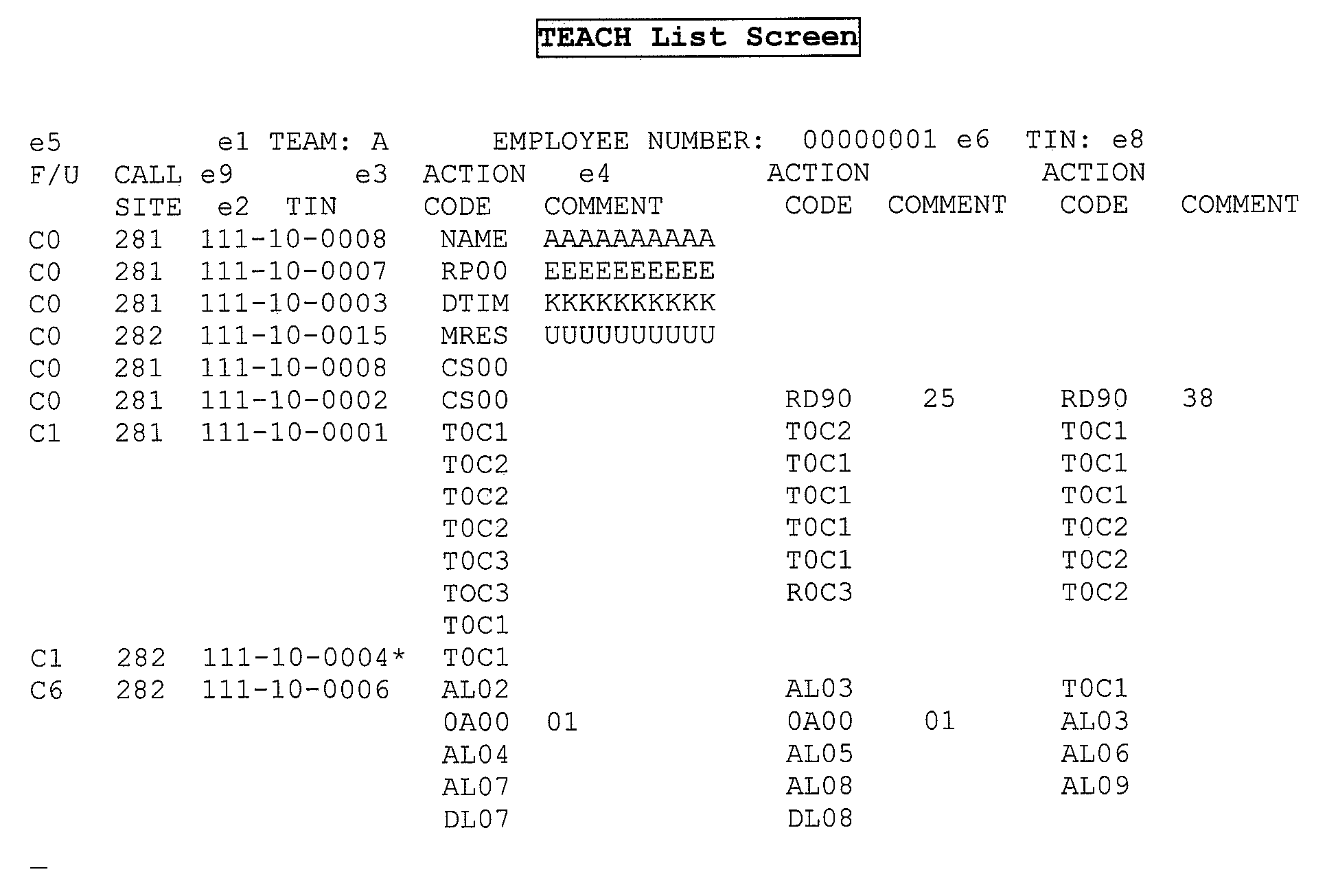
Please click here for the text description of the image.
The following table lists the Teach List screen elements and their descriptions.
| ELEMENT | ELEMENT NAME | DESCRIPTION |
|---|---|---|
| e1 | TEAM | Team identifies the team the workstation operator or manager is assigned to. This assignment is done through the Security Data Base Maintenance. Valid team codes are A-Z and 0-9. Numeric team codes are used for the Service Center Function. |
| e2 | TIN | TIN (Taxpayer ID Number) is the unique IRS number used to identify a taxpayer. For an individual taxpayer, this number is the taxpayer's social security number (SSN). For a business taxpayer, this number is the employer identification number (EIN). |
| e3 | ACTION CODE | Action Code identifies the account action that was performed on the taxpayer account by the workstation operator. |
| e4 | COMMENT | Action History Comments contain any parameter and action history definer entered by a workstation operation as part of an account action. |
| e5 | FUNCTIONAL UNIT | Functional Unit Code is the function and unit to which the taxpayer case is assigned. Valid functions are: R (Research), I (Investigation), C (Contact), and S (Service Center). Valid units are 0-9. |
| e6 | EMPLOYEE NUMBER | Employee number identifies the workstation operator who performed the actions for each account listed on the screen. |
| e7 | DT | Action History Date is the date the TEACH List is displayed |
| e8 | TIN | TIN (Taxpayer ID Number) is the unique IRS number used to identify a taxpayer. If a TIN appears in this position, it indicates that the accessed employee is currently working on that particular taxpayer's account. |
| e9 | CALL SITE | Call Site ID indicates which call site the case is assigned to |
The following table is a representation of the Employee List Search Request screen.
| EMPLOYEE LIST SEARCH REQUEST | |
|---|---|
| EMPLOYEE LIST BY SITE: | (ENTER THREE CHARACTER SITE ID) |
| EMPLOYEE LIST BY EMP NUMBER: | (ENTER FULL EMPLOYEE NUMBER ONLY) |
| EMPLOYEE LIST BY EMP NUMBER: | (ENTER FIRST TWO AND LAST THREE DIGITS EMP #) |
| EMPLOYEE LIST BY RACF USERID, NAME, PROFILE AND/OR EMPLOYEE SIGNED ON | |
| RACF USERID: | (SITE IS OPTIONAL) |
| LAST NAME: | (ENTER PARTIAL OR WHOLE NAME) |
| EMPLOYEE PROFILE: | (ENTER A, B, C, E, L, M, N, O, Q, S, OR V) |
| EMPLOYEE SIGNED ON: | (ENTER Y/N) |
| F1 = RETURN TO MENU | |
| F5 = INITIATE REQUEST | |
The following table is a representation of the Employee List by Name Report.
| EMPLOYEE LIST FOR SITE | PAGE 001 | |||
|---|---|---|---|---|
| 1 EMPLOYEE NUMBER | 2 RACF NUMBER | 3 EMPLOYEE NAME | 4 EMPLOYEE SIGNED-ON | 5 EMPLOYEE PROFILE |
| 6 SITE NAME: | ||||
| 07832652 | XYZABC1 | ATL-OPERATOR | N | O |
| 18171717 | QCI15 | DAS, NAMITA | N | M |
| 18181818 | QCI15 | DAS, NAMITA | N | O |
| 21212121 | QCQ53 | ATL-NATIONAL | N | O |
| 23232323 | QCI15 | NAMITA DAS | N | N |
| 32323232 | QC217 | ROBERT SCHICK | N | N |
| 33333333 | QCQ53 | ATL-NATIONAL | N | O |
| 55555555 | QBM05 | JOHN BAKER | N | N |
| 58007000 | XYZABC1 | ATL-MASTER | N | M |
| 58015249 | XYZABC1 | ATL-OPERATOR | N | O |
| 58015557 | XYZABC1 | ATL-SUPERVISOR | N | S |
| 58019008 | QC747 | ATL-MASTER | N | M |
| 58019010 | XYZABC1 | ATL-MASTER | N | M |
| 58019016 | XYZABC1 | ATL-SUPERVISOR | N | S |
| PF1 - RETURN | PF - PAGE FORWARD | PB - PAGE BACKWARD | ||
The following table describes the Employee List by Name report elements and their descriptions.
| Description of the elements: | ||
|---|---|---|
| ELEMENT | DESCRIPTION | |
| 1 | EMPLOYEE NUMBER | Employee Number is the unique employee number assigned to the IRS employee at the ACS Site. |
| 2 | RACF NUMBER | RACF Number is the unique user ID assigned to the IRS employee at the ACS Site. |
| 3 | EMPLOYEE NAME | Employee Name is the name of each employee at the ACS Site. |
| 4 | EMPLOYEE SIGNED-ON | Y – employee is signed-on in the ACS system. N – employee is not signed in. |
| 5 | EMPLOYEE PROFILE | N – National, M - Manager, S – Supervisor, O – Operator |
| 6 | SITE NAME | ACS Site or ACS Service Center |
The following table is a representation of the ACRM5001 Production Report.
| ACRM5001 Production Report | ||||||
|---|---|---|---|---|---|---|
| 1 REPORT ID: ACRM5001 | 4 MM/DD/YYYY | |||||
| 2 NASHVILLE | INTERNAL REVENUE SERVICE/ACS | 5 CYCLE 200045 | ||||
| ACS PRODUCTION REPORT NO-5000-116 | ||||||
| 3 NATIONAL INVENTORY | 6 PAGE 1 OR 999999 | |||||
| 7 | 8 | 9 | 10 | 11 | 12 | |
| TOTAL ENTITY | TDA ENTITY | TDI ENTITY | COMB ENTITY | TDA MODULES | TDI MODULES | |
| BEGINNING INVENTORY | 13 | |||||
| RECEIPTS | 14 | |||||
| NEW ISSUANCES | 15 | |||||
| TOTAL SITE TRANSFERS IN *** | 16 | |||||
| LOCAL ACTIVITY | 17 | |||||
| DISPOSITIONS | 18 | |||||
| TDA/COMBINED | 19 | |||||
| PAID IN FULL | 20 | |||||
| INSTALLMENT AGREEMENTS | 21 | |||||
| PAYMENT TRACERS | 22 | |||||
| CSED | 23 | |||||
| CSC (CURRENTLY NOT COLLECTIBLE) | 24 | |||||
| UNABLE TO LOCATE TAXPAYER | 25 | |||||
| UNABLE TO CONTACT TAXPAYER | 26 | |||||
| HARDSHIP | 27 | |||||
| SHELVED | 28 | |||||
| OTHER | 29 | |||||
| PURGE | 30 | |||||
| TDI | 31 | |||||
| RETURN FILED BY TAXPAYER | 32 | |||||
| RETURN SECURED | 33 | |||||
| TAXPAYER NO LONGER LIABLE | 34 | |||||
| TAXPAYER NOT LIABLE THIS PERIOD | 35 | |||||
| RETURNS PREVIOUSLY FILED | 36 | |||||
| SHELVED | 37 | |||||
| PURGE | 38 | |||||
| UNABLE TO LOCATE TAXPAYER | 39 | |||||
| RETURNS FILED UNDER 6020B | 40 | |||||
| SFR (SUBSTITUTE FOR RETURN) | 41 | |||||
| OTHER | 42 | |||||
| TOTAL SITE TRANSFERS OUT *** | 43 | |||||
| TRANSFERS: | 44 | |||||
| TRANSFERS OUT OF JURISDICTION | 45 | |||||
| TRANSFERS FROM ACS | 46 | |||||
| TO RO | 47 | |||||
| MANUAL TO QUEUE | 48 | |||||
| SYSTEMIC TO QUEUE | 49 | |||||
| TO EXAM | 50 | |||||
| OTHER | 51 | |||||
| ZAP CLOSURES | 52 | |||||
| ADJUSTMENTS TO INVENTORY: | ||||||
| GAINS FROM CHANGES IN DELINQ TYPE | 53 | |||||
| LOSSES FROM CHANGES IN DELINQ TYPE | 54 | |||||
| ENDING INVENTORY | 55 | |||||
| ATAF ENDING INVENTORY | 56 | |||||
The following table lists the ACRM5001 PRODUCTION REPORT elements and their definitions.
| ELEMENT | ELEMENT NAME | DESCRIPTION |
|---|---|---|
| 1 | REPORT ID | REPORT ID uniquely identifies this report. The Production Report identification is ACRM5001. |
| 2 | CALL SITE | CALL SITE identifies the Call Site for which the Production Report provides case activity information. |
| 3 | LEVEL | LEVEL identifies the level at which the report is developed. Managers should look here to find the scope of the report. |
| 4 | DATE | RUN DATE is the month, day, and year the report is generated. |
| 5 | CYCLE | CYCLE is the cycle for which the report is printed. This is in the format of year and week (YYYYWW). |
| 6 | PAGE | PAGE is the page number of the report. |
| 7 | TOTAL ENTITY | TOTAL ENTITY is the total number of accounts in the current reporting period for TDA, TDI, and COMBINED account types. COMBINED means the account has both TDA and TDI modules. |
| 8 | TDA ENTITY | TDA ENTITY is the total number of TDA accounts in the current reporting period. |
| 9 | TDI ENTITY | TDI ENTITY is the total number of TDI accounts in the current reporting period. |
| 10 | COMB ENTITY | COMB ENTITY is the total number of accounts which have at least one TDA and one TDI module in the reporting period. |
| 11 | TDA MODULES | TDA MODULES is the total number of TDA modules in the TDA and COMBINED entities. |
| 12 | TDI MODULES | TDI MODULES is the total number of TDI modules in the TDI and COMBINED entities. |
| 13 | BEGINNING INVENTORY | BEGINNING INVENTORY is the number of entities and modules by type (TDA, TDI, COMBINED) that were open as of the beginning of the cycle. This is then ATAF ending inventory from the previous cycle. |
| 14 | RECEIPTS | RECEIPTS is the total of New Issuances and one or none of the following fields: INTER-SITE TRANSFERS IN and TOTAL SITE TRANSFERS IN depending on the level. National Level: Only New Issuances, which will be the sum of the SB and TS New Issuances. TS, SB, CS and SS levels: a sum of New Issuances and Inter-Site Transfers In. Team, TF, TFU, and FU levels: A sum of New Issuances and Total Site Transfers In (see #16). |
| 15 | NEW ISSUANCES | NEW ISSUANCES is the number of entities and modules that were established or reopened this cycle as determined by the following: An Entity is NI if the case established cycle (AB_ACS_ESB_CYC_NUM) is the current cycle and the account status (AB_TP_ACNT_STST_CD) = 0 for an open case. All modules connected to an NI Entity are considered NI. If the Entity is not NI: A TDA module is counted as NI if it has the module status (AE_CURR_STAT_CD) of 22 (open) and an established cycle (AE_TDA_ESD_CYC_NUM) that is the current cycle. A TDI module is counted NI if the module is open (AF_DQ_MOD_STATCD_# = 1 OR 3) and the TDI established code (AF_TDI_ESB_CYC_#) equals the current cycle. |
| 16 | TOTAL SITE TRANSFERS IN *** | This is a variable field, based on the TRANSFERS IN report level. If it is displayed, it may have one of three labels: 1) Inter-Site Transfers In - (between call sites) meaning the call site ID of a case was changed to the site specified by this report. 2) Intra-site Transfers In - (within the call site) meaning the call site ID did not change, but there was a change in the Pool, Team, Function or Unit. 3) Total Site Transfers In - sum of both the Inter-Site Transfers In and the Intra-site Transfers In. For display information, see the levels referenced in #14 - Receipts. |
| 17 | LOCAL ACTIVITY | LOCAL ACTIVITY is the sum of all entities and modules removed from the inventory of the reporting period. This is the sum of Dispositions, Transfers and Zap Closures. |
| 18 | DISPOSITIONS | DISPOSITIONS is the sum of all entity and module closures. This is the sum of TDA/COMBINED, TDI, one or none of the following: Inter-Site Transfers Out, Intra-site Transfers Out or Total Site Transfers Out; and the Other field. The display of transfers out depends on the report level: National Level: none of the transfers out. TS, SB, CS and SS levels: Inter-Site Transfers Out. Team, TF, TFU, and FU levels: Total Site Transfers OUT (see #43). |
| 19 | TDA/COMBINED | TDA/COMBINED DISPOSITIONS is the total number of all closures containing at least one TDA module. It is the sum of Paid in Full, Installment Agreements, Payment Tracers, CSED, CNC and PURGE. |
| 20 | PAID IN FULL | PAID IN FULL (Also known as Immediate Resolution) is the number of all entities and modules that have been closed on the ATAF with an Immediate Resolution status. This is determined by having one TDA module close with status (AE_CURR_STAT_CD) of 12. (See TDA Priority Closure Order below.) |
| 21 | INSTALLMENT AGREEMENTS | An INSTALLMENT AGREEMENT is when a taxpayer agrees to pay money thru a periodic payment plan. If a TDA module closes with a status (AE_CURR_STAT_CD) of 60, 61, 63 or 64, it is counted here. (See TDA Priority Closure Order below.) |
| 22 | PAYMENT TRACERS | A PAYMENT TRACER closure is determined by a TDA module closing with a status (AE_CURR_STAT_CD) of 53, and having an AE_470_530_IND = 1. (See TDA Priority Closure Order below.) |
| 23 | CSED | CSED is when a case COLSED date has passed. That is, when there is a date in AE_COLSED_DT (not equal 0) on a TDA module that is less than the current date. (See TDA Priority Closure Order below.) |
| 24 | CURRENTLY NOT COLLECTIBLE | This field (CNC) is the sum of the next five fields describing how a case is currently not collectable: Unable to locate, Unable to Contact, Hardship, Shelved and Other. (See TDA Priority Closure Order below.) |
| 25 | UNABLE TO LOCATE TAXPAYER | This is a CNC case where the IRS is unable to locate the taxpayer. The TDA module will be closed with an AE_CURR_STAT_CD of 53; The AE_470_530_IND will be two and the case will have an action history of NC03 or NC17. (See TDA Priority Closure Order below.) |
| 26 | UNABLE TO CONTACT TAXPAYER | This is a CNC case where the IRS is Unable to Contact the taxpayer. The TDA module will be closed with an AE_CURR_STAT_CD of 53; The AE_470_530_IND will be two and the case will have an action history of NC12 or NC18. (See TDA Priority Closure Order below.) |
| 27 | HARDSHIP | This is a CNC case where the money cannot be collected due to a hardship to the taxpayer. The TDA module will be closed with an AE_CURR_STAT_CD of 53; The AE_470_530_IND will be two and the case will have an action history within the range of NC24 thru NC32. (See TDA Priority Closure Order below.) |
| 28 | SHELVED | A CNC case which has been shelved due to certain conditions which cause the TDA module to be closed with an AE_CURR_STAT_CD of 53; The AE_470_530_IND will be two and the case will have an action history of NC39. (See TDA Priority Closure Order below.) |
| 29 | OTHER | OTHER holds all CNC cases closed with an AE_CURR_STAT_CD of 53; The AE_470_530_IND will be two and the case will have an action history containing an NC command where the number associated with it is not specific to one of the other CNC types. (See TDA Priority Closure Order below.) |
| 30 | PURGE | PURGE is a count of cases sent to the QUEUE by the system. The AJ_EMPLYE_NUM is ‘999999999’ and AA_TAXPAYER_ACNT_STAT is 2 or 5 and the combination of AA_T_SIGN_NUM and AA_BRCH_FILLER is 06 or 70. (See TDA Priority Closure Order below.) |
| 31 | TDI | TDI DISPOSITIONS is the total number of all closures containing only TDI modules. It is the sum of the next 10 fields: Returns Filed, Returns Secured, No Longer Liable, No Longer Liable this period, Returns Previously Filed, Shelved, Purged, Unable to Locate, 6020B and SFR. |
| 32 | RETURNS FILED BY TAXPAYER | RETURNS FILED is the total number of TDI entities and modules closed because a return was filed by the taxpayer. The AF_TYP_CLOSUR_CD for one module was an “R”, “F” or “*” (asterisk). (See TDI Priority Closure Order below.) |
| 33 | RETURNS SECURED | SECURED is the total number of TDI entities and modules closed because a return was secured from the taxpayer. The AF_TYP_CLOSUR_CD for one module was a two or nine9. (See TDI Priority Closure Order below. |
| 34 | TAXPAYER NO LONGER LIABLE | The Taxpayer is No Longer Liable for the taxes. The AF_TYP_CLOSUR_CD for one module was a 1. (See TDI Priority Closure Order below.) |
| 35 | TAXPAYER NO LONGER LIABLE THIS PERIOD | The Taxpayer is no longer liable for this tax period. The AF_TYP_CLOSUR_CD for one module was a “G” or 0. (See TDI Priority Closure Order below.) |
| 36 | RETURNS PREVIOUSLY FILED | The Taxpayer has Previous Filed the return. The AF_TYP_CLOSUR_CD for one module was a 4. (See TDI Priority Closure Order below.) |
| 37 | SHELVED | The case was Shelved because of certain conditions. The AF_TYP_CLOSUR_CD for one module was an 8. (See TDI Priority Closure Order below.) |
| 38 | PURGE | The TDI case was transferred to QUEUE by the system. The AJ_EMPLYE_NUM is ‘999999999’ and AA_TAXPAYER_ACNT_STAT is 2 or 5 and the combination of AA_T_SIGN_NUM and AA_BRCH_FILLER is 06 or 70. (See TDA Priority Closure Order below.) |
| 39 | UNABLE TO LOCATE | The IRS was unable to locate the taxpayer. The AF_TYP_CLOSUR_CD for one module was a 3. (See TDI Priority Closure Order below.) |
| 40 | RETURNS FILED UNDER IRC (6020B) | This is a BMF case. When this module closed the AF_TDI_6020B_IND was greater than 0 and the AA_FILE_SOURCE_CD was neither 1 nor 4. (See TDI Priority Closure Order below.) |
| 41 | SFR | This is an IMF case. When this module closed the AF_TDI_6020B_IND was greater than 0 and the AA_FILE_SOURCE_CD was either 1 or 4. (See TDI Priority Closure Order below.) |
| 42 | OTHER | All other Closures. |
| 43 | TOTAL SITE TRANSFERS OUT | This is a variable field, based on the report level. If it is displayed, it may have one of three labels:
|
| 44 | TRANSFERS | TRANSFERS is the total number of entities and modules that were removed from inventory as a result of a transfer out of the specified report level. It is the sum of fields Out of Jurisdiction and Transfers From ACS. |
| 45 | OUT OF JURISDICTION | OUT OF JURISDICTION is the total number of entities and modules that are removed from inventory as a result of being transferred to the jurisdiction of another ACS Site or Service Center. If the entity AB_TP_ACNT_STAT_CD = 3, then all open modules and the entity are counted here. |
| 46 | TRANSFERS FROM ACS | TRANSFERS FROM ACS is the number of entities and modules that are removed from inventory as a result of being transferred to a Revenue Officer (RO), to QUEUE, to Exam or Other. It is the sum of those fields. |
| 47 | TO RO | TO RO is the number of entities and modules that are removed from inventory as a result of being transferred to a Revenue Officer. This is defined by the AB_TP_ACNT_STAT_CD being either 2 or 5 and the branch-group code (a consolidation of AA_T_SIGN_NUM and AA_BRCH_FILLER) being 09 to 67, or 71 to 89. (See TDA/TDI Priority Closure Order below.) |
| 48 | MANUAL TO QUEUE | MANUAL TO QUEUE is the number of entities and modules that are removed from inventory as a result of being transferred to the Queue by an employee (non-systemic). This is defined by the AB_TP_ACNT_STAT_CD being either 2 or 5 and the branch-group code (a consolidation of AA_T_SIGN_NUM and AA_BRCH_FILLER) being either 06 or 70. (See TDA/TDI Priority Closure Order below.) |
| 49 | SYSTEMATIC TO QUEUE | SYSTEMIC TO QUEUE is the number of entities and modules that are removed from inventory as a result of being transferred to the Queue systemically (weekly batch or batch action). This is defined by the AB_TP_ACNT_STAT_CD being either 2 or 5 and the branch-group code (a consolidation of AA_T_SIGN_NUM and AA_BRCH_FILLER) being either 06 or 70. (See TDA/TDI Priority Closure Order below.) VAA_ENTITY_OPER |
| 50 | TO EXAM | TO EXAM is the number of entities and modules that are removed from inventory as a result of being transferred to the Exam function. This is for TDI cases only. If the Entity is closed in any way, the AB_DQ_TYP_CD is not 1 or 3 and one module closing code (AF_CLOSING_CD) is “I” or 5. (See TDI Priority Closure Order below.) VAA_ENTITY_OPER & VAF_TDI_MOD |
| 51 | OTHER | OTHER (Also known as Delayed Resolution) is the number of entities and modules that are removed from inventory as a result of being closed by IDRS. A case is counted here if the AB_TP_ACNT_STAT_CD is 2 or 5 and the closure doesn’t fit into any of the other TRANSFER categories. (See TDI Priority Closure Order below.) VAA_ENTITY_OPER |
| 52 | ZAP CLOSURES | ZAP CLOSURES is the number of entities and modules that are removed from inventory as a result of being closed with the ZAP command in real-time. If an entity closes (AB_TP_ACNT_STAT_CD) with a 9, the entity and all the modules are counted as zaps. If the Entity (AB_TP_ACNT_STAT_CD) is open (0), modules zapped during the week are recorded in TATARFRX as R0 records. Zapped modules are deleted from the ATAF system each night. |
| 53 | GAINS FROM CHANGES IN DELINQ TYPE | CHANGES IN DELINQUENCY TYPE records movements within the scope of this report. This movement was caused by a case changing to or from type TDA, TDI, or COMBINED. This item counts only increases in inventory caused by delinquency type changes. |
| 54 | LOSSES FROM CHANGES IN DELINQ TYPE | CHANGES IN DELINQUENCY TYPE records movements within the scope of this report. The movement was caused by a case changing to or from type TDA, TDI, or COMBINED. This item counts only decreases in inventory caused by delinquency type changes. |
| 55 | ENDING INVENTORY | Ending Inventory is the number of open entities and modules in the reporting group as of the end of the period. This field is calculated by the following formula: Beginning Inventory + Receipts – Local Activity + Gains from DQ changes – Losses from DQ changes. |
| 56 | ATAF ENDING INVENTORY | ATAF Ending Inventory is an independent count of the inventory received from the Inventory Extract Transaction File (FW412TV) sent from Weekly Batch. This file has one line per case on the ATAF, so no calculations are involved. This line is printed only if there is a discrepancy between the ATAF and computed counts under any of the six columns. |
| An asterisk (*) is displayed beside any ENDING INVENTORY (field 55) that does not match the corresponding ATAF ENDING INVENTORY. This error will be corrected in the next cycle's BEGINNING INVENTORY. | ||
The following chart gives the priority order for how a case was determined to be closed. If the entity is closed, then the module (even if only one) closed with the highest priority from the list is how the entity is determined to be closed.
| ACRM5001 PRODUCTION REPORT |
|---|
| TDA and Combined |
| 1.TDA is Transfer out of Jurisdiction. |
| 2.One module was an Installment Agreement. |
| 3.One module was an Unable to Locate Taxpayer. |
| 4.One module was an Unable to Contact Taxpayer. |
| 5.One module was Currently not Collectable (CNC) Hardship. |
| 6.One module was a (CNC) Shelved TDA. |
| 7.One module was Currently not Collectable (CNC) - Other. |
| 8.One module had a Payment Tracer. |
| 9.One module is closed as an Immediate Resolution – (Full Paid). |
| 10.One module COLSED date has expired. |
| 11.One module was Transferred to Revenue Officer (TORO). |
| 12.One module was Transferred to QUEUE by employee. |
| 13.One module was Transferred to QUEUE systemically (PURGE). |
| 14.One module was Transferred to Other. |
| 15.One module was Other Transfers, AKA Delayed Resolution. |
| TDI |
| 1.One module was Transferred to EXAM. |
| 2.One module was a Shelved TDI. |
| 3.One module had an SFR (Substitute for Return). |
| 4.One module closed under 6020B. |
| 5.One module had Return Filed by Taxpayer. |
| 6.One module was Unable to Locate Taxpayer. |
| 7.One module was No Longer Liable this Period. |
| 8.One module was Previously Filed. |
| 9.One module was No Longer Liable. |
| 10.One module had Return Secured. |
| 11.One module was TDI Other. |
The following table is a representation of the ACRM5002 Report.
| REPORT ID: ACRM5002 1 | |||
|---|---|---|---|
| CALLSITE 2 | INTERNAL REVENUE SERVICE | 4 REPORT CYCLE YYYYMM | |
| ACS ANALYSIS OF BALANCE CHANGES NO-5000-117 | PAGE 1 OF 4 | ||
| TOTAL | |||
| BEGINNING BALANCE 6 | n.nn | ||
| RECEIPTS 7 | n.nn | ||
| ACTIVITY DISPOSED 8 | n.nn | ||
| ASSESSMENTS DISPOSED 9 | n.nn | ||
| SYSTEM MONITORED 10 | n.nn | ||
| INSTALLMENT AGREEMENTS 11 | n.nn | ||
| CURRENTLY NOT COLLECTIBLE 12 | n.nn | ||
| PAYMENT/TRACER ADJUST. 13 | n.nn | ||
| OTHER SYSTEM MONITORED 14 | n.nn | ||
| TRANSFERS 15 | n.nn | ||
| OUT OF JURISDICTION 16 | n.nn | ||
| FROM ACS 17 | n.nn | ||
| TO RO 18 | n.nn | ||
| TO QUEUE 19 | n.nn | ||
| OTHER 20 | n.nn | ||
| ZAP CLOSURES 21 | n.nn | ||
| ENDING BALANCE 22 | n.nn* | ||
| ACTUAL ENDING BALANCE 23 | n.nn | ||
The following table lists the ACRM5002 elements and descriptions.
| ELEMENT | ELEMENT NAME | DESCRIPTION |
|---|---|---|
| 1 | REPORT ID | Report ID uniquely identifies this report. The Analysis of Balance Changes report ID is ACRM5002. |
| 2 | CALL SITE | Call Site Literal identifies the Call Site in which the Analysis of Balance Changes provides a report of the dollars owed on delinquent accounts. |
| 3 | RUN DATE | Run Date is the month, day, and year the report is generated. |
| 4 | CYCLE | Cycle is the cycle in which the report is generated. |
| 5 | AS OF | Processing Date is the date through which activities are captured for the report. |
| 6 | BEGINNING BALANCE | Beginning Balance is the ending balance as of the end of the previous week. |
| 7 | RECEIPTS | Receipts are the total dollar difference in module balances from last cycle. This includes new receipts and increases in existing module balances. |
| 8 | ACTIVITY DISPOSED | Activity Disposed is the total dollar amount of accounts that have been closed or transferred, and decreases in module balances during the current cycle. It is the sum of fields 9, 10, 15, and 22. |
| 9 | ASSESSMENTS DISPOSED | Assessments Disposed is the total dollar amount of accounts that have been disposed of as full paid plus the decreases in module balances of accounts remaining in inventory. |
| 10 | SYSTEM MONITORED | System Monitored is the total dollar amount of all entities and modules that have been closed on the ATAF with a system monitored status. This is the sum of fields 11 - 14. |
| 11 | INSTALLMENT AGREEMENTS | Installment Agreements are the total dollar amount for which taxpayers have agreed to pay by installments. |
| 12 | CURRENTLY UNCOLLECTIBLE | Currently Uncollectible is the total dollar amount which the IRS has deemed as currently not collectible in the reporting period. |
| 13 | PAYMENT TRACER/ADJUST | Payment Tracer/Adjustment is the total dollar amount in which taxpayers have indicated payment has been made but has not yet been recorded on the system. These accounts are traced and reviewed to see if the payment has been received. |
| 14 | OTHER SYSTEM MONITORED | Other System Monitored is total dollar amount of all module balances for entities which do not fit in the three previous categories. |
| 15 | TRANSFERS | Transfers is the total dollar amount of all module balances for entities which have been removed from inventory as a result of transfer. It is the sum of fields 16 and 17. |
| 16 | OUT OF JURISDICTION | Out of Jurisdiction is the total dollar amount of all module balances for entities which have been transferred out of the jurisdiction of the ACS call site. |
| 17 | FROM ACS | From ACS is the dollar amount of accounts and modules removed from inventory as a result of transfer. Transfers are to RO, Queue, SPF or IDRS closures. It is the sum of fields 18 thru 21. |
| 18 | TO RO | To RO is the total dollar amount of all module balances for entities that are removed from inventory as a result of being transferred to a revenue officer. |
| 19 | TO QUEUE | To Queue is the total dollar amount of all module balances for entities that are removed from inventory as a result of being transferred to the Queue. |
| 20 | OTHER | The dollar amounts of accounts closed by other means |
| 21 | ZAP CLOSURES | The dollar amounts of accounts closed by ZAP in real-time |
| 22 | ENDING BALANCE | Ending Balance is the total dollar amount of the module balances of all open active cases in the reporting group as of the end of the period. This is the result of adding Field 6 and Field 7 and subtracting Field 8. |
| 23 | ATAF ENDING BALANCE | The ATAF Ending Balance is the count of the inventory received from FW412TV (Inventory Extract Transaction File). The amount should be the same as the Ending Balance field. |
| * An asterisk is displayed beside any Ending Balance (field 23) that does not match the corresponding ATAF Ending Balance. This error will be corrected for the next cycle's Beginning Balance. | ||