)
or https:// means you've safely connected to the .gov website. Share sensitive information only on official, secure websites.
)
or https:// means you've safely connected to the .gov website. Share sensitive information only on official, secure websites.


- 7.15.4 Tax Exempt Determination System (TEDS) Roles and Delegation
- 7.15.4.1 Program Scope and Objectives
- 7.15.4.1.1 Background
- 7.15.4.1.2 Authority
- 7.15.4.1.3 Roles and Responsibilities
- 7.15.4.1.4 Program Management and Review
- 7.15.4.1.5 Program Controls
- 7.15.4.1.6 Terms and Acronyms
- 7.15.4.1.7 Related Resources
- 7.15.4.2 Roles
- 7.15.4.3 Permissions
- 7.15.4.4 General User Roles and Permissions
- 7.15.4.4.1 Researcher
- 7.15.4.4.2 Group Secretary/Clerk
- 7.15.4.4.3 Processing Clerk
- 7.15.4.4.4 Unpostable Clerk
- 7.15.4.4.5 User Fee Adjuster
- 7.15.4.4.6 Case Assigner
- 7.15.4.4.7 Determination Specialist
- 7.15.4.5 Group Managers
- 7.15.4.5.1 Area Manager
- 7.15.4.5.2 Executive Management
- 7.15.4.5.3 Function Security Manager (FSM)
- 7.15.4.5.4 National Unassigned (NUI) Manager
- 7.15.4.5.5 System Support
- 7.15.4.5.6 Records Manager
- 7.15.4.6 Role Delegation
- 7.15.4.6.1 Managerial Role Delegation
- 7.15.4.6.2 Delegate Notification
- 7.15.4.6.3 Revoking a Role Delegation
- Exhibit 7.15.4-1 Advanced Search - TEDS User
- Exhibit 7.15.4-2 Role Delegation
- Exhibit 7.15.4-3 Selecting a Role
- Exhibit 7.15.4-4 Selecting Calendar Date Range
- Exhibit 7.15.4-5 Role Delegation Confirmation Screen
- Exhibit 7.15.4-6 Select the Delegate
- 7.15.4.1 Program Scope and Objectives
Part 7. Rulings and Agreements
Chapter 15. Employee Plans TEDS User Manual
Section 4. Tax Exempt Determination System (TEDS) Roles and Delegation
7.15.4 Tax Exempt Determination System (TEDS) Roles and Delegation
Manual Transmittal
August 22, 2025
Purpose
(1) This transmits revised IRM 7.15.4, Employee Plans TEDS User Manual, Tax Exempt Determination System (TEDS) Roles and Delegation.
Material Changes
(1) Deleted reference to TOPS and replaced with BSP.
(2) Added IRM 7.15.4.1(5) Primary Stakeholders.
(3) Changed the name of IRM 7.15.4.1.6 Acronyms to Terms and Acronyms.
(4) Added BSP (TE/GE Business Systems Planning) to Terms and Acronyms.
(5) Deleted TOPS (TE/GE Operational Support Program) from Terms and Acronyms.
(6) Added IRM 7.15.4.1.3 Roles and Responsibilities.
(7) Added IRM 7.15.4.1.4 Program Management and Review.
(8) Added IRM 7.15.4.1.5 Program Controls.
(9) Added IRM 7.15.4.1.7 Related Resources.
(10) Various edits have been made throughout the IRM for clarity, removal of outdated items and for plain language.
Effect on Other Documents
This supersedes IRM 7.15.4, dated March 14, 2022.Audience
Tax Exempt and Government EntitiesEmployee Plans
Effective Date
(08-22-2025)Eric D. Slack
Director, Employee Plans
Tax Exempt and Government Entities
-
Purpose: This IRM introduces the roles and delegation under the Tax Exempt Determination System (TEDS).
-
Audience: Employee Plans (EP) Determinations and Quality Assurance.
-
Policy Owners: Director, EP.
-
Program Owner: EP.
-
Primary Stakeholders:
-
Internal - Director, Employee Plans; Director, Employee Plans Rulings and Agreements; EP Tax Law Specialists and Agents; Actuaries; Associate Chief Counsel (EEE), TE/GE Division.
-
External - Plan sponsors, plan representatives, plan participants.
-
-
Program Goals: The goal of EP Determinations is to ensure that plans are in compliance with the tax laws by reviewing applications for Determination Letter (DL), opinion letters, and to protect the public interest by applying the tax law with integrity and fairness to all.
-
TEDS roles and permissions are system security features. They describe the:
-
Actions a user can perform.
-
Information a user can access, view and change.
-
-
TEDS roles are categorized by grouping together related tasks or responsibilities.
-
TEDS is used primarily by the following two business units:
-
Tax Exempt and Government Entities (TE/GE).
-
Taxpayer Services (TS).
-
-
TEDS contains a role delegation feature that allows a group manager (or higher) to delegate one or more of their user roles to group members or other managers.
-
Information in this IRM provides guidance on how to:
-
Identify TEDS user roles and permissions.
-
Delegate and revoke user roles.
-
-
Delegation Order 7-1, IRM 1.2.2.8.1, states the Director, Employee Plans has the authority to issue favorable DLs on the qualified status of:
-
Pension, profit-sharing, stock bonus, annuity, and employee stock ownership plans under IRC 401, IRC 403(a), IRC 409, IRC 4975(e)(7).
-
The status for exemption of any related trusts or custodial accounts under IRC 501(a).
-
-
Find a complete list of delegation orders governing EP Rulings and Agreements at Delegation orders and policy statements by process.
-
See IRM 7.1.1, Exhibit 7.1.1-1 for a complete list of the major EP revenue procedures currently in effect.
-
The mission of Employee Plans is to provide EP’s customers top-quality service by helping them understand and comply with applicable tax laws and to protect the public interest by applying the tax laws with integrity and fairness to all.
-
The Director, EP, reports to the Deputy Commissioner, TE/GE, and is responsible for planning, managing, directing and executing nationwide EP activities.
-
EP responsibilities include:
-
Employee plans (including the qualification of pension, annuity, profit-sharing, and stock bonus plans, simplified employee pensions, saving incentive match plans for employees, and tax-sheltered annuities) and related trusts.
-
Tax treatment of participants and their beneficiaries and deductions for employer contributions.
-
Procedural and administrative provisions with respect to such plans.
-
-
The Director, EP R&A, reports to the Director, EP, and is responsible for three types of services for retirement plans - voluntary compliance, determination letters, and technical guidance.
-
Responsibilities of the EP R&A staff include:
-
Processing determination letter requests from employers regarding the qualified status of their pension, annuity, profit sharing and stock bonus plans.
-
Issuing opinion and advisory letters to specific requestors regarding preapproved pension, annuity, and profit-sharing plans, including individual retirement accounts, simplified employee pensions and savings incentive match plans for employees, and tax-sheltered annuities.
-
Developing and operating voluntary correction programs, such as the Employee Plans Compliance Resolution System (EPCRS) program and issuing compliance statements or entering into closing agreements under these programs.
-
Processing requests for changes in funding method and making other actuarial determinations and interpretations.
-
Coordinating with Chief Counsel on requests for funding waivers.
-
Developing and maintaining responsibility for actuarial publications and other standards for the valuation of transfers of future interests for income, estate and gift tax purposes.
-
Coordinating with TE/GE Division Counsel, Associate Chief Counsel and the DOJ on litigation issues and declaratory judgment cases under the Internal Revenue code. (IRC 7476).
-
-
Program reports:
-
The EP Determinations program uses Business Objects to view, create, and modify inventory and employee records. Business Objects uses tools to provide a built-in interface to query and analyze data and to build reports.
-
Monthly reports detailing the current inventory of cases by area and their status are produced and provided to the Director, EP R&A, Area Managers, and frontline managers.
-
Ad-hoc reports are produced as requested by determinations personnel with appropriate permission.
-
Each quarter, EP Determinations Quality Assurance issues reports to summarize the results of their TEQMS reviews. See IRM 7.11.3, Tax Exempt Quality Measurement System (TEQMS).
-
-
Program effectiveness:
-
EP Determinations monitors business unit progress toward completing and closing cases in inventory. They provide status and progress reports to IRS leadership on a regular, recurring basis. Effectiveness is measured by analysis of compliance trends and results.
-
-
The IRS receives EP determination letter applications and user fees from taxpayers on Pay.gov.
-
The user fee information is then transferred to LINUS to ensure it is properly recorded.
-
The application information from Pay.gov is transferred to Tax Exempt Determination System (TEDS) and EP/EO Determination System (EDS), which are the systems that EP Determinations uses to control their inventory.
-
TEDS contains roles and permissions to ensure proper separation of duties IRM 7.15.4.
-
The EP Determinations Area Managers coordinate the assignment of inventory.
-
In order to ensure a consistent level of managerial engagement in the process of making key strategic decisions during a determination letter review, the specialist submits requests for approval by their manager through TEDS.
-
The manager approves or rejects any request through TEDS.
-
EP Determinations QA reviewers perform reviews on mandatory review cases and for cases selected for the Tax Exempt Quality Measurement System (TEQMS) to ensure that specialists are conducting their determination letter reviews per technical, procedural and administrative requirements. See IRM 7.11.3 and IRM 7.11.9 for more information.
-
The IRS is fully committed to protecting the privacy rights of taxpayers and employees. Privacy laws are included in the IRC, the Privacy Act of 1974, the Freedom of Information Act, and IRS policies and practices. For more information about these laws, visit the FOIA Library\Internal Revenue Service (irs.gov).
-
For questions about privacy, email *Privacy.
-
For questions about disclosure, email *Disclosure.
-
-
The table lists terms and acronyms used in this IRM and their definitions.
Acronym Term BSP TE/GE Business Systems Planning CCR Case Chronology Record DL Determination Letter EEE Associate Chief Counsel for Employee Benefits, Exempt Organizations, and Employment Tax EDS Employee Plans-Exempt Organizations Determination System EP Employee Plans FSM Functional Security Manager NUI National Unassigned Inventory R&A Rulings and Agreements QA Quality Assurance Staff TEDS Tax Exempt Determination System TE/GE Tax Exempt and Government Entities TS Taxpayer Services
-
TEDS roles are grouped into three major categories based on related tasks and responsibilities.
-
Role categories are:
-
General roles – users who perform work-related tasks.
-
Managerial roles – users who manage the work or manage the system.
-
Add-on roles – user's special roles and permissions.
-
-
The General user roles are used primarily by employees who process the determination work.
-
Researcher I, II, III.
-
Group Secretary/Clerk.
-
Processing Clerk.
-
Unpostable Clerk.
-
User Fee Adjuster.
-
Determination Specialist.
-
-
Managerial user roles are for employees who manage the determination process and the TEDS system.
-
Group Manager.
-
Area Manager.
-
Executive Management.
-
National Unassigned Inventory (NUI) Manager.
-
Functional Security Manager (FSM).
-
Systems Support.
-
Records Manager.
-
-
Add-on user roles are special roles and permissions given to a user in addition to their normal role.
-
Case Assigner.
-
Re-open Case Administrator.
-
-
Permissions allow a user to perform the necessary tasks for their role. Permissions vary based on the user’s role and the specific repository item or action (for example, access to non-disclosable information or case assignment ability).
-
The table below explains types of permissions, their key, definition and explanation.
Types of Permissions Key Definition Explanation R Read User can view data in the system, but can't make any changes to it. A Add/Create User can Add/Create new date in the system. U Update User can change existing data in the system. P Purge User can move Items that are proposed for deletion into "Purge" folder. D Delete User can remove data from system. M Mark User can mark as printed (Group Print Queue).
-
TEDS users who process various stages of the determination work have access privileges corresponding to the type of work they perform.
-
Researcher roles allow access to TEDS for information purposes only. Users with Researcher roles can read information but can't change information.
Role Permissions Researcher I Has read-only access to: -
Case data on all cases.
-
Disclosable/non-disclosable documents on closed cases.
-
Forms 2848, Power of Attorney and Declaration of Representative and 8821, Tax Information Authorization documents on open cases.
Researcher II Has read-only access to disclosable/non-disclosable folders on open cases. Researcher III Has read-only access to: -
Repository Reports, access to some reports (doesn't have case level access to any reports other than the case chronology record (CCR)).
-
the disclosable, non-disclosable and New Documents folders on open cases.
-
-
The group secretary/clerk limited role can:
-
Read all documents.
-
Access the group queue to print folder.
-
-
The Processing Clerk role can:
-
Read documents.
-
Update incorrect document types.
-
Establish a case.
-
Re-establish a case.
-
Put a case in closing sub-status of administrative re-open.
-
Update a case.
-
-
The User Fee Adjuster role has permissions to update the following information:
-
Payment status.
-
Dishonored checks.
-
User fee indicators.
-
-
The User Fee Adjuster role may:
-
Read/add documents to the disclosable folder.
-
Add entries to the CCR.
-
Read access to non-disclosable documents for open and closed cases.
-
-
The Case Assigner role is considered an add on role.
-
Is specifically requested.
-
May assign cases.
-
Has read access to case inventory.
-
Must be added to assign cases to specialists not in your group.
-
-
The Determination Specialist role has these permissions:
Type of Case Permissions Closed case(s) (Status 21) in the Archived Read only - (user may read but not make changes) both disclosable and non-disclosable folders. Open case(s) not assigned to the specialist -
Read only for documents in the disclosable folder.
-
Not able to read documents in the non-disclosable folder.
Open case(s) assigned to the specialist Read and update for all documents in both the disclosable and non-disclosable folders. -
-
Users can annotate on documents using Microsoft product functions and the Routing Slip. See IRM 7.15.8, Employee Plans TEDS User Manual, Tax Exempt Determination System (TEDS) Routing Slip Features.
-
The Determination Specialist role permissions for the CCR are read, add/create and update.
-
The Group Manager role can perform these actions on cases assigned to their group:
.-
Assign or unassign cases.
-
Transfer cases.
-
Return cases.
-
Read documents.
-
Add documents.
-
Update documents.
-
Propose to purge documents.
-
-
The Area Manager role permits a user to oversee the determination process for cases assigned within the area. The Area Manager may read, add, update and propose to purge documents for cases assigned. An Area Manager can delegate permissions to their members and to the other Area Manager.
-
An Area Manager can't delegate to members of another area.
-
The Executive Management role permits a user to read documents and add comments to a CCR.
-
The FSM role is assigned to TE/GE Business Systems Planning. The role can:
-
Add user accounts to TEDS.
-
Run security reports and audit trails.
-
Invalidate user accounts.
-
-
The NUI Manager role can read, add, update and propose to purge documents and information in the NUI. The NUI Manager can delegate to a user in the same Business Segment.
-
The System Support role assigned to TE/GE Business Systems Planning has read−only access. A user with this role can’t:
-
Access CCR.
-
Access open or closed case containers.
-
Purge documents.
-
View payment information.
-
-
The Records Manager role can:
-
Read, add, delete and purge applications and folders created by the system (such as, disclosable/non-disclosable and purge folders).
-
Read all user and group profiles.
-
Update a CCR entry, override all delegations and make new delegation of roles across all levels.
-
Delegate any role except the FSM and Records Manager roles.
-
-
Role Delegation allows managers to delegate one or more of their user roles to members of their group members or to another manager.
-
Role Delegation characteristics include:
-
Delegating a role to multiple users.
-
Delegating roles with differing date ranges.
-
Limiting the role delegation to no more than a 30-day period.
-
Revoking or canceling a delegation.
-
Not allowing the delegate to re-delegate a role to another user.
-
-
These users have the ability to delegate their role:
If ... Then ... Group Manager Can delegate Group Manager & Group Secretary/Clerk roles. These roles can only be delegated to: Area Manager Can delegate Area Manager, Group Manager & Group Secretary/Clerk roles. These roles can only be delegated to: Executive Manager Can delegate Group Manager, Executive Management and Area Manager roles. The Executive Manager can delegate to any user under her/him. NUI Manager Can delegate the NUI Manager role to a user in the same Business Segment. Records Manager Can delegate any role (including NUI Manager, Executive Manager, Area Manager, Group Manager & Group Secretary/Clerk roles). Cannot delegate the Functional Security Manager and Records Manager roles. A Records Manager can override all delegations and can delegate roles across all levels.
-
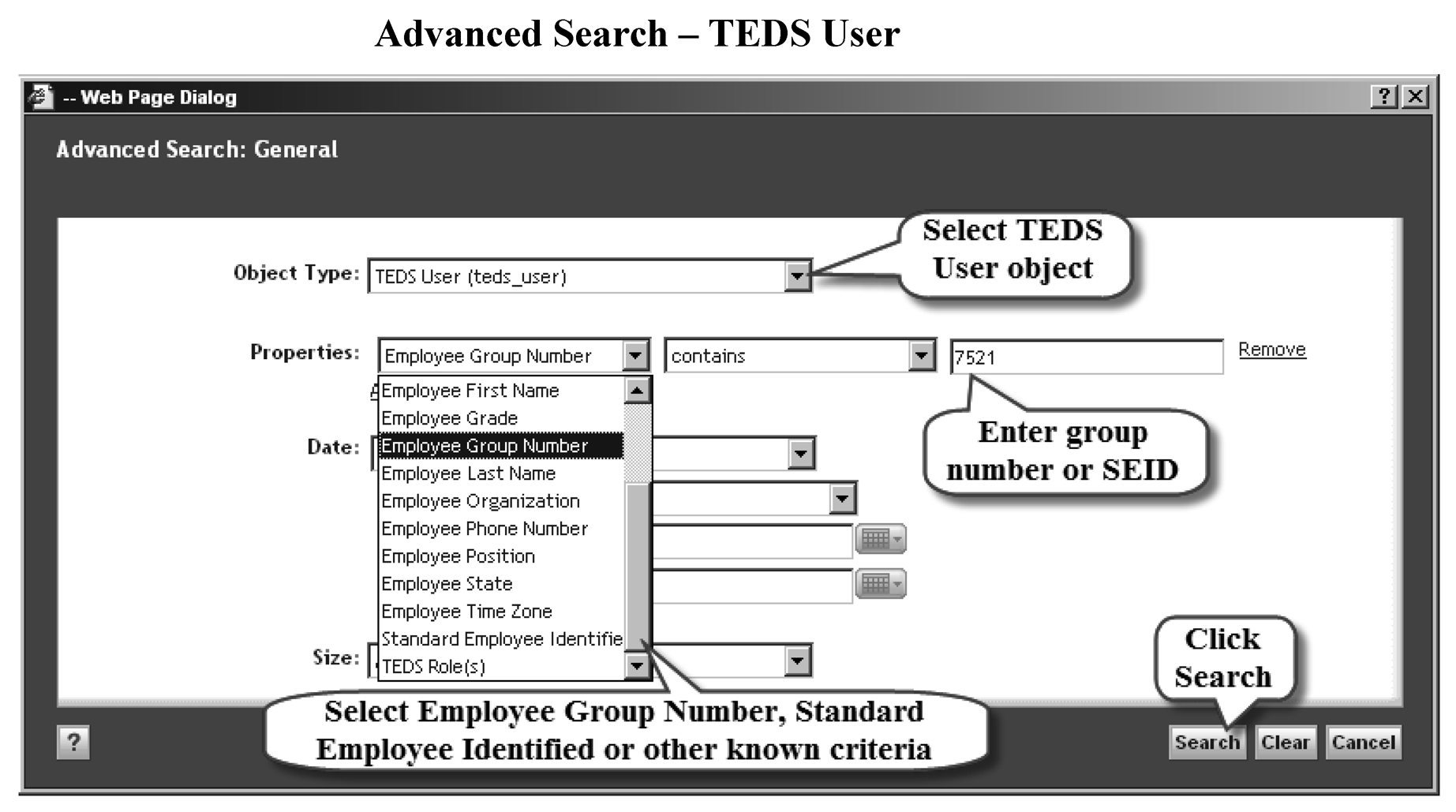
To delegate a managerial role, the TEDS user must first identify their target user using TEDS user search.
-
Use these steps to search for the target:
Step Action 1. Click Advanced Search. 2. Select Object Type: TEDS User (teds_user). 3. From the Properties drop-down menu, select: -
Employee Group Number.
-
Standard Employee Identifier or other known criteria.
4. Enter group number, Standard Employee Identifier (SEID), or known criteria of target user. 5. Click Search. -
-
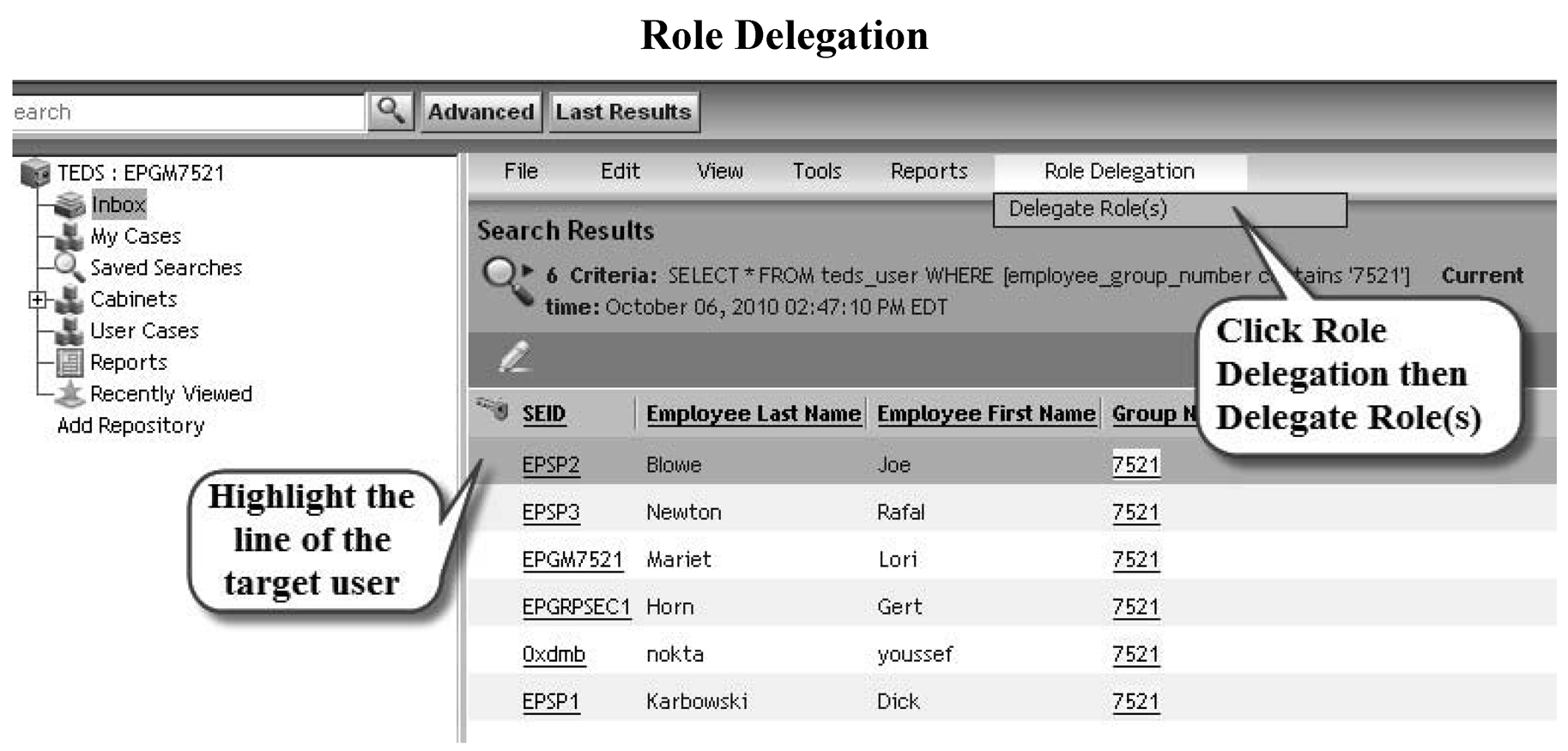
To initiate the role delegation:
.Step Action 1. Highlight the line of the target user. 2. Click menu selection Role Delegation. 3. Click Delegate Role(s) on the drop-down menu. -
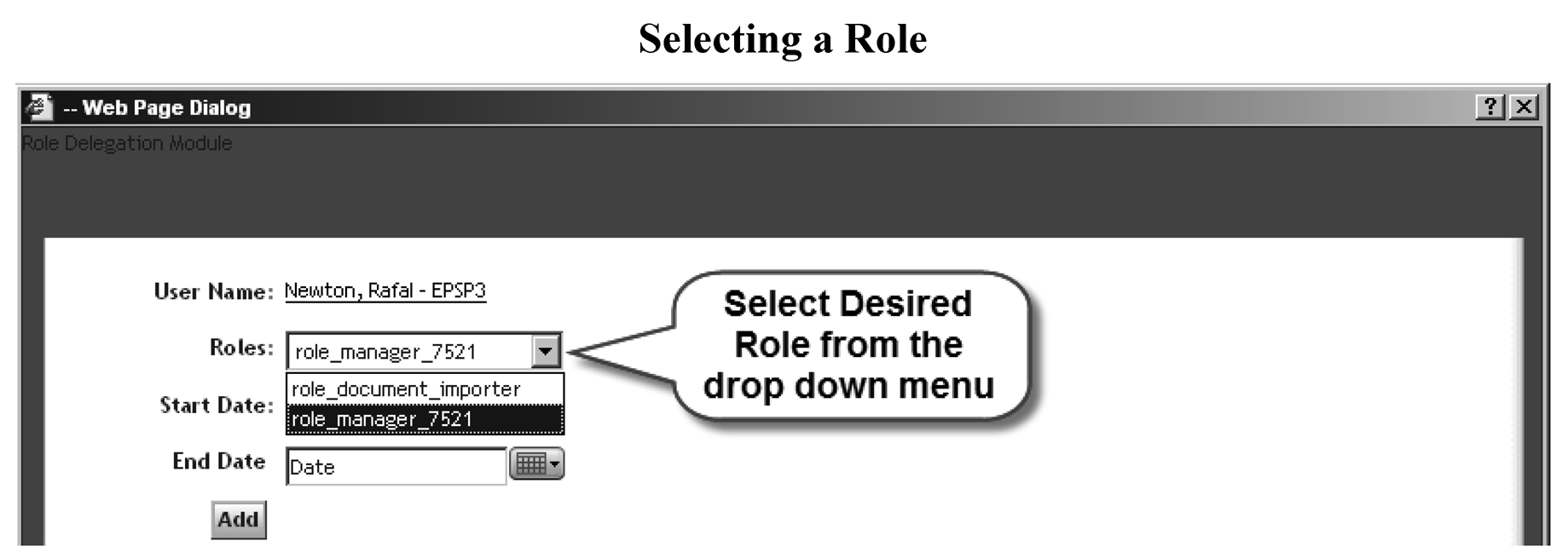
To select role:
.Step Action 1. Click drop-down box. 2. Select the desired role. -
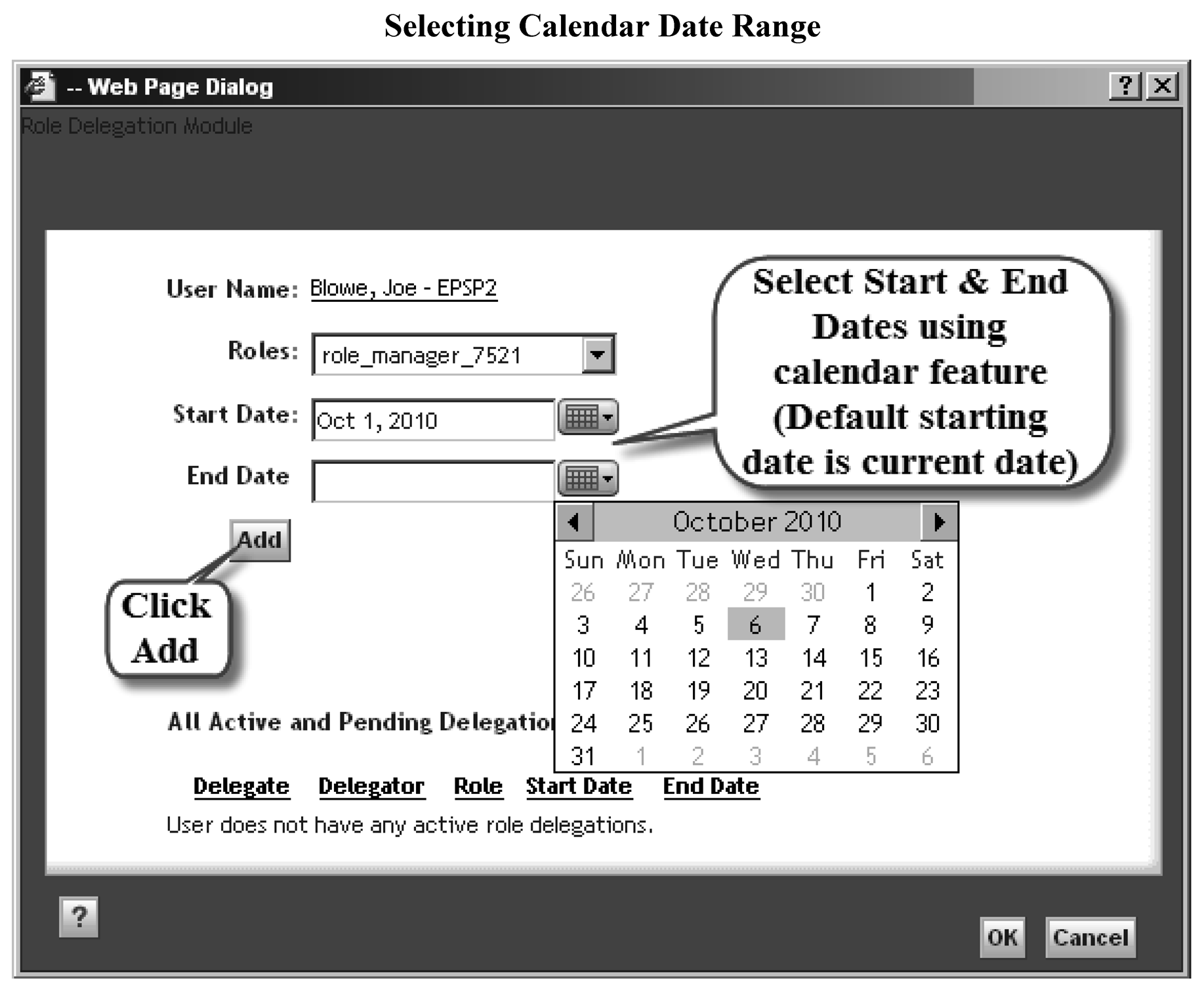
To select delegation date range:
.Step Action 1. Enter a Start Date and End Date using the calendar option accessed by clicking the calendar. 2. Click Add to complete selection of the role. 3. Click OK. 4. Repeat steps to add additional roles. -
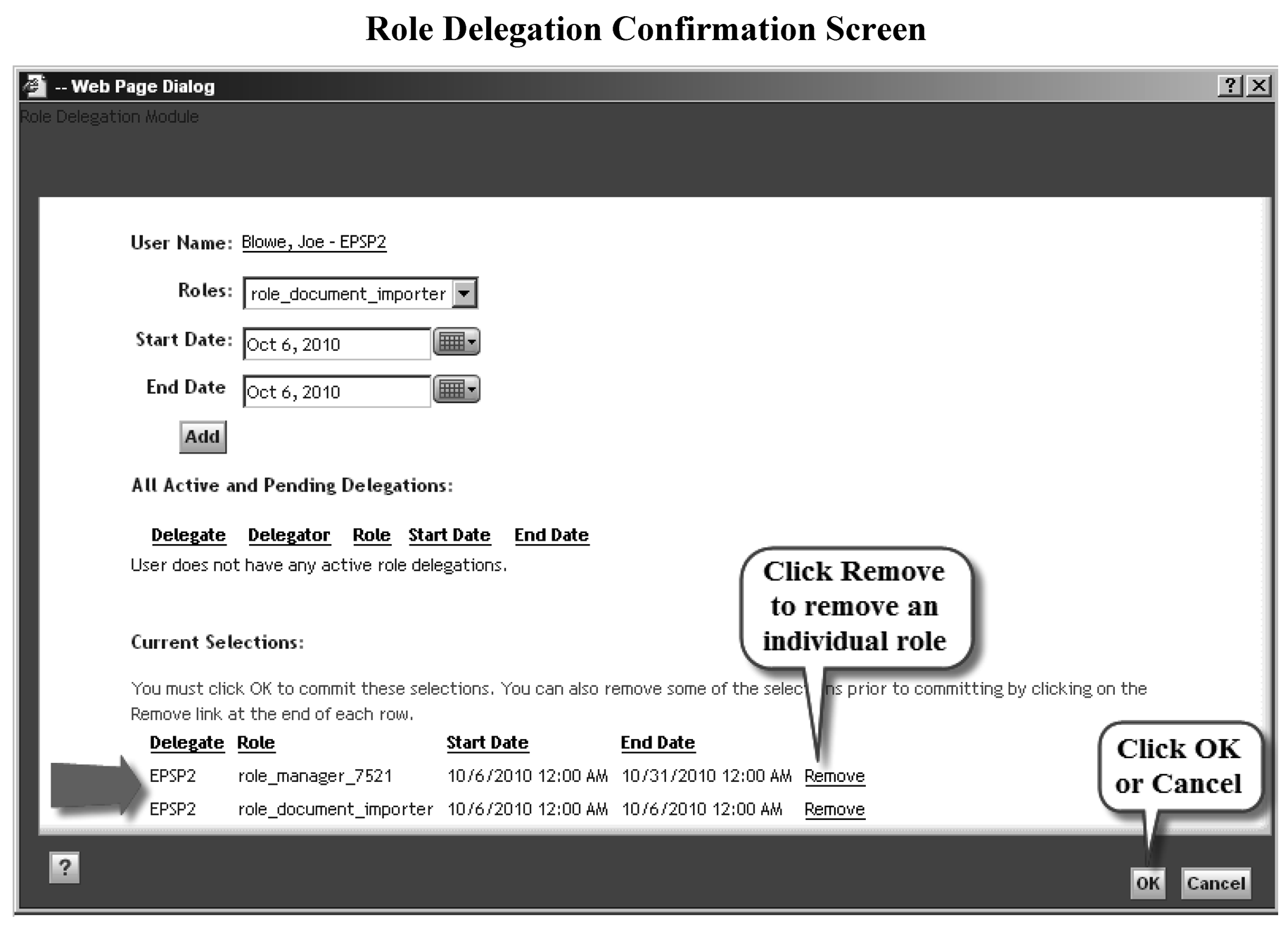
To confirm role delegation:
.Step Action 1. Verify role selections and start and end dates. 2. Click Remove to remove an individual role prior to completing the delegation process. 3. Click OK to complete delegation or Cancel to abort.
-
Notifications are sent to the delegate’s Inbox to alert them of:
-
Delegated roles (sent to the delegator’s Inbox).
-
Expiring delegated roles (sent 24 hours prior to expiration).
-
Revocation of delegated roles.
-
-
Active and pending delegated roles are listed at the bottom of the delegate’s user profile.
-
A role delegation may only be revoked or canceled by the delegator, a Records Manager or an FSM.
-
To revoke a delegation:
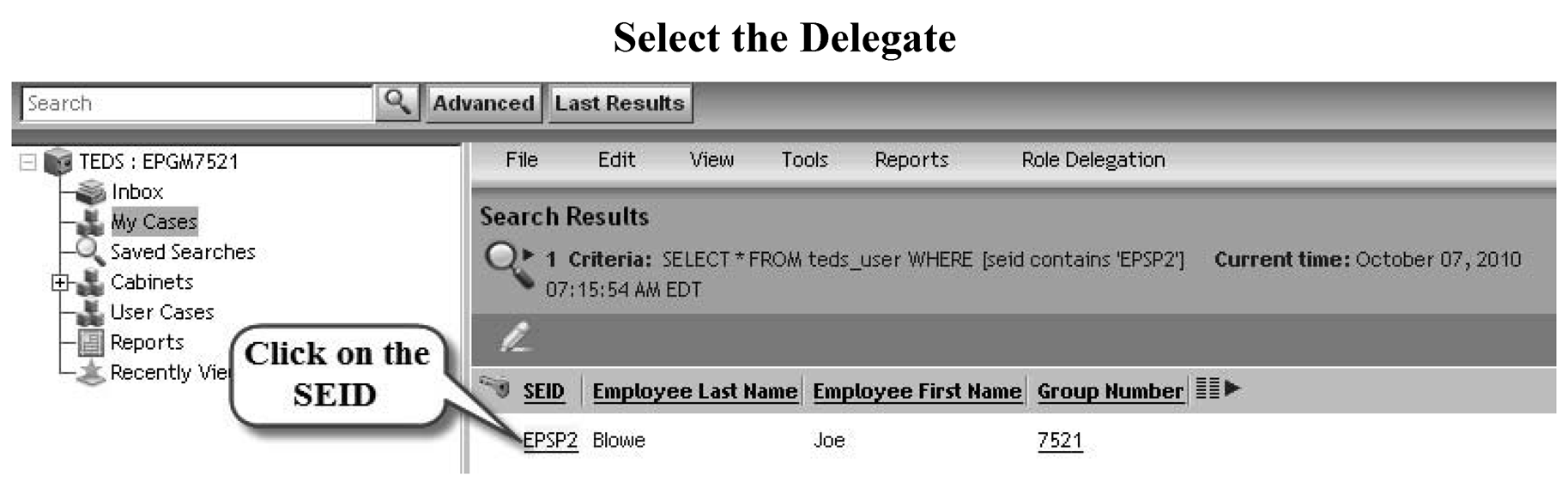
Step Action 1. Click Advanced Search. 2. Select Object Type: TEDS User (teds_user). 3. From the Properties drop-down menu, select Employee Group Number, Standard Employee Identifier, or other known criteria. 4. Enter group number, Standard Employee Identifier (SEID), or known criteria of target delegate. 5. Click Search. 6. Click on the SEID of the target delegate. 7. Click Remove in the acting and pending delegations section of the delegate’s user profile.