


 )
or https:// means you've safely connected to the .gov website. Share sensitive information only on official, secure websites.
)
or https:// means you've safely connected to the .gov website. Share sensitive information only on official, secure websites.


- 3.12.38 BMF General Instructions
- 3.12.38.1 Program Scope and Objectives
- 3.12.38.1.1 Background
- 3.12.38.1.2 Authority
- 3.12.38.1.3 Roles and Responsibilities
- 3.12.38.1.4 Program Management and Review
- 3.12.38.1.5 Program Controls
- 3.12.38.1.6 Terms and Acronyms
- 3.12.38.1.7 Related Resources
- 3.12.38.2 General Information
- 3.12.38.2.1 Suspense/Rejects Conditions
- 3.12.38.2.2 ♦BMF Consistency♦
- 3.12.38.2.3 ♦IRM Deviation Procedures♦
- 3.12.38.2.4 ♦Taxpayer Advocate Service (TAS)♦
- 3.12.38.2.4.1 ♦TAS - Service Level Agreements (SLAs)♦
- 3.12.38.2.5 ♦Frivolous Arguments♦
- 3.12.38.2.6 ♦Criminal Investigation (CI) Referral♦
- 3.12.38.2.7 ♦Examination (Exam) Funny Box♦
- 3.12.38.2.8 ♦Business Master File (BMF) Identity (ID) Theft♦
- 3.12.38.2.9 ♦Correspondence Imaging Inventory (CII) Returns♦
- 3.12.38.2.10 ♦IRS Employee Contacts♦
- 3.12.38.2.11 ♦Use of Fax for Taxpayer Submissions♦
- 3.12.38.2.12 ♦Customer Account Data Engine (CADE) 2♦
- 3.12.38.2.13 ♦Working Trail♦
- 3.12.38.2.14 Guidelines for Code and Editing Responses Using Edit Marks and Working Trails
- 3.12.38.2.15 Computer Assisted Review of Error Resolution System (CARE)
- 3.12.38.2.15.1 CARE Reports
- 3.12.38.2.15.2 Generating CARE Review/Pull Listing
- 3.12.38.2.15.3 CARE Review Procedures
- 3.12.38.2.16 Integrated Automation Technologies (IAT)
- 3.12.38.2.17 Related Manuals
- 3.12.38.3 Control Clerk Guidelines
- 3.12.38.3.1 Control of Error Documents
- 3.12.38.3.1.1 Transcription Carts
- 3.12.38.3.1.1.1 Alpha Block Control Number (ABC) Listing or Batch Transmittal
- 3.12.38.3.1.2 Charge Out Requests
- 3.12.38.3.1.3 Related Processing for Payment Documents
- 3.12.38.3.1.1 Transcription Carts
- 3.12.38.3.2 Form 6826 - Service Center Replacement System (SCRS) Error/Reject Display Request Card
- 3.12.38.3.2.1 Purpose of Form 6826
- 3.12.38.3.2.2 Beginning SC Block Number Card (ABC Card)
- 3.12.38.3.2.3 Form 6826, Section II - Error Display Card
- 3.12.38.3.2.4 Form 6826, Section III - Reject Display Card
- 3.12.38.3.2.5 Form 6826, Section IV - Error Sort Card
- 3.12.38.3.2.5.1 Error Display Run Control Report
- 3.12.38.3.2.6 Form 6826, Section V - Reject Sort Card
- 3.12.38.3.2.6.1 Preparing the Reject Sort Card
- 3.12.38.3.2.7 IRWorks Request Fulfillment (RF) Ticket Request
- 3.12.38.3.3 Control of Error Registers
- 3.12.38.3.3.1 General Control Procedures
- 3.12.38.3.3.2 Daily Error Volume Report, GMF 10-43
- 3.12.38.3.3.3 Error Register Summary, GMF 10-42
- 3.12.38.3.3.4 Associate Error Registers with Documents
- 3.12.38.3.3.5 Control of Loop Registers
- 3.12.38.3.3.6 Error Pull List, GMF 10-42
- 3.12.38.3.3.7 Disposition of Completed Registers
- 3.12.38.3.4 Control of Reject Registers
- 3.12.38.3.4.1 General Reject Register Control Procedures
- 3.12.38.3.4.1.1 Reject Sequence Number (RSN)
- 3.12.38.3.4.2 Reject Inventory List, GMF 11-43
- 3.12.38.3.4.3 Pulling Reject Documents, GMF 11-44
- 3.12.38.3.4.4 Receipt of Documents and Registers
- 3.12.38.3.4.4.1 Documents Received Without a Reject Register
- 3.12.38.3.4.5 Control of Reject Loop Registers
- 3.12.38.3.4.6 Reject Register Summary, GMF 11-45
- 3.12.38.3.4.7 Disposition of Reject Registers (Coding and Routing)
- 3.12.38.3.4.8 Current Reject Listing, GMF 11-46
- 3.12.38.3.4.9 Reject Correction Verification List, GMF 11-48
- 3.12.38.3.4.10 Reject Disposition List, GMF 11-47
- 3.12.38.3.4.1 General Reject Register Control Procedures
- 3.12.38.3.5 Document Control - Pulling ERS Suspense Documents, ERS 17-40
- 3.12.38.3.5.1 ERS 17-40 (ISRP)
- 3.12.38.3.5.2 ERS 17-40 (SCRIPS)
- 3.12.38.3.5.3 Disposition of Documents
- 3.12.38.3.5.4 Rejected Records List, ERS 05-40
- 3.12.38.3.5.4.1 General Information
- 3.12.38.3.5.5 Loose Documents - General Procedures
- 3.12.38.3.5.6 Suspense Action Codes
- 3.12.38.3.5.6.1 Suspense Charge-Out
- 3.12.38.3.6 Input of Correspondence
- 3.12.38.3.6.1 Reducing the Length of Taxpayer Names
- 3.12.38.3.6.2 BMF Address Requirements
- 3.12.38.3.6.3 Correspondence Suspense File
- 3.12.38.3.6.3.1 BMF Undeliverable Correspondence
- 3.12.38.3.6.3.2 EO Undeliverable Correspondence (OSPC Only)
- 3.12.38.3.6.3.3 No Reply Cases
- 3.12.38.3.6.3.4 Late Reply
- 3.12.38.3.6.4 Special Correspondence Procedures for 1120-F returns (Ogden Only)
- 3.12.38.3.7 Documents Routed to Other Submission Processing Center Functions
- 3.12.38.3.7.1 Statute Expiration Cases
- 3.12.38.3.7.2 Criminal Investigation and Examination
- 3.12.38.3.7.3 Entity Control
- 3.12.38.3.8 Addresses
- 3.12.38.3.8.1 Form 8822 and Form 8822-B, Change of Address and Change of Address - Business
- 3.12.38.3.8.2 Transshipping Returns
- 3.12.38.3.8.3 APO/DPO/FPO Addresses
- 3.12.38.3.9 Verification and Release of Documents
- 3.12.38.3.9.1 Processing Instructions
- 3.12.38.3.10 Form 2848, Power of Attorney and Declaration of Representative (POA)
- 3.12.38.3.1 Control of Error Documents
- 3.12.38.4 Error Resolution System (ERS) Tax Examiner Guidelines
- 3.12.38.4.1 General Concepts
- 3.12.38.4.2 General Correction Procedures
- 3.12.38.4.2.1 IDRS Command Codes (CC) Used in ERS/Rejects/Suspense
- 3.12.38.4.3 Correspondence
- 3.12.38.4.3.1 EIN Change - Issue Letter 3875-C
- 3.12.38.4.4 Error Resolution System (ERS) Action Codes
- 3.12.38.4.4.1 General Information - Action Codes
- 3.12.38.4.4.1.1 Correspondence Action Codes
- 3.12.38.4.4.1.2 Routing Action Codes
- 3.12.38.4.4.1.3 Research Action Codes
- 3.12.38.4.4.1.4 Delete Action Codes
- 3.12.38.4.4.1.5 Other ERS Action Codes
- 3.12.38.4.4.1.6 Management Suspense Action Codes
- 3.12.38.4.4.1 General Information - Action Codes
- 3.12.38.4.5 Types of Error Resolution System (ERS) Errors
- 3.12.38.4.5.1 Error Displays and Corrections Screen
- 3.12.38.4.5.1.1 ERS - Record Heading Screen
- 3.12.38.4.5.1.2 ERS - Error Messages
- 3.12.38.4.5.2 Priority I Errors - Action Code/Unpostable Code
- 3.12.38.4.5.2.1 Display - Action Code
- 3.12.38.4.5.2.2 Error Correction - Action Code
- 3.12.38.4.5.2.3 Priority I Error, Action Code 21X, Correspondence
- 3.12.38.4.5.2.4 Priority I Error, Action Code 310, Statute Control
- 3.12.38.4.5.2.5 Priority I Error, Action Code 320, Entity Control
- 3.12.38.4.5.2.6 Priority I Error, Action Code 33X, Review/Routing to Criminal Investigation (CI)
- 3.12.38.4.5.2.7 Priority I Error, Action Code 34X, Routing-Accounting
- 3.12.38.4.5.2.8 Priority I Error, Action Code 35X, Key Index File (KIF)/MFTRA Research
- 3.12.38.4.5.2.9 Priority I Error, Action Code 360, Other In-House Research
- 3.12.38.4.5.2.10 Priority I Error, Action Code 410, Assistance Needed
- 3.12.38.4.5.2.11 Priority I Error, Action Codes 420 thru 460, Management Suspense
- 3.12.38.4.5.2.12 Priority I Error, Action Code 490, System Problem
- 3.12.38.4.5.2.13 Priority I Error, Action Code 51X, Status 451 or 351
- 3.12.38.4.5.2.14 Priority I Error, Action Code 6XX, Rejects
- 3.12.38.4.5.2.15 Priority I Error, Action Code 700, Duplicate Block DLN
- 3.12.38.4.5.2.16 Priority I Error, Action Code 900, Unpostable Records
- 3.12.38.4.5.2.17 Action Codes 3XX Status 33X
- 3.12.38.4.5.3 Priority II Errors - Section Errors
- 3.12.38.4.5.3.1 Edit Error
- 3.12.38.4.5.3.2 Missing Required Section and Questionable Section
- 3.12.38.4.5.3.3 Terminus Error
- 3.12.38.4.5.4 Priority III Errors - Field Errors Screen
- 3.12.38.4.5.5 Priority IV Errors - Math/Consistency Errors Screen
- 3.12.38.4.5.5.1 Display
- 3.12.38.4.5.5.2 Correction
- 3.12.38.4.5.6 ♦Refund Returns 45 Day Jeopardy and High Dollar Refunds♦
- 3.12.38.4.5.1 Error Displays and Corrections Screen
- 3.12.38.5 Service Center Replacement System (SCRS) Tax Examiner Guidelines
- 3.12.38.5.1 Return Register Format
- 3.12.38.5.1.1 General Error Register Information
- 3.12.38.5.1.2 Error Register Title Line
- 3.12.38.5.1.3 Error Register Identification (ID) Line
- 3.12.38.5.1.4 Error Register Document Sections
- 3.12.38.5.2 Types of Errors
- 3.12.38.5.2.1 Character Errors
- 3.12.38.5.2.2 Field Errors
- 3.12.38.5.2.3 Terminus Errors
- 3.12.38.5.2.4 Edit Errors
- 3.12.38.5.2.5 Validity Errors
- 3.12.38.5.2.6 Relationship Errors
- 3.12.38.5.2.7 Math Errors
- 3.12.38.5.2.8 Missing Section Errors
- 3.12.38.5.2.9 Extraneous Section Errors
- 3.12.38.5.3 Error / Reject Register Action Codes
- 3.12.38.5.3.1 Action Code "0"
- 3.12.38.5.3.2 Action Code "1"
- 3.12.38.5.3.3 Action Code "2"
- 3.12.38.5.3.4 Action Code "3"
- 3.12.38.5.3.5 Action Code "4"
- 3.12.38.5.3.6 Action Code "5"
- 3.12.38.5.3.7 Action Code "6"
- 3.12.38.5.3.8 Action Code "7"
- 3.12.38.5.3.9 Action Code "9"
- 3.12.38.5.3.10 Invalid Correction Attempts
- 3.12.38.5.3.10.1 Action Codes - Invalid Correction
- 3.12.38.5.4 Combined Annual Wage Reporting (CAWR) Error Registers
- 3.12.38.5.4.1 Error Register Fields for CAWR
- 3.12.38.5.5 Reject Inventory Controls (SCRS)
- 3.12.38.5.5.1 Reject Sequence Number (RSN)
- 3.12.38.5.5.2 Reject Register
- 3.12.38.5.5.2.1 Reject Register Title Line
- 3.12.38.5.5.2.2 Reject Register Identification Line
- 3.12.38.5.5.3 Suppression of Erroneous Balance Due and Delinquency Notices (SCRS Only)
- 3.12.38.5.6 SCRS Aged List
- 3.12.38.5.7 Refund Returns 45 Day Jeopardy and ≡ ≡ ≡ ≡ ≡ ≡ ≡ ≡ ≡ ≡ ≡ Refunds (SCRS)
- 3.12.38.5.1 Return Register Format
- 3.12.38.6 Rejects Tax Examiner Guidelines
- 3.12.38.6.1 Section 965` Returns
- 3.12.38.6.2 Elective or Deemed Payment Elections and Credit Transfers
- 3.12.38.6.3 Correspondence
- 3.12.38.6.3.1 ICO Letter Inventory Tracking System (ILITS) Tool
- 3.12.38.6.3.2 Quick Notes, Form 5260
- 3.12.38.6.3.3 Correspondence Suspense
- 3.12.38.6.3.4 Form 4442 Referrals from Customer Service
- 3.12.38.6.3.5 Application to Adopt, Change, or Retain a Tax Year - Form 1128
- 3.12.38.6.3.6 Second Correspondence
- 3.12.38.6.3.7 Correspondence Received Date (CRD) - 8 Positions
- 3.12.38.6.3.8 Replies to Correspondence
- 3.12.38.6.3.9 Annual Statement Replies
- 3.12.38.6.3.10 Third Party Designee
- 3.12.38.6.3.11 E-Filed and Scanned Return Replies to Correspondence
- 3.12.38.6.3.12 No Reply/Incomplete Reply Processing Instructions
- 3.12.38.6.3.12.1 No Reply/Incomplete Reply Processing Instructions for E-file
- 3.12.38.6.4 Review of Aged Cases
- 3.12.38.6.4.1 Rejects Aged List
- 3.12.38.6.4.1.1 Working and Clearing "Aged" Rejects
- 3.12.38.6.4.2 ERS Aged Items
- 3.12.38.6.4.3 SCCF Aged Items
- 3.12.38.6.4.3.1 Researching the SCCF Aged List
- 3.12.38.6.4.3.2 SCCF Transcript Format
- 3.12.38.6.4.3.3 Online SCCF Research
- 3.12.38.6.4.4 Data Control Deletes
- 3.12.38.6.4.5 Duplicate DLNs
- 3.12.38.6.4.6 Purged ERS Records
- 3.12.38.6.4.1 Rejects Aged List
- 3.12.38.6.5 Missing Documents
- 3.12.38.6.5.1 Missing Documents Guidelines
- 3.12.38.6.5.2 Missing Documents - Required Research
- 3.12.38.6.6 Manual Refunds
- 3.12.38.6.6.1 Refund Credit Interest
- 3.12.38.6.6.2 BMF Review Process for all Manual Refunds ≡ ≡ ≡ ≡ ≡ ≡ ≡ ≡ ≡ ≡ ≡ ≡ ≡ ≡
- 3.12.38.6.6.3 Form 1042 - Manual Refunds (Ogden Only)
- 3.12.38.6.6.4 Section 847 Form 1120, 1120-L, and 1120-PC
- 3.12.38.6.6.5 Form 1120-F - Manual Refunds (Ogden Only)
- 3.12.38.6.6.6 Form 8038-CP Only Manual Refunds ≡ ≡ ≡ ≡ ≡ ≡ ≡ or more (Ogden Only)
- 3.12.38.6.6.7 Refunds for Less Than $1 When Requested by Taxpayer
- 3.12.38.6.6.8 Monitoring Manual Refunds
- 3.12.38.6.7 Credit Transfers
- 3.12.38.6.7.1 IDRS Procedures
- 3.12.38.6.8 Deletion of Documents
- 3.12.38.6.8.1 General Procedures
- 3.12.38.6.8.2 ERS Suspense Procedures
- 3.12.38.6.8.3 Subsidiary Returns
- 3.12.38.6.8.4 End of Year Processing
- 3.12.38.6.9 Form 4028 / 4028-A
- 3.12.38.6.9.1 General Instructions
- 3.12.38.6.9.1.1 Preparing Form 4028
- 3.12.38.6.9.1.2 Preparing Form 4028-A
- 3.12.38.6.9.1 General Instructions
- 3.12.38.6.10 Excess Remittances - Processing Instructions
- 3.12.38.6.11 Conversion of IMF and BMF Documents
- 3.12.38.6.11.1 BMF Conversion
- 3.12.38.6.11.2 EPMF Returns
- 3.12.38.6.12 Renumbering Documents
- 3.12.38.6.12.1 Trace ID Requirements
- 3.12.38.6.12.2 General Requirements
- 3.12.38.6.12.3 CC NWDLN
- 3.12.38.6.13 Assignment of New DLN
- 3.12.38.6.13.1 DLN Format
- 3.12.38.6.14 Remittance Renumbering Procedures
- 3.12.38.6.14.1 Split Remittance Items
- 3.12.38.6.14.2 Removal of Total Remittance Items
- 3.12.38.6.14.3 Consolidated Items
- 3.12.38.6.15 Non-Remittance Renumbering Procedures
- 3.12.38.6.16 Non Master File Items
- 3.12.38.6.16.1 ANMF Subsequent and Advance Payment Items
- 3.12.38.6.17 Re-entry Documents
- 3.12.38.6.17.1 Conditions for Re-Entry
- 3.12.38.6.17.1.1 Preparing Documents for Re-entry
- 3.12.38.6.17.1.2 Preparing Form 3893
- 3.12.38.6.17.1 Conditions for Re-Entry
- 3.12.38.6.18 Reprocessable Returns
- 3.12.38.6.19 Missing Documents
- 3.12.38.6.19.1 Missing Documents - Reconstruction of Missing Records
- 3.12.38.6.19.1.1 Form 6752, Return Non-Refile Flag
- 3.12.38.6.19.2 ERS Missing Document Action Codes
- 3.12.38.6.19.3 Write-Off of Missing Documents
- 3.12.38.6.19.3.1 Unresolved Missing Records
- 3.12.38.6.19.3.2 Document Found After Write-Off
- 3.12.38.6.19.1 Missing Documents - Reconstruction of Missing Records
- 3.12.38.6.20 Voided Documents
- 3.12.38.6.20.1 Conditions for Voiding Documents
- 3.12.38.6.20.2 Unprocessable IRS Prepared Documents
- 3.12.38.6.20.3 Transfers to Unidentified
- 3.12.38.6.20.4 Excess Collection File (XSF)
- 3.12.38.6.20.4.1 Preparing Form 8758
- 3.12.38.6.21 Receiving Rejected and Suspended Documents
- 3.12.38.6.21.1 Timeliness of Processing Rejects
- 3.12.38.6.21.2 Sources of Rejects
- 3.12.38.6.21.2.1 Code & Edit Function
- 3.12.38.6.21.2.2 Error Correction Function
- 3.12.38.6.21.2.3 Suspense Correction
- 3.12.38.6.21.2.4 Unpostables Function
- 3.12.38.6.22 ERS Suspense Inventory Control
- 3.12.38.6.22.1 Types of Suspense Records
- 3.12.38.6.22.2 ERS Status Codes
- 3.12.38.6.22.3 Workable Suspense Inventory Summary, ERS 13-43
- 3.12.38.6.22.4 Workable Suspense Inventory, ERS 13-42
- 3.12.38.6.22.5 Workable Inventory Display
- 3.12.38.6.22.6 Unworkable Suspense Summary, ERS 07-41
- 3.12.38.6.22.7 Unworkable Suspense Inventory, ERS 07-40
- 3.12.38.6.22.8 Maintaining the ERS Suspense File
- 3.12.38.6.23 Qualified Cellulosic Biofuel known as "Black Liquor"
- 3.12.38.7 Manager Guidelines
- 3.12.38.7.1 Error Resolution System Capacity
- 3.12.38.7.2 CC ERVOL - View ERS Records
- 3.12.38.7.3 Error Resolution System (ERS) Reports
- 3.12.38.7.3.1 Error Resolution Inventory Control Report, ERS 17-47
- 3.12.38.7.3.2 Error Resolution Error Inventory Summary, ERS 13-41
- 3.12.38.7.3.3 Error Inventory Listings, ERS 13-40
- 3.12.38.7.3.4 ERS Interest Jeopardy Reports
- 3.12.38.7.3.5 Production Reports, ERS 77-40 and ERS 77-41
- 3.12.38.7.3.6 Daily Employee Time Reports, ERS 77-46 and ERS 77-47
- 3.12.38.7.3.7 CC EREMP
- 3.12.38.7.3.8 Employee Name and Organization File
- 3.12.38.7.3.8.1 Employee Action Codes
- 3.12.38.7.3.8.2 Employee Error Codes
- 3.12.38.7.3.8.3 Maintaining the File for EREMP
- 3.12.38.7.4 Research
- 3.12.38.7.4.1 CC ERUTL
- 3.12.38.7.4.2 ERUTL Parameter Codes
- 3.12.38.7.4.3 Research for Documents Needed by Other IRS Functions
- 3.12.38.7.5 Erroneous Prompt, Quick, and Jeopardy Assessments
- 3.12.38.7.5.1 Processing Instructions
- 3.12.38.8 Unpostables
- 3.12.38.8.1 Receiving Rejected Unpostables
- 3.12.38.8.1.1 Nullified Unpostable User Fees
- 3.12.38.8.2 Types of Rejected Unpostables
- 3.12.38.8.2.1 Statute Cases
- 3.12.38.8.2.2 Batch Rejects
- 3.12.38.8.2.3 Missing Documents
- 3.12.38.8.2.4 EFTPS Unpostable Payments (Ogden Only)
- 3.12.38.8.2.5 Unpostable Resolution Code (URC) "8"
- 3.12.38.8.2.6 Auto Void Unpostables
- 3.12.38.8.3 Researching Rejected Unpostables
- 3.12.38.8.4 Unpostable Code 301 RC 4 (KCSPC Only)
- 3.12.38.8.4.1 Invalid Condition - UPC 301 RC 4
- 3.12.38.8.4.2 Correction Procedure - UPC 301 RC 4
- 3.12.38.8.5 Unpostable Code 304 - Input Transaction Attempts to Establish a Tax Module with a Tax Period Prior to the Master File
- 3.12.38.8.5.1 Invalid Condition - UPC 304 RC 0 through 7
- 3.12.38.8.5.2 Correction Procedures - UPC 304 RC 0 through 7
- 3.12.38.8.6 Unpostable Code 304 RC 9 - ACA MFT 43 Invalid Payment
- 3.12.38.8.6.1 Invalid Condition - UPC 304 RC 9
- 3.12.38.8.6.2 Correction Procedures - UPC 304 RC 9
- 3.12.38.8.7 Unpostable Code 307 RC 1
- 3.12.38.8.7.1 Invalid Condition - UPC 307 RC 1
- 3.12.38.8.7.2 Correction Procedures - UPC 307 RC 1
- 3.12.38.8.8 Unpostable Code 307 RC 2
- 3.12.38.8.8.1 Invalid Condition - UPC 307 RC 2
- 3.12.38.8.8.2 Correction Procedures - UPC 307 RC 2
- 3.12.38.8.9 Unpostable Code 307 RC 5
- 3.12.38.8.9.1 Invalid Conditions - UPC 307 RC 5
- 3.12.38.8.9.2 Correction Procedures - UPC 307 RC 5
- 3.12.38.8.10 Unpostable Code 307 RC 6
- 3.12.38.8.10.1 Invalid Conditions - UPC 307 RC 6
- 3.12.38.8.10.2 Correction Procedures - UPC 307 RC 6
- 3.12.38.8.11 Unpostable Code 307 RC 9 - Form 3520 Fiscal Month mis-match (OSPC only)
- 3.12.38.8.11.1 Invalid Condition - UPC 307 RC 9
- 3.12.38.8.11.2 Correction Procedure - UPC 307 RC 9
- 3.12.38.8.12 Unpostable Code 308 RC 6 - Magnetic Tape 940 Filing Requirement Discrepancy
- 3.12.38.8.12.1 Invalid Condition - UPC 308 RC 6
- 3.12.38.8.12.2 Correction Procedure - UPC 308 RC 6
- 3.12.38.8.13 Unpostable Code 309 RC 1 Tax Period/Master File Tax (MFT) Mismatch
- 3.12.38.8.13.1 Invalid Condition - UPC 309 RC 1
- 3.12.38.8.13.2 Correction Procedures - UPC 309 RC 1
- 3.12.38.8.14 Unpostable Code 310 RC 1 - 8
- 3.12.38.8.14.1 Invalid Conditions - UPC 310 RC 1
- 3.12.38.8.14.2 Correction Procedures - UPC 310 TC 1
- 3.12.38.8.14.3 Invalid Conditions - UPC 310 RC 2
- 3.12.38.8.14.4 Correction Procedures - UPC 310 RC 2
- 3.12.38.8.14.5 Invalid Conditions - UPC 310 RC 3
- 3.12.38.8.14.6 Correction Procedures - UPC 310 RC 3
- 3.12.38.8.14.7 Invalid Conditions - UPC 310 RC 4
- 3.12.38.8.14.8 Correction Procedures - UPC 310 RC 4
- 3.12.38.8.14.9 Invalid Conditions UPC 310 RC 5
- 3.12.38.8.14.10 Correction Procedures - UPC 310 RC 5
- 3.12.38.8.14.11 Invalid Conditions - UPC 310 RC 6
- 3.12.38.8.14.12 Correction Procedures - UPC 310 RC 6
- 3.12.38.8.14.13 Invalid Conditions - UPC 310 RC 7
- 3.12.38.8.14.14 Correction Procedures - UPC 310 RC 7
- 3.12.38.8.14.15 Invalid Conditions - UPC 310 RC 8
- 3.12.38.8.14.16 Correction Procedures - UPC 310 RC 8
- 3.12.38.8.15 Unpostable Code 311 RC 1 - NMF Account (KCSPC Only)
- 3.12.38.8.15.1 Invalid Condition - UPC 311 RC 1
- 3.12.38.8.15.2 Correction Procedures - UPC 311 RC 1
- 3.12.38.8.16 Unpostable Code - 311 RC 2 - NMF Accounts (KCSPC Only)
- 3.12.38.8.16.1 Invalid Condition - UPC 311 RC 2
- 3.12.38.8.16.2 Correction Procedures - UPC 311 RC 2
- 3.12.38.8.17 Unpostable Code 318 RC 1 - BMF Credit Transfer Invalid
- 3.12.38.8.17.1 Invalid Condition - UPC 318 RC 1
- 3.12.38.8.17.2 Correction Procedures - UPC 318 RC 1 - BMF Credit Transfer Invalid
- 3.12.38.8.18 Unpostable Code 319 RC 1
- 3.12.38.8.18.1 Invalid Condition - UPC 319 RC 1
- 3.12.38.8.18.2 Correction Procedures - UPC 319 RC 1
- 3.12.38.8.19 Unpostable Code 325 RC 3 - Module Balance Unavailable
- 3.12.38.8.19.1 Invalid Condition - UPC 325 RC 3
- 3.12.38.8.19.2 Correction Procedure - UPC 325 RC 3
- 3.12.38.8.20 Unpostable Code 327 RC 1
- 3.12.38.8.20.1 Invalid Conditions UPC 327 RC 1
- 3.12.38.8.20.2 Correction Procedures UPC 327 RC 1
- 3.12.38.8.21 Unpostable Code 328 RC 5 - Branded Prescription Drug (BPD)
- 3.12.38.8.21.1 Invalid Condition - UPC 328 RC 5
- 3.12.38.8.21.2 Correction Procedure - UPC 328 RC 5
- 3.12.38.8.22 Unpostable Code 328 RC 5 - Insurance Provider Fee (IPF)
- 3.12.38.8.22.1 Invalid Condition - UPC 328 RC 5
- 3.12.38.8.22.2 Correction Procedure - UPC 328 RC 5
- 3.12.38.8.23 Unpostable Code 328 RC 8 - Provision 4980H Employer Shared Responsibility Payment
- 3.12.38.8.23.1 Invalid Condition - UPC 328 RC 8
- 3.12.38.8.23.2 Correction Procedure - UPC 328 RC 8
- 3.12.38.8.24 Unpostable Code 329 RC 1 - Invalid Filing Requirements - Payments
- 3.12.38.8.24.1 Invalid Condition - UPC 329 RC 1
- 3.12.38.8.24.2 Correction Procedure - UPC 329 RC 1
- 3.12.38.8.25 Unpostable Code 329 RC 4 - Filing Requirements Mismatch
- 3.12.38.8.25.1 Invalid Condition - UPC 329 RC 4
- 3.12.38.8.25.2 Correction Procedure - UPC 329 RC 4
- 3.12.38.8.26 Unpostable Code 329 RC 9 - Filing Requirements Issue
- 3.12.38.8.26.1 Invalid Condition - UPC 329 RC 9
- 3.12.38.8.26.2 Correction Procedure - UPC 329 RC 9
- 3.12.38.8.27 Unpostable Code 331 RC 1 - Return Liability and Assessment Inconsistent
- 3.12.38.8.27.1 Invalid Condition - UPC 331 RC 1
- 3.12.38.8.27.2 Correction Procedure - UPC 331 RC 1
- 3.12.38.8.28 Unpostable Code 331 RC 2
- 3.12.38.8.28.1 Invalid Conditions - UPC 331 RC 2
- 3.12.38.8.28.2 Correction Procedures - UPC 331 RC 2
- 3.12.38.8.29 Unpostable Code 331 RC 3 - Return Liability and Assessment Inconsistent
- 3.12.38.8.29.1 Invalid Condition - UPC 331 RC 3
- 3.12.38.8.29.2 Correction Procedures - UPC 331 RC 3
- 3.12.38.8.30 Unpostable Code 331 RC 4 - Return Liability and Assessment Inconsistent
- 3.12.38.8.30.1 Invalid Condition - UPC 331 RC 4
- 3.12.38.8.30.2 Correction Procedures - UPC 331 RC 4
- 3.12.38.8.31 Unpostable Code 331 RC 5 - Return Liability and Assessment Inconsistent
- 3.12.38.8.31.1 Invalid Condition - UPC 331 RC 5
- 3.12.38.8.31.2 Correction Procedures - UPC 331 RC 5
- 3.12.38.8.32 Unpostable Code 332 RC 1
- 3.12.38.8.32.1 Invalid Conditions - UPC 332 RC 1
- 3.12.38.8.32.2 Correction Procedures - UPC 332 RC 1
- 3.12.38.8.33 Unpostable Code 332 RC 4
- 3.12.38.8.33.1 Invalid Conditions - UPC 332 RC 4
- 3.12.38.8.33.2 Correction Procedures - UPC 332 RC 4
- 3.12.38.8.34 Unpostable Code - 332 RC 5
- 3.12.38.8.34.1 Invalid Conditions - UPC 332 RC 5
- 3.12.38.8.34.2 Correction Procedures - UPC 332 RC 5
- 3.12.38.8.35 Unpostable Code 334 RC 7 - for doc code 51
- 3.12.38.8.35.1 Invalid Condition - UPC 334 RC 7
- 3.12.38.8.35.2 Correction Procedures - UPC 334 RC 7
- 3.12.38.8.36 Unpostable Code 342 RC 6 - 8
- 3.12.38.8.36.1 Invalid Conditions - UPC 342 RC 6 - 8
- 3.12.38.8.36.2 Correction Procedures - 342 RC 6 - 8
- 3.12.38.8.37 Unpostable Code - 346 RC 1
- 3.12.38.8.37.1 Invalid Conditions - UPC 346 RC 1
- 3.12.38.8.37.2 Correction Procedures - UPC 346 RC 1
- 3.12.38.8.38 Unpostable Code - 346 RC 3 - 5
- 3.12.38.8.38.1 Invalid Conditions - UPC 346 RC 3 - 5
- 3.12.38.8.38.2 Correction Procedures - UPC 346 RC 3 - 5
- 3.12.38.8.39 Unpostable Code - UPC 346 RC 7
- 3.12.38.8.39.1 Invalid Conditions - UPC 346 RC 7
- 3.12.38.8.39.2 Correction Procedures - UPC 346 RC 7
- 3.12.38.8.40 Unpostable Code 363 RC 5 TC 150 for MFT 67
- 3.12.38.8.40.1 Invalid Condition - UPC 363 RC 5
- 3.12.38.8.40.2 Correction Procedures - UPC 363 RC 5
- 3.12.38.8.41 Unpostable Code 381 RC 2 Non-Taxable Returns
- 3.12.38.8.41.1 Invalid Condition UPC 381 RC 2
- 3.12.38.8.41.2 Correction Procedures - UPC 381 RC 2
- 3.12.38.8.42 Unpostable Code - UPC 384 RC 2
- 3.12.38.8.42.1 Invalid Conditions - UPC 384 RC 2
- 3.12.38.8.42.2 Correction Procedures - UPC 384 RC 2
- 3.12.38.8.43 Unpostable Code 385 RC 1 - TC 370 (Doc Code 51)
- 3.12.38.8.43.1 Invalid Condition - UPC 385 RC 1
- 3.12.38.8.43.2 Correction Procedures - UPC 385 RC 1
- 3.12.38.8.44 Unpostable Code - 429 RC 1 - 3 & 5
- 3.12.38.8.44.1 Invalid Conditions - UPC 429 RC 1 - 3 & 5
- 3.12.38.8.44.2 Correction Procedures - UPC 428 RC 1 - 3 & 5
- 3.12.38.8.45 Unpostable Code 490 RC 3 - Invalid Tax Period
- 3.12.38.8.45.1 Invalid Condition - UPC 490 RC 3
- 3.12.38.8.45.2 Correction Procedures - UPC 490 RC 3
- 3.12.38.8.46 Unpostable Code 491 RC 1
- 3.12.38.8.46.1 Invalid Conditions - UPC 491 RC 1
- 3.12.38.8.46.2 Correction Procedures - UPC 491 RC 1
- 3.12.38.8.47 Unpostable Code 491 RC 2 - Abstract Number
- 3.12.38.8.47.1 Correction Procedure UPC 491 RC 2
- 3.12.38.8.48 Unpostable Code 492 RC 2 - Miscellaneous Conditions
- 3.12.38.8.48.1 Invalid Conditions - UPC 492 RC 2
- 3.12.38.8.48.2 Correction Procedure UPC 492 RC 2
- 3.12.38.8.49 Unpostable Code 492 RC 4 - Miscellaneous Conditions
- 3.12.38.8.49.1 Invalid Condition - UPC 492 RC 4
- 3.12.38.8.49.2 Correction Procedure - UPC 492 RC 4
- 3.12.38.8.50 Unpostable Code 495 RC 1 - Miscellaneous Conditions
- 3.12.38.8.50.1 Invalid Condition - UPC 495 RC 1
- 3.12.38.8.50.2 Correction Procedure - UPC 495 RC 1
- 3.12.38.8.51 Unpostable Code 495 RC 2 - Miscellaneous Conditions
- 3.12.38.8.51.1 Invalid Condition - UPC 495 RC 2
- 3.12.38.8.51.2 Correction Procedure - UPC 495 RC 2
- 3.12.38.8.52 Unpostable Code 495 RC 3 - Miscellaneous Conditions
- 3.12.38.8.52.1 Invalid Condition - UPC 495 RC 3
- 3.12.38.8.52.2 Correction Procedure - UPC 495 RC 3
- 3.12.38.8.53 Unpostable Code 496 RC 3 - Miscellaneous Conditions
- 3.12.38.8.53.1 Invalid Condition - UPC 496 RC 3
- 3.12.38.8.53.2 Correction Procedure - UPC 496 RC 3
- 3.12.38.8.54 Unpostable Code 496 RC 4 - Miscellaneous Conditions
- 3.12.38.8.54.1 Invalid Condition - UPC 496 RC 4
- 3.12.38.8.54.2 Correction Procedure - UPC 496 RC 4
- 3.12.38.8.55 Unpostable Code 497 RC 1 and 5 - Miscellaneous Conditions
- 3.12.38.8.55.1 Invalid Condition - UPC 497 RC 1
- 3.12.38.8.55.2 Correction Procedures - UPC 497 RC 1
- 3.12.38.8.55.3 Invalid Condition - UPC 497 RC 5
- 3.12.38.8.55.4 Correction Procedure - UPC 497 RC 5
- 3.12.38.8.56 Unpostable Code - UPC 497 RC 6
- 3.12.38.8.56.1 Invalid Conditions - UPC 497 RC 6
- 3.12.38.8.56.2 Correction Procedures - UPC 497 RC 6
- 3.12.38.8.57 Unpostable Code 499 RC 1 - Miscellaneous Conditions
- 3.12.38.8.57.1 Invalid Condition - UPC 499 RC 1
- 3.12.38.8.57.2 Correction Procedures - UPC 499 RC 1
- 3.12.38.8.58 Unpostable Code 499 RC 2 - Miscellaneous Conditions
- 3.12.38.8.58.1 Invalid Condition - UPC 499 RC 2
- 3.12.38.8.58.2 Correction Procedure - UPC 499 RC 2
- 3.12.38.8.59 Unpostable Code 499 RC 5 - Miscellaneous Conditions
- 3.12.38.8.59.1 Invalid Condition - UPC 499 RC 5
- 3.12.38.8.59.2 Correction Procedure - UPC 499 RC 5
- 3.12.38.8.1 Receiving Rejected Unpostables
- Exhibit 3.12.38-1 ♦Action Codes♦
- Exhibit 3.12.38-2 Action Codes on Error/Reject Registers
- Exhibit 3.12.38-3 ERS Status Codes (Inventory)
- Exhibit 3.12.38-4 Rejecting Records and Researching ERS Inventory
- Exhibit 3.12.38-5 BMF, EPMF, and ANMF Reference Chart
- Exhibit 3.12.38-6 ERS Action Code/Command Code Chart for Deleting Records
- Exhibit 3.12.38-7 ERS Renumbering and Activating Unworkable Suspense Records
- Exhibit 3.12.38-8 ♦Potential Frivolous Return Arguments for Examination Review♦
- Exhibit 3.12.38-9 Form 813 with Trace ID
- Exhibit 3.12.38-10 Related Reports
- Exhibit 3.12.38-11 BMF Forms - ERS
- Exhibit 3.12.38-12 BMF Forms - SCRS
- Exhibit 3.12.38-13 Miscellaneous Related Forms
- Exhibit 3.12.38-14 NAMEB
- Exhibit 3.12.38-15 NAMEE
- Exhibit 3.12.38-16 Entity Research
- Exhibit 3.12.38-17 Entity Changes
- Exhibit 3.12.38-18 Researching Unpostables
- Exhibit 3.12.38-19 Corporate Files On-Line (CFOL) Input Formats
- Exhibit 3.12.38-20 CFOL CC BMFOL - Quick Reference Guide
- Exhibit 3.12.38-21 CC BRTVU - Quick Reference Guide
- Exhibit 3.12.38-22 Tax Account Information
- Exhibit 3.12.38-23 Suppressing Erroneous Notices
- Exhibit 3.12.38-24 Master File Transcript Requests
- Exhibit 3.12.38-25 Document Requests
- Exhibit 3.12.38-26 SCFTR
- Exhibit 3.12.38-27 LETER
- Exhibit 3.12.38-28 Credit Transfers
- Exhibit 3.12.38-29 IDRS Refunds
- Exhibit 3.12.38-30 IRPTR Definers and IRPTRO
- Exhibit 3.12.38-31 Case Control and History
- Exhibit 3.12.38-32 Establishing IDRS Modules
- Exhibit 3.12.38-33 Inputting Tax Adjustments
- Exhibit 3.12.38-34 Inputting Miscellaneous Transactions
- Exhibit 3.12.38-35 Due Dates of Returns
- Exhibit 3.12.38-36 Acronyms and Abbreviations
- 3.12.38.1 Program Scope and Objectives
Part 3. Submission Processing
Chapter 12. Error Resolution
Section 38. BMF General Instructions
3.12.38 BMF General Instructions
Manual Transmittal
October 16, 2025
Purpose
(1) This transmits revised IRM 3.12.38, Error Resolution, BMF General Instructions.
Material Changes
(1) IRM 3.12.38.1.7(1) - Update the Related Resources information. (IPU 25U0102 issued 01-24-2025)
(2) IRM 3.12.38.2.4.1(2) - Corrected the Taxpayer Advocate Service (TAS) Service Level Agreements link. (IPU 25U0102 issued 01-24-2025)
(3) IRM 3.12.38.2.9(1) - Added Note: Correspondence Imaging System (CIS) was updated and changed to Correspondence Imaging Inventory (CII).
(4) IRM 3.12.38.2.13 (4) - Added paragraph and bullet list for editing the return to maintain audit trail for processing history.
(5) IRM 3.12.38.2.17(4) - Added the specific Form 1120 returns (in place of Series) referenced in the IRM. (IPU 25U0102 issued 01-24-2025)
(6) IRM 3.12.38.3.6.3.1(1) - Update second correspondence to 212 from 211.
(7) IRM 3.12.38.3.7.1(3) - Update tax year and return information per latest guidance. (IPU 25U0257 issued 02-24-2025).
(8) IRM 3.12.38.4.3(3) - Added bullet to check BMFOLI for duplicate return.
(9) IRM 3.12.38.4.3(5) - Clarified suspense for “Refund” returns.
(10) IRM 3.12.38.4.3.1(1) - Added Exception: When working Rejects Entity Suspense Do Not send 3875-C.
(11) IRM 3.12.38.4.5.1.1(2) - 2nd bullet, added i.e., enter a G in Field 01CCC, this will create a high priority error, remove the G to resume processing.
(12) IRM 3.12.38.4.5.2.5 - Added (3) The Entity Assignment Date will be indicated in the left hand margin on the front of the return, by capital E and date assigned. Reject will input these date into field 01CRD when Entity has assigned a new EIN.
(13) IRM 3.12.38.4.5.5.1(3) 1st bullet - Clarified maximum amount of TPNC that can be sent.
(14) IRM 3.12.38.5.7(3) & (7) - Added Exception: ERS Tax Examiners preform Credit Transfers on Form 720 and Form 2290, do not suspend, continue processing. (IPU 25U0427 issued 04-04-2025.)
(15) IRM 3.12.38.6.1(1) - (12) - Update Section 965 Return instruction.
(16) IRM 3.12.38.6.3.8(3) - Added replies containing Schedule K-1(s).
(17) IRM 3.12.38.6.3.11(1) - Added procedures for E-Filed and Scanned Return Replies to Correspondence. (IPU 25U0102 issued 01-24-2025)
(18) IRM 3.12.38.6.3.11(8) - Added MFTs 11, 14, and 16 and Blocking Series 15 to the table. (IPU 25U0102 issued 01-24-2025)
(19) IRM 3.12.38.6.6(26) - Clarified information per SERP Feedback #26425. (IPU 25U0102 issued 01-24-2025)
(20) IRM 3.12.38.6.6(27) - Added course 49363, "Computing Normal Refund Interest" per SERP Feedback #26425. (IPU 25U0102 issued 01-24-2025)
(21) IRM 3.12.38.6.6.4(4) - Update Line numbers in Chart.
(22) IRM 3.12.38.6.6.8(10) - Updated IRM references in Note.
(23) IRM 3.12.38.6.10(2) - Updated IRM references in Caution.
(24) IRM 3.12.38.6.11.1(2) 5th bullet Caution - Added No Reply instructions to the caution.
(25) IRM 3.12.38.6.20.3(3) - Updated the Julian Dates under Transfers to Unidentified for current processing.
(26) IRM 3.12.38.6.20.3(3) - Updated the Julian Dates under Transfers to Unidentified for current processing per SERP Feedback #26813. (IPU 25U0130 issued 01-30-2025)
(27) IRM 3.12.38.6.20.3(4) - Updated the Julian Dates under Transfers to Unidentified for current processing.
(28) IRM 3.12.38.6.20.3(4) - Updated the Julian Dates under Transfers to Unidentified for current processing per SERP Feedback #26813. (IPU 25U0130 issued 01-30-2025)
(29) IRM 3.12.38.8.9(1) - Added Unpostable Code 307 RC 5.
(30) IRM 3.12.38.8.9.1(1) - Added Invalid Conditions UPC 307 RC 5.
(31) IRM 3.12.38.8.9.2(1) - Added Correction Procedures UPC 307 RC 5.
(32) IRM 3.12.38.8.10(1) - Added Unpostable Code 307 RC 6.
(33) IRM 3.12.38.8.10.1(1) - Added Invalid Conditions UPC 307 RC 6.
(34) IRM 3.12.38.8.10.2(1) - Added Correction Procedures UPC 307 RC 6.
(35) IRM 3.12.38.8.13(1) - Remove and Update Invalid Conditions UPC 309 RC 1.
(36) IRM 3.12.38.8.13.2(1) - Update Correction Procedures. Add table to Correction Procedures.
(37) IRM 3.12.38.8.14(1) - Added Unpostable Code 310 RC 1 - 8.
(38) IRM 3.12.38.8.14.1(1) - Added Conditions UPC 310 RC 1.
(39) IRM 3.12.38.8.14.2(1) - Added Corrections Procedures UPC 310 RC 1.
(40) IRM 3.12.38.8.14.3(1) - Added Invalid Conditions UPC 310 RC 2.
(41) IRM 3.12.38.8.14.3(1) - Added Correction Procedures UPC 310 RC 2.
(42) IRM 3.12.38.8.14.5(1) - Added Invalid Conditions UPC 310 RC 3.
(43) IRM 3.12.38.8.14.6(1) - Added Correction Procedures UPC 310 RC 3.
(44) IRM 3.12.38.8.14.7(1) - Added Invalid Conditions UPC 310 RC 4.
(45) IRM 3.12.38.8.14.8(1)- Added Correction Procedures UPC 310 RC 4.
(46) IRM 3.12.38.8.14.9(1) - Added Invalid Conditions UPC 310 RC 5.
(47) IRM 3.12.38.8.14.10(1) - Added Correction Procedures UPC 310 RC 5.
(48) IRM 3.12.38.8.14.11(1) - Added Invalid Conditions UPC 310 RC 6.
(49) IRM 3.12.38.8.14.12(1) - Added Correction Procedures UPC 310 RC 6.
(50) IRM 3.12.38.8.14.13(1) - Added Invalid Conditions UPC 310 RC 7.
(51) IRM 3.12.38.8.14.14(1) - Added Correction Procedures UPC 310 RC 7.
(52) IRM 3.12.38.8.14.15(1) - Added Invalid Conditions UPC 310 RC 8.
(53) IRM 3.12.38.8.14.16(1)- Added Correction Procedures UPC 310 RC 8.
(54) IRM 3.12.38.8.20(1) - Added Unpostable Code 327 RC 1.
(55) IRM 3.12.38.8.20.1(1) - Added Invalid Conditions UPC 327 RC 1.
(56) IRM 3.12.38.8.20.2(1) - Added Correction Procedures UPC 327 RC 1.
(57) IRM 3.12.38.8.24.2(1) - Update Correction Procedures. Add table to Correction Procedures.
(58) IRM 3.12.38.8.28(1) - Added Unpostable Code 331 RC 2.
(59) IRM 3.12.38.8.28.1(1) - Added Invalid Conditions UPC 331 RC 2.
(60) IRM 3.12.38.8.28.2(1) - Added Correction Procedures UPC 331 RC 2.
(61) IRM 3.12.38.8.32(1) - Added Unpostable Code 332 RC 1.
(62) IRM 3.12.38.8.32.1(1) - Added Invalid Conditions UPC 332 RC 1.
(63) IRM 3.12.38.8.32.2(1) - Added Correction Procedures UPC 332 RC 1.
(64) IRM 3.12.38.8.33(1) - Added Unpostable Code 332 RC 4.
(65) IRM 3.12.38.8.33.1(1) - Added Invalid Conditions UPC 332 RC 4.
(66) IRM 3.12.38.8.33.2(1) - Added Correction Procedures UPC 332 RC 4.
(67) IRM 3.12.38.8.34(1) - Added Unpostable Code 332 RC 5.
(68) IRM 3.12.38.8.34.1(1) - Added Invalid Conditions UPC 332 RC 5.
(69) IRM 3.12.38.8.34.2(1) - Added Correction Procedures UPC 332 RC 5.
(70) IRM 3.12.38.8.36(1) - Added Unpostable Code 342 RC 6 - 8.
(71) IRM 3.12.38.8.36.1(1) - Added Invalid Conditions UPC 342 RC 6 - 8.
(72) IRM 3.12.38.8.36.2(1) - Added Correction Procedures UPC 342 RC 6 - 8.
(73) IRM 3.12.38.8.37(1) - Added Unpostable Code 346 RC 1.
(74) IRM 3.12.38.8.37.1(1) - Added Invalid Conditions UPC 346 RC 1.
(75) IRM 3.12.38.8.37.2(1) - Added Correction Procedures UPC 346 RC 1.
(76) IRM 3.12.38.8.38(1) - Added Unpostable Code 346 RC 3 - 5.
(77) IRM 3.12.38.8.38.1(1) - Added Invalid Conditions UPC 346 RC 3 - 5.
(78) IRM 3.12.38.8.38.2(1) - Added Correction Procedures UPC 346 RC 3 - 5.
(79) IRM 3.12.38.8.39(1) - Added Unpostable Code 346 RC 7.
(80) IRM 3.12.38.8.39.1(1) - Added Invalid Conditions UPC 346 RC 7.
(81) IRM 3.12.38.8.39.2(1) - Added Correction Procedures UPC 346 RC 7.
(82) IRM 3.12.38.8.41(1) - Added Unpostable Code 381 RC 2.
(83) IRM 3.12.38.8.41.1(1) - Add Invalid Conditions UPC 381 RC 2
(84) IRM 3.12.38.8.41.2(1) - Added Correction Procedures UPC 381 RC 2.
(85) IRM 3.12.38.8.42(1) - Added Unpostable Code 384 RC 2.
(86) IRM 3.12.38.8.42.1(1) - Added Invalid Conditions UPC 384 RC 2.
(87) IRM 3.12.38.8.42.2(1) - Added Correction Procedures UPC 384 RC 2.
(88) IRM 3.12.38.8.44(1) - Added Unpostable Code 429 RC 1 - 3 & 5.
(89) IRM 3.12.38.8.44.1(1) - Added Invalid Conditions UPC 429 RC 1 - 3 & 5.
(90) IRM 3.12.38.8.44.2(1) - Added Correction Procedures UPC 429 RC 1 - 3 & 5.
(91) IRM 3.12.38.8.46(1) - Added Unpostable Code 491 RC 1.
(92) IRM 3.12.38.8.46.1(1) - Added Invalid Conditions UPC 491 RC 1.
(93) IRM 3.12.38.8.46.2(1) - Added Correction Procedures UPC 491 RC 1.
(94) IRM 3.12.38.8.48.1(1) - Update (1)a) & b) with correct Invalid Conditions. Removed c)d) & e).
(95) IRM 3.12.38.8.48.2(1) - Update all Correction Procedure with current, updated information.
(96) IRM 3.12.38.8.56(1) - Added Unpostable Code 497 RC 6
(97) IRM 3.12.38.8.56.1(1) - Added Invalid Conditions UPC 497 RC 6.
(98) IRM 3.12.38.8.56.2(1) - (2) - Added Correction Procedures UPC 497 TC
(99) Exhibit 3.12.38-1(1) - Updated Action Codes information. (IPU 25U0257 issued 02-24-2025)
(100) Exhibit 3.12.38-5(1) - Updated the Program codes for Estate and Gift Returns. (IPU 25U0211 issued 02-12-2025)
(101) Exhibit 3.12.38-36(1) - Added Integrated Talent Management (ITM) to the table. (IPU 25U0102 issued 01-24-2025)
(102) Revised the Table of Contents to remove all items that are not part of Internal Controls. Renumbered remaining subsections.
-
IRM 3.12.38.1.8 - Renamed and moved to IRM 3.12.38.2, General Information.
-
IRM 3.12.38.1.8.1 - Moved to IRM 3.12.38.2.1, Suspense/Rejects Conditions.
-
IRM 3.12.38.1.9 - Moved to IRM 3.12.38.2.2, BMF Consistency.
-
IRM 3.12.38.1.9.1 - Moved to IRM 3.12.38.2.3, IRM Deviation Procedures.
-
IRM 3.12.38.1.9.2 - Moved to IRM 3.12.38.2.4, Taxpayer Advocate Service (TAS).
-
IRM 3.12.38.1.9.2.1 - Moved to IRM 3.12.38.2.4.1, TAS - Service Level Agreements (SLAs).
-
IRM 3.12.38.1.9.3 - Moved to IRM 3.12.38.2.5, Frivolous Arguments.
-
IRM 3.12.38.1.9.4 - Moved to IRM 3.12.38.2.6, Criminal Investigation (CI) Referral.
-
IRM 3.12.38.1.9.5 - Moved to IRM 3.12.38.2.7, Examination (Exam) "Funny Box" .
-
IRM 3.12.38.1.9.6 - Moved to IRM 3.12.38.2.8, Business Master File (BMF) Identity (ID) Theft.
-
IRM 3.12.38.1.9.7 - Moved to IRM 3.12.38.2.9, Correspondence Imaging Inventory (CII) Returns.
-
IRM 3.12.38.1.9.8 - Moved to IRM 3.12.38.2.10, IRS Employee Contacts.
-
IRM 3.12.38.1.9.8.1 - Moved to IRM 3.12.38.2.11, Use of Fax for Taxpayer Submissions.
-
IRM 3.12.38.1.10 - Moved to IRM 3.12.38.2.12, Customer Account Data Engine (CADE) 2.
-
IRM 3.12.38.1.11 - Moved to IRM 3.12.38.2.13, Working Trail.
-
IRM 3.12.38.1.12 - Moved to IRM 3.12.38.2.14, Guidelines for Code & Editing Responses Using Edit Marks and Working Trails.
-
IRM 3.12.38.1.13 - Moved to IRM 3.12.38.2.15, Computer Assisted Review of Error Resolution System (CARE).
-
IRM 3.12.38.1.13.1 - Moved to IRM 3.12.38.2.15.1, CARE Reports.
-
IRM 3.12.38.1.13.2 - Moved to IRM 3.12.38.2.15.2, Generating CARE Review/Pull Listing.
-
IRM 3.12.38.1.13.3 - Moved to IRM 3.12.38.2.15.3, CARE Review Procedures.
-
IRM 3.12.38.1.14 - IRM 3.12.38.2.16, Moved to Integrated Automation Technologies (IAT).
-
IRM 3.12.38.1.15 - Moved to IRM 3.12.38.2.17, Related Manuals.
(103) Revised the Internal Revenue Manual (IRM), where necessary, for the following types of editorial changes:
-
Plain language, simpler words
-
Spelling, grammar, and formatting
-
IRM references, citations, and links
-
Form titles
-
IRM graphics and alternative text
Effect on Other Documents
IRM 3.12.38, Error Resolution, BMF General Instructions, dated November 13, 2024, (effective January 01, 2025), is superseded. This IRM has the following IRM Procedural Updates (IPUs): 25U0102 issued January 24, 2025, 25U0130 issued January 30, 2025, 25U0211 issued February 12, 2025, 25U0257 issued February 24, 2025, IPU 25U0427 issued April 04, 2025.Audience
Taxpayer Services (TS), Submission Processing EmployeesEffective Date
(01-01-2026)Scott Wallace
Director, Submission Processing
Taxpayer Services
-
This Internal Revenue Manual (IRM) contains general Business Master File (BMF) procedures for the following:
-
General Instructions, including BMF Consistency subsections
-
Control Clerk Guidelines
-
General ERS Tax Examiner Guidelines
-
General Service Center Replacement System (SCRS) Tax Examiner Guidelines
-
General Rejects Tax Examiner Guidelines
-
Manager Guidelines - reports to monitor and control inventories in Input Correction Operation
-
Unpostable Codes and Correction Procedures
-
-
Error Resolution will ensure that the tax return posts accurately and correctly to the proper taxpayer's account, providing quality customer service to taxpayers.
-
Purpose: The Error Resolution System (ERS) is a means to resolve errors made by taxpayers and correct errors made during campus processing. Rejects inventory is divided into two types:
-
Workable - replies have been received or the suspense period has expired, and the returns/documents are ready for resolution on ERS, and
-
Non-workable - returns held in suspense waiting for an action to be complete, such as, waiting for a reply to correspondence, return has been routed to another area for action, etc.
-
-
Audience: These procedures apply to Taxpayer Services (TS) Submission Processing (SP) Error Resolution System (ERS) and Rejects personnel:
-
Supervisory Tax Examining Assistant
-
Lead Tax Examining Technician
-
Tax Examining Technician
-
-
Policy Owner: Director, Submission Processing.
-
Program Owner: Return Processing Branch, Business Master File (BMF) Section.
-
Primary Stakeholders: Other areas that may be affected by these procedures include (but not limited to):
-
Accounts Management (AM)
-
Chief Counsel
-
Chief Financial Officer (CFO)
-
Compliance
-
Information Technology programmers
-
Large Business and International (LB&I)
-
Modernized E-file (MeF)
-
Small Business/Self-Employed (SBSE)
-
Statistics of Income (SOI)
-
Submission Processing (SP)
-
Tax Exempt Government Entities (TEGE)
-
Taxpayer Advocate Service (TAS)
-
-
General instructions are always overruled by the IRM for the specific form being worked when there are differences.
-
This IRM cannot address every possibility that occurs while correcting returns or documents. Take taxpayer intent into consideration. Refer issues not addressed in this IRM to the subject matter expert (SME), lead or manager to determine the corrective action.
-
Employees should exercise sound judgment when determining which Taxpayer Notice Code (TPNC) is the most appropriate to send, or when to correspond for clarification.
-
Procedures for the correction of specific tax returns or documents are contained in other Sections of the Internal Revenue Manual (IRM) 3.12, Error Resolution.
-
The purpose of Error Resolution is to resolve validity errors, field errors, consistency errors, and math errors in returns and other documents for posting to the Master File. Records fall out in ERS due to the Generalized Mainline Framework (GMF). The entries from transcription are transferred to ERS fields. The GMF programming causes a record to fall out to ERS if it fails to meet certain criteria, including:
-
Invalid characters in a field (e.g., numeric instead of alpha)
-
Invalid length of field (e.g., EIN with 8 digits instead of 9)
-
Invalid codes in field (valid Action Codes, Audit Codes, etc. are programmed in GMF)
-
Consistency errors - any valid field used in any computation where the result is inconsistent with (or contradictory to) any other valid field
-
Math errors - computer does math computation and if it differs from the taxpayer’s amount, invalid tax periods, and/or eligibility for certain credits
-
-
The Rejects inventory system includes workable and non-workable (suspense) which allow for returns/documents to be held for correspondence or routed to other areas for more research and/or action.
-
Employees use the ERS system and the return to correct these conditions and when necessary, use IDRS to research.
-
While working assigned cases, SP employees may come across some that are blocked on IDRS and can be identified by an IDRS security violation message, "Unauthorized Access to This Account" . Forward the return to your manager. Managers will notify the local Planning and Analysis Staff who will scan the case and send encrypted information to the "*TS HP" Account mailbox requesting access to the account. Managers will retain the original case in a file awaiting access (can take up to 5 business days). Once notified access has been granted, the case can be worked following applicable procedures.
-
The Internal Revenue Code of 1986 or more commonly known as the Internal Revenue Code (IRC) is the authority for these procedures specifically:
-
IRC 6201(a) and
-
IRC 6213(b).
Treasury/IRS rules and regulations interpret the law. The IRC has been amended by acts and public laws such as the following:-
The Protecting Americans from Tax Hikes (PATH) Act
-
Hiring Incentives to Restore Employment (HIRE) Act
-
Consolidated Appropriations Act (Extenders)
-
American Taxpayer Relief Act (ATRA)
-
Health Care and Education Reconciliation Act
-
Patient Protection and Affordable Care Act (ACA)
-
Foreign Account Tax Compliance Act (FATCA)
-
Revenue Reconciliation Act of 1998 (RRA 98)
-
Section 2006(a) of the Surface Transportation and Veterans Health Care Choice Improvement Act of 2015, Public Law (PL) 114-41, changed the return due dates for returns of partnerships, and C corporations
-
-
All Policy Statements for Submission Processing are contained in IRM 1.2.1, Servicewide Policies and Authorities, Servicewide Policy Statements.
-
The Director of the Submission Processing Center (SPC) is responsible for monitoring operational performance for that SPC.
-
The Operations Manager is responsible for monitoring operational performance for their operation.
-
The team manager/lead is responsible for performance monitoring and ensuring employees have the tools to perform their duties.
-
The team employees are responsible to follow the instructions in this IRM and maintain updated IRM procedures.
-
Program Goals: Correct any errors that are identified using the Error Resolution System (ERS).
-
Program Reports: See IRM 3.12.38
-
Program Effectiveness: is measured by the following:
-
Embedded Quality Submission Processing (EQSP)
-
Balanced Measures
-
Managerial reviews
-
-
Annual Review: Federal Managers Financial Integrity Act (FMFIA)
-
Quality Review conducts a statistical valid sample size review of completed work to ensure IRM guidelines are followed.
-
Management oversight level for discarding and/or destroying records as classified waste to ensure records are not disposed of or destroyed without following the Document 12990, IRS Records Control Schedules.
-
The following is a list of words in this IRM that may need clarification:
Interpretation Words
Word Definition Example of using a word that is open to interpretation. (This column is for illustration purposes only) Fair Provide accurate and professional service to all persons without regard to personal bias. Treat the customer in a fair manner when working with FOIA requests. Usually Provide the exceptions when something is not required or what would create the unusual circumstance. Pay adjustments will be accomplished within a reasonable amount of time, usually within two (2) pay periods. Timely Provide the time frame to consider what is or is not timely. Process all BMF adjustments in a timely fashion. Significant entry Any entry other than zero or blank. For example: If line 1 has a significant entry. Edit CCC A. -
See Exhibit 3.12.38-36, Acronyms and Abbreviations.
-
The following is a list of resources available:
Resource Link/Title Servicewide Electronic Research Program (SERP) Servicewide Electronic Research Program (SERP) Instructor’s Corner for Submission Processing Instructor’s Corner for Submission Processing Integrated Automation Technologies (IAT) Integrated Automation Technologies (IAT) Integrated Data Retrieval System (IDRS) National Archives and Records Administration (NARA) approved Document 12990, IRS Records Control Schedules, for records retention, disposition, and destruction guidance.
-
This manual contains instructions that apply to several different functions within the Input Correction Operation:
-
Control Clerk - Control the inventory received in the Input Correction Branch from other areas. They also control and release inventory to other functions.
-
ERS/SCRS Tax Examiners - Correct returns or source documents that have failed validity, consistency or math computation and must be corrected via ERS or SCRS. They suspend work and create Rejects by removing the document from normal processing. This allows other areas to perfect and/or review the document and allows correspondence with the taxpayer, when necessary.
-
Rejects Tax Examiners - Handle all returns and documents suspended from normal processing. Suspended returns may need correspondence with taxpayers or to be perfected and/or reviewed by an area outside of processing.
-
Reports - Are designed to control and monitor inventories. Some reports are designed to monitor the performance of employees.
-
-
Returns and documents suspended from normal processing are Rejects. Work may be included in the suspense/rejects inventory for any of the following reasons:
-
Correspondence to obtain missing information or attachments
-
Numbered incorrectly
-
Needs review by another function
-
Needs more research
-
Needs re-entry due to an incorrect Block Header or a program cut - off
-
Unprocessable
-
Missing return
-
Early filed returns
-
Nullified Unpostables
-
Preparation of manual refunds, when needed.
-
-
The purpose of this initiative is to achieve consistency in the Business Master File (BMF) Error Resolution System (ERS) processing IRMs.
-
Ogden, Kansas City, and Return Processing Branch BMF Code and Edit and Error Resolution System (ERS) identified and developed topics for BMF Consistency.
-
A "♦" (diamond) before and after the subsection title shows BMF Consistency subsections.
-
Text in normal print is the common processes for BMF returns. The text in BOLD print is form specific and applies to this IRM only.
-
Submit IRM deviations in writing following instructions from IRM 1.11.2.2.3, When Procedures Deviate from the IRM, and elevate through proper channels for executive approval.
-
The Taxpayer Advocate Service is an independent organization within the Internal Revenue Service (IRS), led by the National Taxpayer Advocate, that helps taxpayers and protects taxpayer rights. TAS offers free help to taxpayers when a tax problem is causing a financial difficulty, when they’ve tried and been unable to resolve their issue with the IRS, or when they believe an IRS system, process, or procedure just isn't working as it should. TAS strives to ensure that every taxpayer is treated fairly and knows and understands their rights under the Taxpayer Bill of Rights. TAS has at least one taxpayer advocate office located in every state, the District of Columbia, and Puerto Rico.
-
TAS uses Form 12412, Operations Assistance Request (OAR), to start the OAR process of referring a case to the Taxpayer Services (TS) Division, to affect the resolution of the taxpayer’s problem. For more information, refer to IRM 13.1.19, Taxpayer Advocate Service, Taxpayer Advocate Case Procedures, Advocating With Operations Assistance Requests (OARs).
-
Refer taxpayers to TAS when the contact meets TAS criteria or when Form 911, Request for Taxpayer Advocate Service Assistance (and Application for Taxpayer Assistance Order), is attached and steps can’t be taken to resolve the taxpayer’s issue the same day.
-
The definition of "same day resolution" is within 24 hours. The following two situations meet the definition of "same day resolution" :
-
The issue can be resolved within 24 hours.
-
The IRS takes steps within 24 hours to resolve the taxpayer’s issue.
-
-
When making a TAS referral, Use Form 911, and forward to TAS following local procedures.
-
See IRM 13.1.7, Taxpayer Advocate Service (TAS) Case Criteria, for more information.
-
The National Taxpayer Advocate reached agreements with the Commissioners of the Taxpayer Services (TS) Division, Small Business and Self-Employed (SBSE) Division, Tax Exemption Government Entities (TEGE), Criminal Investigation (CI), Independent Office of Appeals and Large Business and International (LB&I), that outline the procedures and responsibilities for processing Taxpayer Advocate Service (TAS) casework when either the statutory or delegated authority to complete a case transaction rests outside of TAS. These agreements are known as Service Level Agreements (SLAs).
-
The SLAs are found at TAS Service Level Agreements.
-
Businesses use frivolous arguments for expressing dissatisfaction with the substance, form or administration of the tax laws by trying to illegally avoid or reduce tax liabilities. See IRM 25.25.10, Frivolous Return Program, and Exhibit 3.12.38-8 Potential Frivolous Arguments for Examination Review, for a list of recognized frivolous arguments made by businesses.
-
Review the return to decide whether it appears to be a frivolous return.
If Then The return meets any of the conditions shown as a frivolous return. Exhibit 3.12.38-8 Potential Frivolous Arguments for Examination Review. SSPND 331, remove return from batch and place the return in the locally designated basket for Examination, Frivolous Return Program (FRP) for review. Examination has selected the return as frivolous, shown by an Action Code 331, and a Form 4227, Intra-SC Reject or Routing Slip, with the remarks "Refer to Exam FRP for audit after processing" , but sends the return for processing. Continue processing the return using procedures in the 3.12.38 IRM. However, do not circle or void the Action Code showing a frivolous return. -
Do not consider the following returns as frivolous, unless there is other evidence of a frivolous argument:
-
Returns that have only zeroes, blanks, or no entries.
-
Returns showing "None" , "Not Liable" , etc.
-
-
Criminal Investigation (CI) investigates potential criminal violations of the Internal Revenue Code (IRC) and related financial crimes. Criminal violations of the IRC include willful attempts to evade or defeat the income tax. Criminal tax violations also include the willful failure to collect or pay over tax and false claims for refunds based on bogus return information.
-
If CI has stamped the return, do not send for further CI action.
-
For returns with refund claims ≡ ≡ ≡ ≡ ≡ ≡ ≡ ≡ ≡ ≡ ≡ ≡ ≡ ≡ ≡, do the following:
Caution:
If there is no sign Code and Edit (C&E) made a copy and sent to CI Referral, then see below.
Refund Claim Kansas City and Ogden ≡ ≡ ≡ ≡ ≡ ≡ ≡ ≡ ≡ ≡ ≡ ≡ -
Make a copy of the first two pages of the tax return along with any page of the return that appears suspicious.
-
Attach Form 4227, Intra-SC Reject or Routing Slip, to the copy.
-
Route the copy to Ogden, Mail Stop 9001, Criminal Investigation (CI).
-
Edit an action trail "Copy to CI" , or "CI Referral" , or similar language in the lower left corner going vertically up the side of the return.
-
Continue processing the return.
-
-
Because of the repetitive nature of the ERS/Rejects function, ERS/Rejects Tax Examining Technicians often recognize income tax return data which is outside of the norm for data found on similar returns for each income tax return type. If ERS finds return characteristics not meeting Audit Code or Exam referral criteria it deems suspicious, CI is available to review the referral.
-
If a suspicious return is found, and there is no sign Code and Edit (C&E) made a copy and sent to CI Referral, then do the following:
-
Make a copy of the first two pages of the tax return along with any page of the return that appears suspicious.
-
Attach Form 4227, Intra-SC Reject or Routing Slip to the copy.
-
Route the copy as shown in the table below.
-
Edit an action trail "Copy to CI" , or "CI Referral" , or similar language in the lower left corner going vertically up the side of the return.
-
Continue processing the return.
-
-
If the return fits other criteria (e.g., Frivolous Argument), take proper action.
-
The primary goal in identifying tax returns for examination is to promote the highest degree of voluntary compliance. Examination gives support and help Submission Processing (SP) with any questionable return found during processing. Exam has a vast multitude of programs and tolerance criteria already found in several IRM sections. SP can refer any questionable returns to Exam, unless prohibited by instructions currently found in several IRMs.
-
Some returns will need special care. If the withholding is ≡ ≡ ≡ ≡ ≡ ≡ ≡ ≡ ≡ ≡ ≡ ≡ ≡ ≡ ≡, attach Form 4227 and place in the locally designated basket for Examination, Frivolous Return Program (FRP) for review. Pay particular attention to returns with Form 1099-OID attached.
-
BMF ID Theft is increasing. If a case is found with attachments or correspondence showing the taxpayer is a victim of "ID Theft" :
-
SSPND with Action Code 360 to route the return to Planning and Analysis (P&A).
-
Attach Form 4227, Intra-SC Reject or Routing Slip, (or other proper routing slip) with the notation "ID THEFT" .
-
Give the entire case to the manager/lead.
-
-
The manager/lead will expedite the case to the P&A staff for referral to one of the Submission Processing (SP) BMF ID Theft liaisons. The taxpayer must show that they are a victim of "ID Theft" ; do not send cases that are subject to Criminal Investigation (CI), Examination (Exam) or Fraud review.
-
Correspondence Imaging Inventory (CII) is an inventory system for scanning all Accounts Management (AM) receipts into digital images and working the cases from those images.
-
"CII" returns are shown with "CII Image - Do not correspond for signature" stamped below the signature line or "CII" annotation on the front of the return.
-
Follow the instructions below for processing "CII" returns:
If And Then The CII return has a Form 13596, Reprocessing Returns attached, The return is incomplete (e.g., missing signature, schedules or forms), -
Do not correspond.
-
Remove the return from the batch and SSPND 640 to have the DLN voided.
-
Attach Form 4227, Intra-SC Reject or Routing Slip, (or other proper routing slip) to the return and route to AM, to secure missing information.
-
If the return comes back from AM with the information still incomplete, send the return to AM again to secure all the missing information. Indicate "More information needed to process incomplete CII return," or similar language on Form 4227 (or other proper routing slip).
The CII return has a Form 13596, Reprocessing Returns, attached and the return is incomplete (e.g., missing signature, schedules, or forms), The return shows correspondence was sent (e.g., CCC "3" is edited on the return), Do not route the return to AM. Continue processing the return. The CII return does not have a Form 13596, Reprocessing Returns, attached, The return is incomplete (e.g., missing signature, schedules or forms), Research for prior posting (TC 150 posted), -
If TC 150 present and the information is the same, cancel the DLN and treat as classified waste.
-
If TC 150 is not present, follow normal correspondence procedures.
-
-
The Internal Revenue Service (IRS) Restructuring and Reform Act of 1998 (RRA 98), Section 3705(a), gives identification requirements for all IRS employees working tax-related matters.
-
All IRS employees who communicate by telephone, face to face, or any other method of correspondence with taxpayers or their personal representatives, on tax-related matters must give (at a minimum) the following information:
-
Telephone Contact - Their title (e.g., Mr., Mrs., Ms., Miss), last name and badge identification (ID Card) number. Toll-free employees may also give their location for identification purposes. Treat faxes to taxpayers on tax-related matters as correspondence and include the required information.
-
Face-to-Face Contact - Their title (e.g., Mr., Mrs., Ms., Miss), give as appropriate during the conversation, their last name and badge identification (ID Card) number.
-
Correspondence - (send to the taxpayer and authorized representatives) - A telephone number that taxpayers can call for answers to questions. In addition, manually generated correspondence must have the employee’s title (e.g., Mr., Mrs., Ms., Miss), last name, Integrated Data Retrieval System (IDRS) number, and letter system number, which are systemically generated by IDRS. Treat faxes to taxpayers on tax-related matters as correspondence and include the required information.
-
Correspondex letters Specific employee name and telephone number if the employee initiating the correspondence is in the best position to respond to any questions the taxpayer may have or if the taxpayer is being asked to give more case-related information. If the taxpayer does not need to contact a specific employee, the correspondence needs only an IRS telephone number and standard signature.
-
-
When a taxpayer requests to speak with a specific employee who previously worked their inquiry or request, or complains about the level of service previously given, make every attempt to resolve the taxpayer’s inquiry. If unable to resolve the issue, refer the inquiry using established procedures to the manager.
-
Secretaries, receptionists, or other people who answer the telephone in functional offices need to identify themselves and should give their badge identification (ID Card) number only if they are answering telephones which are routinely used to give tax or account information.
-
It is not necessary to repeat the badge identification (ID Card) number on a subsequent contact, when the nature of an employee’s work involves multiple contacts with the same taxpayer and the employee has given the taxpayer (either telephone or in-person) his or her badge identification (ID Card) number on the first contact.
-
Taxpayers may send tax return information via fax as part of return perfection even when submitting a signature. In circumstances where contact with the taxpayer was made and documented, faxed signatures are acceptable.
-
Contact with the taxpayer may be by telephone or correspondence. Follow local procedures to decide which method of contact will be used.
-
Indicate the fax paragraph on the approved Correspondence Action Sheet to inform the taxpayer of the fax options.
-
Use the following resources to make sure you are speaking with the taxpayer or authorized representative before disclosing any tax information:
-
IRM 21.1.3.2.3, Required Taxpayer Authentication
-
IRM 21.1.3.2.4, Additional Taxpayer Authentication
-
-
Before leaving any messaged on a taxpayer’s answering machine, review:
-
IRM 10.5.1.6.7.2, Answering Machine or Voicemail
-
IRM 10.8.1, Information Technology (IT) Security, Policy and Guidance
-
-
The Customer Account Data Engine (CADE) 2 Program Office in Headquarters, is charged with the primary goal to implement a single, modernized programming solution which gives daily processing of taxpayer accounts.
-
The CADE 2 solution is comprised of several components, to modernize the IRS to a daily processing environment with several Transition States.
-
The Business Master File (BMF) campus cycles are:
-
Campus Cycle: Thursday - Wednesday
-
Master File Processing: Friday - Thursday
-
Notice Review Saturday: Monday (8+ days)
-
Unpostables: New available Tuesday; Closing Tuesday
-
-
BMF transaction posting time frames are:
-
Transactions viewable using Corporate Files Online (CFOL) command codes on Saturday following the weekly Master Files processing run on Thursday.
-
Transactions will be viewable as posted transactions using Integrated Data Retrieval System (IDRS) command codes on Monday, following the weekly Master File processing run on Thursday.
-
-
Transaction posting dates show a format of YYYYCCDD. YYYY is the year. CC is the posting cycle. Individual Master File (IMF) transactions, values for DD are:
-
01 = Friday
-
02 = Monday
-
03 = Tuesday
-
04 = Wednesday
-
05 = Thursday
-
-
It is important to leave a legible "Working Trail" (or "Action Trail" ) using blue ink for those who may work with the return later.
-
Write all Taxpayer Notice Codes (TPNCs) 90 on the front of the return in the upper left corner (or use Form 12648, Error Correction 90 TPNC).
-
If corresponding with a non-suspense letter, "X" and write the corrected money amounts to the left of each original point(s) of error. Write money amounts in dollars only or dollars and cents, as applicable. Arrowing is allowed for money amounts when there are no intervening entries between the arrow and the line to which the money is to be entered.
-
When making a correction to the screen display, also correct (edit) the tax return to maintain an audit trail for other who may work with the return in the future, the editing may provide insight to the document’s processing history.
-
Place an "X" beside the incorrect data on the return and write the correct data to the left or above it.
-
If the taxpayer does not have the required entry on the return completed, place an "X" besides the missing entry, enter the correction to the left of the "X"
-
-
Leave a working trail on the return when changes are made to the following items:
-
Employer Identification Number (EIN) or Social Security Number (SSN)
-
Tax Period
-
Computer Condition Code (CCC)
-
Received Date
-
Correspondence Received Date (CRD)
-
Money Amounts
-
-
When working Reject re-inputs, circle out any previous Action Codes shown on the front of the return, if no longer applicable.
-
When working Rejects, write "Voided" with the date above the DLN in red, when voiding a return.
-
Tax Examiners in the Reject Suspense function will use the following guidelines while perfecting returns/documents when taxpayers respond to correspondence.
-
An "X" is used to delete an entry, or an entire Form/Schedule attached to the return.
-
Working trails/Audit trails/Action trails - See IRM 3.12.38.2.13 for editing returns in Reject/ERS programs.
-
Computer Assisted Review of Error Resolution System (CARE) is the "on-line" quality review of Taxpayer Notice Codes (TPNC) initiated by the Error Resolution System (ERS).
-
CARE is used to identify incorrect or erroneous Taxpayer Notice Codes (TPNC) prior to the normal review process.
-
Notices corrected by CARE prevent delays in refunds or balance due notices issued, preventing erroneous notices from being generated to the taxpayer.
-
-
CARE requires no manual record keeping and is truly a "Computer Assisted Review." All statistical data regarding notice and examiner accuracy is gathered by computer programs and then downloaded to a database for analysis.
-
Command Code QRSEL is used to select documents to stay on the ERS Database one more day to allow for TPNC review and correction. The selection can be made using the following criteria:
-
All an examiner's work
-
All notice codes
-
Money amount
-
Batch and block number
-
-
Documents are reviewed and reworked using instructions for specific error conditions, found in the appropriate ERS IRMs.
-
Corrected batches of work are released as usual to subsequent functions. With the CARE process, corrected TPNCs that post to Master File match the notice received by the taxpayer.
-
The LC76440 report is located on Control D and contains the data used to generate the daily review sheets. This report is imported into the CARE Reports Access Database program. Using the Reports menu, the following types of review sheets can be generated:
-
Julian Date
-
Notice Report
-
Dollar Reports
-
Employee Report
-
Cart Report
-
Custom Select Report
-
-
The LC76301 report can be found on Control D and contains data showing the before CARE and after CARE status of each return. This report is input into the CARE 2.03 Access Database to generate accuracy reports for each return. The following accuracy reports can be generated:
-
Section Accuracy Rates
-
Individual Tax Examiner Report Summary
-
Team Report Summary
-
TPNC Review Report Summary
-
TPNC Review Accuracy by Team
-
Notice Code Review Totals
-
Notice Code Review by Team
-
Notice Code Review by Program
-
Quality Review Report
-
-
The Utility Window is used to specify review begin and end dates. This will allow weekly, monthly or yearly accuracy reports to be generated.
-
Local reports are generated and distributed as requested by local management officials.
-
HQ reports are generated and distributed as requested by HQ CARE analyst.
-
-
Each morning, the applicable Control D reports (LC76440-BMF and LC76441-IMF) should be loaded into the CARE Access database. See IRM 3.12.38.2.15.1, CARE Reports. The daily review/pull listings are then generated and printed.
-
Using these listings, the returns are then located and made available to the CARE reviewers.
-
To prepare the return for review, the previously sent TPNCs must be deleted. Take the following steps in the order shown:
-
Enter the complete DLN (including the serial number of the return) from the review sheet using Command Code GTRECQ. Transmit.
-
Enter GTSEC 01. Transmit.
-
Delete all Computer Condition Codes (CCC) present in Field 01CCC (notate the CCC’s deleted as they will be re-entered).
-
Enter CCC "G" in Field 01CCC. Transmit.
-
EC 010 will then display. Delete CCC "G" from Field 01CCC and re-enter any previously deleted CCCs. Transmit.
-
-
The return is now ready to be reworked and should be either corrected or a notice(s) sent. Refer to form specific IRMs.
-
It is important that each return is worked completely. The ERS screen will display the message, "Error Block Completed" . If this message does not display, the return has not been closed and will remain in the ERS inventory.
-
If the return was worked incorrectly by the ERS tax examiner, feedback may be given following local procedures.
-
IAT provides tools to IRS employees that simplify research, reduce keystrokes and increase the accuracy of regular work processes. When used with IRS systems, it eliminates repetitive typing and assists in making precise decisions. IAT tools improve efficiency, productivity and quality by performing some functions automatically. Through more complex programming, they are designed to reduce fallout to other areas.
-
Managers will ensure employees understand that the use of IAT is mandatory and will verify that employees have access to all the tools needed for their duties. They will make sure that all employees receive training on the use of IAT.
-
See the IAT web site at Integrated Automation Technologies (IAT) for a complete list of available tools and User Guides. A few of the tools available are:
-
CREDIT TRANSFER
-
CSI
-
EMT-CASE MONITOR
-
FILL FORMS
-
NAME SEARCH
-
MANUAL REFUND
-
Payment Research Perfection (PRP)
-
REJECTS 3296
-
QUICK CC
-
-
This section of the manual has general error resolution procedures.
-
Tax Examiners or clerks - depending on the duties assigned - should be familiar with other Part III manuals.
-
In certain cases, knowledge of the related section of IRM 3.11, Returns and Documents Analysis, may also be required.
-
The following tables provide a listing of these Part 3 manuals and other IRMs.
Receipt & Control Branch
IRM TITLE 3.8.46 Discovered Remittance 3.10.72 Receiving, Extracting and Sorting 3.10.73 Batching and Numbering Submission Processing Error Resolution
IRM TITLE 3.12.8 Information Returns Processing 3.12.10 Revenue Receipts 3.12.12 Exempt Organization Returns 3.12.13 Employment Tax Returns 3.12.14 Income Tax Returns for Estates and Trusts
(Form 1041, Form 1041-QFT, and Form 1041-N)3.12.15 Return of Partnership Income
(Form 1065)3.12.16 Corporate Income Tax Returns
(Form 1120 SCRS Series, Form 1120-FSC, Form 1120-ND, and Form 1120-SF)3.12.21 Credit & Account Transfers 3.12.22 Employee Plan Excise Tax Returns
(Form 5330)3.12.23 Excise Tax Returns
(Forms 730 and 11C)3.12.26 Tax Exempt Bond Error Resolution Procedure 3.12.32 General Unpostables 3.12.37 IMF General Instructions 3.12.106 Estate Tax Returns - Paper Correction Processing 3.12.154 Unemployment Tax Returns 3.12.166 EPMF Unpostables 3.12.179 IMF Unpostables 3.12.212 Applications for Extension of Time to File Tax Returns 3.12.213 Form 1066, U.S. REMIC Income Tax Return 3.12.217 Error Resolution Instructions for Form 1120-S 3.12.220 Error Resolution System for Excise Tax Returns 3.12.249 Error Resolution for Form 8752 3.12.251 Corporation Income Tax Returns
(Form 1120, Form 1120-C, Form 1120-F, Form 1120-H, Form 1120-L, Form 1120-PC, Form 1120-REIT, and Form 1120-RIC)3.12.263 Estate and Gift Tax Returns - Error Resolution Systems (ERS) Corrections 3.12.278 Exempt Organization Unpostable Resolution 3.12.279 BMF/CAWR/PMF Unpostables 3.22.15 Foreign Partnership Withholding (Form 8804) 3.22.19 Foreign Trust System (Form 3520 and 3520A) 3.22.110 Chapter Three Withholding (CTW) Returns - Form 1042 3.22.261 Foreign Investment in Real Property Tax Act (FIRPTA) (Form 8288 and 8288A) Submission Processing Returns and Document Analysis
IRM TITLE 3.11.10 Revenue Receipts 3.11.12 Exempt Organization Returns 3.11.13 Employment Tax Returns
(941, 943, 944, 945, and CT-1)3.11.14 Income Tax Returns for Estates and Trusts
(Form 1041, 1041-QFT, and 1041-N)3.11.15 Return of Partnership Income
(Form 1065)3.11.16 Corporation Income Tax Returns
(Form 1120, Form 1120-C, Form 1120-F, Form 1120-FSC, Form 1120-H, Form 1120-L, Form 1120-ND, Form 1120-PC, Form 1120-REIT, Form 1120-RIC, Form 1120-SF, and Form 1120-IC-DISC)3.11.20 Exempt Organization and Employee Plan Applications for Extension of Time to File 3.11.22 Employee Plan Excise Tax Returns
(Form 5330)3.11.23 Excise Tax Returns
(Form 720, 730, 11C, and 2290)3.11.25 Miscellaneous Tax Returns 3.11.26 Miscellaneous Tax-Exempt Governmental Entities (TEGE) Tax Returns 3.11.106 Estate and Gift Tax Returns 3.11.154 Unemployment Tax Returns 3.11.180 Allocated Tips 3.11.212 Applications for Extension of Time to File 3.11.213 Form 1066 U.S. Real Estate Mortgage Investment Conduit (REMIC) Income Tax Return 3.11.217 Form 1120-S Corporation Income Tax Returns 3.11.249 Processing Form 8752 3.21.15 Foreign Partnership Withholding (8804) 3.21.110 Chapter Three Withholding Returns - Form 1042 Submission Processing Document Services
IRM TITLE 3.13.2 BMF Account Numbers 3.13.12 Exempt Organization Account Numbers 3.13.36 EPMF Account Numbers 3.13.62 Media Transport and Control 3.13.122 IMF Entity Control Unpostables 3.13.222 BMF Entity Unpostable Correction Procedures Submission Processing and Accounting and Data Control
IRM TITLE 3.17.10 Dishonored Check File (DCF) and Unidentified Remittance File (URF) 3.17.30 SC Data Controls 3.17.41 Accounting and Operating Reports 3.17.46 Automated Non-Master File Accounting 3.17.63 Redesign Revenue Accounting Control System 3.17.79 Accounting Refund Transactions 3.17.220 Excess Collections File 3.17.221 Enterprise Computing Center Data Controls 3.17.243 Miscellaneous Accounting 3.17.277 Electronic Payments -
Other related IRMs:
IRM TITLE 20.2 Interest 21.2.4 Master File Accounts Maintenance Document 6209 IRS Processing Codes and Information
-
This section of the manual lists the procedures that are performed by Control Clerks. The duties include:
-
Receiving, sorting, and distributing work
-
Document control
-
Input of correspondence
-
Control of registers
-
Maintaining Suspense File and Charge-outs
-
Various other clerical functions
-
-
The control clerk is responsible for the control of error documents. This includes the following:
-
Controlling transcription carts
-
Alpha Block Control
-
Document charge out requests
-
Related processing for payment documents
-
-
At most Submission Processing Centers (SPCs), the carts of documents are retained until:
-
SCRS - the first loop register has been worked and Statistics of Income (SOI) pulled, or three days.
-
ERS - all items in error inventory have been worked.
-
Block-Out-of-Balance (BOB) blocks are pulled from the regular error carts and routed to the BOB resolution function.
-
-
To maintain effective control, it is imperative that all documents be identified by work group based on the Julian date of processing through the Generalized Mainline Framework (GMF).
-
Any documents that can’t be sent to Files within the normal 4-5 day period should be maintained in a researchable order by work group, so the documents can be pulled by Files personnel.
-
Each block of documents (including single-document re-inputs) is checked off the ABC listing or the Batch Transmittal as it is associated with the error register or ERS listing.
-
Any block, containing no errors, that has not been pulled for BOBs, Data Conversion or Accounting, should be removed from the batch cart. Check against SCCF to ensure the block has been processed.
-
Use any ERS terminal to input Command Code (CC) SCFTR. Enter in the following format:
-
enter SCFTR
-
a space
-
enter the Master File Code (BMF-2, Information Returns Processing IRP-5, or Non Master File NMF-6)
-
enter the 12-digit block Document Locator Number (DLN) (without hyphens)
-
transmit
-
-
The response screen should show that the block has already been processed by showing the 0-5 (or 1-5) control record with the entire count of the block and machine Alpha Block Control Number (ABC). The error, reject, and suspense counts in the header should be blank for original blocks. For reentries, the ABC and serial number of the 0-5 or 1-5 control record should match the Form 3893.
-
As an alternative, the SCF 11-51 listing may be utilized.
-
If any “left-over” blocks cannot be located on the SCCF, more steps should be taken:
-
Check for extra unassociated error registers, Error Inventory listings or BOB registers going back and forward at least two days.
-
For ERS documents, research using CC ERINV.
-
Recheck the SCRS tape listing and ISRP mismatch listing back and forward at least two days.
-
Check the Edit Reject List, normally available in the BOB unit.
-
Check leftover error, ERS, and BOB listings for matching alpha and batch number, indicating that the block has been input with the wrong DLN.
-
Research the Batch Transmittals to determine when the block was supposed to be input.
-
If all else fails, leave the block with the Data Controls Unit as a potential unprocessed block.
-
-
Most document requests are processed by the Files function. However, priority charge-out requests will be honored when the blocks are located in Error Correction.
-
Form 2275 or Form 4251 are received for each document to be pulled for other campus functions.
-
Attach the original request to the document being pulled and file the second copy as a substitute for the document.
-
Form 8161 is received as a charge-out for ERS suspense documents and deleted ERS documents.
-
-
Some documents will be separately sorted, blocked, and numbered so that they can be easily routed to other campus functions for subsequent actions:
-
Federal Unemployment Tax Act (FUTA) Unit - 4010C/4011C/380C
-
Entity Control - Returns without Taxpayer Identification Numbers (TINs)
-
Document Services - Federal Tax Deposit (FTD) Penalty Assessment Letter 313-C
-
Combined Annual Wage Reconciliation (CAWR) Unit - 98C/99C/2057C
-
Rejects - Correspondence
-
-
Form 813 is routed to Files after the errors are corrected for these documents.
-
The documents will be routed to the appropriate areas.
-
All other documents will be routed to Files.
-
This section lists the procedures for Form 6826, SCRS Error/Reject Display Request Card and the IRWorks Request Fulfillment (RF) Ticket request.
-
Information in this section includes the following:
-
Purpose of the Form 6826
-
Form 6826, Section I - Beginning SC Block Number Card (ABC Card)
-
Form 6826, Section II - Error Display Card
-
Form 6826, Section III - Reject Display Card
-
Form 6826, Section IV - Error Sort Card
-
Error Display Run Control Report
-
Form 6826, Section V - Reject Sort Card
-
IRWorks RF Ticket request
-
-
The error and reject register correction systems provide a great deal of flexibility in deciding what registers and inventory listings will be printed each day, and in what sequence.
-
Form 6826, SCRS Error/Reject Display Request Card is prepared to select the needed printouts. It is for register processing for all Master Files. Programs that have been converted to ERS cannot be affected by this form. Form 6826 is now PDF fillable and is available on the publishing website.
-
The program provides a "default value" that determines what will be printed when no card is input.
-
-
Sections I, II, and IV of Form 6826 are used for error registers. Sections III and V are for rejects.
-
The error correction sections are normally prepared in the Error Correction Control Unit and are input to run the GMF-10.
-
The rejects sections may be prepared by the Control Unit, Rejects Unit supervisor, or the lead TE and are input to run the GMF-11.
-
-
This card will be prepared when the Correction ABC/Sequence Number (SN) is generated.
-
Examine the Information Run Control Data, from the Error Display Run Control Report GMF 10-40 of the previous day.
-
Enter the Beginning ABC (for the next day) in Section I, of Form 6826.
-
-
The Error Display Card is to request the printing of raw and loop error records from the error tape and must be input daily.
If Then An Error Display Card is not input on a particular day, BMF - Only the raw error documents will print on the register. An Error Display Card is not input on a particular day, Employee Plans Master File (EPMF) - Nothing will appear on the register. -
Each horizontal line on the Error Display Card represents a computer line.
-
A separate line must be completed for each Master File.
•Circle the appropriate Master File Identification Code number on the Error Display Card (2 for BMF).
-
-
A separate line must also be completed, if only certain programs within a Master File are being requested. Use the Program Number field to select specific programs within a Master File, to be printed on the register. Enter the complete Program Number or enter any lead numeric followed by Xs. The program numbers may be entered as follows:
-
Leave blank or enter "XXXXX" - All programs within a Master File will print on the error register.
-
"NXXXX" - All programs with the same first digit will print, "NNXXX" - will print all program with the same first and second digits, etc.
-
"NNNNN" - Only one program will print (for example, 12401).
-
-
Use the Raw field to select the raw error records to be printed on the register. This field contains seven positions for year and Julian date (YYYYDDD). A request for loop registers will override the default values which have been set.
Caution:
If loop registers are requested, and a card is not input to request the raw register, only the loop register will print.
-
If error records for one Error SN Julian date, are requested, enter as YYYYDDD in the "From" column and leave the "To" column blank.
-
All error records which have Error SN Julian dates greater than or equal to the first YYYYDDD and less than or equal to the second YYYYDDD will be selected for printing as raw errors.
-
Check the Daily Error Volume Report - GMF 10-43 to determine which Julian dates are on the error file.
-
-
Loops, first through fifth - The same criteria for raw errors applies to loop errors.
-
Subsequent Loop (YYYYDDD Only) - All error records that have Error SN Julian dates less than or equal to the YYYYDDD entered, will print as "sixth loop or over" errors.
-
Be sure that all records with old Julian dates are printed on the error register.
-
Valid Error Display Cards will appear on the listing with nothing printed in the last column of the report. The last column of the report does not have a printed title.
-
Invalid Error Display Cards will appear on the listing with "INVALID" printed in the last column. The Error Display Cards are invalid if any of the following conditions are present:
-
The Master File Identification (ID) Code is not 1, 2, 3, 4, or 5. If the code is invalid, the card will print on the listing for Individual Master File (IMF).
-
The program number entered is not in a valid format.
-
A Julian date is entered for the "TO" column and the "FROM" column is blank.
-
The Julian date is not numeric.
-
The day portion of the Julian date is not 001-366.
-
-
This card should be input whenever a Reject Inventory or Aged List is required, or reject loop registers should be printed.
-
If no card is input, only the raw rejects will be printed.
-
If Inventory and Aged Lists and loop registers are always printed on the same day of the week, the same card may be used by the Computer Branch.
-
-
Prepare the Reject Display Card as follows:
-
Circle the "RD" for each Reject Display card being prepared.
-
Circle the appropriate Master File. A separate card must be prepared for each SCRS file. (2 = BMF)
-
Enter the program number only if the request applies only to a particular program or group of programs. For a group of programs, enter succeeding X fillers. Other requests with the program number blank may be used to request all remaining items on a Master File.
-
Circle the "1" for "Print Raw Rejects" . If the card is prepared, this position must be circled for each Master File or the raw rejects will not print.
-
Circle "1" for "Print Loop" if the loop should be printed on this day. To avoid duplicate registers, the loop is normally not requested until all the previous loop has been input for the designated file.
-
If the Reject Inventory List should be printed on this day, circle a number for "Reject Inventory List" . The available sorts for the inventory list are shown in the lower-right corner of the Form 6826.
-
To print the Aged List circle one number for "Aged List" using the same code shown on the form.
-
-
Prepare an Error Sort Card to request changes to the following conditions:
-
The order the error records will print
-
The Error Pull List - whether to print or not
-
The computer generation of the Alpha Block Control Number and correction record Serial Numbers (ABC/SN) - to generate or not
-
-
Generally, the sort requests should not change from day to day. If a request is not input, the computer will default to the last request made.
-
Each horizontal line on the Error Sort Card represents a computer line. A separate line must be prepared for each Master File. Circle for the appropriate Master File Code as follows:
-
1 = IMF/Individual Retirement Account File (IRAF)
-
2 = BMF
-
3 = Employee Plans Master File (EPMF)
-
5 = Information Returns Processing (IRP)
-
-
The Print Sequence field determines whether the error records are printed in transcribed batch sequence or in DLN sequence. Circle the appropriate number on the card for Raw, First, Second and Subsequent Loops.
-
Code 1 - Transcribed Document Locator Sequence. The error registers are printed in the following order: Error Sequence Julian date, Program Number, Batch Number, SC Block Control Number and DLN Serial Number.
-
Code 2 - Files DLN Sequence Within Loop. The error register is printed in Files DLN order within each Error Sequence Julian date within each loop, use this code for raw and loop registers.
-
Code 3 - Files DLN Sequence Without Regard for Loop. The Loop error registers is printed in Files DLN order.
-
-
Circle "1" for each register to print an Error Pull List.
-
Correction ABC/SN - This field determines whether the computer will generate correction record ABC/SN for raw and first loop records. Circle the appropriate number or leave blank if the numbering is not to be generated.
-
Code 1 - Raw errors only
-
Code 2 - Raw and first loop errors
-
Code 3 - Raw and all loops - until the form is revised to show this option, enter the numeric 3 on Form 6826
-
-
If the Correction ABC/SN has been computer generated, a computer card must be prepared daily to assign the beginning ABC.
-
If a Beginning SC Block Number Card is not input to update the generated ABC, the computer will default to "/22" .
-
It is recommended that a Beginning SC Block Number Card be input so that the ABCs will not be duplicated from day to day.
-
The Beginning Service Center (SC) Block Number is listed on page 3 of the Error Display Run Control Report.
-
-
Error Sort Cards are validated and printed on the Error Display Run Control Report. The Error Sort Requests show the Old Error Sort Parameters, the Error Sort Requests Input, and the New Error Sort Parameters.
-
Valid Error Sort Requests Input will appear on the listing with nothing printed in the last column of the report.
-
Error Sort Requests will also appear on the listing with "INVALID" printed in the last column if any of the following combinations are entered:
-
Print Sequence Key for First Loop is 3 and for Second and/or Advance Loops is 1 or 2.
-
Print Sequence Key for Second Loop is 3 and for Advanced Loops is 1 or 2.
-
Print Sequence Key for First Loop is 3 and the Correction ABC/SN code is 2.
-
-
If a valid Error Sort Request was input, the New Error Sort Parameters should be identical to the valid Error Sort Request. Otherwise, the New Error Sort Parameters should be equal to the old Error Sort Parameters.
-
This card is prepared only if the Rejects Unit wishes to change the way that registers are sorted or the way the Current Reject Listing or Pull List is printed.
-
Prepare Section V on the back of Form 6826 to establish a standard print format for the Reject Register, Current Reject Listing, and Pull List.
-
Once the desired sort is determined, the same card will be used each day by the Computer Branch. No new card is needed unless the Reject function changes procedures.
-
-
Circle "RS" for each Reject Sort card being prepared.
-
Circle the desired Master File. A separate line must be used for each file.
-
Circle the sort option desired for the reject register.
-
Circle "1" to sort the register in Files DLN sequence.
-
Circle "2" to sort first by the source of the reject.
-
-
Circle the sort desired for the Current Reject Listing. Circle "3" if the list should be printed in both DLN and RSN sequence.
-
Indicate the desired loop print sequence.
-
Circle "1" if the loop should be printed in strict DLN sequence, without regard to loop.
-
Circle "2" if each loop should be printed separately.
-
Circle "3" if only the first loop should be printed separately, with all other loops combined.
-
-
If one or more Reject Pull Lists is used, indicate the requested lists.
-
If a pull list is used for all reject registers, circle the "1" for "Raw" , "First Loop" , and "Other Loop" .
-
Complete Form 6826 electronically and follow the steps below to input the IRWorks RF
-
Go to IRS Service Central from the IRS homepage
-
On the main page of IRWorks, click on the smart search button and type in "Batch Processing/Job Scheduling-Unisys" and select "18370-Batch Processing/Job Scheduling-Unisys"
-
On the next screen input the below information:
Application: GMF SCF Reject Display Error Cards
Type of Work: Job Run
Description: GMF SCF Reject Display Error Cards for (enter your site) -
After completing the information in the above fields, select "Add to Cart"
-
The next screen is where you will add your Form 6826 SCRS order card by following the steps below:
Locate the SCRS order card file
Click on the file and open. This will attach the file to your ticket. -
Once you have added Form 6826, click the save button and then checkout.
-
On the next screen, click the clock/calendar button and select today’s date for the order.
-
In the Purpose box, add the following text: "Please follow the attached file for the SCRS order card for (enter your site)" .
-
Once you have completed all of the above steps, click on the submit button. Your order ticket is complete.
-
-
This section of the IRM lists the procedures that are to be performed to maintain the control of error registers.
-
Information in this section includes the following:
-
General control procedures
-
Daily Error Volume Report, GMF 10-43
-
Error Register Summary
-
Associate Error Registers with documents
-
Control of Loop Registers
-
Error Pull List, GMF 10-42
-
Disposition of Completed Registers
-
-
As new data enters the Submission Processing Center (SPC) computer, the computer performs:
-
Validity and consistency checks
-
Mathematically verifies taxpayer computations
-
Codes the data to assure taxpayer notification of errors
-
-
After data for an input document passes all required checks, it is sent to the Martinsburg Computing Center (MCC). This is known as good tape.
-
If the data for an input document does not pass all the required checks, the record is placed in error status.
-
The last number on the right side of the Document ID line is a register counter to be used to count the number of errors within a batch of work.
-
The Error Display Run Control Report, GMF 10-40, is generated daily as a computer summary of the error processing for the day. This report reflects the totals for the:
-
Error Register Summary
-
Pull List
-
Daily Error Volume Report
-
-
Three portions of this report are used in preparing Form 6826, Error/Reject Display Request Card. See IRM 3.12.38.3.2.
-
The Daily Error Volume Report is a listing of volumes of error records in each program on the error tape.
-
This report is used to schedule the workload for Error Resolution and to prepare Error Display Requests.
-
Review the report when preparing the daily Error Display Card to be sure the correct error Julian dates are being requested.
-
If any items are shown with a Program Number of "00000" determine which programs are not recognized by number and follow the procedures in IRM 3.30.126, Control Data Analysis, for updating the Program Number Master List.
-
-
The information is provided by Master File in Error Sequence Number by Julian date.
-
There is a summary page for each Master File system. It is in the same format as the detail page, except that the word "Summary" is printed on the second print line.
-
The last line of the report contains the total volume for all programs within the Master File and Julian date specified.
-
-
The Error Register Summary is produced when the error register is printed.
-
GMF 10-42 reflects the count of all the error documents printed on the register for that day.
-
This summary is created by management to maintain a daily count of work in the Error Correction function.
-
-
This summary contains totals for each type of error document by Program Number and error status (for example, Raw, 1st Loop, and Advanced Loops).
-
The listing also provides the total error documents in error status for all program numbers within a Master File. It is not a comprehensive total of all records on the error tape. Those figures are available on the Daily Error Volume Report.
-
The Error Correction Control function receives the error register from the Computer Branch normally within half a day after receiving the carts of newly transcribed documents.
-
After verifying with the Error Register Summary that the correct registers have been received, the registers are sorted by batch number for association with the documents.
-
The control clerk assigns portions of the error register with the related document cart to the various units.
-
-
Many SPCs use various local controlling, routing, or sign-out forms prepared by the Error Correction Control function.
-
Each error register is corrected, transcribed, and re-validated. If the record is still unresolved, a loop error register is printed and worked in the same manner as the original register.
-
In some cases, the original register has not been corrected or transcribed and the loop will be identical to the original register.
-
The raw registers may be retained and compared to the loop, to help identify program or transcription problems.
-
-
In most SPCs, first loop registers are worked directly from the document carts in the same manner as raw.
-
For second loop, all documents should be pulled from the blocks and associated directly with the individual error registers.
-
All errors should be corrected or rejected within three weeks of the Error Sequence Julian date.
-
The Error Pull List, GMF 10-42 is used as an aid for locating source documents for error register items. It is printed in the same format as the error registers.
-
The list is printed for the loop in which the documents will be pulled from the block, for association with the register.
-
It is printed for raw errors, first loop, second loop, or subsequent loops.
-
The listing is used as a check list as the documents are pulled.
-
-
The Error Pull List Summary may be used to assist in scheduling the resources needed to pull documents.
-
Corrected error registers are released to the control function as the pages are completed by Tax Examiners and/or Quality Review. They are batched and routed to ISRP throughout the workday until the daily cut-off.
-
Each block of registers must have a correction alpha block control (ABC) and each corrected register requires a serial number. If the ABC is generated and is to be transcribed:
-
It must be underlined for the first record of the register block. An ABC sticker must be used, if the ABC is not generated or is not to be transcribed. The sticker will take priority over the generated ABC.
-
If the Serial Number (SN) is not generated, an SN must be stamped or written above and to the right of the "@@" signs. If the SN is generated, but is not to be transcribed, the SN must be stamped (or written) above the generated number. (The generated SN will not be lined through in this case.)
-
-
If a record on the error register is not to be corrected at all for that day, the SN must not be stamped or written onto the register for that record. In addition, if a generated SN is present, it must be lined through. The absence of any SN or the presence of a lined through SN will indicate to ISRP not to transcribe any correction data for that record.
-
The error registers are returned to Error Correction after transcription. They may be destroyed after verification that no unusual problems have occurred on the subsequent loop.
-
This section of the manual lists the procedures that are to be performed to maintain control of Reject registers. Information in this section includes the following:
-
General reject register control procedures
-
Reject Sequence Number (RSN)
-
Reject Inventory List, GMF 11-43
-
Pulling Reject Documents, GMF 11-44
-
Control of Reject Loop Registers
-
Reject Register Summary, GMF 11-45
-
Disposition of Reject Registers (coding and routing)
-
Reject Correction Verification List, GMF 11-48
-
Reject Disposition List, GMF 11-47
-
-
Each reject register must be associated with the source document. The specific procedures for pulling and associating the documents are determined by SPC management.
-
The RSN is used to access each record on the file. It is 10 digits, and it is displayed in the format of "X-XXX-XXXXXX" . The RSN format is described in the following table:
Position Content Description 1 Year digit 2 through 4 Julian date plus 600 5 through 10 Consecutive serial numbers beginning with 000001 for all new rejects on the file
-
The Reject Inventory List, GMF 11-43 is a listing of all items in the reject inventory as of date of the listing. It can be sorted by any of the following:
-
Document Locator Number (DLN)
-
Reject Sequence Number (RSN)
-
EIN
-
-
The inventory list should be generated at least once a week as a research tool for items in rejects.
-
Retain this list for at least one year.
-
The Reject Display Card is used to request the inventory list and select the sequence(s) for the printed list.
-
The Reject Pull List, GMF 11-44 is a list of items in the reject inventory and is printed upon request. The list is always printed in the same sequence as the reject register. If the registers are sorted by source, the headings will show the registers as:
-
From Errors
-
From Raw Input
-
From UNP
-
From BOB
-
-
Use the Reject Sort Card to request the Pull List to designate whether the registers will be sorted by source.
-
As the document is rejected, it may be pulled by:
-
Files,
-
Error Correction Cycle Control Unit,
-
Reject Control Unit, or
-
Each tax examiner.
-
-
The documents may be pulled from the reject register or from the Pull List.
-
Upon receipt of the documents and registers, the Reject Control Clerk will compare document and register for correct association:
-
Make sure that all documents are received or noted as missing.
-
Sort the various types of reject cases.
-
-
Route the work to the applicable functions within the unit. The following cases should be worked on a priority basis:
-
Non-correspondence returns for which refund interest may be payable.
-
Subsequent payment documents (Document Codes 17, 18, or 19, TC 670).
-
-
Some reject registers will be received without documents.
-
Remittance Processing System (RPS) TC 610 documents are pulled by Error Correction and routed separately to Rejects.
-
Service Center Deletes have already been pulled by Data Control in Accounting.
-
Missing document registers should be maintained in a missing suspense file.
-
-
When documents are received without a Reject Register, take the following action(s):
-
Research using the appropriate CCs to determine if the document is in Rejects, including SCFTR for the date of the register,
-
Check the reject DLN inventory listing to verify that the document is a reject case,
-
If the document is found on the inventory listing, check the missing reject suspense file for association.
-
-
In cases where items are listed on inventory and the original register cannot be located, use the reject file copy and replace it with a photocopy.
-
If a file copy is not available, reconstruct the register as follows:
-
Use a photocopy of a reject file copy register with the same format as the document,
-
Line through and rewrite above the RSN the document sequence number,
-
Line through pertinent data on the register, such as the EIN, to ensure that the register will loop,
-
Route the photocopy of the register to ISRP for input,
-
When the reject item appears on the loop, it should have all the data applicable to the document. Associate the loop register with document and work the case as required.
-
-
If the document is not on the reject inventory listing, route to a senior technician for research to determine if the transaction has posted to the Master File.
-
Each corrected reject record is subject to the normal validity checks just as any error record.
-
The record becomes a reject loop if the correction fails to clear to "good tape" or delete from the reject file.
-
Each time the register is printed, every record in loop status is re-displayed.
-
A reject loop record can be returned to a regular reject status with Action Code "9" . This will prevent the record from reprinting each time.
-
-
Reject loop records are part of the reject inventory and will print on the Reject Inventory List, Reject Aged List, and Reject Disposition List. Corrected loop records do not print on the Correction Verification List
-
Any action that is valid on a reject register is also valid on a reject loop register.
-
It is not necessary to re-reject the record before deleting it with Action Code 2.
-
-
Reject loop registers must be associated with the documents the same way as raw rejects.
-
Separate Reject Pull Lists may be requested for reject first loop or any subsequent loop.
-
If the corrected raw reject documents were sent to Files, the first loop pull list should be sent with the registers to the Files Cycle Control function.
-
-
Reject loop registers should be printed at least once a week but may be printed as often as daily. As Program Completion Dates (PCD) approach, the loop registers for those programs should be requested more than once a week.
-
Use the Reject Display Card to request printing of the loop.
-
Use the Reject Sort Card to determine the print sequence and to request the pull list.
-
If a document reappears on the loop register more than four cycles and it is not due to a programming issue, coordinate with your Lead/Manager, at their discretion, to:
-
Ensure accurate input through Data, or
-
Re-input the document with a Form 3893 and put an Action Code 2-R on the register, or
-
Cancel a zero balance return to files with an Action Code 2-D.
-
-
The Reject Register Summary, GMF 11-45 lists all programs and categories of reject registers for the day and is:
-
Used to ensure that all registers have been received.
-
Used to assist in work assignments of resource allocation.
-
-
Batch the completed reject registers for data transcription as follows:
-
Separate the documents and route to Files or other holding area as determined by SPC management,
-
Sort the registers into raw and loop, by Master File,
-
Separate the corrected from the deleted register, and
-
Group into blocks of 100 or fewer registers.
-
-
Assign a sequential Serial Number to each register.
-
Enter the serial number immediately above the Reject Sequence Number.
-
Number the registers consecutively, beginning with 00.
-
-
Enter an alpha sticker on the top-left corner of the first document in each block. Prepare a transmittal to ISRP according to local procedures.
-
The registers are returned after transcription and matched against the Reject Correction Verification List.
-
Deleted registers are filed and retained for one year.
-
Corrected raw reject registers are retained for four months.
-
Corrected loop reject registers may be destroyed.
-
-
The Current Reject Listing, GMF 11-46 is a daily list of all items added to reject inventory on that date.
-
The list may be printed in DLN or RSN order or both. Use the Reject Sort Card to request the sort.
-
Items added and removed from the inventory during the same week will not appear on the Reject Inventory List. These items can only be researched on the Current Reject Listing.
-
-
The Reject Correction Verification List, GMF 11-48 is printed in correction block and Serial Number sequence for easy association with the reject registers returned from transcription.
-
It contains an entry for each reject correction record, which either failed to match to a reject document by RSN or matched to a previously "non-corrected" reject.
-
Reject loop corrections are not printed on this listing and require no verification because "no match" would print as a subsequent loop.
-
This listing matches the order in which the corrected registers were transcribed.
-
Compare each block of returned registers with the list to ensure that all corrections were transcribed.
-
Corrected items identified as "Valid" or "Invalid" require no other action.
-
If the item is still in the reject inventory, a loop register will be printed.
-
Deleted items (Code "2-D" or "2-R" ) should be further checked against the Reject Disposition List.
-
-
The following registers should be pulled from the block for re-transcription or, if necessary, to be re-worked:
-
Any register with a corrected SN that was not transcribed.
-
Any register identified as "No Match" .
-
Any register identified as "Dup RSN" . If the two corrections are input for the same SN, both will come out as "Dup RSN" , unless one also had an incorrect Format Code.
-
-
Check the Summary and reconcile the total count with the number of registers processed.
-
Retain the Correction Verification List as an index to the corrected registers for at least one year.
-
Items identified as "Invalid" will always loop. Some of the reasons for "Invalid" corrections are as follows:
-
Invalid Action Code
-
Invalid SN
-
Invalid Action Code for the section being corrected
-
Invalid data for the Action Code
-
Action Code "2" not followed by a Disposition Code
-
Disposition Code "N" does not contain the required section
-
Action Codes "0" , "1" , "2" , "7" , or "9" used with other Action Codes
-
SNs transcribed in the wrong sequence
-
-
The Reject Disposition List, GMF 11-47 is used to research rejects that have already matched corrections input.
-
This listing is printed in RSN sequence and includes all corrected rejects for that date, both raw and loop.
-
Each entry includes a literal indicating the disposition of the document, or in the case of renumbered documents, includes the new DLN.
-
Good - Valid correction sent the document to good tape.
-
Loop - The correction was invalid, or a valid correction failed to resolve all reject conditions.
-
Re - entry Action Code "2" and Disposition Code "R" .
Check off each re-entry document and mark the date as it is released to Batching. -
Re-Reject-Action Code "9" .
-
Void-Action Code "2" and Disposition Code "D" .
These items should be checked against returned reject registers to ensure that the correct code was entered. -
Renumbered Documents-Action Code "2" and Disposition Code "N" .
-
-
The new DLN must be verified with the document before release. Verify by comparing with the new DLN on the Disposition List, GMF 11-47 or on the New DLN Record List, SCF 11-48.
-
Retain the Disposition List as a reference for at least one year, so that corrected reject registers can be located.
-
The correction ABC and serial number are shown on the Disposition List.
-
This section of the manual lists the procedures for pulling documents.
-
Receive the New Suspense List and accompanying charge outs for each record assigned to ERS Suspense.
-
The New Suspense List identifies the source of each record to assist in locating the documents.
-
Pull from the carts of documents received from ISRP for that day, those individual documents shown on the New Suspense List as suspended by Code and Edit.
-
Replace each document removed from its original block with the original copy of its associated charge-out.
-
Attach the remaining copy of the charge-out to the removed document.
-
Some SPCs use a laser printed Form 8161.
-
If the document is missing, notify your supervisor for recommendation on other searching.
-
If unable to locate the document, indicate on Form 8161
-
Mark the document ID on the New Suspense List as missing.
-
Date and initial your entry on the New Suspense List.
-
-
Pull from the carts of documents received from ISRP for previous days, those individual documents shown on the New Suspense List as suspended by Error Correction.
-
Replace each document removed from its original block with the original copy of its associated charge-out.
-
Attach copy of the charge-out to the removed document.
-
-
Ensure that all source documents for each record shown by the New Suspense List to be received from Unpostable Resolution have actually been received.
-
Associate the charge-outs with the unpostable documents.
-
Forward the original of the charge-out to Files for all unpostable documents received from Unpostable Resolution. Attach the remaining copies to the unpostable document.
-
-
Ensure that the documents for all entries not marked missing, on the Suspense List, are present.
-
Ensure that charge outs for all entries on the New Suspense List including those marked as missing are present.
-
The charge outs for the records on the New Suspense List will have the literal "SUSPENSE" .
-
Documents processed through Service Center Recognition/Image Processing System (SCRIPS) will be received in ERS without staples and sorted into "Perfect" (Documents without attachments) and "Imperfect" (Documents with attachments and/or envelopes).
-
Pull from the carts of documents received from SCRIPS for that day, those individual documents shown on the New Suspense List as suspended by Code and Edit. Replace each document removed from its original block with the original copy of its associated charge-out.
-
When pulling documents from a "Perfect" (documents with no attachments) truck, ensure that all pages are pulled (page 1, 2 and/or Schedule B)
-
When pulling documents from an "Imperfect" (Documents with attachments and/or envelopes) truck:
-
Check upper right corner for a seven-digit sequence number.
-
Go to colored folder at the back of the gusset and pull the corresponding attachments.
-
Staple attachments to return before routing.
-
-
Pull from the carts of documents received from SCRIPS for previous days, those individual documents shown on the New Suspense List as suspended by Error Correction.
-
Replace each document removed from its original block with the original copy of its associated charge-out. Follow instructions in (2) above for "Imperfect" returns
-
Attach copy of the charge-out to the removed document.
-
-
Ensure that the documents for all entries not marked missing, on the Suspense List, are present.
-
Ensure that charge-outs for all entries on the New Suspense List including those marked as missing are present.
-
The charge-outs for the records on the New Suspense List will have the literal "SUSPENSE" .
-
The instructions in this section for routing and filing refer to several different suspense files. These files will be maintained separately or combined in a single ERS suspense file. The ERS automated control system will be easier to maintain by using a single ERS suspense file.
-
The Action Code printed on the charge-out indicates the disposition of the document. Form 8161 stays with the document for routing and/or history.
-
Action Code 21X, 225 and 226 - Correspondence:
-
If the correspondence has already been issued, place the document and charge-out in the correspondence suspense file in DLN order.
-
If the correspondence has not yet been issued, issue the correspondence, then place the document and charge-out in the suspense file. If the correspondence cannot be prepared immediately, place one copy of the charge-out in the suspense file to preserve a research trail.
-
-
Action Codes 331 and 332 - Criminal Investigation Review:
-
Place the documents and charge-outs in the folder or basket for review by Criminal Investigation.
-
If the documents will leave the immediate work area, detach a copy of the charge-out and place in a Criminal Investigation suspense file.
-
-
Action Code 370 - Examination Review:
-
Place the documents and charge-out in the folder or basket for review by Examination.
-
If the documents will leave the immediate work area, detach a copy of the charge-out and place in an Examination suspense file.
-
-
Action Codes 310, 320, 333 through 337, 34X, 360 - Suspense to Other Functions:
-
Use the second copy of the charge-out as a routing slip to the designated function at the campus.
-
Detach a copy of the charge-out and place in a suspense folder for the designated function in DLN order.
-
Prepare Form 4227 or local routing control and route the documents according to local procedures.
-
-
Action Codes 351, 410, 510, 6XX, 700, 900 - Workable Suspense:
-
Associate the document with the current Workable Suspense Inventory report.
-
If required by local procedures, route to the Tax Examiner designated to work the cases for the specified Action Code.
-
-
Action Codes 352 through 355 - Suspense:
-
If the appropriate CCs has already been input by an Error Correction Examiner, place the document and charge-out in the file designated for suspense in DLN order.
-
If transcript research has not been prepared, input the appropriate other CC(s), then place in the suspense file.
-
-
Action Codes 420 through 490 - Management Suspense:
-
Place the documents in a suspense file for management suspense and system problems.
-
The file should be maintained in DLN order unless otherwise instructed.
-
-
Action Codes 511 through 515 - Missing Documents:
-
If the document is not available, place a copy of the charge-out in the missing document suspense in DLN order. The first and second copies of the charge-out are used to initiate a special search.
-
If the document is attached for Action Codes 511-514, input CC ACTVT and route the document and charge-out for association with the Workable Suspense Inventory report on the following day.
-
-
This report lists each record that is deleted from ERS. It is printed each day and contains the following:
-
For each rejected record, there is a charge-out, with the literal "REJECT" .
-
Route the documents according to the Action Code shown on the listing.
-
Action Code 610 or 611 - Renumber.
-
After verifying that the same DLN is shown on the New DLN Summary as on the document, route the documents to Batching with the new Form 813 or Form 1332.
-
Action Code 611 items that show a literal should be routed to Accounting.
-
-
Action Code 620 - route the documents to the Automated Non-Master File (ANMF) function in Accounting.
-
Action Code 630 - routed to Batching for re-input after verifying that Form 3893 has been prepared for each block DLN.
-
Action Code 640 - indicates documents that have been voided.
-
Route campus initiated documents to the originator.
-
Otherwise, route to files unless other routing instructions are attached to the return.
-
-
Action Code 650 - Route International documents to the Ogden Submission Processing Center (OSPC) per local procedures.
-
Action Code 660 - Data Control Delete.
-
Route to Data Controls if not already sent
-
-
Action Code 670 - Missing documents.
-
Attach all documentation and research to the approved Form 6752 and retain in the closed missing documents file
-
A separate copy of Form 6752 is routed with Form 8161 (Charge-out) to Files
-
-
Keep the Rejected Records List for one year as a reference.
-
While a record is in ERS, it will appear on an inventory listing and will be controlled by the DLN. When it is corrected or cleared, no verification of correction is required for an ERS record.
-
Deleted records must be matched against the Rejected Records List.
-
The routing of the document depends on the action shown on the listing.
-
-
This section of the manual lists the procedures that are to be followed for loose documents.
-
A loose document is any document, form, or letter that was detached or cannot be associated with other related forms.
-
When a loose document is found, check the inventory to see if the case is in SCRS or ERS.
If Then Document is found in inventory, Use the information to complete the case. Document is not found in inventory, Follow No Reply/Incomplete Reply Procedures. See IRM 3.12.38.6.3.12, No Reply/Incomplete Reply Processing Instructions.
-
This section of the manual lists the procedures that are to be followed for the disposition of ERS records and documents. Information in this section includes the following:
-
Assigning Action Codes to re-suspend records
-
Use of the suspense charge-out by Tax Examiners
-
-
Use the charge-out to record such actions as:
-
Re-suspending - Enter the new Action Code and the date you resuspended the record.
-
Routing to other areas - "X" the appropriate campus function or "other" listed on the Form 8161.
-
Recording data received from research, or history items.
-
Processing instructions for the person who may follow up on the case after you.
-
Deleting a record with CC RJECT or NWDLN, enter the Action Code assigned and the date of deletion.
-
-
Correspondence may be input, at campus option, by ERS Tax Examiners, or clerk typists.
-
Letters generated by Submission Processing must be approved by Headquarters when they are intended for dissemination to 10 or more persons. These letters are numbered in accordance with IRM 1.17.1, Overview of Publishing Authorities, Roles and Responsibilities, and Organizational Structure, and IRM 1.17.2, Publishing Systems and Programs. Form letters, pattern letters, and pattern paragraphs are prescribed by Headquarters for use by SPCs. Do not make changes to text format, date of issue (or revision), or physical characteristics of these letters and paragraphs without prior Headquarters approval. In addition, Quick Notes that are computer generated must be forwarded to Headquarters for approval. Submit requests for new letters using Form 1767, Publishing Services Requisition, following procedures outlined in IRM 1.17.1 and IRM 1.17.2. For minor changes or additions to current letters, follow procedures in IRM 3.0.275, Business Results Measures for Submission Processing Functions.
-
Letters are input on the terminal using CC LETER. Enter CC LETER as follows:
-
Line 1 - A valid TIN, MFT and tax period (space between items). If SSN use one space between MFT and if EIN use two spaces between MFT. See SERP - IDRS Job Aid for LETER SERP Command Code LETER.
-
Line 2 - IDRS letter number, and space over until the alpha "R, S, Y, or Z" is under the second position of the TIN (Column 8).
-
Line 3 - A 2-digit signature code for the individual whose signature should appear on the letter; three spaces and a 2-digit OMB code (Column 6).
-
Line 4 - Enter 2-digit return address code, followed by "XMIT" (transmit, usually Page Up/Pg Up key).
-
-
Your response will be CC LPAGE with the letter format. Enter information on the CC LPAGE screen as follows:
-
Line 1 - The data that you entered on line 1 with CC LETER will be displayed.
-
Line 2 - Enter the IDRS letter number and Signature Code.
-
Enter the name of the taxpayer to whom the letter should be addressed in the NL1> Field. This information is generated if the record is present on the Taxpayer Identification File (TIF). Ensure that the name matches what is on the return.
-
Enter second name line information in Field NL2>, if there is one on the return. Form 1041s and returns with foreign addresses also have third and fourth name line information (NL3> and NL4>on the screen).
-
Line 4 - Office of Management and Budget (OMB) and Enclosure information is displayed.
-
Line 5 - Enter the proper salutation.
-
Line 6 - Enter the paragraph codes, from the letter being used, that describe what information is needed.
-
Line 7 - If written fill-ins are required, begin the fill-in information on line 7. Refer to the letter you are using to determine the number of spaces available.
-
-
For more information on inputting letters on IDRS, see IRM 2.4.6, Command Codes LETER, LPAGE, LPAGD, LETUP, LETED, LLIST, and LREVW, for CC LETER or local procedures.
-
If the primary and/or secondary name(s) exceed the 35 - character/space limit, use the table to correctly reduce the taxpayer’s name:
Note: Do not shorten taxpayer’s names if their name(s) fit within the 35 - character/space constraints.Reducing the length of Taxpayer Names 1. Substitute the appropriate initial for the secondary taxpayer’s middle name 2. Delete middle initial of secondary taxpayer 3. Substitute the appropriate initial for the primary taxpayer’s middle name 4. Delete middle initial of primary taxpayer 5. Substitute the appropriate initial for the secondary taxpayer’s first name 6. Substitute the appropriate initial for the primary taxpayer’s first name 7. Abbreviate the secondary taxpayer’s surname.
Abbreviate the surname by removing the vowels (begin with the vowels at the end of the secondary taxpayers surname first).
Example: OSullivan becomes OSullivn
or OSullvn
or OSullv
or OSull (if necessary)8. Abbreviate the primary taxpayer’s surname as the last step.
Abbreviate the surname by removing the vowels (begin with the vowels in the end of the primary taxpayer’s surname).
Example: Sorrentino becomes Sorrentin
or Sorrentn (if necessary)
-
According to postal regulations, mail will be delivered to the last address immediately preceding the city, state and ZIP code. A Post Office (PO) Box will always be the mailing address, if present. For trusts and estates only, if the taxpayer indicates the street address is the mailing address and the PO Box is the location address, leave the PO Box as the location address.
-
When inputting either the mailing or location street address information, follow these guidelines:
-
Do not leave a blank space between the house or building number and a suffix,
Taxpayer submits 1234 B North Street. Input as 1234B NORTH ST, -
If present, always input the street suffix such as street, drive, lane, terrace, etc. See chart in (15) below,
-
If present, always include the street directional such as North, South, East, West,
-
Always input the suite, apartment number, room number, etc. at the end of the street address line,
-
If the address contains a fraction, utilize the forward slash (/) between the numeric fields. For example, 1/2.
-
If the address contains a hyphen (-) such as 289-01 MAIN ST, enter the hyphen as part of the address. Do not remove the hyphen. Do not leave any other spaces around the hyphen,
-
If the address contains the symbol "&" (ampersand), always input the word "and" in its place,
-
If the address contains a decimal point such as 1.5 MILES SOUTH OF HWY 19, convert the decimal point to a fraction. Input as 1 1/1 MILES SOUTH OF HWY 19,
-
If the address contains a pound sign such as 1532 MAIN ST #15. Input as 1532 MAIN ST 15. If the street address contains an abbreviation for "number" , omit from entry into address line on IDRS,
-
A city or town name (that is long) will only be abbreviated for lack of space in the IDRS field,
-
The Private Mail Box (PMB) must be entered at the end of the address regardless of where it is shown in the incoming address. It will always be included with the street address,
Example:
Private Mailbox 3, 102 S. 38 will be entered as 102 S. 38 PMB 3. When entering data from a document which has a Private Mailbox (PMB) number, to ensure consistency, input the PMB on the street address line according to the example above. If it is located in another area other than the street address line, make the correction to move it to the correct line. (for example, PMB on the street address line).
-
-
If city or state is missing or incomplete and the ZIP code is present, research the United States Postal Service (USPS) web site at http://www.usps.com to determine the city and state.
-
Only the primary five digits of the ZIP code should be entered. IDRS and the FINALIST program automatically expand the ZIP code to 12-digits.
-
Mail going to a domestic taxpayer will carry two name lines. The priority of these name lines is as follows.
-
Always the primary name (legal name).
-
Always sort name if present on the BMF or Care of Name or Foreign street address or continuation of primary name if no foreign street is present.
-
-
To ensure outgoing mail contains pertinent information, primary name, care of name, sort name and address must be properly input.
-
If the city listed is a major city, the Major City Code may be input in place of the city and state information on the mailing address and location address. Major City Codes are now universal and can be used in any processing site. If the Major City Code is used, it must be followed by a ZIP code. (Input requires that the Major City Codes be followed by two commas and then the ZIP code.) See Document 7475, State and Address Abbreviations, Major City Codes (MCCs), ZIP Codes and Countries.
-
If there is any question regarding the correct mailing and/or location address (directional, building number range, ZIP code, spelling, etc.) access the USPS web site at http://www.usps.com. Adhere to the IRS address abbreviation rules.
-
The words "East, West, North, South" will only be abbreviated when used as a directional for a street name. For example:
-
Taxpayer enters: 1105 North Main Street,
-
Entry onto IDRS: 1105 N MAIN ST
-
-
Plurals for street, road, avenue, etc., will be entered as STS, RDS, AVES, etc. Street address for First, Second, Third, 1st, 2nd, or 3rd will be entered onto IDRS as the taxpayer entered.
-
Always use the address on the document. However, common abbreviations are acceptable. (See Document 7475).
-
The following abbreviations will only be used if needed to limit street address fields to 35 characters:
Word Abbreviation Alley ALY Annex ANX Arcade ARC Bayou BYU Beach BCH Bend BND Bluff BLF Bottom BTM Branch BR Bridge BRG Brook BRK Burg BG Bypass BYP Camp CP Canyon CYN Cape CPE Causeway CSWY Center CTR Cliffs CLFS Club CLB Corner COR Corners CORS Course CRSE Courts CTS Cove CV Creek CRK Crescent CRES Crossing XING Dale DL Dam DM Divide DV Estates EST Expressway EXPY Extension EXT Ferry FRY Field FLD Fields FLDS Flats FLT Ford FRD Forest FRST Forge FRG Fork FRK Forks FRKS Fort FT Freeway FWY Gardens GDNS Gateway GTWY Glen GLN Green GRN Grove GRV Harbor HBR Haven HVN Heights HTS Hill HL Hills HLS Hollow HOLW Inlet INLT Island IS Islands ISS Isle ISLE Junction JCT Key KY Knolls KNLS Lake LK Lakes LKS Landing LNDG Light LGT Loaf LF Locks LCKS Lodge LDG Manor MNR Meadows MDWS Mill ML Mills MLS Mission MSN Mount MT Mountain MTN Neck NCK Orchard ORCH Pines PNES Plain PLN Plains PLNS Plaza PLZ Point PT Port PRT Prairie PR Radial RADL Ranch RNCH Rapids RPDS Rest RST Ridge RDG River RIV Shoal SHL Shoals SHLS Shore SHR Stream STRM Summit SMT Trace TRCE Track TRAK Trail TRL Trailer TRLR Tunnel TUNL Turnpike TPKE Union UN Valley VLY Viaduct VIA View VW Village VLG Ville VL Vista VIS Wells WLS
-
When the correspondence letter has been prepared, the return is placed in a suspense file awaiting the reply from the taxpayer.
-
When taxpayer reply is received:
-
Stamp letter with Rejects Unit received date, if not already date stamped.
-
Associate the reply with document and register.
-
Check envelope for remittance or more information.
-
Staple the letter and attachments to back of original document in the upper left-hand corner.
-
For ERS, enter CC ACTVT to bring the record to the workable file. For SCRS the record is already in the workable inventory.
-
-
When the taxpayer reply for EP/EO correspondence is received, the ERS clerical team will make copies of the needed information, ensuring each copy is clear and centered. All staples will be pulled prior to making copies. Refer to IRM 3.20.12.3.8 and IRM 3.20.12.3.10 (7) and (8), Imaging and Perfecting Exempt Organization Returns for Public and Internal Viewing, for more re-imaging information. Information will be attached in the following order (do not staple):
-
Copy of the front page of the return, or if not available, a BRTVU or INOLES print containing all the following information: EIN, TXPD, Form, Subsection Code and all Entity information.
-
Copies of any pages of the return that were amended.
-
Copies of amended or new Schedules, in alpha order.
-
Deliver to Imaging team daily. Do not hold in ERS clerical area.
-
Route the original return and attachments to Files.
-
ERS will charge the time to OFP 550-38901.
-
-
Maintain each document and Correspondence Action Sheet in a suspense file for ten days after the period given for the taxpayer to respond.
-
If, after the end of the suspense period, no reply is received, the return is stamped "No Reply" with the date and routed to Tax Examiners to be worked.
-
If a reject register is more than 45 days old, check the actual correspondence date to be sure that the taxpayer has been given at least ten days longer than the date specified.
-
If the ERS suspense period has expired and more time should be given to the taxpayer, the record may be resuspended with a 212 Action Code.
-
If notified by Taxpayer Advocate Service or the taxpayer that the correspondence was not received, reissue the original correspondence (to the correct address) and resuspend.
-
-
If a reply is received without the proper identification number, research the inventory to obtain the correct number.
-
For ERS, use CC ERINV with the TIN to search for a DLN.
-
Use CCs NAMEE or NAMEB if the TIN and the DLN are missing.
-
-
Process undeliverable correspondence for BMF, as follows: Compare the undeliverable address with the return.
If Then There is a different address on the return, Re-send the correspondence to the return address and SSPND 212. The return address is the same as the undeliverable, Research INOLES, ENMOD, and/or NAMEE for a better address. If a different new address is found, re-send correspondence and SSPND 211. Research address is the same as the undeliverable, but there is a different "location address" on IDRS, Re-send the correspondence to the different "location address" and SSPND 212. -
If a better address can’t be found, or if the letter is undeliverable a second time, treat as a "No Reply" .
-
For Exempt Organization (EO) returns, process undeliverable correspondence as follows:
If Then The letter is returned as undeliverable, Compare the address on the letter with the return. A different address is shown on the return, Re-send the letter to the address on the return. The addresses (primary address and location address, if shown) on INOLES, ENMOD, and/or NAMEE are the same as the letter and return, Send the letter to an address using the following priority order: -
Address where the organization's books are located (Form 990, Part VI, line 91, Form 990-EZ, Part V, line 42, Form 990-PF, Part VII-A, line 12, Form 1120-POL, Line 5c, Form 990-T, Item J, page 1. Not applicable for Forms 1041-A, 5227, 4720 or 5578),
-
Address of the paid Preparer (Form 990, bottom of page 6, For 990-EZ, bottom of page 2, Form 990-PF, bottom of page 12, Form 1120-POL, bottom of page 1, Form 5227, bottom of page 4. Not applicable for Form 5578)
-
Address of the officer (Form 990, Part V, Form 990-EZ, Part IV, Form 990-PF, Part VIII, item 1. Not applicable for Forms: 1120-POL, 990-T, 1041-A, 5227, 4720 or 5578).
-
-
If a better address is not found, or if the letter is undeliverable for a second time, the EO undeliverables should be sent to EO Entity who will research for another address per IRM 3.13.12.
-
If the taxpayer does not reply to a request, the return is pulled from suspense file and marked "No reply" .
-
Attach the Correspondence Action Sheet (CAS) to the back of the return.
-
If the correspondence is "undeliverable" and if the letter comes back a second time as "undeliverable" , attach CAS, letter and envelope to the back of the return and treat it as a "No Reply" . Enter CCC 3 and process the return immediately.
. -
If correspondence was sent due to an EC 026 - Tax Period, and more than 12 months have elapsed since the last TC 150 posting on BMFOL, then input a TC 474 using REQ77 with a one cycle delay. Use the year prior to the return's tax period. If there are no prior 150 postings, TC 474 is not necessary.
-
When a reply is received after the suspense time has expired and the return "is in" ERS inventory, process the reply following the "reply to correspondence" instructions in the form specific IRM.
-
When a reply is received after the suspense time has expired and the return is "not in" ERS inventory or a loose schedule is routed from Accounts Management, research IDRS to determine if the return is assigned to another area. Use TXMOD and look at controls and history items to determine where the return is assigned. The first five digits of the IDRS number identifies the area.
If Then The return has been assigned to another area, Follow local procedures to route the late reply to the area. Late replies must be routed to the proper function within five days of receipt. The return is an International (Foreign) return, Route to Accounts Management in Philadelphia at DP N-441. The return is not assigned to another area, Compare the late reply (schedule/form/attachment) with the accompanying letter, if attached, and follow procedures in (3) below. -
If the return is not in ERS inventory, and research has determined that the return is not assigned to another area, take one of the following actions:
If Then The reply changes the total tax, balance due, or refund, Route to Accounts Management/ Correspondence. The reply changes the entity (change to name control, name line, Filing Requirements), Route to Entity. The reply has an address change or minor name changes that do not affect the name control, The changes are to be input by Rejects. See IRM 3.13.2, BMF Account Numbers, and IRM 2.4.9, Command Codes ENREQ, INCHG, IRCHG, BNCHG and BRCHG for procedures. The reply is for Form 941/944, and the reply for the date of final wages is within the period of the rejected return, Use CC FRM49 to input a TC 591 with Closing Code 75 and send the late reply to Files to be associated with the return. The reply is for Form 941/944, and the reply for the date of final wages is not within the period of the rejected return, Route to Accounts Management, unless the reply was only for signature or there is no change in the tax, balance due and/or refund amount then route to Files to be associated with the original DLN. The reply is for Form 2290 which includes Schedule 1, -
Stamp the Schedule 1 with the reply receive date and return it to the taxpayer.
-
Route Form 2290 to Accounts Management function.
The reply is a Schedule K-1 for current or future tax year, Forward Schedules K-1 for processing per IRM 3.0.101.5. The reply is a Schedule K-1 for a prior year, Route to files to be associated with the Parent return. The reply is for Letter 3875-C, Route to Entity Control. The reply is for EP/EO accounts, Route to EP/EO. The reply is for signature for Form 11-C, Occupational Tax and Registration Return for Wagering, Route to Accounts Management/ Correspondence. The reply is for Form 851, Affiliations Schedule, Check INOLES on all subsidiary EINs to verify that the Filing Requirements have -14. If not, use CC FRM49 to input TC 590 with Closing Code 14. Route Form 851 to Files. Any other information or mis-routed, Route to appropriate area. -
-
Any current year return claiming ≡ ≡ ≡ ≡ ≡ ≡ ≡ ≡ ≡ ≡ ≡ ≡ ≡ ≡ ≡ ≡ ≡ ≡ ≡ and any prior year return claiming ≡ ≡ ≡ ≡ ≡ ≡ ≡ ≡ ≡ ≡ ≡ ≡ ≡ ≡ ≡ ≡ ≡ is subject to the following procedures.
-
Returns meeting the criteria above will be flagged with a purple tag indicating "CTW review" when correspondence is initiated.
-
If a reply is received, pull the return and give the reply and return to the Lead. Do not activate the return until it comes back from LB&I.
-
If no reply is received, follow the same procedures.
-
Some returns require action by other areas of the campus before being worked by Rejects or ERS. These include the following:
-
Entity Control
-
Statute expiration cases
-
Criminal Investigation and Examination
-
-
For reject register items, prepare Form 3210:
Title Action To Enter Name of area items are being sent to and the STOP number of the area Release Date Enter the day the returns are being sent. Page of Enter to identify the number of forms used to route the documents Transmittal Code Enter a transmittal number that identifies the receiving function. Numbered Leave blank Unnumbered Leave blank Document Identification Enter the DLN of each document in the transmittal Remarks Enter information on what needs to be done with the returns. Shipment Information Leave blank From Enter Reject Unit and stop number Releasing Official Name of individual routing the documents Received and verified Information filled in by the receiving area. It must include the name, phone number and date. Originator Telephone Number Enter Reject Unit phone number. Date acknowledged Enter date documents were received back in the Reject Unit. -
Every ERS suspense document has a 2-part Form 8161 attached.
-
The original is used to pull or replace the document in Files.
-
Use the second part of the charge out to control documents to other areas within the Submission Processing Center.
-
Copy two is attached and retained in a suspense file.
-
The first copy stays on the document to inform the receiving area that the document is controlled by ERS.
-
A separate routing form such as a Form 3210 may be used in the place of the Form 8161.
-
-
SPCs that use local automated systems to control items routed to other functions must incorporate as much information from these procedures to ensure control of the routed items.
-
As the documents are returned, enter the date in the Date acknowledged box of Form 3210, at the bottom of Form 8161, or in the appropriate area on the local automated system.
-
All documents may be returned at one time with the transmittal, or the documents may be sent back individually with a copy of the transmittal.
-
After two weeks, contact the receiving organization by telephone regarding any documents that have not been returned.
-
Note the response on Form 3210 or Form 8161.
-
Initiate additional follow-up for delinquent items on a weekly basis if necessary but no later than two weeks.
-
As ERS items are returned, pull copy 2 of the charge-out from the suspense file and activate Unworkable records with CC ACTVT.
-
If ERS records are still not available when the suspense period expires, resuspend with the same Action Code. Note action in the "Resuspending" column of the charge out.
-
-
Representatives from some of these areas may come to Rejects to examine and make a determination on the disposition of the documents.
-
If the return is to be cancelled, transfer any green rocker money to Form 3244 and process.
-
Renumber the record to the DLN of the Form 3244 using reject Action Code 2-N or ERS CC NWDLN.
-
-
The Internal Revenue Code provides that the IRS will assess and collect taxes and refund credits within a specific time limit.
-
Rejects will review all prior year returns and all documents rejected for more determination as statute expiration cases.
-
Review involves those returns where the Statute of Limitations will expire within 90 days or less and those for which the statute has already expired.
-
Each Submission Processing Center distributes a monthly listing of statute alert tax periods.
-
-
Potential statute expiration cases will be hand-carried to the Statutes Unit.
Exception:
Return is a 2021 or prior year original. Due to the COVID-19 pandemic and subsequent Submission Processing (SP) and Accounts Management (AM) site closures, SP and AM developed procedures to bypass AM statute clearance and be processed. In addition, any 2021 or prior year returns previously cleared by AM statute will not be returned by SP to AM to be cleared again if the 90-calendar day statute stamp has expired.
-
For reject register documents, prepare Form 3210.
-
For ERS documents, use Form 8161 for routing control.
-
The Statute Stamp is good for 90 days from the date stamped.
-
If the case has been in the inventory for longer than 90 days, hand-carry/re-clear the case through the Statutes Unit.
-
Rejects will keep control of these cases until they are returned from Statutes.
-
Form 4227 will indicate either that the return should be processed or voided to Statutes.
-
-
Some cases will be received in Rejects which have already been identified as true statutes cases. These returns are not re-routed on Form 3210 but can be voided immediately to Files.
-
Code and Edit and Error Correction will identify returns that suggest questionable or fraudulent refund schemes.
-
The specific situations to be identified are included in other sections of IRM 3.11, Returns and Document Analysis and IRM 3.12, Error Resolution.
-
For ERS, the following Action Codes are used to route cases to Examination:
-
333 - Prompt Audit
-
334 - Joint Committee
-
335 - Frivolous Case
-
-
For ERS, the following Action Codes are used to route cases to Criminal Investigation (CI):
-
336 - Questionable Refund Detection Team (QRDT) Case
-
337 - Other Criminal Investigation Division (CID)
-
-
Action Code 331, Protest Review, are used for cases held in Error Resolution for review by a representative of Examination.
-
Action Code 332, QRDT Review, are cases held for CI.
-
For SCRS, all cases will use Computer Condition Code (CCC) U (Code and Edit) or Action Code 3 (Error Correction).
-
When the case is returned from CID, follow the corrective action indicated on Form 4227 or other attachment.
-
For ERS, enter a "C" in the Clear Code Field if instructed to process the return.
-
Follow the same procedures for Action Code 370 (Examination) referrals.
-
Documents should be routed to Entity Control Unit if research is unsuccessful when:
-
EIN is missing or mismatch
-
EIN is invalid
-
EIN is "applied for"
-
-
ERS documents are suspended with Action Code 320 (paper returns) or 321 (MeF returns).
-
Revenue Procedure 2013-30 allows taxpayers to file Form 2553, Election by a Small Business Corporation, with their initial Form 1120-S. These returns will generate Action Code (AC) 347.
-
MeF will automatically generate AC 347 when a Form 2553 is transmitted with a Form 1120-S.
-
Code & Edit will manually code AC 347 on Forms 1120-S received with a Form 2553 attached to it.
-
AC 347 will have an automatic 20-day suspense period.
-
-
Following are the procedures to be followed for AC 347.
-
Suspense/Rejects will forward only the Form 8161 or local routing slip, if return was processed via MeF, to Entity Control.
-
Suspense/Rejects will route the Form 8161 or local routing slip and return, if paper, to Entity Control.
-
-
Suspense/Rejects will do the following when documents are returned from Entity:
If Then Form 1120-S, Form 8161 or local routing slip has TC 090 notated on it, -
Hold case for one week (7 workdays)
-
Then release for further processing.
Form 1120-S, Form 8161 or local routing slip has TC 093/092 notated on it, and it has been converted to a Form 1120. -
Cancel the original DLN,
-
Assign a new DLN, and
-
Route to ERS Control Unit.
-
-
This section of the manual lists the procedures that are to be followed for handling various address issues.
-
Information in this section includes the following:
-
Identifying and transshipping international returns
-
APO/FPO addresses
-
Change of addresses
-
-
Refer to Document 7475, State and Address Abbreviations, Major City Codes (MCCs), ZIP Codes and Countries.
-
Taxpayers may provide address changes on Forms 8822/8822-B, Change of Address/Change of Address - Business.
-
Forms 8822/8822-B are to be processed by Entity Control Tax Examiners when received loose at the campus.
-
If Form 8822, Change of Address, or Form 8822-B, Change of Address or Responsible Party- Business, is attached to the return, compare the name and address information on the Form 8822 or Form 8822-B to the return.
Reminder:
A business may have two addresses. One is the mailing address and the other is the location address or physical location of the business.
Note:
The lead tax examiner is required to batch all Form 8822 or Form 8822-B daily and hand carry to Entity Control for expedite processing.
If And Then The information is the same, All the following applies: -
Mailing address information is the same,
-
No location address is listed on Form 8822/8822-B, Line 7,
-
No entry on Form 8822-B, Lines 8 or 9,
Take no action and continue processing. The information is different, Any of the following applies: -
Mailing address information is different,
-
Location address is listed on Form 8822/8822-B, Line 7,
-
An entry is listed on Form 8822-B, Lines 8 or 9,
-
Enter address shown on Form 8822/Form 8822-B in Field 02FAD.
-
Notate "Form 8822 or Form 8822-B detached" on tax return.
-
Detach Form 8822/Form 8822-B and route to Entity Control using Form 4227 or follow local procedures.
-
Notate on Form 4227, "CHANGE OF ADDRESS PER FORM 8822 or FORM 8822-B" .
-
-
Forms 8822/8822-B received with taxpayer replies will be separated from the reply and routed to Entity Control.
-
Prepare a non-suspense Letter 86-C to notify the taxpayer that the return is being routed to appropriate SPC and that future returns should be mailed to that campus.
-
Attach all IDRS prints used to determine the return is IMF and transship the return to appropriate SPC.
-
Notate 86-C prep on the document.
-
The US Postal Service has given military addresses their own state abbreviations within certain ZIP code ranges. Allow only the following state codes for APO, DPO, and FPO addresses.
ZIP Code State Code 340 AA 090 - 098 AE 962 - 966 AP -
Include the letters "APO" , "DPO" , or "FPO" in the city/state field line, enter the 2-digit state code, then enter the 5-digit zip code.
-
This section of the manual lists the procedures that are to be followed for verifying and releasing documents.
-
All renumbered documents should be held until verification that the new DLN has been properly transcribed and has properly updated the SCCF.
-
DLNs can be verified from any of three different listings or from CC SCFTR.
-
The most efficient listing for DLN verification is the New DLN Record List, SCF 11-48, which lists in new DLN sequence all documents which have been renumbered from reject registers, ERS, or Form 4028, Service Center Control File Adjustment Record. Although this listing may include items renumbered elsewhere in the SP Campus, this is the only listing in the same sequence as the source documents that have been blocked for input.
-
The Reject Disposition List, GMF 11-47 includes only those items that were renumbered from the Reject Register.
-
The Rejected Records List, ERS 05-40 includes only items renumbered in ERS.
-
-
Compare the new DLN shown on the document with the new DLN on the listing.
-
If the new DLN does not match, and the DLN shown on the document is correct, determine whether the erroneous DLN was established on the SCCF by checking the CRL Renumbered Transaction List or research the SCCF using CC SCFTR.
-
If the erroneous DLN was established, prepare Form 4028 changing the erroneous DLN to the correct renumber DLN. Use From Code 0.
-
If the erroneous DLN was not established and the original DLN not deleted, prepare Form 4028-A for the old DLN and the correct new DLN. Use From Code 4.
-
If the new DLN on the Rejected Records List is correct, change the document to agree with the listing.
-
If unable to determine the correct action, request assistance from Data Controls.
-
-
When all items in a new block have been verified, route the block to Batching for input. Be sure to include the original Form 813 or Form 1332 as the block header document.
-
Collect Power of Attorney (POAs)
-
Ensure it is an original Form 2848, with both pages, not a copy or substitute.
-
Separate from other forms prior to faxing and reattach when complete.
-
-
Fill out a Fax Cover Sheet and fax to the appropriate location using the following:
If aligned to a Service Center Then use fax number East of the Mississippi - Memphis 855-214-7519 West of the Mississippi - Ogden 855-214-7522 All International Taxpayers residing abroad 855-772-3156 -
Notate "faxed to POA on MM/DD/YYYY" on each Form 2848 and reattach to return.
-
Check ERINV to see if the return is open or closed:
-
If open, add to Replies to be pulled.
-
If closed, S letters go to Files and Y letters go in the proper box.
-
-
This section of the manual lists the procedures that are to be performed by the ERS Tax Examiners. Information in this section includes the following:
-
General concepts
-
ERS Command Codes
-
IDRS Command Codes
-
General correction procedures
-
-
As new data enters the Submission Processing Center (SPC) computer, the computer performs validity and consistency checks, mathematically verifies taxpayer computations, and codes the data to assure taxpayer notification of errors.
-
If the data for an input document passes all required checks, it is transmitted to the Enterprise Computing Center at Martinsburg (ECCMTB). This is known as "good tape" .
-
If the data for an input document does not pass all validity checks, the record is placed in error status and falls out to ERS or SCRS.
-
-
The Error Resolution System (ERS) is the replacement for the Service Center Replacement System known as SCRS.
-
All ERS records are controlled by DLN and divided into three inventories:
Type Definition Error Inventory -
Records are accessed by block DLN and the documents are still in the complete block while being worked.
-
Each correction is validated and re-displayed immediately.
Workable Suspense Inventory -
Records are accessed by complete 14-digit DLNs
-
Documents have been pulled from the original block and are no longer identified with block processing
Unworkable Suspense Inventory Records are not included in the online file and cannot be corrected until they have been activated in overnight batch processing. -
The ERS error inventory is equivalent to the error register inventory.
-
Records are accessed by block DLN and the documents are still in the complete block while being worked.
-
Each correction is validated and re-displayed immediately, eliminating all loop processing.
-
The ERS workable suspense inventory corresponds to the inventory of rejects that have been placed in the work area to be corrected.
-
These records are accessed by complete 14-digit DLNs, as the documents have been pulled from the original block and are no longer identified with block processing.
-
The ERS unworkable suspense inventory corresponds to the reject items being held in Suspense, pending a reply to correspondence or the return of a document from a campus function.
-
These records are not included in the online file and cannot be corrected until they have been activated in overnight batch processing.
-
-
Each Error Correction Tax Examiner calls up a block of documents for correction.
-
The first error document in the block is displayed, with the highest priority error.
-
When a correction is transmitted for that error, the document is validity checked and the same error or the highest priority remaining error is displayed.
-
When the document has no errors, the next error document in the block is automatically displayed.
-
When the last error in the block has been corrected, the screen indicates that the block is completed and the Examiner enters another DLN.
-
-
Any document that can’t be corrected is suspended with a three-digit Action Code showing the reason why the return was unprocessable.
-
The record is then controlled on the workable or unworkable suspense inventory, depending on the action code.
-
If a record is corrected in error, use CC GTRECW to retrieve the record at any time on the same day.
-
TEs should identify error trends and provide the feedback to the proper function.
-
All ERS functions should use the system as designed by the following:
-
Using all appropriate Control Listings
-
Working older errors and Workable Suspense cases first
-
Resolving or suspending all error records within five days
-
Resolving or suspending all Workable Suspense records within five days
-
-
The following table lists the majority of the IDRS and ERS command codes used in the ERS, Rejects and Suspense functions. Many of these command codes can be accessed via the IAT Tool.
IDRS COMMAND CODE DESCRIPTION SINON Command code is used to sign onto the computer. See IRM 2.4.2, Security Command Codes for IDRS Security Personnel.-
SINON is used by all terminal users, including ERS, GUF and IDRS.
-
To ensure the accuracy of production reports, be sure to enter CC SINON if the system has been down.
SINOF Command code is used to sign off the computer. See IRM 2.4.2.-
SINOF is used by all terminal users, including ERS, GUF and IDRS.
-
You must sign off the computer when leaving the terminal or at the completion of your shift.
ACTON Shows the Case Control and History. It’s used to: See IRM 2.3.12, Command Code ACTON.-
Establish control bases
-
Update or close control bases that are open,
-
Correct a name control on dummy accounts,
-
Append history items to modules on IDRS, and
-
Generate TC 902s to secure tax modules and their related entity data from the Master File.
ACTVT Command code is used to transfer Unworkable Suspense records to the Workable Inventory. ADD24/DRT24 Command code is used to transfer payment/credits, except credit elects, between modules on all Master Files.
See IRM 2.4.17, Command Codes ADD24/34/48, ADC24/34/48, FRM34 and DRT24/48.ADD34/FRM34 Command code is used to transfer payment/credits, except credit elects, between modules on one Master File (IMF or BMF)
See IRM 2.4.17.ADD48/DRT48 Command code is used to transfer credit elects.
See IRM 2.4.17.ATINQ Command code is used to research the status of the Adoption Taxpayer Identification Number (ATIN) application (Form W-7A). ATINs are in the same format as an SSN or an ITIN. -
The ATIN must begin with the digit "9" .
-
The fourth and fifth digit must be "93" .
-
The last four digits must be assigned in ascending sequential order.
See IRM 2.3.71, Command Code ATINQ.BMFOL Command code is used to research nationwide entity and tax data posted to the Business Master File (BMF)
See IRM 2.3.59, Command Codes BMFOL and BMFOR.BRTVU Command code is used to access the line items transcribed from the BMF returns/forms including accompanying schedules or forms as they were processed at the campuses. See IRM 2.3.57, Command Code BRTVU. CFINK Command code is used to research the Centralized Authorization File (CAF) for Power of Attorney (POA).
See IRM 2.3.31, Command Codes CFINK, RPINK, KAFFQ and KAFTQ for CAF Inquiry.CMODE Command code is used to access a database at another campus. COMPA Command code is used to manually compute interest and certain penalties (for example, Failure to Pay, Estimated Tax). See IRM 2.3.29, Command Codes INTST, ICOMP, and COMPA. CRECT Command code is valid after an error has been displayed in response to the use of Command Codes GTREC or GTSEC. DLSEC Command code is used to delete a section from the data record. DUPOL Command code is used to access the duplicate TIN database and provides duplicate Social Security Number (SSN) data.
See IRM 2.3.68, Command Code DUPOL.ENMOD Command code is used to request the Entity Module for a specific EIN or SSN.
See IRM 2.3.15, Command Code ENMOD.ENREQ Command code defaults to INCHG (SSN) or BNCHG (EIN) and is used to request an entity update of the Master File.
See IRM 2.4.9, Command Codes ENREQ, INCHG, IRCHG, BNCHG, and BRCHG.ENREQR Command code defaults to IRCHG (SSN) or BRCHG (EIN) and is used to merge two Master File accounts.
See IRM 2.4.9.EREMP Command code is used to change records on the ERS Employee Name and Organization File. ERINV Command code is used to research a Document Locator Number (DLN) or Taxpayer Identification Number (TIN) on the ERS Control File. ERSSD Command code is used by managers to sort ERS batches. It replaces the IAT ERS Batch Sorter Tool. ERUTL Command code is used to display several different areas in the ERS record for research purposes. ERVOL Command code is used to obtain the actual count of records in current Workable Inventory or the status of an error record. ESTAB Command code is used to request documents from Return Files.
See IRM 2.3.18, Command Code ESTABM, IRM 2.3.56, Command Code ESTABR, and IRM 2.3.62, Command Code ESTAB.FFINQ Command code is used to research for a Document Locator Number (DLN) using the SSN.
See IRM 2.3.13, Command Codes FFINQ, REINF, and REMFE.FINDE Command code is used to research for the business' name and address information, using the Employer Identification Number (EIN).
See IRM 2.3.60, Command Codes NAMES, NAMEE, NAMEI, NAMEB, FINDS, FINDE, and TPIIP.FINDS Command code is used to research for the taxpayers’ name and address information, using the Social Security Number (SSN).
See IRM 2.3.60.FRM49 Command code is used to input Transaction Code (TC) and Closing Code (cc) to finalize or satisfy the requirements for filing a tax return (for example, TC 599 with CC 18 is used to indicate that the original return posted to the wrong module and will be reprocessed to the correct module).
See IRM 2.4.26, Command Codes FRM14, FRM49, and TDIRQ.GTREC Command code is used to access the following: -
First error record in an ERS error block, or
-
A specific record in the Workable Suspense Inventory, or
-
Re-display the previous uncorrected error display of a record after performing IDRS operations for the error, or
-
Previous uncorrected error display is desired.
GTSEC Command code is used to obtain or enter a specific section on an ERS record. IMFOL Command code is used to research accounts posted to the Individual Master File (IMF).
See IRM 2.3.51, Command Code IMFOL.INOLE Command code is used to access the National Account Profile (NAP) which contains selected entity information for all Master File (MF) accounts.
See IRM 2.3.47, Command Codes INOLE, EOGEN, and SPARQ.INTST Command code is used to compute the correct outstanding balance including interest and failure to pay accruals to the date specified in the input.
See IRM 2.3.29.IRPTR Command code is used to request either online or hardcopy IRP transcripts from Information Return Master File (IRMF).
See IRM 2.3.35, Command Code IRPTR.ITDLN/USIGN Command code (ITDLN) defaults to command code USIGN and is used to research for an assigned DLN using a name, date of birth, and zip code. LETER Command code is used to initiate taxpayer correspondence.
See IRM 2.4.6.LPAGD Command code is used to delete a letter.
See IRM 2.4.6.MFREQ Command code is used to request an entity module and/or a tax module from Master File when case control is not required.
See IRM 2.3.10, Command Codes MFREQ and RECON.MFTRA Command code is used to request transcripts from a taxpayer's account at Master File.
See IRM 2.3.32, Command Code MFTRA.NAMEE and NAMEB Command code is used to search for EINs and SSNV accounts for Primary and Doing-Business-As (DBA) names.
See IRM 2.3.60.NAMEI and NAMES Command code is used to search for SSNs for the Primary and Secondary filers.
See IRM 2.3.60.NOREF Command code is used to intercept refunds.
See IRM 2.4.37, Command Code NOREF Overview.NWDLN Command code is used to assign a new Document Locator Number (DLN) to a record. This action deletes the original record. QRSEL Command code is used to select a record which will remain in ERS one day for quality/CARE review and possible correction. REINF Command code is used to research IDRS Refund Information File (RFIF).
See IRM 2.3.13.REQ54/ADJ54 Command code is used to make data processing (DP) adjustments to tax, penalty and/or interest.
See IRM 2.4.16, Command Codes REQ54 and ADJ54.REQ77/FRM77 Command code is used to input miscellaneous transactions.
See IRM 2.4.19.RFUND Command code is used to generate a manual refund to the taxpayer.
See IRM 2.4.20, Command Codes RFUND and REFAP.RJECT Command code is used to delete a record from ERS. RTFTP Command code is used to sanitize version of CC RTVUE for printing and mailing to the taxpayer.
See IRM 2.3.52, Command Codes RTVUE, RTFTPRTVUE Command code is used to display the line item transcribed from Form 1040 series and their accompanying schedules and/or forms as the returns are processed at the campuses. SCFTR Command code is used to research the Service Center Control File (SCCF) for the status of a block DLN.
See IRM 2.3.36, Command Code SCFTR.SFDISP Command code is used to view a listing of the command codes in an employee's profile. SFINQ Command code is a security command code limited to security representatives. SSPND Command code is used with an ERS Action Code to place a record in suspense status. STAUP Command code is used to suppress balance due notices generated by IDRS that are normally sent to the taxpayer.
See IRM 2.4.28, Command Codes STAUP, STATI and STATB.SUMRY Command code is used to request a summary for an account on IDRS for a particular TIN and File Source.
See IRM 2.3.11, Command Codes TXMOD and SUMRY.TERUP Command code is used to delete erroneous transactions (for example, tax adjustments).
See IRM 2.4.13, Command Code TERUP.TRDBV Command code is used to obtain a display of edited transcribed and corrected data from electronically filed returns.
See IRM 2.3.73, Command Codes TRDBV, TRERS, TRPRT, and R8453.TRERS Command code is used to link the DLN entered with command code GTREC, with the TRDBV and display the electronic return.
See IRM 2.3.73.TRPRT Command code is used to order electronic filed tax returns.
IRM 2.3.73.TXMOD Command code is used to request all tax module information for a specific tax period on the TIF.
See IRM 2.3.11.UPCAS Command code is used to add or delete history items posted on the Generalized Unpostable Framework (GUF) data base. UPDIS/UPRES Command code is used to correct unpostable cases.
See IRM 2.3.48, Command Code UPDIS for the GUF System.UPTIN Command code is used to research open and closed cases on the GUF database.
See IRM 2.3.37, Command Code UPTIN for the GUF System.URINQ Command code is used to research credits in the Unidentified Remittance File (URF)
See IRM 2.3.20, Command Code URINQ (URF).XSINQ Command code is used to research credits in the Excess Collection File (XSF).
See IRM 2.3.45, Command Code XSINQ. -
-
For further explanations, screen displays, and applicable definer codes, refer to IRM 2.3, IDRS Terminal Responses, IRM 2.4, IDRS Terminal Input, and the applicable training series.
-
This section of the manual lists the procedures that are to be followed for corresponding with taxpayers and working correspondence received from taxpayers.
-
Review document before issuing correspondence to ensure all needed information is requested the first time. Check BMFOLI to ensure the return is not a duplicate document before corresponding. If a return is posted to the tax module, use CC BRTVU or BMFOLR to see if the raw return is a duplicate. If it is, SSPND with Action Code 640 to have the return deleted. If it does not match the posted return, enter CCC G and continue processing the document as an amended return.
-
If a paper Form 940 or Form 941 return is received with a request to correspond due to a missing page:
-
Check the ERS inventory for the rest of the return, if found perfect the return and follow deletion procedures for the suspended return.
-
Check BMFOLI to ensure the return is not a duplicate.
-
If not found, correspond.
-
-
If review indicates correspondence is not needed (for example, AC 225 and return contains a signature) Don’t correspond. Information in the section includes the following:
-
Missing or Incorrect EIN on Return- Issue Letter 3875-C
-
Use of Fax for taxpayer’s submission
-
Quick Notes (Form 5260)
-
Correspondence suspense
-
Application for change in accounting period (Form 1128)
-
Second correspondence
-
Correspondence received date
-
Replies to correspondence
-
E-filed return replies to correspondence
-
No reply processing instructions
-
-
When corresponding for a missing signature only:
-
Use Action Code 225, for international use AC 226.
-
After the letter is input, notate the input date on the return and continue processing.
-
If the return is a "REFUND" it must be held in suspense. SSPND with Action Code 211, for International returns use Action Code 215.
-
If corresponding for multiple issues including the signature, the return must be held in suspense for the appropriate number of days. SSPND with Action Code 211, for international use Action Code 215.
-
If the return is other than a "REFUND" , it does not have to be held in suspense.
-
-
Do not suspend to correspond for a missing signature if:
-
"Substitute for Return Prepared by IRS" (SFR) is noted or "dummy" return, or
-
"Section 6020(b)" or "prompt assessment" is notated or Form 4810 is attached.
-
-
All non-suspense letter returns will be pulled out of the batch of work and set aside for quality to review prior to the issuance of the correspondence. Annotate on the Form 1332, Batch Header which returns were pulled and what was sent.
-
If the return has IRS correspondence attached and appears to be a reply, SSPND to Rejects.
-
If there is a change to the EIN, ERS is required to issue the Letter 3875-C letter to advise the taxpayer for the EIN change.
-
Do not send Letter 3875-C:
.-
If three or less digits of the EIN are transposed, different, or missing;
-
When INOLES indicates the account has been "merged to" or "merged from" , or
-
If the taxpayer uses their SSN in EIN format or fails to include their EIN and research shows there is a valid EIN for that taxpayer.
-
-
Refer to specific 3.12 IRMs for instructions.
-
This section of the manual provides information about the Action Codes used in the Error Resolution System (ERS).
-
Information in this section includes the following:
-
General Information
-
Correspondence Action Codes
-
Routing Action Codes
-
Research Action Codes
-
Delete Action Codes
-
Other ERS Action Codes
-
Management Suspense Action Codes
-
-
An ERS Action Code is a three-digit numeric code used to indicate the reason for suspending or rejecting a record.
-
An Action Code is assigned to a record in the following functional areas:
-
Correspondence can be initiated via Form 3696, (3696 A - Ogden Submission Processing Center), or by using IDRS directly.
-
Suspend (SSPND) the record with the appropriate Action Code (21X).
-
See the specific Sections in IRM 3.11 (Returns And Documents Analysis) and IRM 3.12 (Error Resolution) for instructions for initiating correspondence.
-
When a document must be referred to another area of the campus before it can be processed, enter CC SSPND with proper Action Code and attach Form 4227, Routing Slip or local form, with explanation. Ensure all required research has been completed before suspending to another area.
-
After a thorough check of the document and all attachments, research is the first step in resolving items such as:
-
Missing or Invalid TIN
-
Excess Remittance
-
Missing Name and/or Address
-
-
Other information that is frequently secured by research includes the following:
-
Correct Tax Period
-
Estimated Tax Payments
-
FTDs
-
Filing Requirements
-
-
Attach Form 4227 or local form and note the research to be performed on the document if the Action Code doesn't fully explain.
-
If it is determined that a document should be:
-
Renumbered
-
Re-input
-
Voided
-
Transferred to Non - Master File
-
Territory 15 (International)
-
Use CC SSPND with Action Code 6XX.
-
-
Action must be taken immediately to suppress generation of delinquency notices before suspending a return to be renumbered or re-entered because the MFT or tax period was in error.
-
If AC 610 or 640 was input in error, then input all fields as needed.
-
Action Code 347 is used when an initial Form 1120-S, U.S. Income Tax Return for an S Corporation is filed and the Form 2553, Election by a Small Business Corporation is attached. See IRM 3.12.38.3.7.3, Entity Control, for instructions to work these cases.
-
Action Code 410 must be used with discretion.
-
If you determine that special expertise is needed to properly resolve the error, enter CC SSPND with Action Code 410.
-
Use only as a last resort or when authorized by your supervisor.
-
Use of this code should be closely monitored by management.
-
-
Action Code 470 (complex error code) is to be used by new Tax Examiners in ERS.
-
Action Code 480 is used to suspend an early filed return.
-
Action Code 480 is usually used by Code and Edit & ERS Tax Examiners.
-
Verify the input tax period to the return and check posted returns on BMFOLI. Correct the tax period if the input is incorrect. If the return is no longer an early filed return, do not suspend. Release the case to post.
-
Use Action Code 480 to suspend an early filed return, if it is processable.
-
-
Action Code 490 is used to suspend a record when the system cannot identify an error.
-
Suspend with Action Code 511 when the document for the error displayed is missing from the block during error correction.
-
Management may direct that certain records will be held to await further processing instructions.
-
Some reasons for suspension are listed below:
-
A SPC computer program bug exists for a particular type record.
-
Master File programs are not yet available or are incorrect for a specific type record.
-
Legal or administrative complications exist which require that this specific type of record should not be processed.
-
-
These records will remain in the Unworkable Suspense Inventory until requested to be placed in the Workable Suspense Inventory (via the ERS Control File, or until the Suspense Period expires, whichever is first).
-
This section of the manual lists the procedures that are to be followed when resolving types of error resolution errors.
-
Information in this section includes the following:
-
Error displays and corrections
-
Error messages
-
ERS record headings
-
Priority errors
-
-
Each field is identified by an Alpha/Numeric Field Designator displayed before that field.
-
Negative values will be indicated by a minus sign (−) following the amount.
-
If any amount is negative on a field that can be positive/negative, the minus sign must be entered.
-
-
Decimal points are displayed for dollars and cents.
-
Corrections are entered starting with the left-most position of the field after the first space.
-
If fewer than the maximum number of positions is required, the program will automatically right justify the digits.
-
If more data is entered, the overflow characters (#) will display on the screen. They are dropped when the field is added to the record.
-
-
Corrections can be made to a displayed field by overlaying only the digit(s) in error and not re-entering the entire field.
-
When transmitting corrections to a screen display, move cursor below the last field containing data before transmitting.
-
Every error display will show the following data as part of the standard display heading:
-
Document Locator Number (DLN)
-
Employer Identification Number
-
Name Control/Check Digit
-
Current Processing Date
-
Residual Remittance Processing System (RRPS) Indicator
-
Error Resolution System (ERS) Status Code
-
Taxpayer Notice Code (TPNC)
-
-
All TPNCs assigned to a record to clear a Math Error will be displayed on the third line of all subsequent displays for the record.
-
A maximum of three codes for BMF will be displayed.
-
This field is not correctable directly, but the TPNC can be deleted by creating a higher priority error, (i.e., Enter CCC G in Field 01CCC)
-
-
Compare the header information to the source document.
-
If a mixed data situation exists (information from two taxpayers' returns appears on the error record under the same DLN or the DLN does not match the return on the screen display), stop processing.
-
Give the block of work to your supervisor. Management will make the determination if the mixed data can be corrected via the terminal screen displays or have the block deleted and re-input.
-
-
"ERROR BLOCK COMPLETED" displays after the last error record in a block is worked.
-
"SUSPENSE RECORD COMPLETED" displays after a suspense record is worked or resuspended.
-
"DLN NOT IN ERS" displays when CC GTRECW is entered with a DLN (14-digits with hyphens) that is not in ERS.
-
"DLN HAS NOT BEEN WORKED" displays when CC GTRECW is entered with a DLN (14-digits with hyphens) that has not been worked.
-
"DLN NOT IN ERROR INVENTORY" displays when CC GTREC is entered with a DLN that is not in the error inventory.
-
"DLN NOT IN WORKABLE SUSPENSE INVENTORY" displays when CC GTREC is entered with a DLN (14-digits with hyphens) that is not in workable suspense inventory.
-
"INVALID COMMAND" displays when any of the following conditions are present:
-
CC GTREC or ERINV is entered without a complete DLN (14-digits or 12-digits "XX" for serial number with hyphens).
-
CC ACTVT is entered without a complete DLN (14-digits with hyphens).
-
CC GTSEC or DLSEC entered without a valid section number (two digits).
-
CC SSPND, NWDLN or RJECT is entered without a valid action code (three digits).
-
CC NWDLN is entered with an invalid DLN.
-
CC ERINV is entered without a 9-digit TIN or an EIN or SSN with a hyphen (XX-XXXXXXX).
-
-
"REQUIRED SECTION" displays when CC DLSEC is entered attempting to delete a required section or if the section contains the remittance (payment) field.
-
"INVALID SECTION" displays when CC GTSEC or DLSEC is entered with an invalid section.
-
"INITIALIZATION INVALID-ENTER DLN" displays when CC GTREC is entered without a DLN.
-
"INITIALIZATION INVALID" displays when any CC SSPND, NWDLN, or RJECT is entered without an Action Code.
-
"INVALID PARAMETER" displays when CC ERVOL is entered without a valid status code.
-
"INVALID STATUS CODE" displays when CC ERVOL is entered with an invalid status code.
-
"UNRECOGNIZABLE FIELD ERROR" displays when a field, containing invalid data cannot be displayed.
-
"NO ERROR IN RECORD-CONTACT SUPERVISOR" displays when GTSEC with a definer is used and there is no error set.
-
"TRANSFERRED" displays when CC ACTVT is entered with a complete 14-digit DLN (include hyphens) to transfer a record from Unworkable Suspense Inventory to Workable Suspense Inventory.
-
"IN WORKABLE SUSPENSE" displays when CC ACTVT is entered with a complete 14-digit DLN (include hyphens), and the record is already in Workable Suspense Inventory.
-
"IN ERROR INVENTORY" displays when CC ACTVT is entered with a complete 14-digit DLN (include hyphens), and the record is already in Error Inventory.
-
All records with an invalid Action Code assigned by Code & Edit or Action Code 001 will be placed in the Error Inventory and displayed as a Priority I Error.
-
Records with a valid Action Code, assigned by Unpostables or computer generated Action Codes, will be assigned to a Suspense Inventory and will be displayed as a Priority I Error.
-
The Action Code for the record with the literal description of the action or unpostable condition will be shown.
-
If suspense action is required, enter CC SSPND with the correct Action Code, then transmit.
-
If no suspense action is required, enter "C" in the Clear Code Field (CL), and transmit.
-
If Action Code 001 displays, Error Resolution must enter the record.
-
Enter CC GTSEC for each record section that should contain data. Add the required data.
-
After all the sections have been entered, enter "C" in the Clear Code Field, and the record will be subjected to normal validity checks.
-
-
Status 321: If the reply is available, follow instructions in the reply before clearing the Priority I Error. For correspondence with no reply, see IRM 3.12.38.3.6.3.3, "no reply instructions" found under "Correspondence Action" before clearing the Priority I Error.
-
Status 421: Follow instructions in the reply before clearing the Priority I Error.
-
Status 331 or Status 431: Document will be received from Statute Control with instructions. If the Statute Control Group requests that the record be voided to them for non-remittance documents, use "RJECT 640" and for remittance documents use "NWDLN 611" . See IRM 3.12.38.6.12.3, CC NWDLN instructions.
-
If the Statute Control Group shows clearance, use GTSEC for Section 01, verifying Field 01TXP, tax period, and entering Computer Condition Code (CCC) "W" in Field 01CCC. Transmit and then clear the Priority I Error with the "C" Clear Code.
-
Status 332 or 432: Document will be furnished to the tax examiner with instructions from Entity.
-
Follow instructions from Entity before clearing the Priority I Error. Enter the correct fields using GTSEC for Section 01 if the return was referred to Entity for the Name Control or Employer Identification Number (EIN).
-
The Entity Assignment Date will be indicated in the left hand margin on the front of the return, by capital "E" and date assigned. Reject will input these date into field 01CRD when Entity has assigned a new EIN.
-
Status 333 or 433: Document will have been referred to CI before giving it to the tax examiner.
-
If instructed to void the record and refer the Form to CI, use Command Code RJECT or NWDLN, Action Code "640" , following Criminal Investigation instructions. NWDLN 611 is for the voided return with a remittance. The new DLN is the DLN of the payment posting voucher that posts the remittance to the year and MFT of the voided document sent to CI or Unidentified Remittance File (URF) if CI instructs that the money is to be applied to the URF.
-
Follow CI instructions before clearing Priority I Error if processing the return will continue.
-
When forms are received from Accounting, the tax examiner should follow instructions furnished by Accounting before clearing the Action Code.
-
Action Code "351" , Status 435: shows KIF was not available when record was on the Error Inventory. If after researching the KIF with Command Code NAMEB, the EIN is found, enter in Field 01EIN after using Command Code GTSEC for Section 01. If researching the KIF with Command Code NAMEB and the EIN cannot be located, follow the instructions for resuspending (SSPND with Action Code "320" ) for referral of document to Entity for EIN.
-
Action Codes 352, 354, or 355, Status 335 or 435: If after researching, you are unable to solve, resuspend to Entity with Action Code "320" .
-
Action Code "353" will not be used, unless correspondence is necessary and there is no address on the return.
-
Status 336 or 436: Document and instructions from other area will be furnished to the tax examiner.
-
Follow instructions furnished by other areas of the Campus before clearing the Priority I Error.
-
Clear the Priority I Error with the "C" Clear Code, so other errors in the record might display.
-
Management may direct either that you work or resuspend the record.
-
If resuspending, use Command Code SSPND and the Action Code as directed.
-
When instructed to work the record, clear the Priority I Error with the "C" Clear Code, so if other errors exist in the record, they can be displayed.
-
Instructions are needed from the Computer Branch through your supervisor for working. If instructions are not furnished for Status 349, you may be told to resuspend, using SSPND with Action Code "490" .
-
Once you clear Action Code "490" , or if no other error exists in the record, the record goes to good tape. It is imperative to await instructions from the Computer Branch or Remittance Processing.
-
Suspend record with Action Code 51X to initiate special search. The charge-out issued for missing document may be used for the initial search. It may also be used for subsequent searches by marking "Second Request" , "Third Request" , etc., on the charge-out returned from Files. Special search is continued until the document is found, or record is rejected from ERS Action Code "670" .
If Then The missing document is a non-remittance document, Use "RJECT 670" The missing document is a remittance document, Use NWDLN 670 and the DLN of Form 3244, Payment Posting Voucher, for the payment. Unable to designate where remittance should be applied, Use "NWDLN 670 URF" . Action Code "551" .
-
If suspended to Workable Suspense, with Action Code 6XX, review document to see if you agree with the recommended reject action. If so, delete with Command Code RJECT or NWDLN and the correct Action Code.
-
If you determine not to delete the record, clear the Priority I Error with the Clear Code "C" deleting the Action Codes so any other errors that might exist can display.
-
Clear the Priority I Error with the "C" Clear Code so other errors in the record might display.
-
The literal for the Action Code "900" includes the Unpostable Code. For Action Code "900" returns, determine if the record can be resolved.
-
Use Command Code GTSEC for the desired section(s) and make the correction(s)
-
After all corrections are input and transmitted, enter a "C" in the Clear Code Field
-
Once the Action Code "900" is cleared, all other errors on the record will be displayed for correction
-
If no other errors exist, the record clears the screen
-
The record has never posted to Master File. Fields displayed will be as processed before being an "Unpostable"
-
Review the record for coding and transcription errors and misplaced entries
-
All Clear Codes and Taxpayer Notice Codes assigned when previously processed will have been deleted from the record and needs to be assigned again if still applicable
-
-
If the error on the Unpostable Record (Action Code "900" ) cannot be resolved, resuspend the record using Command Code SSPND with the right Action Code. Attach Form 4227, Intra-SC Reject or Routing Slip, notating corrective action and route as necessary.
-
ERS Suspense records are automatically returned to the workable inventory when the designated suspense period has expired. Review to determine if the document can be worked or if circumstances warrant resuspending the document. If document is ready to work, continue processing. If resuspending is necessary, see Exhibit 3.12.38-1, Action Codes.
-
If the document cannot be found, and suspense period expired, resuspend with Action Code "511" . Use Command Code ESTAB to initiate a Form 4251 to obtain the document from Files.
-
If the Form 4251 comes back without the document, wait until the suspense period for Action Code "511" expires, resubmit original Form 4251 indicating on it "SPECIAL SEARCH" and resuspend the record with Action Code "512" .
-
Most edit, missing section, and terminus errors should be eliminated by the Integrated System Remittance Processing (ISRP).
-
The following conditions may be present if normal ISRP validity checks have been bypassed:
-
Edit errors
-
Missing required section or questionable section
-
Terminus errors
-
-
All transcribed fields, except the ERS Action Code and the Remittance (Payment Received), will be displayed in columnar format with or without data. The error type will also be indicated for ISRP Problem Code errors. Only one section (error) will be displayed at a time.
-
Any individual section excluding computer generated fields and the Action Code will be present. (The Action Code is an uncorrectable field except as defined for CC SSPND and RJECT.)
-
"Edit error" indicates a section with an error detected by the Distributed Input System.
-
Literal = DDES "1" - Split screen transmission. Key Verifier attempted to change the Check Digit, Key Verifier changed four or more digits of the Primary TIN, or the Original Entry Operator indicated that a required section was missing.
-
Literal = DDES "3" - Invalid section ending point.
-
Literal = DDES "4" - Invalid field length.
-
Literal = DDES "5" - "Questionable Section" (A section was entered twice or entered out of sequence by ISRP).
-
-
All fields of the section must be examined when this condition exists.
-
If Section 01 of a return is coded, examine the tax base data section (via CC GTSEC) for an error to ensure that the return is for the taxpayer whose name is in Section 01.
-
Correct the section.
-
Once the section is correct or if no corrections are necessary, transmit.
-
-
"Missing required section" indicates a missing section determined to be required but missing.
-
To correct the "missing required section" condition, enter the data for the missing section.
-
If no data is present for the missing section, see appropriate IRM for initiating research or correspondence.
-
After initiating research or correspondence, suspend (SSPND) the record with the appropriate Action Code.
-
If data is present for the missing section, enter the data for the section. After entering all the data for the section, transmit.
-
-
Take the following actions to correct a "questionable section" :
-
Verify and enter all the data for the displayed sections.
-
Transmit when all the data is correct.
-
-
"Terminus Error" indicates a section with variable length fields containing an erroneous size field or otherwise being of erroneous size.
-
All fields of the section must be examined when this condition exists.
-
Make the necessary corrections to the record.
-
Once the section is correct, or if no corrections are necessary, transmit.
-
-
A terminus error can also occur if a non-numeric character is entered into a numeric money field.
-
Definition—Any field failing to meet the requirement(s) for that field (and that field only) will be shown as a Priority III Error.
-
Consistency and/or relationships with other fields will not be a factor.
-
-
Individual field validity errors to be bypassed after initial consideration will be shown as Priority IV Errors. Some reasons for field errors include:
-
Non-numeric character in a numeric field
-
Non-alphabetic character in an alpha field
-
Blank space in a number field
-
Blank in the first position of an alpha field
-
-
Display—All fields with a Priority III Error will be displayed in the order encountered in the record.
-
The Action Code and TPNCs will never be displayed as a Priority III Error.
-
An overflow field is identified by all question marks for a money field or a single pound sign in the last position of a name line.
-
Correction:
-
Every field displayed is in error. See the appropriate section of IRM 3.12, Error Resolution, for the specific document.
-
Check the information on the source document to determine if each displayed field has been correctly edited and transcribed.
-
Enter the correct data for each field displayed.
-
If no data is to be in a displayed field, blank the field.
-
Correct each field displayed.
-
Transmit.
-
-
Any valid field used in any computation in which the result is inconsistent with or contradictory to any other valid field or fields will have Error Code 001-999 assigned to it by the computer shown as Priority IV Error.
-
Using valid fields, if the result of the computer computation of an amount differs from that which is contained in the record, the computation fields will be shown as a Priority IV Error.
-
Priority IV errors will be displayed with the Error Code for the specific error determined by each return program.
-
The screen display will show the error code assigned and the fields needed to make the necessary correction.
-
The first correction that must be made for each generated Error Code is to compare the displayed fields with the return.
-
If edited or transcribed incorrectly, follow Form specific instructions in the 3.12 IRMs, Error Resolution.
-
-
For all math error codes, a field labeled "NC" followed by XX will generate.
-
BMF can generate maximum of 3 TPNCs; the third TPNC must be entered as a TPNC 90.
-
Each math error code will have limited TPNCs which will be valid.
-
If an invalid TPNC is entered, the same math error code will re-display.
-
The entry of a "TPNC" in the Taxpayer Notice Code Field will prevent any other correction on the same screen display.
-
-
Previously assigned TPNC(s) will be displayed on line 3 preceded by literal "NC" .
-
If determined that the generated math error code was the direct result of a previous error (resolved by a TPNC), Any previously assigned TPNC may be entered.
-
A field labeled "CL" is displayed for the entry of a Clear Code on records where the possibility exists that a change or correction may not be needed. Clear codes are only available on error codes that do not accept TPNC(s).
-
This field is located on line 4 to the right of CRECT.
-
All coding and transcription errors displayed must be corrected and IRM procedures for each field shown on the screen display MUST be applied before entering a "C" in the Clear Code Field.
-
The entry of a "C" in the Clear Code Field will prevent any other correction on the same screen display.
-
-
All errors must be resolved by either eliminating the error, entering Clear Code, or entering a TPNC.
-
If a correction causes an Error Code with a higher priority than the previous Error Code, all Clear Codes and TPNCs already entered for lower priority Error Codes, will be deleted.
-
All lower priority error codes still present in the record will be re-displayed for resolution, even if previously cleared with a TPNC or Clear Code.
-
-
If a correction causes a cleared Error Code to no longer be in error, the TPNC or Clear Code for that Error Code will be deleted and all TPNCs and Clear Codes assigned to all lower priority (higher numeric) Error Codes will also be deleted.
-
Any remaining Error Codes, previously cleared but now no longer cleared, will be re-displayed.
-
-
Error or Suspense records from a previous day's workload that are unfinished or suspended will have all previously assigned TPNCs and Clear Code eliminated.
-
Document Perfection and ERS are responsible for identifying refunds and for initiating requests for manual refunds.
-
Action Code 341 should be input by Code & Edit to show that a manual refund is needed. If these conditions are not identified in Code & Edit, ERS must follow the following criteria:
Note:
If the BMF document has passed the 45 day jeopardy and the refund is less than ≡ ≡ ≡ ≡ ≡ ≡ ≡ and the document can be worked out (resulting in faster posting and refund systemically released rather than issuing a manual refund), then work the document and do not issue a manual refund.
If Then The processing date is more than 20 days after the Received Date or the Return Due Date (whichever is later) and the 45 day interest free period is in jeopardy and the refund amount is ≡ ≡ ≡ ≡ ≡ or more, Enter Action Code 341 and route to ERS/Rejects for manual refund. The refund is ≡ ≡ ≡ ≡ ≡ ≡ ≡ ≡ ≡ or more, Enter Action Code 341 and route to ERS/Rejects for manual refund.
-
This section of the manual lists the procedures that are to be performed by the SCRS Tax Examiners.
-
This section of the manual lists the procedures related to the Error Register. Information in this section includes the following:
-
General Error Register information
-
Error Register title line
-
Error Register ID line
-
Error Register document sections
-
GMF 61-41 Interest Reduction Initiative Report
-
-
The Error Registers are listings of document records that failed the validity, consistency, or math verification tests of the Submission Processing Center computer.
-
The Error Register is printed in the order requested by each campus on the Error Sort Card from Form 6826. The registers may be sorted in any of five sequences, see IRM 3.12.38.3.2.5, Form 6826, Section IV - Error Sort Card, for clerical instructions.
-
Each SPC should select the sequence best suited for its operations. The sort sequence is not required to be the same for every Master File.
-
-
The Error Register Title Line identifies the Run Number and Master File, type of record, type of register, and source of the error register, program, form number, Format Code, date, and page number. It will appear as the first printed line at the top of each page.
-
The Generalized Mainline Framework (GMF) processes all Master Files on one file, but the error registers will be printed separately for each Master File listed below.
-
IMF - Individual Master File
-
BMF - Business Master File
-
IRP - Information Returns Program
-
EPMF - Employee Plans Master File
-
-
The title line designates that the register is raw or loop.
-
For loop registers, the correction loop counter specifies which loop may be contained on the page.
-
If loop errors have been sorted separately, this field will be a one-digit number (for example, "1" , "2" , etc.).
-
If some or all loop errors have been sorted separately, this field will be the range of loop registers printed (for example, "1-6" , "2-6" , or "3-6" ).
-
-
The Error Register ID Line will identify each document on the error register and, sometimes, why the document is on the error register.
-
The Correction ABC and SN are present when requested on the Error Sort Card.
-
See IRM 3.12.38.3.3.7, Disposition of Completed Registers, for procedures for assignment of the ABC/SN.
-
When the generated ABC/SN is not selected, each error record is preceded by "@@" .
-
-
The IRP error register may contain a "$$" or "%%" to the right of the generated SN.
-
"%%" indicates that a correction record is needed but should not contain data for associated data errors.
-
See IRM 3.12.8, Information Returns Processing for specific information regarding this field.
-
-
The Error Sequence Number (ESN) is assigned to each raw input document that is determined to be in error.
-
This number remains the ESN of the error document until the record is corrected or rejected from the Error File Tape.
-
The ESNs will not be in sequence on the error registers.
-
The first four positions of the ESN are the year digit and Julian date.
-
ESNs are assigned to all Error and BOB Records as they are entered on the files, whereas Error Records are sorted in various sequences prior to being printed on the Error Register.
-
-
The Service Center Block Control Number is a three-digit alpha-numeric assigned to a block of documents and input by ISRP for control purposes. It is used to associate error registers with blocks or documents.
-
The Batch Number is a four-digit number assigned to a group of blocks which have been associated for document control purposes and which have identical program code, tax class, document code, and other specific record criteria.
-
The Document Locator Number (DLN) is a unique 14-digit number assigned to each document within a block.
-
The Block Header MFT is a two position numeric code, which is used to further identify the types of documents in a block.
-
The Invalid Correction Error Reason Code is a code indicating that the last error register correction attempt was invalid.
-
This invalid correction attempt will be identified by Error Reason Code AA for all Master Files.
-
See IRM 3.12.38.5.3.10, Invalid Correction Attempts, for a list of the various invalid correction attempt conditions.
-
This field will be blank if an invalid condition is not identified.
-
-
The Error Reason Codes are document specific codes explaining the reason an input document is on the error register.
-
The Error Reason Codes and their related explanation and correction procedures are included in the IRM 3.12 chapter for each document.
-
If the document does not have Error Reason Code, this field will be blank.
-
If an Error Reason Code is valid for a document, a maximum of nine two-digit Error Reason Codes can be present in this field.
-
-
The Math Status Code is a one-digit numeric code that indicates whether a return is mathematically correct, or in error within tolerance, or in error out of tolerance. If this Math Status Code is not used for a document, then the field is blank. The valid code values and meanings are as follows:
-
Blank - not relevant
-
"0" - non-money return
-
"1" - no math error
-
"2" - math error within tolerance
-
"3" - math error out of tolerance
-
-
The XXX (Specific Document) Error Reject Document Identification Data provides specific document identification data for more information regarding the records.
-
The Correction Loop Counter is a two-digit numeric field that provides the number of times a particular record has appeared on a Loop register.
-
The Correction Match Counter is a two-digit numeric field that provides the number of times that a document on the error register has had a correction matched to it.
-
The Last Action Code Used is a code identifying the correction action code applied to an error document to resolve an error condition.
-
The Error Register Consecutive Counter is an ascending and consecutive count of error records as they appear on the error register.
-
The counter is reset to "00001" with each change of Master File and each change of raw to loop register.
-
This counter should be used to determine the number of registers in a block of work.
-
-
Each error register document record contains one or more sections of data.
-
The section number is displayed to the left of the first line of each section.
-
The first section number for each document is 01.
-
Other sections may follow, always in ascending order but not necessarily consecutively.
-
-
The fields of each section begin on the same line as the Section Number.
-
Each field is identified on the Error Register by an Alpha Field Designation printed before the field.
-
The sign of the field is also printed on the Error Register for variable length input fields.
-
When required, the sign of a field is printed after the field.
-
If the field in error is one normally designated by an asterisk, the asterisk is printed in the first space immediately to the left of the field designator.
-
The fields of a section must always be in the same sequence and must be corrected in that sequence.
-
For correction purposes, each field is referred to by its Alpha Field Designation.
-
The first field of each section is designated as the "A" field and letters are assigned in alphabetic sequence for the rest of the fields in the section.
-
Corrections must be transcribed in alphabetical order.
-
-
Types of errors are:
-
Character
-
Field
-
Terminus
-
Edit
-
Validity
-
Relationship
-
Math
-
Missing Section
-
Extraneous Section
-
-
Character Errors include the following:
-
A non-numeric character in a numeric field
-
A non-alpha character in an alpha field
-
A blank space in a numeric field
-
A blank in the first position of an alpha field
-
-
A Field Error in a specific Alpha Field Designation indicates the field, or characters within the field, that failed a validity test.
-
Correct by entering the correct data.
-
-
Field Errors include the following:
-
A non-numeric character in a numeric field
-
A non-alpha character in an alpha field
-
Blanks in a must enter field
-
-
The Error Indicator for a Field Error is an asterisk (*) printed to the left of the Alpha Field Designation. Such fields contain valid alpha or numeric characters, but the field content is invalid.
-
An overflow field for a Field Error is identified by all question marks for a money field or a single pound sign in the last position of a name line.
-
A Terminus Error is indicated by two asterisks (**) printed to the left of the Section Number. This indicates that there is a non-numeric character in a numeric field or that the format of the section is incorrect.
-
In case of a Terminus error, check that all necessary fields and sections are present.
-
If they are not present, enter the missing section with Action Code "5" and the fields with Action Code "6" .
-
If the data is correct, it will be necessary to re-enter a field using Action Code "6" to send the record to good tape.
-
-
The Edit Error Indicator is printed to the left of the Section Number. This error will be shown on the error register as follows:
Error Indicator Description "#1" Split screen transmission -
Key Verifier attempted to change Check Digit or,
-
Key Verifier changed 4 or more digits of TIN or,
-
the OE operator entered a required Section as "missing" ,
-
the depositor account number (DAN) in Section 06 (which is input twice) was not entered the same way both times
"#2" A mixed condition exists caused by back-to-back returns with the same data "#3" Invalid Section ending point "#4" Invalid field length "#5" A section was entered twice or entered out of sequence by ISRP -
-
All fields of a section must be examined when the Edit Error Indicator is present.
-
Even though one or more sections of a record are coded, the validity and consistency checks necessary for the record are made for all sections.
If the record is correct as it appears on the Error Register, use Action Code "7" to send the record to Good Tape.
-
Normal corrective action for fields in error is to be taken as instructed in the form specific IRM 3.12.
-
Data within the field is invalid and error indication has an asterisk (*) before the field.
-
Relationship Errors involve more than one field of the error record.
-
The Error Indicator is the Error Reason Code and/or asterisks printed before the fields involved.
-
If an Exempt Organization (EO) entity changes and the error code is "01" , a pound sign (#) will be shown before the invalid field.
-
Math Errors result when the computer computation differs from taxpayer’s.
-
The Error Indicator is the computer computation amount printed on the Error Register under the transcribed amount.
-
Missing Section Errors will be indicated by a single asterisk (*) to the left of the section number, indicating a missing required section.
-
Use Action Code "6" to enter the missing data.
-
-
This section of the manual provides information on Error/Reject Register Action Codes. Information in this section includes the following:
-
Action Codes "0" through "9"
-
Invalid correction attempts
-
-
Never use Action Code "0" unless the error register already contains the correct tax data.
-
When Action Code "0" is used, no other Action Code is valid.
-
Action Code "1" is entered to the left of Section 01 with a taxpayer notice code to indicate that the taxpayer has made a math error if:
-
The computer has computed the tax correctly and the tax computation per computer should be accepted by the Master File, and
-
All taxpayer entries have been transcribed correctly but the total tax due or overpayment is in error.
-
-
Action Code "1" must be followed by a TPNC that is valid for the type of return and correctly advises the taxpayer of the reason for the error.
-
When Action Code "1" is used, no other Action Code is valid.
-
Action Code "2" is used to delete, re-enter, or renumber records on Service Center Control File (SCCF).
-
Action Code "2" is entered to the left of Section 01 and must be accompanied by a Reject Disposition Code. The valid Reject Disposition Codes are as follows:
-
2-D - delete the document from the Reject inventory
-
2-R - re-enter the document with the current DLN
-
2-N - renumber the document
-
-
Be sure to maintain an audit trail of deleted documents. Notate on the register the reason for Action Code "2" .
-
Action Code "2" is valid for IRP and Reject Register only.
-
When Action Code "2" is used, no other Action Code is valid.
-
Enter Action Code "3" to the left of Section 01 for any record that is unprocessable.
-
Some of the reasons for using Action Code "3" are:
-
A return or other document with illegible or missing necessary data which requires more research or, taxpayer or area office contact.
-
A return/document that cannot be processed by the program under which it was blocked and must be processed with a DLN or Block Header for a different program.
-
A return or other document that data incorrectly transcribed in a field that cannot be changed by an Error Register Correction.
-
-
Action Code "3" is valid for Error Registers only.
-
Attach a Correspondence Action Sheet or Reject Routing Slip to the document to explain the invalid condition or intended corrective action.
-
Immediate action may be necessary to suppress generation of erroneous balance due or delinquency notices before rejecting a payment/delinquency return to be renumbered/re-entered.
-
When Action Code "3" is used, no other Action Code is valid.
-
Action Code "4" is used to delete a section from a register.
-
This code is valid for any section that is considered optional by the return program.
-
Section 01 can never be deleted.
-
-
This code should not be used to delete a section identified as "missing" (a single asterisk in front of the section number). A missing section will be dropped automatically, if no data is entered in it.
-
Action Code "5" is used to add a section to a record on the register.
-
Action Code "5" is followed by the number of the section being added, the alpha field designator(s), and the data for the section being added.
-
This code is invalid for a section already on the register or a section that is not valid for the type of document being processed.
-
-
When adding sections, be sure that all corrections are entered in the proper sequence.
-
If the document also requires Action Code "6" corrections, sections must be added in the proper sequence with respect to other corrected sections.
-
If the document requires no other corrections, sections may be added at any place on the record, provided that each new section is in the proper sequence.
-
-
Action Code "6" is used to change a field or fields of a section within the Error Record.
-
The computer identifies each field of a section with an Alpha Field Designation and prints the Alpha Field Designation before the field on the Error Register.
-
To correct a field, the incorrect field data must be lined out and the correct data entered above. Any number of fields may be changed during one correction cycle.
-
Enter Action Code "6" immediately to the left of the Section Number for the section being changed.
-
-
For purposes of entering corrected information above a line out entry on an Error Register, ERS and ISRP may agree to the use of shorthand notations developed as local procedures. No shorthand should be used unless a written agreement between ERS and ISRP has been issued. One example of a shorthand notation is shown below:
Example:
Copper Cabana Bed & Breakfast ERROR:
An extra space has been entered between Copper and Cabana and ERS is currently required to rewrite the entire field to show Data what to input-
Shorthand Method: = (S1) Draw a circle around the S1. In this shorthand method, the S stands for space and the 1 means one extra space. S1 with a circle around it will tell Data to re-input the line exactly as it reads but with the appropriate spaces.
-
01 A123456789+ = DCopper Cabana Bed & Breakfast+
-
-
When a fixed-length field must be blanked out or left partially blank, special procedures are required.
-
If the fixed field requires leading blanks, always enter the number of blanks encircled, followed by the corrected data.
-
If the fixed field requires blanks after the data or if the entire field must be blanked, the spaces must be accounted for only if another field is being corrected later in the section.
-
-
Action Code "6" cannot be used to add, delete, or change the remittance amount on an error register. If the remittance is incorrect, use Action Code "3" .
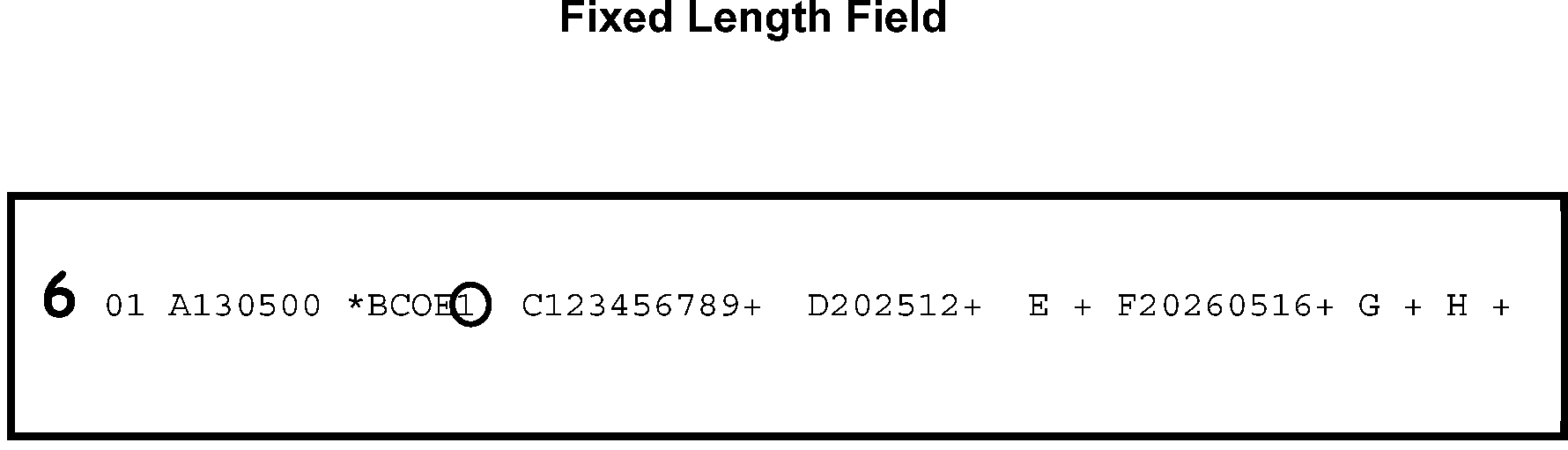
-
Action Code "7" is used to indicate that the data on the error register is correct and that no action is necessary.
-
Use Action Code "7" to clear an error record that is on the register for a one time only validity condition.
-
The most common use of Action Code 7 is on Loop rejects where there has been an invalid correction attempt made, identified by the "AA" . Not every invalid correction attempt appears as an error on the register. Using AC 7 will cause it to revert to the original error on the next Loop Register.
-
Action Code "7" will not clear a math error condition even if the taxpayer was correct. Instead, use Action Code "0" .
-
When Action Code "7" is used, no other Action Code is valid.
-
Use Action Code "9" to re-reject a loop register for correspondence or other suspense action.
-
This code is used to prevent a reject loop record from reprinting each time the loop is run, if the record is not ready for correction.
-
Action Code "9" is to be used for reject loop only. Do not use for raw rejects or error registers.
-
-
When Action Code "9" is used, no other Action Code is valid.
-
Each correction attempt is subject to tests which ensure proper correction.
-
If a correction attempt fails, the record will reappear on the Error Register with Error Reason Code "AA" .
-
When Error Reason Code "AA" is present, correct the error register as if no other correction attempt has been made.
-
-
For a given record, any correction that precedes the invalid correction attempt will print out as a corrected field.
-
Any other corrections made after an invalid correction will not printout, an Error Reason Code "AA" will be present.
-
-
Action Codes "0" , "1" , "2" , "3" , and "7" are considered invalid correction attempts if:
-
There is more than one section in the Correction Record for an Error Sequence Number, or
-
The Correction Record contains other than the Error Sequence Number, Section Number 01, and Error Action Code, the TPNC for Action Code 1 only, or Reject Disposition Code, Action Code 2 only.
-
-
Action Code "4" is considered an invalid correction attempt if:
-
An attempt is made to delete any section with a single asterisk (*) before the Section Number.
-
An attempt is made to delete a section of an Error Record when the Error Record Section is not on the Error Tape.
-
Attempts are made to delete the only section. Section Number 01, for a record.
-
-
Action Code "5" is considered an invalid correction attempt if:
-
The Alpha Field Designators are not in alphabetic sequence.
-
An attempt is made to add a section already in the error record.
-
An attempt is made to add a section that has an invalid Section Number.
-
An attempt is made to add a section with a field that has an Alpha Field Designation not possible for that section.
-
-
Action Code "6" is considered an invalid correction attempt if:
-
The Alpha Field Designations are not in alphabetic sequence.
-
An attempt is made to change a field of a section with an invalid Section Number or invalid field breaker.
-
An attempt is made to change a field of a section which is not on the Error Tape.
-
An attempt is made to change a field with an Alpha Field Designation not possible for that section.
-
-
The Error Resolution (ERS) Function will resolve any errors that occur on CAWR. If ERS is unable to resolve the errors, return them to the CAWR units to be resolved.
-
The Alpha Field Section One designations and length are shown below.
Section 01 = All fields are fixed length.FIELD LENGTH TITLE A 4 Name Control B 9 Employer Identification C 4 Tax Period D 2 Status Code E 9 Transfer EIN F 4 Transfer Tax Period G 1 Transfer Indicator H 1 W-3 Indicator I 1 Correction Indicator J (Reserved) K 11 Microfilm Sequence Number L 7 Reported count of W-2s M 3 Transaction Code -
Section 02 - All Fields are variable length. This section is present only for Form 6209. Non-numeric figures may or may not be corrupted. To address this problem:
-
If non-numeric data is entered in any of these fields, the error register will not show the non-numeric (corrupted) data.
-
On the error register, in the TERMINUS INDICATOR will be 2 asterisks (**) (to the left of Section 02), and
-
The field will be blank.
FIELD LENGTH TITLE A 15 Social Security Wages (Form W-3 Amount) B 15 Social Security Wages (Form W-2 Amount) C 15 Social Security Tips (Form W-3 Amount) D 15 Social Security Tips (Form W-2 Amount) E 15 Federal Income Tax Withheld (Form W-3 Amount) F 15 Federal Income Tax Withheld (Form W-2 Amount) G 15 Earned Income Credit (Form W-3 Amount) H 15 Earned Income Credit (Form W-2 Amount) I 15 Medicare (Form W-3 Amount) J 15 Medicare (Form W-2 Amount) -
-
This section of the manual lists the procedures that are to be followed for controlling the reject inventory. Information in this section includes the following:
-
Reject Sequence Number (RSN)
-
Reject Register
-
Data Control deletes
-
Duplicate DLNs
-
Suppression of erroneous balance due and delinquency notices
-
-
Rejects are maintained on a separate computer file from Errors and BOB.
-
The Reject Sequence Number is used to access each record on the file.
-
The Reject Sequence number is in the following format which consists of: X-XXX-XXXXXX
-
Position 1 - year digit
-
Positions 2 through 4 - Julian date plus 600
-
Positions 5 through 10 - Consecutive serial number, beginning with 000001 for all new rejects on the file
-
-
The Reject Register will remain in the Rejects Unit until the register is coded for transcription.
-
If the document must be routed elsewhere, maintain a register file in DLN sequence order. Notate at the top of the register the date and area where the document was routed.
-
Associate the document with the register when it is returned.
-
-
The first line of the reject register is the title line.
-
Each register contains a literal in the title line which identifies the register as "raw" , "loop" , "re-reject" , or "special" .
-
The Entry Source Code is found on the title line. It identifies the last status of the document before it was rejected. The Entry Source Codes, and the meaning of each, are listed below:
-
D - Raw Input - the last function handling the document was ISRP. The document was Computer Condition Code (CCC) "U" coded by Code and Edit.
-
B - Corrected Block Out of Balance (BOB) - After ISRP, the block of document was worked by the BOB Resolution function.
-
U - Unpostables - The document was nullified to Rejects by Unpostables. The "U" will be followed by the Unpostable Code.
-
E - Error - The error register was "3" coded by Error Correction.
-
-
The program number is printed to the left of the name of the program on the title line.
-
The second line is the document ID line.
-
The batch number is printed between the ABC and DLN.
-
The last number on the right is the last action code used.
-
-
Each Reject is matched with its corresponding document. Make sure the DLNs and TINs on the register and document match.
-
The correction loop and correction match counter identifies the number of times a register has printed and the number of times a correction record has attempted to post to good tape.
-
The loop counter and match counter are reset for re-rejects.
-
-
Whenever a return must be renumbered/re-input because the document had been input to the wrong MFT, tax period, or correspondence was issued, address the possibility that erroneous return delinquency notices may be issued.
-
TC 599 with Closing Code 17 must be input all SCRS BMF returns which may not be processed prior to the return delinquency check.
-
Notate the document with "TC 599-17" , "TC 599-18" , or "STAUP-6" in the upper margin.
-
If the document has already been notated, no further action is required.
-
-
The SCRS Aged List is a listing of all open reject registers that have been in reject status 45 days or longer.
-
The Aged List is divided into four different age groups.
-
The 45-59 days list is ignored for age review.
-
Rejects are not aged prior to 60 days.
-
Every aged item over 60 days old will be reviewed and annotated within one week after receipt of the list.
-
Reject items in the 90-119 days category will be given top priority.
-
All records will be resolved within 120 days.
-
-
The Aged List will be printed at least once a week.
-
Shelved and early filed returns that have been included on the aged reports may be excluded from the numbers reported on the Rejects inventories. Exclusions will be the following:
-
Returns, such as early filed Form 1120-L, that must be held because programming changes necessary to process the forms are not available.
-
Returns or other documents for which delayed processing is specifically authorized by IRM 3.30.123, Processing Timeliness: Cycles, Criteria, and Critical Dates.
-
-
Care must be taken to carefully monitor these early filed returns.
-
The Reject Display Card is used to request the Aged List and should be printed at least once a week.
-
The Aged List can be printed in DLN, Reject Sequence Number, or TIN sequence, depending on the code used in the Display Card.
-
Document Perfection is responsible for identifying refunds and for initiating requests for manual refunds.
-
Expeditious processing of refund returns is critical if the 45 day period is about to expire.
Note:
If the BMF document has passed the 45 day jeopardy and the refund is less than ≡ ≡ ≡ ≡ ≡ ≡ ≡ and the document can be worked out (resulting in faster posting and refund systemically released rather than issuing a manual refund), then work the document and do not issue a manual refund.
If Then The processing date is more than 20 days after received date or, the return due date (whichever is later) and the refund amount is ≡ ≡ ≡ ≡ or more, -
Enter Action Code 3 and reject the record.
-
Attach Form 4227 (or other proper routing slip) and give the return to the lead.
The refund is ≡ ≡ ≡ ≡ ≡ ≡ ≡ ≡ ≡ or more, -
Do not leave the return in the block.
-
Enter Action Code 3 and reject the record.
-
Attach Form 4227(or other proper routing slip) and give the return to the lead.
-
-
A Reject is any document suspended from ERS processing, using CC SSPND. This removes the document from normal processing and allows other areas (e.g., Entity) to perfect and/or review the return, or to correspond with the taxpayer.
-
This section provides general procedures for Rejects Tax Examiners.
-
IRC 965 requires certain Taxpayers to pay a transition tax on the untaxed foreign earnings if certain specific foreign corporations as if those earnings had been repatriated to the United States. For this purpose, a specified foreign corporation is a foreign corporation that either is a controlled foreign corporation (within the meaning of IRC 957) or has one or more United States shareholders that is a domestic corporation.
-
A Section 965 return can be identified by either Section 965 or 965-Tax (or similar language) notated on the return or Section 965 Transition Tax Statement (or similar 965 statement) is attached. On TY18 and later returns, Form 965-A replaces the Section 965 Transition Tax Statement.
-
The IRC 965 inclusion period, was 201712-201911. After November 2019, no new IRC 965 inclusions can be made.
Note:
After November 2019, no new IRC 965 inclusions can be made, however if a taxpayer made a timely 965(i) election during the inclusion period, and subsequently experiences a triggering event, the taxpayer may make a subsequent IRC 965(h) election, at that time, to pay the triggered S corporation-related net 965 tax liability in 8 installments, beginning in the year of the triggering event.
-
During the inclusion period (201712-201911) taxpayer could elect one or more of the following on the inclusion year return:
-
to pay the Section 965 transition tax in full,
-
eligible S Corporation shareholders could defer the assessment and payment of the Section 965 transition tax from the S Corporation until a triggering event occurred by making a 965(i) election, and/or
-
the taxpayer could defer they payment of the Section 965 transition tax over the course of 8 annual installments by making a 965(h) election,
-
eligible REITs could defer the reporting of Section 965 income over an 8 year period, and/or
-
eligible taxpayers could exclude 965 income when determining the net operating loss (NOL) deduction and when determining the amount of income that can be reduced by a NOL carryback or carry forward, thereby making the NOL available to offset the non-965 income ONLY for the inclusion year,
-
-
An entity that has income under section 965 of the Code for its 2017 taxable year was required to include with its return an IRC Transition Tax Statement signed under penalties of perjury and, in the case of electronically filed returns, in Portable Document Format (.pdf) with a filename of “965 Tax”.
-
Returns that had an income inclusion under IRC 965 for its 2017 taxable year were required to include with the return an IRC 965 Transition Statement signed under penalties of perjury.
-
In taxable year 2018, Form 965 with Form 965-A or Form 965-B replaced the IRC 965 Transition Tax Statement.
-
Any individual taxpayer or taxpayer taxed like an individual (i.e. Form 1041) who has a net IRC 965 tax liability for any tax year or has any net IRC 965 tax liability remaining unpaid at any time during a tax year must file Form 965-A
Note:
Taxpayer that made an IRC 965(i) election must file Form 965-A with their Form 1041 each year until the IRC 965(i) net tax liability is assessed in full. Form 1041 filers that made an IRC(h) election in the year of inclusion or in the year of the triggering event must file Form 965-A each year with their Form 1041 until the IRC 965 liability is paid in full.
-
Any corporate taxpayer who has a net IRC 965 tax liability for any year, an electing REIT with any IRC 965 amount taken into account in accordance with IRC 965(m) or not fully taken into account at any time during the tax year, MUST file Form 965-B each year with their return until the liability is paid in full.
-
Returns with an IRC 965, there will be a CCC "J" present on the inclusion year only.
-
Returns with an IRC 965 inclusion, there will be a TC 971 AC 114 posted with the original return, the Miscellaneous Field on IDRS will show the total amount of the IRC 965 transition tax minus any amount deferred under IRC 965(i), as shown on the original return. This amount will be included in the TC 150 amount. For 2017 returns, if the taxpayer elected the IRC 965(h) tax deferral method, there will also be a TC 971 AC 115 posted for the deferred tax amount with the original return. (the TC 971 AC 115 was temporarily used until programming could be established to generate the TC 766/263).
Note:
The only time a TC 971 AC 114 should be input on a module after November 2019 is if the taxpayer already has an established IRC 965(i) election and experiences a triggering event. A triggering event would be reported on Form 965-A, Part 4, Column (f) as a negative number and transferred to column (f) on one of lines 5 through 8 in Part 1 as a positive number. The triggered liability should be input as a TC 971 AC 114 on the module in which the triggering event occurred.
If Then A 965 income inclusion and/or election is being made on tax period 201711 - 201911 (MFT 02, 05, 06, 34 or 44) return, CCC J and TC 971 AC 114 should be present on the inclusion year module. A triggering event is being reported on Form 1041 and Form 965-A for the reporting year, A TC 971 AC 114 for the amount of the triggered liability should be present on the reporting year. The taxpayer is ONLY reporting a 965 installment payment being made towards a 965(h) election that was made during the inclusion period on Form 965-A or Form 965-B attached to the reporting year return, A CCC J and TC 971 AC 114 should NOT be present on the reporting year module. -
Taxpayers who make an IRC 965(h) election pay the IRC 965 transition tax in 8 annual installments of the following amounts:
-
8% in years 1 through 5
-
15% in year 6
-
20% in year 7
-
25% in year 8
-
-
The annual installment due date is the due date of the return, including extensions. Failure to pay a required installment timely could result in additional tax or accelerate the entire balance of IRC(h) net tax liability.
-
New fields and programming have been created for Section 965 returns. See form specific IRM instructions for Section 965 returns.
-
For Section 965 Manual Refunds, see IRM 3.12.38.6.6, Manual Refunds.
-
This section applies to forms with tax periods 202201 through 202212.
. -
Under the Inflation Reduction Act (IRA) of 2022 and CHIPS and Science Act of 2022, the taxpayer can elect to:
-
Take certain credits as an "Elective Payment Election" (EPE) or "Deemed Payment Election" (DPE).
-
Transfer a credit to another taxpayer.
-
Claim the credit as a General Business Credit (Form 3800).
-
-
Identify an "Elective or Deemed Payment Election" when:
-
The taxpayer writes "IRA22DPE" on the return.
-
The taxpayer writes "IRA22DPE" on attachments, or has a Form 3800 attached.
-
ERS has suspended the document on Action Code 450.
-
See Form specific IRM instructions for "EPE" , and "DPE" returns.
-
-
Identify a "Credit Transfer" when:
-
The taxpayer writes "IRA22TRE" on the return.
-
The taxpayer writes "IRA22TRE" on attachments or has a Form 3800 attached.
-
ERS has suspended the document on Action Code 450.
-
See Form specific IRM instructions for "IRA22TRE" returns.
-
-
When Rejects receives an EPE return:
-
Ensure there is a Return Processing Code (RPC) "J" , RPC "K" , or both on the return.
-
Continue processing the return and work all errors that display.
-
Once the document is worked, put in the review basket for LB&I.
-
-
This section of the manual lists the procedures that are to be followed for corresponding with taxpayers and working correspondence received from taxpayers.
-
Review document before issuing correspondence to ensure all needed information is requested the first time. Check IDRS to see if there is already a return (TC 150) posted for that tax period. If so, follow procedures for duplicate or amended returns, whichever applies.
-
Information in the section includes the following:
-
ICO Letter Inventory Tracking System (ILITS) Tool
-
Use of Fax for taxpayer’s submission
-
Quick Notes (Form 5260)
-
Correspondence suspense
-
Form 4442 Referrals from Customer Service
-
Application to Adopt, Change, or Retain a Tax Year(Form 1128)
-
Second correspondence
-
Correspondence received date
-
Replies to correspondence
-
E-filed return replies to correspondence
-
No reply processing instructions
-
-
The Input Correction Operation Letter Inventory Tracking System (ILITS) is a tool developed by IAT that is used by the correspondence function to maintain and control the letter inventory. The tool performs three primary actions:
-
Add Case Controls
-
Close Single Case Controls, and
-
Purge Expired Case Controls
-
-
The LA49602 Report is a daily report on Control-D, which has the previous days letter input data. Use the "Add Case Control" feature daily to run the LA49602 file through the ILITS tool. Case controls are added to display the Batch Number on CC ENMOD, which identifies where the document is located in the suspense file. This control will also show on the CCA4243 Overage Report with a list of the controls assigned to the employee who ran the tool.
-
Use the "Generate Batch Sheets" feature to print all the batch sheets for that letter file. Associate each batch sheet with its related bundle and place the bundle in the suspense file in batch number order.
-
As correspondence replies are received, associate the reply with the return. Use the "Close Single Case Control" feature and the SSN on the reply/return to close the case control on CC ENMOD and activate the return to Workable Suspense Inventory.
-
Use the "Purge Expired Case Controls" feature to run the weekly Overage Report through the tool to close the case controls on the No Reply documents. No activation is necessary for the No Reply documents, because the suspense period has expired and automatically placed the documents in the Workable Suspense Inventory.
-
Quick notes may be used instead of IDRS letters when no IDRS letter is suitable or used for a less formal request for information or action. Retain a copy of each Quick Note with the return.
-
Mandatory review of Quick notes are required.
-
A quick note must have all the following:
-
Original and 1 copy of the letter
-
Request to return one copy of the letter with the reply
-
Tax Examiners name, employee number, and phone number
-
Return envelope
-
Return Address
-
-
Quick Notes should be brief and concise and written in business-like and non-threatening terms.
-
Specify the purpose of the letter, what information is needed, and what action will be taken if no reply is received.
-
Be sure to specify the type of document and the tax period in question.
-
In cases where the recipient of the letter is a trustee, guardian, or other legal representative, specify the name and TIN of the return entity.
-
When the taxpayer requests a photocopy of the return or part of the return in order to answer our correspondence:
-
Photocopy the requested return or parts of the return.
-
Route the copies and any necessary other letter to the taxpayer without charge.
-
-
When corresponding for a missing signature only:
-
If the return is a "refund" it must be held in suspense.
-
For domestic correspondence, SSPND with Action Code 225.
-
For international correspondence SSPND with Action Code 226.
-
After the letter is input, notate on the input date on the return.
-
-
Do not suspend using SSPND 225 to correspond for a missing signature if:
-
"Substitute for Return Prepared by IRS" is noted or "dummy" return.
-
"Section 6020(b)" or "prompt assessment" is notated or Form 4810 is attached.
-
-
Address Changes - If the return referenced on Form 4442 is in Rejects awaiting a reply to taxpayer correspondence:
-
Input the new address information from Form 4442 in the correct fields for the type of form.
-
SSPND the return with Action Code 212 and re-send the correspondence to the new address.
-
If the return is not in Rejects when Form 4442 is received, return the Form 4442 to the originator with an indication that the return is no longer in Rejects (and the current location of the return, if known).
-
-
Responses to Reject Letters - If the Form 4442 transmits a response to a letter issued out of Rejects:
-
Treat the response as if it has been received directly from the taxpayer.
-
If the return is not in Rejects when Form 4442 is received, return the Form 4442 to the originator with an indication that the return is no longer in Rejects (and the current location of the return, if known).
-
-
Other Issues - If the Form 4442 does not indicate why it is being sent to Rejects, or is for a subject inappropriate for Reject action, send to the appropriate area.
-
For tax years beginning after December 31, 1986, the Tax Reform Act of 1986 generally requires that all partnerships, S corporations, Personal Service corporations, and certain trusts conform their tax years to tax years of their owners.
-
Partnerships, S corporations, and Personal Service corporations are known as pass-through entities because the income is not taxed on the entity's tax return, but is passed through to the owners to be reported on their tax returns.
-
The purpose of this legislation is to eliminate the deferral period for reporting income when the tax year of the entity is different than the tax year of the owners.
-
-
Form 1128, Application to Adopt, Change, or Retain a Tax Year, is most commonly used for Form 1120 or Form 1120-S, but is also valid for various other forms including Form 1041, Form 1065, and Form 990.
-
If the accounting period is changed, approval is required. An approved Form 1128 may be attached but is not mandatory. The return may refer to an approval action date and approval symbol.
-
TC 053 and/or TC 054 on the entity identifies approved accounting period changes as a result of Form 1128.
-
Whenever there is no indication of an approved change of accounting period, route the return and Form 1128, suspend 320 to Entity.
-
Second correspondence should only be prepared if:
-
The taxpayer gave us all the information previously requested, but we need more information to process the return. The letter should apologize to the taxpayer.
-
-
Enter Action Code 212 with SSPND for all second correspondence.
-
The original correspondence should be reissued, if TAS or the taxpayer has indicated non-receipt of the original request. Be sure to verify the address.
-
Never prepare more correspondence to the same taxpayer at the same address if the original is a "No Reply" . Follow form specific No Reply procedures.
-
The Correspondence Received Date (CRD) will be present if returns were held in suspense and the reply is received after the Return Due Date.
-
Generally, the field designation is 01CRD but some returns have a different designation. Refer to the form specific IRM for instructions.
-
This field must be blank or have a numeric entry in YYYYMMDD format.
-
The field is invalid if:
-
Less than eight (8) numerics
-
Not in YYYYMMDD format
-
Not within the valid month, day range
-
Greater than the current date
-
-
Determine the CRD for Fax replies, in the following priority:
-
Correspondence Received Date stamp
-
Date the reply was faxed
-
Date entered on fax cover sheet by taxpayer
-
Current date
-
-
Determine all other Correspondence Received Dates in the following priority:
-
Correspondence Received Date stamp. If multiple date stamps, use the CRD that made the return complete and processable.
-
Postmark date on reply envelope.
-
Service Center Automated Mail Processing System (SCAMPS) digital date.
-
Current date.
-
-
Edit the correspondence received date (CRD) in the left margin of the return.
-
Do not edit the correspondence received date when:
-
The correspondence reply was received before the return due date.
-
The correspondence was required because of an IRS processing error (for example, a request for a return or schedule that was lost during processing).
-
When the taxpayer makes a statement and/or the tax examiner determines the correspondence was not necessary or issued in error.
-
-
The Entity Assignment Date will be indicated, in the left hand margin on the front of the return, by a capital E and date assigned. Rejects will input this date into field 01CRD when Entity has assigned a new EIN.
-
If no reply or the correspondence was undeliverable, edit CCC "3" in the correct field, according to the return specific instructions.
-
When the reply is received and the return is not in ERS See, IRM 3.12.38.3.6.3.4 for Late Reply Instructions.
-
When the reply is received from the taxpayer, you must enter the data onto the screen display/record or register including any address changes.
If Then The correspondence reply is associated with an Exempt Organization return - -
Form 990 - TC 4, DC 93
-
Form 990-EZ - TC 4, DC 92 for 2008 and later tax years.
-
Form 990-PF - TC 4, DC 91
-
Form 990-T - TC 3, DC 93
-
Form 4720 - TC 4, DC 71
-
Form 5227 - TC 4, DC 83
Rejects will forward the following responses to Imaging via the ERS clerical team: -
Missing schedules,
-
Missing signatures, and
-
Correspondence for the Schedule B check box.
The correspondence reply is for other than an Exempt Organization return, Follow procedures found in return specific 3.12 IRMs. -
-
Correspondence reply contains current or future tax year Schedule K-1(s) for Form 1041, Form 1120S, or Form 1065, the Schedule K-1 must be detached and routed for processing, per IRM 3.0.101.5. Prior year Schedule K-1(s) will be routed to Filed to be associated with the Parent return.
-
If EO return was previously deleted and sent back to the filer, and is received with all of the requested information, send return to be reprocessed.
-
Master File addresses should not be changed unless there is oral/written verification from the taxpayer or written information from the authorized Power of Attorney (POA).
-
You must enter the received date of the correspondence reply in the Correspondence Received Date field.
-
It is important that the correct information is entered to prevent erroneous tax refunds.
-
Be sure to enter the missing data and Correspondence Received Date before clearing the Priority I Error.
-
Use CC GTSEC for applicable sections.
-
-
Do not enter the received date in the Correspondence Received Date field in the following conditions:
-
The correspondence reply was received before the due date of the return ≡ ≡ ≡ ≡ ≡ ≡ ≡ ≡ ≡ ≡ ≡ ≡ ≡ ≡ ≡.
-
The correspondence was required because of an IRS processing error, such as missing pages on Form 940 and Form 941 and the taxpayer shows that it was attached.
-
When the taxpayer makes a statement and/or the tax examiner determines the correspondence was not necessary or issued in error.
-
-
If the taxpayer submits an amended return, treat the amended return as the reply to the correspondence.
-
For replies to multiple tax periods, take one of the following actions:
If Then Taxpayer indicates on a non-remittance multiple period return how the data is to be divided, -
Prepare dummy returns for those periods.
-
Correct the original return to reflect liability for the earliest tax period.
-
Route the new returns to Receipt and Control for normal processing.
Taxpayer submits returns to cover all tax periods, -
Correct the rejected return to reflect the tax liability for one tax period.
-
Check ERINV to see if any of the other returns are needed for returns already in ERS Suspense.
-
Check BMFOLT to see if the other returns have already posted and these are duplicates.
-
Send the other returns to Batching and Numbering, if they are not needed for ERS Suspense returns and have not posted.
-
-
Input FRM49 for all Form 1120 replies in which Form 851, Affiliations Schedule, is received. If Pre-Paid credits are shown:
-
Use TC 590 with Closing Code 14 for each subsidiary. Note "590-14" on document. See IRM 3.11.16, Corporate Income Tax Returns.
-
At the option of the SPC, research for the filing requirement can be performed before inputting the TC 590-14.
-
If the filing requirement is "14" , a TC 590-14 does not have to be input.
-
If the reply states that the subsidiary is no longer part of a consolidated corporation, no action is required. Process the return as filed. The filing requirement will change back to "01" .
-
-
Try to process as "no reply" when the taxpayer has indicated a refusal to comply.
-
Otherwise, refer to Examination as a frivolous filer case.
-
-
If the taxpayer indicates that the response must be delayed:
Attach the letter to the return. Resuspend the return with Action Code 212 as appropriate and leave in suspense.-
Because of illness,
-
The preparer is out of town, or
-
Other valid reason,
-
-
If the taxpayer's response is accompanied by a question/request and the information is not available to answer the question/request, send a copy to the appropriate area in the campus. Be sure that the taxpayer's name, TIN, and the received date are on any correspondence leaving the area.
-
If more information is provided:
-
Correct the taxpayer's record as appropriate.
-
Enter the received date of the correspondence reply in the Correspondence Received Date field,≡ ≡ ≡ ≡ ≡ ≡ ≡ ≡ ≡ ≡ ≡ ≡ ≡ ≡ ≡
-
Make the necessary corrections based on the new information.
-
If new issues are raised in the reply, follow procedures applicable to the original return.
-
When the taxpayer's computations on the amended return do not agree with the campus's computations, correct/process the return with the information provided by the taxpayer.
-
-
Form 1120-L, Form 1120-PC, and consolidated 1120 filers are required to submit an annual statement. C&E will correspond for the annual statements. The returns will be processed and not suspended.
-
Replies will be sent to ERS/Rejects to be associated with the original returns in Files. Research IDRS for the TC 150 DLN and notate it on the letter. Send to Files.
-
If the taxpayer wants to allow an employee of their business or an individual paid preparer to discuss their BMF tax returns they may show their election by checking the "Yes" box in the "Third Party Designee" or "Paid Preparer" section of the return. The box is located near the signature section of the return. They also enter the name, phone number, and Preparer Tax Identification Number (PTIN).
-
The designation must specify an individual and may not refer to their payroll office or tax preparation firm. By checking the "Yes" box, they are authorizing the IRS to call the designated employee or paid preparer to answer questions that may arise during the processing of their return. The taxpayer is also authorizing the designee to:
-
Give the IRS any information that is missing from their return.
-
Call the IRS for information about the processing of their return or the status of their refund or overpayments.
-
Respond to certain IRS notices that they have shared with the designee about math errors and return preparation.
-
-
The taxpayer is not authorizing the designee to:
-
Receive any refund checks or obligate the taxpayer to anything (including additional tax liability).
-
Otherwise represent the taxpayer before the IRS.
-
-
The authorization will automatically expire on the due date (without regard to extensions) when they file their tax return for the next year.
-
The taxpayer or the designee may revoke the designation before the expiration date by submitting a written statement of revocation. A TC 971, with Action Code 263 changes the Third Party Designee indicator to "0" , to indicate a revocation.
Note:
A third party indicator/check box field is shown on TXMOD (IMF and BMF), IMFOLR, BMFOLR, RTVUE and BRTVU. The field will show either:
Field Designator Explanation Blank A Third Party Designee is not designated by the taxpayer. 1 Third party designee is designated by the taxpayer. 0 Third Party Designee is revoked.
-
Use the following procedures before sending MeF and/or Scanned Paper replies to files. Ensure all IDRS research is performed before inputting IDRS action.
Note:
This process is necessary to create a DLN in Files to associate the reply. Input all REQ54 actions within 10 business days after closing the MeF and/or Scanned Paper reply in Rejects.
-
AP 290 for zero (.00) is a pending transaction prior to PN (pending) status. This transaction will not have a complete DLN and will need to be held until the 290 is PN (pending) or posted.
-
PN 290 for zero (.00) is a pending transaction that has passed all IDRS validity checks and has a complete DLN. Print the IDRS screen, highlight the 290 DLN, send to files.
-
-
If the correspondence was generated from an electronically filed return, a refile DLN will need to be created so information can be attached. Ensure that the DLN on the correspondence matches the electronically filed return print.
-
If the taxpayer submits a paper (duplicate) return as part of the reply, cancel DLN and leave in original batch.
-
Tax returns that were filed on paper and scanned by Optical Character Recognition (OCR) scanners are referred to as Scanned Paper Returns (SPR). Data from SPR is sent through the Modernized e-File (MeF) system and the returns are viewable in the Enterprise User Portal (EUP).
-
Computer Condition Code "Z" is entered into Field 01CCC at the scanning site when a SPR needs correction in ERS. CCC "Z" is invalid for Form 941, and Form 940 to force the return to fallout for ERS correction.
-
If correspondence was generated from a scanned return, a refile DLN will need to be created so information can be attached. Ensure that the DLN on the correspondence matches the scanned filed return print.
-
Input TC 290 using IAT tool to generate a refile DLN to the Files area which is used to attach the reply.
-
Use the following blocking series:
If MFT is Then Blocking Series is 01 15 02 15 03 15 05 17 06 17 10 15 11 15 14 15 16 15 44 15 50 15 60 15 67 10 -
Complete Form 10274 and route in bundles of 100 or less to Files within 5 days of the TC 290 being processed.
-
The copy of the e-filed return is classified waste. Mark with "D" and discard.
-
Perfect all documents from available information.
-
Enter CCC 3 on all no replies or incomplete replies. Ensure that the taxpayer has had ample time to reply, equal to 40 days from the date of the letter, if not resuspend AC 212 to allow adequate time.
-
Follow "no reply" procedures in specific 3.12 IRMs.
Caution:
Before disclosing any tax information, you must be sure you are speaking with the taxpayer or authorized representative. See the Taxpayer Authentication guidelines in IRM 21.1.3.2.3, Required Taxpayer Authentication and IRM 21.1.3.2.4, Additional Taxpayer Authentication. Also, before leaving any messages on a taxpayer's answering machine, review IRM 11.3.2.6.1, Leaving Information on Answering Machines/Voice Mail. Fax procedures contained in IRM 11.3.1.14, Facsimile (FAX), Electronic Facsimile (E-FAX), and IRS Internal Enterprise Electronic Facsimile (EEFAX)Transmission of Tax Information, must be reviewed before faxing confidential information to the taxpayer.
-
If you are unable to identify where an excess remittance belongs, transfer it to the Unidentified Remittance File (URF). The taxpayer may be contacted by telephone, if they provided a number, to determine the correct application of the excess remittance before transferring to Unidentified. See IRM 3.12.38.6.20.3, Transfers to Unidentified.
-
This section of the manual lists the procedures that are to be followed for reviewing aged cases. Information in this section includes the following:
-
Rejects aged list
-
ERS aged items
-
SCCF aged items
-
On-line SCCF research
-
-
The Reject Aged List is a listing of all open reject registers that are in reject status 45 days or longer.
-
The Reject Display Card is used to request the Aged List. The Aged List can be printed in DLN, Reject Sequence Number, or TIN sequence, depending on the code used in the Display Card. The Aged List will be printed at least once a week.
-
-
The Aged List is divided into four age groupings:
-
The 45-59 days list is skipped for age review. Rejects are not aged before 60 days.
-
Every aged item over 60 days old will be reviewed and annotated within one week after receipt of list.
-
Reject items in the 90-119 days category will be given top priority.
-
All records will be resolved within 120 days.
-
-
Shelved and early filed returns that are on the aged reports (both ERS and SCRS) will be excluded from the numbers reported on the Rejects inventories. Exclusions include:
-
Full paid returns prior to August 1, that have not been input by ISRP and are not identified on the SCCF as shelved.
-
Returns that are held because programming changes necessary to process the forms are not available.
-
Returns or other documents for which delayed processing is specifically authorized by IRM 3.30.123, Processing Timeliness.
-
-
Employees working the "Aged" list must be knowledgeable on the research tools/listings applicable for the control of reject records.
-
Attempt to locate all "Aged" reject cases.
-
Check correspondence suspense file.
-
Check Form 3210, Document Transmittal.
-
Search any other files held by TEs or clerks within Rejects.
-
Use CC ESTAB or the appropriate CCs to request missing documents from Files.
-
-
When items are located, determine reason for the delay in processing. Notate on the Aged Listing where items are held and the reason.
-
Items on listing which cannot be located must be researched and any action taken notated.
-
Research IDRS for posting or possibility that item has been assigned to another area.
-
Prepare request for account transcript and any entity information needed.
-
Request "Special Search" using the form returned from Files.
-
Enter CC SCFTR to determine if the item remains open on SCCF. If open on SCCF, refer to IRM 3.12.38.6.17.1.2, Preparing Form 3893. If item is closed on the SCCF, then the reject record can be deleted off the Reject Inventory File with Code 2-R or from ERS with RJECT 660. Enter Action Code on the register and send to ISRP on next input.
-
-
The following ERS listings will be used to identify and resolve aged cases. Any record on CC ERINV, "Total Days ERS" shown as 60 days or more is aged.
-
The weekly ERS 31-40, Error Resolution Unworkable Suspense Aged Report, lists all records currently in Unworkable Suspense that have been in the ERS system for 45 or more calendar days.
-
The weekly ERS 31-41, Error Resolution Workable Suspense Inventory listing are received for records in Workable Suspense for 0 or more days.
-
-
ERS 31-40, Unworkable Suspense Aged Report, is available on Control D.
-
Each Unworkable Suspense record in which the current date is at least 45 calendar days later than the Control Day will print on the listing. The Control Date is the Julian day the record is received in Input Correction and can be determined from CC ERINV or CC SCFTR.
-
Records are sorted by Control Day for each Master File, with the oldest records listed first. Records are sorted by DLN within control day. The actual aged days should be determined using ERINV, "Total Days ERS" .
-
-
The ERS 31-41, Error Resolution Workable Suspense Report, is received weekly when records have been in the Workable Suspense Inventory for zero working days, and will appear on this listing in intervals of 5 days until the case is removed from the inventory or placed in unworkable status. All records on this listing are considered aged:
-
Correspondence items in Status 321/322 should be reviewed to determine the actual date that the correspondence was issued and, if appropriate, processed as "No Reply" cases.
-
Initiate the appropriate follow-up action to locate and process each aged item.
-
Workable Suspense items that truly require more time to resolve should be resuspended.
-
Annotate the Aged listing and the Suspense charge-out to document your research actions.
-
-
Review the error and reject inventories on a weekly basis by reviewing the SCCF Aged Report (SCF 07-50 and SCF 07-51) using Control D. Reports are generated on the first processing day of each new cycle and are available on the first workday of the new week (Friday). Reports will be worked weekly and submitted to Accounting no later than 10 a.m. on Monday.
-
For SCCF purposes, Rejects includes both reject registers and ERS suspense records.
-
Each DLN on the SCCF transcript should be reviewed and annotated.
-
-
Annotations will be specific and include:
-
Reason it is aged, i.e. NU for nullified unpostable, or early filed return,
-
Date received in Rejects Inventory.
-
What action has been taken or will be taken to resolve the aged item.
-
-
Aged error items are on the same list and will also be resolved by Rejects with the assistance from Error Resolution.
-
Closed items from Error Correction should be annotated on the transcript.
-
If the DLN is not on the ERS/Rejects inventory, refer to Accounting.
-
If an aged item is determined to be open after online SCCF adjustment, refer to Accounting.
-
-
Another portion of the SCCF Aged Transcript will be worked jointly between Rejects and Data Control. This is the "Aged Man Er/Rej Modules" , SCF 07-51. This transcript includes aged blocks with either of the following conditions:
-
Open items in both SCCF manual balance and the error or reject balance.
-
Items that were coded as reentries by Rejects (From-To Code 4-0) and have no subsequent activity.
-
-
SCCF aging is based on variable criteria. The following reject and error items are considered aged:
-
Any return block with an open reject balance and no activity for 13 weeks.
-
Any non-return block with an open reject balance and no activity for 8 weeks.
-
Any block with open error balance for 4 weeks (8 weeks for IRP).
-
Any block that has been open on the SCCF for 16 weeks, regardless of activity (13 weeks for Document Codes 17, 18, and 19).
-
-
Notify Data Control by the 20th of each month of any open rejects in Rejects inventory for 90 days or more and are still being worked by other campus functions. The emphasis will be to close three months or more aged items quickly.
-
It is necessary to read and understand SCCF transcripts to review SCCF aged items and perform other SCCF related duties.
-
Work the SCCF Aged Listings on a weekly basis.
-
Work the SCCF Aged List (SCF 07-50 and SCF 07-51) in coordination with the Reject Aged List to avoid duplication of efforts. Items listed on the SCCF Aged may not be aged in the Reject Inventory.
-
Annotate the SCCF Aged Lists with detailed explanations.
-
If the case will be closed before the next report is due, notate closed by and put the expected closing date.
-
If not, what form is it, what is the problem, and what is being done to resolve the issue, for example: 1041, missing return, special search.
-
Use ditto marks or vertical lines for identical remarks, to save time.
-
Provide a copy of the annotated report to the Data Control Unit in Accounting.
-
-
Rejects is responsible for the research of aged items on the SCCF Reports that are in ERS and Reject Inventories. They will provide the status information to Data Control, so history items can be added to the SCCF transcript:
-
If the record is in ERS, locate the document and resolve quickly.
-
If the record is no longer in Rejects or ERS, research the closed listing to see the resolution.
-
If the record is no longer in Rejects and the document has not finished processing, check the ERS 05-40.
-
If the record was closed in error, prepare any necessary SCCF adjustments or obtain the document and re-input, if needed.
-
-
The transcript format described here is used for all Master Files.
-
The original count and amount is the total for the block shown in the control record with From-To Code 0-0.
-
Code 7-0 is an increase.
-
Code 8-0 is a decrease.
-
-
The other balances on the transcript are manual, error, reject, and file delete. The reject balance should always agree with the count and amount of items on the reject file plus ERS suspense.
-
The Record Type ID Code identifies the type of record that posted to the SCCF.
-
0 = SCCF Adjustment Record (except renumber)
-
1 = Master Control Record
-
2 = BOB Control Record
-
4 = Generated SCCF Adjustment Record
-
5 = Delete or Re-enter Block Proof Record
-
6 = Renumber Block Proof Record or Renumber Adjustment Record
-
7 = Good, Error, or Reject Block Proof Record
-
-
The From and To Codes show the effect on SCCF balances. If the From Code is 0 to 6, the standard meanings apply.
From Code To Code Meaning SCCF Balance Affected 0 0 Raw data/re-input Manual 1 1 BOBs Manual 2 2 Deletes Delete 3 3 Errors Error 4 4 Rejects and ERS Suspense Reject 5 5 Good Tape None 6 4 Unpostables Reject -
When the From Code is 7, 8, or 9 special meanings apply.
From Code To Code Meaning SCCF Balance Affected 7 0 Increase the original balance Suspense 8 0 Decrease the original balance Suspense 7 7 Turn the ADSI On None 8 7 Turn the ADSI Off None 8 2 Remove the block from the SCCF All 9 9 Information only None -
The Re-input Source Code is:
-
N for nullified (rejected) unpostables
-
R for reprocessable
-
U for applications from the URF
-
-
The next fields are the SCCF posting tax year, Julian date, posting cycle, document count, serial number, and amount.
-
The cross-reference DLN is printed for any renumber record or new DLN created by a renumber record. The cross-reference serial number will print in the second serial number field.
-
To access any DLN on the SCCF, enter CC SCFTR, space, followed by the Master File System Code, the Block DLN, and XMIT.
-
The Master File System Codes are:
-
1= IMF/IRAF
-
2 = BMF
-
6 = Automated Non-Master File (ANMF) (KCSPC only)
-
-
The DLN must be entered as 12 numerics without hyphens or spaces.
-
If the DLN has been entered correctly and is open on the SCCF, the complete transcript is displayed.
-
The online control file should be updated continually by CC SCFAJ nightly from batch processing.
-
The Control File Block Status Code, field S on the transcript, identifies the current status of the block on the SCCF. The values are:
-
A = Active
-
D = Being deleted
-
H = Historic
-
I = Inactive (no open balances)
-
S = Shelved
-
-
The Control File Age Indicator shows the number of times that a block has been selected for SCCF age review.
-
Each time the block is printed on the SCCF age transcript, the indicator is increased by one.
-
The indicator is never decreased except when the block is removed to the Historic Cycle.
-
-
The Historic Cycle (HC) indicates the cycle that a block had previously gone to the Historic transcript.
-
Data Control Deletes are removed from ERS with Action Code 660. SCRS with Action Code 2-R.
-
These are records that have been selected by Data Control in Accounting for deletion.
-
Data Control function may access an ERS record and delete it, instead of indicating to ERS Tax Examiners which records to delete at the SPC option.
-
Regardless of the method used to enter "RJECT 660" ERS, "2-R" SCRS, the documents will be pulled by Data Control.
-
-
Compare the DLNs with Action Code 660 on the Rejected Records List with the list of deletes received from Data Control to ensure that the correct records were deleted.
-
If Data Control has deleted the records by accessing the ERS file, no verification is necessary.
-
If the correct documents were deleted, destroy the charge-outs and mark both lists to show that the items have been deleted.
-
If any Action Code 660 charge-out does not match the Data Control list, pull the document using local procedures and annotate the Rejected Records List and all copies of the charge-out that the record was deleted in error.
-
Route the document and remaining copies of the charge-out (according to local procedures) for preparation of the necessary forms to adjust the SCCF and reenter the document.
-
-
The Document Locator Number is used in ERS to control every record on the file.
-
Items in the error inventory are controlled by block DLN, while suspense records are controlled by 14-digit DLN.
-
If a DLN attempts to establish on the ERS inventory for a DLN that is already on the file, the record is passed to the Suspense Inventory.
-
If the 14-digit DLN does not match another on the workable inventory, the record will become part of Workable suspense, with a generated Action Code 700 and Status Code 470.
-
After accessing the Suspense Record by 14-digit DLN, clear the Action Code 700 and correct as an error record.
-
If ERS 19-40 is generated work the workable document first, then activate unworkable and cancel DLN.
-
-
Identical 14-digit DLNs are not permitted in the same ERS inventory at the same time.
-
If a second record attempts to establish on either the Workable or Unworkable Suspense Inventory, one is purged from ERS and creates ERS 17-42.
-
A record already on the Unworkable file has priority over a new record trying to establish on that file.
-
A record on the Workable file has priority over a new or Unworkable record attempting to establish on the Workable file.
-
A record being activated from the Unworkable file has priority over a new record trying to establish on the Workable file.
-
-
All purged ERS records are listed on the Duplicate Document DLN Register.
-
The Action Code indicates the previous status of the record being purged. The codes are as follows:
-
711 - From Code and Edit
-
712 - From Error Correction
-
713 - From Unpostables
-
714 - From Unworkable Suspense
-
-
No SCCF control records are produced for documents purged from ERS.
-
If not prepared by Data Control, use Form 4028, Service Center Control File Adjustment Record (SCCF Format Code 216), to correct the SCCF for deleted and/or renumbered documents.
-
Most duplicate DLN cases will have already been identified by the Data Control function in Accounting.
If Data Control Then Has already requested deletion of the document on the duplicate listing, No further action is necessary. The document has already been deleted from ERS and Data Control will complete the required action on the SCCF. Has requested deletion of the other document with that DLN, -
Enter RJECT 630, for the DLN on ERS.
-
Then re-enter the document erroneously deleted from ERS.
-
Contact Data Control or research the SCCF with CC SCFTR to ensure that the SCCF will accept this re-entry.
-
It may be necessary to prepare Form 4028 with From-To Code 3-2 or 4-0 before routing the document to Batching with Form 3893.
Wants both documents deleted, Enter "RJECT 660" to delete the first DLN, prepare a Form 4028 and route to Accounting. Has not identified the duplicate condition, -
Contact Data Control for further instructions.
-
SCCF research will be used to determine if the documents must be re-entered.
-
-
A 2 part charge-out is generated for each item on the duplicate listing
-
For Action Codes 711 and 712, the documents should be located in blocks still in the Error Correction work area.
-
For Action Code 713, the documents are routed by Unpostables to Error Resolution.
-
-
Detach and route the original copy of the charge-out to Files for insertion into the block.
-
The documents are already charged to ERS Suspense, route the original copy of the charge-out to Files for insertion into the block next to the previous charge-out for Action Code 714.
-
Regardless of Action Code, the documents may have already been charged to Data Control.
-
Insert the original copy of the charge-out into the block where the document had been previously filed.
-
The second and third copies of the "Duplicate" charge-out may be destroyed when the case is resolved, or the second or third copy may be attached to the back of the return to provide an audit trail.
-
All duplicate DLN cases raise questions regarding the validity of any record still on the ERS file for the block DLN.
-
If the duplicate DLN is not resolved immediately, enter CC SSPND 420 for all documents on the Workable ERS file for the block DLN in question.
-
Pull the block or blocks of documents and do not release (except to Data Control) until the case is resolved.
-
-
This section of the manual lists the procedures that are to be followed for resolving missing document situations. Information in this section includes the following:
-
General guidelines
-
Required research
-
-
The guidelines for resolving Missing Document Records are basically the same for Reject records and ERS records.
-
Your instructions will specify ERS or Reject record where different actions must be taken.
-
-
Every attempt to locate missing aged items will be made until the Rejects Supervisor determines that continued research is unwarranted.
-
Unpostables will have already attempted to locate the missing document for records received from the Generalized Unpostables File (GUF). Do a special search (Green Flag) as soon as documentation comes into Rejects Inventory.
-
All research documentation will be attached to the file before being sent to Rejects.
-
The records should be reviewed to determine whether the case can be worked without the document before continuing the research or reconstruct as needed.
-
Before attempting reconstruction or write-off of a statute period document, be sure the document has current clearance by the Statute Control function.
-
After two weeks from the reject date of the register or the control day on the Form 8161, ERS Return Charge-Out, initiate a request for a Files search for the document.
-
The first search for a missing document should be inputting CC ESTAB or the appropriate CCs on the terminal. This action generates Form 4251 to Files, where the search is performed. The result of the search, or the requested document is returned to you with this form.
-
If Form 4251 is sent back indicating no document found, initiate request for a special search one month from the date of the first search request.
-
Submission Processing Center management may reduce or eliminate the waiting period for requesting the special search.
-
-
Send Form 4251 back to Files with instructions to perform a special search.
-
Be sure to keep a history as each attempt is made to resolve the case.
-
Use Form 6752, copy 3 of Form 8161, ERS Return Charge-Out, or a locally developed form to maintain the history information.
-
If two negative responses are received from files, (document not in block etc.), ESTAB for entire block.
-
When the block is received, thoroughly search the block for a related charge-out before deciding the required document is missing.
-
For EPMF missing documents, see IRM 3.12.22, Error Resolution Employee Plan Excise Tax Return.
-
If the document is missing, research the TIN using IDRS, including all the appropriate CCs available for name and address or for the possibility that the return may have been assigned to another area of the campus or has posted with a different DLN.
-
For Document Codes 17, 18, 20, 24, 45, 48, or 58, 70, or 76 credits or debits, research IDRS to determine the proper application.
-
If unable to apply the credit to the taxpayer's account, transfer to Unidentified within 30 days.
-
Contact the Accounting Branch for further instructions if unable to apply the debit.
-
-
Nullified Unpostables will be subject to a special search as soon as the documentation comes into Rejects Inventory.
-
A manual refund is a refund not generated through normal Master File processing, bypassing all systemic safeguards. For this reason, caution must be used when issuing manual refunds. Manual refunds are requested on Form 5792, Request for IDRS Generated Refund, or Form 3753, Manual Refund Posting Voucher (for manual refunds of ≡ ≡ ≡ ≡ ≡ ≡ ≡ ≡ or more).
-
Both of these forms must be accessed through IAT via the Manual Refund Tool. The use of IAT is mandatory to prevent duplicate refunds. The Manual Refund Tool assists the TE with processing a Manual Refund case. It conducts preliminary research and will auto-fill portions of Form 5792 and Form 3753. Job aids for refund tools are available at Integrated Automation Technologies (IAT).
-
-
Expedite processing prior to the end of the calendar year, in order to reduce the number of manual refunds required.
Caution:
Before releasing the Manual Refund, ensure all returns suspended to Entity has 10 days to review the return.
-
MFREQ C the accounts to verify any credits on these end of year manual refunds.
-
-
Section 965 Returns - Extra care must be utilized when issuing manual refunds on Section 965 returns. The only time the taxpayer will be entitled to the refund requested is when the refund amount exceeds the deferred tax amount. If the refund requested exceeds the deferred tax amount, then the taxpayer is entitled to refund for difference between deferred tax and overpayment and not the entire refund amount requested.
Example 1: Taxpayer requests refund of $1,000.00. The taxpayer’s deferred Section 965 tax is $800.00. The refund amount must be reduced to $200.00.
Example 2: Taxpayer requests refund of $1,000.00. The taxpayer’s deferred Section 965 tax is $1,500.00. The refund amount must be reduced to zero (0). -
Form 8827, Credit for Prior Year Minimum Tax-Corporations.
-
The more common reasons for issuing a manual refund are:
-
A hardship situation necessitates a faster refund (TAS case). TAS prepares their own manual refunds and CCC O the returns.
-
The 45 day interest free period is in jeopardy and the refund is ≡ ≡ ≡ ≡ ≡ ≡ ≡ or more.
-
The refund is ≡ ≡ ≡ ≡ ≡ ≡ ≡ ≡ or more.
-
-
Never issue a manual refund on any original return marked "Protective Claim." These returns should not be processed, void the DLN and route the return to Accounts Management.
Exception:
For Form 706 only: (1) Verify that the return is a protective claim - check box Part 4 Line 6 is yes and/or SCH PC is attached, (2) Verify that Field 0606 is a "1" for yes, (3) If no indication that Code and Edit has already forwarded a copy of the SCH PC to E&G (edited in left margin; IRM 3.11.106.4.7) scan SCH PC and Efax to E&G, (4) Leave original SCH PC with return and process the return without issuing a manual refund. If C&E has already sent the SCH PC to E&G, follow step (4). This process only applies to Form 706, all other BMF returns follow the guidelines in 3.12.38.5.5(6).
-
Don’t issue manual refunds in these cases:
-
Amended returns (returns marked amended or other indication on the return that it is an amended return),
-
No reply returns (CCC 3 is present), or
-
Return is less than 20 days old, and the refund is less than ≡ ≡ ≡ ≡ ≡ ≡ ≡ ≡ ≡.
-
Prepaid credits are insufficient for the refund claimed and reduces the refund to less than ≡ ≡ ≡ ≡.
-
Refund amount is less than ≡ ≡ ≡ ≡ ≡ ≡ ≡.
-
TC 971 AC 711 is present on TXMOD.
-
-
Form 8752 refund returns are not entitled to interest, so a manual refund will only be done if the refund is for ≡ ≡ ≡ ≡ ≡ ≡ ≡ or more.
-
Rejects will issue the manual refunds on cases received from Entity Control/Unpostables, where payments are posted to the module, but were received from filers who are not liable. No credit interest will apply to these.
-
If the return has a Form 4136 claiming credits ≡ ≡ ≡ ≡ ≡ ≡ ≡, ensure that the return has been reviewed and cleared by RICS. If the return hasn’t already been reviewed and cleared by RICS, attach Form 4227 and refer to RICS to review.
-
Contact RICS if all of the following exist:
:-
The Return is requesting a refund of ≡ ≡ ≡ ≡ ≡ ≡ ≡ ≡ ≡ ≡ ≡ ≡ ≡.
-
If there is a closed IDRS control originally assigned to 1381400000 with activity of "ISSUELTR" along with a new IDRS control originally assigned to 1481055555 with activity of either "FXMMDDYYYY" or "CRMMDDYYYY" .
-
If it has been 15 days past the response received date (MMDDYYYY).
-
-
If the withholding is ≡ ≡ ≡ ≡ ≡ ≡ ≡ ≡ ≡ ≡ ≡ ≡ ≡ ≡, attach Form 4227 and place them in the funny box for Exam/FRP.
Some fraudulent returns have Form 1099-OID attached and some have Form 1096. Other false financial instruments may be filed in the place of or in addition to the Form 1099-OID such as Form 2439, promissory notes, bonds, sight drafts, etc. Any return with a Form 1099-OID and/or Form 1099-MISC attached ≡ ≡ ≡ ≡ ≡ ≡ ≡ ≡ ≡ ≡ ≡ ≡ ≡ ≡ ≡ ≡These refunds have to be generated systemically. -
All manual refunds will be reviewed by the Authorizing Official prior to sending them to Accounting. In addition, all manual refunds will be reviewed by the designated individual, following the procedures in IRM 3.12.38.6.6.8, Monitoring Manual Refunds.
-
For mixed component refund returns, refer to IRM 3.12.251, Corporation Income Tax Returns and IRM 3.12.16, Corporate Income Tax Returns. A mixed component return is defined as multiple types of 1120s that compute tax differently.
-
IRC 847(2) requires certain insurance companies to make Special Estimated Tax Payments (SETPs) in the amount equal to the tax benefit derived from the additional deduction permitted under the statute. Returns with Special Estimated Tax Payments require special handling. These returns can be Form 1120, Form 1120-L, and Form 1120-PC. See IRM 3.12.38.6.6.4, Section 847 Form 1120, 1120-L, and 1120-PC.
-
An original tax return that cannot be processed as submitted is ineligible to receive payment of interest on any overpayment until the return is deemed processable - IRC 6611(g). A CRD is input to reflect when the return became processable, i.e., when an EIN was assigned by Entity. Input of the CRD generally avoids paying payment of interest, unless the refund is not issued within 45 days after the CRD (180 days in the case of an overpayment attributable to tax deducted and withheld under Chapters 3 and 4) - see IRM 20.2.4, Overpayment Interest. CCC 3, entered when the taxpayer fails to respond to correspondence needed to make the return processable, blocks payment of interest altogether, regardless of the 45-/180-day criteria.
-
If a manual refund must be issued:
-
The manual refund can exceed the refund being requested on the return. Attach prints of the unclaimed payments, credit elect, etc., and notate in the Remarks box on the refund form, why the refund amount is more than the refund requested.
-
The return must be complete with all required schedules and information documents. Signatures are required.
-
Math verify the return.
-
Verify all prepaid credits.
-
Accounting requires an ERS screen print showing the CCC O has been input for the return, or a SCRS print showing the CCC O coding.
-
Supporting documentation for all credits ≡ ≡ ≡ ≡ ≡ ≡ ≡ ≡ must be attached, including all schedules.
-
Use CC IRPTRO to verify all withholding when supporting documentation is missing, if IRPTR does not show the withholding credits, place the return in the Exam Funny Box. Do not issue a manual refund. Exam will determine how to freeze the credits and if they want to select it for audit, prior to sending it back for completion of processing. In the case of ID theft they may decide the return should not be processed.
Ensure that prints of CC IRPTRO accompany all manual withholding refund requests. -
If credits have been transferred into the module, check the from module for other transactions, such as extensions and payments, that may also need to be transferred.
-
Use CC BMFOL and SUMRY to research for any outstanding liability on another tax period or MFT. Compute accrued debit. Adjust refund amount by both the balance due and the accrued interest computation and attach outstanding balance (OBL) documentation.
-
CC RFUND will generate the Bypass Indicator (BPI). Leave that blank and write it in after it's printed. TOP offsets are made against any refund issued from MFT 02, 03, 07, 10, 13, 34, 43, 44, 46 (Doc Code 88 only), 52, 60, 63, 64, 77, 78 and 79, unless a BPI is systemically generated on the refund or input on a manual refund. TOP offsets are not made against refunds issued from an MFT not listed above.
-
If the account is controlled by another IRS employee, contact them prior to issuing a manual refund. Use CC MESSG to get contact information or IDRS Online Report Service (IORS-IUUD).
-
If the literal CEP or LARGE CORP followed by a two-digit SPC indicator shows on TXMOD or BMFOL, contact the Technical Unit at that campus. The initiator must indicate in the remarks area of Form 3753/5792 that the refund (including interest) was approved by the Technical Unit.
-
In Section II, Line 1d of both Form 3753 and Form 5792, notate the threshold amount, i.e. ≡ ≡ ≡ ≡ ≡ ≡ or more interest jeopardy, or ≡ ≡ ≡ ≡ ≡ ≡ ≡or more.
-
For manual refunds on Final short period returns, use the original due date of the return.
-
-
Use IDRS to ensure no other site or employee has issued a duplicate refund (TC 840) or that a refund has not already generated (TC 846). Research for any pending refunds (TC 840 or TC 846). Be sure to check the other campus's ERINV via CMODE, if they have the same return in inventory do not issue a manual refund without coordinating with them. Check UPTIN, if the TC 840/846 goes unpostable, the refund was still sent to the taxpayer.
-
Certify that the module does not contain a Z freeze (Z- freezes entire account). Obtain written approvals to issue manual refund, for audit trail purposes. An email approving a manual refund on DLN XXXXX-XXX-XXXXX-X should be attached to the manual refund package and notated in the remarks. (Any other taxpayer information would require the use of secure email.)
-
If a -L Freeze (AIMS indicator) is present on a prior module, research the account by CC AMDIS using definer A.
-
If the Status Code is greater than 08, but less than 90, research the taxpayer's account on TXMOD for MAAS (MMDDYY) in the history or activity record. This indicates that a quick assessment has been requested and a new liability may be posting.
-
If there is an assessment TC 300 (for other than .00) which hasn’t posted, contact Exam for the amount of the pending additional liability. Prior to issuing any manual refund, reduce the refund amount by any outstanding liability.
-
If there is no pending assessment, do not contact Exam.
Note:
ERS/Rejects will contact the other areas via email or telephone requesting an email approving the issuance of a manual refund. If no response is received within 2 business days. ERS will continue to process the return without issuing any refund.
For a complete listing of freeze codes, see Document 6209If TXMOD shows Then C- Freeze Issue refund -H Freeze Issue refund. -K Freeze Issue refund only if no open Exam issues and no indication of Scrambled SSN. N- Freeze Issue refund. -R Freeze Issue refund unless any indication of CI -S Freeze Issue refund. T- Freeze Issue refund. -U Freeze Contact Erroneous Refund Team in Accounting. X- Freeze Issue refund. -Z or Z- Freeze (TC 914, TC 916 or TC 918) Contact Criminal Investigation (CI). -
-
If the Refund Statute Expiration Date (RSED) or Assessment Statute Expiration Date (ASED) has expired or the return is unsigned, do NOT issue a manual refund. The ASED expires three years from the due date of the return or when the return is filed, whichever is later. The RSED expires three years from the due date of the return for prepaid credits, such as withholding. These dates are shown on IDRS. See IRM 25.6.1, Statute of Limitations Processes and Procedures.
-
Remove any CCC O unless a manual refund has already been issued and process the return.
-
-
Ensure that CCC O has been entered on the return and on the record. Take corrective actions necessary and continue processing the return. If there is a previous unreversed TC 840 on the module, hold the return until the new manual refund (TC 840) posts, then continue processing.
-
A copy of the return and prints of the necessary IDRS research must accompany the request for manual refund (Form 5792 or 3753) to the Accounting Function, after Rejects has input CC RFUND using the IAT tool. Check with the Manual Refund Unit for their daily cut off time.
Note:
An ERS screen print for the return showing the CCC O must accompany the request to Accounting, or a SCRS print showing the CCC O coding.
-
On the same day, the Accounting Operation will release the refund with CC REFAP.
-
On the following day, they will associate the case with Form 5147, IDRS Transaction Record.
-
If the manual refund won’t be issued, remove CCC O.
-
-
All manual refunds must have an open control base established by originating area (ERS/Rejects) or Accounting will reject them back to the originators. Areas initiating manual refunds, such as ERS/Rejects are responsible for monitoring the accounts, with the IAT EMT tool, until the TC 840 has posted. Follow procedures in IRM 3.12.38.6.6.8, Monitoring Manual Refunds. It may take between 2-4 weeks for the TC 840 to post when issued via Form 3753, which is being processed on an expedite cycle.
-
CC BMFOL will provide the most up-to-date posted refund information.
-
Monitoring is essential to avoid the issuance of duplicate/erroneous refunds (TC 840 or TC 846).
-
Immediately contact the campus Manual Refund function to determine whether the TC 840 can be stopped.
-
Initiators must research and intercept duplicate refunds by using the IAT NOREF Tool no later than the established cut-off times.
-
-
Prepare Form 5792 to initiate a manual refund for less than $100 million, input a history item F5792PREP, and open a control base using the ERS/Rejects group number.
-
Verify and edit, if necessary, the auto-fill fields.
-
The DLN will not auto-fill because the return hasn’t been processed yet. Type in the DLN of return.
-
If the entity portion includes a foreign address, add the ,. after the last letter in the city field and it will appear on the Form 5792.
-
-
Prepare Form 3753 to initiate a refund for ≡ ≡ ≡ ≡ ≡ ≡ ≡ ≡ or more or if the taxpayer requests a direct deposit, input history item F3753PREP, and open a control base using the ERS/Rejects group number.
Note:
A refund of ≡ ≡ ≡ ≡ ≡ ≡ ≡ or more will have to be split between a Form 3753 and another Form 3753.
-
Verify and edit, if necessary, the auto-fill fields.
-
The DLN will not auto-fill because the return hasn’t been processed yet. Type in the DLN of return.
-
If the entity portion includes a foreign address, add the ,. after the last letter in the city field and it will appear on the Form 3753.
Reminder:
All refund returns for ≡ ≡ ≡ ≡ ≡ ≡ ≡ ≡ ≡ ≡ ≡ ≡ are to be sent to FRP, Exam, and referred to CI, via the Funny Boxes, prior to preparing any manual refund. ≡ ≡ ≡ ≡ ≡ ≡ ≡ ≡ ≡ ≡ ≡ ≡ ≡ ≡ ≡ ≡ ≡ ≡ ≡ ≡ ≡ ≡ ≡ ≡ ≡ ≡ See IRM 3.12.38.6.6.2, BMF Review Process for all Manual Refunds, and IRM 3.17.79.3.2, Accounting Refund Transactions - Processing Manual Refunds.
-
-
Integrated Talent Management (ITM) course 30914 (course 30914a refresher), "Manual Refunds" , must be taken annually by all Submission Processing employees and managers involved in processing manual refunds before February first, even if the course was taken in the previous December.
-
ITM course 49363, "Computing Normal Refund Interest" is not required but is highly recommended for areas that figure refund interest. See IRM 3.17.79.1.1.1, Accounting Refund Transactions - Training, for more information.
-
For more information, refer to IRM 21.4.4, Refund Inquiries - Manual Refunds, and IRM 3.17.79, Accounting and Data Control - Accounting Refund Transactions.
-
Refund Credit Interest is the interest that we owe the taxpayer for not processing the refund timely. It increases the amount of the total refund.
-
To determine whether the 45 day interest free period has been met on a refund of overpayment, consider these three dates:
-
Normal due date
-
Return received date
-
Correspondence Received Date (CRD) if present
-
To the latest of these three dates, add 42 calendar days. If the refund schedule date (when the refund is certified by Accounting) is not on or before that date, interest must be allowed on the refund. Form 3753 must be processed no later than the 43rd day. Form 5792 must be processed no later than the 42nd day when the 43rd day is a workday. Chapter Three Withholding credits have a 180-day interest free period. See IRM 3.12.38.6.6.5, Form 1120-F- Manual Refunds (Ogden Only, (7) for more information on CTW.
-
Accounting transmits the authorization to pay the refund to the Bureau of Fiscal Services (BFS) and BFS actually prepares the check and mails it, or processes the direct deposits or Fedwire transfers.
-
-
COVID-19 Filing Relief Programming was implemented for the following tax returns: MFT 02, 05, 06, 07, 08, 15, 34, 44, 51, 52, 67, 74, 77 and 78 with a Return Due Date (RDD), Extended Return Due Date (XRDD), Disaster Due Date, or Combat Zone Due Date between 04/01/2020 and 07/15/2020. These returns will be treated as timely if received by the postponed due date of 07/15/2020 ≡ ≡ ≡ ≡ ≡ ≡ ≡ ≡ ≡ ≡ ≡ ≡ ≡ ≡ ≡.
-
Interest may be computed from other than the availability date of the overpayment when the original tax return was filed late (IRC 6611(b)(3)), or an unprocessable form (IRC 6611(g)). When information needed to make a return processable is not received, or the reply is incomplete, no interest is allowed. See IRM 20.2.4.4, Delinquent Returns, and IRM 20.2.4.5, unprocessable Returns
-
Allowable interest for taxpayers deemed to be "corporations" (See IRM 20.2.4.9) is calculated at the corporate and GATT interest rates. A corporation is any BMF taxable entity having at least one of the following filing requirements:
-
Form 990-C, MFT 33 replaced by Form 1120-C for tax year 2006 and later.
-
Form 990-T, MFT 34 with Org. code 4 or 5
-
Form 1120 series
-
-
ACT/DMI will use the corporate and GATT rates when the rate table "FED - Federal Corporate" is selected. If DMI is unavailable, CC COMPAC (corporate rate) and COMPAG (GATT rate) can be used.
-
Interest is calculated on the first ≡ ≡ ≡ ≡ ≡ ≡ ≡ of a corporate overpayment at the corporate rate. When ≡ ≡ ≡ ≡ is exceeded or the threshold is otherwise met, interest is computed at the lower GATT rate.
-
If the entity does not have the above corporate criteria, interest is computed at the non-corporate rate (i.e., DMI/ACT interest table "FED - Federal" or CC COMPA).
-
All BMF refund returns, including Black Liquor returns, falling out to ERS/Rejects for manual refunds ≡ ≡ ≡ ≡ ≡ ≡ ≡ ≡ ≡ ≡ ≡ ≡, will go in the Funny Box for Exam to review. The Manual Refund Check sheet will be stapled to the front of the return with the following information from the return:
-
TIN
-
MFT
-
TXPD
-
Interest pay date - calculated by taking Julian date of received date, due date, or CRD/RPD (whichever is later) and adding 42 days.
-
-
Prepare a separate F3210 for each refund with the above information and place entire package into the Exam Funny Box in ERS/Rejects for review and SSPND 336. Use Action Code 3, for SCRS refund returns. After the areas have reviewed the return and cleared it, ERS/Rejects can prepare the manual refund. If the return comes back and is stamped "SELECT" , issue the manual refund unless otherwise indicated and continue processing the return. Route the return to Exam and re-charge the document to Exam.
-
If the return is approved for a manual refund on the check sheet, disregard freeze codes on the account. They were taken into account during the review.
-
All Form 1042 returns (MFT 12) having EINs which begin 98-023XXXX through and including 98-034XXXX claiming refunds ≡ ≡ ≡ ≡ ≡ ≡ ≡ ≡ ≡ ≡ ≡ ≡ ≡ ≡ will be processed as follows:
-
Code return with CCC "O" but do not prepare any manual refund for the return. Do not open a control base on IDRS. Update IDRS history with "LMSB2REVUE" .
-
Notify the LB&I (formerly known as LMSB) contact, ≡ ≡ ≡ ≡ ≡ ≡ ≡ ≡ ≡ ≡ ≡ ≡ ≡ ≡ ≡ ≡ or via secure e-mail, that the return has been received and provide the taxpayer's EIN and tax period of the return.
-
Continue to process the return as usual.
-
-
All other 1042 returns (MFT 12) with refunds ≡ ≡ ≡ ≡ ≡ ≡ ≡ ≡ ≡ ≡ ≡ ≡ ≡ will follow the same procedures as above.
-
All overpayments on Form 1042 don’t qualify as Chapter Three Withholding (CTW) and have an interest free period of 45 days.
-
TCJA 2017 requires certain insurance companies to make Special Estimated Tax Payments (SETPs) in the amount equal to the tax benefit derived from the additional deduction permitted under the statute. Returns with Special Estimated Tax Payments require special handling. These returns can be Form 1120, Consolidated Form 1120 (with a subsidiary Form 1120-PC or Form 1120-L attached), Form 1120-L, and/or Form 1120-PC.
-
Section 847 special estimated tax payments (SETP) and Section 847 credits are not available on Master File and must be refunded manually:
-
These payments and credits are consolidated in Ogden's Accounting Operation and maintained in their 4615 Account.
-
-
Paper Returns, if SETPs are identified, will have an Action Code 342, CCC 6, and "Copies Fwd to LB&I Exam" notated by C&E on the return. Also, a green copy of Form 3809 will be attached to the back of the return. MeF returns should also have AC 342 and CCC 6.
-
If there is no AC 342, CCC 6, or "Copies sent to LB&I Exam" and/or no green Form 3809 attached to the back, review the return for SETP indicators as listed below:
Form Line Numbers Form 1120
Consolidated with a subsidiary Form 1120-PC or Form 1120-L attached,Schedule J, Part III, Line 14 (Line 13 for 2017 - 2011). Identified by a notation or statement referring to a Form 8816, and/or SETPs, and/or attached schedule, or Form 8816 is attached.
Schedule J, page 1, Line 32b for 2010 and prior revisions.Form 1120-L Page 1, Lines 28b and/or 28d, or Form 8816 is attached. Form 1120-PC Page 1, Lines 16b and/or 16d, or Form 8816 is attached. -
If SETP returns are identified during the review, TE's will edit AC 342, CCC 6 and "Copies to LB&I Exam" with the date and give to their Lead.
-
Rejects Lead or other assigned individual will photocopy pages 1, 2, and 3 of the Form 1120, and/or Form 1120-PC, and/or Form 1120-L and all Forms 8816.
-
≡ ≡ ≡ ≡ ≡ ≡ ≡ ≡ ≡ ≡ ≡ ≡ ≡ ≡ ≡ ≡ ≡ ≡ ≡ ≡ ≡ ≡ ≡ ≡ ≡ ≡ ≡ ≡ ≡ ≡ ≡ ≡ ≡ ≡ ≡ ≡ ≡ ≡ ≡ ≡ ≡ ≡ ≡ ≡ ≡ ≡ ≡ ≡ ≡ ≡ ≡ ≡ ≡ ≡ ≡ ≡ ≡ ≡ ≡ ≡ ≡ ≡ ≡ ≡ ≡ ≡ ≡ ≡ ≡ ≡ ≡ ≡ ≡ ≡ ≡ ≡ ≡ ≡ ≡ ≡ ≡ ≡ ≡ ≡ ≡ ≡ ≡ ≡ ≡ ≡ ≡ ≡ ≡ ≡ ≡ ≡ ≡ ≡ ≡ ≡ ≡ ≡ ≡ ≡ ≡ ≡ ≡ ≡ ≡ ≡ ≡ ≡ ≡ ≡ ≡ ≡ ≡ ≡ ≡ ≡ ≡ ≡ ≡ ≡ ≡ ≡ ≡
-
Rejects Lead will add a history in TXMOD that the return was sent to LB&I Exam and the return will be held in an appropriately marked bin, such as “Section 847”, with copy of fax acknowledgment or other record of correspondence with LB&I Exam. The bin will be checked daily to ensure returns have been communicated to LB&I and LB&I Exam has responded within 72 hours.
-
MeF returns claiming SETP credit can be identified on EUP by checking for Form 8816, and/or AC 342 and CCC 6. If EUP Code & Edit values identify a Section 847 return, tax examiners will notify their Lead.
-
Rejects Lead will e-mail *LB&I EEF Section 847, a listing of identified MeF Section 847 returns with the TIN, MFT, Year, and DLN. They will add a history in TXMOD that the return was sent to LB&I. LB&I Exam will respond within 72 hours. The listing will be kept in the Section 847 bin.
-
After the photocopies have been reviewed, LB&I Exam will e-mail Form 3809 "File Copy" to Rejects Lead. They will print the Form 3809 on green paper and attach it to the back of the paper return or the listing for MeF.
-
If the Form 3809 shows a $.00 in the first transaction codes on the debit and credit side, and an explanation that LB&I does not want the money moved, continue processing the return as normal.
-
If the Form 3809 has an amount other than $.00, then hold the return until the TC 700 or TC 820 in the same amount, with a 58 doc code post to the module (two to three cycles). Then follow normal manual refund procedures.
-
All 1120-F returns claiming credit on Line 5(i), U.S. income tax paid or withheld at source, on Form 8288-A must be routed back to C&E, for verification of these credits on the International WebApps Application. C&E will attach a credit verification slip, Form 13698, to the return as an indication that the credit has been verified. If the return is MeF, attach credit verification slip, Form 13698, via TC 290 $.00.
-
1120-F returns meeting the following criteria are reviewed by LB&I
-
Current year and refund or credit elect amount is ≡ ≡ ≡ ≡ ≡ ≡ ≡ ≡ ≡ ≡, or
-
Prior year and refund or credit elect amount if ≡ ≡ ≡ ≡ ≡ ≡ ≡ ≡ ≡.
-
-
If an ERS examiner feels a return, regardless of the refund amount, should be reviewed and their lead agrees, they will SSPND 440.
-
Any 1120-F return meeting the criteria in (2) above, that falls out to ERS and does not have an indication of being reviewed, will be SSPND 440 to Rejects to be routed to LB&I.
-
Hand carry the returns to C&E and place in the LB&I Review Box for review by LB&I.
-
-
Take the following actions when 1120-F meets the LB&I review criteria in (2) above:
If type of 1120-F return is And Then Paper or MeF Refund is ≡ ≡ ≡ ≡ ≡ ≡ ≡ ≡ ≡ ≡ ≡ ≡ ≡ ≡, -
Give to the lead for Treaty Assistance & Interpretation Team (TAIT) review.
-
Lead will attach TAIT cover sheet prior to LB&I review.
Paper No indication that LB&I review has been done, -
ERS/Rejects designee will update tracking log per 3.12.5.4.5(8).
-
Place in LB&I review box.
Paper "CTW Reviewed" in purple ink at top left margin, -
Process as indicated by LB&I.
Paper Reply or No Reply -
ERS/Rejects designee will update tracking log
-
Place in LB&I review box.
MeF Reply or No Reply -
SSPND 440
-
ERS/Rejects designee will update tracking log and e-mail to specified contacts daily.
Paper or MeF LB&I requests more time to perform review -
Resuspend AC 440
-
Notify lead or manager
-
-
ERS/Rejects designee will follow up with LB&I on any returns still outstanding after the suspense period has expired.
-
All returns (paper and MeF) reviewed by LB&I must be logged in the Rejects Tracking Log for 1120F.
-
The log will record date received in Rejects inventory, DLN, EIN, and tax period for each return.
-
Paper returns will be placed in the LB&I review box. ERS/Rejects designee will notate the date the return is received back.
-
The spreadsheet will be e-mailed daily to the designated LB&I contact.
-
-
Only 1120-F returns with indications of review by LB&I, "CTW reviewed" will be allowed to have manual refunds issued, the exception to the review are those refunds that are less than the tolerance. Follow normal manual refund procedures, but ensure that credits for Form 1042-S (or signed Competent Authority letter), Form 8288-A, and/or Form 8805 are calculated using a refund interest-free period of 180 days for interest computations.
-
After review, LB&I will provide instructions indicating either:
-
"Continue" in the remarks box or spreadsheet will indicate to ERS/Rejects that the return is to be cleared and processing continued as normal. If the return meets the criteria for a manual refund, the refund will be issued.
-
CCC O in the remarks box will indicate to ERS/Rejects that a CCC O should be input to the ERS screen, but no manual refund will be issued.
-
-
Leave documentation from LB&I review attached to return (print and attach e-mail, etc., to MeF return via TC 290 $.00.
-
Form 8038-CP, Return for Credit Payments to Issuers of Qualified Bonds, refunds for ≡ ≡ ≡ ≡ ≡ ≡ ≡or more will be processed as manual refunds via Form 3753. Refunds under ≡ ≡ ≡ ≡ ≡ ≡ ≡ will not be issued as Manual Refunds unless the 45 day interest jeopardy period will not be met. Any document in processing for 20 days or more is in interest jeopardy. See IRM 3.12.26, Tax Exempt Bond Error Resolution Procedures.
-
When the Form 8038-CP involves an entity in Part I that is different than the entity in Part II and the box in Part III, Line 26 is checked, issue the manual refund.
-
If the Form 8038-CP Part I and Part II entities are the same and a freeze code is present on the account module, contact the respective area for approval prior to issuance of the manual refund.
-
Pursuant to the requirements of the Balanced Budget and Emergency Deficit Control Act of 1985, as amended, certain automatic reductions took place on March 1, 2013. Their required reductions include a reduction to refundable credits under IRC 6431 applicable to certain qualified bonds. As a result, the refundable credit payment is reduced by 5.7%. This sequestration reduction rate will be applied beginning October 1, 2020 until the end of the fiscal year (September 30, 2030) or intervening Congressional action, as which time the sequestration rate is subject to change.
-
If a manual refund is necessary, the credit payment must be recomputed manually to determine the correct reduced refundable amount. The sequestered amount is computed by:
-
Reducing Line 22 by 5.7%
-
Prepare the manual refund using the reduced amount (Line 22 - 5.7%). In the remarks section, indicate "credit payment amount is reduced by 5.7% due to sequestration" .
-
If credit interest applies, it must be calculated on the reduced credit payment amount on the refund, not the original amount claimed by the filer.
-
-
Tax and non-tax obligation offsets do not apply if the refund is being issued to a trustee. If Line 26 has an entry, or if the entities on Line 1 and Line 7 are different, do not offset. Use a BPI of 3 to prevent offsets.
-
Use a BPI of 0 (allowing offsets) only if a Form 8038-CP, MFT 46, Doc Code of 88 and the following apply:
-
The refund is being sent to the issuer of the bond (Lines 1 and 7 are the same entity) and,
-
Line 26 does not have an entry.
-
-
Overpayments of less than $1 are systemically cleared from the module by the posting of a TC 386. If a taxpayer requests a refund of an overpayment of less than $1, use the following procedures to reverse the TC 386 and force the generation of a systemic refund:
-
Input a TC 971 action code (AC) 652 using CC REQ77. Refer to IRM 2.4.19, Command Codes REQ77, REM77, and FRM7A.
-
Enter the transaction date of the TC 386 on line 3 positions 56 - 63, <TRANS-DT>.
-
-
The above actions will post a TC 387, reversing the TC 386, and will generate a systemic refund (TC 846).
-
After preparing all manual refunds, take the following actions to prevent duplicate refunds:
-
Establish a new control on IDRS. Use the ERS/Reject's team number followed by the five digits designated for manual refunds.
-
Use M status, activity code WT840, category code MISC, and the current date as the received date.
-
-
Print the Manual Refund form, attach necessary documentation and forward the Manual Refund documentation to the technical lead or the designated individual for review.
-
They will review the manual refund form, the attached documentation, and using the IAT Erroneous Manual Refund Tool (EMT)/Case Monitoring Tool, review the information on IDRS. Utilization of the tool by the technical lead or designated individual will create an active monitoring file for the team. This file is automatically stored in the C drive of their computer.
-
After completion of the review, the Manual Refund documentation will be forwarded to the authorized official in ERS/Rejects for review and signature. Refer to IRM 3.17.79.3.5, Employees Authorized to Sign Requests for Refunds.
-
The documentation will be returned to the TE for the input of CC RFUND.
-
Anytime a manual refund is created within Rejects, the lead, employee, or designated individual will monitor the BMF account weekly until the TC 840 posts, using the EMT Tool. Use of the Erroneous Manual Refund Tool (EMT)/Case Monitoring Tool is mandatory for documenting the monitoring process. If there are no open manual refunds within the team (i.e., there are no cases within the active EMT file), the designated reviewer is not required to run the tool weekly.
-
During the monitoring process the account should be reviewed thoroughly to prevent erroneous refunds:
If Then A TC 846 or a subsequent TC 840 appears after initiating the manual refund due to an input error and a duplicate erroneous refund situation is created, -
Contact the area that input the adjustment and request that the adjustment be deleted (DQ'd through CC RVIEW or CC TERUP Input), or
-
Input CC NOREF to stop the refund (TC 846 or TC 840). Refer to IRM 21.4.1.4.10, Refund Intercept CC NOREF and IRM 21.4.1.4.11, IRS Holds Automated Listing (HAL).
A pending credit transfer without a TC 570, -
Contact the area that input the credit transfer and request that the credit transfer be deleted (DQ'd through CC RVIEW or CC TERUP input), or
-
Input CC NOREF to stop the refund (TC 846 or TC 840). Refer to IRM 21.4.1.4.10, Refund Intercept CC NOREF and IRM 21.4.1.4.11, IRS Holds Automated Listing (HAL).
Unable to stop the refund, Contact the taxpayer to recover the duplicate refund. See IRM 21.4.5, Erroneous Refunds, for erroneous refund procedures. -
When the Accounting Function processes a Form 3753, Manual Refund Posting Voucher, they input a history item, a control base, and TC 971 AC 664 on the account.
-
-
When the TC 840 posts, the following actions will be taken:
-
The EMT tool will delete the module from the active monitoring screen and will place it in the archived file located on the reviewer's C drive on their computer. The tool will notate "TC 840 Posted" and "No E/R" if no erroneous refund was issued. This file is maintained for 90 days by the EMT tool.
Note:
If the TC 840 has posted but the adjustment transaction associated with the manual refund is still pending, the reviewer will notate "adj pending" and continue monitoring for the adjustment to post. The EMT tool will not move the module from the active monitoring file to the archive file until the adjustment has posted.
-
Indicate if an erroneous refund was issued. If so, notate E/R and corrective actions taken to resolve the erroneous refund, in the EMT Tool.
-
Once the module has been moved from the active file to the archive file, as indicated by the posting of the TC 840 and any adjustment transaction, close the control base with the control activity in IDRS to "840 Posted" or "TC840PSTD" .
-
Close the control base,
-
-
The Lead, employee or designated individual will export the EMT active case monitoring file each week after they have performed their review (only when there are manual refunds to review). The exported EMT active case file and the EMT archive case file will be sent to the manager/designated individual via encrypted secure email each day.
-
Managerial review of the manual refund monitoring and documentation is required. Managers must complete ALL actions below:
Note:
The person conducting the managerial review cannot be the same person who documented the refund transactions above.
-
Import the EMT active file and then the EMT archive file (not at the same time) from the secure email.
-
Verify that the designated reviewer has completed the BMF weekly monitoring of manual refunds by initiating the EMT tool and reviewing for the monitored information. The history area for each module will indicate each day the tool was run and the SEID of the person who performed the monitoring.
-
Every week, notate on the Manager’s Confirmation Log, Form 14696, whether the monitoring of manual refunds by the technical lead, employees, or designated individual was performed. Check the Yes box if the review was performed. Check the No box if the review was not performed and provide an explanation in the notes column. If a review was not required provide an explanation in the notes column.
-
Sign the confirmation log.
-
Keep the Manager's Monitoring Confirmation Log for a period of 90 days. It is up to the individual manager whether the confirmation log is kept electronically or in a print form (for review by upper management or outside auditors, e.g., GAP, TIGTA).
-
Complete a 100% review of all accounts each week, through the EMT by accessing IDRS to verify the notations are accurate. The review needs to be both the active file and the archive file.
-
Indicate managerial review in the History section of EMT for each case reviewed by clicking on the Edit button. The EMT tool will store the monitoring for a period of 90 days.
-
The SP HQ analyst will review the Manager's Monitoring Confirmation Log quarterly.
-
-
Credit Transfers are performed for various reasons:
-
Incorrect tax period
-
Incorrect EIN
-
Incorrect MFT
-
Short period returns
-
-
Credit Transfers will not be done before the Transaction Code is posted or pending (PN) to the module.
-
Credit transfers are completed in the Reject/Suspense function depending on local procedures. To hold a credit (prevent credit from refunding or offsetting), enter a Credit Freeze Code 1 on FRM34 (CR-FR>). On DRT24, enter TC 570 as the secondary transaction. Always input TC 570 on the debit side of the transfer.
-
One type of transfer is completed in accounting, and is as follows:
-
Section 847 special estimated tax payments and credits claimed for those payments, on Forms 1120, 1120-L, and 1120-PC. See IRM 3.12.38.6.6.4, Section 847 Form 1120, 1120-L and 1120-PC.
-
Prepare a Form 4227 and attach to the front of the document.
-
Detach and retain the copy of the return and a copy of the register, if applicable.
-
If the documents are hand-carried, the receiving control clerk will initial and date the routing slip and return the second copy to Rejects/Suspense.
-
-
Whenever credits are transferred by the Rejects functions, the use of IAT is mandatory. IAT eliminates the need to hold cases by detecting potential unpostable conditions. See the IAT Credit Transfer Job Aid Integrated Automation Technologies (IAT) for specific instructions.
-
The following transfers can be completed by the Reject/Suspense Units:
-
Returns received with excess remittance.
-
Multiple period returns which require the payment to be split.
-
Transfers to Unidentified.
-
Returns being posted to a different EIN/SSN, MFT, or Tax Period and the associated payment has already posted to an incorrect module.
-
-
Once the credit transfer is complete, suspend the return with Action Code (AC) 430. Monitor the account to ensure the credit transfer posts. When the credit transfer posts, continue processing the return.
-
IAT must be used for credit transfers. If IAT is not available, then IDRS will be used.
-
If the module where the payment is posted is present on IDRS use CC ADD24 / ADD34 / ADD48 to request DRT24 / FRM34 / DRT48 format screen.
-
If the module is not present, it can be created using CC MFREQ or ACTON. CC TXMOD or ACTON must precede CC ADD24 / ADD34 / ADD48 and will generate the tax module into the top half of the DRT24 / FRM34 / DRT48 screen.
-
Overlay the top line of TXMOD where the credit is being moved (this will generate into the bottom half of the DRT24 / FRM34 / DRT48 screen) with the MFT, Tax Period, and Name Control.
-
If the bottom half of DRT24 / DRT48 / FRM34 is not on IDRS, an indicator must be used.
-
Enter the indicator in the first position of the second line on the ADD24 / ADD34 / ADD48 screen.
-
Use an "A" when the entity for the bottom half is not present on IDRS.
-
Use an "@" when the entity is present but the module is not.
-
-
Use CC ADC24 / ADC34 / ADC48 in place of CC ADD24 / ADD34 / ADD48 when the debit module is not present, but where you are moving the money to is present.
-
This section of the manual lists the procedures that are to be followed for deleting documents. Information in this section includes the following:
-
General procedures
-
ERS suspense procedures
-
Subsidiary Returns
-
End-of-year processing
-
-
Under no circumstances will BMF ERS/Rejects delete a return at the request of another business unit. If a return is deemed questionable by another area, input CCC "O" to freeze any refund and continue processing the return. When processing is complete, route the return to the area and recharge the document.
-
Any document that cannot be corrected or processed without being re-transcribed can be purged from Reject/Suspense Inventory.
-
This type of document generally falls into three categories.
-
Re-entry documents - The document will be re-transcribed with the same DLN.
-
Voided documents - For further information, IRM 3.12.38.6.20, Voided Documents.
-
Renumbered Documents - The document was numbered incorrectly and will be input with a new DLN.
-
-
All deleted documents, except ERS data control deletes, will generate an adjustment to the SCCF.
-
In most cases, no further manual adjustment is necessary.
-
See the exceptions which require preparation of Form 4028 or Form 4028-A.
-
Be sure to preserve an audit trail of deleted documents.
-
ERS documents are deleted with CC RJECT or NWDLN.
-
A record is generated for the SCCF whenever CC RJECT or NWDLN is used, except for Action Code 660.
-
Use CC NWDLN, to remove the old DLN from SCCF and establish the new DLN for the same money amount.
-
If a DLN cannot be assigned to a remittance document, enter one of the following literal with CC NWDLN:
-
OTHER - Other miscellaneous general ledger accounts (use only with a prior year DLN).
-
URF - Unidentified File - 4620 Account (use only with current fiscal year DLNs).
-
DEPF -Deposit Fund.
-
EXC - Excess Collection - 6800 Account (use only for prior fiscal year DLNs or document code 48 or 58).
-
SMCR - Small Credit/Debit Write Off.
-
WASH - Washout transaction (use only when both debit and credit sides are being closed).
-
-
Use CC RJECT for non-remittance documents to remove the DLN from the SCCF with Action Code:
-
620 (use for ANMF/Non-ADP (Automatic Data Processing)
-
640 (use to Void documents)
-
650 (use to transship International documents to OSPC)
-
670 (use for Rejected Missing Documents)
-
-
Use CC RJECT with Action Code 630 (with or without remittance) to place the record in re-entry status on the SCCF.
-
Subsidiary returns are defined as documents that have been detached from the parent return and have been numbered for processing in error.
-
Research CC INOLE to see if there is a filing requirement 1120-14 for that EIN.
-
If FR 1120-14 appears, the EIN number is for a subsidiary filing.
-
Research for the parent EIN.
-
If the parent return has posted, cancel the DLN of the subsidiary from the Reject inventory (also, line through the DLN in red) and follow local procedures to attach it to the parent return.
-
If the parent return has not posted have the DLN cancelled off the Reject inventory to be filed under the cancelled DLN (do not line through the DLN in red.)
-
If the filing requirement code 14 is not present, process the return according to, IRM 3.12.251 Error Resolution Corporation Income Tax Returns procedures.
-
Whenever a record format is changed for SPC or Master File processing, all open records for that type of document must be prevented from being sent to the Master File with the incorrect format.
-
Most BMF returns will be processed through reformat programs (GMF 00 and ERS 00) and established on the same inventory where normal corrections can be completed.
-
Some error and reject register items are immediately purged from the inventory.
-
-
Expedite processing before the end of the calendar year to reduce the number of manual refunds required. The expedite processing should start in November.
-
The following instructions apply only to records that are purged during end of the year processing.
-
Records that have been reformatted will be corrected using normal procedures for the new processing year.
-
Purged register items will print on a special Reject Disposition List.
-
Each item on this list must be resolved as if it was still in the controlled inventory.
-
All purged items are considered to be in re-entry status on the SCCF.
-
The records are no longer part of any error or reject inventory, so the automated controls for renumbered and deleted records cannot be used.
-
Be sure to annotate the Reject Disposition List as purged register items are worked.
-
Before re-entering an item or issuing correspondence, check the SCCF listing (use CC SCFTR) to ensure the item is still open before corresponding or taking other action.
-
Prepare a SCCF adjustment for each purged register item that must be renumbered or voided.
-
No SCCF adjustment is required for ERS.
-
Use From Code 0, because the record is now part of the SCCF suspense balance, not the reject balance.
-
Prepare Form 4028-A for renumbered items.
-
Use Form 4028 for records that must be voided.
-
-
ERS records are not removed from the system in the end of year purge.
-
The ERS end of year program provides the following:
-
ERS error items that cannot be reformatted are automatically suspended with Action Code 630 to close out the error inventory.
-
Each Suspense record will contain a Purge Indicator to prevent corrections from being processed.
-
Only CC GTREC, SSPND, RJECT, and NWDLN are valid for accessing purged records.
-
-
The Purge Indicator will appear as follows:
-
For CC ERINV the status code is displayed as a four position field with a P in front of the code, such as P221 or P463.
-
For CC GTREC, the literal "PURGED" is displayed immediately after the action code literal.
-
-
As purged ERS records are resolved, enter CC RJECT or NWDLN using normal procedures.
-
Generally, purged items that will be processed with the same DLN should be perfected by following normal procedures for re-entry documents.
-
Be sure to mark each Form 3893 with "End of Year" .
-
All documents should be edited with red pencil following current-year procedures.
-
Overlay with current-year forms or change line numbers in red so that all transcribed lines reflect current-year programs.
-
Edited section numbers must also reflect current-year procedures.
-
At campus option, documents may be routed to Code and Edit for current year editing.
-
All purged items requiring only re-editing must be re-entered.
-
Prepare Form 3893 taking care to indicate the proper DLN year.
-
Annotate the register and the Purged listing "F3893" and the date.
-
-
Missing documents are processed according to IRM 3.12.38.6.5.1, Missing Documents Guidelines, except items that have already been removed from the rejects file. ERS records are still on the file.
-
Items in correspondence should be held until a reply is received, then re-entered.
-
If no reply is received after appropriate time, annotate "No Reply" and re-enter.
-
This section of the manual lists the procedures that are to be followed for preparing Form 4028, Service Center Control File Adjustment Record and Form 4028-A, Service Center Control File Renumber Adjustment Record. Information in this section includes the following:
-
General instructions
-
Preparation of Form 4028
-
Preparation of Form 4028-A
-
-
The SCCF is automatically updated by the correction made on the reject register or ERS records in most cases.
-
Prepare Form 4028 whenever the SCCF has not been properly updated by the action on the reject register or ERS record.
-
The money must be transferred to a new document while the original return is entered.
-
A record was coded as a re-entry that should have been voided.
-
A record was coded as a voided that should have been reentered.
-
Void an end of year purged register.
-
-
Prepare Form 4028-A whenever the SCCF has not been properly updated for a document that is being renumbered.
-
A generated renumbered record was invalid on the SCCF and is resubmitted manually.
-
A year end purged register requires renumbering.
-
A record was renumbered to the incorrect DLN.
-
-
Check SCCF and ERS 05-40, Error Resolution Rejected Records List or SCF 11-46, CRL Renumbered Transactions to determine the correct SCCF adjustment to be made.
-
Use the instructions in this section of the IRM to prepare Form 4028.
Form 4028, Adjustment Record
Title Input Information Master File Check the appropriate Master File. Note: For IRAF use Master File 1. Adjustment number Enter an "R" followed by a consecutive serial number. Name of preparer Enter your name and stop number, Date Enter current date. Page _ of _ Enter number of pages. SC or Alpha Block Control Number (ABC) Enter ABC or other designated control number. Code Adjustment From (From) Enter appropriate From Code Adjustment To (TO) Enter appropriate To code Re-input Source (SRCE) Use "R" for a document identified as re-processable on Form 3893. Use "N" for a previously unpostable document. If both apply use "R" . Required with From-To code 0-0 only. Master File Master File number form Master File box on top of form. Block DLN S.C. or D.O. Enter appropriate File Location Code Tax Class-Doc Code Enter appropriate tax class and document code for document being processed Julian Date Enter appropriate Julian Date Block No. Enter appropriate block number (will be 000 through 999) Year Enter appropriate year digit of DLN Document Count (Count) Enter the number of documents being adjusted. Adjustment Amount Credit (CR) Enter amount of Credit being adjusted. Debit (DR) Enter amount of Debit being adjusted. DLN Serial Number (DLN#) Enter DLN serial number if only one document. Cr Source Code (CRS) Enter Control Record Source Code. Use "R" for Rejects and "F" for ERS. ANMF Abstract Number (ABS#) No entry is necessary in this column. Reason for Adjustment Enter the reason for the SCCF adjustment. Provide an audit trail by entering the Reject Sequence Number for GMF returns. -
If authorized by your Accounting Branch, Form 4028 may be bypassed in favor of direct input of SCCF adjustment using CC SCFAJ.
-
Requirements for separate fields on SCFAJ are the same as for Form 4028.
-
Enter the adjustment "From" and "To" Code.
-
Codes 0-6 have standard meanings which are present in the table below.
FROM CODE TO CODE DESCRIPTION 0 0 Raw Data - re-input 1 1 BOB 2 2 Delete 3 3 Error 4 4 Reject and ERS Suspense 5 5 Good Tape 6 6 Unpostables -
When the From Code is 7 or 8, both the From Code and the To Code have special meanings. These codes will only be used by Rejects for exceptional adjustments.
-
SCCF adjustments with the standard codes will transfer a balance (count and/or amount) from one status to another.
-
-
The Re-entered Source Code is needed only for establishing new DLNs for documents which have previously been unpostable or reprocessable.
-
Use the code with adjustment From-To Code 0-0 only.
-
Use Code "R" for a document identified as a reprocessable on Form 3893. Also, used if a document was both a reprocessable and an unpostable. Rejects will never use "R" .
-
Use Code "N" for a document previously in Unpostables.
-
-
Enter code "2" for BMF (Master File being adjusted) the codes are shown in the upper center of Form 4028.
-
The Master Files may be mixed on the same form, unless the Data Control function requests separate forms.
-
Enter the DLN of the document being adjusted. Be sure to enter the correct DLN year digit, even if not shown on the document.
-
Document Count:
-
Enter the number of documents being adjusted.
-
If the adjustment does not affect document count, leave this field blank.
-
-
Credit Adjustment: Enter the amount of credit being adjusted.
-
Debit Adjustment: Enter the amount of the debit adjustment. Debit adjustments are valid only for Document Codes 24, 45, 48, 51, 58, and 87.
-
Serial Number: Enter the DLN serial number whenever only one document is being adjusted.
-
Control Record Source Code: Enter "R" for SCRS or "F" for ERS.
-
ANMF Abstract Number: No entry is necessary in this column.
-
Reason for Adjustment: Enter the reason for the SCCF adjustment and enter the reject sequence number to provide an audit trail.
-
If more than one adjustment is being made for the same document, enter brackets around the related adjustments.
-
Prepare Form 4028-A as shown below.
Form 4028-A, Adjustment Record
Title Input Information Master File Check the appropriate Master File. Note: For IRAF use Master File 1. Adjustment number Enter an "R" followed by a consecutive serial number. Name of preparer Enter your name and stop number. Date Enter current date. Page _ of _ Enter number of pages. SC or Alpha Block Control Number (ABC) Enter ABC or other designated control number. Code Adjustment From (From) Enter appropriate From Code. (The To Code is always a generated 2) Re-input Source (SRCE) Use "R" for a document identified as re-processable on Form 3893. Use "N" for nullified or rejected unpostable document. Master File Original Master File number form Master File box on top of form. Original DLN S.C. or D.O. Enter appropriate File Location Code. Tax Class-Doc Code Enter appropriate tax class and document code for document being processed. Julian Date Enter appropriate Julian Date. Block No. Enter appropriate block number (will be 000 through 999). Year Enter appropriate year digit of DLN. Document Count (Count) Enter the number of documents being adjusted. Adjustment Amount Credit (CR) Enter amount of Credit being adjusted. Debit (DR) Enter amount of Debit being adjusted. Original Serial Number (SER#) Enter original DLN serial number if only one document. Cr Source Code (CRS) Enter Control Record Source Code. Use "R" for Rejects and "F" for ERS. New Block DLN S.C. or D.O. Enter appropriate File Location Code. Tax Class-Doc Code Enter appropriate tax class and document code for document being processed. Julian Date Enter appropriate Julian Date. Block No. Enter appropriate block number (will be 000 through 999). Year Enter appropriate year digit of DLN. New Serial Number (NEW#) Enter the new DLN serial number if only one document. New Master File (NEWMF) If Master File of the new DLN is different from the original DLN, enter the new Master File Code. Remarks Enter the reason for the SCCF adjustment. -
The To Code is always "2" and is generated.
-
Enter the Reentered Source Code if applicable.
-
N - Nullified or rejected unpostable
-
R - The document was already a reprocessable return
-
-
Enter the appropriate Master File System Code as shown at the top of the Form.
-
If the Master File of the new DLN is different from the original DLN, enter the new Master File Code.
-
Enter the old block DLN and year digit.
-
If this is a correction to a previous renumber record, be sure to enter the DLN that is on SCCF.
-
Enter the new block DLN and year digit in the designated blocks.
-
Enter the old and new DLN serial number, if only one document.
-
Enter Control Record Source Code "R" for Rejects.
-
An excess remittance is when the payment received with a return and the amount paid exceeds the amount due for that return, or a payment with a return for which no tax is due.
-
Examine the return and any attachments to determine the proper application of the excess remittance.
-
If the taxpayer indicates where it is to be applied and all the information is available, follow the taxpayer's instructions.
-
If the taxpayer indicates that the money should be transferred to offset Public Debt, prepare a Form 2424 or Form 3809 to the 6400 Account. Refer to IRM 3.17.63, Redesign Revenue Accounting Control System.
-
If no indication is present research for any open module in which the excess payment matches the amount of the open balance.
-
Research using appropriate CCs.
-
Initiate taxpayer contact.
Caution:
Before disclosing any tax information, you must be sure you are speaking with the taxpayer or authorized representative. See the Taxpayer Authentication guidelines in IRM 21.1.3.2.3, Required Taxpayer Authentication and IRM 21.1.3.2.4, Additional Taxpayer Authentication. Before faxing confidential information to the taxpayer review IRM 11.3.2.6 Disclosure to Persons with Material Interest, Methods for Communication of Confidential Information.
-
If unsuccessful, no reply received, or the taxpayer indicates no payment was sent, apply the excess remittances to Unidentified using a Form 2424.
-
-
Whenever credits have to be transferred to Unidentified (URF) include the following with the Form 2424:
-
A hard copy of the IMFOL or BMFOL screen showing the credit being transferred must be attached.
-
The remarks section of Form 2424 must indicate why the credit is being directed to URF. An IRM reference only, is not acceptable.
-
The remarks section of Form 2424 must include the payment DLN and the Trace ID.
-
Taxpayer's letter, copy of the document ordered from Files and other pertinent information regarding the case.
-
Research history sheet indicating the research performed and the results, taxpayer contact and responses along with dates actions are taken.
-
If available, attach a copy of the check. Copies of checks can be printed from the Remittance Transaction Research System (RTR).
-
-
If the excess remittance is to be refunded to the taxpayer, allow the return to post with the excess remittance.
-
If the excess remittance is to be applied to a different tax module, enter Computer Condition Code (CCC) "X" to freeze the excess payment from refunding and allow the return to post to the Master File.
-
Green Rockered Remittance - Prepare Form 3244 to apply the money to the proper account.
-
Assign a new DLN to the Form 3244 using the proper doc code and blocking series. See IRM 3.12.38.6.13, Assignment of New DLN.
-
Prepared Form 4028, with From - To Codes 0-2 with no count to delete the money from the original DLN and 0 - 0 with a count of one to establish the new DLN.
-
Enter Code "2-R" on the reject register or "RJECT 630" for ERS.
-
If the indicated application of excess credit would result in a balance due for the return being processed (due to a math error or other condition), the return cannot be allowed to post with the excess remittance.
-
If allowed to post, notices would be sent to the taxpayer with incorrect interest and penalty computations. Instead re-enter the return without the excess remittance.
-
-
This section of the manual lists the procedures that are to be followed for converting IMF and BMF forms.
-
Due to the IMF/BMF realignment of 2002, conversion of returns, from Individual to Business or from Business to Individual, usually involves sending the return to the appropriate campus. Rejects will attach all IDRS prints, used to determine that the form requires conversion, to the return prior to transshipping to the correct Submission Processing Center.
-
When Form 1040/1040-SR is filed for a deceased taxpayer and information on the return indicates that Form 1041 should be filed,
-
Correspond with the taxpayer's personal representative requesting that a Form 1041 be filed.
-
If no reply is received, process the return as a Form 1041.
-
Have Entity assign an EIN, if needed.
-
-
If Form 1040, or 1040-SR is to be converted to Form 1041, verify that:
-
The return is for deceased taxpayer(s) only.
-
If filing status box 2, 3, or 5 is checked, both taxpayers must be deceased.
-
The taxpayer's date of death must be prior to the tax period of the return.
-
The Form 1040 return is signed
-
The total income on Form 1040 and Form 1040-SR is more than ≡ ≡ ≡ ≡ ≡
-
-
To convert the Form 1040 and applicable Schedules to Form 1041 See IRM 3.11.14, Returns and Documents Analysis, Income Tax Returns for Estates and Trusts (Forms 1041, 1041-QFT, and 1041-N), for complete instructions.
-
If the IMF return is correctly converted, the SME or Lead in Rejects will prepare a Letter 3801-C to be sent.
-
If the IMF return is converted to BMF in error, Rejects will:
-
Cancel and line through the DLN.
-
Forward the EIN information to Entity to be cancelled, if applicable.
-
Complete Form 13765, IMF Return Transshipped in Error, to indicate why the return should be processed as IMF and attach to the front of each return being transshipped.
-
Attach Form 13538, Consolidated Shipping Transmittal, and the entire batch of returns being transshipped. Mark the box for the appropriate receiving site. Edit "TR-XSPC" (X equals the sending site), in the remarks field, and place the box in outgoing mail.
-
-
Rejects will be instructed to convert various BMF documents to other tax classes, doc codes and MFTs.
-
Prepare the appropriate cover sheet and/or document that the document will be converted to.
-
Edit appropriate coding and tax data, in red, to the newly prepared document.
-
Circle the incorrect form number, in red, and notate the correct form number.
-
-
This section of the manual lists the procedures that are to be followed for renumbering documents. Information in this section includes the following:
-
General requirements
-
Trace ID requirements
-
Assignment of the new DLN
-
Remittance renumbering procedures
-
Non-remittance renumbering procedures
-
Non-Master File items
-
-
As of January 1, 2008, all payments are assigned a Trace Identification (ID) Number for tracking purposes. Every Deposit is assigned a Trace ID, which is also assigned to each payment within that deposit. This data is entered into the Custodial Detail Data Base (CDDB). The CDDB is used for balancing receipts by IRS and BFS. It is used for payment tracers.
-
Each Deposit Ticket is assigned a Trace ID Number in the following format:
Parts Characters Definition Site ID NN FLC System ID NN Identified deposit method Deposit Date YYYYDDD Julian Date of deposit Sequence Number NNN Deposit Sequence -
The last six digits are the Transaction Sequence Number for each payment.
-
If the original document is not available, use the Remittance Transaction Research (RTR) system to locate the correct Trace ID for each payment being renumbered for re-entry.
-
Every remittance must have a Trace ID, which must be transcribed. When creating a new document (or recreating a document) containing credit money, the Trace ID must be annotated at the bottom of the new form.
-
Different Trace IDs can be put on the same 813. Input the 20-digit Trace ID next to each amount and leave the Trace ID box at the bottom of the form blank.
-
Documents require renumbering whenever the tax class, document code, or blocking series must be changed.
-
Documents must be renumbered whenever they have been processed to the wrong Master File or require processing to the Non Master File.
-
The original document can be renumbered and processed in most cases. However, a new document may be required, or money transferred to a new document and/or the document re-input as a non-remittance.
-
Modernized e-file (MeF) returns will need a dummy return for processing. Generate a print of the return from the Employee User Portal (EUP) or TRDBV and ensure all attached forms and schedules are printed from the screen. As the return is now a paper document, it will not be numbered as electronic. The new DLN will be for a paper return.
-
Sort documents by refund and non-refund status.
-
Make sure all corrections and editorial marks are red (non-SCRIPS) or green (SCRIPS).
-
Be sure the correct transaction date (received date) is properly edited.
-
Renumber non-revenue receipt documents to current year revenue receipt document codes using Form 4028.
-
If necessary, a current year non-revenue receipt document may be renumbered to a prior fiscal year date revenue receipt document code.
-
In addition, never renumber a current fiscal year revenue receipt document to a non-revenue receipt document code.
-
Entity Unpostables will route Unpostable Code (UPC) 310, Reason Code (RC) 3 to the Rejects area.
-
These returns occur when the taxpayer has filed a Form 1120 instead of a Form 1120-S.
-
Entity Unpostables has already corresponded with the taxpayer with no response.
-
These forms need to "overlay" the first page of Form 1120 to a Form 1120-S format.
-
-
Edit international returns with the Foreign Country Codes. See Document 7475 State and Address Abbreviations, Major City Codes (MCCs), ZIP Codes and Countries.
-
Line through the DLN and assign a new DLN by using CC NWDLN.
-
The SCCF must be changed to remove the old DLN and establish the NEW DLN anytime a document is renumbered.
-
Documents can be renumbered without a manually prepared SCCF adjustment.
-
A manual SCCF adjustment is required if the renumber action is not a straight one-for-one transaction. Some examples which require an adjustment are:
-
Remittance must be moved to a separate document, while the return is re-input.
-
Remittance must be split into two or more transactions.
-
Money is applied to the Unidentified Remittance File, while the return is re-input.
-
SCRS document requires renumbering as part of the year end purge.
-
-
The Rejects (or ERS) function will assign all new DLNs for the following documents:
-
Remittance returns
-
RPS returns and payments
-
Non-remittance returns
-
Revenue Receipt documents (Document Codes 17, 18, 19, 20, 24, 87)
-
Pre-journalized non-revenue receipt documents (Document Codes 45, 48, 51, 58)
-
Coordinate any renumbered Document Code 51s with the Accounting Operation.
-
Form 3244, Payment Posting Voucher, prepared to apply remittances from other documents.
-
-
When renumbering revenue receipt documents, be sure that the received date and Trace ID are present on the document.
-
If the received date is not stamped on the face of the document, if it is illegible, or if it is invalid, follow the instructions below, in the order listed, to determine the received date:
-
The earliest legible post mark (for example, U.S. Postal Service, foreign, or Private Delivery Service) on the envelope. Rules for using the U.S. Postal Service (USPS), foreign, Private Delivery Service (PDS) and private metered postmarks are as follows:
Note:
For certified mail only, if a postmark is not present, look for the "usps.com record" that has been attached to the correspondence right before the envelope. Use the "Acceptance" date.
If Then The envelope contains only a USPS, foreign, or PDS postmark, Use the USPS, foreign, or PDS postmark The envelope contains both a USPS, foreign, or PDS and private metered postmark, Always use the USPS, foreign, or PDS postmark. The envelope has only two private metered postmarks, Always use the latest private metered postmark. The envelope has only one private metered postmark, Use the private metered postmark. -
Service Center Automated Mail Processing System (SCAMPS) digital dates.
-
The Revenue Officer's signature date.
-
The Taxpayer signature date (if in the processing year/quarter, as applicable).
-
The Julian Control date in the DLN minus 10 days.
-
The current date minus 10 days.
-
-
Any non-remittance document that was prepared in the campus should be voided and returned to the originator. The originator will determine if a new DLN should be assigned.
-
Enter the new DLN on the record as follows:
-
For ERS, use CC NWDLN. Use Action Code 610 for non-remittance or 611 for remittance documents.
-
For reject register, use Action Code 2-N and enter the new 14-digit DLN above the old DLN without hyphens.
-
If the new DLN is for a different Master File, enter a hyphen after the DLN on the register followed by the New Master File Code.
-
-
Use BBTS or maintain a numbering log to ensure that no number is assigned twice.
-
Assign separate block DLNs for remittance and non-remittance documents.
-
The DLN is a 14-digit number assigned to every document input to the ADP system that affects a taxpayer's account. The DLN is used for controlling, identifying, and locating a document. The table below identifies the components of a DLN.
File Location Code Tax Class Document Code Julian Date Blocking Series Serial Number Year 79 2 44 072 550 02 5 -
Stamp the new DLN on each document being numbered.
-
Line through the original DLN in red. Circle out unnecessary Action Codes.
-
Use the designated DLN color if available:
DLN Color Code Year Digit Green 5 or 0 Purple 1 or 6 Red 2 or 7 Black 3 or 8 Blue 4 or 9
-
Positions 1 and 2 - File Location Code. Use the assigned Submission Processing Center codes unless all available block numbers have been utilized.
-
If so, the Area Office codes should be used.
-
For ANMF, use the Area Office codes.
Submission Processing Center BMF File Location Codes (Paper Returns) BMF File Location Codes (SCRIPS Returns) BMF File Location Codes (Electronic Returns) Kansas City Submission Processing Center (KCSPC) 09, 41, 45, 46 36, 39, 41, 43 70, 79 Ogden Submission Processing Center (OSPC) 29, 81, 83, 84, 85, 99 84, 86, 91,94 88, 92, 93 Ogden Submission Processing Center(OSPC) Foreign Returns 78 (U.S. Possessions and/or Territories) and 60 (All other foreign returns) 78 (U.S. Possessions and/or Territories) and 60 (All other foreign returns) 78 (U.S. Possessions and/or Territories) and 60 (All other foreign returns)
-
-
The File Location Codes restricted to Electronic filing above should not be used when assigning DLNs in ERS/Rejects. See Document 6209, Section 4.
-
Position 3 - Tax Class - Identifies the type of tax (also, see the following):
-
0 = EPMF
-
1 = Withholding FICA
-
2 = Individual Income Tax
-
3 = Corporate Income Tax
-
4 = Excise Tax
-
5 = Estate and Gift Tax (all IRP)
-
6 = Non Master File
-
7 = Railroad Retirement
-
8 = Unemployment Tax
-
9 = BMF Miscellaneous
-
-
Positions 4 and 5 - Document Code -The document codes frequently used are as follows:
-
17 = Subsequent payment input by SPC
-
18 = Subsequent payment input by Area Office
-
47 = Examination Adjustment
-
51 = Prompt / Manual / Quick - Assessments
-
52 = Account Transfer-In
-
54 = DP Adjustment
-
63 = Entity Changes
-
77 = Form 3177
-
-
Positions 6, 7, and 8 - Julian Date.
-
Campuses will renumber using the same Julian date and year digit as the original DLN with the appropriate blocking series designated by the Receipt and Control Operation and Accounting.
-
Coordinate with Receipt and Control Operation and Accounting to determine if specific Julian dates are used in your campus for revenue and non-revenue receipts.
If renumbering Then Remittance documents, Prepare Form 813. Non-remittance documents, Prepare Form 1332. Non-Master File KCSPC only, Prepare a Form 813 or Form 1332 and a batch folder. -
-
Positions 9, 10, and 11 - Blocking Series - the blocking series is assigned sequentially beginning with 000 for each document code and continuing with the Julian date, except for the following:
-
Non Master File payments must contain the "true tax class" in position 9. The equivalent BMF tax class must be entered in position 9, since position 3 is always a 6.
-
-
If all available blocks have been used, number with a different File Location Code and start again with the lowest block number.
-
Positions 12 and 13 - Serial Number:
-
Number sequentially beginning with 00,
-
Up to 100 documents may be blocked together
-
-
Position 14 - Year Digit - Enter the year for all prior year DLNs or if the designated DLN color is not available.
-
Prepare Form 813 for each block of renumbered remittance document.
-
Enter the first 11 digits of the new DLN. Verify that the DLN entered on the document and register are the same and that the new DLN is accurate.
-
Enter the year digit of the new DLN.
-
Enter the current date. For estimated payments with Document Code 20 or 61, enter the received date that appears on the first document of the block.
-
If Tax Class 2 notate Master File code on Form 813.
-
Enter the Block Header Transaction Code, if applicable.
-
Enter "Renumbered Rejects" so that the new SCCF record will not be prepared from this form.
-
Enter the primary amount from the document.
-
An entry of .00 for non pre-journalized documents is considered an amount.
-
Enter the secondary amount in brackets and the credit adjustment as an increase or decrease.
-
Circle the printed serial number to indicate the number of documents in the block.
-
Add the primary amounts and enter the total credit or debit.
-
Add the secondary amounts in brackets and credit adjustment amounts as increases or decreases.
-
Enter initials.
-
-
Place the block of remittance documents in a folder for release after the new DLNs have been verified.
-
Include original document, new SCRS Documents and 4028 if applicable.
-
Enter the program code on the outside of the folder.
-
Control function will release the register for Submission Processing input.
-
-
A split remittance is one payment received with a return/voucher and is for more than one return and/or document and/or for more than one tax period.
-
If part of the payment must be processed to a different module or with a new document (multiple period return):
-
Prepare Form 3244 to process the split remittance or prepare new return(s) if more than one tax period is covered and the taxpayer has furnished sufficient information.
-
Remittance documents prepared by the Reject function bypass Code and Edit, so use a red (green for Forms 941 and 940) pencil to edit the document.
-
Notate "Extracted from DLN" with the original DLN at the bottom of the newly prepared return or under remarks on Form 3244.
-
Notate the 20-digit Trace ID on every remittance document.
-
On the original document, circle out the "green money" in red and re-enter in green the amount to remain on the document.
-
Green rocker the extracted amount on the new document or on the Form 3244.
-
Use the information below to prepare Form 3244.
Form 3244, Payment Posting Vouchers
Box Title Input Information DLN Enter the first 8 digits and year digit of the new DLN. SSN/EIN Enter the TIN Form number/MFT Enter the form number and MFT of the document where the money will be posted. Tax Period Enter the tax period where the money will post. Plan/Rpt Number Enter the Plan/Report Number, if applicable. Transaction/Received date Enter the Received date from the document. (Use the current date if no received date is available). Taxpayer name, address, and ZIP code Enter the taxpayers name and address. Underline the name control in red. Remarks Enter information as needed; for example, Extracted from DLN, Return in Statutes, etc. Trace ID Number Enter Trace ID number Prepared by Enter your name and unit number. Secondary Transaction data Enter the BLANK to establish a -R freeze or to bypass an unpostable condition. Transaction Data Enter money amount, in dollars and cents, under applicable transaction code in red. Total Payment Enter the total payment amount of all transaction codes used. Green rocker the remittance money amount. -
The total of the money remaining on the original document and of the money extracted must match the money on the register or on the Form 8161.
-
-
Assign a DLN to the new return(s) or Form 3244.
-
Prepare Form 813 and attach to the new document(s).
-
Prepare Form 4028, using To - From Code 0 - 2 with no count to delete the money from the original DLN and To - From 0 - 0 to establish the new DLN.
-
-
2-R the register or use Action Code "630" on the ERS record and attach Form 3893 to re-input the original return, showing the new "green rocker" money amount in the credit box.
-
If the entire remittance amount must be removed from the original return, prepare a Form 3244 or a new document(s) to post the money to the correct account.
-
Line through the DLN, in red, on original return if the return will be renumbered.
-
Also, circle out the "green money" in red. Green rocker the extracted amount on the newly prepared return or Form 3244.
-
Notate "Extracted from DLN" at the bottom of the newly prepared return or in the Remarks on Form 3244.
-
Notate the Trace ID Number at the bottom of the new return or Form 3244.
-
-
Assign a DLN to the newly prepared return or Form 3244.
-
Prepare Form 813 and attach to new document(s).
-
Attach Form 4227 to original return and route to be numbered as a non-remittance document, per local campus procedures. If the original return does not require processing, route to the appropriate campus function.
-
If remittance needs to be sent to URF, follow procedures in IRM 3.12.38.6.20.3, Transfers to Unidentified.
-
-
Multiple returns filed for the same tax period by the same taxpayer may be consolidated by combining all the liability on one return.
-
Remittance returns may be consolidated if they are in the same block.
-
Combine all the information on the return with red pencil and transfer all remittance to the return that will be processed.
-
Code all registers with 2-R or RJECT 630 for ERS.
-
Prepare a Form 4028 with a From -To Code of 0 - 2 and a total count of the documents that will not be processed.
-
After verification of re-entry, release the Form 4028 and document.
-
Non-remittance returns are processed by correcting the return and the register or by using IDRS to combine liability.
-
Code the other registers 2-D or 640 for ERS.
-
-
Notate on all returns the DLN of the consolidated returns.
-
All non-remittance returns that require new DLNs are renumbered by Rejects.
-
Prepare Form 1332 for blocking the renumbered documents.
-
The Automated Non-Master File (ANMF) is an automated system developed to replace the previous NMF accounting system.
-
All ANMF processing is centralized in the Kansas City Submission Processing Center (KCSPC).
-
Users should be familiar with INFORMIX SQL Perform Commands. Each user of the system will have a unique profile which displays only those options for which that individual has authority to access. ANMF has one MAIN menu.
-
All work subsequent to the loading of existing ANMF accounts will be received in blocks.
-
Each block will have an associated Form 813, Document Register, which is entered into the ANMF system. Form 813 must be established on ANMF. For integrity purposes, Form 813 cannot be input to the system by the same Function entering the transactions. This includes information only transactions such as TCs 520; 470 etc.
-
The ANMF System will not accept an account which duplicates an existing Primary Key (TIN, MFT and period ending). If this occurs, a "Dummy" tax period ending (for example, 2003) must be used when establishing the account.
-
If the return was processed as RPS, research IDRS to determine if the payment has posted.
-
If the payment has posted, prepare Form 3809 to have the payment transferred to ANMF.
-
If the payment has unposted, use CC UPDIS to notify Unpostables of where to apply the payment.
-
-
Use normal procedures for entering the new ANMF DLN on the record.
-
Enter 2-N for reject register for renumbering from Master File to Non Master File.
-
For ERS, enter "NWDLN 620" (or 610 for non-remit) followed by the ANMF DLN with hyphens.
-
Always use the original Julian date and correct district office code for renumbering to ANMF.
-
-
Potential "Tax Straddle" Returns (Form 6781 attached) will be hand-carried to Examination.
-
Returns identified by Examination as True Tax Straddles will be renumbered to ANMF.
-
Returns that are not Tax Straddle will be processed to Master File.
-
If received with remittance, prepare Form 3244 and assign Document Code 17 to apply the money to the correct Master File account with TC 670 and secondary TC 570.
-
Enter NWDLN 620 or 2-N.
-
Attach a copy of Form 3244 to the return.
-
If non-remittance, void with RJECT 620 or 2-D.
-
-
ANMF items other than payments may be renumbered directly, without preparing Form 4338.
-
ERS Non-Master File (OSPC only)
-
When a Revenue Receipt payment needs to process as ANMF, obtain a ANMF transcript. If the ANMF system is not available in Rejects obtain the transcript from Accounting. RJECT 630 the document and prepare Form 4028 with a 0 - 2 to the "4900 Account" .
-
-
SCRS Non-Master File (Ogden Submission Processing Center (OSPC) only)
-
When green rocker money needs to process as ANMF, obtain a ANMF transcript. If the ANMF system is not available in Rejects obtain the transcript from Accounting. Enter 2-R on the register and prepare Form 4028 with a 0-2 to the "4900 Account" . Process original return per specific IRM
Note:
If green rocker money is from Form 4720, Part II-A, the ANMF transcript may not be available until the previously sent Form 4720 is processed at Kansas City Submission Processing Center (KCSPC) as ANMF. In this case, notate in the remarks area of the Form 3244"Form 4720 previously sent" , also, attach a copy of the Form 4720. Process the original Form 4720 per IRM 3.11.12, Exempt Organization Returns.
-
-
Prepare Form 4338, Information or Certified Transcript Request, to request a ANMF transcript and route to Accounting Activity (AA) or Compliance (Criminal Investigation (CI)) dependent on local or national agreement. Be sure to indicate the Area office, not the SPC code.
-
Note reject register or ERS charge-out to indicate Form 4338 prepared and date. File register and document in suspense file.
-
Receive Form 4338 back from AA or CI and pull suspense. Form 4338 with a ANMF transcript attached indicates ANMF account accessible. Destroy the Form 4338. Attach the ANMF transcript to reject case and transfer to ANMF.
-
Form 4338 with a "No Record" ANMF transcript indicates ANMF account non-assessable and must be noted on the form by AA or CI. Process as follows:
-
Attach Form 4338 to reject case.
-
Determine date when item will be 30 days old from reject date.
-
Note this date on reject register and file case in a suspense file.
-
Pull suspended case on the suspended date.
-
Detach Form 4338, note on top margin "2nd Request" , re-date, line through AA or CI initial response and forward to AA or CI. Note register and suspense case.
-
Upon receipt of Form 4338 with a ANMF transcript follow normal renumbering procedures.
-
Upon receipt of form with a "No Record" ANMF transcript, follow procedures to transfer to the Unidentified Remittance File.
-
-
This section of the manual lists the procedures that are to be followed for re-entry documents. Information in this section includes the following:
-
Conditions for re-entry
-
Preparation of documents for re-entry
-
Preparation of Form 3893
-
-
Re-enter all documents in which the record cannot be corrected due to limitations in existing computer programs. These uncorrectable conditions include:
-
DLN transcribed wrong on record
-
Transaction amount transcribed incorrectly or is missing
-
Transaction Code or MFT is missing or incorrect in the block header
-
Non-ERS documents identified by Data Control for deletion from the reject inventory
-
Year-end purge
-
-
Enter Action Code 2-R on the register or CC RJECT 630.
-
Ensure that the received date is present for each document to be re-entered. If the received date is not stamped on the face of the document, if it is illegible or if it is invalid, follow the instructions below, in the listed priority, to determine the received date:
-
The earliest legible post mark (for example, U.S. Postal Service, foreign, or Private Delivery Service) on the envelope. Rules for using the U.S. Postal Service (USPS), foreign, Private Delivery Service (PDS) and private metered postmarks are as follows:
Note:
For certified mail only, if a postmark is not present, look for the "usps.com record" that has been attached to the correspondence right before the envelope. Use the "Acceptance" date.
If Then The envelope contains only a USPS, foreign, or PDS postmark, Use the USPS, foreign, or PDS postmark The envelope contains both a USPS, foreign, or PDS and private metered postmark, Always use the USPS, foreign, or PDS postmark. The envelope has only two private metered postmarks, Always use the latest private metered postmark. The envelope has only one private metered postmark, Use the private metered postmark. -
Service Center Automated Mail Processing System (SCAMPS) digital date.
-
The Revenue Officer's signature date.
-
The Taxpayer signature date (if in the processing year/quarter, as applicable).
-
The Julian Control date in the DLN minus 10 days.
-
The current date minus 10 days.
-
-
Special handling might be required if the received date of the return indicates that the statute is about to expire.
-
When a document is re-entered, it will be processed as an original entry document and sent back through the pipeline functions.
-
Therefore, all previous edit markings must be correct for current processing. Circle out unnecessary Action Codes.
-
When a re-input document contains a Computer Condition Code (CCC) O indicating a manual refund has been issued, or the Form 3753 or Form 5792 is attached, research IDRS to see if a TC 840 or pending TC 840 is posted to the tax module, with the following exceptions:
-
If the CCC O is not edited in red, do not reissue a manual refund or research for a TC 840 on IDRS. Look at the history for an indication that the account is to be frozen, if unsure take the return to your manager or lead.
-
If a TC 840 has posted or the module contains a pending TC 840, allow the Computer Condition Code (CCC) O to remain on the return. Prepare Form 3893 and re-enter the document.
-
If a TC 840 has not posted or there is no pending TC 840 on the module, reissue the manual refund. Hold the document until a pending TC 840 appears on the module. Prepare Form 3893 and re-enter the document.
Caution:
Do not issue a manual refund if the TXMOD history indicates either a systemic or manual refund has been issued, e.g., F3753PREP, F5792PREP, TC 840 or TC 846. Take the return to your manager or lead. Also, look for a TC 971 AC 664, which indicates that a Form 3753 manual refund has been sent.
-
-
Form 3893 is prepared for a re-entry in block or portion of a re-entry block. Attach it to the first document in the re-entry block. Do not detach the form when processing unless a previously re-entered document is being re-entered again.
-
If a single previously re-entry document is being input again, attach the new Form 3893 to the front of the document and the previously processed Form 3893 to the back of the document.
-
When multiple documents within the same block are being input again, attach the new Form 3893 to the document with the lowest serial number.
-
On subsequent serial numbers, attach previously processed Form 3893 to the back of each document.
-
Do not attempt to re-enter an RPS payment with return after the return has posted. The payment DLN is invalid for input, prepare Form 3244 and process.
-
Follow the instructions in (7) through (26) when preparing Form 3893.
-
File Type - Check appropriate box.
-
Box 1 - Alpha/Numeric Block Control Number.
-
Leave blank if routing to Batching in the Receipt and Control Branch.
-
-
Box 2 - Document Locator Number.
-
Enter the 11-digit Block DLN. The complete DLN may be entered, but only the first 11 digits will be transcribed into the Block Header.
-
-
Box 3 - Batch Number.
-
The batch number will be entered by Batching in the Receipt and Control Branch.
-
-
Box 4 - Document Count.
-
Enter the number of documents attached to Form 3893.
-
-
Box 5 - Credit Amount.
-
Enter the amount of the credit transaction. If more than one document, enter the sum of the credit amounts.
-
If present, enter the total of the Primary and Tertiary amount. Amounts may be from remittance returns, payment transactions, transfer documents, or adjustments.
-
-
Box 6 - Debit Amount.
-
Enter the total amount of the debits. This box must be blank if a credit amount is present
-
Debit amounts may be present only with Document Codes 24, 45, 48, 51, 54, 58, and 87.
-
-
Box 7 - Transaction Code.
-
Enter only when Block Header Transaction Code is required.
Document Code Transaction Code on Document Transaction Code in Block Header 45 840 840 53 090-092 090 51, 52 Transfer-In 370 30 984, 986 984, 986 80 000, 012, 013, 014, 016 000, 010 81 000, 016 000, 016 -
-
For IRP, enter the Account Type Code followed by the Record Identification Code (F or G) followed by the Payer Count.
-
Box 8 - Transaction Date.
-
The transaction date must be edited onto the actual document for it to be transcribed.
-
-
Box 9 - Header MFT Code.
-
Enter only when required.
Document Code Document MFT Header MFT 17, 18, 19, 24, 34, 45, 47 48, 51, 52, 54, 58, 87 05, 06, 16 05, 06 Form 1096 69 69 -
-
Box 10 - Secondary Amount.
-
Enter the secondary transaction amount when required. If you fail to enter the secondary money amount on the Form 3893, but the amount is edited on the document, there will be a block out of balance condition.
-
Place Dr. or Cr. for the Secondary Amount- Entry in the secondary amount is valid for all Document Codes except 51 and 52.
-
-
Box 11 - Re-entry Source Code. Mark one box as indicated.
-
Mark "R" for Reprocessable if the transaction has already posted to the Master File. Also, complete box 19. Rejects will never use "R" .
-
Mark "N" for Nullified if the re-input document was previously an unpostable. Also, complete box 18.
-
Mark "4" for re-input if the document has not posted or unposted at the Master File. Also, complete box 18.
-
-
Box 12 - DLN Year Digit.
-
This box must be entered. Enter the 14th digit of the DLN from the source document. If the year digit is not shown on the document, determine the correct year from the assigned DLN color. See IRM 3.12.38.6.13, Assignment of New DLN.
-
-
Box 14 - Remarks.
-
Enter any more information needed to clarify the reason for re-input or to preserve a proper audit trail. For deletes, enter the cycle of the delete action.
-
-
Box 15 - Process as Remittance or Non-remittance.
-
Mark the remittance box if the document or block contains money. If the money has been removed for separate processing, mark non-remittance.
-
Adjustment Document Code 54 is non-remittance even though header amounts may be present in box 5, 6 or 10.
-
All returns with green rocker amounts, all payment documents, and accounting transactions with Document Codes 24, 45, 48, 51, 58, and 87 are remittance documents.
-
Green rocker the money amount on the payment documents originally processed as "RPS" if the money is now being processed with the document.
-
-
Box 16 - Serial Number.
-
Enter the DLN serial number(s) of the documents being re-input.
-
For an entire block or multiple documents, enter the range of serial numbers, such as 00-49.
-
-
Box 17 - Preparer Information.
-
Enter your name and phone number and the current date. Also, mark the appropriate originating organization.
-
-
Box 18 - Re-entry Document.
-
If box 11 is "N" or "4" , mark the appropriate box.
-
-
Box 19 - Reprocessable Document.
-
If "R" is marked on item 11, enter the reason that the posted document is being reprocessed. Rejects will never use "Box 19" .
-
-
Reprocessable returns are those that posted to the Master File, but posted to the wrong account, e.g. incorrect EIN, wrong MFT, or incorrect tax period. As part of the correction process, the return must be reprocessed to the correct account. Electronically filed returns can also be reprocessed using a print of the return from the Employee User Portal (EUP).
-
Form 13596, Reprocessing Returns is used to reprocess returns to the correct Master File account. It is attached to the front of the return below the entity portion. The original DLN is lined through (but still visible) and a new DLN assigned.
-
Code & Edit will edit the correct information from Form 13596 to the return being reprocessed. ERS/Rejects will process the return to the account indicated by the Form 13596.
-
Returns have to be cleared by Statutes if the ASED (Assessment Statute Expiration Date) expires within 90 days. If not cleared, route to Statutes.
-
If the return is missing information and/or attachments necessary for processing, void the DLN and route back to the originator who prepared the Form 13596.
-
This section provides instruction for Missing Documents including:
-
Reconstruction
-
Form 6752
-
Action Codes
-
Write-off
-
-
Research IDRS for the valid entity data before reconstructing the documents.
-
If the message on the MCC transcript is "NO TIN ON TIN CHG FILE. ENTITY NOT ON ACTIVE MF" , do not reconstruct the document.
-
Cancel the DLN. Prepare Form 6752.
-
If the document contains money, route to Unidentified.
-
Missing documents with valid entity data will be reconstructed using dummy documents.
-
Prepare the dummy document with all the valid entity data that is present, including the TIN, fiscal month ending, and filing requirements.
-
Enter only enough tax data for the total tax to equal the credits.
-
All tax entries should be blank for a non-remittance return with no estimated payments.
-
For returns with credits or payments, prepare the dummy return in the easiest way that will cause the total tax to equal the payments plus credits.
-
Enter the DLN and necessary entity data and indicate: "Dummy return prepared for missing document" .
-
Generally, Statutes will not clear any potential statute documents without enough information (for example, to establish a tax liability amount) or a return, and/or correspondence without an original signature agreeing to that liability. If it appears that the original document was signed (Not an Action 225 or 226) notate on the signature area of the dummy document "Do not correspond for signature, it was on the original return."
-
-
Correct the reject register, using Action Code 6, to show only the data entered on the dummy return.
-
Access the ERS record with CC GTREC.
-
Use CCs CRECT, GTSEC and/or DLSEC to enter information as shown on the dummy document.
-
No SCCF action is needed, but Form 6752, Return Non-Refile Flag, must be prepared.
-
If the return is a Form 990, 990EZ or 990-PF the campus Aperture Card Unit should have a record on file of the filmed return.
-
Request a copy of the return by name and tax year.
-
If a copy of the return is received, annotate in the margin of the return "Original Filmed" .
-
Use the copy of the return for the dummy return or for re-inputting the return.
-
-
Form 6752, Return Non-Refile Flag, must be prepared when a missing document record is being:
-
Reconstructed using a dummy document, or
-
Removed from the inventory, or
-
Nullified Unpostable received without the return, or
-
Deleted
-
-
The Form 6752 should be inserted into the block for all missing records to flag the document if sent to Files.
-
If required by local procedures, attach a charge-out Form 2275, Form 4251 or Form 8161 behind the Form 6752 so the return can be pulled if returned to Files.
-
Enter the following information on Form 6752:
-
Employee name and number and Reject Unit and Stop Number.
-
Entity information available on record.
-
Closing date of record.
-
Form number and tax period of record.
-
Amount and disposition of remittance.
-
Dates of searches and transcript requests.
-
More information - document correspondence action taken, no reply, other history items.
-
Attach a copy of the reject register or any other information to the Form 6752 for future research. (If local procedures permit, attach Form 8161 and any other ERS data.)
-
The approving signature must be entered at the bottom of the Form 6752 when this form is used as authority for removing an item from the SCCF and reject register or ERS file.
-
-
ERS records are suspended with Action Codes 510 through 515 to indicate a missing document.
-
Action Code 510 is used only by Code and Edit to place a missing document record into Workable Suspense.
-
Action Code 511 is used with SSPND by Error Correction or Rejects to establish the initial 25 workday suspense period.
-
Enter this code when transcript, files, and IDRS research has failed to produce the document or sufficient information to reconstruct the document.
-
Do not use Action Code 511 if we have corresponded with the taxpayer to request a copy of the return, instead use the appropriate 21X Action Code.
-
Use Action Code 511 only if the case should not be reviewed for the next five weeks.
-
If the return is located and routed to ERS, it must be activated for processing.
-
-
Action Code 512 is the second 20 workday suspense.
-
Use this code to resuspend after the second search for the missing document.
-
When this code is used, the record should have been in ERS approximately one month, and no more follow-up action will be needed for the next 20 workdays.
-
-
Action Code 513 is the third 20 workday suspense, to be used after 60 days in ERS, when more follow-up action will be needed after 20 more workdays.
-
Action Code 515 is used to suspend a missing document for five workdays.
-
Use this code when follow-up action will be needed more quickly than the standard four-week period.
-
-
Rejects will continue to research the Reject Aged List and Unworkable Suspense Aged Report, attempt to locate documents, and be responsible for their perfection for at least 90 days.
-
Missing items for which research other than a file search is impossible may be cleared after 30 days.
-
Document Code 17 and 18 items should be cleared within 30 days if all possible research and file searches have proven unsuccessful.
-
-
Unresolved missing Reject records must be deleted from the reject file and the SCCF.
-
Delete non-remittance records by entering "2-D" on the SCRS register, or RJECT 640 for ERS.
-
Delete remittance items by entering "2-N" on the SCRS register, or CC NWDLN for ERS:
-
If the remittance is being transferred to Unidentified, enter "URF" above the DLN on the register or use CC NWDLN 611 "URF" for ERS.
-
All missing debit items and unapplied credit items must be routed to Accounting before they can be cleared from the SCCF. However, the documents may be cleared from the reject inventory at the time they are routed to Accounting.
-
-
Any credit or non-remittance item to be removed from the SCCF and reject register or ERS file under the above procedures, requires approval of the Chief, Accounting Operation and/or Chief, Input Correction Operation.
-
Debit items to be written off must be approved by the Submission Processing Center Director.
-
Route all documentation and research for items closed to Unidentified to Accounting.
-
Maintain a separate historical file for any subsequent closing action in the event a document is finally located. This file may be merged with the file maintained by Accounting after two years and destroyed after five years.
-
If a document is found after removal from the reject file, research accounts and IDRS to verify that the taxpayer has not filed a second return.
-
If another return (with a different DLN) has posted and no penalty and interest were assessed, route the return with backup research to Files for association with the other DLN. Route the return to Accounts Management for review if penalty and interest were assessed. The received date on the initial return is important in assessing or abating any penalty and interest.
-
If the account has an open IDRS control base, route the document to the function of control with a note indicating that the record was written off the SCCF.
-
If re-inputting the document for a statute period, be sure the document has current clearance by the Statute Control function following local campus procedures.
-
-
Research the SCCF using CC SCFTR to verify that the record is closed on the SCCF. If the item was closed on SCCF without posting,
-
Prepare Form 3893 to re-input the document.
-
Mark the 4 box on item 11. For item 18 check the SC Reject box. Leave item 19 blank.
-
Edit the document and route to Batching for input as a re-input.
-
If money has been transferred to Unidentified, do not release the document until the credit has been applied.
-
SCCF adjustment is necessary, if CC SCFTR shows 4-2, re-establish the DLN with 2 - 0 using CC SCFAJ or Form 4028.
-
-
If the return was forced to post, research to determine the status of the taxpayer's account.
-
If correct, route the return to Files.
-
If incorrect, route to Accounts Management.
-
-
If a remittance has been applied to Unidentified, prepare Form 3465 for Accounting to reapply the money. Indicate on Form 3465 that a secondary TC 570 should be input.
-
Prepare Form 8765 if the remittance is in excess collections. Use the table below to prepare the form.
Form 8765, Excess Collection/Unidentified Remittance File Credit Application
Line Title Input Information 1 Source of credit Check the box for source of credit, either XSF or URF. 2 Application type Enter one application type: "M" - credit to post to Master File account; "N" - credit to post to Non-Master File (includes EPMF); "T" - credit to generate account rather than taxpayers account (includes ANMF and EPMF from other SPCs). 3 File control number Enter the DLN from the XSF/URF record. 4 Notice indicator Check only if Letter 2349 (SP) needs to be sent to taxpayer. 5 Date return filed Enter date the return was filed. Leave blank if the IRS received date is not known. 6 File name control Enter name control as shown on XSF/URF record. Circle in red pencil if UNKN is name control on XSF/URF. 7 Application name control Enter name control of module where credit is to be applied, (M only). 8 Trans code (1) Enter Primary Transaction Code. 9 Transaction code (1) amount Enter Primary Transaction money amount in dollars and cents. 10 Trans Code (2) Enter Secondary Transaction Code, when applicable. Enter TC 570 if no credit is to be refunded. 11 Transaction code (2) amount Enter Secondary Transaction money amount in dollars and cents, when applicable. Leave blank if TC 570 is input. 12 Trans code (3) Leave blank. 13 Transaction code (3) amount Leave blank. 14 Taxpayer identification number TIN of account to be credited. (M or N only) 15 Tax period Tax Period in YYYYMM format. (M or N only) 16 MFT Enter 2-digit code. (M or N only) 17 Remarks Entry required on all types of applications. 18 Plan number Enter the 3-digit plan number if MFT is 74 or 76. (N only) 19 Location code or 23C date Location or 23C date required on N only. 20 Tax form Enter the tax form. (N only) 21 General ledger account DLN from ULC required. (N only) 22 Preparer name Preparer’s name required. 23 Employee number Preparer’s employee number required. 24 Phone number Preparer’s phone number required. 25 Date Date when Form 8765 was prepared is required.
-
This section of the manual lists the procedures that are to be followed for voided documents.
-
There are four major types of voided documents:
-
Numbered documents, that should not be processed. Examples of documents that should not be processed include: cover letters, schedules, attachments, and/or forms without a tax return.
-
Unprocessable IRS prepared documents
-
Missing documents with Form 6752 prepared. IRM 3.12.38.6.19.1.1, Form 6752, Return Non-Refile Flag.
-
MeF returns nullified by Entity Unpostables and Form 4251 is notated "Cancel DLN" . Unpostables has already corresponded with the taxpayer.
-
-
Remittance documents cannot be voided unless the money is first applied to some other document or the unidentified remittance file. For SCRS enter "2-N" , for ERS enter NWDLN-611.
-
Enter "2-D" on a register identified for deletion by Data Control. For ERS enter RJECT-640.
-
Perform the following when determining if a return DLN should be deleted:
If Then Return indicates amended, revised, supplemental, corrected, superseding/replacement or multiple returns filed for the same tax period. Research BMFOL, BRTVU, SUMRY, and/or TXMOD to determine if information is exactly the same as a posted return. -
If all information is not the same process the return with a Computer Condition Code (CCC) "G" .
-
If return is not posted for the tax period, release for processing.
-
If information is exactly the same, cancel the DLN and request the return be filed with the posted return and line through the DLN. Route to Files.
DLN assigned to attachments instead of an actual return, Research BMFOL, BRTVU, SUMRY and/or TXMOD to locate original return DLN. -
If original return DLN is located, cancel the DLN, line through DLN on document and request it be attached to the original return DLN. See above exception.
-
If original return DLN is not located, cancel the DLN, line through the DLN and route to Accounts Management.
Form 1120 subsidiary return with filing requirement 1120-14, Research BMFOL, BRTVU, SUMRY, and/or TXMOD to locate "Consolidated" Form 1120 return DLN. -
If "Consolidated" Form 1120 return DLN is located, cancel DLN, line through DLN on document and request the document be attached to the original return DLN. See above exception.
-
If "Consolidated" Form 1120 return DLN is not located, cancel the DLN and request the document be re-filed in its original block.
-
-
Use IDRS prints to attach something to a document in Files by typing the word "attachment" on the IDRS screen before printing, or notate on printout. Highlight the word "attachment" and the DLN receiving the attachment. Attach this to the front of the document. Line out the DLN on the document being sent, or follow local procedures to route to Files.
-
IRS prepared documents are voided and returned to the originator if not fully processable.
-
Attach Form 4227 (or local form) to the front of the document stating the reason for deletion.
-
-
If the Preparer can’t be identified, do not line through DLN, route to Files. For documents returned to originator, prepare Form 1725 or local routing control.
-
For area office line through the DLN, and route to the originating office.
-
Only with supervisory approval, destroy IRS prepared documents that are to be canceled and not attached behind the return or routed to the Preparer.
-
The Unidentified Remittance File (URF) was established for the purpose of controlling unidentified payments that are received in the campuses. URF employees use various methods to determine where the credit needs to post.
-
Remittance documents are transferred to Unidentified in the following cases:
-
No reply to correspondence for excess remittance.
-
The taxpayer indicates in a reply to correspondence that no remittance was sent.
-
The document is missing and the register contains insufficient information to initiate research, correspond, or apply the money to the tax module.
-
Inaccessible ANMF payments.
-
-
If the unidentified transaction "debit" and today's date falls between October 1, 2025, and September 30, 2026, and the document has a:
Julian Date of Then October 1, 2025 (274) thru September 30, 2026 (273), RJECT 630 and prepare Form 4028 to URF/4620 Account. September 30, 2025 (273) and prior, and the transaction received date is within the last year (365 days), RJECT 630 and prepare Form 4028 to URF/4620 Account. Any Julian date with a transaction received date that is more than a year before today's date, RJECT 630 and prepare Form 4028 to EXC/6800 Account. -
If the unidentified payment is a "Credit" , today's date falls between October 1, 2025, and September 30, 2026, and the document has a:
Julian Date of Then October 1, 2025 (274) thru September 30, 2026 (273) "NWDLN 611 URF" September 30, 2025 (273) and before and the payment received date is within the last year (365 days) "RJECT 630" and prepare Form 4028 to URF/4620 ACCOUNT Any Julian date with a payment received date that is more than a year before today's date Prepare Form 8758 to attach to original document.
"RJECT 630" and prepare Form 4028 to EXC/6800 ACCOUNT -
If the return will not be processed, no SCCF adjustment is needed. Route the document with Form 3244 to Accounting.
-
If the Julian date in the DLN is for the current fiscal year,
-
Enter Action Code "2-N" and the literal "URF" above the DLN on the register, or
-
Enter "NWDLN 611" with the literal "URF" above the DLN and line through the DLN
-
-
If the Julian date in the DLN is for a prior fiscal year,
-
Enter Action Code "2-N" and the literal "OTHER" above the DLN on the register, or
-
Enter "NWDLN 611" with the literal "OTHER" above the DLN and line through the DLN
-
-
When multiple documents are routed to Accounting for application to the Unidentified Remittance File, be sure to attach an adding machine tape of the remittance amounts to be applied.
-
Separate tape totals should be provided for each tax class and Master File.
-
Attach separate tapes for items going to other Accounting files. (See IRM 3.17.220, Accounting and Data Control Excess Collections File, for other instructions on transfer to Unidentified.)
-
-
Some remittance cannot be applied to Unidentified because the DLN is more than 1 year old and remittances must be applied to Excess Collection.
-
Credits less than one year old, other than Doc Codes 48, 58, or 65 may not be added to the Excess Collection File (XSF).
-
When this occurs, prepare Form 8758 to send to XSF in the Accounting Branch.
-
-
The Excess Collection File (XSF) is where URF cases are moved to once the transaction date is a year old. The credits remain on the IDRS file for seven years after they are moved to the XSF. XSF employees continue to research where the money belongs. It is also used when the Refund Statute Date expires and there are credits still on the account. Those credits are moved to the XSF as the taxpayers are no longer entitled to a refund.
-
The XSF can be accessed one day after the Form 8758 have been sent to Accounting.
-
Use CC XSINQ to verify that the credit has been added to the XSF file.
-
As soon as a record has been added to the XSF, it is available for research at any IDRS terminal.
-
Any function which establishes control bases on its cases and requests a credit to be added to the XSF will consult CC XSINQ to determine appropriate closure of its control base.
-
CC XSINQ researches the Excess Collections File by amount of credit, by name control or by DLN. At least one of these data elements must be input. The search is narrowed by using as many of these pieces of information as possible.
-
If the DLN of the credit being researched is not known, using the Area Office number reduces the volume of matches presented to the researcher from nation-wide to those of the designated area.
-
-
Apply to Excess Collection by entering "2-N" with the literal "EXC" or "NWDLN 611 EXC" .
-
If the remittance will be applied to another file, use the following literals with "NWDLN" or "2N" :
-
OTHER - Other miscellaneous general ledger accounts (use only with prior year DLN).
-
DEPF - Deposit Fund Account 4700.
-
EXC - Excess Collection Account 6800.
-
SMCR - Small Credit/Debit Write-off Account 6540.
-
WASH - Washout of Offsetting Debit and Credit Transactions.
-
-
Do not use "EXC" , "DEPF" or "OTHER" except for prior fiscal year DLN without prior coordination with Accounting.
-
"WASH" should only be used when both the debit and credit documents are in Rejects, are for the same tax class, MFT, and should be closed on the same day.
-
For "WASH" documents when the tax class and/or Master File Code are not the same, 2-R the register, notate Form "4028" at the bottom of the register, prepare Form 4028. RJECT 630 the document DLN, "0 to 2" and notate "WASH" in remarks.
-
All fields on Form 8758 are required unless stated otherwise below.
-
Document Locator Number - This 14-digit entry is the DLN of the credit on the account from which its transfer to XSF is requested and will become the XSF control number.
-
Renumbered DLN - If the document has been renumbered, put the new DLN here, optional.
-
Source Code - This 2-character entry identifies the organization transferring the credit:
-
AD - Accounts Management (Adjustments)
-
AM - Accounts Maintenance
-
CO - Compliance (Collections)
-
DO - Area Office
-
NM - Non-Master File (ANMF)
-
OT - Other
-
RJ - Rejects
-
ST - Statutes
-
NU - Nullified Unpostables
-
-
Status Code - This 4-character entry will be either "FROZ" "OPEN" or "IDEN."
-
If "FROZ" (frozen) is used, Source Code must be "ST" with documentation in file explaining Status.
-
"OPEN" will be assumed if no entry is made.
-
If "IDEN" (identified) is used, attached documentation or History section must explain why this credit cannot be applied to the correct account.
-
-
Employee Assignment Number - used by XSF employees only.
-
Debit Transaction Code
-
Dollar Amount of Credit - Amount of credit to be added to the XSF. Required numeric entry.
-
TC 570 - Check box if a TC 570 needs to be input to the Master File account, optional. It is required if multiple credits are being moved from a single account.
-
Payment Type - 2-character entry will generally be completed only if the credit was previously incorrectly applied from the URF and is now too old to be read to that file.
-
BC - Business Check
-
CA - Cash (including cash conversions)
-
CC - Cashier's Check
-
FD - Federal Tax Deposit (including Certificates of Deposit)
-
GC - Government Check
-
MO - Money Order
-
PC - Personal Check
-
UK - Unknown
-
WT - Withholding
-
-
IRS Received Date - 8-digit required entry in month, day and year format (MMDDYYYY).
-
Actual Rec'd Date Prepaid Credits - optional.
-
First Name Line - entry limited to 35 characters.
-
Second Name Line - entry limited to 35 characters, optional.
-
Street Address - entry limited to 35 characters, optional.
-
City, State, ZIP Code - entry limited to 29 characters, optional.
-
Reason for Transfer to XSF - Reason for the transfer of credit, entry is limited to 70 characters.
-
Taxpayer Identification Number - entry limited to nine numerics.
-
EFTPS - if EFTPS payment check Yes box.
-
MFT - 2-digit entry.
-
Tax Period - Six-digit entry in year and month format. (for example, June, 2018 is 201806).
-
Trace Id Number - Required for all payments after December 31, 2007.
-
Preparer Name - Print preparer's name.
-
Employee Number - Preparing employee's IDRS number, optional.
-
Campus - Preparing employee's campus.
-
Team Name - Preparing employee's functional area
-
Team Fax Number - Preparing employee's functional area's fax number, optional.
-
STOP # - Preparing employee's mail stop or drop point.
-
Phone Number - Preparer's telephone number.
-
Date - containing the date Form 8758 is prepared, optional.
-
Research Prior to Transfer - to reflect research performed in originating function. Copies of pertinent documents such as transcripts and taxpayer correspondence should be attached to the completed Form 8758.
-
This section of the manual lists the procedures that are to be followed when receiving rejected and suspended documents. Information in this section includes the following:
-
Timeliness of processing rejects
-
Sources of rejects
-
-
Rejected Documents - corrective action for items in the work inventory should be completed within ten workdays (except Form 1120, which will be processed in five workdays).
-
Correspondence should be within ten days for items requiring taxpayer contact.
-
ERS Workable Suspense items should be worked or re-suspended within five workdays.
-
The above time frames do not apply while processing is unworkable for:
-
Taxpayer contact
-
Accounting or Adjustment action (except consolidated Form 1120 in Accounting. These will be processed in five workdays)
-
Prescribed re-sequencing action
-
MCC Transcripts
-
Entity Control Suspense
-
Extensive research (includes ISRP/RRPS TC 610 cases)
-
Examination suspense
-
Review by Criminal Investigation
-
Documents not readily available in campus
-
Control by Technical
-
Bankruptcy Suspense
-
-
TE/GE reject cases 45-59 days old should be reviewed to ensure timely resolution or re-suspension.
-
Aged reject cases (over 60 days) should be worked as quickly as possible and should not exceed twenty percent of the inventory.
-
All cases should be completed within 120 days.
-
Beginning with the sixth week of receipts (January thru February 15), combined IMF and BMF Rejects should not exceed the previous four weeks’ receipts (excluding current cycle's receipt).
-
Records are identified and coded for rejects or ERS suspense from several different sources. These sources are:
-
Code & Edit
-
Error Correction
-
Unpostables
-
-
Forms 941 and 940 tape returns will be controlled directly to Rejects when the computer determines that attachments must be reviewed. Action Code 550 is generated for ERS.
-
Records are automatically sent to ERS suspense because of a duplicate block DLN.
-
After completing the necessary corrective action requested on Form 4227, Form 4251, etc., remove action sheets and attach to back of returns.
-
A tax examiner has determined that research or correspondence is required on a numbered document.
-
An Action Code is entered on the source document and transcribed as part of the record.
-
If the Action Code is complete and valid, the record will be placed in the unworkable suspense inventory for a predetermined number of days or in the workable suspense inventory to be resolved immediately. (ERS only)
-
CCC "U" is placed on the document and transcribed as part of the record. SCRS only
-
A tax examiner determines that more information is needed for processing.
-
The ERS examiner will enter CC SSPND with a valid Action Code.
-
An error correction tax examiner will enter Action Code 3, on the SCRS register.
-
If a correction is required, enter CC GTREC with a complete DLN.
Caution:
If correspondence is received after the due date plus the ≡ ≡ ≡ ≡ ≡ ≡ ≡ ≡ ≡ ≡ ≡ ≡ ≡ ≡ ≡ of the return, enter the Correspondence Received Date.
-
Enter CC GTSEC with the appropriate section number and enter the data received.
-
After all the data has been entered, enter C in the Clear Code Field and the record will be subjected to normal validity checks.
-
-
If no correction is required, enter CC GTREC with a complete DLN and enter C in the Clear Code Field.
-
If a correction is required to computer-generated Action Codes, refer to the appropriate IRM.
-
Action Codes 700, 711-715, Duplicate DLNs, enter a "C" in the Clear Code Field and the record will be subjected to normal validity checks.
-
Action Code 900, Unpostables, see IRM 3.12.38.8, Unpostables.
-
When all the data has been entered, enter "C" in the Clear Code Field and the record will be subjected to normal validity checks.
-
-
Certain unpostable records, determined to be uncorrectable on the Generalized Unpostable File (GUF), are rejected and automatically established on a reject register or an ERS workable suspense record.
-
A tax examiner nullifies an unpostable document with Unpostable Resolution Code (URC) "8" .
-
This section of the manual lists the procedures that are to be followed for controlling the ERS suspense inventory. Information in this section includes the following:
-
Types of suspense records
-
ERS Status Codes
-
ERS Suspense reports
-
Workable inventory display
-
Maintaining the ERS suspense file
-
-
Suspense records appear on one of two inventories.
-
Records requiring correspondence, research, or routing to other campus functions are placed in the Unworkable Suspense Inventory to await more information.
-
Records that are immediately resolvable are placed in the Workable Suspense Inventory.
-
These records should be controlled and assigned to tax examiners for resolution as they appear on the Workable Suspense Inventory.
-
-
The Action Code determines in which inventory a record appears. For a specific list, see Exhibit 3.12.38-1, Action Codes.
-
Records wait in suspense under different Status Codes, which are determined by the Action Code assigned.
-
The first digit of the Status Code indicates whether the record is in the Workable or Unworkable Inventory. The second and third digits of the Status Code are the same as the first and second digits of the Action Code.
-
Records held for quality review are in status "1QA" for Worked Error Records, and "3QA" and "4QA" for Worked Suspense Records.
-
All error records on the real-time file are included in Status 100.
-
Error records waiting to be loaded from the ERS 01 file are identified on CC ERVOL as status 900.
-
This report shows the total number of records in the workable Suspense Inventory by program number and number of days in Workable Suspense.
-
Each program is printed on a separate page and counts the number of days in Workable Suspense for items in each Status Code. A separate page provides totals for each Master File.
-
All items in Workable Suspense should be resolved or resuspended within five workdays.
-
-
This report is used to monitor the timely resolution of Workable Suspense records.
-
This report lists by DLN each record in the Workable Suspense Inventory and the total number of days the record has been in ERS.
-
Separate pages with totals for each program are provided.
-
Separate inventories will be provided for each Suspense Status in each Master File.
-
Separate reports will be printed showing the records in inventory by the number of working days the records have been in the inventory.
-
-
Items identified as zero days in Workable Suspense reflect the complete inventory of records newly assigned to Workable Suspense.
-
Whenever possible these items should be resolved within five workdays.
-
If a case cannot be closed and requires more action (for example, second correspondence, routed to Entity, CI, etc.), suspend using the appropriate action code.
-
Records will appear on the Workable Suspense Inventory listing (ERS 13-42) in five day intervals until resolved.
-
All listings of ten or more days should be routed to the person designated to work aged cases.
-
-
This screen display shows, by ascending program number, the current number of unworked records in workable inventory in the Error Inventory and Workable Suspense Inventory.
-
Separate displays will be provided for each status and shows the time and date of the display.
-
This report is used for work planning and control and indicates the volume of unworked Error Records remaining that day.
-
This report shows the total number of records in the Unworkable Suspense Inventory for each status code based on the number of days remaining in suspense.
-
Separate inventory and Summary reports and totals are printed for each Master File.
-
The Unworkable Suspense Summary report provides an overview of the type and age of the records and may be used to project the number of items that will become workable on future dates.
-
This report provides the same information as the Unworkable Suspense Summary except it contains further breakout by program number.
-
This report is especially useful for programs approaching a Program Completion Date to identify the type of documents in the inventory.
-
ERS Suspense records are automatically returned to the workable inventory when the designated suspense period has expired.
-
Associate the expired suspense documents or charge-outs with the Unworkable Suspense Inventory listing.
-
Check the correspondence to ensure that the taxpayer has had at least ten days beyond the date stated in the letter for response. Do not mark as "no reply" or route to Tax Examiners without verifying the actual expiration date of the letter.
-
-
Review to determine if the documents are ready to be worked.
-
If the document was routed to another area of the campus, contact that area to determine if the document has been completed.
-
If not, resuspend with the same action code and place back in the suspense file.
-
-
Input CC ACTVT to bring the returns back to workable suspense when documents and correspondence replies are received.
-
These procedures are for a nonrefundable credit taken on Lines 5 and/or 7 (for 2009 form revision), of Form 6478, Alcohol and Cellulosic Biofuel Fuels Credit. Lines 5 and/or 8 on the 2010 revision of form 6478 and Lines 5 and/or 9 on the 2008 revision. This credit will roll up to Form 3800, General Business Credit, Line 29c. Impacted returns will have "CBR" notated at the top of the return by the taxpayer and will be identified in C&E with an AC 343.
-
Action Code 343 will force the returns to fall out to ERS/Rejects where they will be set aside for a special review. Paper SCRS returns will be U coded and routed to Rejects for the review.
-
The review will be done by SBSE Exam at both CSPC and OSPC. The Exam reviewers will stamp the returns.
-
ERS/Rejects will continue processing the return as filed. Any adjustments will be made after the return has posted.
-
This section provides guidance to managers on the system and the reports available. The information in this section includes the following:
-
System Capacity
-
CC ERVOL
-
ERS Reports
-
Production reports
-
Daily employee time reports
-
CCs EREMP and ERUTL
-
-
The real-time portion of the Error Resolution System has a capacity of approximately "400,000" records per campus.
-
Up to "20,000" records may be retained on the Quality Review File, so the effective capacity for real-time planning is "420,000" records.
-
The ERS programs will run more efficiently with fewer records on the file. If the system approaches capacity, it may be difficult to have ERS real-time available by the beginning of the shift the next day because the nightly update may not have been completed.
-
Although the ERS database can hold several days of inventory, campuses should strive to keep each Master File's inventory that is older than Day 5, at less than five percent (5%) of that Master File's total inventory (e.g., if the sum of BMF ERS cases from the ERS 13-41 Report is 100,000 cases, that means inventory older than Day 5 should not be 5,000 or more.)
-
-
An ERS inventory threshold has been established where up to "50,000" records are automatically added to the error file.
-
This would happen only if the entire workable suspense file had been worked.
-
An automatic "ORDER ALL RECORDS" will be made if the total of the unworked/unselected records is less than "50,000" records.
-
If the total of the unworked/unselected records exceeds the threshold, only the two oldest workgroups will be added. (The system will keep a count of the two oldest workgroups.)
-
If the addition of the two oldest workgroups exceed the threshold, only the oldest workgroup will be added.
-
If the oldest workgroup will exceed the threshold, only the predetermined program (for example, 11200) will be added automatically.
-
No inventory will be automatically added to the system if the threshold will be exceeded unless a selection is made.
-
-
The Input Correction Operation has the ability to select any or all of the unselected records available.
-
However, if the total workable inventory (error, suspense and quality review) is permitted to exceed capacity, the excess will be placed in overflow status.
-
Since the ERS file is maintained in DLN sequence, the records with the highest DLNs, regardless of status or days in inventory, will move to the temporary "overflow" inventory.
-
All "overflow" records will appear on the ERS control file as Status 999.
-
During the nightly update, if the size of the workable file has been reduced, "overflow" records will be automatically transferred back to the workable inventory.
-
In "overflow" status, the record is not accessible with any CC or included on any inventory list.
-
The record is available only for research on the ERS control file with CC ERINV.
-
-
Although unselected records will be automatically added to the ERS error file, Input Correction Operation Managers should monitor the inventory levels to ensure that adequate work will be available for the next day.
-
After each GMF 27 and GMF 37 runs, records are loaded into the ERS01 file prior to selection for the real-time ERS system.
-
Records are held in this file to be selected later for real-time.
-
The Error Resolution Available Inventory Report will be received from the console printer in the Computer Branch.
-
A separate printout, Error Resolution Unselected Records Inventory (ERS 03-40) is in the same format as the Available Records Inventory and lists all ERS records being held in the unselected inventory.
-
In addition, the Error Resolution Selection Method (ERS 03-41) lists the records selected and the number of the employee making the selection.
-
-
The CC ERVOL may be used to estimate, view, and select records for ERS processing.
-
Each day, compare the Grand Total Error Records count to the count from ERVOL 100 to estimate the unselected records that will be automatically added to ERS during nightly processing.
-
Remember that Workable Suspense records are always added automatically to the real-time file and must be considered to the system capacity.
-
If the automatic selection will exceed the established threshold, but it has been determined that all records should be added to ERS enter CC ERVOL followed by a space and the following words ORDER ALL RECORDS (as shown)
.
ERVOL ORDER ALL RECORDS. -
If only a limited number of records should be added, enter CC ERVOL followed by a space and the following words INVENTORY DISPLAY (as shown)
ERVOL INVENTORY DISPLAY.
-
There are two screens available for viewing or selection. Both screens display the program number and available inventory.
-
When ordering by program number from one page/screen only:
-
"Page" (position cursor on line 24 position 48 and transmit) to needed page/screen.
-
Select program number(s) and enter amount(s) to order or enter "ALL" to order all inventory of selected program(s).
-
Transmit from line 23 or below last item on page/screen.
-
-
When ordering from more than one page/screen:
-
Enter "CC ERVOL INVENTORY DISPLAY" .
-
Select program number(s) and enter amount(s) to order or enter "ALL" to order all inventory of selected program(s).
-
Transmit from line 23 or below last item on page/screen.
-
-
After records have been ordered, the first page/screen of the series will display the message "REQUEST COMPLETED-ORDERED AS FOLLOWS" This message will appear on all pages/screens.
-
The page/screen will display all the program numbers along with the selected inventory ordered.
-
Within each program, the oldest records are automatically selected.
-
Within an inventory day, records are selected in DLN sequence up to the end of the batch in which the requested volume has been reached.
-
Selections made using ERVOL can be changed at any time during the workday.
-
If selection is not made, the automatic selection procedures will be employed.
-
Selective ordering of documents is available as well as moving from screen 1 to screen 2.
-
To view the documents on the second screen, position cursor on line 24, column 48 of screen 1 and transmit.
-
To return to the first screen, position the cursor at the bottom of the screen 2 on line 24, column 48 and transmit.
-
-
To order records from the first screen, enter number of documents requested in each program and transmit on line 23.
-
Ordering from the second screen requires entering "CC ERVOL INVENTORY DISPLAY" going to the second page/screen and making individual selections.
-
To selectively order records on the second screen, make your selections then position the cursor on any line below the last item on this screen and transmit.
-
Within each program, the oldest records are automatically selected.
-
Within an inventory day, records are selected in DLN sequence up to the end of the batch in which the requested volume has been reached.
-
To request all documents for a program, enter "ALL" and transmit.
-
This section of the manual provides information about the Error Resolution System (ERS) reports. Information in this section includes the following:
-
Error Resolution Inventory Control Report, ERS 17-47
-
Error Inventory Summary, ERS 13-41
-
Error Inventory Listings, ERS 13-40
-
-
The Error Resolution Inventory Control Report, ERS 17-47, is a one-page summary of activity for each of the ERS files. This daily report is used to provide an overview of the ERS inventories.
-
The report shows the number of records added and removed from each inventory daily.
-
Items in the Quality Review File are included in the ending inventory counts for Errors and Workable Suspense.
-
-
The primary purpose of this report is to provide Data Control a simplified method of balancing the ERS to the SCCF.
-
This report shows the number of error records in the Error Inventory, by ascending Program Number, and the total for each Master File.
-
Separate reports are categorized by the number of working days the records have been in the inventory. The Error Inventory Summary is printed daily.
-
The report is used for management control of the inventory and work planning and control.
-
-
This report is printed daily and lists each Block DLN in the Error Inventory. Separate inventories are printed for:
-
Each Master File
-
Each Program number
-
-
Use this report to assign work to Tax Examiners, to associate documents with error records, and to release documents from previous day's workload, retaining only those for the unworked records.
-
Separate reports are printed showing the records in inventory by the number of working days the records have been in the inventory.
-
Separate reports are printed for each "Batch Number" with the following information items:
-
Block Control Number
-
Block DLN
-
Error Count for each Block
-
Control date of data entry through ISRP and GMF
-
Ascending DLN order within each Batch
-
Total error count for each Batch
-
-
Separate reports are printed for Blocks received from BOB Correction.
-
The ERS Interest Jeopardy reports are generated from the error tape file and Reject Transaction File in an effort to reduce the amount of interest paid by the IRS.
-
There are three ERS Interest Jeopardy Reports that are generated daily that identify returns ≡ ≡ ≡ ≡ ≡ ≡ ≡ ≡ ≡ ≡ ≡ ≡ ≡ ≡ ≡ ≡ ≡ ≡ ≡ ≡ ≡ ≡ ≡ ≡ that may not be processed within the 45 day interest-free period. They are:
-
ERS 17-50 = Interest Jeopardy Report - Error File
-
ERS 17-51 = Interest Jeopardy Report - Suspense File
-
ERS 17-52 = Interest Jeopardy Report Summary
-
-
ERS 17-50, BMF Interest Jeopardy Report - Error File includes:
-
Block Number
-
Batch Number
-
DLN
-
Tax Period
-
Status
-
Received Date
-
Must Be Corrected By (date)
-
Overpayment (dollar amount)
-
Control Day
-
-
ERS 17-51, BMF Interest Jeopardy Report - Suspense File includes:
-
DLN
-
Tax Period
-
Status
-
Received Date
-
Must Be Corrected By (date)
-
Overpayment (dollar amount)
-
Control Day
-
-
ERS 17-52, BMF Interest Jeopardy Report Summary includes:
-
Form
-
MFT Code
-
Range of Overpayment ≡ ≡ ≡ ≡ ≡ ≡ ≡ ≡ ≡ ≡ ≡ ≡ ≡ ≡ ≡ ≡ ≡ ≡ ≡ ≡ ≡ ≡ ≡ ≡ ≡ ≡
-
Error Returns (Total from ERS 17-50 by return type)
-
Suspense Returns (total from ERS 17-51 by return type)
-
Total Returns
-
-
Documents listed on ERS 17-50 and ERS 17-51 require expedite corrective actions to refund the overpayment. Documents listed in the higher dollar amounts should be corrected first.
-
The Error Resolution Production Report, ERS 77-40, shows the number of hours worked, the volume of documents worked, the production rates and the disposition of the records worked for each individual Tax Examiner.
-
To be included in ERS production reports, each employee must have an Employee Number with 240 through 279 in third, fourth and fifth positions.
-
The report with totals will be prepared for each program in Error Correction and the program and status in Workable Suspense Correction.
-
-
This information will be used by management for monitoring performance. It will also be used to detect possible misuse of Action Codes.
-
The Production Summary, ERS 77-41, gives a total for each item monitored by the Production Report, categorized by program, for Error Correction, and by program and status, for Suspense Correction.
-
The Error Resolution Daily Time Report shows the number of hours worked and the volume of records worked, by ascending program number and the total, for each Tax Examiner, for both Error Correction and Suspense Correction.
-
The report will show the employee's identification number and name.
-
Separate pages with employee totals will be printed for each employee.
-
The pages will be printed by ascending employee identification number in each organization.
-
-
This report is used to prepare the individual employee time reports.
-
The Daily Employee Time Report Summary gives a total for each item monitored by the Daily Employee Time Report.
-
The total is given for each organization, Error Correction and Suspense Correction.
-
The CC EREMP is used to add, delete, or change employee records on the Employee Name and Organization File, or to designate a specific employee for Quality Review Analysis the following day. Enter CC EREMP on line 1 and transmit.
-
Your response will be the EREMP format with column headings on line 2, and all fields.
-
Enter on the fifth line the appropriate Action Indicator, the 10-digit Employee Number, and if applicable, the unit number, the employees first initial, middle initial, and last name.
-
If you wish to enter actions for more employees, enter the appropriate data on the remaining lines, one per line through line 23.
-
Your response will be display of EREMP with all the entered data fields for all records processed correctly.
-
Invalid entries will result in a display of that line with an Error Code in positions 64-65.
-
-
CC EREMP should be restricted to designated managers and Quality Assurance personnel. (See Job Aid For ERS Mangers, 2515-019).
-
The Employee Name and Organization File is the controlling file for the Production Reports and the Daily Employee Time Reports.
-
Whenever a new employee is assigned to ERS that employee must be added to this file.
-
Whenever a current employee is reassigned from or within ERS the file must be updated.
-
-
Enter CC EREMP to obtain the display of the entry format, then enter below the "X" the employee Action Code, the 10-digit Employee Number, and if applicable, the unit number, the employees first initial, middle initial, and last name.
-
Enter the appropriate Action Indicator for each employee to indicate the action to be taken. Data for multiple employees may be entered on one screen.
-
The response will be the display of EREMP with the data entered without an error code.
-
Invalid entries will result in a re-display of that line entry with an Error Code in positions 64-65 at the right of the screen.
-
-
The Employee Action Codes are listed in this section of the manual.
-
A - Add a new employee.
-
All fields must be present (middle initial excepted).
-
Each Employee Number must contain 340 to 389 in the third, fourth and fifth positions.
-
-
C - Change the information in a current employee’s record.
-
The Employee Number must be present.
-
Only the remaining fields to be changed are required.
-
-
D - Delete a current employees record.
-
Only the Employee Number is required.
-
-
R - Display this employee’s current information.
-
Only the Employee Number is required.
-
This response will be a re-display of this line including the employee’s data.
-
To request all the data on the Employee File, enter "ALL" .
-
-
The Error Codes are listed in this section of the manual.
-
E1 - Invalid Employee Action Code.
-
The code is other than A, C, D, or R.
-
-
E2 - An attempt was made to add a new employee when an employee record already exists with the same employee number.
-
E3 - An attempt was made to change:
-
an employee record, or
-
delete an employee record, or
-
display an employee’s current information when there is no employee record with that employee number in the file.
-
-
E4 - Invalid program number.
-
E5 - Invalid quantity.
-
E6 - Attempt to delete an employee from Quality Review who was not marked for review.
-
E7 - Attempt to display Quality Review information for an employee who was not marked for Quality Review.
-
E8 - Non-numeric employee number.
-
All employees are held in TIP file 28 that are added via EREMP (Action Code A) until they are deleted with an Action Code D in EREMP and passed through ERS83 to execute the deletion. The TIP file is never dumped so employees will remain in the file year after year. It is the responsibility of the service center to ensure the review and clean up their TIP file 28 by utilizing definers in EREMP.
-
If your site is experiencing issues with adding employees for review using CC EREMP, it is likely that you have exceeded the limit in the TIP 28 file.
-
To clean up your site's TIP 28 file, you need to identify all employees in the file:
-
Access EREMP to load a blank screen,
-
Input R in the Action Code,
-
Input ALL in the employee number.
-
-
EREMP will return a complete list of all employees in the TIP 28 file. Verify all employees listed and identify employees that need to be deleted.
-
Delete employees no longer under review from your file using Action Code D and the employee number. The employee(s) will be deleted when ERS83 runs at the end of the day.
-
This section of the manual lists the procedures that are to be followed when researching and include:
-
CC ERUTL and Parameter Codes
-
Researching documents needed by other IRS functions
-
-
ERUTL is a utility Command Code designed to display several different areas within the ERS record for research purposes. It can be used to display the following:
-
Section problem indicators (Priority II Errors)
-
The error code and clear code indicators (Priority IV Math and Consistency Errors)
-
Section presence indicators
-
Selected header information
-
-
The format for entering the CC is ERUTL XXX 99999-999-99999-9.
-
If only the CC ERUTL is entered, a screen listing instructions for use will be displayed.
-
If only CC ERUTL and a DLN is entered, the same instructions will be displayed.
-
The three-character parameters perform the functions described in this section of the manual.
-
DPD - displays section problem indicators for priority II section problems.
-
DEC - displays Error Code and Clear Code indicators for Priority IV Errors.
-
A "*" appears where an Error Code is set.
-
A "C" appears where an Error Code is cleared.
-
-
DSP - displays section presence indicators.
-
A "0" indicates section is not present.
-
A "1" indicates section is present.
-
-
DHR - displays the following information:
-
Line 1 - Header information (DLN, current date, and time)
-
Line 2 - Blank
-
Line 3 - Document DLN
-
Line 4 - Document program number
-
Line 5 - Employee Number (last person to update the record)
-
Line 6 - Shows a "Y" if the record has an invalid action code (Priority I Error)
-
Line 7 - Shows an "R" if document was reworked
-
Line 8 - Displays any Action Code assigned to the record
-
Line 9 - File from which the record was loaded (Error or Suspense)
-
Line 10 - The action taken is listed in (6) below
-
Line 11 - Any green or blue-rockered money amount displayed with the error record.
-
Line 12 - DLN of the record
-
Line 13 - ERS worked indicator: "W" for worked and "U" for unworked
-
Line 14 - Disposal code listed in (7) below
-
Line 15 - 19 CAPR Code Module 1 through 5 displays in the columns listed in (8) below
-
Line 20 - Purge indicator for year-end processing will be P or blank
-
Line 21 - RPS indicators are listed in (9) below
-
-
The line 10 action for the parameter "DHR" are as follows:
-
CORRECTED - indicates error free record
-
NEW DLN XXXXX-XXX-XXXXX-X - indicates a new DLN was assigned
-
SUSPENDED - indicates record was suspended
-
NOT WORKED - indicates record is not worked
-
REJECTED - indicates record was rejected. It listed the reason it was rejected such as: ANMF/NON-ADP, RE-ENTRY (RE-INPUT), VOID, INTERNATIONAL, DATA CONTROL DELETE, or MISSING DOCUMENT
-
-
The line 14 Disposal Code can be one of the following:
-
1 - error record awaiting correction
-
2 - suspense record awaiting information
-
3 - suspense record with expired suspense period
-
4 - suspense record with information
-
5 - record was deleted
-
6 - record is corrected and error free
-
-
The line 21 RPS indicator can be one the following:
-
Blank - for non-RPS
-
S - for IMF RPS
-
2 - for BMF RPS
-
-
The Control Unit and Reject/Suspense Unit frequently receives calls and visits from other IRS employees attempting to locate documents that may be in the reject inventory.
-
Research the correspondence suspense file, the file copies of reject registers, and the inventory lists as needed. It may also be necessary to search the following:
-
Closed registers
-
The Form 3210 for documents temporarily reassigned
-
The disposition list
-
The current work inventory
-
-
If the requested document is in the reject inventory, pull the document immediately and attempt to resolve. The requesting organization may have the information needed to resume processing.
-
The ERS Control File is available for research from any IDRS terminal, using CC ERINV and either a TIN or a DLN. Other functions should be encouraged to use this method, rather than asking Input Corrections to do the research.
-
This section of the manual lists the procedures that are to be followed for resolving erroneous Prompt, Quick, and Jeopardy assessments.
-
Prompt, Quick and Jeopardy requests are expeditious assessments when a statute is near or collection of taxes is in jeopardy.
-
These pre-journalized transactions are numbered with a Doc Code 51.
-
Erroneous assessments are sometimes made, and these assessments go unpostable. Unpostables will correct or abate a document with a full entity.
-
However, they are unable to correct or abate documents without an entity present.
-
Use the instructions in this section to correct erroneous Doc Code 51 assessments.
-
Forward Form 3552, Prompt Assessment Billing Assembly, and Form 3210, Document Transmittal, to KCSPC's ANMF Accounting for a new DLN to be assigned.
-
Each transaction code that is on Form 3552 must be reversed.
-
Accounting will assign a new ANMF DLN and forward if back to Rejects on Form 3210.
-
Code the MF registers with the new ANMF DLN and release.
-
-
Prepare Form 1331-B, Notice of Adjustment for reversal and abatement action. ANMF Accounting will establish a ULC (Unit Ledger Card) to show the assessment and abatement action.
-
Enter the type of tax return this adjustment will be applied against.
-
Taxable period - enter the tax period of the document being adjusted.
-
Name and Address - enter the name control from Form 3552.
-
This should be the only entity information on the form other than the TIN.
-
If there is more entity information, such as a complete name line, contact the Unpostable Unit for instructions on how they want the document to be processed.
-
Enter the TIN below the address lines.
-
Computation of liability.
-
Each transaction code that appears on the Form 3552 must be transferred to Form 1331-B.
-
Enter the statement "Abate Assessment DLN" and the DLN of the original 3552.
-
Date - enter the date of preparation.
-
Prepared by - enter the initials of the preparer, employee number and telephone extension.
-
Enter the total amount for Section 1 of the Form 1331-B.
-
-
This section of the manual lists the procedures that are to be followed when receiving and correcting unpostables. Information in this section includes the following:
-
Receiving rejected unpostables
-
Types of rejected unpostables
-
Researching rejected unpostables
-
Receiving auto void unpostables
-
Applicable unpostable codes and the correction procedures
-
-
Unpostable records are received from the Generalized Unpostable Framework (GUF) and go back on SCCF when in Rejects Inventory.
-
Each reject unpostable (or batch) will include an explanation of the unpostable condition, the suggested action and the return/document or Form 4251, Return Charge-Out. The information is on an Unpostable Routing Slip Form 8749 or an attached UPRES print. Any document or return received without an acceptable explanation will be referred to Unpostables for clarification.
-
Items nullified with Unpostable Resolution Code (URC) 8 will appear on the Nullified Distribution Lists (GUF 55-47) - Rejects.
-
Rejects will use the Nullified Distribution Listing as the transmittal to ensure all documents have been received or accounted for. Documents received, not appearing on the list, will be returned to Unpostables.
-
Retain the listings for associating returns/documents sent by Files. The fourth documents requests by Unpostables are sent directly to Rejects.
-
Unpostables will correspond with taxpayer prior to rejecting the return. No further correspondence is needed.
-
Installment Agreement and Reinstatement Agreement User Fees or adjustments to these User Fee modules can be identified by the transaction codes and MFT(s).
-
BMF user fee accounts have MFT 13 with a tax period of 20XX12.
-
IMF user fee accounts have MFT 55 with a tax period of 20XX01.
-
TC 694 and may have a secondary TC 360.
-
TC 695 and may have a secondary TC 361.
-
-
These types of user fees are not to be processed as payments or as adjustments and are only handled by the Compliance User Fee Sweep program.
-
Any unpostable sent to ERS/Rejects for these user fees will be sent back to the tax module that the money came from.
-
TC 694 will be changed to TC 670, the DPC will be changed to 99, and the MFT and tax period are determined by the module where the money originated.
-
TC 695 will be changed to TC 672, and the MFT and tax period are determined by the module where the money originated.
-
-
Rejected Unpostables are divided into six categories:
-
Statute Cases
-
Batch Rejects
-
Missing Documents
-
EFTPS Unpostable Payments - Ogden only
-
Unpostable Resolution Code (URC) "8"
-
Auto-void Unpostables
-
-
Statute cases are assigned directly to the Statute Unit but will remain in the Unpostable inventory until the case is resolved by the Statute unit, or URC 8 coded into Reject/Suspense inventory.
-
After reviewing the documents, the Statute Unit will make corrections to the files available to them on the GUF screen.
-
The Statute Unit will URC 8 code the case to be worked by Rejects/Suspense and if they are unable to correct the case through GUF.
-
Certain unpostable conditions are identified and corrected for several documents at the same time.
-
These may be received with a single Unpostable Routing Slip for the entire batch of unpostable documents.
-
Unpostables is required to conduct the initial research for missing documents and three more follow-up searches; one after the initial search and two at approximately fourteen day intervals.
-
When a record is rejected (after the third search), all research documentation is routed to Rejects after the fourth search request is initiated by Unpostables.
-
Form 8749, Unpostable Action and Routing Slip, Form 4251, Return Charge-Out, or local routing slip is attached to indicate the reason for the unpostable and the corrective action (when appropriate) if the document is located, reconstructed or resubmitted.
-
-
Rejects will initiate a special search (Green Flag) as soon as the documentation is in Rejects Inventory.
-
EFTPS and RS-PCC process unidentified remittances. These payments can be identified by a 15-digit EFT number consisting of:
Position Name Description 1 FA ID Number 2 - Bank of America 3 - Treasury Offset Program 4 - SSA Levy Program 5 - RS-PCC 2 Payment Method 0 - E-file Debit 1 - ACH Credit 2 - ACH Debit 3 - FR-ETA 4 - Reserved 5 - Levy 6 - Credit Card 7 - Online 8 - Railroad Retirement Board (RRB) Link 9 - Government Payment (FEDTAX, Federal Payment Levy Program or SSA Levy) 3 Combined Payment Indicator See IRM 3.17.277.5.3, Electronic Payments (can vary) 4 - 7 Year Digit/Julian Date Last digit of year plus Julian Date. If overflow, 401 - 766 may be used. 8 - 9 Bulk Provider Number See IRM 3.17.277.5.3 (various) 8 - 15 EFT Sequence Number Randomly assigned number -
If EFTPS is unable to identify the correct taxpayer, the payment will unpost with EIN 00-0000001. These payments will unpost as several UPCs:
-
UPC 303
-
UPC 305
-
UPC 313
-
UPC 316
-
UPC 329
-
UPC 341
-
UPC 490
-
-
These unpostable payments will be routed to Unidentified in Accounting. Unpostables will provide the cases or may provide a listing for Accounting and prints of CC TXMOD will accompany them.
-
An Unpostable Tax Examiner has determined the document must be corrected by Rejects/Suspense Tax Examiner.
-
A separate unpostable routing slip will be attached with an explanation of the unpostable condition and the proposed resolution (corrective action).
-
The Reject Tax Examiner will be responsible for correct editing of documents, using the appropriate C&E IRM (3.11.XXX), for cases released with URC 8. (Example: 8736 needing to be converted to Form 7004)
-
If an unpostable condition is present on a Form 720, Quarterly Federal Excise Tax Return, which cannot be resolved, the responsible SPC Planning and Analysis analyst should contact the Headquarters Form 720 processing analyst for assistance.
-
URC 8 documents may originate with instructions from Unpostables, Entity, Criminal Investigation or Statutes.
-
Rejects will receive certain unpostable returns directly from the GUF system.
-
The ERS Priority I screen has been changed to display the Master File unpostable and reason code on all transactions with Action Code 900.
-
For more detailed information on category codes reference IRM 3.12.32, General Unpostables.
-
Sources of information on unpostables activated and case status, in addition to IDRS CCs are:
-
GUF 11-40 - New Unpostable Report (reports are separated by Master File)
-
GUF 57-40 - Closed Unpostable Register
-
Unpostable Log Book or Listing
-
-
GUF 11-40, New Unpostable Report, is generated each week for all unpostables printed in order by Master File, Category Code and DLN and contains the following information:
-
Sequence Number
-
Document Locator Number (DLN)
-
Repeat Indicator
-
Taxpayer Identification Number (TIN)
-
Name Control or Check Digits
-
MFT
-
Tax Period
-
Transaction Code (TC)
-
Cycle of Unpostable
-
Unpostable Code
-
Master File Name Control if applicable
-
-
The Cumulative Closed Unpostable Register lists unpostables which have been closed during the current processing year.
-
It is used as the audit trail for closed unpostables.
-
A separate list is provided for each Master File, and cases for each list are sorted in unpostable TIN order.
-
-
UPC 301 RC 4 - TC 150 for MFT 52 with entity information attempts to post.
-
UPC 301 RC 4 - This unpostable occurs when a TC 150 form MFT 52 with entity attempts to post and:
-
the Date of Death is zeros; or
-
the Date of Death is greater than the current 23C date.
-
-
UPC 304 RC 0 and 7 - An input transaction attempts to establish a tax module on the Business Master File with an invalid tax period.
-
UPC 304 RC 0 through 7 - The unpostable occurs when an input transaction attempts to establish a tax module with a tax period prior to those shown below:
-
MFT 68 - tax period 199701
-
MFT 42- tax period 200012
-
MFT 14 - tax period 200612
-
MFT 17 - tax period 200601
-
MFT 67 - tax period 197012
-
-
If other than an original return or payment, cancel the DLN and route the document to the originator explaining the reason it was canceled.
-
If unpostable is a payment, research to determine if payment was processed to the wrong MFT or Tax Period and correct accordingly.
-
Payment amount agrees with a balance due module.
-
Payment is in alignment with other payments posting to a balance due module.
-
Payment is in alignment with payments posting to a future module.
-
For MFT 17, if payment is intended for a period prior to 200601, take the necessary action to process the payment to ANMF.
-
-
If unable to determine where payment should post or if original return, correspond with the taxpayer.
-
Post according to taxpayer information when reply is received.
-
If incomplete reply or no reply, take the necessary action to route the payment to Unidentified.
-
If incomplete reply or no reply, take the necessary action to cancel the DLN, if original return, and send to Files to be filed in original block.
-
-
A TC 640 (MFT 43) payment received for tax period prior to 201512.
-
Any TC 640 payment for MFT 43 that was received for tax period prior to 201512.
-
ACA payments (TC 640 - MFT 43) received prior to tax period 201512 must be refunded to the taxpayer.
-
UP will auto close them to ERS/Rejects who will void the DLN and route the payment document or RTR print to Unidentified. Unidentified will refund the payment to the taxpayer.
-
UPC 307 RC 1 - Change in accounting period.
-
Occurs when the fiscal month of a Form 1120, 1041, or 1065 input transaction is attempting to establish a tax module, but did not match the fiscal month of the account entity, and it was not a transaction TC 150 trying to establish the first 1120, 1041, or 1065 tax module, or was not a TC 150 containing CCCs F or Y.
-
UPC 307 RC 1 - When the return received from the Unpostable function is a:
-
Form 1041 which indicates it was filed as an Application for Benefits Under IRC 443(b)(2) - Cancel the DLN and route to Accounts Management to be processed as a claim.
-
Form 1120-F, U.S. Income Tax Return of a Foreign Corporation, or Form 1120-FSC, U.S. Income Tax Return of a Foreign Sales Corporation, with a remittance. Move money to Form 3244, Payment Posting Voucher, and post to Master File FYM and route the return to Entity.
-
-
UPC 307 RC 2 - Future tax period.
-
UPC 307 RC 2 - Occurs when any transaction except TC 421 and TC 424 with SPC 039, Source Code 60 and Employee Group Code 1000/2000 attempts to open a module with a period ending greater than the 23C date plus 12 months.
-
If the document is a payment:
-
Research CC BMFOL for debit module and if found, correct the tax period on the screen to allow the payment to post.
-
If no debit module, correct the payment to the current year.
-
-
If the document is a return:
-
Research return and attachments to determine correct period ending and make the correction to the screen.
-
If the return was early filed, suspend with Action Code 480.
-
-
All others, route to the originator.
-
UPC 307 RC 5
-
TC for MFT 06 or TC 150 (document 16) for MFT 02 with tax period other than 12 matching on the entity Fiscal Year Month and a TC 054/055 is not posted.
-
Research the unpostable EIN for TC 054/055 and do the following:
If And Then The unpostable is a Form 1120-S, Research indicates the entity has a TC05X and they are a 52-53-week filer. The unpostable tax year end is 6 days before or 3 days after the end of the month, Correct the FYM. The unpostable is a Form 1120-S, There is a statement attached indicating a short period return filed under IRC 1377(a)(2) due to termination of shareholder, Cancel (RJECT 640) the DLN and route to Files. There is a corrected return attached Renumber to the correct DLN. The unpostable is a Form 1065 with a tax period ending after 01/01/2018. The partnership is terminating, (50% if the total interest in capital and profits is sold or exchanged within a 12-month period). Verify by checking the Schedule K-1 Final box, Cancel (RJECT 640) the DLN and route to Files. The taxpayer provides and unacceptable Form 8716 or Form 1128 There is a Posted or Pending (PN) TC 058/059 along with a Posted or Pending (PN) TC 016, Cancel (RJECT 640) the DLN and route to Files. Unpostable No Reply, There is a Posted or Pending (PN) TC 016, Cancel (RJECT 640) the DLN and route to Files.
-
UPC 307 RC 6
-
TC 150 for MFT 02 with document code 09/10/11 and ABLM Code 400 with tax period month other than 12 and the Form 1120 FRC is other than 19.
-
The following chart lists different scenarios that will help resolve UPC 370 RC 6:
If And Then Section A on the Form 1120 is checked indicating it is a Personal Service Corporation, The return has Doc Code 09/10/11 and ABLM Code 400. Cancel (RJECT 640) the DLN and renumber and delete the ABLM Code. The taxpayer provides and unacceptable Form 8716 or Form 1128 Cancel (RJECT 640) the DLN and route to Files.
-
MFT 68 TC 150 (Form 3520).
-
UPC 307 RC 9 - This unpostable occurs when the input fiscal month of TC 150 for MFT 68 does not match the entity fiscal year month and the TIN is an EIN.
-
UPC 308 RC 6 - MFT 10 TC 150 (Form 940 Series).
-
UPC 308 RC 6 - occurs when MFT 10, TC 150 attempts to post to a module containing 2 previously posted DP Adjustments in blocking series 400-439 that do not net to zero.
-
UPC 309 RC 1
-
UPC 309 RC 1- occurs when an input transaction attempts to establish a tax module and does not match on MFT code and tax period.
-
The following chart list different scenarios that will help resolve UPC 309 RC 1:
If And Then MFT, Tax Period or TC is incorrect Doc Code is 87 (dishonored check - TCs 611, 651, 661, and 671), Cancel DLN and route to Dishonored Check function. TC 690 (payment of penalty), The corresponding penalty is not found in any module on the account, Cancel the DLN and route to Unidentified. MFT is 83, payment TC 650/670, DPC 64 (Designated IRC 965 payment) There is a TC 971 AC 114 or an unreversed TC 766 CRN 263 on an MFT 02 or MFT 05, Correct the MFT and/or tax period and leave the DPC 64. MFT is 83, payment TC 650/670, DPC 64 (Designated IRC 965 payment), and no posted TC 971 AC 114 or TC 766 CRN 263 on MFT 02 or MFT 05 There are posted designated IRC payments and posted TC 766 CRN transactions on MFT 83 for a different tax period, Correct the tax period and Leave the DPC 64. The MFT is 83, TC 650/670, DPC 64 (Designated IRC 965 Payment) or other DPC, Review of the check image on RTR indicates the payment was ment for a different MFT and/or TIN and is not intended as an IRC 965 payment Remove the DPC and correct the MFT/TXPD and or XREF TIN. The MFT is 13 TC 694 with secondary TC 360, The DPC is not present Input DPC 50 for the original installment agreement (TC 971 AC 082) or DPC 51 for a reinstatement installment agreement (TC 971 AC 083).
-
UPC 310 RC 1 - 8
-
A TC 090, or MFT 02 TC 150 (Doc Code 16) return carries a significant S-Corp effective date, and Form 1120 filing requirement code is 03 or 04.
-
The following chart list different scenarios that will help resolve UPC 310 RC 1:
If And Then The Unpostable is a Form 1120 filing requirements on our records show 1120-03 or 1120-04, The name of the entity indicates the filing requirement is correct -
Research IDRS for the input of a TC 016 to change the filing requirement to 1120-01. If present enter a C in the Clear Field.
-
Research shows no TC 016, cancel the DLN and renumber to the correct Form.
The Form 1120-S filling requirement on our records show 1120-03 or 1120-04, The name of the form indicates the filing requirement is correct Renumber to the correct Form. -
-
MFT 02 TC 150 (Document Code 16) input and Form 1120 filing requirement code is 00/01/02 and,
-
The latest TC 091/096 is posted with an effective date earlier than the TC 150 period ending - unless a TC 090 is posted subsequent to the latest TC 091/096.
-
The TC 150 carries a significant S-Corp effective date that is earlier than the effective date of the posted TC 091/096 unless a TC 090 is posted subsequent to the latest TC 091/096.
-
-
The following chart list scenarios that will help resolve UPC 310 RC 2:
If And Then The Unpostable is a Form 1120-S The account has a TC 091/TC 096 for a tax period prior to the unpostable return Renumber the Form 1120-S to Form 1120. The DLN is incorrect (previously converted, late reply), There is not a valid TC 090 on the account, or the TC 090 is effective for a later tax period, -
Re-convert the Form 1120-S to Form 1120.
-
Line through audit code 4
-
-
MFT 02 TC 150 (document Code other than 16) input, Form 1120 filing requirement code is 00-01-02 and,
-
An unreversed TC 090 is posted with an effective date earlier than the input return period ending, or
-
The TC 150 carries a significant S-Corp effective date.
-
-
The following chart list scenarios that will help resolve UPC 310 RC 3:
If And THEN The tax period was transcribed incorrectly, Enter the correct tax period in field 01TXP. If the tax payer indicates a Form 1120-S was not available at the time the return was filed, There is a valid TC 090 on the account, Convert the Form 1120 to Form 1120-S. The Unpostable is a Form 1120, The module has been satisfied with the correct return, Cancel the DLN (RJECT 640) and route to files. The Unpostable is a Form 1120 The taxpayer provides documentation that their S-election was revoked. There is not proof the request was filed timely for the requested date, but it is timely for the next tax year. Convert the Form 1120 to Form 1120-S.
-
MFT 02 TC 150 (Document Code 16) input, Form 1120 filing requirement code is 00/01 and :
-
No unreversed TC 090 is posted, unless a TC 091 is posted with effective date later than the TC 150 period ending.
-
TC 150 carries S-Corp effective date and Form 1120 (not Doc Code 16) already posted for this tax period.
-
-
The following chart lists different scenarios hat will help resolve UPC 310 RC 4:
If the UNP is a Form 1120-S And Then A completed Form is attached to the Form 1120-S Cancel the Form 1120-S DLN, and renumber to Form 1120 DLN. Taxpayer files Form 1120-S IDRS indicates the entity is a LLC or Partnership and BMFOLE shows a TC 074 or TC 076 and the effective date is later than the tax period on the form, Cancel (RJECT 640) the DLN and route to files. A complete Form 1065 is attached to the front for Form 1120-S or if Unpostables has attached page 1 Form 1065, Cancel the Form 1120-S DLN and renumber to Form 1065. The DLN is incorrect (previously converted, late reply) There is not a valid TC 090 on the account or the TC 090 is effective for a later tax period Re-convert the Form 1120-S to Form 1120.
-
MFT 02 TC 150 (doc code 16) input, Form 1120 filing requirement code is 00/01/02 and,
-
An unreversed TC 090 is posted with an effective date later than the input return period ending, or
-
The input TC 150 carries an S-Corp effective date later than its tax period ending.
-
-
The following chart lists different scenarios that will help resolve UPC 310 RC 5:
If the UPC is a Form 1120-S And Then Form 2553 and/or other documentation still cannot be approved for the tax year of the unpostable IDRS research shows a TC 016 to remove 1120-02 filing requirements Convert the Form 1120-S to Form 1120. Unpostables has corresponded Taxpayer sends in the corrected return, Renumber to the corrected return.
-
MFT 02 TV 150 (Doc Code 16) input, Form 1120 filing requirement code greater than 02 and no TC 091/096 is posted.
-
Form 1120-S is valid based on the effective date of the TC 090 follow instructions for UPC 310 RC 4 IRM 3.12.38.8.14.8.
-
Account shows Form 1120 filing requirement greater than 02 and no TC 090 is posted follow instruction for UPC 310 RC 5. IRM 3.12.38.8.14.10
-
TC 150 MFT 02 with Document Code 09/11 with ABLM Codes 01 (Personal Holding Company), 010 (Consolidated Return) or 400 (Personal Service Corporation) with a Form 1120 filing requirement code 02,
-
Follow instruction for UPC 310 RC 3 IRM 3.12.38.8.14.6.
-
MFT 02 TC 150 (not Doc Code 16) input, if LLC indicator is S or M and there is no posted TC 074/TC 076 with an effective date prior to tax period or an unreversed TC 074/TC 076 is posted but there is a subsequent posted unreversed TC 078 (rejection) posted - and no TC 076 posted subsequent to the TC 078.
-
The following chart lists different scenarios that will help resolve UPC 310 RC 8:
-
UPC 311 RC 1 - A Transaction Code other than a TC 370 attempts to post to a tax module not on the Master File.
-
UPC 311 RC 1 - occurs on Non-Master File Accounts.
-
UPC 311 RC 1 - occurs when an input transaction coded other than TC 370 (document code 51) with secondary TC 402 attempts to post to a tax module whose status is 29 (Account Transferred Out of MF).
-
UPC 311 RC 1 - Renumber original returns using exhibits located in IRM 3.17.46, Automated Non-master File Accounting.
-
Remember Form 4338, Information or Certified Transcript Request is not needed.
-
-
UPC 311 RC 1 - Renumber payment items using exhibits located in IRM 3.17.46, Automated Non-master File Accounting.
-
UPC 311 RC 2 - TC 370, Account Transfer In with Doc Code 51.
-
UPC 311 RC 2 - An input TC 370 (document code 51) with secondary TC 400 attempts to post to a tax module whose status is 29.
-
UPC 318 RC 1 - TC 790, Manual Overpayment Applied from IMF.
-
UPC 318 RC 1 - occurs when TC 790 input to an account liable for any of the following:
-
Form 1120, U.S. Corporation Income Tax Return
-
Form 1041, U.S. Income Tax Return for Estates and Trusts
-
Form 990, Return of Organization Exempt From Income Tax
-
Form 990-C, Farmer's Cooperative Association Income Tax Return
-
Form 990-T, Exempt Organization Business Income Tax Return
-
Form 990-EZ, Short Form Return of Organization Exempt From Income Tax
-
Form 990-PF, Return of Private Foundation or Section 4947(a)(1) Trust Treated as Private Foundation
-
Form 1041A, U.S. Information Return Trust Accumulation of Charitable Amounts
-
Form 5227, Split-Interest Trust Information Return
-
Form 4720, Return of Certain Excise Taxes on Charities and Other Persons Under Chapters 41 and 42 of the IRC
-
Form 709, United States Gift (and Generation - Skipping Transfer) Tax Return
-
Form 709-NA, United States Gift (and Generation-Skipping Transfer) Tax Return of Nonresident Not a Citizen of the United States
-
Form 706, United States Estate (and Generation-Skipping Transfer) Tax Return
-
Form 1065, U.S. Return of Partnership Income
-
-
UPC 318 RC 1 - If Unpostable 318 -1 generates, Rejects will reverse it back to the Cross-Reference Data: TIN, Name Control, MFT, Plan Number or Tax Period. The TC will remain the same.
-
The CCA/42/43 report is automatically generated to the originator for notification of the reversal.
-
-
UPC 319 RC 1 - Check Digit/Major City Code mismatch.
-
UPC 319 RC 1 - When there is a Check Digit mismatch or Major City Code mismatch. the unpostable is auto-closed to Rejects.
-
Form 1120-S, doc code 16, with incorrect city and Foreign Country Code:
-
Correct the City Field and Foreign Country Code Field, as necessary.
-
-
Form 1041 with either a check digit or Major City Code mismatch:
-
If check digit is used, delete them and input the name control.
-
-
Payments with a check digit mismatch:
-
If check digit is used, delete them and input the name control.
-
-
UPC 325 RC 3 - Credit reversal exceeds the Master File module credit balance.
-
UPC 325 RC 3 - Occurs when a Credit reversal (TC XX2) with Doc Code 24, 47,48, 54, or 58 may have Xref, MFT, Tax Period, 99/999999 (TIN) attempts to post and the input debit amount exceeds the module credit balance.
-
UPC 327 RC 1 - Input transaction attempts to post to a tax module that does not contain a posted TC 150,.
-
TC 016, 170, 180, 234, 240, 270, 290, 320, 340, 350, 360, 420, 421, 424, 429, 470, 534 and 680 will unpost when the tax module does not contain a posted TC 150.
-
UPC 328 RC 5 was created because of a Legislative Mandate resulting from the Tax Relief and Job Creation (Extenders) Act of 2010.
-
A BPD TC 670 with Designated Payment Code (DPC) 27 attempting to post to any module other than MFT 03 tax period YYYY08.
-
The year must be equal to the Year Digit in the Document Locator Number (DLN) The DLN will contain an Ogden File Location Code 29.
If But Then TC 670 with DPC 27 belongs to the taxpayer, Is addressing the wrong tax module, Rejects to renumber to the correct MFT.
-
UPC 328 RC 5 - An IPF TC 670 attempting to post to any module other then MFT 79 tax period YYYY09.
-
UPC 328 RC 5 - Occurs when a IPF TC 670 attempts to post to any module than MFT 79 tax period YYYY09.
-
Unpost any TC 640 with a DPC 43 attempting to post to any module other than MFT 43 and tax periods other than 201512. 201512 is the first valid tax period.
-
UPC 328 RC 8 - Occurs when a TC 640 with a DPC 43 attempts to post to any module other than MFT 43 and tax periods other than 201512. 201512 is the first valid tax period.
-
UPC 329 RC 1 - Payments attempting to update or create filing requirements not consistent with existing filing requirements.
-
UPC 329 RC 1 - Occurs when an input transaction is attempting to update filing requirements or to create a tax module, which is inconsistent with the current filing requirements.
-
The Unpostable is a payment:
If Then A different MFT is found and the payment money amount is in line with the payments the taxpayer is making, Change the MFT to the correct one. No reply is received from Unpostables, Forward to Unidentified if the payment is a TC 610/670 and the received date of the payment is less then one year old. If the date of the payment is more than one year old forward the payment to Excess Collections -
The Unpostable is for Form 990-C:
If Then Form 990-C, Farmer’s Cooperative Association Income Tax Return, and the tax period is 200611 and prior, Renumber and process as Tax Class 3, MFT 02, Doc Code 10. Form 990-C, Farmer’s Cooperative Association Income Tax Return, and the tax period is 200611 or later, Renumber and process as Tax Class 3, MFT 02, Doc Code 03. -
The Unpostable is Form 7004 or Form 8868:
If Then The taxpayer entered the wrong from code or did not enter a code, or Code and Edit or transcription is present, Process to the correct MFT. The taxpayer requests an extension on the incorrect form. Convert the original form to the required form.
-
UPC 329 RC 4 - Erroneous Form 940 filing.
-
Indian Tribal Government returns that may elect to be exempt from FUTA tax for tax years 200012 and subsequent.
-
UPC 329 RC 4 - Occurs when there is an erroneous Form 940 filing.
-
UPC 329 RC 9 - Erroneous Form 990-C filing.
-
UPC 329 RC 9 - Occurs when there is an erroneous Form 990-C filing.
-
UPC 329 RC 9 - Convert from Form 990-C to Form 1120-C and renumber.
-
Change form number to 1120-C and change Line 20c to 20.
-
Page 3, Schedule J - edit "Pg 4" in the left margin of Sch J,
-
Line out Line 2a,
-
Change Line 3 to 2,
-
Change Line 4 to 3,
-
Change Line 6a to 5a,
-
Change line 7 to 6, and
-
Line out Line 8.
-
-
Page 4, Schedule L - delete the Balance Sheet.
-
Page 5, Schedule N - Edit "Pg 4" and "Sch K" in the left margin of Sch N,
-
Line out Line 1,
-
Line out Line 2,
-
Edit "2a" in the left margin and next to it, edit the NAICS Code from page 1, Box A,
-
Line out Line 3,
-
Line out Line 7, and
-
Line out Line 12.
-
-
UPC 331 - This condition occurs when there is a Return Liability and Assessment Inconsistency.
-
UPC 331 RC 1 - Math error returns and no math error notice code, unless return contains Computer Condition Code "Q" .
-
UPC 331 RC 1, Form 706 or 709 - If the tax period is 7701 and prior, manually verify and enter Computer Condition Code (CCC) "Q" .
-
UPC 331 RC 1, Form 720 - Review return to determine the math error condition and assign the appropriate Taxpayer Notice Code (TPNC).
-
UPC 331 RC 2 - Non-Math error zero liability return containing a remittance.
-
Unposted return is a zero (0) liability with remittance.
-
UPC 331 RC 3 - A non-math error on Forms 940, 941, and/or 943 in which the total tax settlement amount field differs from the computed amount.
-
UPC 331 RC 3 - A non-math error on Forms 940, 941, and/or 943 in which the total tax settlement amount field differs from the computed amount.
WHERE AND HOW NON-MATH ERRORS ARE CALCULATED Form 941 - The sum of Adjusted Total of Social Security Tax, Adjusted Total Tax Withheld, and Adjusted Total Backup Withholding (199312 and prior). Form 943 - The sum of Social Security Tax, Medicare Tax, Withholding Tax, and Adjustment to Tax. Form 940 - The difference between Total Wages time XX% and (Allowable Service Center Credit (Tentative Credit).
-
UPC 331 RC 3 - If correcting Form 940, verify total tax and if necessary:
-
Assign appropriate Taxpayer Notice Code(s).
-
-
UPC 331 RC 3 - If correcting Form 941 or Form 943, verify total tax and if necessary:
-
Assign appropriate Taxpayer Notice Code(s).
-
-
UPC 331 RC 4 - Occurs when Computer Condition Codes (CCC) "E" and "F" are present on the certain returns.
-
UPC 331 RC 4 - Occurs when a 941 has an entry Field 02XMT and the tax period is 2012 or earlier.
-
UPC 331 RC 4 - Occurs when Computer Condition Codes (CCC)"E" and "F" are present on the following returns:
-
Form 940
-
Form 941 or Form 943
-
Form 720
-
-
UPC 331 RC 4 - Occurs when a 941 has an entry Field 02XMT and the tax period is 2012 or earlier.
-
UPC 331 RC 4, Form 940 - Determine if the return is a "Final" or "Credit Elect" return, if so:
-
Delete the Computer Condition Code (CCC) "E" and/or Computer Condition Code (CCC) "F."
-
-
UPC 331 RC 4 - 941 with an entry in Field 02XMT and a tax period of 2012 or earlier:
-
If the tax period is correct, delete the entry in Field 02XMT.
-
-
UPC 331 RC 4, Form 941 or Form 943 - Determine if the return is a "Final" or "Credit Elect" return, if so:
-
Delete the Computer Condition Code (CCC) "E" and/or Computer Condition Code (CCC) "F."
-
-
UPC 331 RC 4, Form 720 - Determine if the return is a "Final" or "Credit Elect" return, if so:
-
Delete the Computer Condition Code (CCC) "E" and/or Computer Condition Code (CCC) "F."
-
-
UPC 331 RC 5 - Occurs when there are Forms 1120 (excluding 1120-S) or 990C with a Computer Condition Code (CCC) of "F," and a significant Credit Elect.
-
UPC 331 RC 5 - Occurs when there is a CCC "F" and a significant Credit Elect field is present on the following returns:
-
Form 1120s (excluding 1120-S)
-
Form 990-C
-
-
UPC 332 RC 1 - Return Code/Filing Requirement Mismatch (MFT 02)
-
URC 332 RC 1 - Any Form 1120 will unpost if it has a document code that is not compatible with the Return Code of the latest unreversed TC 620 posted in the tax module.
-
UPC 332 RC 4 - OSPC Form 8288
-
TC 150, 29X, 30X or 370 attempts to post for MFT 17 (Form 8288) Date of Transfer (DOT) does not match the year and month of the tax period.
-
The tax period is determined from the Date of Transfer (DOT), LIne 3, Parts I and II of Form 8288. The month and year of the DOT will be the month and year of the tax period.
-
The following chart lists different scenarios that will help resolve UPC 332 RC 4:
If Then A TC 150, check for transcription errors on the Form 8288 and/or attachments, Enter the correct tax period. TC 29X or 30X and apparent transcription error on Form 8288 and/or attachments, Enter the correct tax period.
-
UPC 332 RC 5 - OSPC
-
TC 29X (Doc Code 51 or 54) or TC 30X with a Date of Transfer on the adjustment that does not match the Date of Transfer on the posted return, and no secondary TC 340 is present.
-
UPC 334 RC 7 - TC 290, TC 300 or TC 370 attempting to post to a Federal Account (Employment Code = F) carrying a manual Penalty and Interest type transaction.
-
A TC 290, TC 300, or TC 370 attempts to post carrying a TC 160, 170, 180, 190, 234, 270, 280, 340, or 770, or penalty reference number 500 through 689, or 780-781 when the Employment Code equals A or F.
-
UPC 342 RC 6
-
An input adjustment attempts to post with reference number 766 amount greater than the sum of net TC 89X memo amounts minus the sum of net TC 76X in module (all with matching Offset Trace Numbers (OTNs))
-
UPC 346 TC 1
-
TC 370 (Doc Code 51/52) contains more than one return (TC150), and an input TC 370 (Doc Code 52) contains a return and a TC 150 is already posted (duplicate filing condition).
-
UPC 346 TC 3 - 5
-
UPC 346 RC 3: TC 370 with secondary TC 402 attempts to post to a tax module which did not contain a unreversed TC 400 or did not match the amount and date.
-
UPC 346 RC 4: TC 370 (Doc Code 51) with secondary TC 402 attempts to post to a module which is not in Status 29.
-
UPC 346 RC 5: TC 400 with Doc Code 51 for MFT other than 13 attempts to post with TC amount other than zero (0), and the tax module does not contain a TC 150, or the module reflects a credit balance.
-
UPC 346 RC 7 - Account Transfer-In
-
TC 370 (Doc Code 51) input transaction not containing a TC 150 does not find a TC 150. This check does not apply to:
-
TC 370 Doc Code 51 MFT 74/75.
-
MFT 03 tax period YYYY08.
-
MFT 79 tax period YYYY09.
-
MFT 83.
-
TC 370 with a secondary TC 402.
-
-
Verify the TC 370 is attempting to post to the correct EIN and MFT and use the following table to resolve the unpostable:
If Then EIN in error and module does not contain a TC 150, Forward to Accounting. MFT error is found, Forward to Accounting.
-
UPC 363 TC 5 - TC 150 for MFT 67.
-
A TC 150 for MFT 67 attempts to post when the asset code is 1-9, type of organization is other than 9, Non-PF reason code is 10, and the type of supporting organization boxes on Schedule A, line 11 are blank or more than one box is checked.
-
If Schedule A, line 11 is blank, Unpostables will request that Rejects correct the Non-PF reason code to 11, which is the default.
-
If Unpostables corresponds and receives a reply, they will edit the correct Non-PF code in the right margin on Schedule A, Part I by lines 1 - 2. UP will request Rejects add all line items of Schedule A, the Non-PF Code, the Correspondence Received Date, and the Correspondence Code 21.
-
If Unpostables corresponds and receives no reply, they will request Rejects add the Non-PF code default, which is 11, and the correspondence code 24.
-
If the Non-PF code is 10 and another box is checked. UP will request that Rejects correct the Non-PF code.
-
UPC 381 RC 2 - Non-Taxable Returns.
-
TC 150 for MFT 01, 10, 11, 14 or 16 with total tax settlement of zero, a Computer Condition Code of "E" or "S" is not present on the return and:
-
The FTD Credits claimed are not equal to the credit module balance.
-
The corresponding tax module has a ≡ ≡ ≡ ≡ ≡ ≡ ≡ ≡ ≡ ≡ ≡ ≡ ≡ ≡ ≡ ≡ ≡ ≡ ≡ ≡
-
The TC 150 is not already posted.
-
There is not a unreversed TC 420/424 present with a TC 640(s) as they only unreversed credit(s) posted.
-
There is not an unreversed TC 716 present with an amount that equals the module credit balance.
-
-
Resolve the unpostable condition according to the following table below:
If Then The return is taxable, and no TC 150 is posted, Enter the tax liability information per the return. There is a TC 650 credit or any combination of payments including TC 650, Enter "E" in field 01CCC.
-
UPC 384 RC 2 - Mft 03 (Form 720, OSPC Only) or MFT 15 (Form 8752) Abstract Number Mismatch.
-
TC 150 for MFT 03 or MFT 15 with Abstract Number 11 attempts to post to module with a TC 055 posted.
-
TC XX2 (credit reversal) attempting to post to MFT 03 or MFT 15 tax module (with Abstract Number 11 posted) which would reduce net posted credits to below the Abstract Number 11 amount or MFT 15 tax.
-
UPC 385 RC 1 - TC 370 (Doc Code 51).
-
UPC 385 RC 1 - Occurs when a TC 370, Doc Code 51 (Blocking Series 699) attempts to post with a secondary transaction code other than 19X, 5XX, 6XX, or 7XX.
-
UPC 428 RC 1 - 3 & 5 - Telephone Excise Tax Refund (TETR) Claim.
-
UPC 428 RC 1 Duplicate TETR Claim: TC 150 attempts to pot to a TC 150 with TETR claimed is present or the verified TETR is more than .01.
-
UPC 428 RC 2 Invalid Tax Period for TETR Claim: TC 150 if the tax period is not 200612-200711 and TETR is claimed and the TETR verified field done not equal to .01 (invalid tax period)
-
UPC 428 RC 3: Computer Condition Code Q Present: TC 150 contains Computer Condition Code (CCC) Q (TETR only return), and the tax year s 200612-200711 and the module is in status 04 (Extension of time for filing granted) or has a debit or credit balance before the return posts.
-
UPC 428 RC 5 TETR Adjustment: TC 29X/30X adjustment contains Reference Number 253 (TETR claim) or 254 (TETR interest) and the:
-
MFT is not 02, 05, 06, 07, 34 or
-
Tax period is earlier than 200612 or later than 200711.
-
-
UPC 428 RC 1:
-
UPC 428 RC 2:
If And Then The return is edited incorrectly, Form 8913, Credit For Federal Telephone Excise Tax Paid, is not attached, Apply the credit to the correct line. The return is attempting to post to an incorrect tax period, Correct the tax period. The return is intended for tax period 2006 through 200711 Form 8913 is attached, Cancel (RJECT 640) and route to Accounts Management. -
UPC 428 RC 2:
If Then CCC "Q" was incorrectly edited on the return, Remove the CCC "Q" , and continue processing. The tax period is incorrect Correct the tax period, and continue processing. The return is a TETR only return, Cancel (RJECT 640) the DLN and route to Accounts Management. -
UPC 428 RC 5:
-
No Reject action required.
-
-
UPC 490 RC 3 - A transaction attempting to post to an invalid tax period.
-
Any MFT 04 transaction attempting to post to a tax module with a tax period later than 199712.
-
Any TC 150 transaction blocked other than 400 - 439 attempting to post to MFT 04 with a tax period between 199503 and 199712.
-
Any MFT 61, Form 11, Special Tax Return and Application for Registry, attempting to create a tax module for a tax period 198707 or subsequent.
-
Use the following table to resolve the unpostable condition:
If Then Any MFT 04 transaction attempting to post to a tax module with a tax period later than 199712, Cancel the DLN and route the document to the originator. If unable to determine the originator, route the document to be re-filed in its original block. The unpostable is not MFT 04 and is a Doc Code 49/77, Cancel the DLN and route the document to the originator. If unable to determine the originator, route the document to be re-filed in its original block. The unpostable is a TC 150 transaction blocked other than 400-439 for MFT 04 with a tax period between 199503 and 199712, Renumber the returns using blocking series 400-439. The transaction is a TC 150 for MFT 61 Form 11, Special Tax Return and Application for Registry. Cancel DLN and ship to ATF: Bureau of Alcohol, Tobacco and Firearms; Federal Office Building Room 6510A; 550 Main Street; Cincinnati, Ohio 45202; Attention: Karen Kelly
-
UPC 491 RC 1
-
Revenue Receipt Transaction with a:
-
Secondary TC other than TC 170, 171, 180, 181, 234, 270, 340, 460, 472, 570, 590, 770, 771, 772.
-
Secondary TC 770 not carried by TC 721, 722, 832, 840.
-
Secondary TC 771 not carried by TC 842.
-
Secondary TC 772 not carried by TC 720.
-
-
The following chart lists different scenarios that will help resolve UPC 491 RC 1:
If And Then Revenue Receipt Transaction with a Secondary TC other than 170, 171, 180, 181, 234, 270, 280, 340, 360, 460, 472, 590, 590, 770, 771, or 772, Remove the Secondary TC. -
Revenue Receipt Transaction with a Secondary TC 770 not carried by TC 721, 722, 832, or 840,
-
Revenue Receipt Transaction with a Secondary TC 771 not carried by a TC 842,
-
Revenue Receipt Transaction with a Secondary TC 772 not carried by TC 720,
Research other tax modules and types of tax for the related transaction, -
If found make the appropriate correction.
-
If not found, route to the preparer and indicate "No Related Transaction."
-
-
UPC 491 RC 2 - Form 720 - Missing Abstract Number
-
Valid abstract numbers are "000" with significant amount OR"001" through "009" .
-
Use the following table to resolve the unpostable condition:
-
UPC 492 RC 2 - Miscellaneous Conditions.
-
UPC 492 RC 2 - Occurs when:
-
Payment being made on MFT 02/05/06/34/44 CCC J is present on non-inclusion year (December 1, 2017 - November 30, 2019)
-
Payment being made on MFT 02/05/06/34/44, TC 941 AC 114 is present on non-inclusion year (December 1, 2017 - November 30, 2019)
-
TC 610/611/612/640/641/642/660/661/662/670/671/672/680/681/682/690/691/692 with a DPC 64 attempting to post to an MFT other than 02/05/06/34/44.
-
-
Returns with IRC 965 Tax payment amounts after the inclusion year (December 1, 2017 - November 30, 2019), the 965 Payment should NOT be computed in the total tax or payment amount. This is information only, showing the 965 installment payment.
Taxpayers are instructed to make two separate payments, one for the transition tax (which is identified as a TC 670 with a Designated Payment Code (DPC)064) and one for the remaining tax due.Note:
For returns where there is an IRC 965 inclusion, there will be a TC 971 AC 114 posted with the original return. The Miscellaneous Field on IDRS will show the total amount of the IRC 965 transition tax minus any amount deferred under IRC 965(i), as shown on the original return. This amount will be included in the TC 150 amount. For 2017 BMF returns, if the taxpayer elected the IRC 965(h) tax deferral method, there will also be a TC 971 AC 115 posted for the deferred tax amount with the original return. The TC 971 AC 115 was temporarily used until programming could be established to generate the TC 766/263. The TC 971 AC 115 will be repurposed midyear 2023 to identify examinations which resulted in a portion of the IRC 965 tax as a result of statute/regulation challenge being assessed but not eligible for deferral.
Payments with IRC 965 Tax:IF AND THEN Research on the account indicates an MFT 02/05/06/34/44/83 module for any tax periods from 201712 to 201911, The module (201712 to 201911) has a posted TC 971 AC 114, Remove the CCC J IF AND THEN Research on the account indicates an MFT 02/05/06/34/44/83 module for any tax periods from 201712 to 201911, The module (201712 to 201911) has a posted TC 971 AC 114, Correct MFT and/or tax period to the module found. Unable to locate a posted TC 971 AC 114 on an MFT 02/05/06/34/44/83 (201712 to 201911) and the payment is available to view on the Remittance Transaction Research (RTR) system, Research of the payment on RTR indicates the payment was meant for a different module, Correct MFT and/or tax period and remove DPC 64 Unable to locate a posted TC 971 AC 114 on an MFT 02/05/06/34/44/83 (201712 to 201911) and the payment was made electronically, A balance due on any MFT/tax period that is equal to the payment or is a duplicate of a payoff payment is located; or the payment is within pattern of prior payments located on any MFT/tax period; or the taxpayer has a history of misapplying payments intended for an IMF account, Correct MFT and/or tax period and remove DPC 64. Unable to locate a posted TC 971 AC 114 on an MFT 02/05/06/34/44/83 and the payment was made electronically or by check, Unable to determine taxpayer intent, Remove DPC 64.
-
UPC 492 RC 4 - Miscellaneous Conditions.
-
UPC 492 RC 4 - Occurs when any TC 610 with document code not equal to Doc Code 34.
-
UPC 495 RC 1 - Miscellaneous Conditions.
-
UPC 495 RC 1 - Occurs when a transaction attempts to update the primary name and the sum of the character counts does not equal the actual length of the new primary name.
-
UPC 495 RC 2 - Miscellaneous Conditions.
-
UPC 495 RC 2 - Occurs when a transaction attempts to establish a tax module for MFT 58.
-
UPC 495 RC 3 - Miscellaneous Conditions.
-
UPC 495 RC 3 - Occurs when a transaction attempts to establish a tax module for MFT 51 (Form 709) with the month ending other than 12.
-
UPC 496 RC 3 - Miscellaneous Conditions.
-
UPC 496 RC 3 - Transaction input for Form 11B (MFT 62).
-
UPC 496 RC 4 - Miscellaneous Conditions.
-
UPC 496 RC 4 - When a transaction (other than TC 99X) is input with an invalid File Location Code (FLC) in the DLN.
-
UPC 497 RC 1 - Returned refund with no Reason for Cancellation.
-
UPC 497 RC 5 - Miscellaneous Conditions.
-
A returned refund check record (TC 740/841), on Form 3245, which does not contain a 1, 2, 3, 8 or 9 in the Reason for Cancellation field.
-
Void the DLN and route the document to Accounting for the 4970 Account.
-
UPC 497 RC 5 - A non "G" coded TC 150 with RPS Indicator of "2" and amount present in the remittance field.
-
UPC 497 RC 6 - Invalid User Fee Data.
-
Invalid User Fee Data will unpost when:
-
A TC 694 with a Designated Payment Code (DPC) of 44, 45, 46, 49,50 or 51 is addressed to an MFT other than MFT 13.
-
Any transaction other thank TC 694 or 695 but has a DPC 44, 45, 46, 49, 50 or 51 is present.
-
A TC 694 with a DPC 44, 45, 46, 49, 50 or 51 with no secondary TC 360 present.
-
A TC 694 with a DPC 44, 45, 46, 49, 50 or 51 with a secondary TC 360 present and that does not match the TC 694 money amount.
-
A TC 694 with a DPC 44, 45, 46, 49, 50 or 51 with a tax period month that does not match "12" .
-
-
Research the unpostable condition. BMF Installment Agreement (IA) User Fees will always have a tax period ending December (12).
-
BMF User Fee Installment Agreement payments must be credited to MFT 13 only.
-
The User Fee Installment Agreement appears with the payment as the primary transaction code of TC 694 with a secondary transaction code of TC 360.
-
-
The following table provides additional instructions for resolving UPC 497 RC 6:
If And Then Document Code 24, The unpostable represents a combination of payments and can be corrected, Prepare Form 2424 Account Adjustment Voucher The payment was applied with the wrong DPC, Payment belongs on MFT 13 Correct to the DPC provided by Unpostables. The payment was applied with the wrong DPC, Payment does not belong on MFT 13, Correct to the DPC provided by Unpostables. TC 694 is present with a DPC of 44, 45, 46, 49, 50 or 51, Does not contain a secondary TC 360, Input TC 360 for the correct amount and DPC provided by Unpostables. The payment was applied to the wrong MFT, Payment belongs on MFT 13 Renumber tot he correct MFT (MFT 13 20XX12), TC (TC 694/695), DPC provided by Unpostables and secondary TC 360. The Payment was applied to the wrong MFT, Payment does not belong on MFT 13 Renumber to the correct MFT, TC (670) and DPC provided by Unpostables. The payment was applied to the wrong date, Transaction Code (TC), or tax period, Payment belongs on MFT 13 and the DPC is missing or incorrect, Correct the DPC, date, TC, and/or tax period provided by Unpostables.
-
UPC 499 RC 1 - Miscellaneous Conditions.
-
UPC 499 RC 1 - A return with MFT 09, 36, or 50 (CT-1, 1041-A, 4720) contains address change data.
-
UPC 499 RC 2 - Miscellaneous Conditions.
-
UPC 499 RC 2 - Occurs when a Form 709A, 990, 990EZ, 1041-A, or 1065 is processed with a liability.
-
UPC 499 RC 5 - Miscellaneous Conditions.
-
UPC 499 RC 5 - Occurs when a transaction is processed containing money in a field that should be zero.
-
CE = Code & Edit;
-
EC = Error Correction;
-
S = Suspense Correction;
-
GEN = Computer Generated
ACTION CODES
| Action Code | Description | Workday Suspense Period | Function Used In | Valid Command Code |
|---|---|---|---|---|
| 001 | Input Document | 0 | GEN | --- |
| 210 | EPMF Correspondence | 60 | EC, S | SSPND |
| 211 | First Correspondence (Missing Information and/or Signature (Refund Returns)) | 40 | CE, EC, S | SSPND |
| 212 | Second Correspondence | 25 | CE, EC, S | SSPND |
| 213 | Correspondence to other than Taxpayer | 40 | CE, EC, S | SSPND |
| 215 | First International Correspondence (Missing Information and/or Signature (Refund Returns)) | 45 | CE, EC, S | SSPND |
| 216 | Second International Correspondence | 45 | CE, EC, S | SSPND |
| 217 | International Correspondence ACA | 45 | CE, EC, S | SSPND |
| 220 | EPMF Correspondence Input | 11 | CE, EC, S | SSPND |
| 224 | First Correspondence (C&E By-pass) | 40 | CE, EC, S | SSPND |
| 225 | Correspondence (Signature Only - Balance Due/Zero Balance/Credit Elect Returns) | 40 | CE, EC, S | SSPND |
| 226 | International Correspondence (Signature Only - Balance Due/Zero Balance/Credit Elect Returns) | 40 | CE, EC, S | SSPND |
| 230 | ID Theft | 60 | CE, EC, S | SSPND |
| 231 | ID Theft Assistance | 80 | CE, EC, S | SSPND |
| 232 | ID Theft Research | 85 | CE, EC, S | SSPND |
| 300 | Examination (Fuel Tax Credit) | 10 | CE, EC, S | SSPND |
| 310 | Statute Control | 10 | CE, EC, S | SSPND |
| 320 | Entity Control | 10 | CE, EC, S | SSPND |
| 321 | Entity Control MeF | 10 | EC,S | SSPND |
| 322 | FIRPTA verification needed 1120-F only | 10 | CE, S | SSPND |
| 331 | Frivolous Review | 3 | CE, EC | SSPND |
| 332 | QRDT (Questionable Refund Detection Team) Review | 3 | CE, EC | SSPND |
| 333 | Prompt Audit | 10 | CE, EC, S | SSPND |
| 334 | Joint Committee | 10 | CE, EC, S | SSPND |
| 335 | Frivolous Case | 10 | CE, EC, S | SSPND |
| 336 | QRDT Case | 10 | CE, EC, S | SSPND |
| 337 | Other CID (Criminal Investigation Division) | 10 | CE, EC, S | SSPND |
| 341 | Manual Refund | 10 | CE, EC, S | SSPND |
| 342 | Credit Verification | 10 | CE, EC, S | SSPND |
| 343 | Black Liquor | 10 | CE, EC, S | SSPND |
| 344 | Manual Refund by ERS | 0 | EC | SSPND |
| 345 | 1120-F - MeF Total Tax Math Error | 0 | GEN | --- |
| 346 | 1120-F - MeF Balance Due Error | 0 | GEN | --- |
| 347 | Form 2553 to Entity | 20 | EC, S | SSPND |
| 351 | TIN Research | 0 | EC, S | SSPND |
| 352 | Name Research | 3 | CE, EC, S | SSPND |
| 353 | Address Research | 3 | CE, EC, S | SSPND |
| 354 | Filing Requirement Research | 3 | CE, EC, S | SSPND |
| 355 | Other MFTRA Research | 5 | CE, EC, S | SSPND |
| 360 | Other In-House Research | 10 | CE, EC, S | SSPND |
| 370 | Examination (Fuel Tax Credit) | 10 | CE, EC, S | SSPND |
| 390 | Schedule A Reprocess through GPP | 7 | EC | SSPND |
| 410 | Technical Assistance | 0 | EC | SSPND |
| 420 | Management Suspense - A | 5 | CE, EC, S | SSPND |
| 430 | Management Suspense - B | 10 | CE, EC, S | SSPND |
| 440 | Management Suspense - C (LB&I review of Form 1120-F returns - OSPC Only) |
15 | CE, EC, S | SSPND |
| 450 | Management Suspense D | 20 | CE, S | SSPND |
| 460 | Management Suspense E | 25 | CE, EC, S | SSPND |
| 470 | Complex Error Codes | 0 | EC, S | SSPND |
| 471 | Suspense Code and Edit Bypass | 2 | CE, EC, S | SSPND |
| 480 | Early Filed Suspense | 150 | CE, EC, S | SSPND |
| 490 | System Problem | 5 | EC, S | SSPND |
| 491 | Systemic Problem | 10 | EC, S | SSPND |
| 492 | Complex Systemic Issue | 15 | EC, S | SSPND |
| 493 | Complex Systemic Issue | 20 | EC, S | SSPND |
| 494 | Complex Systemic Issue | 25 | EC, S | SSPND |
| 495 | Complex Systemic Issue | 30 | EC, S | SSPND |
| 496 | Complex Systemic Issue | 35 | EC, S | SSPND |
| 497 | Complex Systemic Issue | 40 | EC, S | SSPND |
| 498 | Complex Systemic Issue | 45 | EC, S | SSPND |
| 499 | Complex Systemic Issue | 50 | EC, S | SSPND |
| 510 | Missing Document | 0 | CE | --- |
| 511 | Missing Document - 1st Suspense | 25 | EC, S | SSPND |
| 512 | Missing Document - 2nd Suspense | 20 | S | SSPND |
| 513 | Missing Document - 3rd Suspense | 20 | S | SSPND |
| 515 | Missing Document - Short Term | 5 | EC, S | SSPND |
| 550 | Magnetic Tape Attachments | 0 | CE, | --- |
| 551 | Magnetic Tape Inconsistent Data | 0 | CE | --- |
| 560 | ETEC - Form 720 tax < $1 million and Part III, Line 4 "Claims" has a value. |
0 | GEN | --- |
| 570 | ETEC - Form 720 tax > $1 million and Part III, Line 4 "Claims" does not have a value. |
0 | GEN | --- |
| 580 | ETEC - Form 720 has a value > $1 million and Part III, Line 4 has a value. |
0 | GEN | --- |
| 610 | Renumber | 0 | CE, EC, S | SSPND, NWDLN |
| 611 | Remittance Renumber | 0 | CE, EC, S | SSPND, NWDLN |
| 620 | ANMF/Non-ADP | 0 | CE, EC, S | SSPND, RJECT, NWDLN |
| 630 | Re-Entry | 0 | EC, S | SSPND, RJECT |
| 640 | Void | 0 | CE, EC, S | SSPND, RJECT, NWDLN |
| 650 | International (ACI) | 0 | CE, EC, S | SSPND, RJECT, NWDLN |
| 660 | Data Control Delete (TEP Delete) | 0 | CE, EC, S | RJECT, NWDLN |
| 670 | Rejected Missing Documents | 0 | S | RJECT, NWDLN |
| 700 | Duplicate Document DLN | 0 | S | --- |
| 711 | Duplicate Document DLN from Code & Edit | NA | GEN | --- |
| 712 | Duplicate Document DLN from Error Correction | NA | GEN | --- |
| 713 | Duplicate Document DLN from Unpostables | NA | GEN | --- |
| 714 | Duplicate Document DLN from Unworkable Suspense | NA | GEN | --- |
| 715 | Duplicate Document DLN from Workable Suspense | NA | GEN | --- |
| 800 | NAP Linkage Problem | 2 | GEN | --- |
| 900 | Unpostable Record | 0 | GEN | --- |
The following table is the USE OF ACTION CODES ON ERROR/REJECT REGISTERS
| ACTION CODES | USED TO | |
|---|---|---|
| 0 | Accept Taxpayer Math Computation | |
| 1 | Assign Taxpayer Notice Code | |
| 2 | Delete, Re-enter or Re-number. Must be followed by a disposition code: | |
| 3 | Move record from Error Correction to Reject status. Used only for Error Registers | |
| 4 | Delete any section except 01. | |
| 5 | Add a section in sequential order. | |
| 6 | Correct field(s) in a section. | |
| 7 | Indicates all data is correct. | |
| 9 | Return a Reject Loop Register to RAW status. Used only for Reject Registers | |
Action Code 0, 1, 2, 3, 7, or 9 must be used alone on a register. Action Codes 4, 5, and 6 may be used in any combination.
| USED ONLY FOR IRP AND REJECT REGISTERS |
|---|
| D = Delete from Reject Inventory |
| R = Re-Enter with the Current DLN |
| N = Re-number the Document |
Access inventory columns with CC ERVOL
ERS STATUS CODES
| Error # | Definition |
|---|---|
| 1XX | The record is in Error Inventory |
| 1QA | Worked error record held for review |
| 100 | Unworked error record |
| 2XX | Records are waiting for more information to be received. These records are in Unworkable Suspense Inventory. |
| 221 | Taxpayer correspondence has been sent. |
| 222 | 2nd Correspondence |
| 223 | Taxpayer correspondence has been sent. |
| 224 | Taxpayer correspondence has been sent. |
| 225 | Signature |
| 230 | The document was referred to Examination (Fuel Tax Credit) |
| 231 | The document was referred to Statute Control. |
| 232 | The document was referred to Entity Control. |
| 233 | The document was referred to Criminal Investigation. |
| 234 | The document was referred to Accounting or Entity (Form 2553) |
| 235 | MFTRA research. |
| 236 | The document was referred to another area. |
| 237 | The document was referred to Examination. |
| 242 | Management Suspense - A |
| 243 | Management Suspense - B |
| 244 | Management Suspense - C |
| 245 | Management Suspense - D |
| 246 | Management Suspense - E |
| 248 | Early Filed Suspense |
| 249 | System Problem |
| 251 | Missing Document |
| 255 | Magnetic Tape Return |
| 280 | NAP Linkage Problem |
| 3XX | The suspense period has expired with no response for more information. These records have been automatically transferred from Unworkable to Workable Suspense. |
| 3QA | Worked suspense record held for review. |
| 321 | Taxpayer correspondence has been sent. |
| 322 | Taxpayer 2nd correspondence has been sent. |
| 324 | Taxpayer correspondence has been sent and no reply. |
| 325 | Taxpayer correspondence has been sent and no reply. |
| 330 | The document was referred to Examination (Fuel Tax Credit). |
| 331 | The document was referred to Statute Control. |
| 332 | The document was referred to Entity Control. |
| 333 | The document was referred to Criminal Investigation. |
| 334 | The document was referred to Accounting or Entity (Form 2553). |
| 335 | MFTRA research. |
| 336 | The document was referred to another area. |
| 337 | The document was referred to Examination. |
| 342 | Management Suspense - A |
| 343 | Management Suspense - B |
| 344 | Management Suspense - C |
| 345 | Management Suspense - D |
| 346 | Management Suspense - E |
| 348 | Early Filed Suspense |
| 349 | System Problem |
| 351 | Missing Document |
| 355 | Magnetic Tape Return |
| 380 | NAP Linkage Problem |
| 4XX | All information to resolve the record is available or some information has been received and more action is to be taken. These records either came directly to the Workable file or were activated with CC ACTVT. |
| 4QA | Worked suspense record held for review. |
| 400 | Input Document |
| 421 | Taxpayer correspondence received. |
| 424 | Taxpayer reply received. |
| 425 | Taxpayer reply received. |
| 430 | The document had been referred to Examination (Fuel Tax Credit). |
| 431 | The document had been referred to Statute Control. |
| 432 | The document had been referred to Entity Control. |
| 433 | The document had been referred to Criminal Investigation. |
| 434 | The document has been referred to Accounting or Entity (Form 2553). |
| 435 | MFTRA research was received. |
| 436 | The document had been referred to another area. |
| 437 | The document had been referred to Examination. |
| 441 | Technical Assistance is needed. |
| 442 | Management Suspense - A |
| 443 | Management Suspense - B |
| 444 | Management Suspense - C |
| 445 | Management Suspense - D |
| 446 | Management Suspense - E |
| 447 | Complex Error Code |
| 448 | Early Filed Suspense |
| 449 | System Problem |
| 451 | Missing Document was found. |
| 455 | Magnetic Tape Return |
| 461 | Record for re-numbering rejection and re-entry. |
| 462 | ANMF and Non-ADP Record |
| 463 | Record for re-entry. |
| 464 | Record for void |
| 465 | International Record |
| 470 | Record with duplicate block DLN. |
| 480 | NAP Linkage Problem |
| 490 | Unpostable Record. |
| 900 | Unselected inventory waiting to be loaded from the ERS01 file prior to selection for the real time ERS system. |
| 999 | Overflow Condition occurs when the total workable inventory exceeds capacity. When in this status the record is not accessible, except for research using CC ERINV. |
REJECT
Used to delete a record from ERS and requires a valid action code. Overlay GTREC response screen as: RJECT XXX.
| Code | Definition | Valid on Non Remit | Valid on Remit |
|---|---|---|---|
| 620 | ANMF/Non-ADP | yes | no |
| 630 | Re-Entry | yes | yes |
| 640 | Void | yes | no |
| 651 | International | yes | no |
| 660 | TEP Delete (Data control) | yes | yes |
| 670 | Rejected Missing Document | yes | no |
ERVOL
Used to check the volume of workable records using a status code. ERVOL is not intended to be a substitute for the various ERS reports.
| Status Code | Purpose |
|---|---|
| ERVOL 421 | To research by a specific status (e.g., activated correspondence). |
| ERVOL 3XX | To obtain the total number of records in expired suspense. |
| ERVOL 4XX | To obtain the total number of records transferred to workable suspense. |
ERINV
Used to access a document or block that is present in the ERS Control File.
| ERINV Format | Purpose |
|---|---|
| ERINV 00212-115-00645-X | To access a specific record in ERS inventory by individual DLN. |
| ERINV 00212-1150-006XX-X | To access all documents within a block in ERS inventory. |
| ERINV 000004656 | To access all documents with a specific TIN in ERS inventory. |
Refer to IRM 3.10.73 for any missing forms/documents.
TAX CLASS-DOCUMENT CODES-MFT CODES-PROGRAM CHART
| DOCUMENT | TAX CLASS | DOC. CODE | MFT CODE | PROGRAM |
|---|---|---|---|---|
| 11C | 4 | 03 | 63 | 12700 |
| 706 | 5 | 06 | 52 | 12400 |
| 706NA | 5 | 05 | 52 | 12402 |
| 706GS(D) | 5 | 59 | 78 | 12403 |
| 706GS(T) | 5 | 29 | 77 | 12404 |
| 709 | 5 | 09 | 51 | 12410 |
| 709A (2003 and prior) | 5 | 08 | 51 | 12402 |
| 709NA (202401 and later) | 5 | 08 | 51 | 12412 |
| 720 | 4 | 20 | 03 | 11800 |
| 730 | 4 | 13 | 64 | 12700 |
| 940 | 8 | 40 | 10 | 11100 |
| 940EZ | 8 | 38 | 10 | 11110 |
| 941 | 1 | 41 | 01 | 11200 |
| 941E (1994 and prior) (NA) | 1 | 46 | 01 | 11200 |
| 942 (1995 and prior) (NA) | 1 | 42 | 04 | 11400 |
| 943 | 1 | 43 | 11 | 11600 |
| 944 | 1 | 49 | 14 | 11650 |
| 945 | 1 | 37, 44, 97 | 16 | 11250 |
| 990 (2007 and prior) | 4 | 90 | 67 | 13110 |
| 990EZ (2007 and prior) | 4 | 09 | 67 | 13120 |
| 990EZR (2008 and subsequent) | 4 | 92 | 67 | 13420 |
| 990N | 4 | 89 | 67 | 13350 |
| 990PF | 4 | 91 | 44 | 13130 |
| 990R (2008 and subsequent) | 4 | 93 | 67 | 13410 |
| 990T | 3 | 93 | 34 | 13140 |
| 1041 | 2 | 44 | 05 | 11900 |
| 1041A | 4 | 81 | 36 | 13160 |
| 1041ES | 2 | 17 | 05 | 11920 |
| 1041 QFT/1041-N | 2 | 39 | 05 | 11910 |
| 1042 (1985 and subsequent) | 1 | 25 | 12 | 12500 |
| 1065 | 2 | 65 | 06 | 12200 |
| 1066 | 3 | 60 | 07 | 12201 |
| 1120 | 3 | 10, 11 | 02 | 11500 |
| 1120A | 3 | 09 | 02 | 11510 |
| 1120C | 3 | 03 | 02 | 11540 |
| 1120F | 3 | 66, 67 | 02 | 11500 |
| 1120FSC | 3 | 07 | 02 | 11500 |
| 1120H | 3 | 71 | 02 | 11500 |
| 1120L | 3 | 11 | 02 | 11500 |
| 1120ND | 3 | 08 | 02 | 11500 |
| 1120PC | 3 | 13 | 02 | 11500 |
| 1120POL | 3 | 20 | 02 | 11500 |
| 1120REIT | 3 | 12 | 02 | 11500 |
| 1120RIC | 3 | 05 | 02 | 11500 |
| 1120-S | 3 | 16 | 02 | 12100 |
| 1120-SF | 3 | 06 | 02 | 11500 |
| 1120X | 3 | 10, 54 | 02 | 14400 |
| 2290 | 4 | 95 | 60 | 12300 |
| 3520 | 3 | 83 | 68 | 12310 |
| 3520A | 3 | 82 | 42 | 12320 |
| 4720 | 4 | 71 | 50 | 13160 |
| 5227 | 4 | 83 | 37 | 13130 |
| 5330 | 4 | 35 | 76 | 15560/15660 |
| 5558 | 4 | 04 | 76 | 15560/15660 |
| 5578 | 9 | 84 | 67 | 13160 |
| 5768 | 9 | 77 | 67 | 15500 |
| 7004 | 2 | 04 | 05, 06, 08, 12, 42, 77, 78 | 11700 |
| 7004 | 3 | 04 | 02, 07, 33 | 11700 |
| 8038 | 3 | 61 | 46 | 13200 |
| 8038B | 3 | 85 | 85 | 13211 |
| 8038CP | 3 | 88 | 46 | 13200 |
| 8038G | 3 | 62 | 46 | 13200 |
| 8038GC | 3 | 72 | 46 | 13200 |
| 8038T | 3 | 74 | 46 | 13200 |
| 8038TC | 3 | 86 | 86 | 13211 |
| 8288 | 1 | 40 | 17 | 11330 |
| 8328 | 3 | 74 | 46 | 13200 |
| 8693 | 3 | 27 | 48 | 16200 |
| 8703 | 3 | 01 | 84 | |
| 8752 | 2 | 23 | 15 | 19000 |
| 8804 | 1 | 29 | 08 | 11340 |
| 8805 | 5 | 46 | 08 | 71770 |
| 8823 | 3 | 28 | 48 | 16300 |
| 8868 | 4 | 04 | 34, 36, 37, 44, 50, or 67 | 15540 |
| 8868 (e-File) | 4 | 04 | 34, 36, 37, 44, 50, or 67 | 15550 |
| 8871 | 4 | 61 | 49 | 16010 |
| 8872 | 4 | 62 | 49 | 16010 |
| 8892 | 9 | 77 | 51 | 15500 |
| CT-1 | 7 | 11 | 09 | 11300 |
| CREDIT TRANSFERS (Revenue Receipts) | 1, 2, 3, 4, 5, 7, 8, 0 | 24, 87 | ALL | 15500 |
| PAYMENT DOCUMENTS | 1, 2, 3, 4, 5, 7, 8, 0 | 17, 18, 19, 70, 76 | ALL | 15500 |
| ACCOUNTING (Non-Revenue Receipts) | 1, 2, 3, 4, 5, 7, 8, 0 | 45, 48, 51, 58 | ALL | 15500 |
| PAYMENT VOUCHERS | 1, 2, 3, 4, 5, 7, 8, 0 | 20, 70, 76 | ALL | 15520 |
| EPMF | ||||
| 5500-EZ | 0, 4 | 04 | 74 | 72840 |
| 5558 (EPMF Series Extension) | 0, 4 | 77 | 74, 76 | 72880 |
| ANMF | ||||
| Subsequent Payments | 6 | 27, 28 | ALL | 75700 |
| Advanced Payments | 6 | 62 | ALL | 75700 |
| 706 | 6 | 06 | 53 | 75700 |
| 706A | 6 | 84 | 53 | 75700 |
| 706QDT | 6 | 85 | 53 | 75700 |
| 709 | 6 | 09 | 54 | 75700 |
| 720 | 6 | 30 | 45 | 75700 |
| 730 | 6 | 13 | 97 | 75700 |
| 940 | 6 | 40 | 80 | 75700 |
| 941 | 6 | 41 | 17 | 75700 |
| 942PY | 6 | 42 | 18 | 75700 |
| 943 | 6 | 43 | 19 | 75700 |
| 990 | 6 | 90 | 67 | 75700 |
| 1040 | 6 | 11, 12, 21, 22 | 20 | 75700 |
| 1041 | 6 | 44 | 21 | 75700 |
| 1041A | 6 | 81 | 36 | 75700 |
| 1042 (1985 and prior) | 6 | 25 | 12 | 75700 |
| 1042S | 6 | 66 | 12 | 75700 |
| 1065 | 6 | 65 | 35 | 75700 |
| 1120 | 6 | 20 | 32 | 75700 |
| 1120-IC-DISC | 6 | 20 | 23 | 75700 |
| 1120X | 6 | 20, 32 | 02 | 75700 |
| 2290 | 6 | 95 | 93 | 75700 |
| 8612 | 6 | 21 | 89 | 75700 |
| 8613 | 6 | 22 | 14 | 75700 |
| CT-1 | 6 | 11 | 21 | 75700 |
| CT-2 | 6 | 02 | 72 | 75700 |
ACTION CODE/COMMAND CODE CHART FOR DELETING RECORDS
| Type | Action Code | Remittance RJECT | NWDLN | Non-Remittance RJECT | NWDLN |
|---|---|---|---|---|---|
| Renumber | 610 | Valid for new DLN | |||
| Remittance Renumber | 611 | Valid for new DLN or Literal* | |||
| ANMF | 620 | Valid for new DLN or Literal* | Valid | ||
| Re-Entry | 630 | Valid | Valid | ||
| Void | 640 | Valid for DLN of 3244 or Literal* | Valid | ||
| International | 650 | Valid for DLN of 3244 or Literal* | Valid | ||
| Data Control Deletes | 660 | Valid | Valid | ||
| Missing Documents | 670 | Valid for DLN of 3244 or Literal* | Valid |
*Literals: URF, DEPF, EXC, SMCR, WASH and OTHER
NWDLN - Use CC GTREC to access the record. Overlay record with CC NWDLN to renumber a document or to send an amount to an account with a Literal. An action code must be entered after the command code and before the new DLN or literal. Use Action Code 610 for Non-remittance or 611 for remittance documents. Action Codes 620, 640, 650 and 670 are also valid for renumbering remittance documents.
| ERS RENUMBERING | TYPE |
|---|---|
| URF | Unidentified (Credits only) |
| DEPF | Deposit Fund |
| EXC | Excess Collections (PY DLNs only) |
| SMCR | Small Credit/Debit write-off |
| WASH | Washout (Both debit and credit must be WASHED the same day) |
| OTHER | Miscellaneous general ledger accounts |
| Master File Codes |
|---|
| 1 - IMF |
| 2 - BMF |
| 3 - EPMF |
| 5 - IRP |
| 6 - NMF |
| Enter the new Master File Code behind the new DLN when numbering from one type of Master File to another; for example, Form 1041 numbered as Form 1040. |
| Examples: |
|---|
| NWDLN 610 79141-100-52801-8 |
| NWDLN 611 79244-100-24000-8 |
| NWDLN 611 URF |
ACTVT - Used to activate records in unworkable suspense which are now available to work. Up to 22 records may be entered on a screen. Your response will be "TRANSFERRED" , "IN WORKABLE SUSPENSE" , or "NOT IN ERS" .
| Potential Frivolous Arguments for Examination Review | Description |
|---|---|
| Alleged Churches/First Amendment | Income from non-religious sources and may claim a vow of poverty. |
| Altered form | Altering any or all line items with the intent of facilitating non-compliance with the tax laws. |
| Altered Jurat/UCC (Uniform Commercial Code) I -207 | Return contains income and deductions but the jurat has been altered or stricken. May include reference to UCC I -207 or a statement that the returns was not signed under penalties of perjury. |
| Amended Returns/Form 843 Claim | Amended return or a Form 843 filed to obtain a total refund of all taxes paid in prior years, based on a tax avoidance argument. |
| C-Filings | This frivolous position includes the following four categories:
|
| Challenges to Authority/ Due Process | Questions various administrative authorities such a delegation orders, summons authority, Privacy Act, etc. Argues that they must be afforded a hearing or a trial before taxes can be assessed or before property can be seized. |
| Challenges to Authority/Title 26 or "law" in Other Documents | Argues that Title 26 of the United States Code is not law because it was never enacted as named. |
| Collections Issues | Files frivolous documents contending that various collections issues are invalid (e.g., Offers in Compromise, Collection Due Process Requests, Installments Agreements, Appeals Requests, etc.) because they are not filed and/or signed by someone with delegated authority. They may have no certificate of assessment attached, do not comply in form or content with a State or Local law, are not in a certain format or lack a valid OMB (Office of Management and Budget) number or other frivolous positions. |
| Disclaimer | Submits a disclaimer stating, "disclaims the liability for the tax due" , making the liability on the return zero. |
| Fifth Amendment | Assertion of the Fifth Amendment right against self-incrimination as a basis for not providing any financial information. |
| Foreign Income | Argues that United States citizens and residents are not subject to tax on their wages or other income derived from sources within the United States, as only foreign-based income or income received by nonresident aliens and foreign S Corporations from sources within the United States is taxable. |
| Form 1099-OID (Original Issue Discount) | An individual files a return reporting false amounts of income (generally "Other" or "Miscellaneous" income) and all of them claim a false amount of income tax withholding approximately equal to the amount of falsely reported income. Although the returns report income, they do not calculate any tax due. Some of the returns have Form 1099-OID attached, and some have Form 1096. Other false financial instruments may be filed in the place of or in addition to the Form 1099-OID such as Form 2439, promissory notes, bonds, sight drafts, etc. |
| IRC 861 Business Employment Tax (BMF 861) | Argument targets employers and advises them that wages are exempt from withholding. These taxpayers rely on Sections 861 through 865 of the Code and the regulations (in particular, Treasury Regulation §1.861-8), promoters of this scheme advise employers to stop withholding and paying payroll taxes on their employee's wages. In addition, some employers file amended payroll tax returns and request refunds of previously paid payroll taxes. |
| IRS is a Private Organization/Collects Tribute, Not Taxes | Argues that the IRS is an entity named the Internal Revenue and Tax Service, Inc., which was incorporated in Delaware in 1933, it is a collection agency for the Federal Reserve Bank, or is part of the United Nations and is clandestinely leading the taxpaying public into a "new world order" . |
| Not a Person | Argues that a taxpayer is not a "person" within the meaning of IRC 7701(a)(14). |
| Obscene, Vulgar, Harassing | Submits documents or other materials indicating that non-filing is due to dissatisfaction with tax policies or taxation in general. Often, this argument is expressed with obscene, vulgar, or crude language and characters in an extremely demeaning manner. |
| Protest Against Government Action/Inaction | Argues that refusal to file or pay is justified because they disagree with government policies or spending plans. |
| Sixteenth Amendment | Argues the Sixteenth Amendment was not properly ratified and therefore the federal government does not have the legal authority to collect an income tax without apportionment. |
| Straw Man | Argues the government has created an entity separate and distinct from the taxpayer - a "straw man" and any tax obligations are exclusively those of the "straw man" . |
| Taxes are Voluntary/Law Does Not Require | Submits a return, amended return or correspondence that argues income taxes are voluntary. |
| U.S. vs. Long | Submits return with zero money amounts. To explain the zeros inserted on the form the individual reference. "U.S. vs. Long " |
| Unsigned Returns | The individual completes a return but fails to sign, a statement indicating disagreement with the tax system is attached or added to the return. |
| Valuation | Income is not taxable because of the declining fair market value of the dollar, because the dollar is not backed by gold/silver, because the value of services is offset by the value of the labor (barter income), etc. |
| Zero Returns | Submits a return with zero money amounts (e.g., IRC §861, Forms 2439, OID and other BMF filings that claim no income and request refunds). See Rev. Rul. 3004-34. A statement is attached claiming there is no section of the Internal Revenue Code that established an income tax liability. The statement may also contain arguments regarding the definition of income. There are several variations on this type of filing such as those bearing the words "nunc pro tunc" and "not liable." |
| Other | All others including those listed in Notice 2010-33 or any subsequent superseding notice See http://www.irs.gov/Tax-Professionals/The-Truth-About-Frivolous-Tax-Arguments-Introduction on IRS.gov. This category includes non-filer accounts resulting from initial compliance check such as cross-reference TINS. |
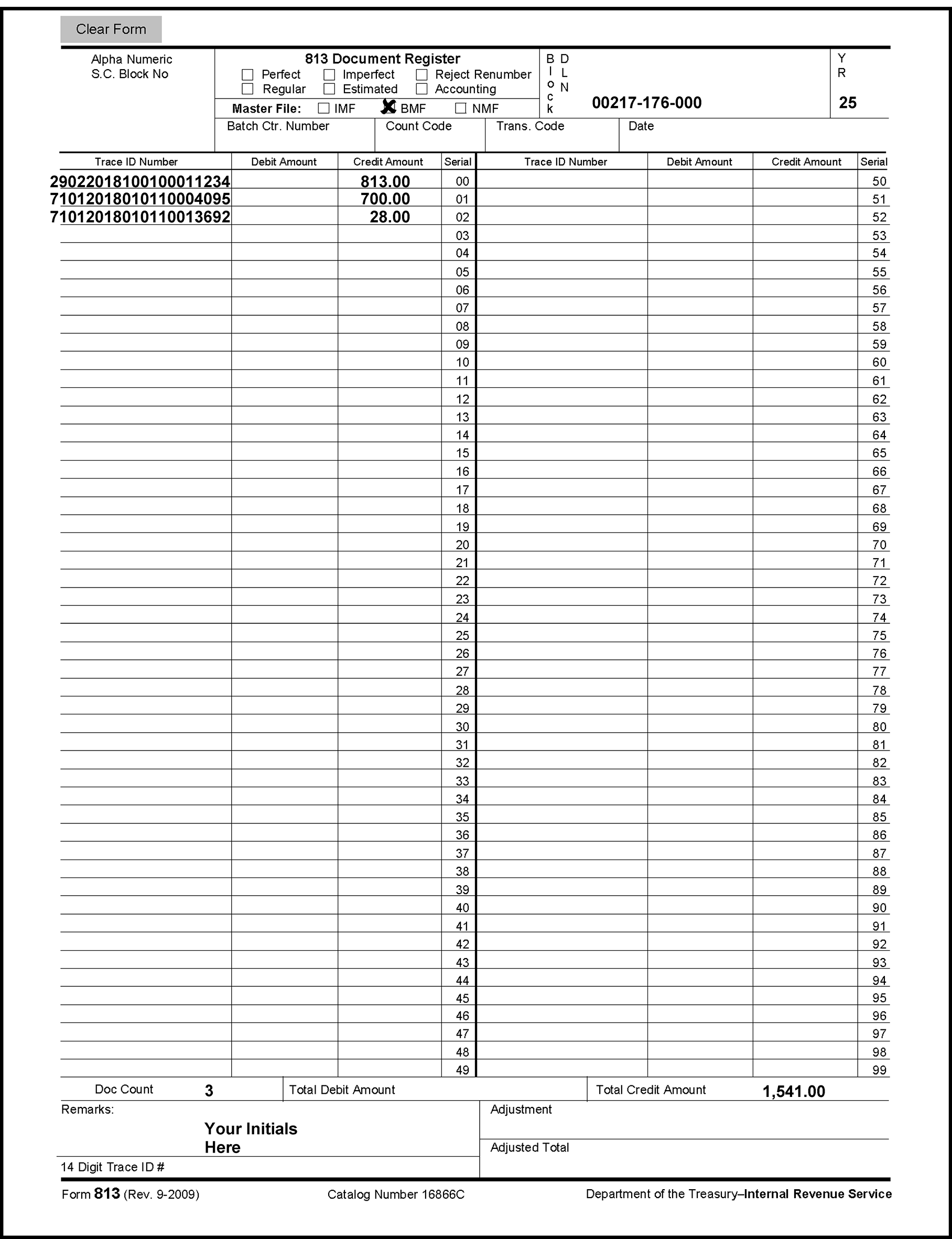
| REPORT NUMBER | TITLE | Report on CTRL D |
|---|---|---|
| ERS 00-40 | ERROR RESOLUTION END OF YEAR INVENTORY REPORT | X |
| ERS 01-40 | ERROR RESOLUTION AVAILABLE INVENTORY REPORT | X |
| ERS 01-41 | ERROR LIST REPORT | X |
| ERS 01-44 | ERROR RESOLUTION ELECTRONIC FILED RETURNS LIST | X |
| ERS 03-40 | ERROR RESOLUTION UN-SELECTED RECORDS INVENTORY | X |
| ERS 03-41 | ERROR RESOLUTION SELECTION METHOD | X |
| ERS 05-40 | ERROR RESOLUTION REJECTED RECORDS LIST | X |
| ERS 05-41 | REJECTED REC CHARGE OUTS (Form 6695) | X |
| ERS 07-40 | ERROR RESOLUTION UNWORKABLE SUSPENSE INVENTORY | X |
| ERS 07-41 | ERROR RESOLUTION UNWORKABLE SUSPENSE INVENTORY SUMMARY | X |
| ERS 13-40 | ERROR RESOLUTION ERROR INVENTORY | X |
| ERS 13-41 | ERROR RESOLUTION ERROR INVENTORY SUMMARY | X |
| ERS 13-42 | ERROR RESOLUTION WORKABLE SUSPENSE INVENTORY | X |
| ERS 13-43 | ERROR RESOLUTION WORKABLE SUSPENSE INVENTORY SUMMARY | X |
| ERS 17-40 | ERROR RESOLUTION NEW SUSPENSE LIST | X |
| ERS 17-41 | NEW SUSP CHARGE OUT | |
| ERS 17-42 | ERROR RESOLUTION DUPLICATE DOCUMENT DLN REGISTER | X |
| ERS 17-43 | DUP DLN CHARGE OUT | |
| ERS 17-44 | IMF INTEREST JEOPARDY REPORT - ERROR FILE | X |
| ERS 17-45 | IMF INTEREST JEOPARDY REPORT - SUSPENSE FILE | X |
| ERS 17-46 | IMF INTEREST JEOPARDY REPORT SUMMARY | X |
| ERS 17-47 | ERROR RESOLUTION INVENTORY CONTROL REPORT | X |
| ERS 17-48 | ERROR RESOLUTION NEW SUSPENSE LIST SUMMARY | X |
| ERS 17-50 | BMF INTEREST JEOPARDY REPORT - ERROR FILE | X |
| ERS 17-51 | BMF INTEREST JEOPARDY REPORT - SUSPENSE FILE | X |
| ERS 17-52 | BMF INTEREST JEOPARDY REPORT SUMMARY | X |
| ERS 19-40 | ERROR RESOLUTION DUPLICATE DOCUMENT DLN REPORT BY INVENTORY SOURCE | X |
| ERS 31-40 | ERROR RESOLUTION UNWORKABLE SUSPENSE AGED REPORT | X |
| ERS 31-41 | ERROR RESOLUTION WORKABLE SUSPENSE REPORT | X |
| ERS 77-40 | ERROR RESOLUTION PRODUCTION REPORT - ERROR CORRECTION | X |
| ERS 77-41 | ERROR RESOLUTION PRODUCTION | X |
| ERS 77-42 | ERROR RESOLUTION PRODUCTION REPORT - SUSPENSE CORRECTION BY PROGRAM | X |
| ERS 77-43 | ERROR RESOLUTION PRODUCTION SUMMARY - SUSPENSE CORRECTION BY PROGRAM | X |
| ERS 77-44 | ERROR RESOLUTION PRODUCTION REPORT - SUSPENSE CORRECTION BY STATUS | X |
| ERS 77-45 | ERROR RESOLUTION PRODUCTION SUMMARY - SUSPENSE CORRECTION BY STATUS | X |
| ERS 77-46 | ERROR RESOLUTION DAILY EMPLOYEE TIME REPORT | X |
| ERS 77-47 | ERROR RESOLUTION DAILY EMPLOYEE TIME REPORT SUMMARY | X |
| ERS 83-40 | ERROR RESOLUTION QUALITY REVIEW REPORT | X |
| ERS 83-41 | DAILY ERS REVIEW QUALITY REVIEW CHARGE-OUT | X |
| ERS 83-42 | ERROR RESOLUTION QUALITY ASSURANCE HOLD REPORT | X |
| ERS 83-44 | ERROR RESOLUTION QUALITY ASSURANCE REWORKED REPORT | X |
| MER 03-40 | ERROR COUNT REPORT DAILY | X |
| MER 03-41 | ERROR COUNT REPORT YEAR-TO-DATE | X |
| MERDAIL | ERROR COUNT REPORT ELF DAILY | X |
| MERYRDT | ERROR COUNT REPORT ELF YEAR-TO-DATE | X |
| GMF 10-40 | ERROR DISPLAY RUN CONTROL REPORT | X |
| GMF 10-41 | ERROR REGISTER RAW/LOOP | |
| GMF 10-42 | ERROR PULL LIST RAW/LOOP/SUMMARY | |
| GMF 10-43 | DAILY ERROR VOLUME REPORT/SUMMARY | |
| GMF 11-40 | REJECT REPORTS RUN CONTROL REPORT | X |
| GMF 11-41 | REJECT RE-INPUT TRANSMITTAL | |
| GMF 11-42 | REJECTED AGED LIST | |
| GMF 11-43 | REJECT INVENTORY LIST (DLN Sequence) | |
| GMF 11-44 | REJECT PULL LIST | |
| GMF 11-45 | REJECT REGISTER RAW/LOOP | |
| GMF 11-46 | CURRENT REJECT LIST | |
| GMF 11-47 | REJECT DISPOSITION LIST | |
| GMF 11-48 | REJECT CORRECTION VERIFICATION LIST | |
| GMF 61-41 | INTEREST REDUCTION INITIATIVE SUMMARY SCRS AND ERS | |
| SCF 11-48 | NEW DLN RECORD LIST |
The Error Resolution System (ERS) is a replacement for the Service Center Replacement System (SCRS).
The table below shows some of the forms corrected on the terminal via ERS.
BMF FORMS
| FORMS | DESCRIPTION | MFT | TAX CLASS | DOC CODE |
|---|---|---|---|---|
| 706 | United States Estate (and Generation-Skipping Transfer) Tax Return (KCSPC only) | 52 | 5 | 06 |
| 706-NA | United States Estate (and Generation-Skipping Transfer) Tax Return Estate of nonresident not a citizen of the United States (KCSPC only) | 52 | 5 | 06 |
| 709 | United States Gift (and Generation-Skipping Transfer) Tax Return (KCSPC only) | 51 | 5 | 09 |
| 709-NA | United States Gift (and Generation-Skipping Transfer) Tax Return of Nonresident Not a Citizen of the United States (KCSPC only) | 51 | 5 | 08 |
| 720 | Quarterly Federal Excise Tax Return (OSPC only) | 03 | 4 | 20 |
| 940 | Employer's Annual Federal Unemployment Tax Return | 10 | 8 | 40 |
| 941 | Employer's Quarterly Federal Tax Return | 01 | 1 | 41 |
| 943 | Employer's Annual Tax Return for Agricultural Employees | 11 | 1 | 43 |
| 944 | Employers Annual Federal Employment Tax Return | 14 | 1 | 49 |
| 945 | Annual Return of Withheld Federal Income Tax | 16 | 1 | 37, 44, 97 |
| 990 | Return of Organization Exempt from Income Tax (OSPC only) | 67 | 4 | 90 |
| 990-EZ | Short Form Return of Organization Exempt from Income Tax (OSPC only) | 67 | 4 | 09 |
| 990-PF | Return of Private Foundation (OSPC only) | 44 | 4 | 91 |
| 990-T | Exempt Organization Business Income Tax Return (OSPC only) | 34 | 3 | 93 |
| 1041 | U.S. Fiduciary Income Tax Return (for Estates and Trusts) | 05 | 2 | 44 |
| 1041-ES | Payment Voucher, Estimated Tax | 05 | 2 | 17 |
| 1041-QFT | U.S. Income Tax Return (for Qualified Funeral Trusts) (KCSPC only) | 05 | 2 | 39 |
| 1041 Schedule K-1 | Beneficiary's Share of Income, Deductions, Credits, etc. | 69 | 5 | 66 |
| 1042 | Annual Withholding Tax Return for US Source Income of Foreign Persons | 12 | 1 | 25 |
| 1065 | U.S. Partnership Return of Income | 06 | 2 | 65 |
| 1065 Schedule K-1 | Partner's Share of Income, Credits Deductions, etc. | 69 | 5 | 65 |
| 1066 | Real Estate Mortgage Investment Conduit | 07 | 3 | 60 |
| 1120 | U.S. Corporation Income Tax Return | 02 | 3 | 10, 11 |
| 1120-C | U.S. Income Tax Return for Cooperative Associations | 02 | 3 | 03 |
| 1120-F | U.S. Income Tax Return of Foreign Corporations (OSPC only) | 02 | 3 | 66, 67 |
| 1120-H | U.S. Income Tax Return for Homeowner Association | 02 | 3 | 71 |
| 1120-L | U.S. Life Insurance Company Income Tax Return | 02 | 3 | 11 |
| 1120-PC | U.S. Property and Casualty Insurance Company Income Tax Return | 02 | 3 | 13 |
| 1120-POL | U.S. Income Tax Return of Political Organizations (OSPC only) | 02 | 3 | 20 |
| 1120-REIT | U.S. Income Tax Return for Real Estate Investment Trusts | 02 | 3 | 12 |
| 1120-RIC | U.S. Income Tax Return for Regulate Investment Companies | 02 | 3 | 05 |
| 1120-S | U.S. Small Business Corporation Income Tax Return | 02 | 3 | 16 |
| 1120-S Schedule K-1 | Shareholders Share of Income, Deductions, Credits, etc. | 69 | 5 | 67 |
| 2290 | Heavy Highway Use Tax Return (OSPC only) | 60 | 4 | 95 |
| 3520-A | Annual Return of Foreign Trust with U.S. Beneficiaries | 42 | 3 | 82 |
| 4720/4720- A | Return of Certain Excise Taxes on Charities and Other Persons Under Chap. 41 and 42 of the IRC (OSPC only) | 50 | 4 | 71/73 |
| 5227 | Split Interest Trust Information Return (OSPC only) | 37 | 4 | 83 |
| 5330 | Return of Initial Excise Taxes Related to Employee Benefit Plans | 4 | 35 | |
| 5768 | Election/Revocation of Election by an Eligible Section 501(C)(3) Organization to Make Expenditures to Influence Legislation (OSPC only) | 67 | 9 | 77 |
| 7004 | Application for Automatic Extension of Time to File Certain Business Income Tax, Information, and Other Returns | 02, 05-08, 12, 33 | 2,3 | 04 |
| 8038 | Information Return for Tax Exempt Private Activity Bond Issues (OSPC only) | 46 | 3 | 61 |
| 8038-B | Information Return for Build America Bonds Recovery Zone (OSPC only) | 46 | 3 | 88 |
| 8038-CP | Return for Credit Payments (OSPC only) | 85 | 3 | 88 |
| 8038-G | Information Return for Tax Exempt Governmental Obligations (OSPC only) | 46 | 3 | 62 |
| 8038-GC | Consolidated Information Return for Small Tax Exempt Governmental Bond Issues, Leases, and Installment Sales (OSPC only) | 46 | 3 | 72 |
| 8038-T | Arbitrage Rebate of Penalty (OSPC only) | 46 | 3 | 74 |
| 8038-TC | Information Return for Tax Credit Bonds (OSPC only) | 86 | 3 | 86 |
| 8703 | Annual Certification of a Residential Rental Project | 84 | 3 | 01 |
| 8868 | Application for Extension of Time to File an Exempt Organization Return | 34, 36, 37, 44, 50, 56, 67 | 4 | 04 |
| 8871 | Political Organization Notice of Section 527 | 47 | 4 | 61 |
| 8872 | Political Organization Report of Contributions and Expenditures | 49 | 4 | 62 |
| CT-1 | Employer's Annual Railroad Retirement and Unemployment Return | 09 | 7 | 11 |
The Service Center Replacement System is known as SCRS. The table below shows some of the forms which are corrected on paper register via SCRS.
BMF FORMS
| FORMS | DESCRIPTION | MFT | TAX CLASS | DOC CODE |
|---|---|---|---|---|
| 11C | Special Tax Return and Application for Registry-Wagering (OSPC only) | 63 | 4 | 03 |
| 706-A | United States Additional Estate Tax Return (KCSPC only) | 53 | 5 | 05 |
| 706-D | U.S. Additional Estate Tax Return Under Code Section 2057 (KCSPC only) | 53 | 6 | 84 |
| 706-GS(D) | Generation-Skipping Transfer Tax Return for Distribution (KCSPC only) | 78 | 5 | 59 |
| 706-GS(T) | Generation-Skipping Transfer Tax Return for Termination (KCSPC only) | 77 | 5 | 29 |
| 730 | Tax on Wagering (OSPC only) | 64 | 4 | 13 |
| 1041-A | U.S. Information Return-Trust Accumulation of Charitable Amounts (OSPC only) | 36 | 4 | 81 |
| 1120-FSC | U.S. Income Tax Return of a Foreign Sales Corporation (OSPC only) | 02 | 3 | 07 |
| 1120-ND | Return for Nuclear Decommissioning Trust and Certain Related Persons (OSPC only) | 02 | 3 | 08 |
| 1120-SF | U.S. Income Tax Return for Designated Settlement Funds (OSPC only) | 02 | 3 | 06 |
| 3413 3552 |
Credit and Account Transfers | Various | Various | 51 |
| 3520 | Annual Return to Report Transactions with Foreign Trusts and Receipt of Foreign Gifts | 42 | 3 | 83 |
| 5578 | Annual Certification of Racial Nondiscrimination for Private Schools Exempt from Federal Tax (OSPC only) | 67 | 9 | 84 |
| 8027 | Employers Annual Information Return of Tip Income and Allocated Tips (OSPC only) | 5 | 57 | |
| 8288 | U.S. Withholding Tax Return for Disposition by Foreign Persons of U.S. Property Interests (OSPC Only) | 17 | 1 | 40 |
| 8804 | Annual Return for Partnership Withholding Tax | 08 | 1 | 29 |
| 8752 | Required Payment or Refund under Section 7519 | 15 | 2 | 23 |
| MISC. | Various | 9 | 77 |
This section of the manual contains a table of the miscellaneous forms used in Error Resolution procedures and their uses.
| MISCELLANEOUS FORMS | DESCRIPTIONS |
|---|---|
| Form 813 Document Register (2 part) |
Used to list transaction amounts for remittance or assessment documents to be processed with a new DLN. |
| Form 1331/1331B - Notice of Adjustment | Used to show the appropriate adjustment (reflecting a decrease in liability) made to the Non-Master File on the taxpayer’s account. |
| Form 1332 Block and Selection Record | Used to process no remittance documents with a new DLN. It is usually prepared by the Numbering Unit. |
| Form 2275 Records Request, Charge and Recharge | Used to request documents from Returns File Unit and Federal Record Campus. It is also used to replace a document that is sent to Rejects when no Form 813 or Form 1332 is present. Use a single copy as a replacement. |
| Form 2468 Over Assessment Label | Used to indicate assessment of tax, interest and penalty. |
| Form 3244 Payment Posting Voucher | Used to post a remittance that cannot be processed with the document with which it was received. |
| Form 3465 Adjustment Request | Used to request adjustments, credit transfers, etc. by Accounts Management (Adjustments) or other areas. |
| Form 3210 Document Transmittal | Used to transmit documents to be worked by other campus functions. |
| Form 3696/3696A Correspondence Action Sheet | Used to initiate correspondence to the taxpayer through IDRS or Typing Unit. |
| Form 3753 Manual Refund Posting Voucher | Used to request a manual refund and for posting of the manual refund TC 840 to the Master File. |
| Form 3893 Re-entry Document Control | Used to reenter documents with original DLNs. |
| Form 4028 Service Center Control File (SCCF) Adjustment Record or 4028-A (Format code 310) | Used by Accounting to remove, establish, and adjust records or money on the SCCF. For reject documents, Form 4028 is prepared by Rejects and routed to Accounting. At the option of the campus Accounting Branch, Form 4028 may be bypassed in favor of direct input of SCCF adjustments using CC SCFAJ. |
| Form 4227 Intra-SC Reject or Routing Slip | Used by Code and Edit and Error Correction Tax Examiners to identify the reason for rejection or suspension. |
| Form 4251 Return Charge-Out | Used by various functions to charge out a document from a block. |
| Form 4338 Information on Certified Transcript Request | Used to request copies of the unit ledger card for ANMF subsequent and advance payments. |
| Form 4437 EO Document Transmittal | Used to request information from the TEC area office for an Exempt Organization return. |
| Form 5792 Request for IDRS Generated Refund (IGR) | Used to Process IDRS Generated Refunds (TC 840) (IGR). |
| Form 6752 Return Non-Refile Flag Green Flag |
Used to indicate document requests and IDRS research when a missing document record is being reconstructed or removed from the inventory. |
| Form 6826 Error/Reject Display Request Card | Used to designate the print and sort requirements for SCRS error and reject registers and listings. |
| Form 6882 IDRS/Master File Information Request | Used to alert the IDRS researcher of what research is to be conducted. |
| Form 8749 Unpostable Action Routing Slip | Used in Unpostables and Entity to identify reason for reject. |
| Form 8758 Excess Collection Files Addition | Used to request credits be added to the Excess Collection File (XSF). |
| Form 9122 Intra-SC Reject or Routing Slip | Used by EPMF Document Perfection and Document Correction to identify the reason for rejection. |
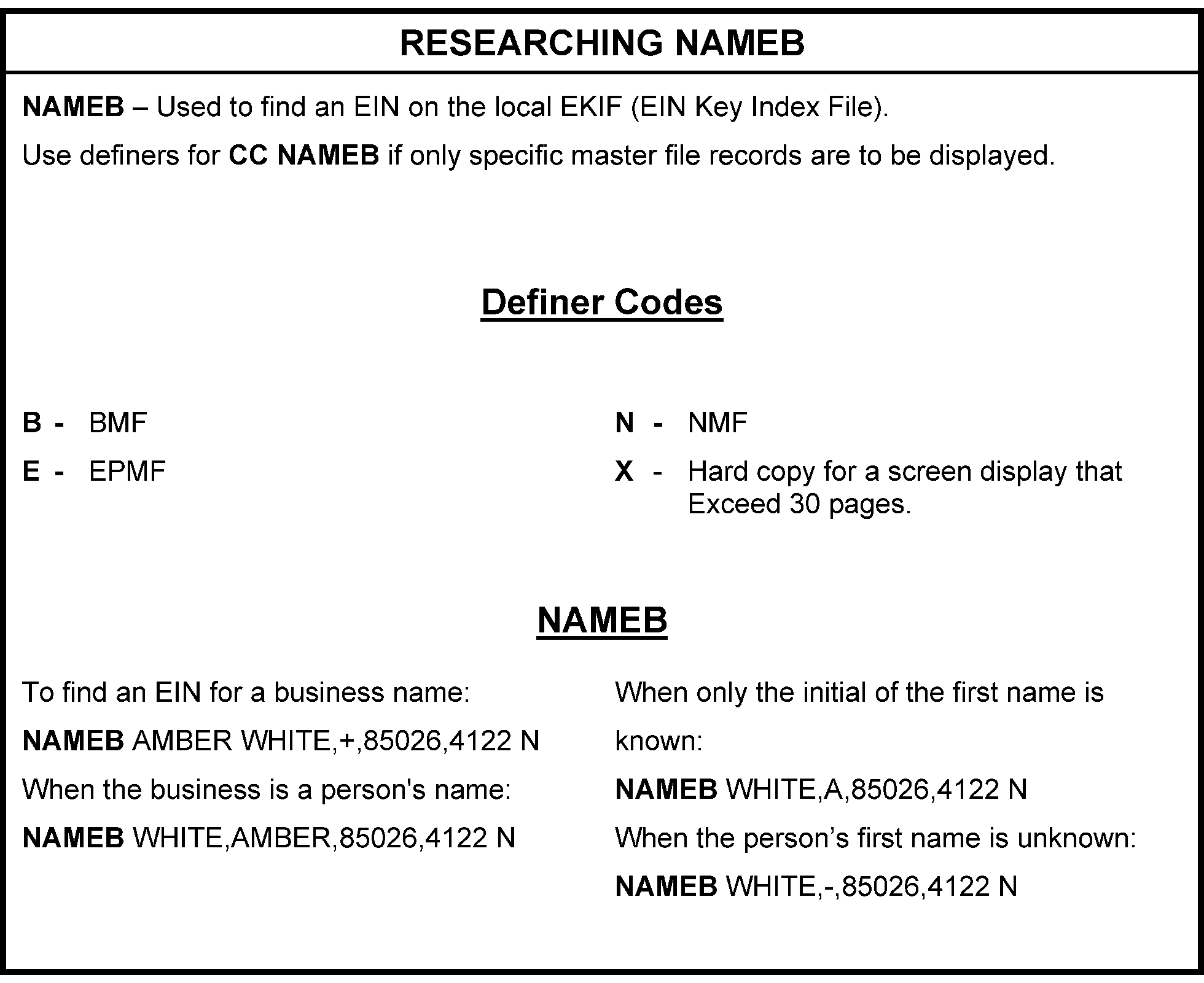
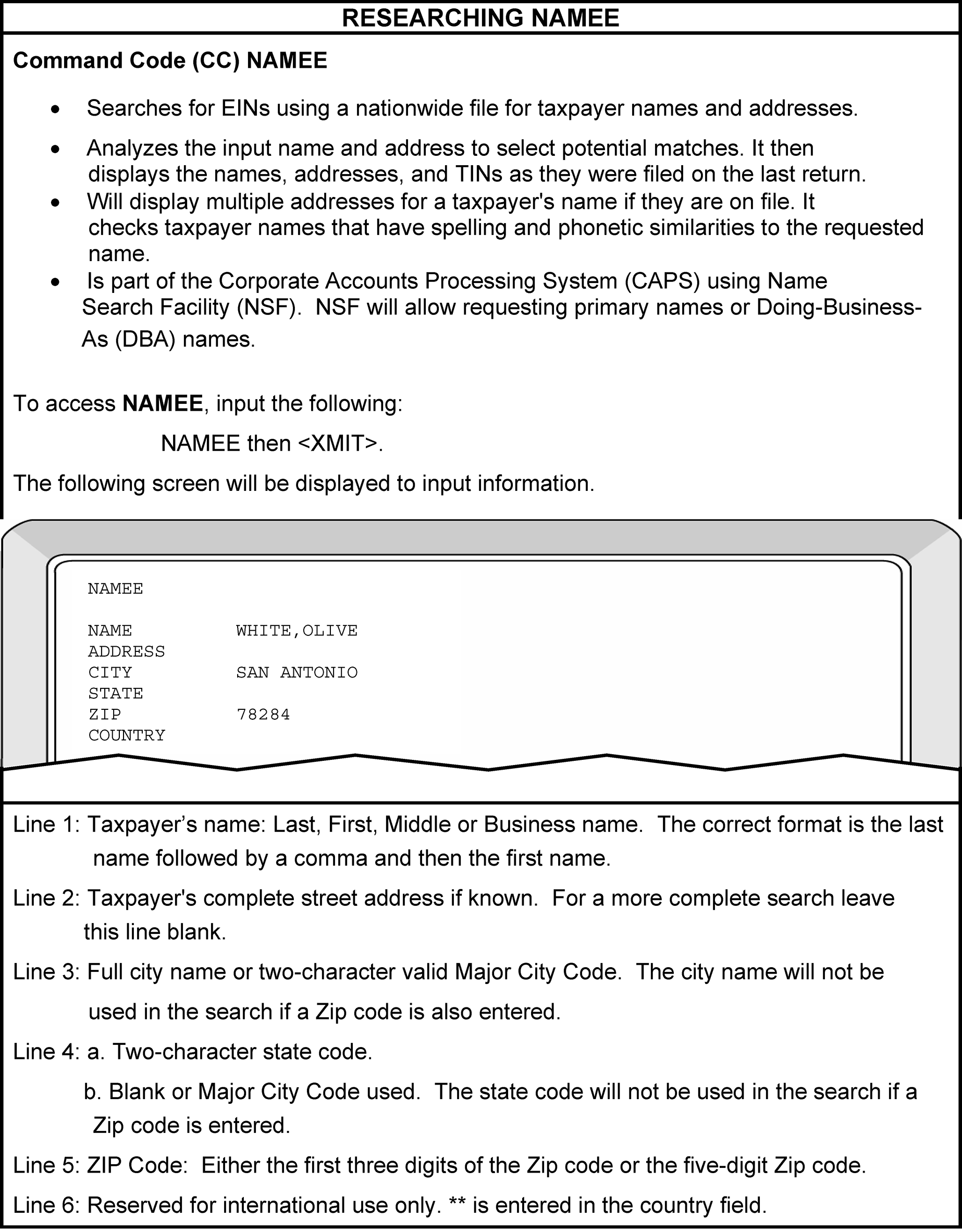
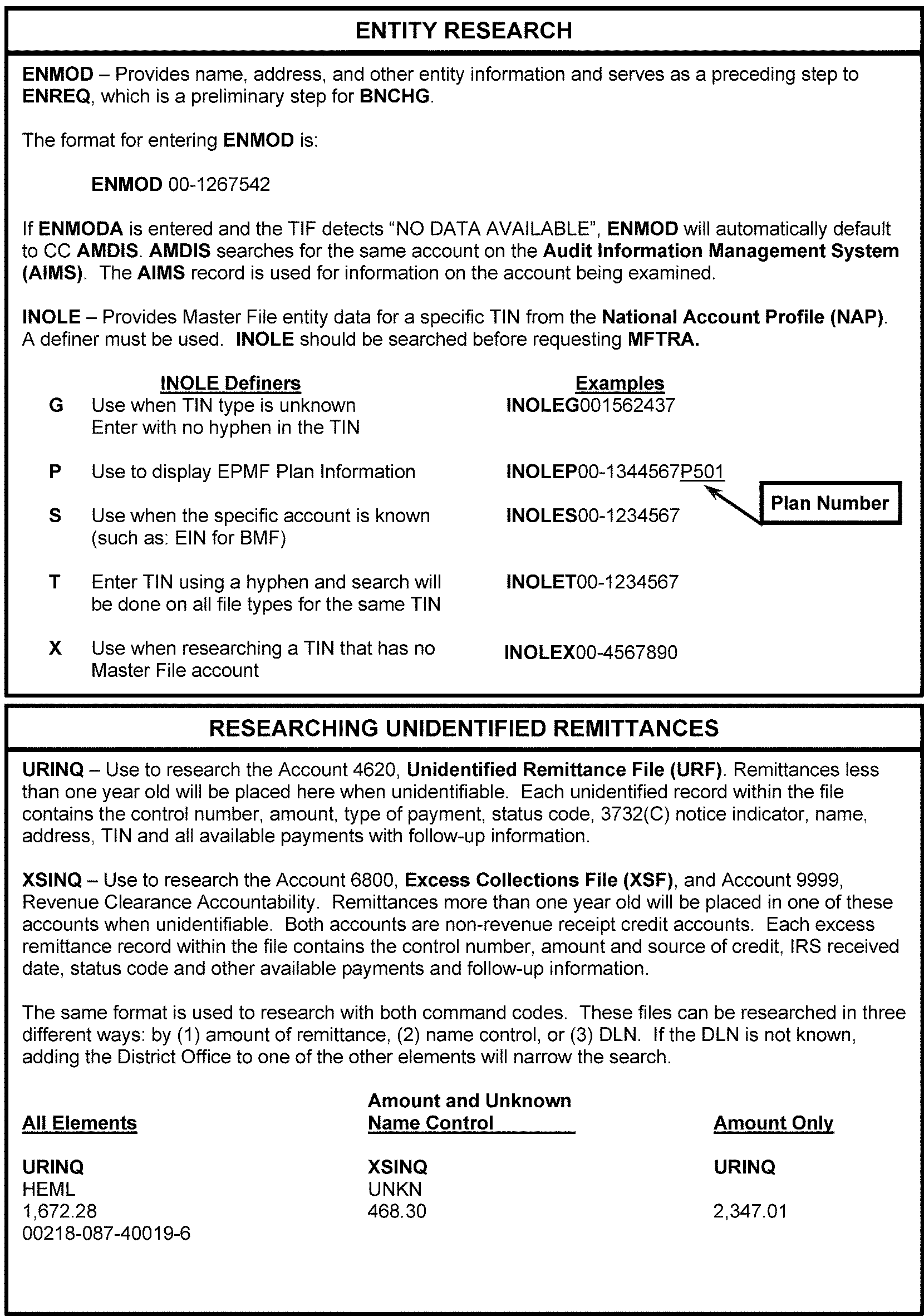
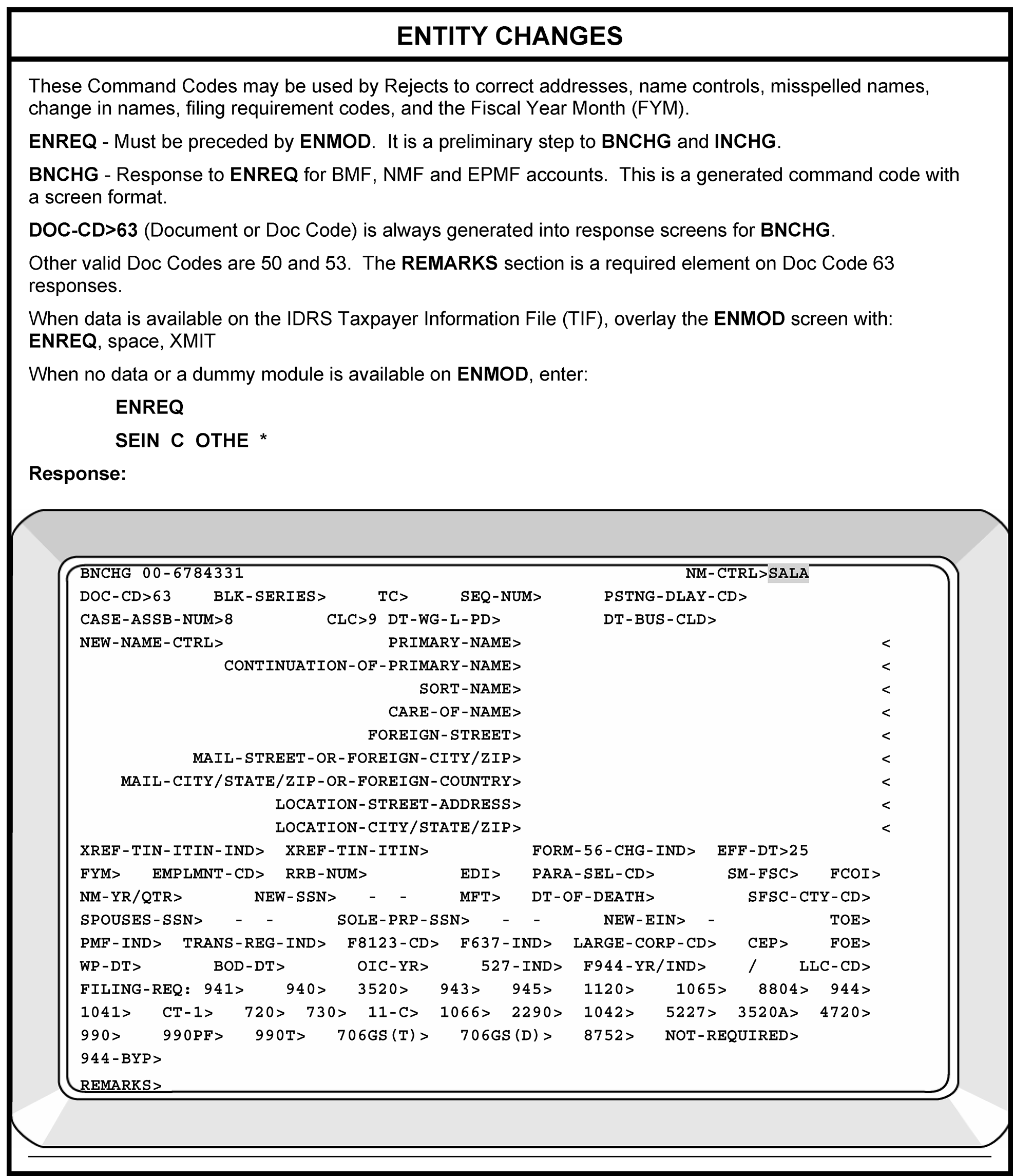
Please click here for the text description of the image.
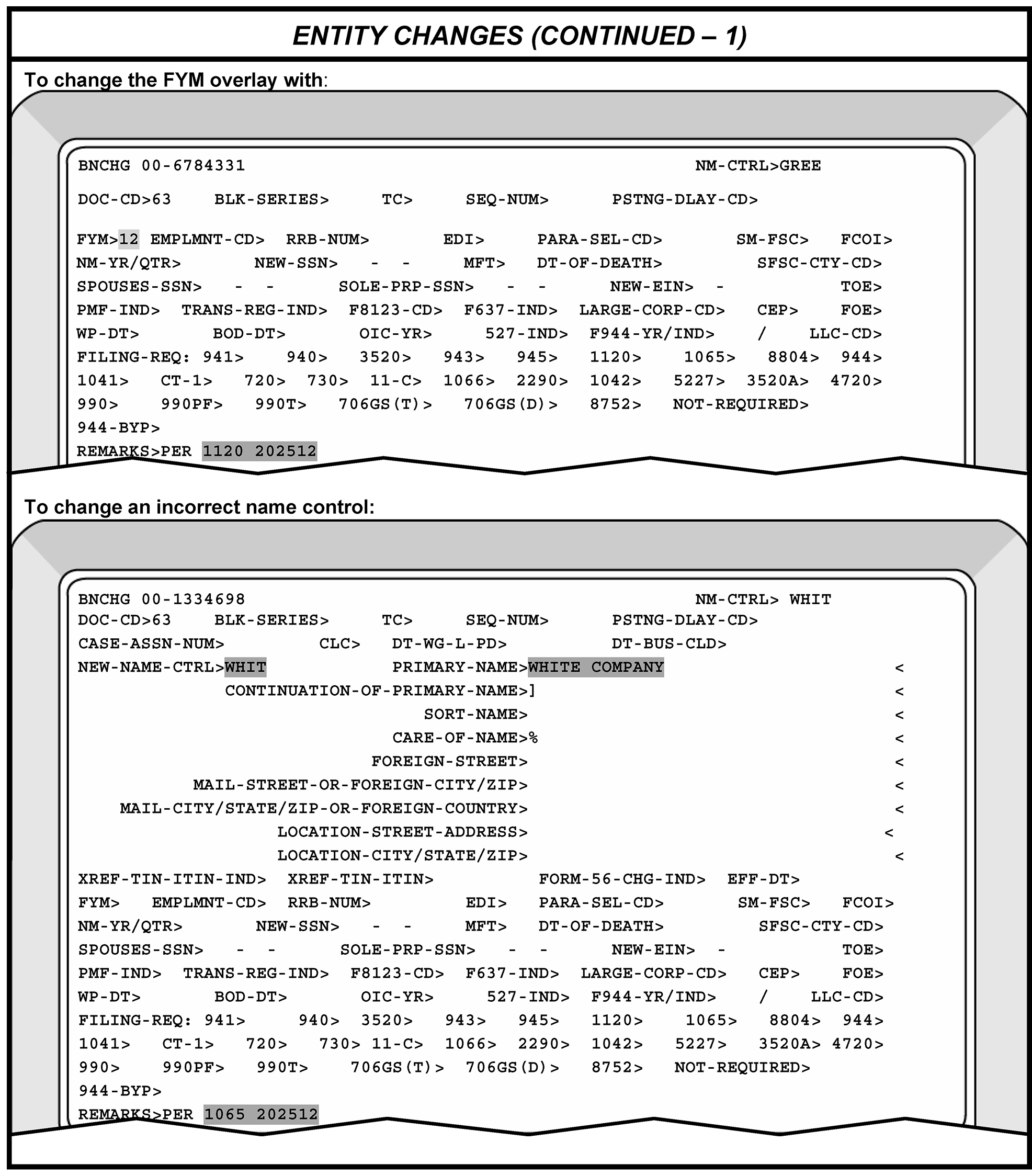
Please click here for the text description of the image.
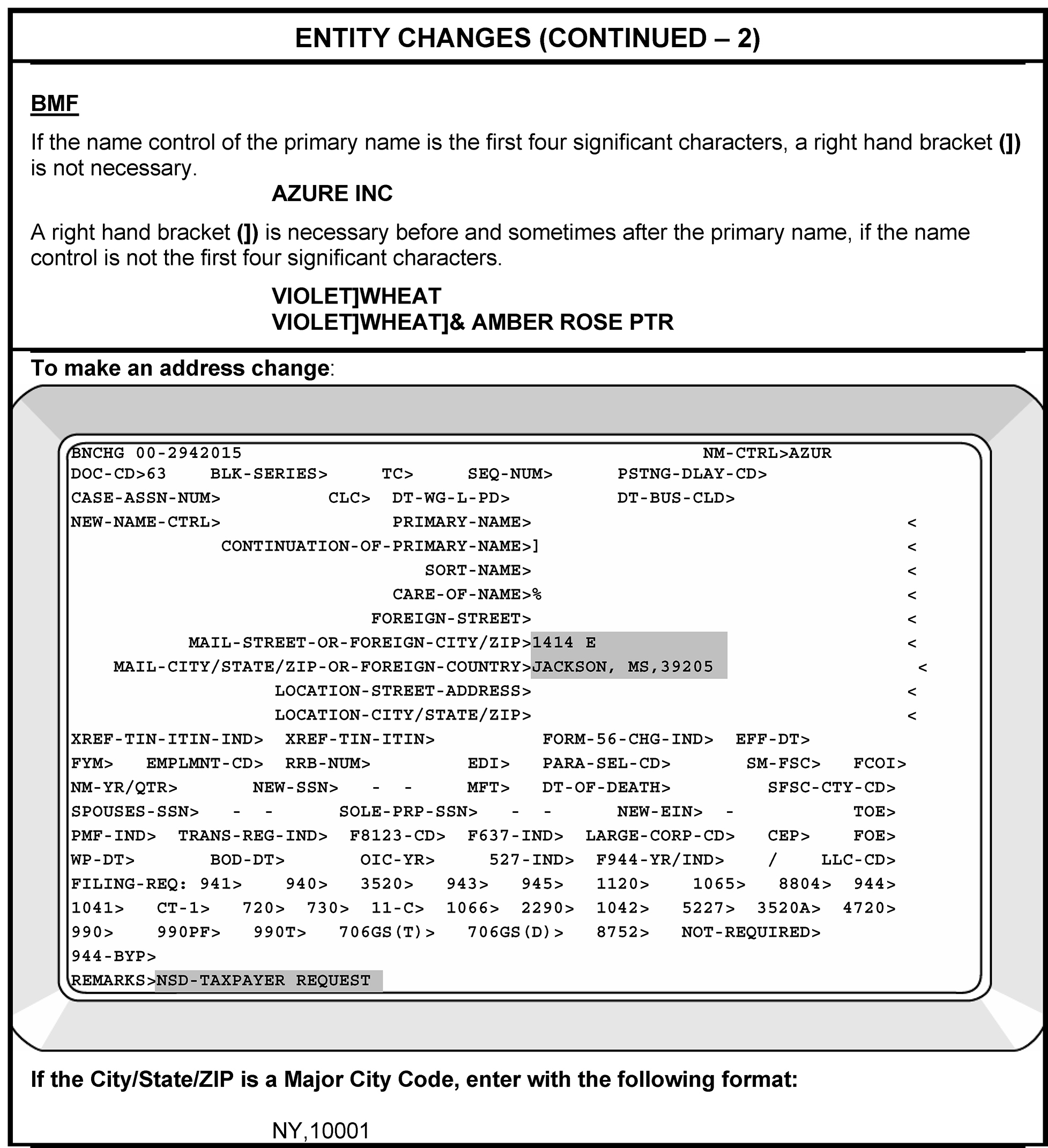
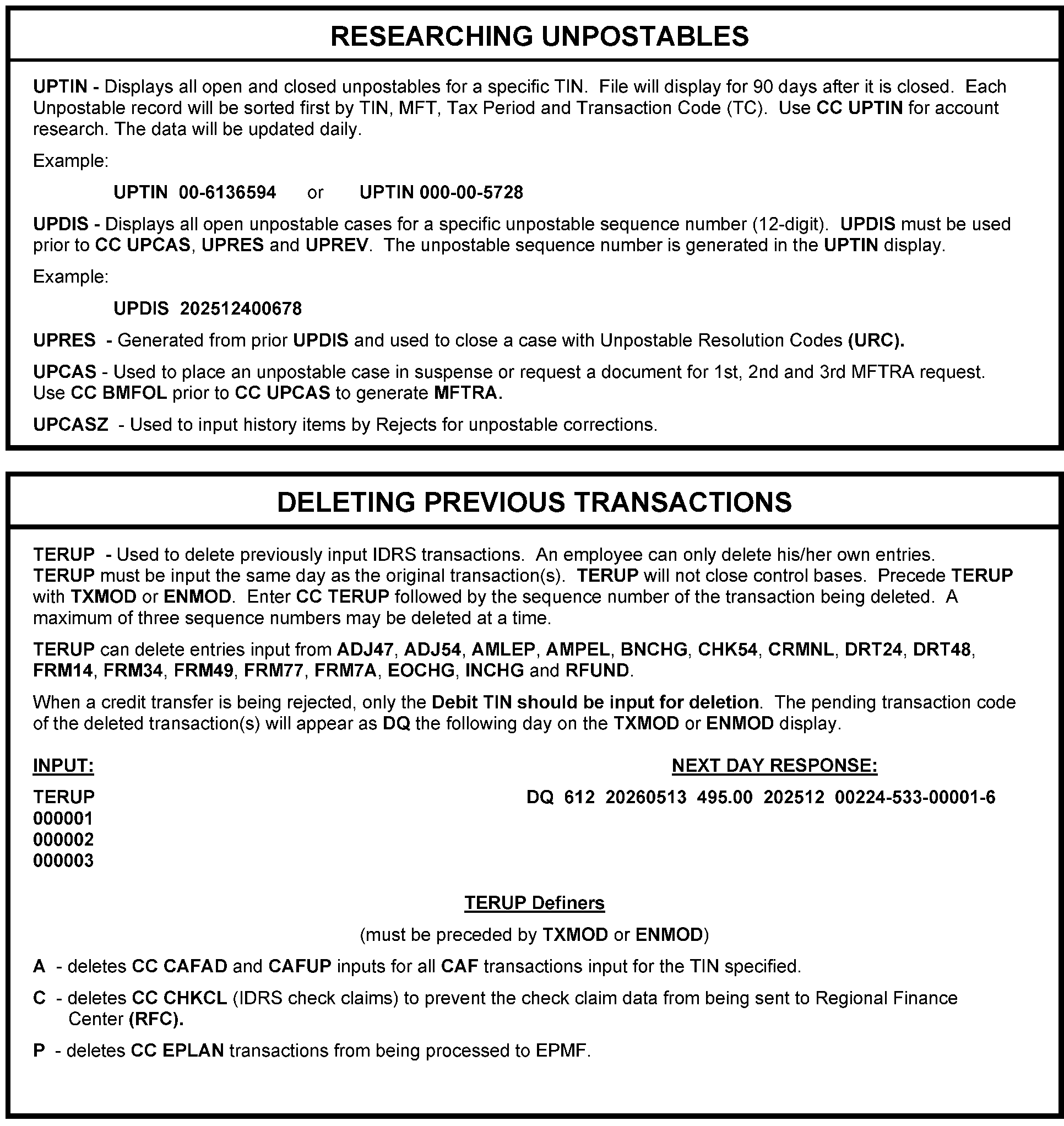
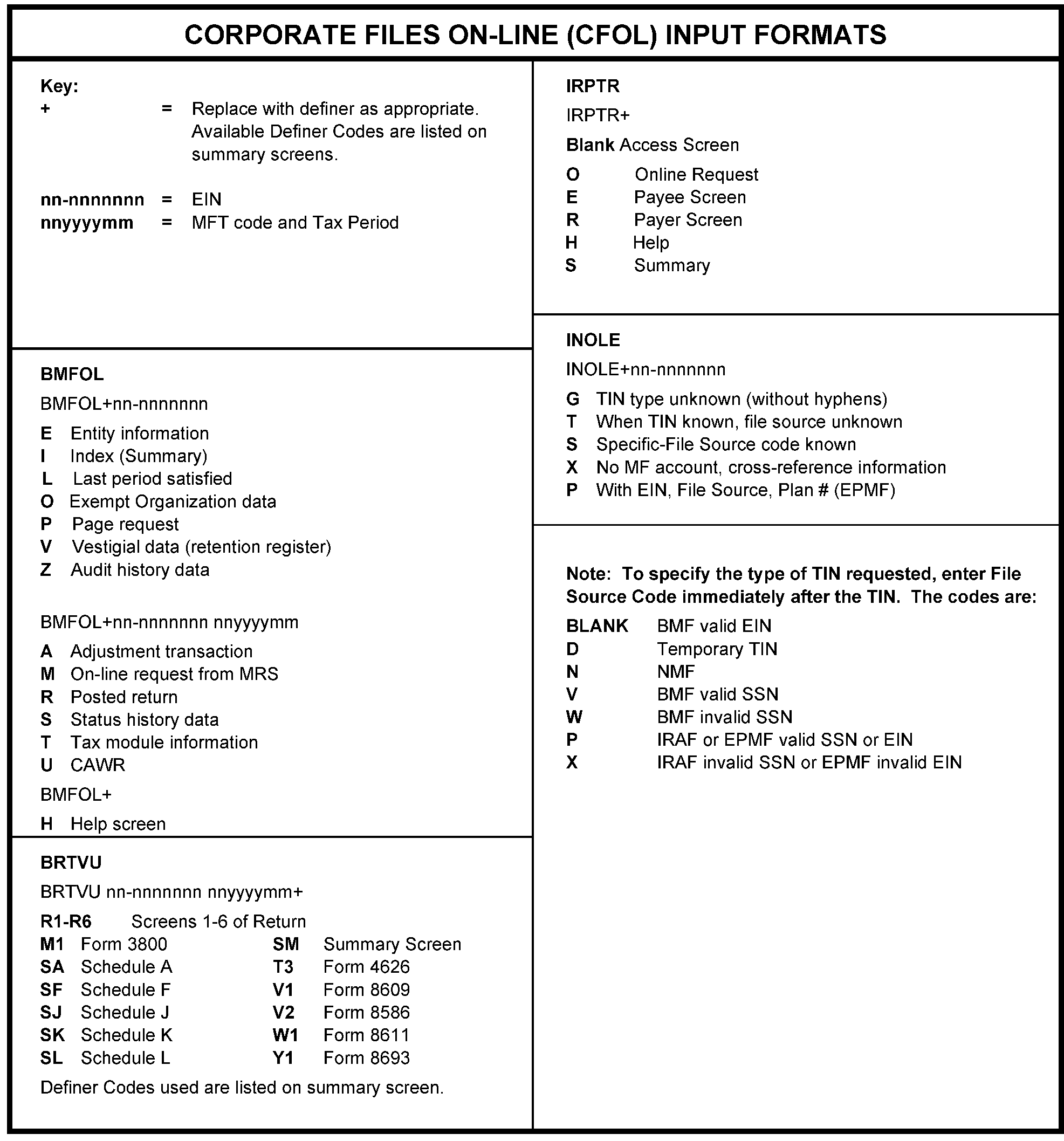
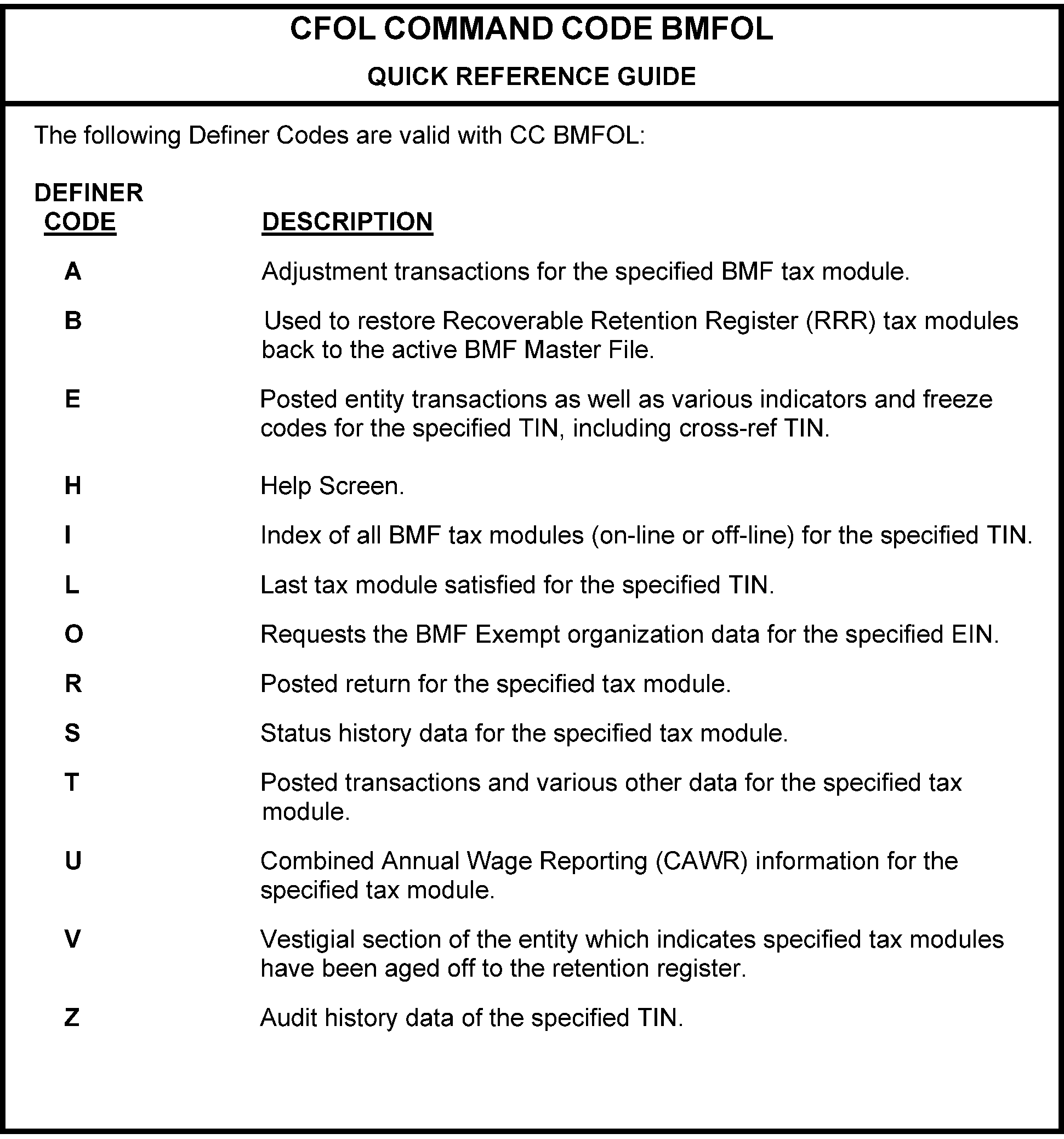
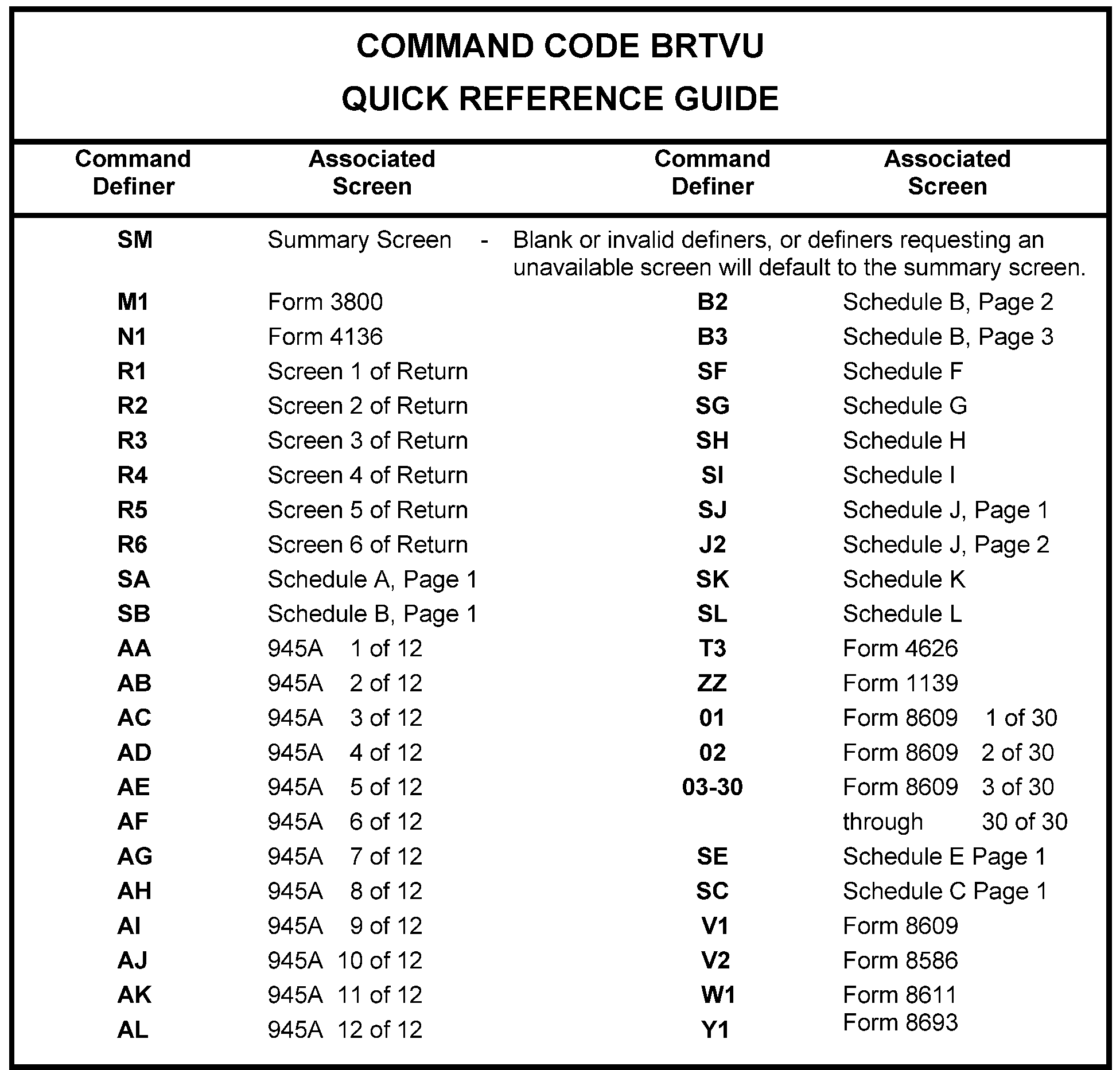
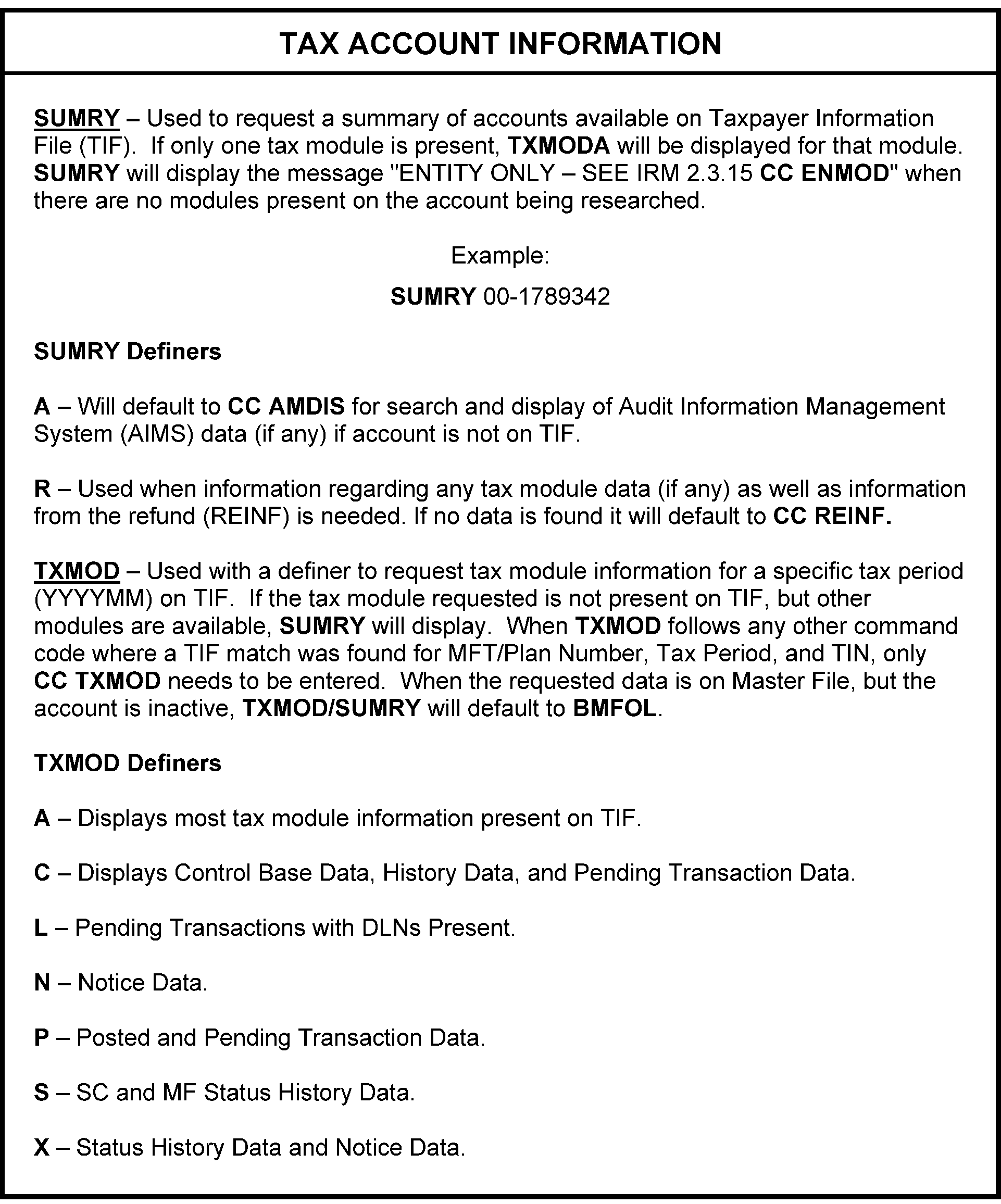
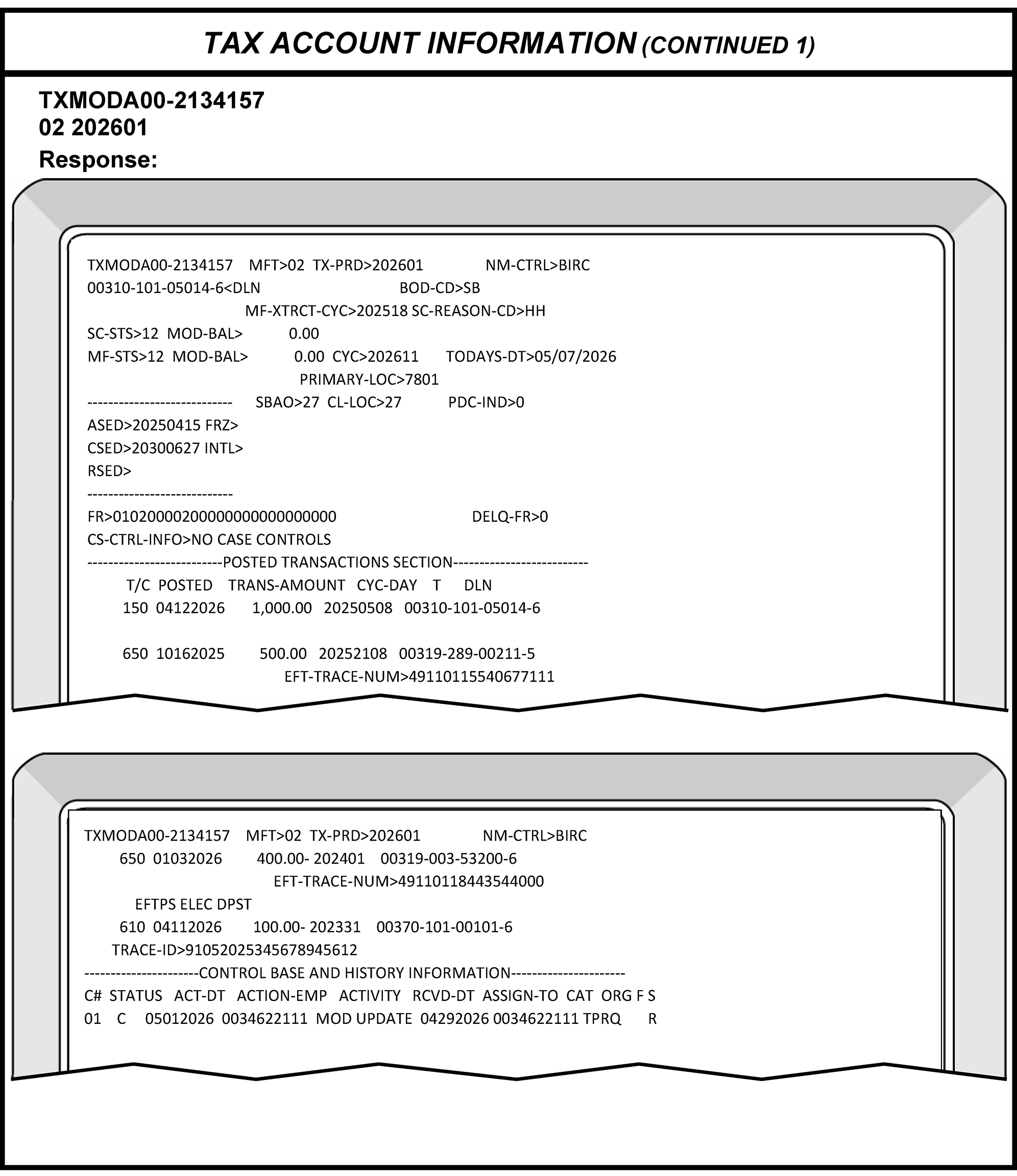
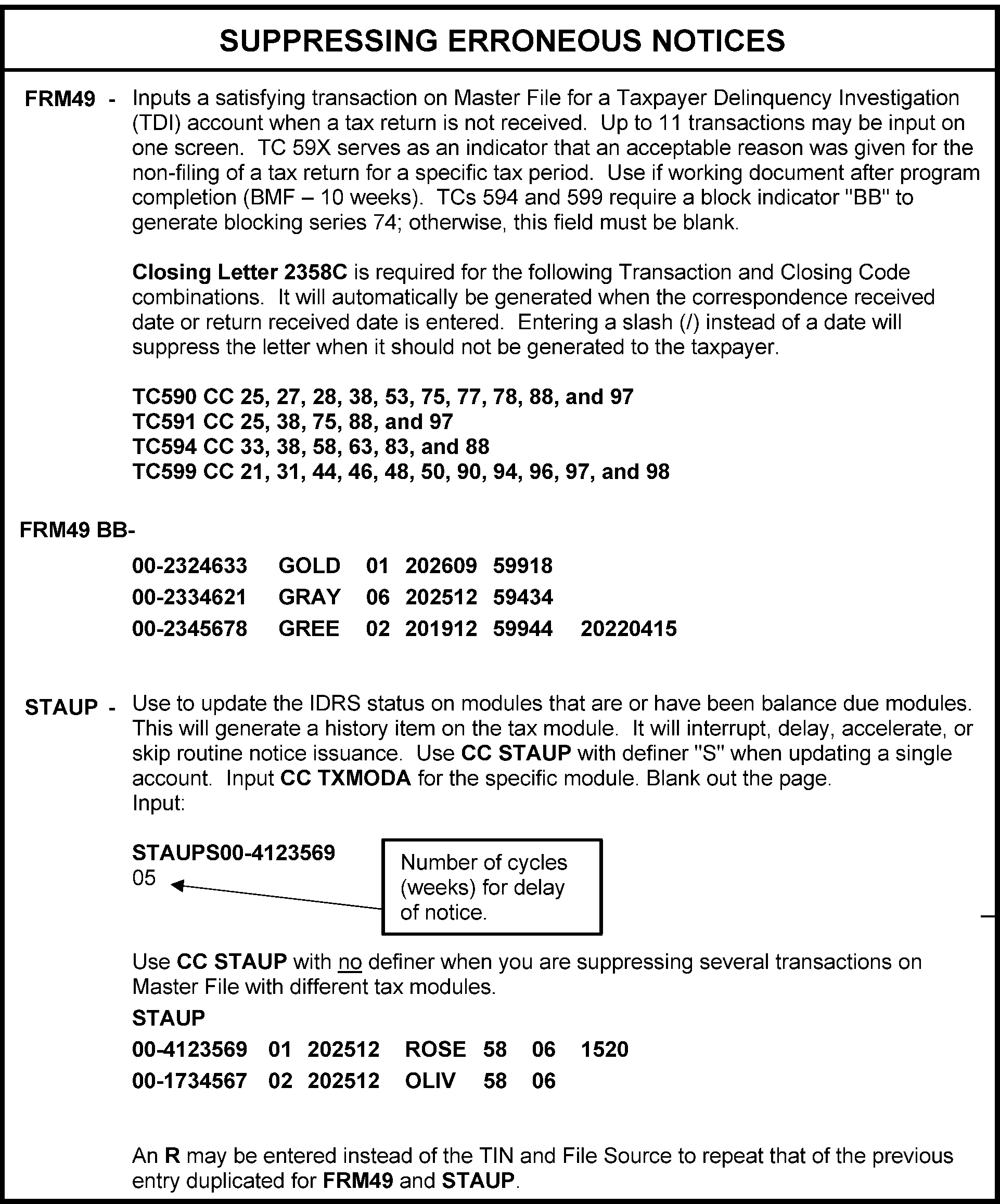
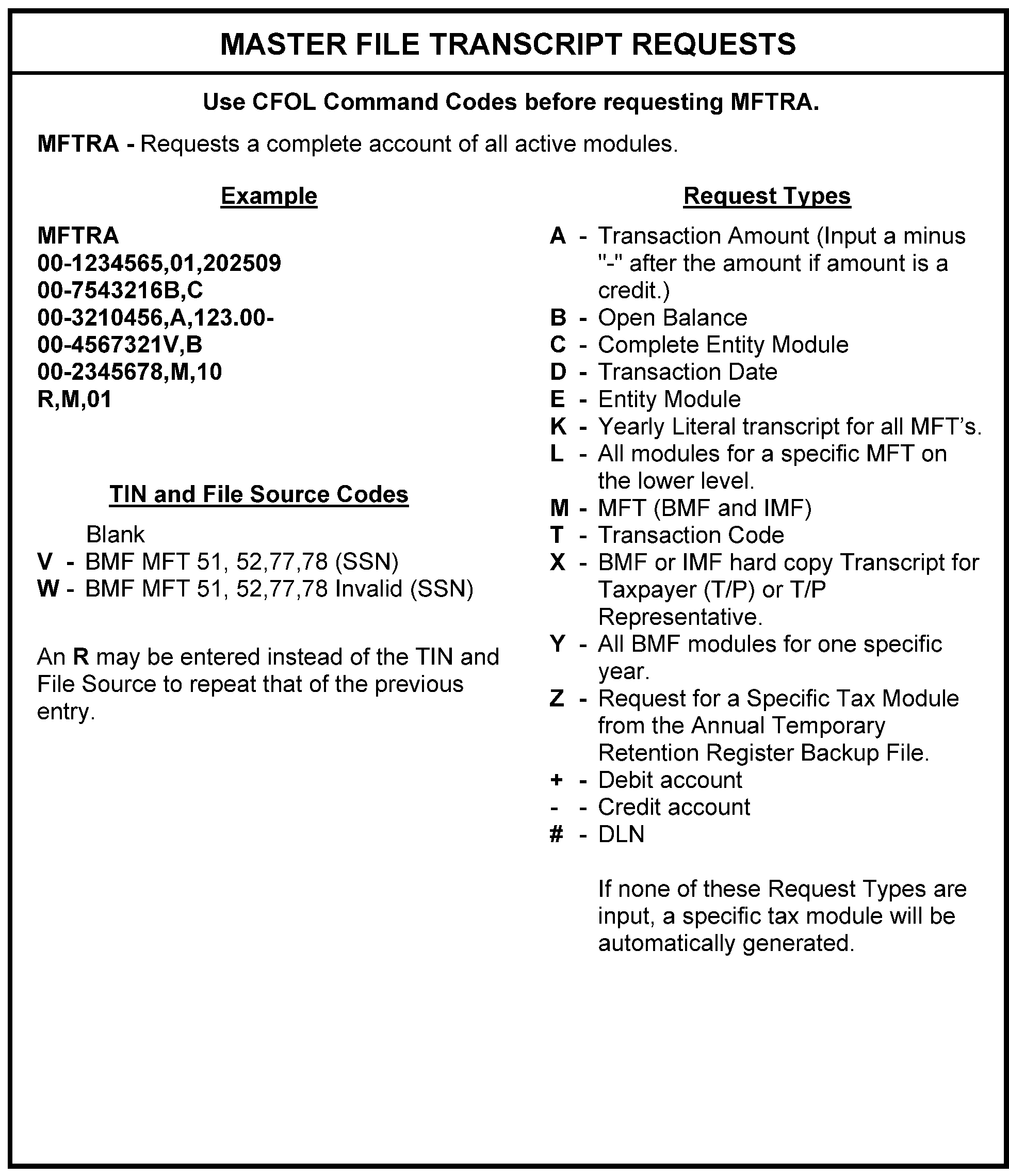
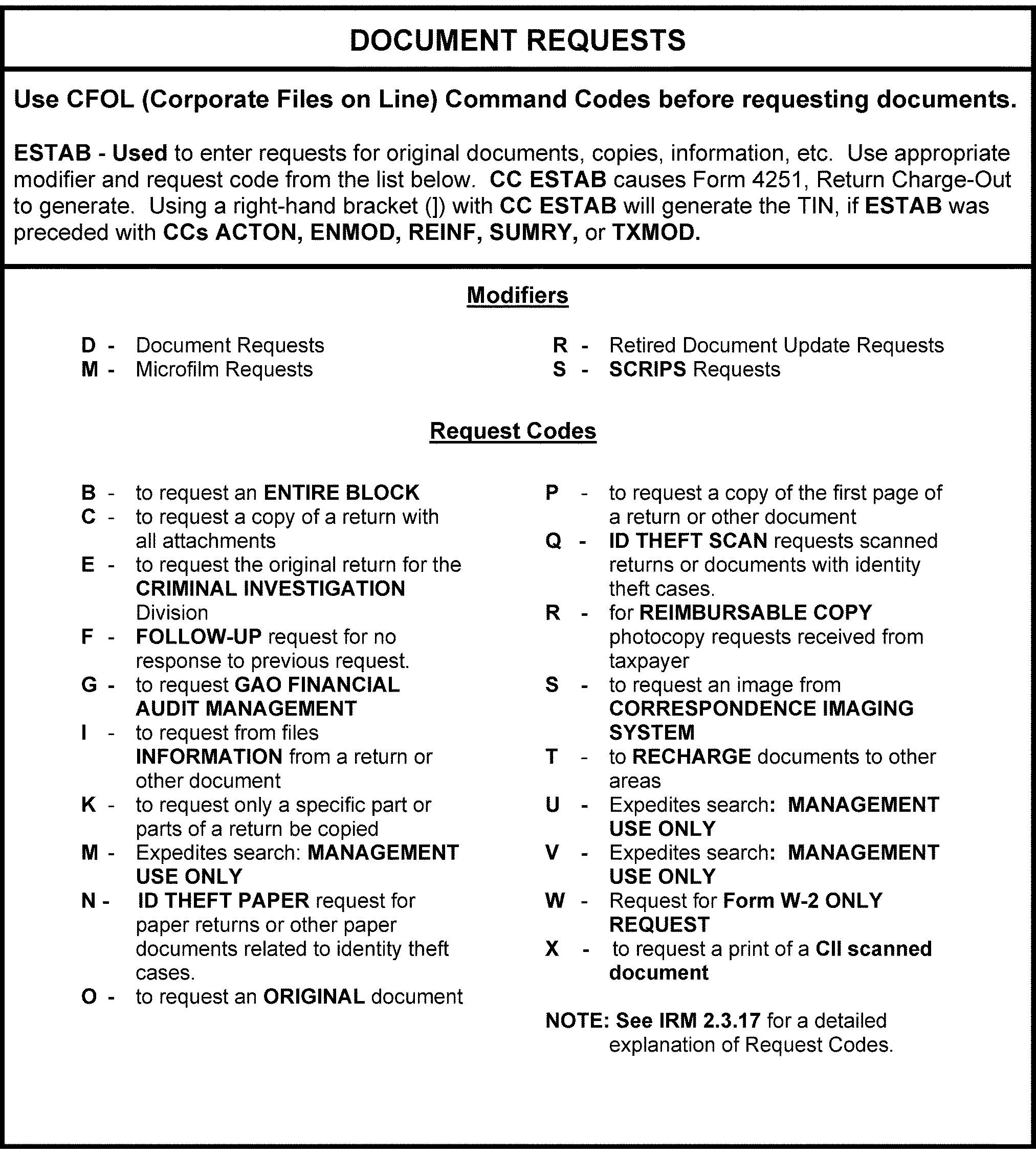
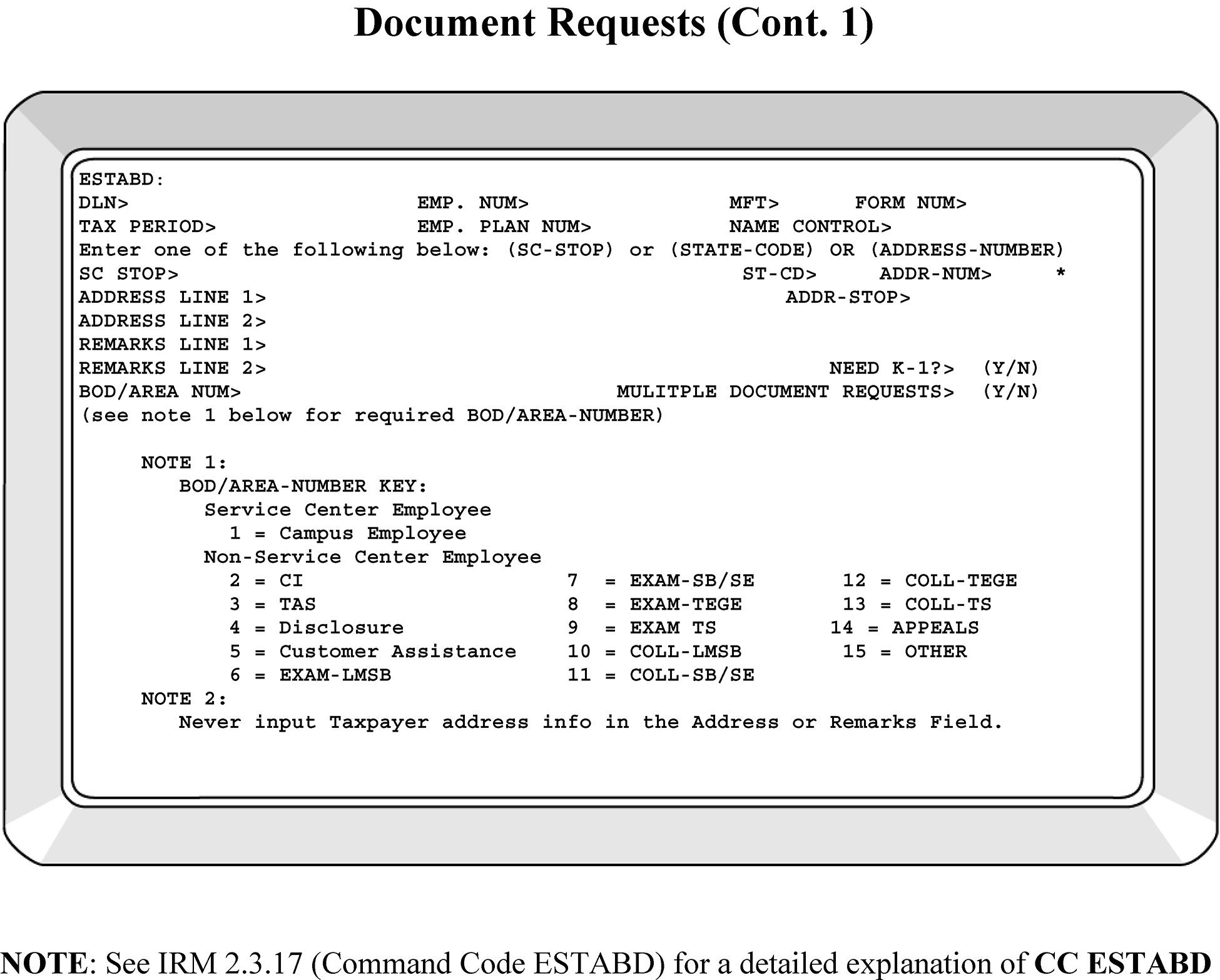
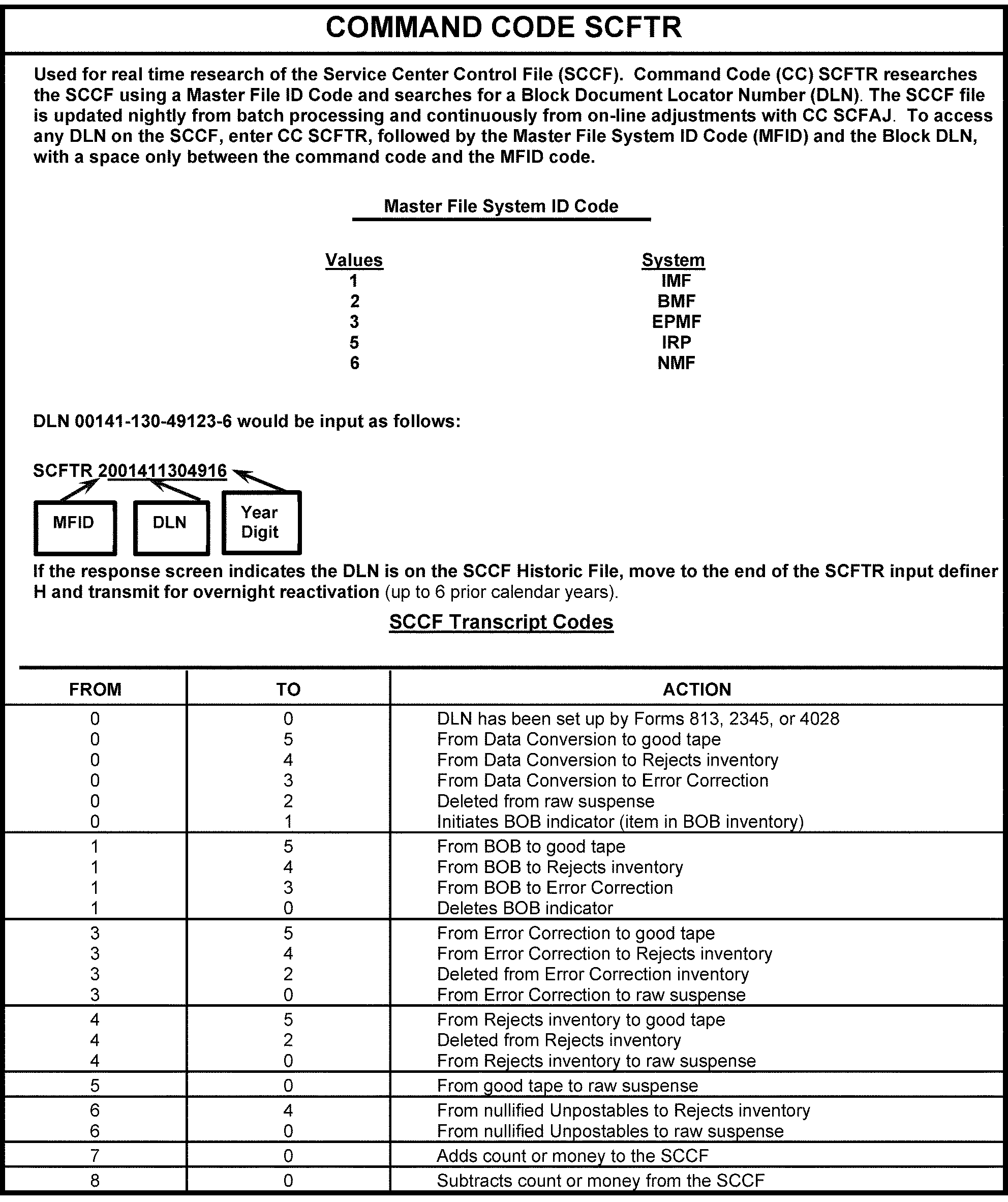
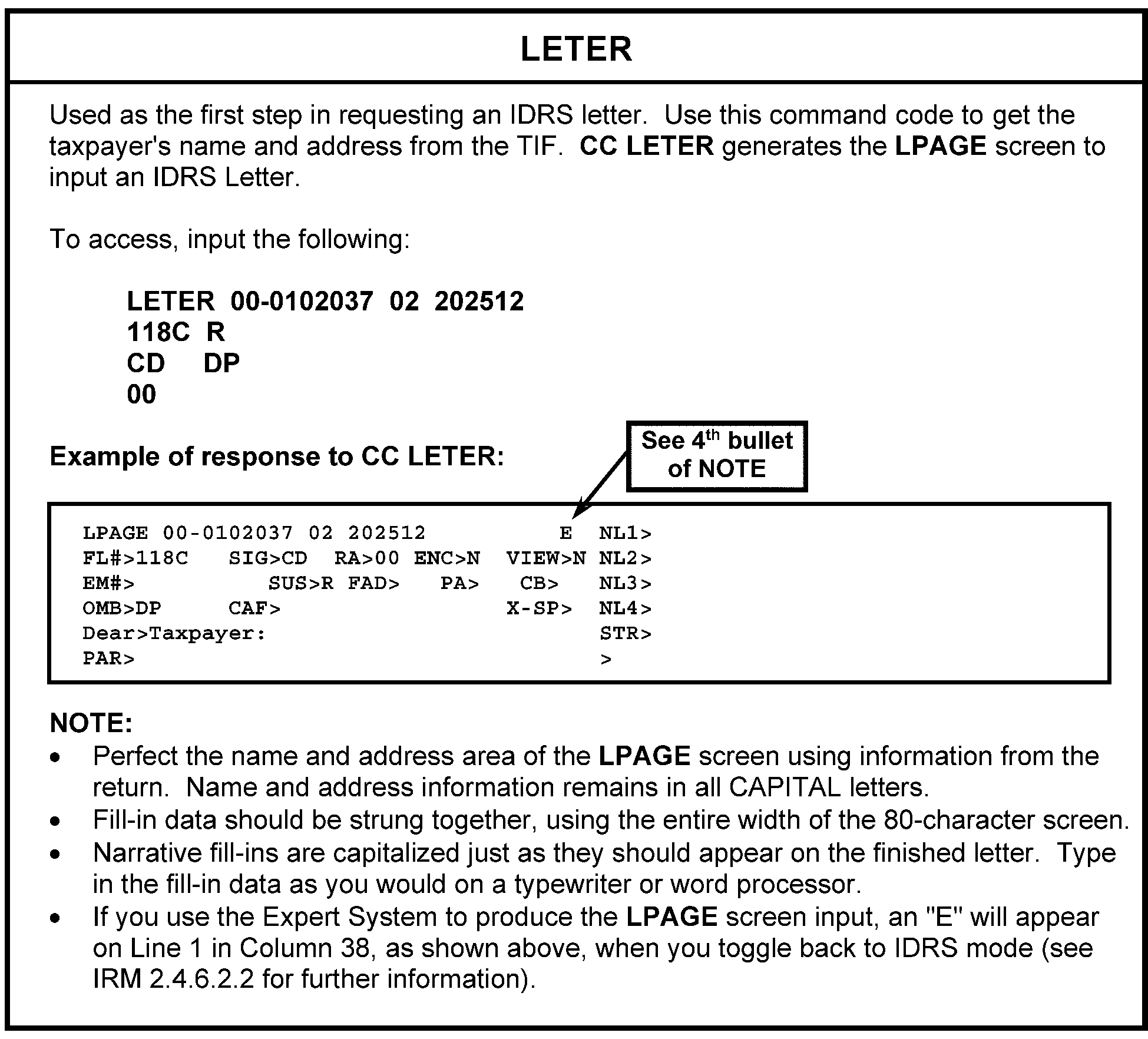
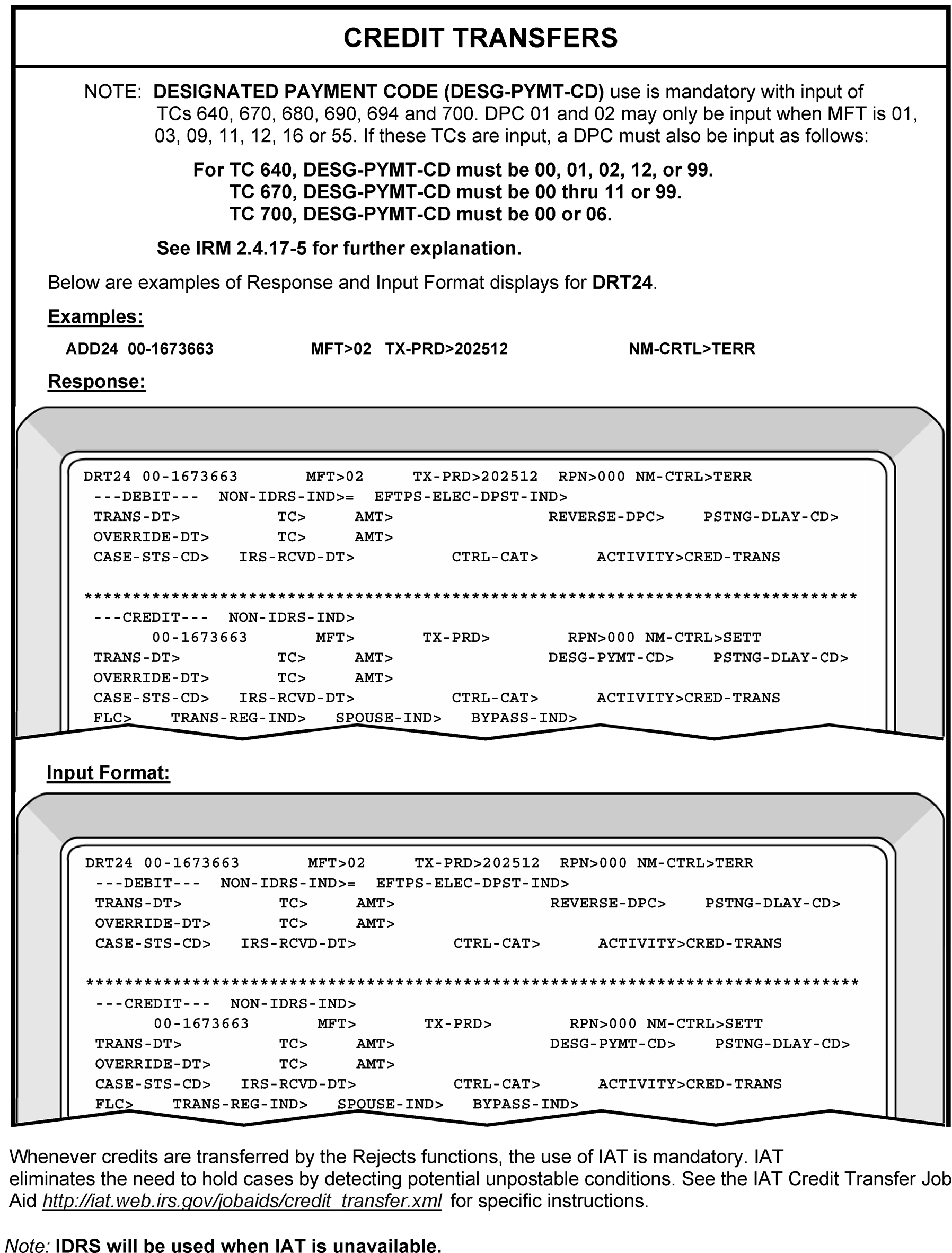
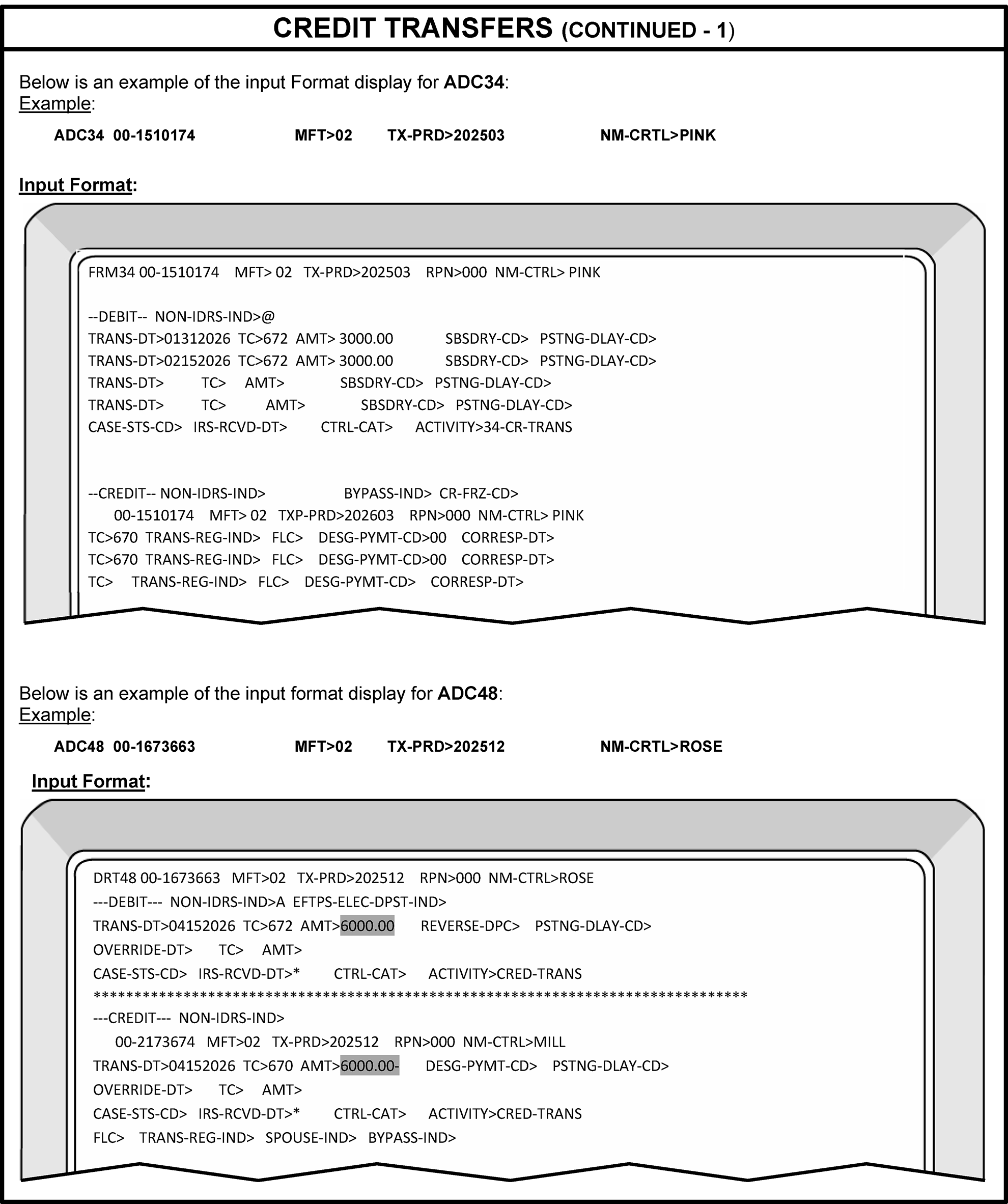
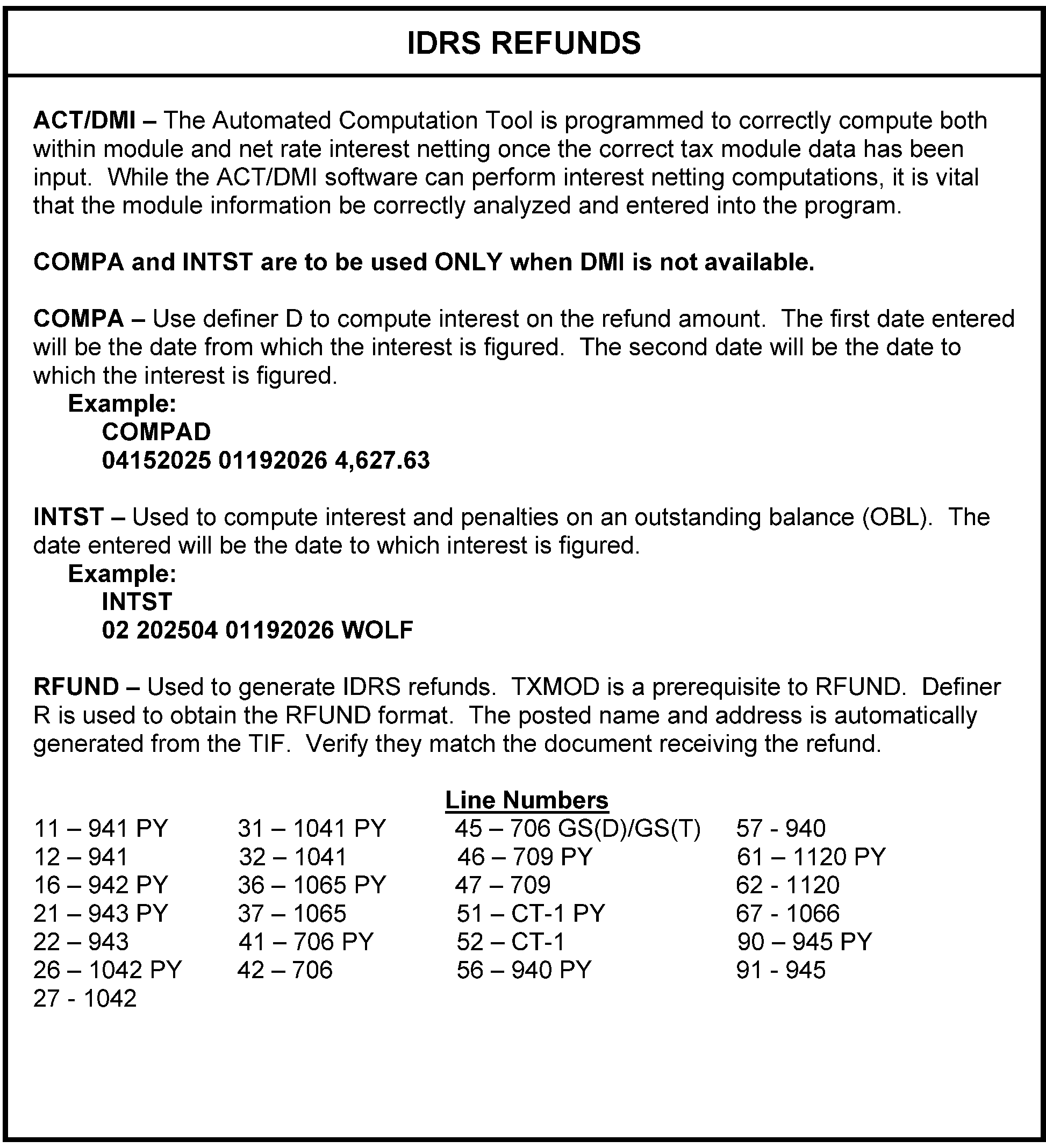
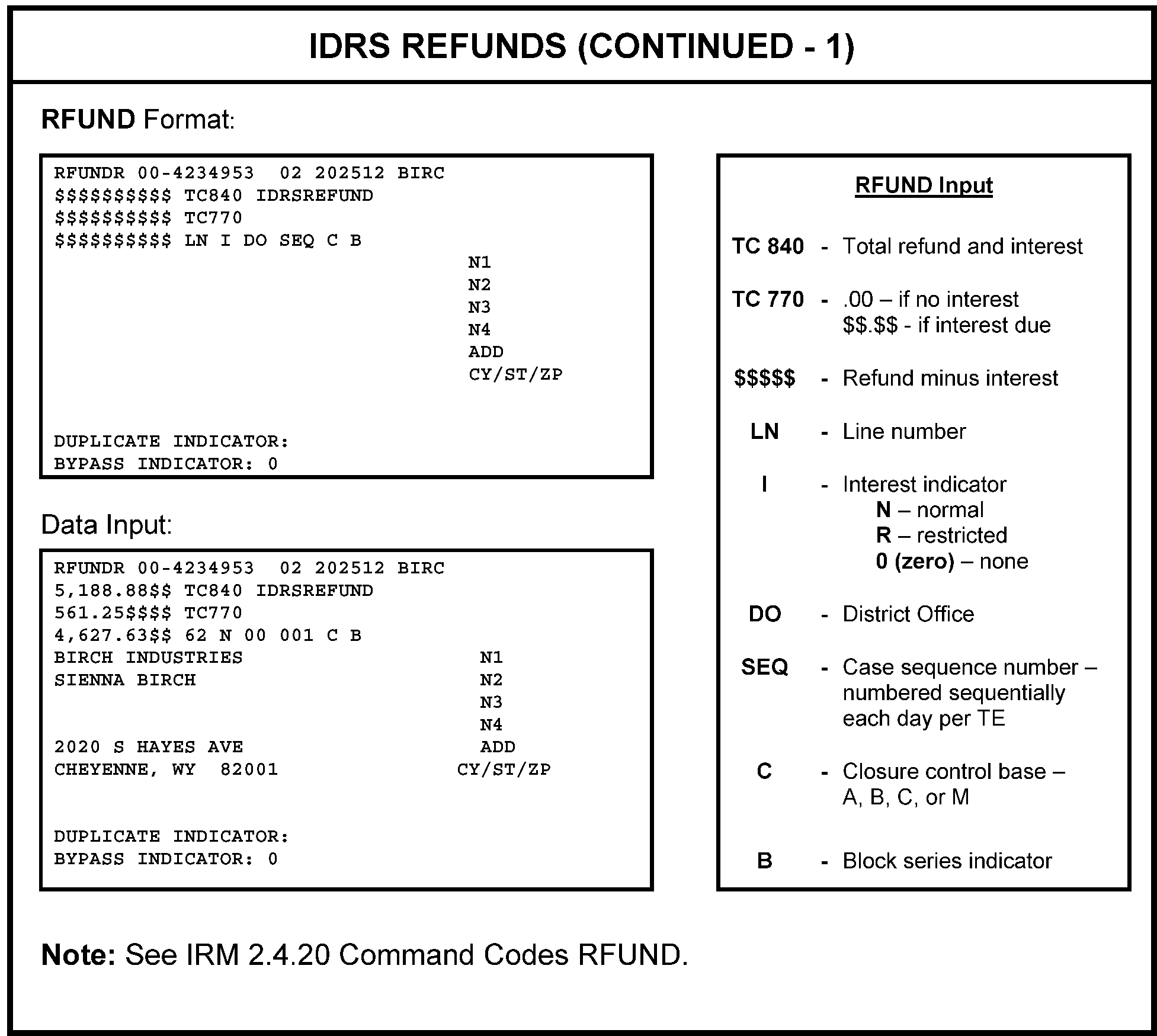

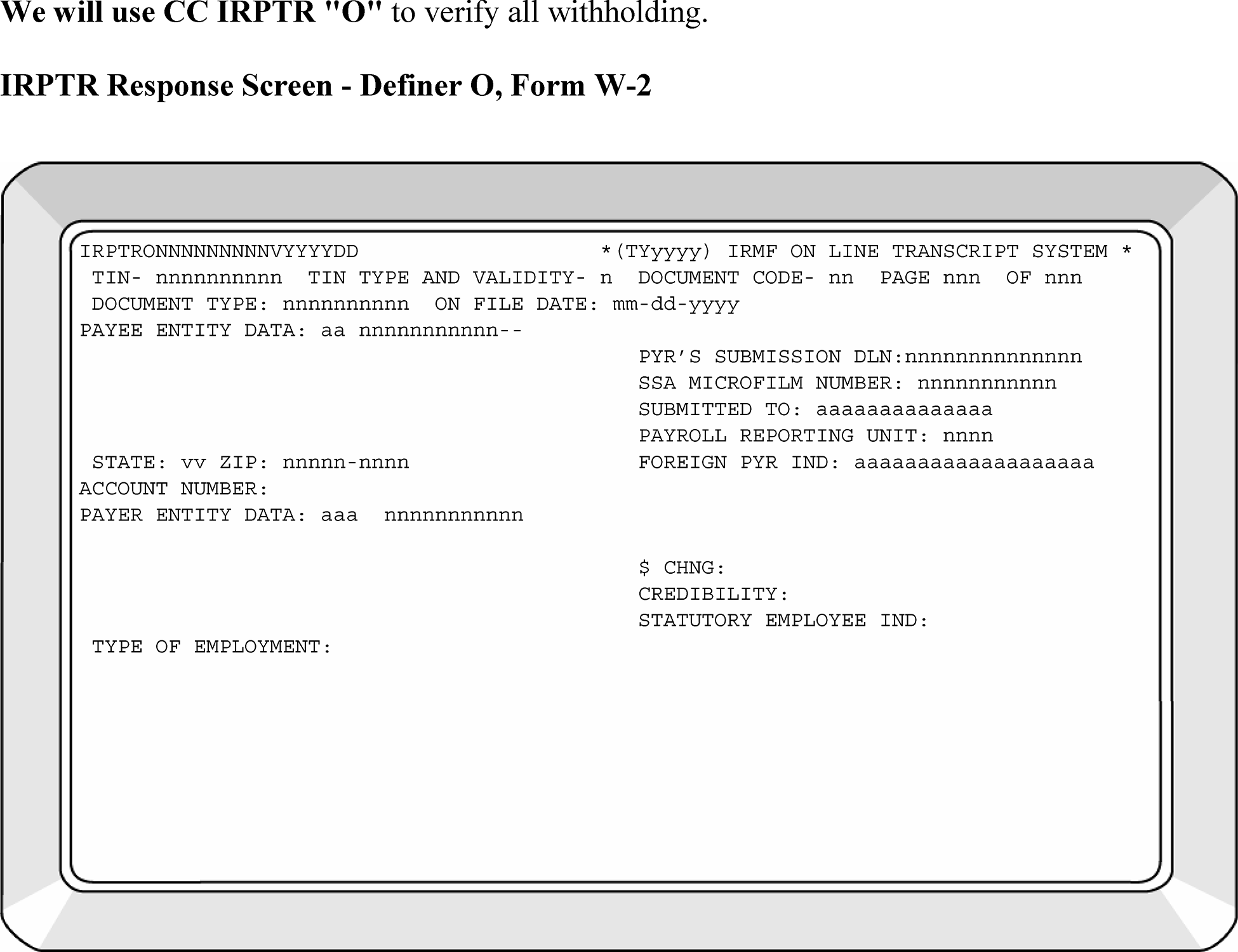
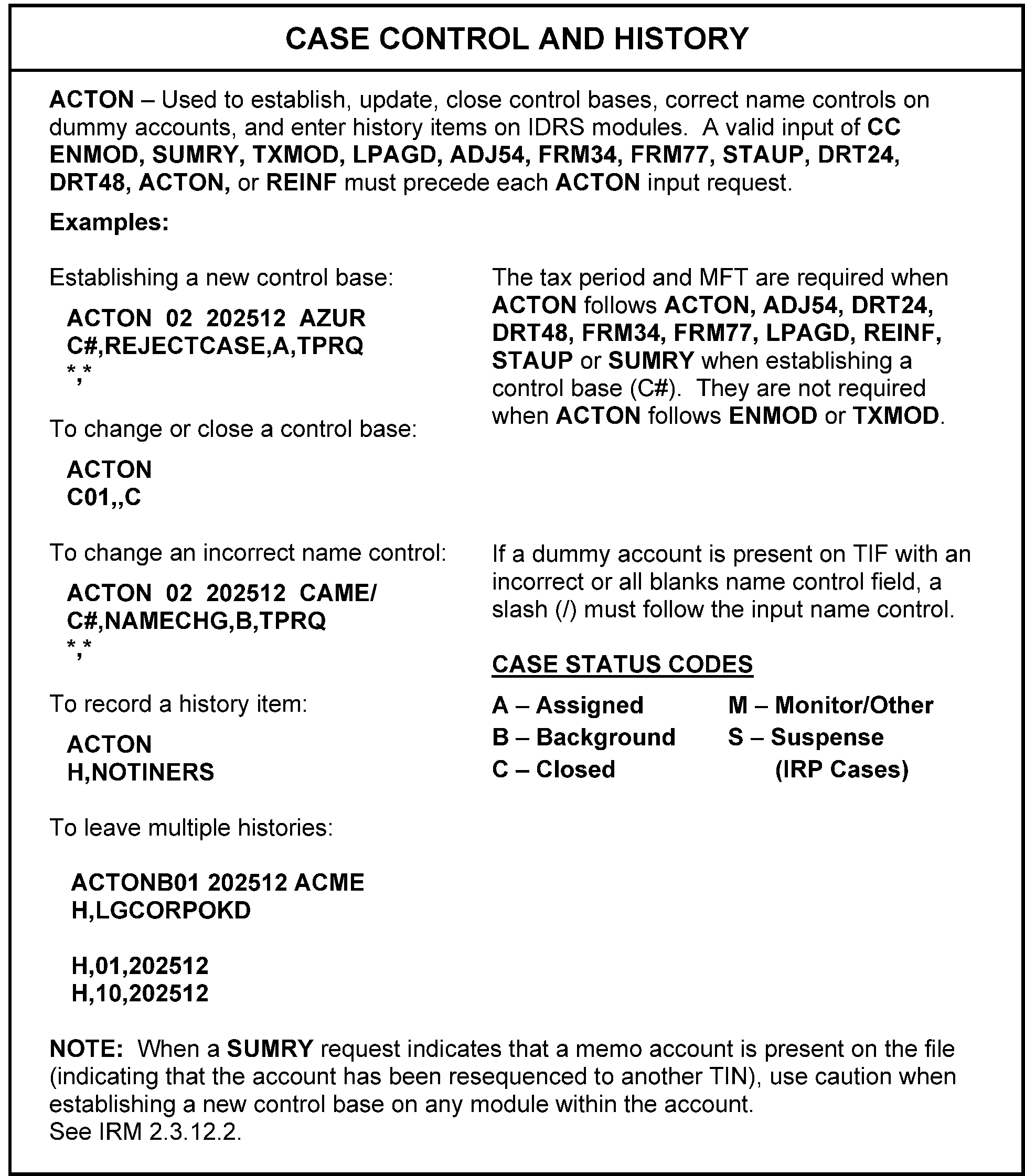
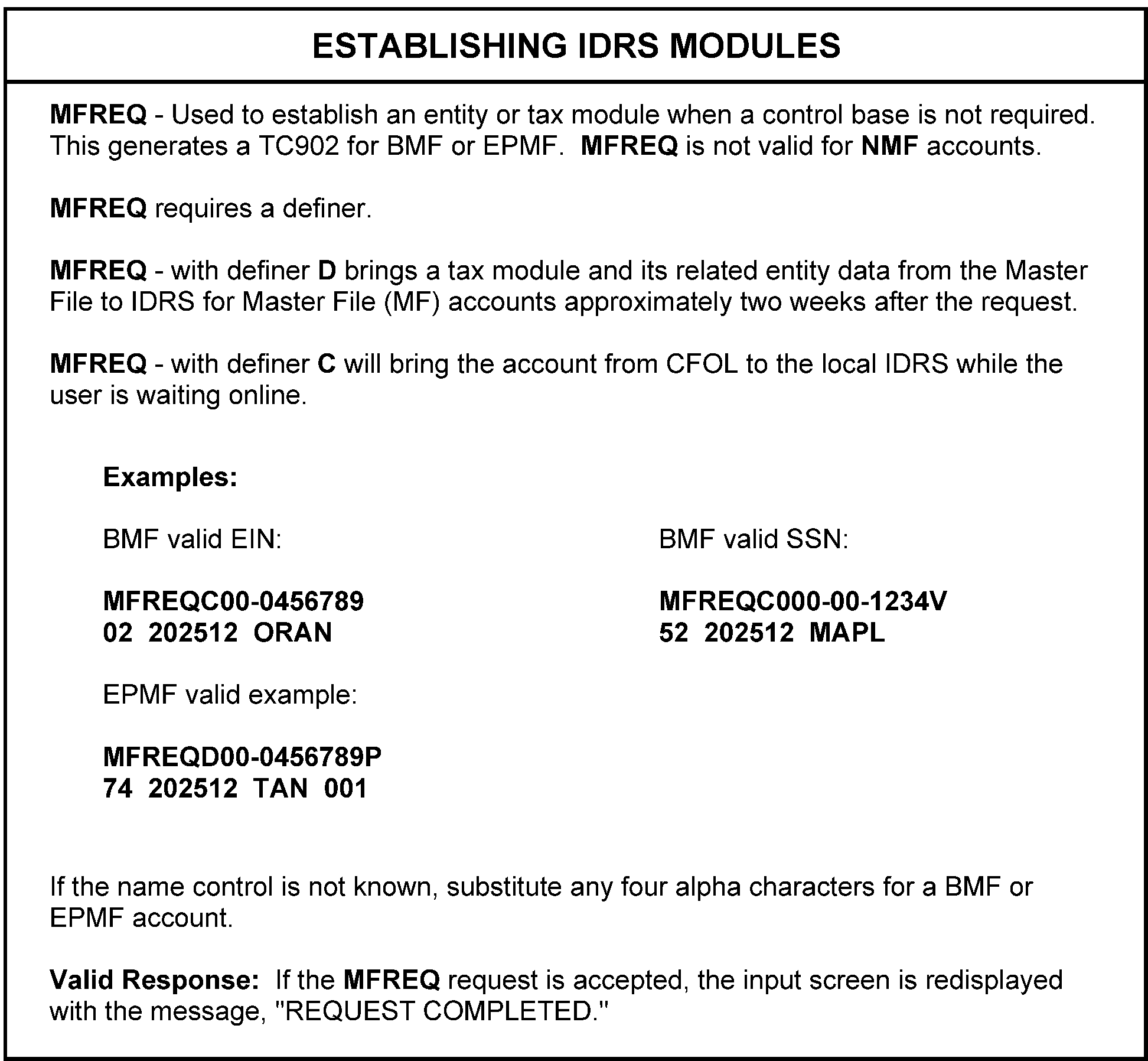
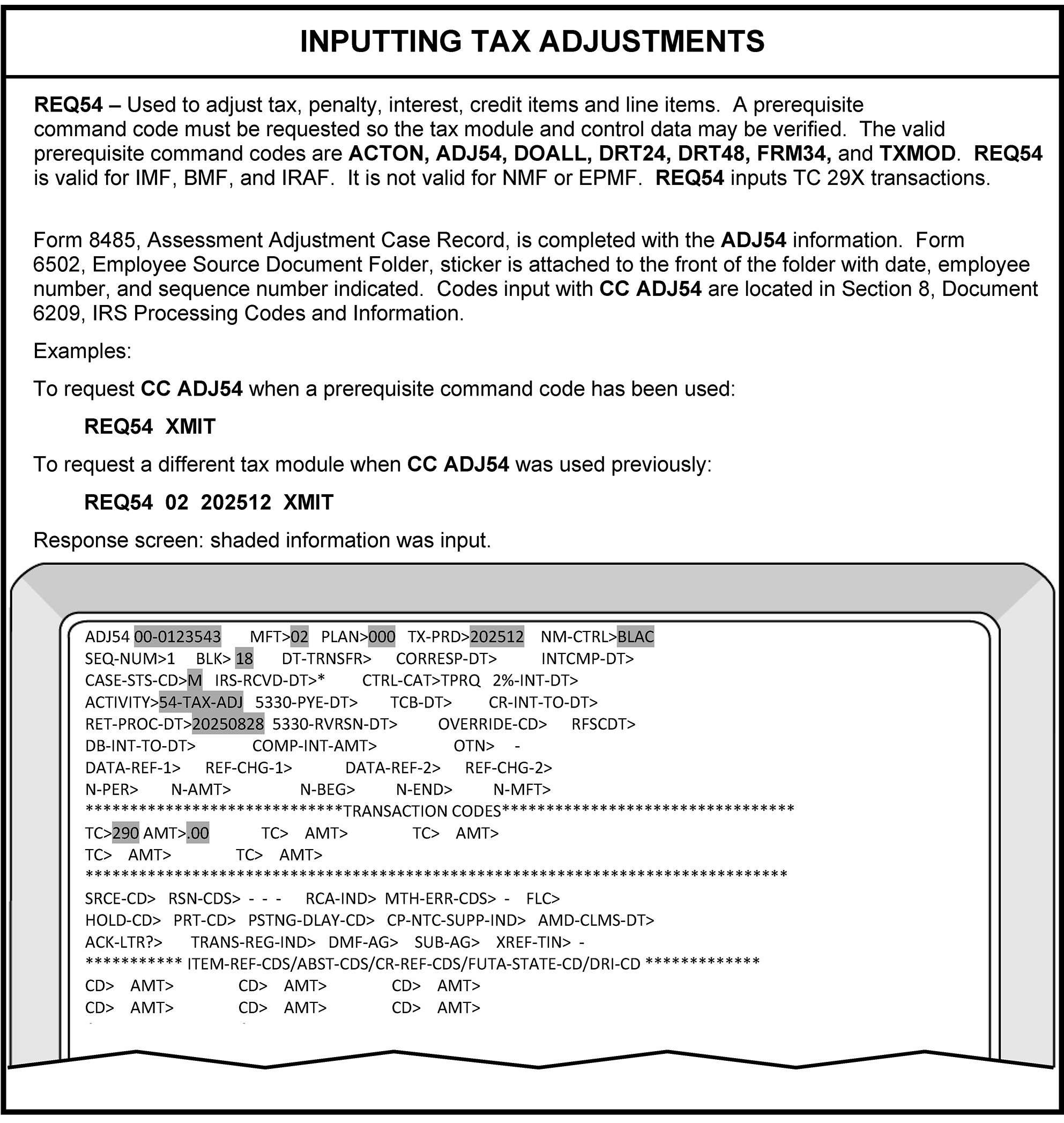
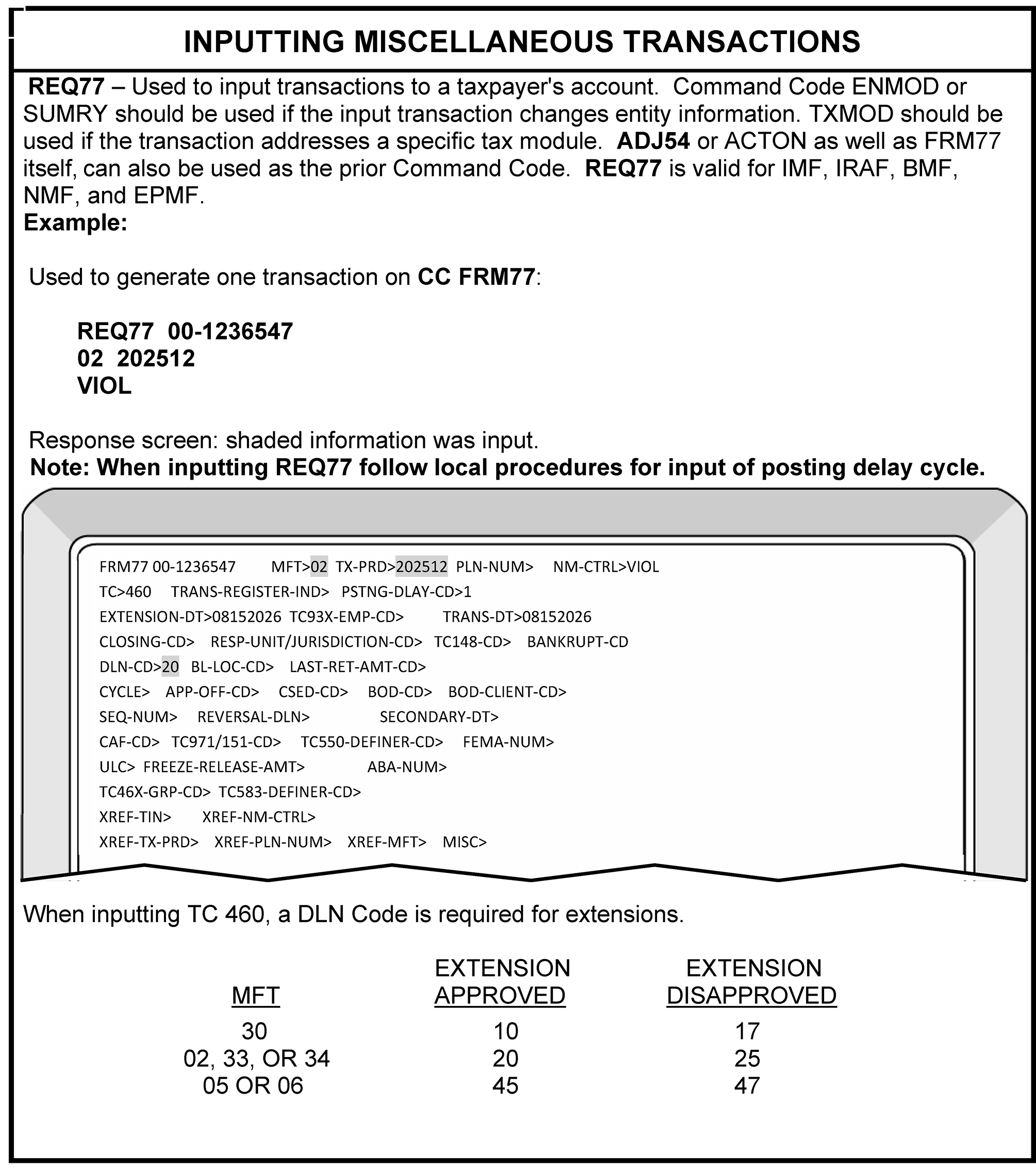
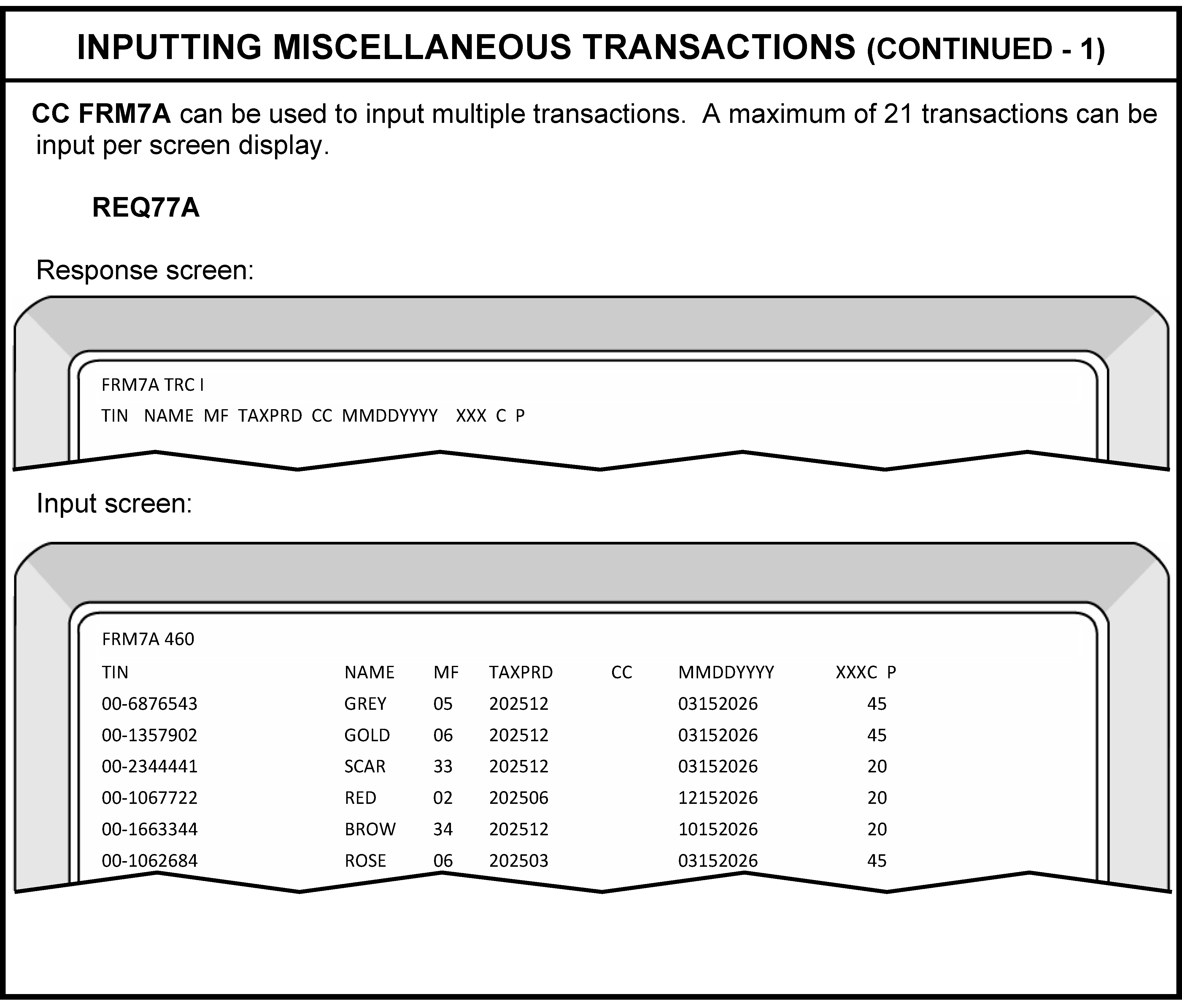
Due dates are calculated from the tax period ending dates, unless otherwise stated.
Reminder:
If the due date for returns falls on a weekend or holiday, the due date is the next business day.
If April 15th is on a Sunday and Monday, April 16th is a holiday, then the due date is Tuesday, April 17th.
| Return | MFT | Due Date |
|---|---|---|
|
30 | 3 1/2 months |
| 1040-NR | 30 | 5 1/2 months |
|
52 | 9 months from Date of Death (DOD) |
|
53 | 6 months after date of disposition |
| 706-GS(D) | 78 | April 15th, of the year following the calendar year in which the termination occurs. |
| 706-GS(T) | 77 | April 15th, of the year following the calendar year in which the termination occurs. |
|
51 | 3 1/2 months |
|
10 | Last day of the month following the tax period ending |
| 941 Series | 01 | Last day of the month following the end of a quarter |
|
11 | Last day of the month following the tax period ending |
|
14 | Last day of the month following the tax period ending |
| 945 | 16 | February 10th following end of tax period if payments were made timely all year. If not the January 31st. |
|
67 | 4 1/2 months |
| 990-T | 34 | 3 1/2 months |
|
05 | 3 1/2 months |
| 1042 | 12 | 2 1/2 months |
| 1065 | 06 | 3 1/2 months |
|
02 | 4 1/2 months Effective beginning in TY 2016. |
| 1120-C | 02 | 9 1/2 months |
|
46 | 1 1/2 months |
| 8288 | 17 | 20 days after the Date of Transfer |
| 8804 | 08 | 2 1/2 months after the end of the Partnership tax year. |
See Document 6209 for a more complete listing.
Acronyms and Abbreviations
| Acronyms and Abbreviations | Definition |
|---|---|
| AAC | Agricultural Activity Code (See NAICS) |
| ABS | Abstract Number (Excise Tax) |
| AC | Action Codes |
| ACA | Affordable Care Act |
| ACI | Automated Criminal Investigation |
| ACS | Automated Collection System |
| ADCS | Automated Document Control System |
| ADH | Automated Document Handling |
| ADJ | Adjustment |
| ADM | Administrator |
| ADP | Automatic Data Processing |
| ADSI | Automated Delete Status Indicator |
| AES | Automated Examination System |
| AGI | Adjusted Gross Income |
| AI | Annualized Income |
| AIL | Additional Information Line |
| AIMF | Automated Information Management File |
| AIMS | Automated Information Management System |
| AKA | Also Known As |
| AM | Accounts Management |
| AMT | Alternative Minimum Tax |
| ANMF | Automated Non Master File |
| AO | Area Office |
| AP | Adjustment Pending |
| APFD | Alaska Permanent Fund Dividend |
| APO | Army Post Office |
| ASED | Assessment Statute Expiration Date |
| ASFR | Automated Substitute for Return |
| ATS | Abusive Tax Shelter |
| AUR | Automated Under-reporter |
| AUSC | Austin Submission Processing Center |
| BCC | Business Operating Division Client Code |
| BCS | Block Count Sheet |
| BEITC | Business Energy Investment Tax Credit |
| B&F | Business & Farm |
| BFS | Bureau of Fiscal Services (formerly Financial Management Services (FMS) |
| BHR | Block Header Record |
| BMF | Business Master File |
| BOB | Block Out of Balance |
| BOD | Business Operating Division |
| BPD | Branded Prescription Drugs |
| BPI | Bypass Indicator |
| BPL | Block Proof List |
| BPR | Block Proof Record |
| BS | Blocking Series |
| BTIF | Business Taxpayer Information File |
| BWH | Backup Withholding |
| CAF | Centralized Authorization File |
| CAS | Correspondence Action Sheet |
| CAS | Customer Account Services |
| CAWR | Combined Annual Wage Reporting |
| CC | Closing Code |
| CC | Command Code |
| CCA | Case Control Activity |
| CCC | Computer Condition Code |
| CCU | Cycle Control Unit |
| C&E | Code and Edit |
| CCC | Computer Condition Code |
| CDP | Collection Due Process |
| CFOL | Corporate Files Online |
| CI | Criminal Investigation |
| CII | Correspondence Imaging Inventory |
| C/O | Care of |
| COA | Change of Address |
| CONS | Conservator |
| CP | Computer Paragraph |
| CPA | Certified Public Accountant |
| CRD | Correspondence Received Date |
| CRN | Credit Reference Number |
| DC | Dishonored Check |
| DC | Document Code |
| DCC | Detroit Computing Center |
| DCF | Dishonored Check File |
| DD | Direct Deposit |
| DECD | Deceased |
| DLN | Document Locator Number |
| DPO | Diplomatic Post Office |
| DPO | Document Perfection Operation |
| DLN | Document Locator Number |
| DOD | Date of Death |
| DPO | Diplomatic Post Office |
| DP | Data Processing |
| DPC | Designated Payment Code |
| DTR | Daily Transaction Register |
| EAN | Entity Account Number |
| EC | Employment Code |
| ED | Establishment Date |
| EEFax | Enterprise Electronic Fax |
| E-File | Electronically File |
| e.g. | For Example |
| EFDS | Electronic Fraud Detection System |
| EFT | Electronic Funds Transfer |
| EFTPS | Electronic Federal Tax Payment System |
| EIC | Earned Income Credit |
| EIF | Entity Index File |
| EIN | Employer Identification Number |
| ELF | Electronic Filing System |
| EMFOL | Employee Plans Master File Online |
| EO | Exempt Organization |
| EOMF | Exempt Organization Master File |
| EOCU | EO Compliance Unit |
| EPMF | Employee Plans Master File |
| ERAS | EIN Research and Assignment System (IDRS) |
| ERF | Employer Return File |
| ERS | Error Resolution System |
| ES | Estimated Tax (Forms 1120 and 1041) |
| ESPI | Estimated Tax Penalty Indicator |
| ESBT | Electing Small Business Tax |
| etc. | Et Cetera |
| ETEC | Excise Tax e-filing and Compliance |
| EXEC | Executor/Executrix |
| EUP | Electronic User Portal |
| Exam | Examination |
| FAX | Facsimile |
| FDB | Fraud Detection Branch |
| FF | Frivolous Filer |
| FICA | Federal Insurance Contribution Act |
| FIN | Fiduciary Identification Number |
| FLC | File Location Code |
| FM | Fiscal Month |
| FMV | Fair Market Value |
| FOF | Fact of Filing |
| FOI | Freedom of Information |
| FP | Full Paid |
| FPO | Fleet Post Office (Foreign Post Office) |
| FRB | Federal Reserve Bank |
| FRC | Federal Records Center |
| FRP | Frivolous Return Program |
| FTF | Failure To File |
| FTP | Failure to Pay |
| FUTA | Federal Unemployment Tax Act |
| FY | Fiscal Year |
| FYE | Fiscal Year Ending |
| FYM | Fiscal Year Month |
| GMF | Generalized Mainline Framework |
| GPP | General Purpose Programming |
| GUF | Generalized Unpostable Framework |
| HC | Hold Code |
| HQ | Headquarters |
| HSH | Household Employee |
| HTF | Highway Trust Fund Form 2290 |
| IAT | Integrated Automation Technologies |
| ICS | Integrated Collection System |
| ID | Identification or Identity |
| IDRS | Integrated Data Retrieval System |
| IMF | Individual Master File |
| IRA | Individual Retirement Account |
| IRC | Internal Revenue Code |
| IRM | Internal Revenue Manual |
| IRS | Internal Revenue Service |
| ISRP | Integrated Submission and Remittance Processing |
| ITIF | Individual Taxpayer Information File |
| ITIN | Individual Taxpayer Identification Number |
| ITM | Integrated Talent Management |
| KCSPC | Kansas City Submission Processing Center |
| KIF | Key Index File |
| KITA | Killed in Terrorist Action |
| LB&I | Large Business and International |
| MeF | Modernized Electronic Filing |
| LEM | Law Enforcement Manual (Office Use Only IRM) |
| MCC | Major City Code |
| MCC | Martinsburg Computing Center |
| ME | Math Error |
| MeF | Modernized E-File |
| MFR | Master File Requirements |
| MFT | Master File Transaction |
| MIR | Management Information Report |
| MMDDYY | Month Month Day Day Year Year |
| NAI | National Account Index |
| NAICS | North American Industry Classification System |
| N/A | Not Applicable |
| NARA | National Archives and Records Administration |
| NDC | National Distribution Center |
| NAP | National Account Profile |
| NECT | Non-Exempt Charitable Trust |
| NIF | Not in File |
| NIIT | Net Investment Income Tax |
| NOL | Net Operating Loss |
| NQ | Non-Qualifying |
| NR | No Remittance |
| NRPS | Notice Review Processing System |
| NR | No Record |
| NU | Nullified Unpostables |
| OBL | Outstanding Balance List |
| OC | Other Country |
| OFP | Organization Functions and Programs |
| OIC | Offer in Compromise |
| OID | Original Issue Discount |
| OLE | Online Entity |
| OSPC | Ogden Submission Processing Center |
| PANF | Plan Account Number File |
| PAO | Penalty Appeals Officer |
| PBA | Principal Business Activity |
| PC | Process Code |
| PCCF | Plan Case Control File |
| PCD | Program Completion Date |
| PCS | Partnership Control System |
| PDS | Private Delivery Service |
| PDT | Potentially Dangerous Taxpayer |
| PER REP | Personal Representative |
| PE | Program Error |
| PE | Production Evaluation (Now Quality Alert) |
| PINEX | Penalty and Interest Explanations |
| PMF | Payer Master File |
| P.O. | Post Office |
| POA | Power of Attorney |
| PTIN | Preparer Tax Identification Number |
| PTP | Publicly Traded Partnerships |
| PY | Prior Year |
| PY | Processing Year |
| RA | Revenue Agent |
| QDT | Qualified Disability Trust |
| QFT | Qualified Funeral Trust |
| QSSS | Qualified Subchapter S Subsidiary |
| R&C | Receipt and Control |
| RAF | Reporting Agents File (Employment and Unemployment) |
| RC | Reason Code |
| RCC | Return Condition Code |
| RCS | Records Control Schedules, Document 12990, IRS Records Control Schedules. |
| RDD | Return Due Date |
| REC | Residential Energy Credit |
| Rec’d | Received |
| REF | Refund Information File |
| REMIC | Real Estate Mortgage Investments Conduits |
| Rev. Proc. | Revenue Procedure |
| RF | Retention File |
| RICS | Returns Inventory and Classification System |
| RO | Revenue Officer |
| ROFT | Record of Federal Tax |
| RPC | Return Processing Code |
| RPD | Return Processing Date |
| RPS | Remittance Processing System |
| RRA98 | Restructuring and Reform Act of 1998 |
| RRB | Railroad Retirement Benefits |
| RRPS | Residual Remittance Processing System |
| RRTA | Railroad Retirement Benefits Tax Act |
| RSED | Refund Statute Expiration Date |
| SB/SE | Small Business & Self-Employed |
| SC | Service Center (now Campus) |
| SCAMPS | Service Center Automated Mail Processing System |
| SCCF | Service Center Control File |
| SCME | Service Center Math Error |
| SCR | Service Center Rejects |
| SCRS | Service Center Replacement System |
| SCTN | Service Center Taxpayer Notice |
| SCUP | Service Center Unpostable |
| SCRIPS | Service Center Recognition/Image Processing System |
| SD | Source Document |
| SDF | Source Document Folders (IDRS) |
| SE | Self-Employment |
| SERP | Servicewide Electronic Research Program (SERP) |
| SFR | Substitute for Return |
| SLA | Service Level Agreement |
| SOI | Statistics of Income |
| SP | Submission Processing |
| SPC | Submission Processing Campus |
| SSI | Supplemental Security Income |
| SSN | Social Security Number |
| SST | Social Security Tax |
| STEX | Statute Expired |
| TAS | Taxpayer Advocate Service |
| TBOR | Taxpayer Bill of Rights |
| TC | Transaction Code |
| TC | Tax Class |
| TCC | Tennessee Computer Center |
| TCC | Transmittal Control Code |
| TDA | Taxpayer Delinquency Account |
| TDI | Taxpayer Delinquency Investigation |
| TE | Tax Examiner |
| TE/GE | Tax Exempt & Government Entities |
| TEI | Tax Exempt Interest |
| TEP | Tape Edit Process |
| TETR | Telephone Excise Tax Refund |
| TIA | Taxpayer Information Authorization |
| TIF | Taxpayer Information File |
| TIN | Taxpayer Identification Number |
| TOP | Treasury Offset Program |
| TP or T/P | Taxpayer |
| TPC | Third Party Contact |
| TPE | Tax Period Ending |
| TPC | Third Party Contact |
| TPI | Total Positive Income |
| TPNC | Taxpayer Notice Code |
| TR | Trustee |
| TS | Taxpayer Services |
| TXI | Taxable Income |
| TY | Tax Year |
| UA | Unavailable |
| UCC | Uniform Commercial Code |
| UP | Unpostables |
| UPC | Unpostable Code |
| URC | Unpostable Resolution Code |
| URF | Unidentified Remittance File (IDRS) |
| URP | Under-reported Program |
| U.S. | United States |
| USPS | United States Postal Service |
| W | Waiver |
| WIR | Wage Information Retrieval System |
| WPT | Windfall Profit Tax |
| WT | Withholding Tax |
| XSF | Excess Collection File |
| ZIP | Zone Improvement Plan |
| ZTIF | Miscellaneous Taxpayer Information File (IRA, EPMF, ANMF) |