


 )
o https:// significa que usted se conectó de forma segura a un sitio web .gov. Comparta información sensible sólo en sitios web oficiales y seguros.
)
o https:// significa que usted se conectó de forma segura a un sitio web .gov. Comparta información sensible sólo en sitios web oficiales y seguros.


- 3.24.3 Individual Income Tax Returns
- 3.24.3.1 Program Scope and Objectives
- 3.24.3.1.1 Background
- 3.24.3.1.2 Authority
- 3.24.3.1.3 Roles and Responsibilities
- 3.24.3.1.4 Program Management and Review
- 3.24.3.1.5 Program Controls
- 3.24.3.1.6 Terms and Acronyms
- 3.24.3.1.7 Related Resources
- 3.24.3.2 Control Documents
- 3.24.3.3 Individual Income Tax Forms
- 3.24.3.4 Forms/Program Numbers/Tax Class Doc. Codes
- 3.24.3.5 Data Entry Instructions
- 3.24.3.5.1 General
- 3.24.3.5.2 International Returns
- 3.24.3.5.3 Required Sections
- 3.24.3.5.4 Amounts
- 3.24.3.5.4.1 Refund/Amount You Owe
- 3.24.3.5.5 Editing
- 3.24.3.5.6 Interpretive Transcription
- 3.24.3.5.7 Entity Determination
- 3.24.3.5.7.1 Short Entity
- 3.24.3.5.7.2 Intermediate Entity
- 3.24.3.5.7.3 Partial Entity
- 3.24.3.5.7.4 Long Entity
- 3.24.3.5.7.5 Enhanced-Entity Index File
- 3.24.3.5.8 Correcting the Type of Entity
- 3.24.3.5.9 Name Control-Primary
- 3.24.3.5.10 Name Line
- 3.24.3.5.11 Address Line
- 3.24.3.5.12 Prior Year Returns
- 3.24.3.5.13 Age/Blindness Indicator Boxes
- 3.24.3.5.14 Direct Deposit
- 3.24.3.5.15 Prior Year Forms with Different Layouts
- 3.24.3.6 Error Messages
- 3.24.3.6.1 DOES NOT ZERO BALANCE - CHECK MONEY FIELDS
- 3.24.3.6.2 MISSING SECTION(S) XX, XX, XX, ERROR===REQUIRED SECTION(S) MISSING
- 3.24.3.6.3 SECONDARY SSN REQUIRED
- 3.24.3.6.4 SPOUSE NAME CONTROL IS REQUIRED
- 3.24.3.6.5 FIELD OVERFLOW— Money Amount Fields
- 3.24.3.6.6 FIELD OVERFLOW— Name, Address, and City/State
- 3.24.3.6.6.1 Name Line Validity Checks
- 3.24.3.7 Correcting Sections
- 3.24.3.7.1 Deleting Sections and Documents
- 3.24.3.7.2 Inserting Sections and Documents
- 3.24.3.8 Key Verification
- 3.24.3.8.1 Short Entity KV
- 3.24.3.8.2 Intermediate Entity KV
- 3.24.3.8.3 Partial and Long Entity KV
- 3.24.3.9 ISRP Transcription Operation Sheets
- Exhibit 3.24.3-1 Block Header Data Entry Form 813, Document Register, Form 1332, Block and Selection Record, OR Form 3893, Re-Entry Document Control
- Exhibit 3.24.3-2 Enhanced-Entity Index File
- Exhibit 3.24.3-3 Section 01- Form 1040 / Form 1040 SR
- Exhibit 3.24.3-4 Section 02 - Form 1040 / Form 1040 SR
- Exhibit 3.24.3-5 Section 03 - Form 1040 / Form 1040 SR
- Exhibit 3.24.3-6 Section 04 - Form 1040 / Form 1040 SR, Schedules 1 and 1-A
- Exhibit 3.24.3-7 Section 05 - Form 1040 / Form 1040 SR - Schedules 2, 3, and 3-A
- Exhibit 3.24.3-8 Section 07 - Form 1040 / Form 1040 SR — Schedule A
- Exhibit 3.24.3-9 Section 08 - Form 1040 / Form 1040 SR — Schedule B
- Exhibit 3.24.3-10 Sections 09, 10 and 11 - Form 1040 / Form 1040 SR — Schedule C
- Exhibit 3.24.3-11 Section 12 - Form 1040 / Form 1040 SR — Schedule D and Form 8949
- Exhibit 3.24.3-12 Section 13 - Form 1040 / Form 1040 SR — Schedule E
- Exhibit 3.24.3-13 Sections 14 and 15 - Form 1040 / Form 1040 SR — Schedule F
- Exhibit 3.24.3-14 Section 16 - Form 1040 / Form 1040 SR — Schedule R
- Exhibit 3.24.3-15 Sections 17 and 18 - Form 1040 / Form 1040 SR — Schedule SE
- Exhibit 3.24.3-16 Section 19 - Form 1040 / Form 1040 SR — Form 1116 / Schedule B (Form 1116) / Schedule C (Form 1116)
- Exhibit 3.24.3-17 Section 20 — Form 1040 / Form 1040 SR — Schedule J
- Exhibit 3.24.3-18 Section 21 - Form 1040 / Form 1040 SR — Form 2441
- Exhibit 3.24.3-19 Section 22 - Form 1040 / Form 1040 SR — Form 3800
- Exhibit 3.24.3-20 Section 23 - Form 1040 / Form 1040 SR — Form 3800
- Exhibit 3.24.3-21 Sections 24 and 25 - Form 1040 / Form 1040 SR — Form 4137
- Exhibit 3.24.3-22 Section 26 - Form 1040 / Form 1040 SR — Form 4684
- Exhibit 3.24.3-23 Section 27 - Form 1040 / Form 1040 SR — Form 4797
- Exhibit 3.24.3-24 Section 28 - Form 1040 / Form 1040 SR — Form 4972
- Exhibit 3.24.3-25 Sections 29 and 30 - Form 1040 / Form 1040 SR — Form 5329
- Exhibit 3.24.3-26 Section 31 - Form 1040 / Form 1040 SR — Form 6198
- Exhibit 3.24.3-27 Section 32 - Form 1040 / Form 1040 SR — Form 6251
- Exhibit 3.24.3-28 Section 33 - Form 1040 / Form 1040 SR — Form 8615
- Exhibit 3.24.3-29 Sections 34 and 35 - Form 1040 / Form 1040 SR — Form 2555
- Exhibit 3.24.3-30 Section 36 - Form 1040 / Form 1040 SR — Form 8283
- Exhibit 3.24.3-31 Section 37 - Form 1040 / Form 1040 SR — Form 4835
- Exhibit 3.24.3-32 Section 38 - Form 1040 / Form 1040 SR — Form 8839
- Exhibit 3.24.3-33 Section 39 - Form 1040 / Form 1040 SR — Form 8853
- Exhibit 3.24.3-34 Sections 40, 41 and 42 - Form 1040 / Form 1040 SR — Form 8814
- Exhibit 3.24.3-35 Section 43 - Form 1040 / Form 1040 SR — Schedule EIC
- Exhibit 3.24.3-36 Sections 44 and 45 - Form 1040 / Form 1040 SR — Schedule H
- Exhibit 3.24.3-37 Section 47 - Form 1040 / Form 1040 SR — Schedule 8812
- Exhibit 3.24.3-38 Sections 48 and 49 - Form 1040 / Form 1040 SR — Form 8606
- Exhibit 3.24.3-39 Section 50 - Form 1040 / Form 1040 SR — Form 8863
- Exhibit 3.24.3-40 Section 51 - Form 1040 / Form 1040 SR — Form 4952
- Exhibit 3.24.3-41 Sections 52 and 53 - Form 1040 / Form 1040 SR — Form 8889
- Exhibit 3.24.3-42 Section 54 - Form 1040 / Form 1040 SR — Form 8880
- Exhibit 3.24.3-43 Section 55 - Form 1040 / Form 1040 SR - Form 8995 / Form 8995-A / Schedule C (Form 8995-A)
- Exhibit 3.24.3-44 Section 56 - Form 1040 / Form 1040 SR — Form 8888
- Exhibit 3.24.3-45 Section 57 — Form 1040 / Form 1040 SR — Form 8978
- Exhibit 3.24.3-46 Sections 58 and 59 — Form 1040 / Form 1040 SR — Form 5405
- Exhibit 3.24.3-47 Sections 61 and 62 - Form 1040 / Form 1040 SR — Form 8919
- Exhibit 3.24.3-48 Section 63 - Form 1040 / Form 1040 SR — Form 8958
- Exhibit 3.24.3-49 Section 64 - Form 1040 / Form 1040 SR - Form 461
- Exhibit 3.24.3-50 Sections 65 and 66 - Form 1040 / Form 1040 SR — Form 8941
- Exhibit 3.24.3-51 Section 67 - Form 1040 / Form 1040 SR - Form 6252
- Exhibit 3.24.3-52 Section 69 - Form 1040 / Form 1040 SR — Form 8936, Schedule A (Form 8936)
- Exhibit 3.24.3-53 Section 70 - Form 1040 / Form 1040 SR — Form 8867
- Exhibit 3.24.3-54 Section 71 - Form 1040 / Form 1040 SR — Form 8959
- Exhibit 3.24.3-55 Section 72 - Form 1040 / Form 1040 SR — Form 8960
- Exhibit 3.24.3-56 Section 73 - Form 1040 / Form 1040 SR — Form 8962, Page 1
- Exhibit 3.24.3-57 Section 74 - Form 1040 / Form 1040 SR — Form 8962, Page 2
- Exhibit 3.24.3-58 Section 75 - Form 1040 / Form 1040 SR — Form 5695
- Exhibit 3.24.3-59 Section 76 - Form 1040 / Form 1040 SR — Form 965-A
- Exhibit 3.24.3-60 Section 77 - Form 1040 / Form 1040 SR — Schedule LEP and Form 9000
- Exhibit 3.24.3-61 Section 78 - Form 1040 / Form 1040 SR — Form 8997
- Exhibit 3.24.3-62 Section 79- Form 1040 / Form 1040 SR — Form 4136
- Exhibit 3.24.3-63 Section 88 - Form 1040 / Form 1040 SR — Form 3471, Edit Sheet
- Exhibit 3.24.3-64 Section 01 - Forms 1040 (Amended) /1040X-Dummy PECF, 8379
- Exhibit 3.24.3-65 Section 03 - Form 1040/1040X — Dummy PECF
- Exhibit 3.24.3-66 Section 01 - Form 1040-NR, Page 1
- Exhibit 3.24.3-67 Section 02 — Form 1040-NR
- Exhibit 3.24.3-68 Section 03 — Form 1040-NR
- Exhibit 3.24.3-69 Section 04 — Form 1040-NR, Schedules 1 and 1-A
- Exhibit 3.24.3-70 Section 05 — Form 1040-NR, Schedules 2, 3, and 3-A
- Exhibit 3.24.3-71 Section 07 — Form 1040-NR, Schedules A, NEC, and OI
- Exhibit 3.24.3-72 Sections 09, 10, and 11 - Form 1040-NR — Schedule C
- Exhibit 3.24.3-73 Section 12 - Form 1040-NR — Schedule D and Form 8949
- Exhibit 3.24.3-74 Section 13 - Form 1040-NR — Schedule E
- Exhibit 3.24.3-75 Sections 14 and 15 - Form 1040-NR — Schedule F
- Exhibit 3.24.3-76 Section 17 - Form 1040-NR — Schedule SE
- Exhibit 3.24.3-77 Section 19 - Form 1040-NR — Form 1116 / Schedule B (Form 1116) / Schedule C (Form 1116)
- Exhibit 3.24.3-78 Section 20 - Form 1040-NR — Schedule J
- Exhibit 3.24.3-79 Section 21 - Form 1040-NR — Form 2441
- Exhibit 3.24.3-80 Section 22 - Form 1040-NR — Form 3800
- Exhibit 3.24.3-81 Section 23 - Form 1040-NR — Form 3800
- Exhibit 3.24.3-82 Section 24 - Form 1040-NR — Form 4137
- Exhibit 3.24.3-83 Section 26 - Form 1040-NR — Form 4684
- Exhibit 3.24.3-84 Section 27 - Form 1040-NR — Form 4797
- Exhibit 3.24.3-85 Section 28 - Form 1040-NR — Form 4972
- Exhibit 3.24.3-86 Section 29 - Form 1040-NR — Form 5329
- Exhibit 3.24.3-87 Section 31 - Form 1040-NR — Form 6198
- Exhibit 3.24.3-88 Section 32 - Form 1040-NR — Form 6251
- Exhibit 3.24.3-89 Section 33 - Form 1040-NR — Form 8615
- Exhibit 3.24.3-90 Section 36 - Form 1040-NR — Form 8283
- Exhibit 3.24.3-91 Section 37 - Form 1040-NR — Form 4835
- Exhibit 3.24.3-92 Section 38 - Form 1040-NR — Form 8839
- Exhibit 3.24.3-93 Section 39 - Form 1040-NR — Form 8853
- Exhibit 3.24.3-94 Sections 40, 41, and 42 - Form 1040-NR — Form 8814
- Exhibit 3.24.3-95 Section 44 - Form 1040-NR — Schedule H
- Exhibit 3.24.3-96 Section 47 - Form 1040-NR — Schedule 8812/Form 8812
- Exhibit 3.24.3-97 Section 48 - Form 1040-NR — Form 8606
- Exhibit 3.24.3-98 Section 51 - Form 1040-NR — Form 4952
- Exhibit 3.24.3-99 Section 52 - Form 1040-NR — Form 8889
- Exhibit 3.24.3-100 Section 54 - Form 1040-NR — Form 8880
- Exhibit 3.24.3-101 Section 55 - Form 1040-NR Form 8995 / 8995-A / Schedule C (Form 8995-A)
- Exhibit 3.24.3-102 Section 56 - Form 1040-NR — Form 8888
- Exhibit 3.24.3-103 Section 57 - Form 1040-NR - Form 8978
- Exhibit 3.24.3-104 Section 58 - Form 1040-NR — Form 5405
- Exhibit 3.24.3-105 Section 61 - Form 1040-NR — Form 8919
- Exhibit 3.24.3-106 Section 63 - Form 1040-NR - Form 8958
- Exhibit 3.24.3-107 Section 64 - Form 1040-NR - Form 461
- Exhibit 3.24.3-108 Section 65 - Form 1040-NR — Form 8941
- Exhibit 3.24.3-109 Section 67 - Form 1040-NR - Form 6252
- Exhibit 3.24.3-110 Section 69 - Form 1040-NR — Form 8936, Schedule A (Form 8936)
- Exhibit 3.24.3-111 Section 70 - Form 1040-NR - Form 8867
- Exhibit 3.24.3-112 Section 71 - Form 1040-NR — Form 8959
- Exhibit 3.24.3-113 Section 72 - Form 1040-NR -Form 8960
- Exhibit 3.24.3-114 Section 73 - Form 1040-NR - Form 8962
- Exhibit 3.24.3-115 Section 74 - Form 1040-NR - Form 8962, Page 2
- Exhibit 3.24.3-116 Section 75 - Form 1040-NR — Form 5695
- Exhibit 3.24.3-117 Section 76 - Form 1040-NR — Form 965-A
- Exhibit 3.24.3-118 Section 77 - Form 1040-NR — Schedule LEP and Form 9000
- Exhibit 3.24.3-119 Section 78 - Form 1040-NR — Form 8997
- Exhibit 3.24.3-120 Section 79- Form 1040-NR — Form 4136
- Exhibit 3.24.3-121 Section 88 - Form 1040-NR — Form 3471, Edit Sheet
- Exhibit 3.24.3-122 Section 01 - Form 1040-SS, Page 1
- Exhibit 3.24.3-123 Section 02 - Form 1040-SS
- Exhibit 3.24.3-124 Section 03 - Form 1040-SS
- Exhibit 3.24.3-125 Section 07 - Form 1040-SS — Part II, Page 3 and Schedule 3-A
- Exhibit 3.24.3-126 Sections 09, 10, 11 - Form 1040-SS — Schedule C
- Exhibit 3.24.3-127 Sections 17 and 18 - Form 1040-SS — Schedule SE
- Exhibit 3.24.3-128 Sections 44 and 45 - Form 1040-SS — Schedule H
- Exhibit 3.24.3-129 Section 56 - Form 1040-SS — Form 8888
- Exhibit 3.24.3-130 Section 61 and 62 1040-SS — Form 8919
- Exhibit 3.24.3-131 Section 70 - Form 1040-SS — Form 8867
- Exhibit 3.24.3-132 Section 71 - Form 1040-SS — Form 8959
- Exhibit 3.24.3-133 Section 77 - Form 1040-SS — Schedule LEP and Form 9000
- Exhibit 3.24.3-134 Section 88 - Form 1040-SS — Form 3471, Edit Sheet
- 3.24.3.1 Program Scope and Objectives
Part 3. Submission Processing
Chapter 24. ISRP System
Section 3. Individual Income Tax Returns
3.24.3 Individual Income Tax Returns
Manual Transmittal
October 16, 2026
Purpose
(1) This transmits revised IRM 3.24.3, ISRP System, Individual Income Tax Returns.
Material Changes
(1) IRM 3.24.3.1.6 - Added VIN acronym and definition to this table.
(2) IRM 3.24.3.5.1(8) - Added instructions for Form 4547, Trump Account Election(s). IPU 26U0558 issued 05-22-2026.
(3) IRM 3.24.3.5.2(1) - Added note for Form 2555-EZ. IPU 26U0139 issued 01-22-2026.
(4) IRM 3.24.3.5.6(1) - Deleted (d) from list.
(5) IRM 3.24.3.5.9 - Deleted (a) from list, added information for BMF name controls, and updated Note information.
(6) IRM 3.24.3.5.12 - Deleted paragraph (3).
(7) IRM 3.24.3.5.15 - Added information for Schedule A, Form 1116 (Schedule B and C), Form 5695, and Form 8997.
(8) IRM 3.24.3.5.15 - Deleted reference to 2018 Form 8867. Revised instructions for 2017 Form 8867. IPU 26U0005 issued 01-02-2026.
(9) IRM 3.24.3.5.7.1 - Added exception regarding international returns. IPU 26U0139 issued 01-22-2026.
(10) IRM 3.24.3.5.7.4 - Deleted duplicate information. IPU 26U0139 issued 01-22-2026.
(11) IRM 3.24.3.9(10) - Added clarification for the term “Relating To”.
(12) Exhibit 3.24.3-3 - Revised edited locations for CCC and Received Date fields.
(13) Exhibit 3.24.3-3 - Added note for prior year returns to Computer Condition Code field. IPU 26U0326 issued 03-13-2026.
(14) Exhibit 3.24.3-4 - Revised instructions for Dependent Relationship Code fields. IPU 26U0139 issued 01-22-2026.
(15) Exhibit 3.24.3-4 - Added note for prior year returns to Dependent Relationship Code fields. IPU 26U0326 issued 03-13-2026.
(16) Exhibit 3.24.3-5 - Entire section reworked to add new transcription and form changes, renumbered subsequent elements.
(17) Exhibit 3.24.3-5 - Revised field L13A $ and added field L30 due to form changes, renumbered subsequent elements. Revised instructions for Dan For Verification field. IPU 26U0005 issued 01-02-2026.
(18) Exhibit 3.24.3-5 - Corrected IRM reference in Element (40). IPU 26U0326 issued 03-13-2026.
(19) Exhibit 3.24.3-5 - Corrected element number referenced in Element (45). IPU 26U0593 issued 06-03-2026.
(20) Exhibit 3.24.3-6 - Entire section reworked to add new transcription and form changes, renumbered subsequent elements.
(21) Exhibit 3.24.3-6 - Added new fields to transcribe Schedule 1-A. IPU 26U0005 issued 01-02-2026.
(22) Exhibit 3.24.3-7 - Entire section reworked to add new transcription and form changes, renumbered subsequent elements.
(23) Exhibit 3.24.3-8 - Added new transcribed fields, Mortgage Insurance Premiums and Gambling Winnings Reported on Sch C or E. Entire section reworked due to form changes, renumbered subsequent elements.
(24) Exhibit 3.24.3-10 - Added new transcribed fields, Vehicle Loan Interest and Net Profit or Loss Amount. Renumbered subsequent elements.
(25) Exhibit 3.24.3-11 - Added (8) new transcribed fields relating to Code "F" . Renumbered subsequent elements.
(26) Exhibit 3.24.3-12 - Added (3) new transcribed fields, Vehicle Loan Interest Col. A, B, and C. Renumbered subsequent elements.
(27) Exhibit 3.24.3-13 - Added (2) new transcribed fields, Vehicle Loan Interest and Net Farm Profit or Loss. Renumbered subsequent elements.
(28) Exhibit 3.24.3-15 - Added instructions for multiple and illegible digits to element (7).
(29) Exhibit 3.24.3-16 - Added (18) new transcribed fields.
(30) Exhibit 3.24.3-18 - Added note to element (6).
(31) Exhibit 3.24.3-19 - Added clearer instructions for transfer registration numbers.
(32) Exhibit 3.24.3-19 - Added new transcribed fields 1L(b) $ and 1L(f) $ due to form changes, renumbered subsequent elements. IPU 26U0005 issued 01-02-2026.
(33) Exhibit 3.24.3-20 - Updated instructions for element (20) and added clearer instructions for transfer registration numbers.
(34) Exhibit 3.24.3-21 - Updated instructions for employer names.
(35) Exhibit 3.24.3-23 - Revised prompt names due to form changes.
(36) Exhibit 3.24.3-25 - Added (2) new transcribed fields relating to Trump Accounts.
(37) Exhibit 3.24.3-25 - Added note to instructions for Element (3). IPU 26U0726 issued 07-24-2026.
(38) Exhibit 3.24.3-29 - Added note for Form 2555-EZ. IPU 26U0139 issued 01-22-2026.
(39) Exhibit 3.24.3-30 - Revised instructions for Appraiser Identifying Number field. IPU 26U0139 issued 01-22-2026.
(40) Exhibit 3.24.3-30 - Revised instructions for Acquired by Donor Date and Donee Acknowledgement Date fields. IPU 26U0726 issued 07-24-2026.
(41) Exhibit 3.24.3-32 - Added new transcribed field, Nonrefundable Credit Carryforward. Renumbered subsequent elements.
(42) Exhibit 3.24.3-32 - Revised prompt names due to form changes. IPU 26U0005 issued 01-02-2026.
(43) Exhibit 3.24.3-43 - Added (2) new transcribed fields, Minimum Deduction for Qualified Business Income and Small Business Trust Election Indicator; renumbered subsequent elements. Revised prompt names due to form changes.
(44) Exhibit 3.24.3-44 - Deleted field L4 due to no longer transcribed. IPU 26U0005 issued 01-02-2026.
(45) Exhibit 3.24.3-45 - Added (9) new transcribed fields. Renumbered subsequent elements.
(46) Exhibit 3.24.3-47 - Updated instructions for firm names.
(47) Exhibit 3.24.3-50 - Added instructions for illegible characters to elements (6), (7), (12), and (13).
(48) Exhibit 3.24.3-52 - Updated instructions for elements (3), (7) and (15).
(49) Exhibit 3.24.3-54 - Revised prompt names due to form changes.
(50) Exhibit 3.24.3-57 - Added instructions for illegible data throughout.
(51) Exhibit 3.24.3-58 - Added note to Section Number field instructions. Updated element names for prior year forms.
(52) Exhibit 3.24.3-61 - Added (16) new transcribed fields. Entire section reworked due to form changes, renumbered subsequent elements.
(53) Exhibit 3.24.3-66 - Revised edited location for the Received Date field.
(54) Exhibit 3.24.3-66 Revised instructions for Form Processing Code field. IPU 26U0139 issued 01-22-2026.
(55) Exhibit 3.24.3-66 - Added note for prior year returns to Computer Condition Code field. IPU 26U0326 issued 03-13-2026.
(56) Exhibit 3.24.3-67 - Revised instructions for Dependent Relationship Code fields. IPU 26U0139 issued 01-22-2026.
(57) Exhibit 3.24.3-67 - Added note for prior year returns to Dependent Relationship Code fields. IPU 26U0326 issued 03-13-2026.
(58) Exhibit 3.24.3-68 - Entire section reworked to add new transcription and form changes, renumbered subsequent elements.
(59) Exhibit 3.24.3-68 - Added field L30 due to form changes, renumbered subsequent elements. Revised instructions for Dan For Verification field. IPU 26U0005 issued 01-02-2026.
(60) Exhibit 3.24.3-69 - Entire section reworked to add new transcription and form changes, renumbered subsequent elements.
(61) Exhibit 3.24.3-69 - Added new fields to transcribe Schedule 1-A. IPU 26U0005 issued 01-02-2026.
(62) Exhibit 3.24.3-70 - Entire section reworked to add new transcription and form changes, renumbered subsequent elements.
(63) Exhibit 3.24.3-71 - Added new transcribed fields, Schedule A Taxes Ded. and Gambling Winnings Reported on Sch C or E. Entire section reworked due to form changes, renumbered subsequent elements.
(64) Exhibit 3.24.3-72 - Added new transcribed fields, Vehicle Loan Interest and Net Profit or Loss Amount. Renumbered subsequent elements.
(65) Exhibit 3.24.3-73 - Added (8) new transcribed fields relating to Code F. Renumbered subsequent elements.
(66) Exhibit 3.24.3-74 - Added (3) new transcribed fields, Vehicle Loan Interest Col. A, B, and C. Renumbered subsequent elements.
(67) Exhibit 3.24.3-75 - Added (2) new transcribed fields, Vehicle Loan Interest and Net Farm Profit or Loss. Renumbered subsequent elements.
(68) Exhibit 3.24.3-76 - Added instructions for multiple and illegible digits to element (7).
(69) Exhibit 3.24.3-77 - Added (18) new transcribed fields.
(70) Exhibit 3.24.3-79 - Added note to element (6).
(71) Exhibit 3.24.3-80 - Added clearer instructions for transfer registration numbers.
(72) Exhibit 3.24.3-80 - Added new transcribed fields 1L(b) $ and 1L(f) $ due to form changes, renumbered subsequent elements. IPU 26U0005 issued 01-02-2026.
(73) Exhibit 3.24.3-81 - Updated instructions for element (20) and added clearer instructions for transfer registration numbers.
(74) Exhibit 3.24.3-82 - Updated instructions for employer names.
(75) Exhibit 3.24.3-84 - Revised prompt names due to form changes.
(76) Exhibit 3.24.3-86 - Added (2) new transcribed fields relating to Trump Accounts.
(77) Exhibit 3.24.3-86 - Added note to instructions for Element (3). IPU 26U0726 issued 07-24-2026.
(78) Exhibit 3.24.3-90 - Revised instructions for Acquired by Donor Date and Donee Acknowledgement Date fields. IPU 26U0726 issued 07-24-2026.
(79) Exhibit 3.24.3-92 - Added new transcribed field, Nonrefundable Credit Carryforward. Renumbered subsequent elements.
(80) Exhibit 3.24.3-92 - Revised prompt names due to form changes. IPU 26U0005 issued 01-02-2026.
(81) Exhibit 3.24.3-101 - Added (2) new transcribed fields, Minimum Deduction for Qualified Business Income and Small Business Trust Election Indicator; renumbered subsequent elements. Revised prompt names due to form changes.
(82) Exhibit 3.24.3-102 - Deleted field L4 due to no longer transcribed. IPU 26U0005 issued 01-02-2026.
(83) Exhibit 3.24.3-103 - Added (9) new transcribed fields. Renumbered subsequent elements.
(84) Exhibit 3.24.3-105 - Updated instructions for firm names.
(85) Exhibit 3.24.3-108 - Added instructions for illegible characters to elements (6), (7), (12), and (13).
(86) Exhibit 3.24.3-110 - Updated instructions for elements (3), (7) and (15).
(87) Exhibit 3.24.3-112 - Revised prompt names due to form changes.
(88) Exhibit 3.24.3-115 - Added instructions for illegible data throughout.
(89) Exhibit 3.24.3-116 - Added note to Section Number field instructions. Updated element names for prior year forms.
(90) Exhibit 3.24.3-119 - Added (16) new transcribed fields. Entire section reworked due to form changes, renumbered subsequent elements.
(91) Exhibit 3.24.3-121 - Deleted (6) Unallowable fields, renumbered subsequent elements.
(92) Exhibit 3.24.3-122 - Revised edited location for the Received Date field.
(93) Exhibit 3.24.3-123 - Added note for prior year returns to Dependent Relationship Code fields. IPU 26U0326 issued 03-13-2026.
(94) Exhibit 3.24.3-123 - Added note to Dependent Relationship Code fields. IPU 26U0475 issued 04-24-2026.
(95) Exhibit 3.24.3-124 - Added (8) new transcribed fields. Updated prompt names due to form changes and renumbered subsequent elements.
(96) Exhibit 3.24.3-124 - Revised instructions for Dan For Verification field. IPU 26U0005 issued 01-02-2026.
(97) Exhibit 3.24.3-125 - Added (2) new transcribed fields for Schedule 3-A.
(98) Exhibit 3.24.3-127 - Added instructions for multiple and illegible digits to element (7).
(99) Exhibit 3.24.3-129 - Deleted field L4 due to no longer transcribed. IPU 26U0005 issued 01-02-2026.
(100) Exhibit 3.24.3-130 - Updated instructions for firm names.
(101) Exhibit 3.24.3-132 - Revised prompt names due to form changes.
(102) Several editorial changes were made throughout this IRM to update dates to reflect the current processing year, correct spelling, grammatical or punctuation errors, adding or correcting references, citations, hyper-links, and reorganizing the IRM without changing substantive content or its meaning.
Effect on Other Documents
IRM 3.24.3 dated October 16, 2025 (effective January 1, 2026), is superseded. The following IRM Procedural Updates (IPU) have been incorporated into this IRM: 26U0005 issued January 02, 2026; 26U0139 issued January 22, 2026; 26U0326 issued March 13, 2026, 26U0475 issued April 24, 2026, 26U0558 issued May 22, 2026, 26U0593 issued June 03, 2026, and 26U0726 issued July 24, 2026.
Audience
Integrated Submission and Remittance Processing (ISRP) Clerks in all TS IMF Submission Processing Sites.
Effective Date
(01-01-2027)
Scott Wallace
Director, Submission Processing
Taxpayer Services
Purpose: This section provides instructions for entering data from control documents and Individual Income Tax Forms, using the Integrated Submission and Remittance Processing (ISRP) system.
- IRM deviations must be submitted in writing following instructions from IRM 1.11.2.2, Internal Management Documents System - Internal Revenue Manual (IRM) Process, IRM Standards, and elevated through appropriate channels for executive approval.
- Audience: The primary users of this IRM are Submission Processing Data Conversion clerks and managers.
- Policy Owner: The Director of Submission Processing is responsible for the policies in this IRM.
- Program Owner: Return Processing Branch, Mail Management/Data Conversion Section of Submission Processing is responsible for the procedures and all updates related to this IRM.
- Primary Stakeholders: Submission Processing.
- Program Goals: This information is used to provide instruction for accurate transcription of data into the ISRP system.
- This section of the IRM provides instructions for transcribing data from individual income tax returns for computer processing.
The following provide authority for the instructions in this IRM to be performed in support of completing compliance functions to make credits or refunds of any internal revenue tax, processing of non-revenue forms and administrative support forms.
- Title 26 of the United States Code (USC) or more commonly known as the Internal Revenue Code (IRC)
- All policy Statements for Submission Processing are contained in IRM 1.2.1, Servicewide Policies and Authorities, Policy Statements for Submission Processing Activities
- Mail Management/Data Conversion is responsible for the information in this IRM.
- The Director of Submission Processing is responsible for monitoring operational performance for the Submission Processing Campus.
- The team manager is responsible for performance monitoring and ensuring employees have the tools to perform their duties.
- The team employee is responsible for following the instructions contained in this IRM and maintaining updated IRM procedures.
- Program Reports: The program reports provided in the IRM are for identification purposes for the Submission Processing clerks.
- Program Effectiveness: Program Effectiveness is determined by Submission Processing employees being able to successfully transcribe individual income tax data.
- The processes included in this manual are reviewed annually to ensure accuracy and promote consistency.
The following is a list of the acronyms that are used in this IRM section:
Acronym Definition ABC Alphanumeric Block Control ACTC Additional Child Tax Credit AIL Additional Information Line AOTC American Opportunity Tax Credit APO Army Post Office ATIN Adoption Taxpayer Identification Number AUSPC Austin Submission Processing Campus BE Block Edit CCC Computer Condition Code CTC Child Tax Credit C&E Code & Edit DPO Diplomatic Post Office EIN Employer Identification Number EOP Entry Operator FPC Form Processing Code FPO Fleet Post Office IRM Internal Revenue Manual IRSN Internal Revenue Service Number ITIN Individual Taxpayer Identification Number NC Name Control NRA Non-Resident Alien ODC Credit for Other Dependents OMB Office of Management and Budget PAL Passive Activity Loss PRP Program Requirements Package PTIN Preparer Taxpayer Identification Number QMID Qualified Manufacturer Identification Number QR Quality Review RIVO Return Integrity and Verification Operations RPC Return Processing Code SA System Administrator SOP Supervisory Operator SPC Special Processing Code SSN Social Security Number TIN Taxpayer Identification Number VI Virgin Islands VIN Vehicle Identification Number
The following is a list of available resources:
- The Taxpayer bill of Rights (TBOR) lists rights that already existed in the tax code, putting them in simple language and grouping them into 10 fundamental rights. Employees are responsible for being familiar with and acting in accord with Taxpayer Rights. See IRC 7803(a)(3), Execution of Duties in Accord with Taxpayer Rights. For more information about the TBOR, see Taxpayer Bill of Rights.
- IRM 3.24.37, General Instructions.
- Search Servicewide Electronic Research program (SERP) for IRM shown above.
- The IMF Data Conversion Research Portal, has specific instruction links available.
The following is a list of the control documents from which data may be transcribed:
- Form 813 — Document Register
- Form 1332 — Block and Selection Record
- Form 3893 — Re-Entry Document Control
This IRM contains transcription instructions for entering data from the following forms:
- Form 1040 — U.S. Individual Income Tax Return
- Form 1040-SR — U.S. Tax Return for Seniors
- Form 1040X — Amended U.S. Individual Income Tax Return
- Form 1040-NR — U.S. Nonresident Alien Income Tax Return
- Form 1040-SS — U.S. Self-Employment Tax Return (Including the Additional Child Tax Credit for Bona Fide Residents of Puerto Rico)
The following is a table of tax forms with related program numbers and Tax Class Document (Doc). Codes.
FORMS PROGRAM NUMBERS TAX CLASS DOC. CODES Form 1040 (Includes dummy Form 1040 with only a Form 5329 attached.) 43110
43112 (1040 Prior Year)
43114
43116
43130
43210
43170
43172 (ITIN Prior Year)
43270
43810 (1040SP)
43812 (1040SP Prior Year)
43820 (1040SP FP)205, 206, 211,
212, 221, 222Form 1040-SR 43120 (OTFP)
43122 (OTFP Prior Year)
43124
43220 (FP)
43910 (SP OTFP)
43912 (SP OTFP Prior Year)
43920 (SP FP)205, 206 Form 1040X with a notation of "Duplicate" , "Copy" , "Substitute" , "Amended" , "Corrected" , "Revised" , "Superseding" , or "Tentative" 44400 205, 206, 211,
212, 221, 222Form 8379 (attached to Form 1040) 44400 211 Form 1040SFR 44630 210 INTERNATIONAL FORMS AND PROGRAMS
FORMS PROGRAM NUMBERS TAX CLASS DOC. CODES Form 1040 46110
46112 (Foreign Prior Year)
46115 (Dual Status)
46170 (ITIN)
46172 (Foreign ITIN Prior Year)
46220 (Foreign Full Paid)
46810 (1040SP OTFP)
46812 (1040SP OTFP Prior Year)
46870 (SP ITIN)
46872 (SP ITIN Prior Year)
46910 (SP ITIN Prior Year FP)
47810 (SP ITIN OTFP)
47812 (SP ITIN OTFP Prior Year)211, 212, 221,
222Form 1040-NR 46120
46124 (Prior Year)
46129 (Dual Status)
46140
46142 (prior year)
46145 (Dual Status)
46160 (SP EC OTFP)
46180 (SP OTFP)
46280 (SP FP)272, 273 Form 1040-SS 46127
46128
46227
46228226 (SS), 227 (SS (sp))
- Specific instructions from this section take precedence over the general instructions found in IRM 3.24.37, ISRP System, General Instructions.
The entry operator (EOP) is responsible for entering all transcribable schedules and forms, even if the correct section number is not present or edited.
Note:
If Code & Edit (C&E) has indicated that if any of the attached forms and schedules are non-transcribable (stapled, folded, banded together, etc.), it is not necessary to look through the items to determine if something needs to be transcribed. Ensure that any item behind these are looked at for transcription.
- Sections that have no data present should not be entered unless specifically instructed. Overlay the Section Number with the next section that contains data and continue.
- For any prompt, NEVER enter two consecutive spaces.
- All entity information, such as Social Security Number (SSN), spouse's SSN (if present), address, name, should be transcribed from the document. Information should not be taken from a W-2 or any other accompanying documentation.
If information is not transcribed correctly, it could negatively impact one or more of the Balanced Measures.
Example:
An error in a taxpayer's address may result in an incorrect notice being generated which impacts Notice Error Rate, and, if a refund, it may also impact Refund Error Rate.
A domestic return is generally a tax return with an address within the 50 states, Washington DC, and Army Post Office (APO)/Diplomatic Post Office (DPO)/Fleet Post Office (FPO) addresses.
Note:
A tax return with Form 2555 attached is treated as an international return, regardless of the address in the entity. Enter Action Code 651 (610 for Austin Submission Processing Campus (AUSPC), only if the return is misbatched) in Section 01 and end the document. See IRM 3.24.3.5.2 for additional information on International Returns.
- For an address within the 50 states, Washington DC, APO/DPO/FPO addresses, and US Possessions (AUSPC only), follow instructions for Additional Information Line (AIL), street address, city/state, and ZIP Code entries in IRM 3.24.37.4.16 through IRM 3.24.37.4.18, ISRP System, General Instructions. AUSPC only, for an address outside of the 50 states, but excluding US Possessions, follow instructions for AIL, street address, and city/state entries in IRM 3.24.37.4.19, ISRP System, General Instructions.
- If Form 4547, Trump Account Election(s), is still attached to a return, detach the form and route per IRM 3.11.3-1, Attachment Guide.
An international return is generally a tax return with an address outside of the 50 states. The most common other international returns contain at least one of the following:
US Possession address (Puerto Rico, Guam, etc.). For a complete list of US Possessions, see IRM 3.24.37.4.19, ISRP System, General Instructions.
Form 2555, Foreign Earned Income (Attachment Sequence Number 34/35).
Note:
For AUSPC only, if a Form 2555 is attached to any form other than the Form 1040 in an international block, treat the document as a misblocked document.
Note:
Form 2555-EZ was made obsolete in 2019. Form 2555-EZ us coded and renumbered to match current processing year requirements for Form 2555.
- Form W-2 with foreign income (if noticed).
- Form 8833, Treaty-Based Return Position Disclosure Under Section 6114 or 7701(b).
- Notation of Dual Status.
- Primary taxpayer is a Non-Resident Alien (NRA).
- Form 4563, Exclusion of Income for Bona Fide Residents of American Samoa, attached (Attachment Sequence Number 68).
- Form 8689, Allocation of Individual Income Tax to the U.S. Virgin Islands, attached (Attachment Sequence Number 85).
- Form 1042-S, Foreign Person's U.S. Source Income Subject to Withholding.
If a tax return contains any information that indicates it is an international return, enter the document as Short Entity with all MUST ENTER fields and Action Code 651 (610 for AUSPC, only if the return is misblocked) in Section 01 and end the document.
Exception:
With Remittance returns, the Remittance section will automatically display after the Action Code is entered. After the Remittance amount is entered, the system will automatically end the document.
Note:
If additional information in Section 01 or other sections have been entered prior to identifying the document as an International return, there is no need to delete any additional information (including type of entity) or sections that have been entered. Enter Action Code 651 (610 for AUSPC only if the return is misblocked) in Section 01 (and the Remittance amount if it is a Remittance return), press <F6>, then press <F4>, and end the document.
(AUSPC Only) For Virgin Islands (VI) Cover Over returns processed in AUSPC, follow the instructions below:
- For entity instructions, see IRM 3.24.37.4.19.1.1 and IRM 3.24.37.4.19.1.2.
- For the TAXPR prompt, follow normal procedures.
- For the SPC prompt, always enter "B" .
- For the CCC prompt, always enter "3" and "O" .
For the DATE prompt, enter the date edited or the received date from the U.S. Virgin Islands date stamp. No other date stamp is valid.
- For the RPC prompt, always enter "B" and "L" . Also enter RPC"K" , only if edited.
- Do not enter any other information for the document. End the document after the entry of RPC prompt.
Original Entry - Section 01 is required and must be input. After input, the document can be ended with a "D" when the following occurs:
- When a "G" Computer Condition Code or an Action Code in the "600" series is present. For these conditions, end the document as instructed in the specific instructions. If the return is a Remittance document, the system will automatically take you to the Remittance field for input. See Exhibit 3.24.3-3 Element 20 and 26, Exhibit 3.24.3-66 Element 17 and 23, and Exhibit 3.24.3-122 Element 18 and 22.
- When data for succeeding sections are not present.
- Form 1040X — Section 01 is the only required section if the amended return is a non-remittance. Sections 01 and 03 are required if the amended return contains a Remittance amount.
- Original Entry - Sections 07, 32, 47 - Form 1040, Form 1040-NR, Form 1040-SR.
All money fields will be dollars only unless otherwise specified.
- The dollar fields will be prompted with a dollar sign ($) to indicate dollars only.
- If the prompt does not include the dollar sign ($), the entry is dollars and cents.
Entry of Cents
- If a dollar amount is present and no cents are present, enter two zeros.
- If a dollar amount is present and cents are lined through, enter two zeros.
If there is only a single numeric digit in the cent’s column, enter the digit followed by one zero (0).
Note:
If a cent sign (¢) immediately follows the single digit, enter one zero (0) and the single digit.
- Zero Amounts — Press <Enter> only for all 0 (zero) or blank amounts unless otherwise directed in the specific instructions.
Negative amounts — If the taxpayer indicates a loss (i.e., negative sign, brackets, loss) in the near vicinity of the line, accept taxpayer's indication, when possible.
Note:
Some fields accept both positive and negative entries. After entering a positive amount, press <Enter>, and after entering a negative amount, press minus <->. If the field does not accept negative entries and the taxpayer has indicated a minus, press <Enter> only.
- Edited Amounts — enter the amount exactly as edited, unless otherwise instructed.
- If there are two or more money amounts shown on a single line or if the amount is illegible or cannot be determined or not in U.S. currency, press <F12> to fill the field with question marks (?).
Money amounts that are "Xed" should not be transcribed. Circled money amounts will be transcribed, unless otherwise instructed.
Note:
See IRM 3.24.37.4.4 through IRM 3.24.37.4.6, ISRP System, General Instructions, for additional editing procedures.
Certain total fields will be automatically generated after an entry of "0" (zero) and an <F7> override when the taxpayer did not complete the return or left the lines blank. These fields are:
- Total Income — Section 03, Form 1040 family. See Exhibit 3.24.3-5 Element 17, and Exhibit 3.24.3-68 Element 19.
- Adjusted Gross Income — Section 03, Form 1040 family. See Exhibit 3.24.3-5 Element 16, and Exhibit 3.24.3-68 Element 18.
- All returns can have a Refund Amount and/or an Amount You Owe field entry.
- If both fields Refund Amount and Amount You Owe contain entries, enter what is present on both lines.
- The Amount You Owe field is always a MUST ENTER field. If no data is present, enter a "0" (zero) and press <Enter>.
- If the "refund" amount line is $100 million or more, enter Action Code 341.
An edited arrow is used to direct attention to a misplaced item that must be entered (examples are a misplaced SSN, city/state line, or tax data). Code & Edit may edit a:
- Single ended arrow to indicate an entry should be moved from its original position to a different position. Enter the amount in the position the arrow is directing only.
- Double ended arrow or a "T" arrow to edit an entry to multiple lines. Enter the amount in its original position and in the position the arrow is directing.
Taxpayer corrected entries (arrowed, changed, or "Xed" ), although not in red, will be honored. This includes ALL sections that have been "Xed" by the taxpayer.
Exception:
Any taxpayer editing to the RTN or DAN will not be honored. Follow instructions for altered Direct Deposit section in IRM 3.24.3.5.14.
Some areas in Section 01 are coded by departments other than Code & Edit. These codes may appear to be stamped, in a different ink than Code & Edit, or computer generated in gray (noted with CII, RIVO, etc. in the upper left). Honor these indications of codes and/or dates.
Money amounts that are "Xed" should not be transcribed. Circled amounts will be transcribed, unless otherwise instructed.
Note:
See IRM 3.24.37.4.4 through IRM 3.24.37.4.6, ISRP System, General Instructions, for additional editing procedures.
If there are different sections that could be entered on a double sided form, each side is treated separately and the editing only applies to that side.
Example:
For 2008 and prior, Form 1040 Schedule A (Section 07) and Schedule B (Section 08) are on the front and back of each other when it is an IRS published form. If Schedule B is "Xed" and Schedule A is not "Xed" out, Schedule A should be entered.
Example:
2019 and prior Schedule SE (Sections 17/18) as page 1 and page 2 may be separate sections. IRM 3.24.3.5.15(h).
Code & Edit will "X" the front or first page of a form (usually page 1) when the section should not be transcribed. The back or second page of the form (usually page 2) should not be considered available and should not be transcribed if the front is "Xed" .
Note:
If a single page of a multiple page form or schedule is attached and is not "Xed" out, enter the section.
If there are multiple like forms or schedules for one specific section:
And there are more forms that can be entered than available sections, enter the first form or schedule that is available.
Example:
If the return contains 5 Schedules C (Sections 09/10/11) and none have been "Xed" by Code & Edit, enter the first three Schedule Cs that contain transcribable data.
Example:
If the return contains 3 Schedules E (Section 13) with transcribable data and only the first one is "Xed" out, enter the second Schedule E. Always enter the first available page one and the first available page two.
Prior Year forms will have transcription lines edited to reflect current year line numbers.
- If any field has had its line number deleted (lined-through, "Xed" out, etc.) and has not been edited to reflect a new line number, do not enter information for that field.
- If any field has not had its line number deleted (lined-through, "Xed " out, etc.) and has not been edited to reflect a new line number, enter the information in that field if present.
For Prior Year returns, Code & Edit may use a Conversion Sheet to make entry of the return easier.
Form 6114 may be used for conversion of original Form 1040, Form 1040A, or Form 1040EZ to a Form 1040. Original form type is preprinted in the upper left of the original form. Refer to instructions in IRM 3.24.37.4.10.3 and the Exhibits within this IRM for specific instructions by prompt.
Note:
Certain portions of Section 01 are not found on Form 1040EZ, such as Age/Blind Indicators and Dependent/Exemptions information.
Note:
Form 6114-A may be attached for Prior Year Form 1040 and include the transcribed lines for Schedules 1, 2, and 3.
- Form 13899 may be used for conversion of original Form 1040-NR or Form 1040-NR-EZ to a Form 1040-NR. Original form type is preprinted in the upper left of the original form. Refer to instructions in IRM 3.24.37.4.10.3 and the Exhibits within this IRM for specific instructions by prompt.
If specific instructions are not located in the IRM, EOPs will interpret and decide the following items without having these items completely edited.
- Substitute standard abbreviations.
- Omit or include titles and other data from the entity area.
- The city, state, and ZIP Code information may or may not be present in the pre-printed boxes of the form.
- Honor "ditto" (″) marks and the word "same" when used to:
Duplicate last names,
Repeat money amounts on Form 8962, Page 1 (Section 73). - Omit "N/A" if obviously used as indication of "Not Applicable" .
Use the instructions in IRM 3.24.3.5.7.1 through IRM 3.24.3.5.7.5 to determine what type of entity is required.
Note:
If the primary SSN is missing, illegible, incomplete, more than 9 digits, multiple SSNs on the same line/box, or is a Taxpayer Identification Number (TIN) that begins with a red edited "9" , always enter as Long Entity.
See the "Entity Determination Chart" in Figure 3.24.3-1 for assistance in determining the Type of Entity.
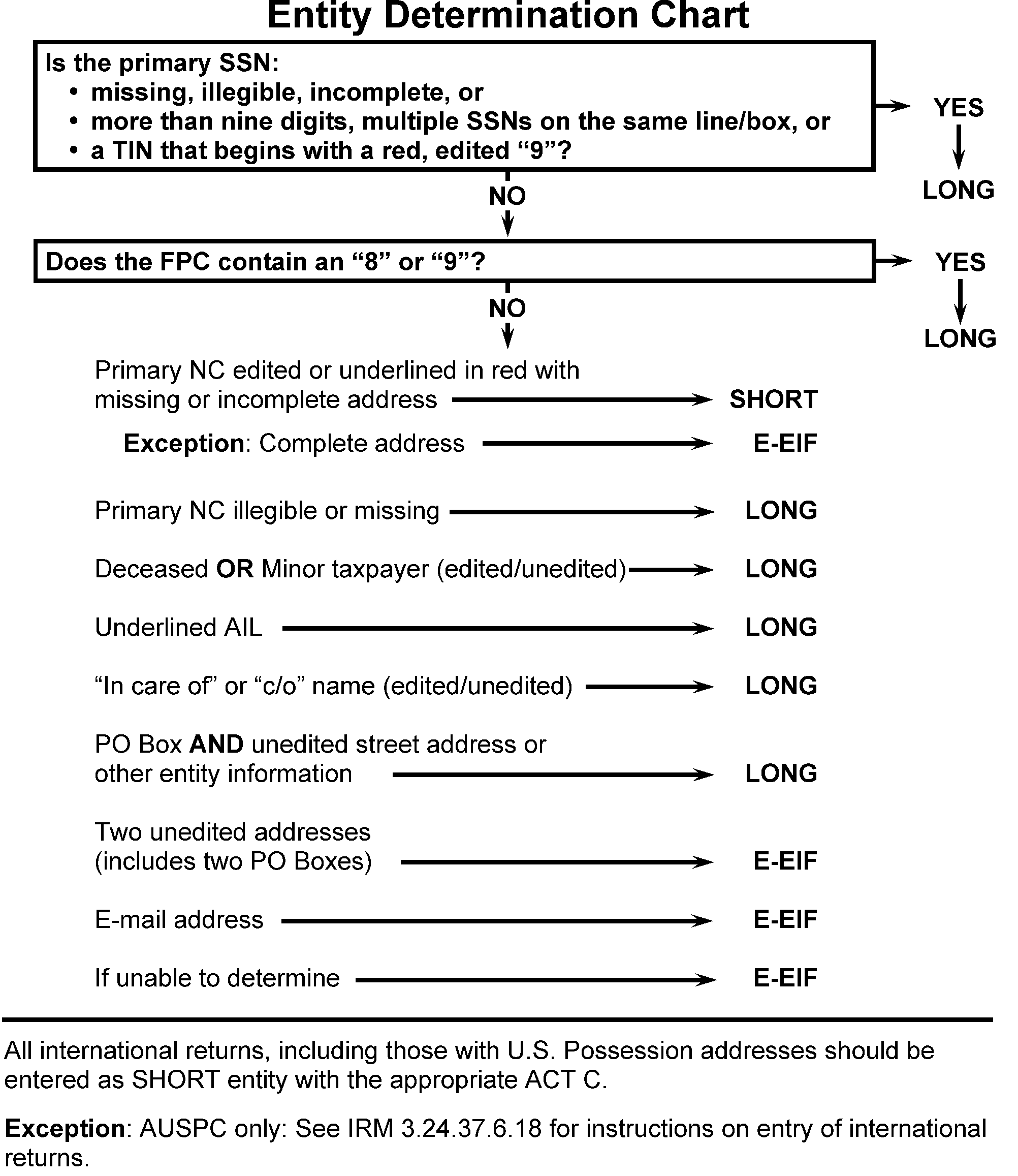
- Short Entity means the taxpayer’s account is already established on the IMF, and there are no changes to the entity information for that account.
Short Entity is entered when the primary SSN is valid or the primary SSN does not have a TIN that begins with a red, edited "9" , the FPC does not contain an "8" or "9" , and one of the following conditions is met:
- The document has a primary Name Control edited or underlined in red with missing or incomplete address
The document is an international return in a domestic program
Examples of documents that are Short Entity are:
- Returns with the Primary Name Control edited or underlined in red, with missing or incomplete address.
- Form 1040X without any edited or underlined address.
- Short Entity can be selected by entering "S" at the TYPE OF ENTITY prompt.
Short Entity documents have the following entity entries in Section 01 (all other entity fields, except Check Digits, will be greyed out):
- Name Control.
- SSN(s).
Examples of documents that are Intermediate Entity are:
- Form 1040X with edited or underlined address.
- Intermediate Entity can be selected by entering "I" at the TYPE OF ENTITY prompt.
Intermediate Entity documents have the following entity entries in Section 01 (all other entity fields, except Check Digits, will be greyed out):
- Name Control.
- SSN(s).
- Street Address, City/State, and/or ZIP Code.
- Partial Entity can be selected by entering "P" at the TYPE OF ENTITY prompt.
Partial Entity documents have the following entity entries in Section 01 (all other entity fields will be greyed out):
- SSNs
- Name Line and/or AIL.
- Entering Long Entity establishes taxpayer accounts on the Individual Master File (IMF) or updates an existing account.
Enter "L" at TYPE OF ENTITY prompt for Long Entity when one of the following conditions is met:
If a document With Has an invalid primary SSN (one of the following)
- missing SSN
- illegible digit
- incomplete SSN
- more than nine digits
- multiple SSNs on the same line/box
Has a TIN (primary SSN) that begins with a red, edited "9" Has a Form Processing Code (FPC) containing an "8" or "9" Has a valid primary SSN that does not begin with a red, edited "9" - Illegible or missing primary NC
- Deceased taxpayer (edited/unedited)
- Minor taxpayer (edited/unedited)
- Underlined AIL
- "In care of" or "c/o" name (edited/unedited)
- PO Box AND unedited street address or other entity information
Is an international return excluding US Possessions or Domestic addresses (AUSPC only). See IRM 3.24.37.4.19, ISRP System, General Instructions. Long Entity documents have the following entity entries in Section 01:
- SSN(s).
- Name Line and/or AIL.
- Street Address, City/State, and/or ZIP Code.
The Enhanced-Entity Index File (E-EIF) is used to determine the entity from returns where the Type of Entity cannot be determined. Examples of returns where the Type of Entity cannot be determined are:
- Returns with two unedited street addresses (this includes two P.O. Boxes).
- Returns with the Primary Name Control edited or underlined in red with a complete address.
- Returns with an e-mail address.
- International returns with US Possession or domestic addresses. (AUSPC Only).
- The E-EIF does not apply for Forms 1040X.
Enter the following prompts to access E-EIF:
- TYPE OF ENTITY — Always press <Enter>. The cursor will automatically advance to the NC prompt and the CD prompt will be greyed out.
- NC — A Name Control must be entered. The cursor will automatically advance when four characters have been entered. If the Name Control is less than four characters, enter those shown and press <Enter>.
SSNs — Must be entered. The cursor will automatically advance to the SSSN prompt after all 9 digits of the Primary SSN have been entered. Press <Enter> if the Secondary SSN is not present, or after entry of all 9 digits of the Secondary SSN.
- ADDRESS KEY — Enter the first three digits in the address and the fourth and fifth digits of the ZIP Code. Use the following rules when necessary. See IRM 3.24.3.5.7.5(3) for examples. Press <Enter> after the Address Key has been entered if required.
• Space for missing and illegible digits.
• Use the street address, regardless of its location on the address line.
• For multiple addresses, use the first address in the address line and the corresponding ZIP Code.
• For e-mail addresses, press <Enter> only.
• Do not convert text numbers into numeric digits. - FSC — Enter the Filing Status that is edited or marked in the Filing Status area. See Exhibit 3.24.3-2 (9).
Examples for Address Key entries are as follows:
Example Enter As
"s" stands for space304 Central Ave.
Austin, TX 7872330423 10 Church St.
San Marcos, TX 7874510 s 45 Box 3 Rogge Lane
Kyle, TX 787503 ss 50 P. O. Box 1234
Austin, TX123 ss Oak Tree Trailer Park
Buda, TX<Enter> Chandler Bldg.
Austin, TX 78723sss 23 Rt. 1, Box 3, 124 Adams St.
Alexandria, VA 2231113 s 11 64 W. 192nd St.
Bronx, NY 1046764167 10 Arrow Ave. #9C
Bronx, NY 1046710967 One Oak Place
Austin, TX 78723sss 23 PMB 3 102 S. 38th
Des Moines, IA 5031010210 juan8@email.com
Denver, CO 80202<Enter> Return with two unedited addresses:
101 Maple Dr.
Staunton, VA 22913
20 Fair St.
Naples, FL 32201
10113U.S. Possession (AUSPC only):
231 Apple Way
Yona, Guam 96914
23114After E-EIF is accessed, the ISRP system will display one of the following responses:
- Short Entity—A complete match. The Name Control may be replaced by the Check Digit and the system will display SHORT ENTITY in the upper right hand corner. The cursor will be at the TAXPR prompt.
- Intermediate Entity—A complete match except for the Address Key. The Name Control may be replaced by the Check Digit and the system will display INTERMEDIATE ENTITY in the upper right hand corner. The cursor will be at the ADD prompt.
- A confirmation text box asking, "ENTITY INFO CORRECT?" . Verify the entries in the NC and SSN prompts and ADDRESS KEY and FSC in the text box.
(1) If the information is correct, enter "Y" and press <Enter>.
(2) If the information is not correct, select "N" and press <Enter>. The cursor will move to the first position of the Name Control.
(3) After corrections have been made, enter the Address Key and the FSC again to access the E-EIF.
(4) If the account is found, the system will display SHORT or INTERMEDIATE ENTITY.
(5) If the account is still not found, the "ENTITY INFO CORRECT?" message will appear again. (As long as the message appears on the screen, corrections can be made.) If the information is correct, select "Y" and press <Enter>. Partial or Long Entity —The entity was not found on the E-EIF. The cursor will be at the NAME1 prompt.
Exception:
If FSC 2 or 3 was entered and a SSSN is not entered, the cursor will be at the SSSN prompt. If no SSSN, press <F7> to override.
- After the entity access is complete, the system will populate the "FSC" field with the Filing Status that was entered during the access.
- If a Type of Entity was selected when E-EIF should have been accessed, press <F1> to go back to the "TYPE OF ENTITY" prompt, press <F2>, and access the E-EIF.
- If the Type of Entity selected was incorrect, press <F1> to go back to the "TYPE OF ENTITY" prompt, and overlay with the correct Type of Entity. The appropriate fields for entry will be prompted after you pass the SSSN.
Enter Name Control as follows:
Enter the four character Name Control in the First Name Line area in the Name Control field (see IRM 3.24.37.4.4, Name Control Information, for more information. Instructions for determining BMF name controls can be found in IRM 3.24.38.3.4.14.3 , Determining the Name Control or Document 7071-A , Name Control Job Aid). It will not be necessary to press <Enter> if four characters are entered.
- If less than four characters, enter those shown and press <Enter>.
- If the Name Control is missing or illegible, enter as Long Entity. See IRM 3.24.3.5.7.4.
If the Primary Name Control is underlined in red and entry of the name line is necessary, enter the first caret immediately before the underlined information.
- For instructions for Name Line entry, see IRM 3.24.37.4.15, ISRP System, General Instructions.
- When transcribing Form 6114 (Prior Year and Conversion Form 1040 Edit Sheet), all entity data must be transcribed from the original form.
- For instructions for Street Address and City/State entry, see IRM 3.24.37.4.16, through IRM 3.24.37.4.18, ISRP System, General Instructions.
- For instructions for International Address and City/State entry, see IRM 3.24.37.4.19, ISRP System, General Instructions.
- When transcribing Form 6114 (Prior Year and Conversion Form 1040 Edit Sheet), all address line data must be transcribed from the original form.
For prior year programs, the Tax Period and Received Date are MUST ENTER fields. See IRM 3.24.3.4 for list of prior year programs.
Note:
Although the Tax Period and Received Date fields are not systemically coded as MUST ENTER on some prior year programs, the EOP is responsible for entering these fields. If the information is not available on the return, periods must be entered.
If a tax return has not been edited as a prior year return, but contains information to indicate it is for a prior year, enter Action Code 610 in Section 01 and end the document.
Exception:
With Remittance returns, the Remittance section will automatically display after the Action Code is entered. After the Remittance amount is entered, the system will automatically end the document.
Note:
If additional information in Section 01 or other sections have been entered prior to identifying the document as an unedited prior year return there is no need to delete any additional information (including type of entity) or sections that have been entered. Enter Action Code 610 in Section 01 (and the Remittance amount if it is a Remittance return), press <F6>, then press <F4>, and end the document.
For Form 1040 enter the check boxes as follows:
- Born...box is marked, enter "1"
- Blind box is marked, enter "01"
- Both boxes are marked, enter "11"
- Neither box is marked, press <ENTER>.
Enter edited information as follows:
Exception:
Any editing present in the Direct Deposit section is a courtesy ONLY. Operators are responsible for following the correct transcription procedures contained in this IRM. ISRP transcription procedures shown in (2) below should always be followed regardless of editing present.
- If the Direct Deposit area is circled, enter the data present.
- Code & Edit may edit a red checkmark in the Direct Deposit area of the return as a "courtesy" to remind the EOPs that entries may be present in that section.
- Code & Edit may edit a single "X" over both Routing number and Account number lines, typically in the first position, to indicate there is no entry for the section.
- Code & Edit may edit a small "x" in the beginning, typically in the first position, of the Routing number and/or Account number lines to indicate there is no entry for that line.
Enter Direct Deposit information as follows:
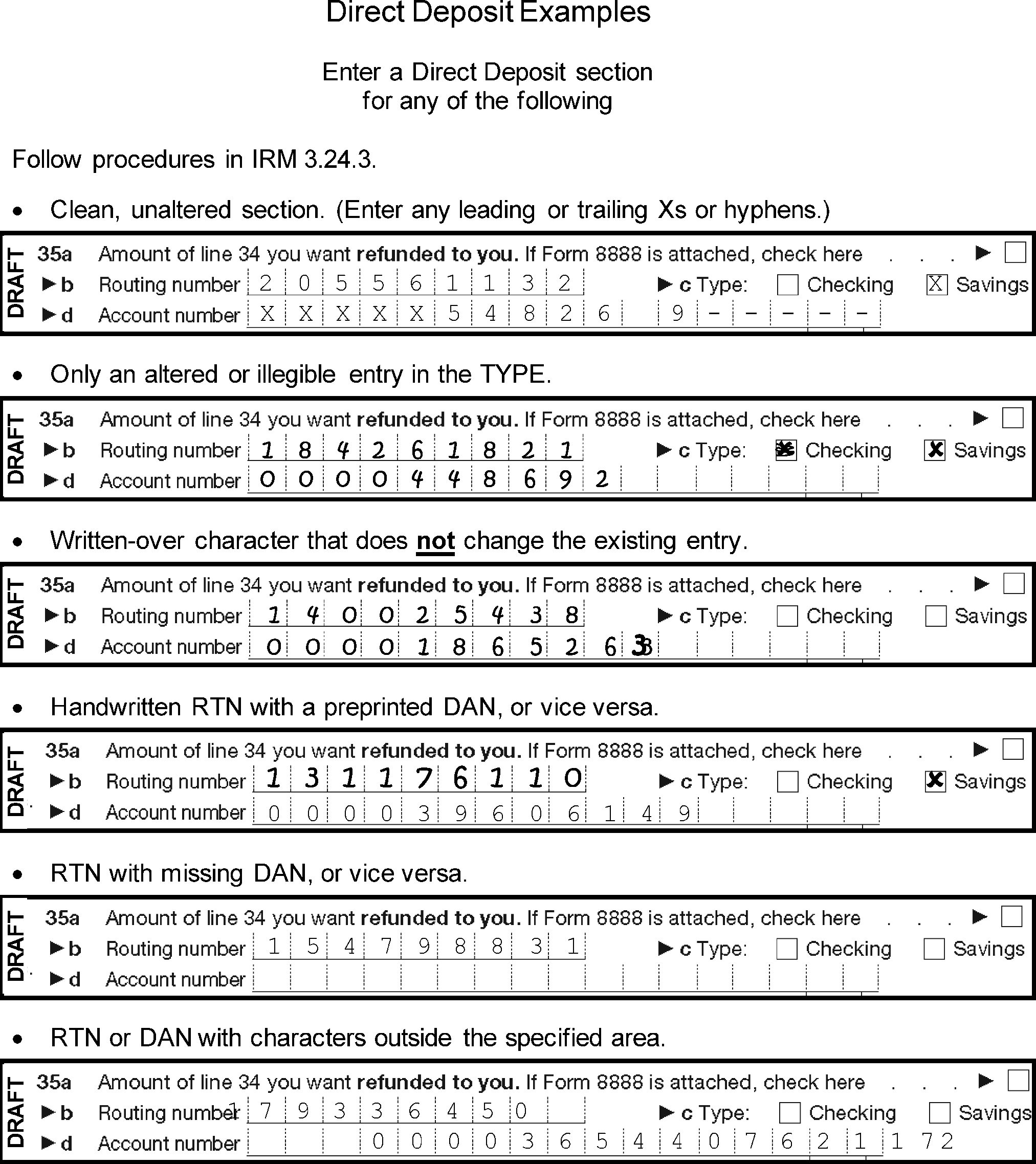
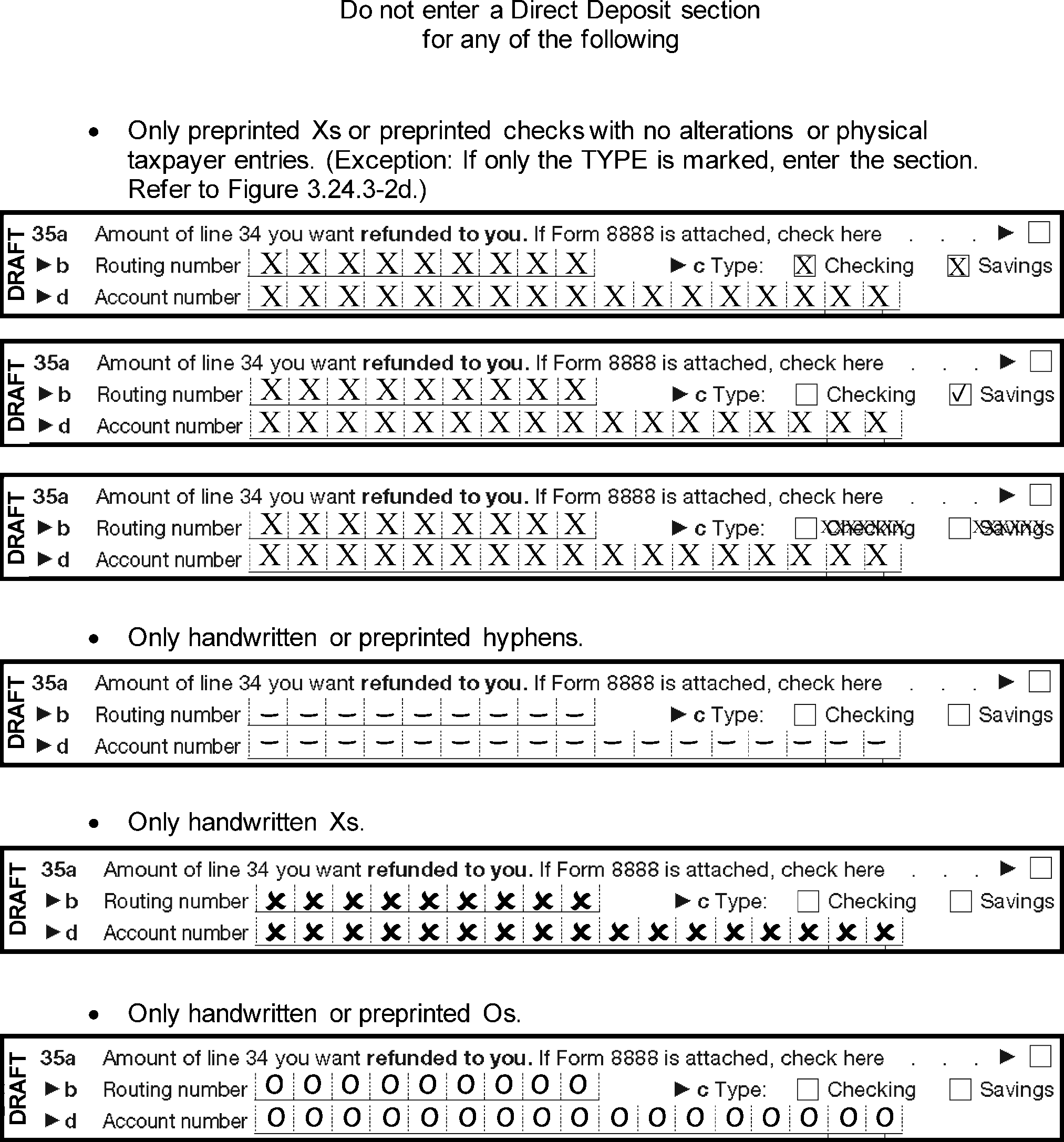
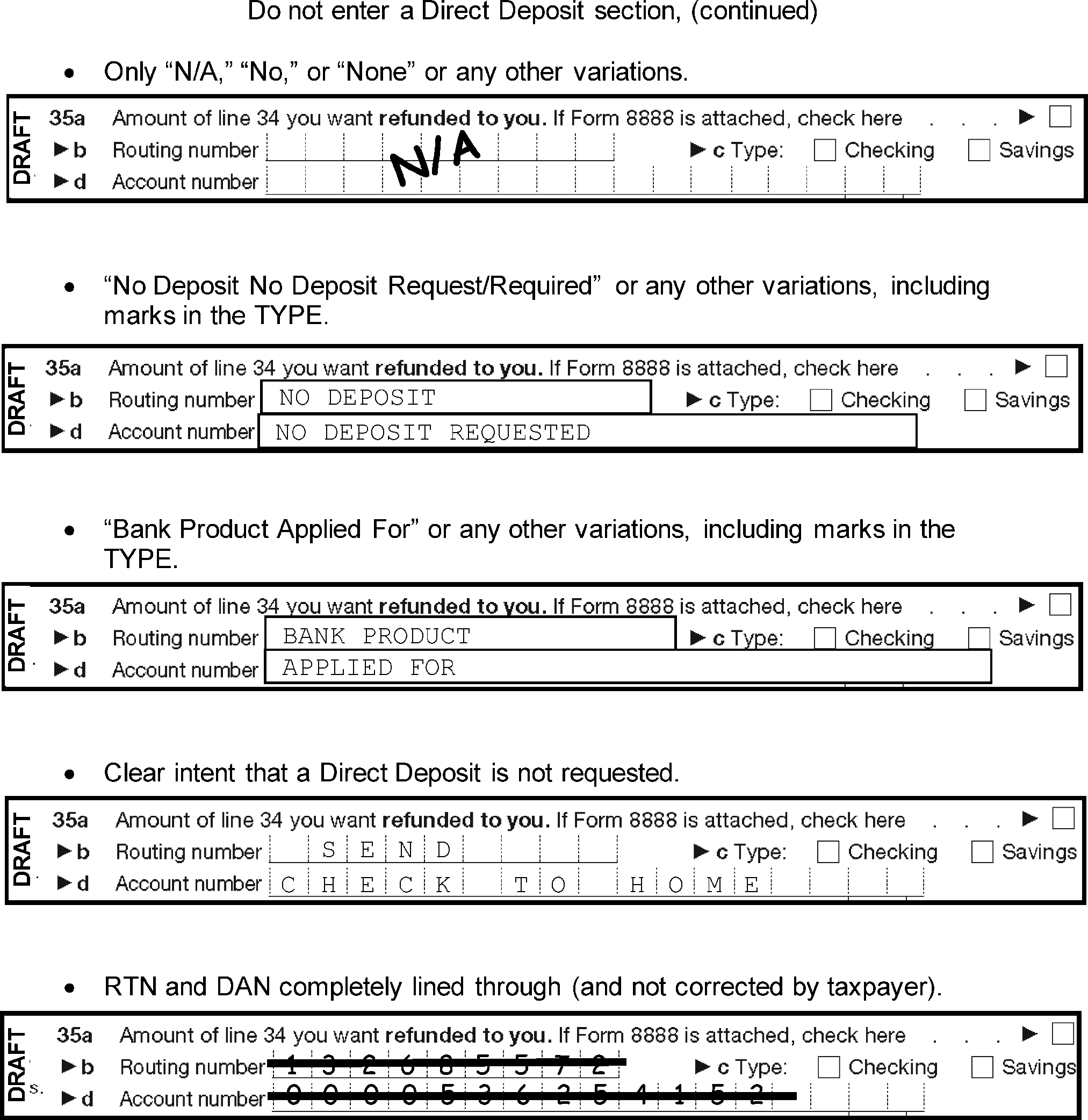
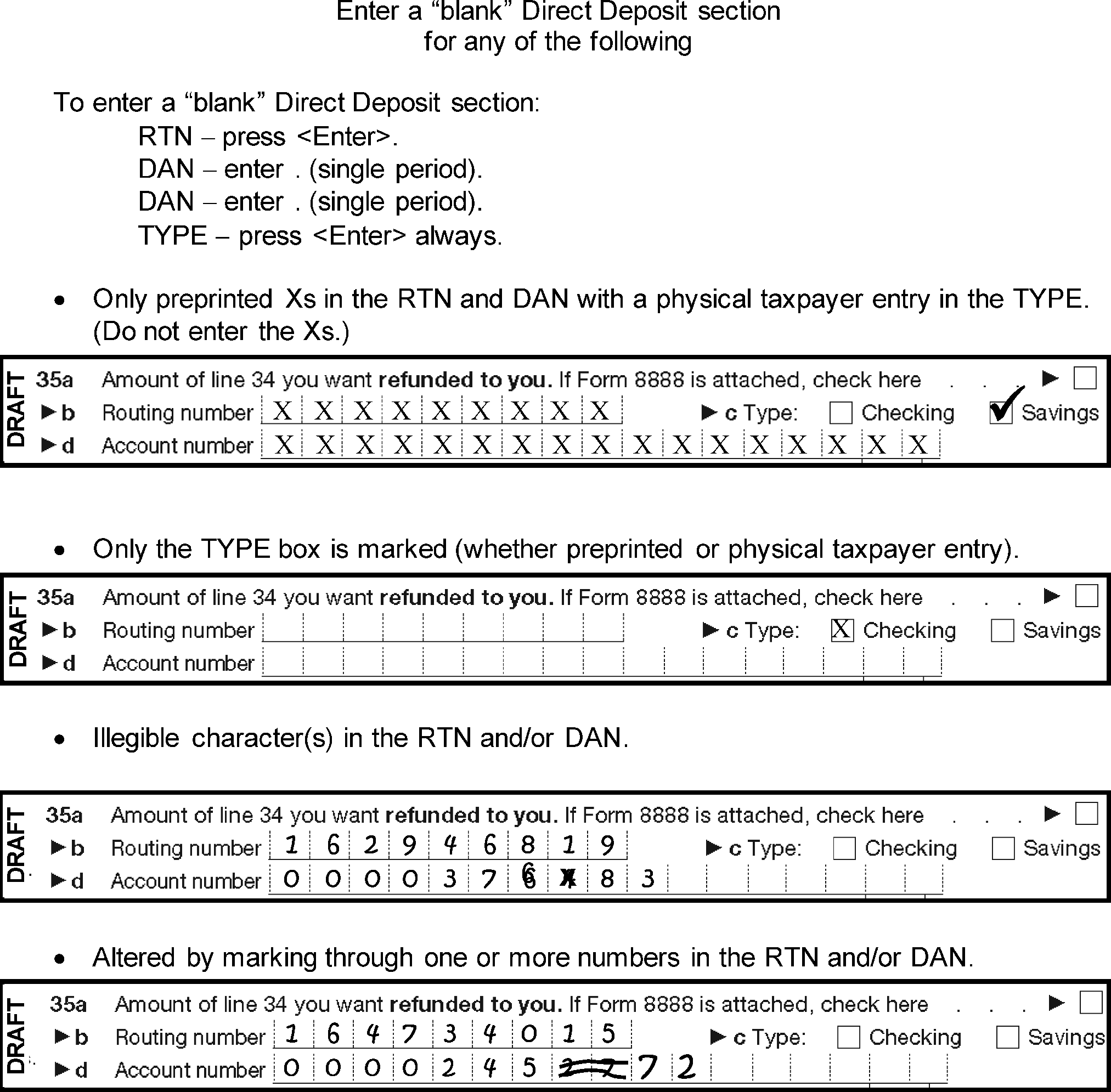
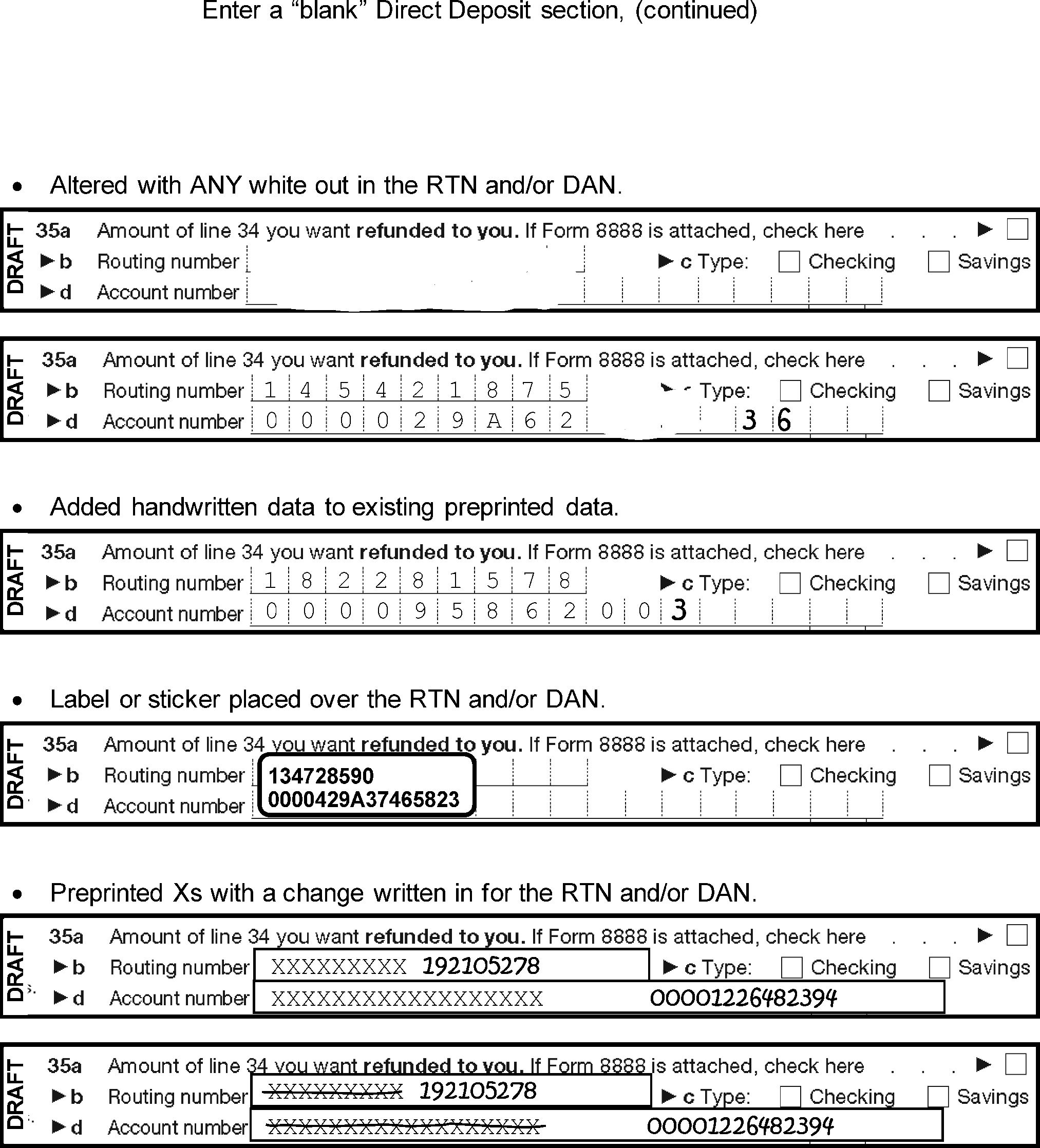
Some prior year forms will have layouts that do not match current year forms. Special instructions for some of these forms are listed below.
- Schedule E, 2010 and prior. DO NOT ENTER LNA, LNB, 23A, 23B, or 23C.
- Form 8863, 2011 and prior. Pick up the edited LN1 and L10 from page 1 of the form. Enter up to three Name Controls and SSNs edited as 20 and 21.
- Form 5405, 2011 and prior. The entries may be found in Part III or Part IV of the form instead of in Part I or Part II.
Form 8867, 2017 version
For Form 1040, enter as instructed in Exhibit 3.24.3-53.Exception:
Enter a "1" in BXCTC if the CTC/ACTC box is marked. The BXHOH prompt is not applicable. For prompt L15, enter the Yes/No checkboxes from line 12.
For Form 1040-NR, enter as instructed in Exhibit 3.24.3-111.Exception:
Enter a "1" in BXCTC if the CTC/ACTC box is marked. The BXHOH prompt is not applicable. For prompt L15, enter the Yes/No checkboxes from line 12.
For Form 1040-SS, enter as instructed in Exhibit 3.24.3-131.Exception:
Enter a "1" in BXCTC if the CTC/ACTC box is marked. The BXHOH prompt is not applicable. For prompt L15, enter the Yes/No checkboxes from line 12.
- Form 8867, 2016 version. For all forms, enter a 1 in BXEIC if a 1 is edited in front of EIC. Enter a 1 in BXCTC if a 1 is edited in front of CTC/ACTC. Enter a 1 in BXAOTC if a 1 is edited in front of AOTC. Follow instructions in Exhibits for entries on page 2.
- Form 8867, 2015 version and prior versions. For all forms, the Attachment Sequence Number for Form 8867 may be 70 or 177. Enter a "1" in the BXEIC prompt. Enter the Yes/No checkboxes from the edited line numbers on page 3 of the form. Ignore the "Does not apply" box, if marked.
Schedule SE, 2019 and prior, consisted of two sections - Section A (Short Schedule SE) and Section B (Long Schedule SE). The Taxpayer may file a Section A and Section B, or two Sections A, or two Sections B. When there are multiple Schedules SE present:
With the same SSN and one schedule does not contain transcription other than the SSN, do not enter this schedule as the section.
With the same SSN containing the same data, enter the first schedule only.Exception:
If both Section A and Section B contain the same data, enter the schedule with Section B only.
With the same SSN containing different data, enter the first schedule as Section 17 and the second schedule as Section 18.
With different SSNs, enter the first as Section 17 and the second as Section 18, unless edited.- Schedule 3-A does not apply to 2025 and prior.
- Form 1116, Schedules B and C do not apply to 2025 and prior.
- Form 5695, 2025 and prior. All fields are available for entry. For 2026 and subsequent, only Element (12) and (13) are entered.
- Form 8997, 2025 and prior. All fields are available for entry. For 2026 and subsequent, Elements (37) - (44) are not entered.
- When an error message banner appears, the Original Entry (OE) EOP MUST sight verify the data entered with the return and correct any errors found. Make sure data is being entered in the correct field. If the data is entered correctly, press <F7> and continue.
- Following are instructions for EOPs to use in correcting errors.
Certain sections are subject to a zero balancing routine (fields are added and subtracted in order to arrive at a zero balance). This message is given when the zero balance routine fails. The system will stop on the entry that should zero balance. The system will raise the fields involved in the zero balance routine. The EOP MUST sight verify the entries.
If... Then... The entries are incorrect Press <F9> to unlock the keyboard and correct any errors. The entries are correct Press <F7> to override the error message.
This message is given at the end of the document when a line item entry requires a corresponding schedule or form (the XX represents the Section Number).
- Check the attachments for the section(s) needing to be transcribed. The attachments may not be in the proper sequence or a section(s) may have been accidentally skipped.
If... Then... The section(s) requested in the error message is (are) present Press <F9> to unlock the keyboard and enter the required section(s). The section(s) requested in the error message is (are) not present Press <F7> to override the error message.
The "SECONDARY SSN REQUIRED" message is given after entry of the FSC when the spouse's Social Security Number (SSSN) is missing, the Filing Status Code (FSC) is "2" or "3" , and the entity type is Long or Partial.
- Enter the SSSN if it is present in the spouse's SSN box or in the Filing Status Area around:
• Part I, line 1 of Form 1040 PR/SS
• Line 3 of converted, Prior Year Form 1040A - If the SSSN is not present, press <F7> to override.
- Enter the SSSN if it is present in the spouse's SSN box or in the Filing Status Area around:
The "SPOUSE NAME CONTROL IS REQUIRED" message is given after entry of the FSC when the spouse's Name Control (2NDNC) is missing and the FSC is a "2" .
Exception:
If E-EIF was accessed, the FSC is a 2, and the spouse's Name Control (2NDNC) is missing, a MUST ENTER FIELD error message will display instead of the SPOUSE NAME CONTROL REQUIRED error message.
- Enter the 2NDNC, if present, from the spouse's name in the entity area.
- If the spouse's name is not present in the entity area, press <F7> to override.
- See IRM 3.24.37.4.14, ISRP System, General Instructions, for instructions for determining the Name Control.
If the amount on the document is too large for the field, the system will respond with the error message FIELD OVERFLOW. To correct:
- Press <F9> to clear the error message.
- Press <F12> to fill the field with question marks and cause the document to go to the Error Resolution System.
- If any of the entity lines are too long, the system will respond with the error message FIELD OVERFLOW. It is the responsibility of the EOP to enter a pound sign (#) in the field as directed by the following instructions.
NAME1 — When the caret (<) is not at the end of the field and has been entered:
NAME1 — When the caret (<) is at the end of the field or has not been entered:
- Press <F9> to clear the error message.
Press <Backspace> two times.
Exception:
If backspace results in the cursor in a position immediately after a space, backspace one more time to remove the space. See the following table for examples of names that will result in an error message and appropriate corrections.
Enter a caret (<) and the first letter of the last name.
Exception:
Enter the first two letters of the last name if backspace was pressed one additional time to remove the space.
- Enter a pound sign (#) in the last position of the field.
- If the error message is "NOT VALID DATA" , see IRM 3.24.3.6.6.1 for Name Line Validity Checks.
Example Enter As Samantha Annette & Raymond Benjamin Oak SAMANTHA ANNETTE & RAYMOND BENJA<O# Jeremiah James III & Janice Ann Marie Acorn JEREMIAH JAMES III & JANICE ANN<AC# AIL
- Press <F9> to clear the error message.
- Enter a pound sign (#) in the last position of the field.
ADD
- Press <F9> to clear the error message.
- Enter a pound sign (#) in the last position of the field.
C/S (City/State)
- Press <F9> to clear the error message.
- Enter a pound sign (#) in the last position of the field.
If the NAME1 field in Section 01 contains invalid data, the error message NOT VALID DATA will appear. Following is a list of conditions that will correct the error message:
- Must have at least one caret (<).
- Cannot have more than two carets.
- First position must be A through Z, period (.), or hyphen (-).
- Last position cannot be a caret.
- Cannot have a space immediately before or after a caret.
- Position immediately following the first caret must be alpha or period (.).
- Position immediately following the second caret must be alpha, period (.), or ampersand (&).
- Cannot have two or more consecutive spaces.
- Cannot have more than one ampersand.
- Cannot have an ampersand between two carets.
- To view the previous section only, press <F8>. You will not be able to edit any data.
To edit a previously entered section, use the following procedures:
- Press <F9> or <Page Up> for Command Mode.
- Press <F1> or <Page Up> to scroll back to a previous section, <F2> or <Page Down> to scroll forward, or press <F5> to locate a specific document and section.
- Press <F3> to edit.
- Press <Enter> to advance, or <F1> or up arrow to move back through the fields.
- If necessary, press <F6> to complete the edit.
- Press <F9> for Command Mode.
- Press <F4> for "APPEND TO END" .
To delete a section, use the following procedures:
- Press <F9> or <Page Up> for Command Mode.
- Press <F1> or <Page Up> to scroll back to a previous section or <F2> or <Page Down> to scroll forward to the section to be deleted, or press <F5> to locate a specific document and section.
- Press <F7> to delete. A confirmation message appears. Press "Y" .
- Press <F4> for "Append to End" .
To delete a document, use the following procedures:
- Press <F9> or <Page Up> for Command Mode.
- Press <F1> or <Page Up> to scroll back to a previous Section 01, or <F2> or <Page Down> to scroll forward to the Section 01 of the document to be deleted, or press <F5> to locate a specific document and section.
- Press <F7> to delete. A confirmation message appears. Press "Y" .
- Press <F4> for "Append to End" .
To insert sections or documents, use the following procedures:
- Press <F9> or <Page Up> for Command Mode.
- Press <F1> or <Page Up> to scroll back to a previous section or <F2> or <Page Down> to scroll forward to the section to be inserted, or press <F5> to locate a specific document and section.
To insert a:
• Section, press <F8>
• Document, press <Alt>+<F8>.- Enter the data for the inserted section or document.
- Complete and exit the section.
- Press <F9> to access Command Mode.
- Press <F4> for "Append to End" .
There are two forms of key verification (KV) in ISRP: Block Header only and "full" KV. The type of KV applicable to a particular block depends on various criteria set by Supervisory Operators (SOPs) prior to KV of the block.
- Block Header Only — All fields of the Block Header must be verified. KV is complete after the last field of the Block Header is verified.
- Full KV — For the Form 1040 family, full KV requires verification of all Section 01 fields. All fields will appear blank and the prompt "TYPE OF ENTITY" will be present. KV behaves like Original Entry and will access the E-EIF if the document requires access. Otherwise, if the Type of Entity is known, the KV EOP will key S, I, P or L. See IRM 3.24.3.5.7 through IRM 3.24.3.5.7.5 for specific instructions for each Type of Entity.
- After all required fields have been verified, the message "ALL SECTIONS VERIFIED" will be displayed at the top right of the screen. Press <F9> to exit. The system will display a "CONFIRM APPLICATION EXIT?" message. Press "Y" .
- The following exhibits contain specific data entry procedures.
- Some fields require entry of data. These fields are referred to as MUST ENTER fields. They are indicated in the Transcription Operation Sheets by the presence of stars (★★★★★★) in the Field Termination column. MUST ENTER fields will be highlighted in green or yellow on the ISRP screen. See IRM 3.24.37.4.2, ISRP System, General Instructions, for procedures related to MUST ENTER fields.
- Certain special characters on the keyboard (non-alphanumeric) may not be entered when processing IMF returns. See "Instructions Column" for individual field entry.
- To ensure the appropriate instruction is applied to each return, EOPs should become familiar with all the instructions for each specific field and follow in the order they are presented.
- For all Taxpayer Identification Numbers (TINs), refer to IRM 3.24.37.4.9, ISRP System, General Instructions, for procedures, unless otherwise instructed.
If a Name Control is underlined in red, honor that determination of the Name Control.
If the Primary Name Control is underlined in red, follow Entity Determination procedures. If entry of the name line is needed, enter the first caret immediately before the underlined information.
- Dependent name controls may be underlined or edited (including to the left of the name). Honor this determination of the name control.
- Some program numbers are used for both current year and prior year documents. If entering from a prior year batch for one of these programs, the EOP is responsible for entering the TAXPR and DATE on all documents, even if these prompts are not programmed as MUST ENTER.
- Press <Enter> for any element where no data is present, unless otherwise instructed.
- For the purpose of this IRM section, the term “Relating To” means being associated with or corresponding with something. If the corresponding item or prompt is not present, do not enter any information. For example, in Exhibit 3.24.3-35, Element (3), if the first child’s name control is not present, do not enter this information.
Block Header Instructions
Enhanced-Entity Index File
| Elem. No. | Data Element Name | Prompt | Fld. Term. | Instructions |
|---|---|---|---|---|
| (1) | Section Number | SECT: | (auto) | Section "01" is system-generated; no required entry. |
| (2) | Serial Number | SER# | <Enter> | Enter the last two digits before the hyphen of the DLN from the upper portion of the form. |
| (3) | Type of Entity | TYPE OF ENTITY | <Enter> | Always press <Enter>. |
| (4) | Check Digit | CD | (auto) | No entry is required. |
| (5) | Name Control | NC | <Enter> ★★★★★★ | Enter the Name Control for the Primary Taxpayer.
|
| (6) | Primary SSN | SSN | (auto) ★★★★★★ | Enter the SSN as shown in the "Your social security number" or "Identifying number" box.
|
| (7) | Secondary SSN | SSSN | <Enter> | Enter as follows:
|
| (8) | Address Key | ADDRESS KEY | <Enter> | Enter the first three numeric digits as shown or edited in the address line and the 4th and 5th digits of the ZIP Code.
|
| (9) | Filing Status Code | FSC | <Enter> | Enter as follows:
|
Form 1040 Instructions
Note:
Presence of the following characters in the Elem. No. Column indicates the prompt will appear for that Type of Entity.
S - Short
I - Intermediate
P - Partial
L - Long
Note:
Prior Year forms may include Form 6114-A with information for Section 04 and 05 entries. Enter the edited information for the line indicated at the appropriate prompt.
Note:
This Section includes multiple schedules. If Schedule 1 is "Xed" out and Schedule 1-A is not "Xed" out, Schedule 1-A should be entered. If Schedule 1-A is "Xed" out and Schedule 1 is not "Xed" out, Schedule 1 should be entered.
| Elem. No. | Data Element Name | Prompt | Fld. Term. | Instructions |
|---|---|---|---|---|
| (1) | Section Number | SECT: | <Enter> | Press <Enter> if already present on the screen; otherwise enter "04" always. |
| (2) | 1099K Amount | 1099K $ | <Enter> | Enter the amount for form 1099K from Schedule 1 Above Part I. |
| (3) | State Income Tax Refund | LN1 $ | <Enter> | Enter the amount from Schedule 1, line 1. |
| (4) | Alimony Received | L2A $ | <Enter> | Enter the amount from Schedule 1, line 2a. |
| (5) | Schedule C Profit/Loss | LN3 $ | <Enter> MINUS (-) | Enter the amount from Schedule 1, line 3. |
| (6) | Other Gains/Loss | LN4 $ | <Enter> MINUS (-) | Enter the amount from Schedule 1, line 4. |
| (7) | Schedule E Profit/Loss | LN5 $ | <Enter> MINUS (-) | Enter the amount from Schedule 1, line 5. |
| (8) | Combined Schedule F Profit/Loss | LN6 $ | <Enter> MINUS (-) | Enter the amount from Schedule 1, line 6. |
| (9) | Unemployment Compensation | LN7 $ | <Enter> | Enter the amount from Schedule 1, line 7. |
| (10) | Net Operating Loss | L8A $ | <Enter> | Enter the amount from Schedule 1, line 8a. |
| (11) | Scholarship and Fellowship Grants | L8R $ | <Enter> | Enter the amount from Schedule 1, line 8r. |
| (12) | Other Income | LN9 $ | <Enter> MINUS (-) | Enter the amount from Schedule 1, line 9. |
| (13) | Form 982 Indicator | 982 | <Enter> | Enter the edited "1" from the dotted portion of Schedule 1 left of line 11. |
| (14) | Educator Expenses | L11 $ | <Enter> | Enter the amount from Schedule 1, line 11. |
| (15) | Business Expenses/Certain Reservists/etc. | L12 $ | <Enter> | Enter the amount from Schedule 1, line 12. |
| (16) | Health Savings Account Deduction | L13 $ | <Enter> | Enter the amount from Schedule 1, line 13. |
| (17) | Moving Expenses | L14 $ | <Enter> | Enter the amount from Schedule 1, line 14. |
| (18) | Deduction for SE Tax | L15 $ | <Enter> | Enter the amount from Schedule 1, line 15. |
| (19) | SEP/SIMPLE Payments | L16 $ | <Enter> | Enter the amount from Schedule 1, line 16. |
| (20) | SE Health Insurance | L17 $ | <Enter> | Enter the amount from Schedule 1, line 17. |
| (21) | Early Withdrawal Penalty | L18 $ | <Enter> | Enter the amount from Schedule 1, line 18. |
| (22) | Alimony Paid | 19A $ | <Enter> | Enter the amount from Schedule 1, line 19a. |
| (23) | Alimony SSN | 19BSSN | <Enter> | Enter the SSN from Schedule 1, line 19b. |
| (24) | IRA Deduction | L20 $ | <Enter> | Enter the amount from Schedule 1, line 20. |
| (25) | Student Loan Interest Deduction | L21 $ | <Enter> | Enter the amount from Schedule 1, line 21. |
| (26) | Medical Savings Account Deduction | L23 $ | <Enter> | Enter the amount from Schedule 1, line 23. |
| (27) | Other Adjustments | L25 $ | <Enter> | Enter the amount from Schedule 1, line 25. |
Schedule 1-A
| Elem. No. | Data Element Name | Prompt | Fld. Term | Instructions |
|---|---|---|---|---|
| (28) | Total Qualified Tips Income | SCH1A LN8 $ | <Enter> ★★★★★★ | Enter the amount from Schedule 1-A, line 8. |
| (29) | Qualified Tips Deduction | L15 $ | <Enter> | Enter the amount from Schedule 1-A, line 15. |
| (30) | Total Qualified Overtime Compensation Income | L20 $ | <Enter> | Enter the amount from Schedule 1-A, line 20. |
| (31) | Qualified Overtime Compensation Deduction | L27 $ | <Enter> | Enter the amount from Schedule 1-A, line 27. |
| (32) | Car Loan Interest Vehicle A VIN | L28A | <Enter> | From Schedule 1-A, enter up to 17 characters as shown from line 28a, column i.
|
| (33) | Car Loan Interest Vehicle B VIN | L28B | <Enter> | From Schedule 1-A, enter up to 17 characters as shown from line 28b, column i.
|
| (34) | Total Car Loan Interest Paid | L29 $ | <Enter> | Enter the amount from Schedule 1-A, line 29. |
| (35) | Qualified Car Loan Interest Deduction | L36 $ | <Enter> | Enter the amount from Schedule 1-A, line 36. |
| (36) | Enhanced Deduction for Seniors | L43 $ | <Enter> | Enter the amount from Schedule 1-A, line 43. |
Note:
Prior Year forms may include Form 6114-A with information for Section 04 and 05 entries. Enter the edited information for the line indicated at the appropriate prompt. Since Schedules 2 and 3 have repeating line numbers, be sure to enter data at the correct prompt.
Note:
This Section includes multiple schedules. If Schedule 3 is "Xed" out and Schedule 3-A is not "Xed" out, Schedule 3-A should be entered. If Schedule 3-A is "Xed" out and Schedule 3 is not "Xed" out, Schedule 3 should be entered.
| Elem. No. | Data Element Name | Prompt | Fld. Term. | Instructions |
|---|---|---|---|---|
| (1) | Section Number | SECT: | <Enter> | Press <Enter> if already present on the screen; otherwise enter "05" always. |
| (2) | Advance Premium Tax Credit Repayment | L1A $ | <Enter> | Enter the amount from Schedule 2, line 1a. |
| (3) | Repayment of Clean Vehicle Credits | L1B $ | <Enter> | Enter the amount from Schedule 2, line 1b. |
| (4) | Repayment of Prev Owned Clean Vehicle Credits | L1C $ | <Enter> | Enter the amount from Schedule 2, line 1c. |
| (5) | F8933 Net EPE Recapture | L1D $ | <Enter> | Enter the amount from Schedule 2, line 1d. |
| (6) | F4255 Excessive Payments Amount | L1E $ | <Enter> | Enter the amount from Schedule 2, line 1e. |
| (7) | F4255 Excessive Payments Checkbox | L1E CKBX | <Enter> | Enter the checkboxes as follows:
|
| (8) | F4255 Chapter 1 Tax Amount | L1F $ | <Enter> | Enter the amount from Schedule 2, line 1F. |
| (9) | F4255 Chapter 1 Tax Checkbox | L1F CKBX | <Enter> | Enter the checkboxes a follows:
|
| (10) | Other Additions to Tax | L1Y $ | <Enter> | Enter the amount from Schedule 2, line 1Y. |
| (11) | Alternative Minimum Tax | LN2 $ | <Enter> | Enter the amount from Schedule 2, line 2. |
| (12) | Combined SE Tax | LN4 $ | <Enter> | Enter the amount from Schedule 2, line 4. |
| (13) | Additional Tax on IRAs - F5329 | LN5 $ | <Enter> | Enter the amount from Schedule 2, line 5. |
| (14) | F8960 Net Investment Income Tax | LN6 $ | <Enter> | Enter the amount from Schedule 2, line 6. |
| (15) | Interest Due on Installment Income | LN7 $ | <Enter> | Enter the amount from Schedule 2, line 7. |
| (16) | Interest on Deferred Tax | LN8 $ | <Enter> | Enter the amount from Schedule 2, line 8. |
| (17) | F8611 Recapture Tax | LN9 $ | <Enter> | Enter the amount from Schedule 2, line 9. |
| (18) | F4255 Recapture | L10 $ | <Enter> | For TY 2026 only, enter the amount from Schedule 2, line 10. |
| (19) | First Time Homebuyer Repayment (TY24 and prior only) | PYL10 $ | <Enter> | For TY 2024 and prior, enter the amount from Schedule 2, line 10 |
| (20) | F8959 Additional Medicare Tax on SE Income | L11 $ | <Enter> | Enter the amount from Schedule 2, line 11. |
| (21) | Total Additional Income Taxes | L14 $ | <Enter> | Enter the amount from Schedule 2, line 14. |
| (22) | Part II Additional Income Taxes | L15 $ | <Enter> | Enter the amount from Schedule 2, line 15. |
| (23) | Total Social Security & Medicare Tax (4137/8919) | 16C $ | <Enter> | Enter the amount from Schedule 2, line 16c. |
| (24) | Household Employment Sch H | 17A $ | <Enter> | Enter the amount from Schedule 2, line 17a. |
| (25) | F8959 Additional Medicare Tax (All tax years) | 17B $ | <Enter> | Enter the amount from Schedule 2, line 17b. |
| (26) | UT Tax | 17C $ | <Enter> | Enter the amount from Schedule 2, line 17c. |
| (27) | Additional Tax on Retirement Contributions - F5329 | L18 $ | <Enter> | Enter the amount from Schedule 2, line 18. |
| (28) | Interest from Form 8621 | 19C $ | <Enter> | Enter the amount from Schedule 2, line 19c. |
| (29) | Part II Total Additional Employment Taxes | L20 $ | <Enter> | Enter the amount from Schedule 2, line 20. |
Schedule 3
| Elem. No. | Data Element Name | Prompt | Fld. Term. | Instructions |
|---|---|---|---|---|
| (30) | Foreign Tax Credit | SCH3 LN1 $ | <Enter> ★★★★★★ | Enter the amount from Schedule 3, line 1. |
| (31) | Credit for Child and Dependent Care | LN2 $ | <Enter> | Enter the amount from Schedule 3, line 2. |
| (32) | Education Credits | LN3 $ | <Enter> | Enter the amount from Schedule 3, line 3. |
| (33) | Retirement Savings Contributions Credit | LN4 $ | <Enter> | Enter the amount from Schedule 3, line 4. |
| (34) | Residential Clean Energy Credit | L5A $ | <Enter> | Enter the amount from Schedule 3, line 5a. |
| (35) | Energy Efficient Home Improvement Credit (TY25 and prior only) | PYL5B $ | <Enter> | For TY 2026, press <Enter> always. . |
| (36) | 3800 - Business Credit "a" | L6A $ | <Enter> | Enter the amount from Schedule 3, line 6a. |
| (37) | 8801 - PY Minimum Tax "b" | L6B $ | <Enter> | Enter the amount from Schedule 3, line 6b. |
| (38) | Adoption Credit | L6C $ | <Enter> | Enter the amount from Schedule 3, line 6c. |
| (39) | Elderly / Disabled / Other | L6D $ | <Enter> | Enter the amount from Schedule 3, line 6d. |
| (40) | F8936 Clean Vehicle Credit Amt | L6F $ | <Enter> | Enter the amount from Schedule 3, line 6f. |
| (41) | Mortgage Certificate Credit | L6G $ | <Enter> | Enter the amount from Schedule 3, line 6g. |
| (42) | Other Statutory Credit | 6H-L $ | <Enter> | Enter the first non-zero amount present from Schedule 3, lines 6h-6l. |
| (43) | Previously Owned Clean Vehicles Credit | L6M $ | <Enter> | Enter the amount from Schedule 3, line 6m. |
| (44) | Total Other Nonrefundable Credits | LN7 $ | <Enter> | Enter the amount from Schedule 3, line 7. |
| Elem. No. | Data Element Name | Prompt | Fld. Term. | Instructions |
|---|---|---|---|---|
| (45) | Premium Tax Credit Amount | LN9 | <Enter> | Enter the amount from Schedule 3, line 9. |
| (46) | Form 4868 | L10 | <Enter> | Enter the amount from Schedule 3, line 10. |
| (47) | Excess SST Withheld | L11 | <Enter> | Enter the amount from Schedule 3, line 11. |
| (48) | F4136 Fuel Tax Credit | L12 | <Enter> | Enter the amount from Schedule 3, line 12. |
| (49) | F2439 Regulated Investment Credit | 13A | <Enter> | Enter the amount from Schedule 3, line 13a. |
| (50) | Credit for Earlier Year Income Repayment | 13B | <Enter> | Enter the amount from Schedule 3, line 13b. |
| (51) | Elective Payment Election Amount | 13C | <Enter> | For TY 2023 and later, enter the amount from Schedule 3, line 13c. |
| (52) | Form 1062 100 Percent Tax Deferred | 13E | <Enter> | Enter the amount from Schedule 3, line 13e. |
| (53) | Total Other Payments & Refundable Credits | L14 | <Enter> | Enter the amount from Schedule 3, line 14. |
Schedule 3-A
| Elem. No. | Data Element Name | Prompt | Fld. Term. | Instructions |
|---|---|---|---|---|
| (54) | Federal Public Benefit Indicator | L7 CKBX | <Enter> ★★★★★★ | Enter the Yes/No checkboxes from Schedule 3-A, line 7, enter as follows:
|
| (55) | Qualified US Resident Indicator | L8 CKBX | <Enter> | Enter the Yes/No checkboxes from Schedule 3-A, line 8, enter as follows:
|
Note:
Enter the section, if present, even if there are no lines to transcribe. Enter a zero in the MUST ENTER field.
| Elem. No. | Data Element Name | Prompt | Fld. Term. | Instructions |
|---|---|---|---|---|
| (1) | Section Number | SECT: | <Enter> | Press <Enter> if already present on the screen; otherwise enter "07" always. |
| (2) | Medical and Dental Expenses | LN1 $ | <Enter> | Enter the amount from line 1. |
| (3) | Multiply Line 2... | LN3 $ | <Enter> | Enter the amount from line 3. |
| (4) | Total Medical Deduction | LN4 $ | <Enter> | Enter the amount from line 4. |
| (5) | State Local Income or Sales Tax Code | 5ACKBX | <Enter> | Enter a "2" if the checkbox at the end of line 5a is marked.
|
| (6) | State and Local Income or Sales Taxes | L5A $ | <Enter> | Enter the amount from line 5a. |
| (7) | Real Estate Tax | L5B $ | <Enter> | Enter the amount from line 5b. |
| (8) | Personal Property Taxes | L5C $ | <Enter> | Enter the amount from line 5c. |
| (9) | Other Taxes | LN6 $ | <Enter> | Enter the amount from line 6. |
| (10) | Schedule A Taxes Ded. | LN7 $ | <Enter> | Enter the amount from line 7. |
| (11) | Home Mortgage Interest | L8A $ | <Enter> | Enter the amount from line 8a. |
| (12) | Home Mortgage Paid to Individual | L8B $ | <Enter> | Enter the amount from line 8b. |
| (13) | Deductible Points | L8C $ | <Enter> | Enter the amount from line 8c. |
| (14) | Mortgage Insurance Premiums | L8D $ | <Enter> | Enter the amount from line 8d. |
| (15) | Investment Interest | LN9 $ | <Enter> | Enter the amount from line 9. |
| (16) | Total Interest Ded. | L10 $ | <Enter> | Enter the amount from line 10. |
| (17) | Cash Contributions | L11 $ | <Enter> | Enter the amount from line 11. |
| (18) | Other Contributions | L12 $ | <Enter> | Enter the amount from line 12. |
| (19) | Carryover Contributions | L14 $ | <Enter> | Enter the amount from line 14. |
| (20) | Total Contributions | L15 $ | <Enter> | Enter the amount from line 15. |
| (21) | Casualty/Theft Loss | L16 $ | <Enter> | Enter the amount from line 16. |
| (22) | Gambling Winnings Reported on Sch C or E | 17ACKBX | <Enter> | Enter a "1" if the checkbox at the end of line 17a is marked. |
| (23) | Other Miscellaneous Deductions | L17Z $ | <Enter> | Enter the amount from line 17z. |
| (24) | Total Itemized Deductions | L18 $ | <Enter> ★★★★★★ | Enter the amount from line 18. |
| (25) | Elect to Itemize Checkbox | 19CKBX | <Enter> | Enter a "1" if the checkbox at the end of line 19 is marked. |
| Elem. No. | Data Element Name | Prompt | Fld. Term. | Instructions |
|---|---|---|---|---|
| (1) | Section Number | SECT: | <Enter> | Section 08 will not be prompted. If data is present for Section 08, overlay with "08" . |
| (2) | Schedule B Interest | 2... $ | <Enter> | Enter the amount edited to the immediate left of line 2. |
| (3) | Excludable Savings Bond Interest | LN3 $ | <Enter> | Enter the amount from line 3. |
| (4) | Schedule B Dividends | 6... $ | <Enter> | Enter the amount edited above the instructions for line 6. |
| (5) | Foreign Accounts Indicator | 7A1 | <Enter> | Enter the Yes/No checkboxes from the first question on line 7a as follows:
|
| (6) | FinCEN Form 114 Required Code | 7A2 | <Enter> | Enter the Yes/No checkboxes from the second question on line 7a as follows:
|
| Elem. No. | Data Element Name | Prompt | Fld. Term. | Instructions |
|---|---|---|---|---|
| (1) | Section Number | SECT: | <Enter> | Press <Enter> if already present on the screen; otherwise enter as follows:
|
| (2) | SSN | SSN | <Enter> | Enter the SSN from the SSN box. |
| (3) | Principal Business or Profession | LNA | <Enter> | Enter up to 20 characters as shown on line A. Without changing the business name, the operator has the option of whether or not to enter special characters, punctuation, and/or approved abbreviations.
|
| (4) | NAICS Code | LNB | <Enter> | Enter the numeric digits, including zeros, from line B.
|
| (5) | Business Name | LNC | <Enter> | Enter up to 20 characters as shown on line C. Without changing the business name, the operator has the option of whether or not to enter special characters, punctuation, and/or approved abbreviations.
|
| (6) | E. I. Number | LND | <Enter> | Enter the EIN from the Employer ID Number box, line D. |
| (7) | Accounting Method Code | LNF | <Enter> | Enter a "1" , "2" , or "3" representing the box marked on line F.
|
| (8) | The First Schedule C Filed | LNH | <Enter> | Enter a "1" if the box on line H is marked. |
| (9) | Schedule C 1099 Required | LNI/LNF | <Enter> | Enter the Yes/No checkboxes from line I as follows:
|
| (10) | Schedule C 1099 Filed | LNJ/LNG | <Enter> | Enter the Yes/No checkboxes from line J as follows:
|
| (11) | Statutory Employee Indicator | 1BX | <Enter> | Enter a "1" if the box on line 1 is marked. |
| (12) | Gross Receipts/Gross Income | LN1 $ | <Enter> | Enter the amount from line 1. |
| (13) | Returns & Allowances | LN2 $ | <Enter> | Enter the amount from line 2. |
| (14) | Net Gross Receipts | LN3 $ | <Enter> | Enter the amount from line 3. |
| (15) | Cost of Goods Sold | LN4 $ | <Enter> | Enter the amount from line 4. |
| (16) | Other Income | LN6 $ | <Enter> MINUS (-) | Enter the amount from line 6. |
| (17) | Car/Truck Expense | LN9 $ | <Enter> | Enter the amount from line 9. |
| (18) | Depreciation | L13 $ | <Enter> | Enter the amount from line 13. |
| (19) | Insurance | L15 $ | <Enter> | Enter the amount from line 15. |
| (20) | Mortgage Interest | 16A $ | <Enter> | Enter the amount from line 16a. |
| (21) | Vehicle Loan Interest | 16B $ | <Enter> | Enter the amount from line 16b. |
| (22) | Legal & Professional Services | L17 $ | <Enter> | Enter the amount from line 17. |
| (23) | Office Expenses | L18 $ | <Enter> | Enter the amount from line 18. |
| (24) | Repairs & Maintenance | L21 $ | <Enter> | Enter the amount from line 21. |
| (25) | Travel | 24A $ | <Enter> | Enter the amount from line 24a. |
| (26) | Net Meals and Entertainment | 24B $ | <Enter> | Enter the amount from line 24b. |
| (27) | Utilities | L25 $ | <Enter> | Enter the amount from line 25. |
| (28) | Schedule C Wages | L26 $ | <Enter> | Enter the amount from line 26. |
| (29) | Energy Efficient Deduction Amount | 27A $ | <Enter> | Enter the amount from line 27a. |
| (30) | Other Expenses | 27B $ | <Enter> | Enter the amount from line 27b. |
| (31) | Total Expenses | 28/2 $ | <Enter> ★★★★★★ | Enter the amount from line 28. |
| (32) | Expenses for Business Use of Home | L30 $ | <Enter> | Enter the amount from line 30. |
| (33) | PAL Indicator | PAL | <Enter> | Enter the edited "1" to the left of line 31. |
| (34) | Net Profit or Loss Amount | LN31 $ | <Enter> MINUS (-) | Enter the amount from line 31. |
| (35) | At Risk Indicator | RISK | <Enter> | Always enter as follows:
|
| (36) | Inventory at Beginning of Year | L35 $ | <Enter> | Enter the amount from line 35. |
| (37) | Inventory at End of Year | L41 $ | <Enter> | Enter the amount from line 41. |
| Elem. No. | Data Element Name | Prompt | Fld. Term. | Instructions |
|---|---|---|---|---|
| (1) | Section Number | SECT: | <Enter> | Press <Enter> if already present on the screen; otherwise enter "12" always. |
| (2) | Dispose of Any Investments in Qualified Opportunity Fund | CKBX | <Enter> ★★★★★★ | Enter from the Yes / No boxes above Part I as follows:
|
| (3) | Short Term 1A Sales Price | L1A(D) $ | <Enter> | Enter the amount from line 1a, Column (d). |
| (4) | Short Term 1A Cost Amount | L1A(E) $ | <Enter> | Enter the amount from line 1a, Column (e). |
| (5) | Short Term 1B Sales Price | L1B(D) $ | <Enter> | Enter the amount from line 1b, Column (d). |
| (6) | Short Term 1B Cost Amount | L1B(E) $ | <Enter> | Enter the amount from line 1b, Column (e). |
| (7) | Short Term 1B Adjustments | L1B(G) $ | <Enter> MINUS (-) | Enter the amount from line 1b, Column (g). |
| (8) | Short Term 2 Sales Price | L2(D) $ | <Enter> | Enter the amount from line 2, Column (d). |
| (9) | Short Term 2 Cost Amount | L2(E) $ | <Enter> | Enter the amount from line 2, Column (e). |
| (10) | Short Term 2 Adjustments | L2(G) $ | <Enter> MINUS (-) | Enter the amount from line 2, Column (g). |
| (11) | Short Term 3 Sales Price | L3(D) $ | <Enter> | Enter the amount from line 3, Column (d). |
| (12) | Short Term 3 Cost Amount | L3(E) $ | <Enter> | Enter the amount from line 3, Column (e). |
| (13) | Short Term 3 Adjustments | L3(G) $ | <Enter> MINUS (-) | Enter the amount from line 3, Column (g). |
| (14) | Short Term Schedule K-1 Gain/Loss | LN5 $ | <Enter> MINUS (-) | Enter the amount from line 5, Column (h). |
| (15) | Net Short-Term Gain/ Loss | LN7 $ | <Enter> MINUS (-) ★★★★★★ | Enter the amount from line 7, Column (h). |
| (16) | Long Term 1A Sales Price | L8A(D) $ | <Enter> | Enter the amount from line 8a, Column (d). |
| (17) | Long Term 1A Cost Amount | L8A(E) $ | <Enter> | Enter the amount from line 8a, Column (e). |
| (18) | Long Term 1B Sales Price | L8B(D) $ | <Enter> | Enter the amount from line 8b, Column (d). |
| (19) | Long Term 1B Cost Amount | L8B(E) $ | <Enter> | Enter the amount from line 8b, Column (e). |
| (20) | Long Term 1B Adjustments | L8B(G) $ | <Enter> MINUS (-) | Enter the amount from line 8b, Column (g). |
| (21) | Long Term 2 Sales Price | L9(D) $ | <Enter> | Enter the amount from line 9, Column (d). |
| (22) | Long Term 2 Cost Amount | L9(E) $ | <Enter> | Enter the amount from line 9, Column (e). |
| (23) | Long Term 2 Adjustments | L9(G) $ | <Enter> MINUS (-) | Enter the amount from line 9, Column (g). |
| (24) | Long Term 3 Sales Price | L10(D) $ | <Enter> | Enter the amount from line 10, Column (d). |
| (25) | Long Term 3 Cost Amount | L10(E) $ | <Enter> | Enter the amount from line 10, Column (e). |
| (26) | Long Term 3 Adjustments | L10(G) $ | <Enter> MINUS (-) | Enter the amount from line 10, Column (g). |
| (27) | Long Term Schedule K-1 Gain/Loss | L12 $ | <Enter> MINUS (-) | Enter the amount from line 12, Column (h). |
| (28) | Capital Gain Distributions | L13 $ | <Enter> | Enter the amount from line 13, Column (h). |
| (29) | Net Long-Term Gain/ Loss | L15 $ | <Enter> MINUS (-) ★★★★★★ | Enter the amount from line 15, Column (h). |
| (30) | 28% Rate Gain | L18 $ | <Enter> | Enter the amount from line 18. |
| (31) | Unrecaptured Section 1250 Gain | L19 $ | <Enter> | Enter the amount from line 19. |
| (32) | Z EIN for QOF Short-Term Investment | Z PTI 1(A) | <Enter> | Enter the first TIN identified by an edited "Z" from Form 8949, Part I, Line 1, column (a). |
| (33) | Z Date Acquired for QOF Short-Term Investment | Z PTI 1(B) | <Enter> | Enter the date from Form 8949 Part I, Line 1, column (b) in MMDDYYYY format relating to the first TIN identified by an edited "Z" . |
| (34) | Z Adjustment Amount for QOF Short-Term Investment | Z PTI 1(G) $ | <Enter> MINUS (-) | Enter the amount from Form 8949 Part I, Line 1, column (g) relating to the first TIN identified by an edited "Z" . |
| (35) | Z Additional QOF Short-Term Investments Indicator | Z PTI IND | <Enter> ★★★★★★ | Enter as follows:
|
| (36) | Y EIN for QOF Short-Term Investment | Y PTI 1(A) | <Enter> | Enter the first TIN identified by an edited "Y" from Form 8949, Part I, Line 1, column (a). |
| (37) | Y Code Date Sold or Disposed of | Y PTI 1(C) | <Enter> | Enter the date from Form 8949 Part I, Line 1, column (c) in MMDDYYYY format relating to the first TIN identified by an edited "Y" . |
| (38) | Y Code Recaptured Deferral Amount | Y PTI 1(G) $ | <Enter> | Enter the amount from Form 8949 Part I, Line 1, column (g) relating to the first TIN identified by an edited "Y" . |
| (39) | Y Additional QOF Short-Term Investments Indicator | Y PTI IND | <Enter> ★★★★★★ | Enter as follows:
|
| (40) | F EIN for QOF Short-Term Investment | F PTI 1(A) | <Enter> | Enter the first TIN identified by an edited F from Form 8949, Part I, Line 1, column (a). |
| (41) | F Code Date Sold or Disposed of | F PTI 1(C) | <Enter> | Enter the date from Form 8949 Part I, Line 1, column (c) in MMDDYYYY format relating to the first TIN identified by an edited F. |
| (42) | F Code Recaptured Deferral Amount | F PTI 1(G) $ | <Enter> | Enter the amount from Form 8949 Part I, Line 1, column (g) relating to the first TIN identified by an edited F. |
| (43) | F Additional QOF Short-Term Investments Indicator | F PTI IND | <Enter> ★★★★★★ | Enter as follows:
|
| (44) | Z EIN for QOF Long-Term Investment | Z PTII 1(A) | <Enter> | Enter the first TIN identified by an edited "Z" from Form 8949 Part II, Line 1, column (a). |
| (45) | Z Date Acquired for QOF Long-Term Investment | Z PTII 1(B) | <Enter> | Enter the date from Form 8949, Part II, Line 1, column (b) in MMDDYYYY format relating to the first TIN identified by an edited "Z" . |
| (46) | Z Adjustment Amount for QOF Long-Term Investment | Z PTII 1(G) $ | <Enter> MINUS (-) | Enter the amount from Form 8949, Part II, Line 1, column (g) relating to the first TIN identified by an edited "Z" . |
| (47) | Z Additional QOF Long-Term Investments Indicator | Z PTII IND | <Enter> ★★★★★★ | Enter as follows:
|
| (48) | Y EIN for QOF Long-Term Investment | Y PTII 1(A) | <Enter> | Enter the first TIN identified by an edited "Y" from Form 8949 Part II, Line 1, column (a). |
| (49) | Y Code Date Sold or Disposed of | Y PTII 1(C) | <Enter> | Enter the date from Form 8949, Part II, Line 1, column (c) in MMDDYYYY format relating to the first TIN identified by an edited "Y" . |
| (50) | Y Code Recaptured Deferral Amount | Y PTII 1(G) $ | <Enter> | Enter the amount from Form 8949, Part II, Line 1, column (g) relating to the first TIN identified by an edited "Y" . |
| (51) | Y Additional QOF Long-Term Investments Indicator | Y PTII IND | <Enter> ★★★★★★ | Enter as follows:
|
| (52) | F EIN for QOF Long-Term Investment | F PTII 1(A) | <Enter> | Enter the first TIN identified by an edited F from Form 8949 Part II, Line 1, column (a). |
| (53) | F Code Date Sold or Disposed of | F PTII 1(C) | <Enter> | Enter the date from Form 8949, Part II, Line 1, column (c) in MMDDYYYY format relating to the first TIN identified by an edited F. |
| (54) | F Code Recaptured Deferral Amount | F PTII 1(G) $ | <Enter> | Enter the amount from Form 8949, Part II, Line 1, column (g) relating to the first TIN identified by an edited F. |
| (55) | F Additional QOF Long-Term Investments Indicator | F PTII IND | <Enter> ★★★★★★ | Enter as follows:
|
| Elem. No | Data Element Name | Prompt | Fld. Term. | Instructions |
|---|---|---|---|---|
| (1) | Section Number | SECT: | <Enter> | Press <Enter> if already present on the screen; otherwise enter "13" always. |
| (2) | Schedule E Form 1099 Required | LNA | <Enter> | Enter the Yes/No checkboxes from line A as follows:
|
| (3) | Schedule E Form 1099 Required | LNB | <Enter> | Enter the Yes/No checkboxes from line B as follows:
|
| (4) | Vehicle Loan Interest Col. A | 13a(A) $ | <Enter> | Enter the amount from line 13a, Column A. |
| (5) | Vehicle Loan Interest Col. B | 13a(B) $ | <Enter> | Enter the amount from line 13a, Column B. |
| (6) | Vehicle Loan Interest Col. C | 13a(C) $ | <Enter> | Enter the amount from line 13a, Column C. |
| (7) | Repairs, Column A | 14A $ | <Enter> | Enter the amount from line 14, Column A. |
| (8) | Repairs, Column B | 14B $ | <Enter> | Enter the amount from line 14, Column B. |
| (9) | Repairs, Column C | 14C $ | <Enter> | Enter the amount from line 14, Column C. |
| (10) | Total Rental Income Reported | 23A $ | <Enter> | Enter the amount from line 23a. |
| (11) | Total Royalty Income Reported | 23B $ | <Enter> | Enter the amount from line 23b. |
| (12) | Total Mortgage Interest | 23C $ | <Enter> | Enter the amount from line 23c. |
| (13) | Total Rental Depreciation | 23D $ | <Enter> | Enter the amount from line 23d. |
| (14) | Gross Total Expenses | 23E $ | <Enter> | Enter the amount from line 23e. |
| (15) | Rental and Royalty Income | L24 $ | <Enter> ★★★★★★ | Enter the amount from line 24. |
| (16) | Rental and Royalty Loss | L25 $ | <Enter> | Enter the amount from line 25. |
| (17) | Passive Losses Not Reported on Form 8582 YES/NO | 27CKBX | <Enter> ★★★★★★ | Enter the Yes/No checkboxes from line 27 as follows:
|
| (18) | Partnership/Corporation Passive Income | 29AH $ | <Enter> | Enter the amount from line 29a, Column (h). |
| (19) | Partnership/Corporation Non Passive Income | 29AK $ | <Enter> | Enter the amount from line 29a, Column (k). |
| (20) | Partnership/Corporation Passive Loss | 29BG $ | <Enter> | Enter the amount from line 29b, Column (g). |
| (21) | Partnership/Corporation Non Passive Loss | 29BI $ | <Enter> | Enter the amount from line 29b, Column (i). |
| (22) | Partnership/Corporation Income | L30 $ | <Enter> ★★★★★★ | Enter the amount from line 30. |
| (23) | Partnership/Corporation Loss | L31 $ | <Enter> | Enter the amount from line 31. |
| (24) | Estate/Trust Passive Income | 34AD $ | <Enter> | Enter the amount from line 34a, Column (d). |
| (25) | Estate/Trust Passive Loss | 34BC $ | <Enter> | Enter the amount from line 34b, Column (c). |
| (26) | Estate/Trust Income | L35 $ | <Enter> | Enter the amount from line 35. |
| (27) | Estate/Trust Loss | L36 $ | <Enter> | Enter the amount from line 36. |
| (28) | K-1 ES Payment Indicator | 37... | <Enter> | Enter a "1" if the words "K-1 ES Payment" , "ES Payment Claimed" , or other variation is present on the dotted portion of line 37. |
| (29) | REMICs | L39 $ | <Enter> MINUS (-) | Enter the amount from line 39. |
| (30) | Net Farm Rent Income/Loss | L40 $ | <Enter> MINUS (-) | Enter the amount from line 40. |
| (31) | Total Farm and Fishing Income | L42 $ | <Enter> | Enter the amount from line 42. |
| (32) | Reconciliation for Real Estate Professionals | L43 $ | <Enter> MINUS (-) | Enter the amount from line 43. |
| Elem. No. | Data Element Name | Prompt | Fld. Term. | Instructions |
|---|---|---|---|---|
| (1) | Section Number | SECT: | <Enter> | Press <Enter> if already present on the screen; otherwise enter as follows:
|
| (2) | NAICS Code | LNB | <Enter> | Enter the numeric digits, including zeros, from line B.
|
| (3) | E. I. Number | LND | <Enter> | Enter the EIN from the Employer ID Number box, line D. |
| (4) | Schedule F Form 1099 Required | LNF | <Enter> | Enter the Yes/No checkboxes from line F as follows:
|
| (5) | Schedule F Form 1099 Filed | LNG | <Enter> | Enter the Yes/No checkboxes from line G as follows:
|
| (6) | Cost or Other Basis | L1B $ | <Enter> | Enter the amount from line 1b. |
| (7) | Products Raised Sales | LN2 $ | <Enter> | Enter the amount from line 2. |
| (8) | Cooperative Distributions | L3A $ | <Enter> | Enter the amount from line 3a. |
| (9) | Taxable Cooperative Distributions—Cash | L3B $ | <Enter> | Enter the amount from line 3b. |
| (10) | Agriculture Program Payments—Cash | L4A $ | <Enter> | Enter the amount from line 4a. |
| (11) | Taxable Agricultural Program Payments—Cash | L4B $ | <Enter> | Enter the amount from line 4b. |
| (12) | CCC Loans Forfeited | L5B $ | <Enter> | Enter the amount from line 5b. |
| (13) | Gross Crop Insurance- Cash | L6A $ | <Enter> | Enter the amount from line 6a. |
| (14) | Taxable Crop Insurance- Cash | L6B $ | <Enter> | Enter the amount from line 6b. |
| (15) | Custom Hire Income | LN7 $ | <Enter> | Enter the amount from line 7. |
| (16) | Other Income | LN8 $ | <Enter> | Enter the amount from line 8. |
| (17) | Gross Income | LN9 $ | <Enter> MINUS (-) ★★★★★★ | Enter the amount from line 9. |
| (18) | Custom Hire Expense | L13 $ | <Enter> | Enter the amount from line 13. |
| (19) | Gasoline Fuel Oil | L19 $ | <Enter> | Enter the amount from line 19. |
| (20) | Mortgage Interest | 21A $ | <Enter> | Enter the amount from line 21a. |
| (21) | Vehicle Loan Interest | 21B $ | <Enter> | Enter the amount from line 21b. |
| (22) | Repairs & Maintenance | L25 $ | <Enter> | Enter the amount from line 25. |
| (23) | Supplies Purchased | L28 $ | <Enter> | Enter the amount from line 28. |
| (24) | Total Farm Expense | L33 $ | <Enter> ★★★★★★ | Enter the amount from line 33. |
| (25) | PAL Indicator | PAL | <Enter> | Enter the edited "1" to the left of line 34. |
| (26) | Net Farm Profit or Loss | LN34 | <Enter> MINUS (-) | Enter the amount from line 34. |
| (27) | At Risk Indicator | RISK | <Enter> ★★★★★★ | Always enter as follows:
|
| (28) | Cooperative Distributions | 38A $ | <Enter> | Enter the amount from line 38a. |
| (29) | Cooperative Distributions—Taxable Amount | 38B $ | <Enter> | Enter the amount from line 38b. |
| (30) | Agricultural Program Payments | 39A $ | <Enter> | Enter the amount from line 39a. |
| (31) | CCC Loans Forfeited | 40B $ | <Enter> | Enter the amount from line 40b. |
| (32) | Other Income | L43 $ | <Enter> | Enter the amount from line 43. |
| (33) | Total Income | L44 $ | <Enter> | Enter the amount from line 44. |
| (34) | Gross Income | L50 $ | <Enter> MINUS (-) | Enter the amount from line 50. |
| Elem. No. | Data Element Name | Prompt | Fld. Term. | Instructions |
|---|---|---|---|---|
| (1) | Section Number | SECT: | <Enter> | Press <Enter> if already present on the screen; otherwise enter "16" always. |
| (2) | Filing Status Age Indicator | BOX 1-9 | <Enter> | Enter the digit of the box marked in Part I.
|
| (3) | Taxable Disability Income | L11 $ | <Enter> | Enter the amount from line 11. |
| (4) | Other Pension or Annuities | 13C $ | <Enter> | Enter the amount from line 13c. |
| Elem. No. | Data Element Name | Prompt | Fld. Term. | Instructions |
|---|---|---|---|---|
| (1) | Section Number | SECT: | <Enter> | Press <Enter> if already present on the screen; unless edited, enter as follows:
|
| (2) | SSN | SSN | <Enter> | Enter the digits shown or edited from the SSN box. |
| (3) | Net Profit/Loss Farm | L1A $ | <Enter> MINUS (-) | Enter the amount from line 1a. |
| (4) | Conservation Reserve Program Payments | L1B $ | <Enter> | Enter the amount from line 1b. |
| (5) | Net Profit/Loss Non-Farm | LN2 $ | <Enter> MINUS (-) | Enter the amount from line 2. |
| (6) | Tentative Earnings | LN3 $ | <Enter> MINUS (-) | Enter the amount from line 3. |
| (7) | SE Quarters Covered | QTRS | <Enter> | Enter the edited digit from the right margin of line 4c.
|
| (8) | Tentative Church Wages | L5A $ | <Enter> | Enter the amount from line 5a. |
| (9) | Total Social Security Wages/Tips/RRT and Unreported Tips | L8D $ | <Enter> | Enter the amount from line 8d. |
| (10) | SE Farm Method Code | CODE | <Enter> | Enter the edited digit from the bottom center margin. |
| Elem. No. | Data Element Name | Prompt | Fld. Term. | Instructions |
|---|---|---|---|---|
| (1) | Section Number | SECT: | <Enter> | Press <Enter> if already present on the screen; otherwise enter "19" always. |
| (2) | Additional Forms 1116 Attached | PTI RT | <Enter> | Enter the edited digit from the margin to the far right of the title "Part I" . |
| (3) | Gross Income from Foreign Source | L1A $ | <Enter> | Enter the amount from Part I, line 1a, Total Column. |
| (4) | Applicable Deductions and Losses | LN6 $ | <Enter> | Enter the amount from Part I, line 6, Total Column. |
| (5) | Taxable Income from Foreign Source | LN7 $ | <Enter> | Enter the amount from Part I, line 7. |
| (6) | Total Foreign Tax Paid | LN8 $ | <Enter> | Enter the amount from Part II, line 8. |
| (7) | Total Foreign Tax Available for Credit | L14 $ | <Enter> | Enter the amount from Part III, line 14. |
| (8) | Adjustment to Taxable Income | L16 $ | <Enter> | Enter the amount from Part III, line 16. |
| (9) | Net Taxable Income from Foreign Source | L17 $ | <Enter> MINUS (-) | Enter the amount from Part III, line 17. |
| (10) | Maximum Allowable Credit | L21 $ | <Enter> | Enter the amount from Part III, line 21. |
| (11) | Excess Limitation (Section 960(c)) | L22 $ | <Enter> | Enter the amount from Part III, line 22. |
| (12) | Total (Lines 21 & 22) | L23 $ | <Enter> | Enter the amount from Part III, line 23. |
| (13) | Tentative Foreign Tax Credit | L24 $ | <Enter> | Enter the amount from Part III, line 24. |
| (14) | International Boycott | L34 $ | <Enter> | Enter the amount from Part IV, line 34. |
| (15) | Foreign Tax Credit | L35 $ | <Enter> | Enter the amount from Part IV, line 35. |
Schedule B (Form 1116)
| Elem. No. | Data Element Name | Prompt | Fld. Term. | Instructions |
|---|---|---|---|---|
| (16) | Form 1116 Schedule B Income Category | SCHB CKBX | <Enter> | Enter as follows from form Schedule B checkboxes located above line 1:
|
| (17) | Form 1116 Schedule B Foreign Tax Carryover Subtotal | PG1 8(VII) | <Enter> MINUS (-) | Enter the amount from Schedule B, page 1, line 8, Column VII. |
| (18) | Form 1116 Schedule B Foreign Tax Carryover Total II | PG2 8(XIV) | <Enter> MINUS (-) | Enter the amount from Schedule B, page 2, line 8, Column XIV. |
Schedule C (Form 1116)
| Elem. No. | Data Element Name | Prompt | Fld. Term. | Instructions |
| (19) | Form 1116 Schedule C Income Category | SCHC CKBX | <Enter> | Enter as follows from the Schedule C checkboxes located above Part 1:
|
| (20) | Form 1116 Schedule C Part I Section A Date | PTI A1(4) | <Enter> | Enter the date from Schedule C, Part I, tax year A, line 1, Column 4, in MMDDYYYY format. |
| (21) | Form 1116 Schedule C Part I Section B Date | PTI B1(4) | <Enter> | Enter the date from Schedule C, Part I, tax year B, line 1, Column 4, in MMDDYYYY format. |
| (22) | Form 1116 Schedule C Part I Section A Subtotal | PTI A1(12) $ | <Enter> MINUS (-) | Enter the amount from Schedule C, Part I, tax year A, line 1, Column 12. |
| (23) | Form 1116 Schedule C Part I Section B Subtotal | PTI B1(12) $ | <Enter> MINUS (-) | Enter the amount from Schedule C, Part I, tax year B, line 1, Column 12. |
| (24) | Form 1116 Schedule C Part II Section A Date | PTII A1(4) | <Enter> | Enter the date from Schedule C, Part II, tax year A, line 1, Column 4, in MMDDYYYY format. |
| (25) | Form 1116 Schedule C Part II Section B Date | PTII B1(4) | <Enter> | Enter the date from Schedule C, Part II, tax year B, line 1, Column 4, in MMDDYYYY format. |
| (26) | Form 1116 Schedule C Part II Section A Subtotal | PTII A1(12) $ | <Enter> MINUS (-) | Enter the amount from Schedule C, Part II, tax year A, line 1, Column 12. |
| (27) | Form 1116 Schedule C Part II Section B Subtotal | PTII B1(12) $ | <Enter> MINUS (-) | Enter the amount from Schedule C, Part II, tax year B, line 1, Column 12. |
| (28) | Form 1116 Schedule C Part III Line A FTC Original | PTIII A(4) | <Enter> MINUS (-) | Enter the amount from Schedule C, Part III, tax year A, Column 4. |
| (29) | Form 1116 Schedule C Part III Line A FTC Determined | PTIII A(5) | <Enter> MINUS (-) | Enter the amount from Schedule C, Part III, tax year A, Column 5. |
| (30) | Form 1116 Schedule C Part III Line B FTC Original | PTIII B(4) | <Enter> MINUS (-) | Enter the amount from Schedule C, Part III, tax year B, Column 4. |
| (31) | Form 1116 Schedule C Part III Line B FTC Determined | PTIII B(5) | <Enter> MINUS (-) | Enter the amount from Schedule C, Part III, tax year B, Column 5. |
| (32) | Form 1116 Schedule C Part IV Line A Difference | PTIV A(4) | <Enter> MINUS (-) | Enter the amount from Schedule C, Part IV, tax year A, Column 4. |
| (33) | Form 1116 Schedule C Part IV Line B Difference | PTIV B(4) | <Enter> MINUS (-) | Enter the amount from Schedule C, Part IV, tax year B, Column 4. |
| Elem. No. | Data Element Name | Prompt | Fld. Term. | Instructions |
|---|---|---|---|---|
| (1) | Section Number | SECT: | <Enter> | Press <Enter> if already present on the screen; otherwise enter "20" always. |
| (2) | Elected Farm Income | L2A $ | <Enter> MINUS (-) | Enter the amount from line 2a. |
| (3) | Excess Net-Long Term Gain | L2B $ | <Enter> | Enter the amount from line 2b. |
| (4) | 3 Year Old Schedule J Tax | LN8 $ | <Enter> | Enter the amount from line 8. |
| (5) | 2 Year Old Schedule J Tax | L12 $ | <Enter> | Enter the amount from line 12. |
| (6) | 1 Year Old Schedule J Tax | L16 $ | <Enter> | Enter the amount from line 16. |
| (7) | 3 Year Old Actual Tax | L19 $ | <Enter> | Enter the amount from line 19. |
| (8) | 2 Year Old Actual Tax | L20 $ | <Enter> | Enter the amount from line 20. |
| (9) | 1 Year Old Actual Tax | L21 $ | <Enter> | Enter the amount from line 21. |
| Elem. No. | Data Element Name | Prompt | Fld. Term. | Instructions |
|---|---|---|---|---|
| (1) | Section Number | SECT: | <Enter> | Press <Enter> if already present on the screen; otherwise enter "21" always. |
| (2) | Qualified Married Filing Separate Checkbox | CKBX A | <Enter> | Enter "1" if the checkbox on line A is marked. |
| (3) | Student or Disabled Checkbox | CKBX B | <Enter> | Enter "1" if the checkbox on line B is marked. |
| (4) | Provider Name Control | L1A | <Enter> | Enter the first edited Name Control from line 1(a). |
| (5) | Provider TIN | L1C | <Enter> | Enter the TIN from line 1(c) relating to the edited Provider Name Control. |
| (6) | Household Employee Indicator | PTI (D) | <Enter> | For TY 2022 and later, from line 1(d) relating to the edited Provider Name Control, enter as follows:
|
| (7) | Qualifying Individuals | PT2Q# | <Enter> ★★★★★★ | Enter as follows:
|
| (8) | Child Name Control-1 | 2NC1 | <Enter> | Enter the 1st Name Control as shown or edited from line 2(a). |
| (9) | Child SSN-1 | SSN1 | <Enter> | Enter the SSN from line 2(b) relating to the first Name Control. |
| (10) | Qualifying Child Indicator 1 | PTII (C)1 | <Enter> | Enter a 1 if the box from line 2(c) is marked relating to the first Name Control. |
| (11) | Child Amount-1 | 2AMT1 $ | <Enter> | Enter the amount from line 2(d) relating to the first Name Control. |
| (12) | Child Name Control-2 | 2NC2 | <Enter> | Enter the 2nd Name Control as shown or edited from line 2(a). |
| (13) | Child SSN-2 | SSN2 | <Enter> | Enter the SSN from line 2(b) relating to the second Name Control. |
| (14) | Qualifying Child Indicator 2 | PTII (C)2 | <Enter> | Enter a 1 if the box from line 2(c) is marked relating to the second Name Control. |
| (15) | Child Amount-2 | 2AMT2 $ | <Enter> | Enter the amount from line 2(d) relating to the second Name Control. |
| (16) | Qualified Expenses | LN3 $ | <Enter> | Enter the amount from line 3. |
| (17) | Earned Income Primary | LN4 $ | <Enter> | Enter the amount from line 4. |
| (18) | Earned Income Secondary | LN5 $ | <Enter> | Enter the amount from line 5. |
| (19) | Prior Year Expenses | L9B $ | <Enter> | Enter the amount from line 9b. |
| (20) | Dependent Care Employer Benefits | L12 $ | <Enter> | Enter the amount from line 12. |
| (21) | Qualified Expenses Employer Incurred | L16 $ | <Enter> | Enter the amount from line 16. |
| (22) | Dependent Care Exclusion | L25 $ | <Enter> | Enter the amount from line 25. |
| (23) | Dependent Care Taxable Benefits | L26 $ | <Enter> | Enter the amount from line 26. |
| Elem. No. | Data Element Name | Prompt | Fld. Term. | Instructions |
|---|---|---|---|---|
| (1) | Section Number | SECT: | <Enter> | Press <Enter> if already present on the screen; otherwise enter "22" always. |
Part I
| Elem. No. | Data Element Name | Prompt | Fld. Term. | Instructions |
|---|---|---|---|---|
| (2) | Non Passive Activity Credit Amount | LN1 $ | <Enter> | Enter the amount from line 1. |
| (3) | Passive Activity Credit Included Amount | LN2 $ | <Enter> | Enter the amount from line 2. |
| (4) | Part 1 Passive Activity Credit Allowed Amount | LN3 $ | <Enter> | Enter the amount from line 3. |
| (5) | F3800 Carryover Credit Amount | LN4 $ | <Enter> | Enter the amount from line 4. |
| (6) | F3800 Carryback Credit Amount | LN5 $ | <Enter> | Enter the amount from line 5. |
Part II
| Elem. No. | Data Element Name | Prompt | Fld. Term. | Instructions |
|---|---|---|---|---|
| (7) | Part 2 Passive Activity Credit Allowed Amount | L24 $ | <Enter> | Enter the amount from line 24. |
| (8) | Empowerment Zone Employment Credit Included | L25 $ | <Enter> | Enter the amount from line 25. |
| (9) | Empowerment Zone Employment Credit Allowed | L26 $ | <Enter> | Enter the amount from line 26. |
| (10) | Allowable General Business Credit | L36 $ | <Enter> | Enter the amount from line 36. |
Part III
| Elem. No. | Data Element Name | Prompt | Fld. Term. | Instructions |
|---|---|---|---|---|
| (11) | Statutory Investment Credit | 1A(G) $ | <Enter> | Enter the amount from line 1a, Column (g). |
| (12) | F7207 Elective Payment or Transfer Registration Number | LNB (B) | <Enter> | Enter the alpha/numeric registration number from line 1b, Column (b).
|
| (13) | F7207 Credit Transfer Election Amount | 1B(F) $ | <Enter> MINUS (-) | Enter the amount from line 1b, Column (f). |
| (14) | F7207 Credit | 1B(G) $ | <Enter> | Enter the amount from line 1b, column (g). |
| (15) | F7207 Gross Elective Payment Election Amount | 1B(H) $ | <Enter> | Enter the amount from line 1b, Column (h). |
| (16) | F7207 Net Elective Payment | 1B(J) $ | <Enter> | Enter the amount from line 1b, Column (j). |
| (17) | Research Credit | 1C(G) $ | <Enter> | Enter the amount from line 1c, Column (g). |
| (18) | F3468 Part III Credit Elective Payment or Transfer Registration Number | LND (B) | <Enter> | Enter the alpha/numeric registration number from line 1d, Column (b).
|
| (19) | F3468 Part III Credit Transfer Election Amount | 1D(F) $ | <Enter> MINUS (-) | Enter the amount from line 1d, Column (f). |
| (20) | F3468 Part III Credit | 1D(G) $ | <Enter> | Enter the amount from line 1d, Column (g). |
| (21) | Disabled Access Credit | 1E(G) $ | <Enter> | Enter the amount from line 1e, Column (g). |
| (22) | F8835 Credit Elective Payment or Transfer Registration Number | LNF (B) | <Enter> | Enter the alpha/numeric registration number from line 1f, Column (b).
|
| (23) | F8835 Credit Transfer Election Amount | 1F(F) $ | <Enter> MINUS (-) | Enter the amount from line 1f, Column (f). |
| (24) | F8835 Credit | 1F(G) $ | <Enter> | Enter the amount from line 1f, Column (g). |
| (25) | F7210 Elective Payment or Transfer Registration Number | LNG (B) | <Enter> | Enter the alpha/numeric registration number from line 1g, Column (b).
|
| (26) | F7210 Credit Transfer Election Amount | 1G(F) $ | <Enter> MINUS (-) | Enter the amount from line 1g, Column (f). |
| (27) | F7210 Credit | 1G(G) $ | <Enter> | Enter the amount from line 1g, Column (g). |
| (28) | F7210 Gross Elective Payment Election Amount | 1G(H) $ | <Enter> | Enter the amount from line 1g, Column (h). |
| (29) | F7210 Net Elective Payment | 1G(J) $ | <Enter> | Enter the amount from line 1g, Column (j). |
| (30) | Orphan Drug Credit | 1H(G) $ | <Enter> | Enter the amount from line 1h, Column (g). |
| (31) | New Markets Credit | 1I(G) $ | <Enter> | Enter the amount from line 1i, Column (g). |
| (32) | Small Employer Pension Plan Credit | 1J(G) $ | <Enter> | Enter the amount from line 1j, Column (g). |
| (33) | Emp. Provided Child Care Credit | 1K(G) $ | <Enter> ★★★★★★ | Enter the amount from line 1k, Column (g). |
| (34) | F8864 Elective Payment or Transfer Registration Number | 1L(b) $ | <Enter> | Enter the amount from line 1l, Column (b). |
| (35) | F8864 Credit Transfer Election Amount | 1L(f) $ | <Enter> | Enter the amount from line 1l, Column (f). |
| (36) | Biodiesel Fuels Credit | 1L(G) $ | <Enter> | Enter the amount from line 1l, Column (g). |
| (37) | Low Sulfur Diesel Fuel Credit | 1M(G) $ | <Enter> | Enter the amount from line 1m, Column (g). |
| (38) | Distilled Spirits | 1N(G) $ | <Enter> | Enter the amount from line 1n, Column (g). |
| (39) | F3468 Part IV Elective Payment or Transfer Registration Number | LNO (B) | <Enter> | Enter the alpha/numeric registration number from line 1o, Column (b).
|
| (40) | F3468 Part IV Credit | 1O (G) $ | <Enter> | Enter the amount from line 1o, Column (g). |
| (41) | F3468 Part IV Gross Elective Payment Election Amount | 1O(H) $ | <Enter> | Enter the amount from line 1o, Column (h). |
| (42) | F3468 Part IV Net Elective Payment Election Amount | 1O(J) $ | <Enter> | Enter the amount from line 1o, Column (j). |
| (43) | Energy Efficient Home Credit | 1P(G) $ | <Enter> | Enter the amount from line 1p, Column (g). |
| (44) | F7218 Elective Payment or Transfer Amount | 1Q(B) | <Enter> | Enter the alpha/numeric registration number from line 1q, Column (b).
|
| (45) | F7218 Credit Transfer Amount | 1Q(F) | <Enter> | Enter the amount from line 1q, Column (f). |
| (46) | F7218 Credit | 1Q(G) | <Enter> | Enter the amount from line 1q, Column (g). |
| (47) | F8911 Elective Payment or Transfer Registration Number | LNS (B) | <Enter> | Enter the alpha/numeric registration number from line 1s, Column (b).
|
| (48) | F8911 Credit Transfer Election Amount | 1S(F) $ | <Enter> MINUS (-) | Enter the amount from line 1s, Column (f). |
| (49) | F8911 Credit | 1S(G) $ | <Enter> | Enter the amount from line 1s, Column (g). |
| (50) | Enhanced Oil Recovery Credit | 1T(G) $ | <Enter> | Enter the amount from line 1t, Column (g). |
| Elem No. | Data Element Name | Prompt | Fld. Term. | Instructions |
|---|---|---|---|---|
| (1) | Section Number | SECT: | <Enter> | Press <Enter> if already present on the screen; otherwise enter "23" always. |
| (2) | F7213 Elective Payment or Transfer Registration Number | LNU (B) | <Enter> | Enter the alpha/numeric registration number from line 1u, Column (b).
|
| (3) | F7213 Credit Transfer Election Amount | 1U(F) $ | <Enter> | Enter the amount from line 1u, Column (f). |
| (4) | F7213 Credit | 1U(G) $ | <Enter> | Enter the amount from line 1u, Column (g). |
| (5) | F3468 Part V Elective Payment or Transfer Registration Number | 1V(B) $ | <Enter> | Enter the alpha/numeric registration number from line 1v, Column (b).
|
| (6) | F3468 Part V Credit Transfer Election Amount | 1V(F) $ | <Enter> | Enter the amount from line 1v, Column (f). |
| (7) | F3468 Part V Credit | 1V(G) $ | <Enter> | Enter the amount from line 1v, Column (g). |
| (8) | Employer Differential Wage Payments Credit | 1W(G) $ | <Enter> | Enter the amount from line 1w, Column (g). |
| (9) | F8933 Elective Payment or Transfer Registration Number | LNX (B) | <Enter> | Enter the alpha/numeric registration number from line 1x, Column (b).
|
| (10) | F8933 Credit Transfer Election Amount | 1X(F) $ | <Enter> MINUS (-) | Enter the amount from line 1x, Column (f). |
| (11) | F8933 Credit | 1X(G) $ | <Enter> | Enter the amount from line 1x, Column (g). |
| (12) | F8933 Gross Elective Payment Election | 1X(H) $ | <Enter> | Enter the amount from line 1x, Column (h). |
| (13) | F8933 Net Elective Payment | 1X(J) $ | <Enter> | Enter the amount from line 1x, Column (j). |
| (14) | F8936 Part II Credit | 1Y(G) $ | <Enter> | Enter the amount from line 1y, Column (g). |
| (15) | F8936 Part V Credit | 1AA(G) $ | <Enter> | Enter the amount from line 1aa, Column (g). |
| (16) | F8904 Credit | 1BB(G) $ | <Enter> | Enter the amount from line 1bb, Column (g). |
| (17) | F7213 Credit | 1CC(G) $ | <Enter> | Enter the amount from line 1cc, Column (g). |
| (18) | F8881 Part I Credit | 1DD(G) $ | <Enter> | Enter the amount from line 1dd, Column (g). |
| (19) | F8881 Part II Credit | 1EE(G) $ | <Enter> | Enter the amount from line 1ee, Column (g). |
| (20) | F8864 Line 8 Credit (TY25 and prior only) | PY1FF(G) $ | <Enter> | For TY 2026 and subsequent, press <Enter> always. |
| (21) | F7211 Elective Payment or Transfer Registration Number | 1GG(B) | <Enter> | Enter the alpha/numeric registration number from line 1gg, Column (b).
|
| (22) | F7211 Credit Transfer Election Amount | 1GG(F) $ | <Enter> | Enter the amount from line 1gg, Column (f). |
| (23) | F7211 Credit | 1GG(G) $ | <Enter> | Enter the amount from line 1gg, Column (g). |
| (24) | Other Credits | 1ZZ(G) $ | <Enter> | Enter the amount from line 1zz, Column (g). |
| (25) | Certified Historic Structures Credit | BOTRT $ | <Enter> | Enter the edited amount from the bottom right margin of page 3. |
| (26) | F3800 Part V, Column B Data Present Indicator | BOTPG3 | <Enter> | Enter the edited 0 or 1 from the bottom center margin of page 3. |
| (27) | F8844 Credit | L3(G) $ | <Enter> | Enter the amount from line 3, Column (g). |
| (28) | F3468 Part VI Elective Payment or Transfer Registration Number | L4A (B) | <Enter> | Enter the alpha/numeric registration number from line 4a, Column (b).
|
| (29) | F3468 Part VI Credit Transfer Election Amount | 4A(F) $ | <Enter> | Enter the amount from line 4a, Column (f). |
| (30) | F3468 Part VI Credit | 4A(G) $ | <Enter> | Enter the amount from line 4a, Column (g). |
| (31) | F8835 Sect 6417 Elective Payment or Transfer Registration Number | L4E (B) | <Enter> | Enter the alpha/numeric registration number from line 4e, Column (b).
|
| (32) | F8835 Sect 6417 Transfer Election Amount | 4E(F) $ | <Enter> | Enter the amount from line 4e, Column (f). |
| (33) | F8835 Sect 6417 Credit Amount | 4E(G) $ | <Enter> | Enter the amount from line 4e, Column (g). |
| (34) | Credit for Small Employer Health Insurance Premiums | 4H(G) $ | <Enter> | Enter the amount from line 4h, Column (g). |
| (35) | Employer Credit for Paid Family and Medical Leave | 4J(G) $ | <Enter> | Enter the amount from line 4j, Column (g). |
| (36) | F3468 Part VII Credit | 4K(G) $ | <Enter> | Enter the amount from line 4k, Column (g). |
| (37) | Total Additional Business Credit Amount | L5(G) $ | <Enter> | Enter the amount from line 5, Column (g). |
| Elem. No. | Data Element Name | Prompt | Fld. Term. | Instructions |
|---|---|---|---|---|
| (1) | Section Number | SECT: | <Enter> | Press <Enter> if already present on the screen; unless edited, enter as follows:
|
| (2) | SSN | SSN | <Enter> | Enter the SSN from the Social Security Number box. |
| (3) | Employer A Name | 1A(A) | <Enter> | Enter up to 18 characters as shown on line 1A, Column (a). Without changing the name, the operator has the option of whether or not to enter special characters, punctuation, and/or approved abbreviations.
|
| (4) | Employer A EIN | 1A(B) | <Enter> | Enter the EIN from the Employer ID Number box, line 1A, Column (b). |
| (5) | Employer A Tips Received | 1A(C) $ | <Enter> | Enter the amount from line 1A, Column (c). |
| (6) | Employer A Tips Reported | 1A(D) $ | <Enter> | Enter the amount from line 1A, Column (d). |
| (7) | Employer B Name | 1B(A) | <Enter> | Enter up to 18 characters as shown on line 1B, Column (a). Without changing the name, the operator has the option of whether or not to enter special characters, punctuation, and/or approved abbreviations.
|
| (8) | Employer B EIN | 1B(B) | <Enter> | Enter the EIN from the Employer ID Number box, line 1B, Column (b). |
| (9) | Employer B Tips Received | 1B(C) $ | <Enter> | Enter the amount from line 1B, Column (c). |
| (10) | Employer B Tips Reported | 1B(D) $ | <Enter> | Enter the amount from line 1B, Column (d). |
| (11) | Employer C Name | 1C(A) | <Enter> | Enter up to 18 characters as shown on line 1C, Column (a). Without changing the name, the operator has the option of whether or not to enter special characters, punctuation, and/or approved abbreviations.
|
| (12) | Employer C EIN | 1C(B) | <Enter> | Enter the EIN from the Employer ID Number box, line 1C, Column (b). |
| (13) | Employer C Tips Received | 1C(C) $ | <Enter> | Enter the amount from line 1C, Column (c). |
| (14) | Employer C Tips Reported | 1C(D) $ | <Enter> | Enter the amount from line 1C, Column (d). |
| (15) | Employer D Name | 1D(A) | <Enter> | Enter up to 18 characters as shown on line 1D, Column (a). Without changing the name, the operator has the option of whether or not to enter special characters, punctuation, and/or approved abbreviations.
|
| (16) | Employer D EIN | 1D(B) | <Enter> | Enter the EIN from the Employer ID Number box, line 1D, Column (b). |
| (17) | Employer D Tips Received | 1D(C) $ | <Enter> | Enter the amount from line 1D, Column (c). |
| (18) | Employer D Tips Reported | 1D(D) $ | <Enter> | Enter the amount from line 1D, Column (d). |
| (19) | Employer E Name | 1E(A) | <Enter> | Enter up to 18 characters as shown on line 1E, Column (a). Without changing the name, the operator has the option of whether or not to enter special characters, punctuation, and/or approved abbreviations.
|
| (20) | Employer E EIN | 1E(B) | <Enter> | Enter the EIN from the Employer ID Number box, line 1E, Column (b). |
| (21) | Employer E Tips Received | 1E(C) $ | <Enter> | Enter the amount from line 1E, Column (c). |
| (22) | Employer E Tips Reported | 1E(D) $ | <Enter> | Enter the amount from line 1E, Column (d). |
| (23) | Total Cash and Charge Tips Received | LN2 $ | <Enter> ★★★★★★ | Enter the amount from line 2. |
| (24) | Total Cash and Charge Tips Reported | LN3 $ | <Enter> | Enter the amount from line 3. |
| (25) | Cash and Charge Tips less than $20 | LN5 $ | <Enter> | Enter the amount from line 5. |
| (26) | Unreported Tips | LN6 $ | <Enter> | Enter the amount from line 6. |
| (27) | Total Social Security Wages and Tips on W-2 | LN8 $ | <Enter> | Enter the amount from line 8. |
| Elem. No. | Data Element Name | Prompt | Fld. Term. | Instructions |
|---|---|---|---|---|
| (1) | Section Number | SECT: | <Enter> | Press <Enter> if already present on the screen; otherwise enter "26" always. |
| (2) | FEMA Disaster Declaration Number | FEMA# | <Enter> | Enter the first disaster declaration number found above line 1. |
| (3) | Most Impacted Property Zip Code | LN1(A) ZIP | <Enter> | Enter the five-digit ZIP Code from line 1, Property A.
|
| (4) | Total Personal Use Property Gains | L13 $ | <Enter> | Enter the amount from Section A, line 13. |
| (5) | Total Personal Use Property Losses | L14 $ | <Enter> | Enter the amount from Section A, line 14. |
| (6) | Gross Casualty and Theft | L16 $ | <Enter> | Enter the amount from Section A, line 16. |
| Elem. No. | Data Element Name | Prompt | Fld. Term. | Instructions |
|---|---|---|---|---|
| (1) | Section Number | SECT: | <Enter> | Press <Enter> if already present on the screen; otherwise enter "27" always. |
| (2) | Gross Proceeds from Sale/Exchange of Real Estate | L1A $ | <Enter> | Enter the amount from line 1a. |
| (3) | Total Gain due to Partial Disposition of MACRS Assets | L1B $ | <Enter> | Enter the amount from line 1b. |
| (4) | Total Loss due to Partial Disposition of MACRS Assets | L1C $ | <Enter> | Enter the amount from line 1c. |
| (5) | Section 1231 Gain/Loss | LN8 $ | <Enter> MINUS (-) | Enter the amount from line 8, Column (g). |
| (6) | Nonrecaptured Net Section 1231 Losses | LN9 $ | <Enter> | Enter the amount from line 9, Column (g). |
| (7) | Total Sales of Business Property | LN10 $ | <Enter> | Enter the amount from line 10, Column (g). |
| (8) | Positive Amount from Gain on Sale of Animals | BCM $ | <Enter> | Enter the edited amount from the bottom center margin. |
| Elem. No. | Data Element Name | Prompt | Fld. Term. | Instructions |
|---|---|---|---|---|
| (1) | Section Number | SECT: | <Enter> | Press <Enter> if already present on the screen; otherwise enter "28" always. |
| (2) | Was Distribution of One Kind | LN1 | <Enter> | Enter the Yes/No checkboxes from line 1 as follows:
|
| (3) | Did You Roll Over Any Part | LN2 | <Enter> | Enter the Yes/No checkboxes from line 2 as follows:
|
| (4) | Was This Distribution Paid/as Beneficiary | LN3 | <Enter> | Enter the Yes/No checkboxes from line 3 as follows:
|
| (5) | Were You a Plan Participant at Least 5 Years | LN4 | <Enter> | Enter the Yes/No checkboxes from line 4 as follows:
|
| (6) | Prior Year Distribution Indicator | L5A | <Enter> | Enter the Yes/No checkboxes from line 5a as follows:
|
| (7) | Death Beneficiary Indicator | L5B | <Enter> | Enter the Yes/No checkboxes from line 5b as follows.
|
| (8) | Capital Gain | LN6 $ | <Enter> | Enter the amount from line 6. |
| (9) | Current Annuity Value | L11 $ | <Enter> | Enter the amount from line 11. |
| (10) | Adjusted Taxable Amount | L12 $ | <Enter> | Enter the amount from line 12. |
| (11) | Estate Tax Amount | L18 $ | <Enter> | Enter the amount from line 18. |
| (12) | Tax on Lump-Sum Distribution | L30 $ | <Enter> | Enter the amount from line 30. |
| Elem. No. | Data Element Name | Prompt | Fld. Term. | Instructions |
|---|---|---|---|---|
| (1) | Section Number | SECT: | <Enter> | Press <Enter> if already present on the screen; unless edited, enter as follows:
|
| (2) | Spouse Indicator | TOPLF | <Enter> | Enter the edited "1" or "2" from the left of the form title area. |
| (3) | Exception Number for Early Distribution | EXC NUM | <Enter> | Enter the digits from the line to the left of line 2. |
| (4) | Early Distributions Not Subject to Tax | LN2 $ | <Enter> | Enter the amount from line 2. |
| (5) | Additional Tax on Early Distributions | LN4 $ | <Enter> | Enter the amount from line 4. |
| (6) | Additional Tax on Distributions from Education Accounts | LN8 $ | <Enter> | Enter the amount from line 8. |
| (7) | Tax on Excess Contributions to IRA | L17 $ | <Enter> | Enter the amount from line 17. |
| (8) | Tax on Excess Contributions to Roth IRAs | L25 $ | <Enter> | Enter the amount from line 25. |
| (9) | Tax on Excess Contributions to Coverdell ESAs | L33 $ | <Enter> | Enter the amount from line 33. |
| (10) | Tax on Excess MSA Contributions | L41 $ | <Enter> | Enter the amount from line 41. |
| (11) | Prior Year Excess HSA Contributions | L42 $ | <Enter> | Enter the amount from line 42. |
| (12) | HSA Contributions | L43 $ | <Enter> | Enter the amount from line 43. |
| (13) | Form 8889 HSA Distributions | L44 $ | <Enter> | Enter the amount from line 44. |
| (14) | Tax on Excess Contributions to HSAs | L49 $ | <Enter> | Enter the amount from line 49. |
| (15) | Tax on Excess ABLE Contributions | L51 $ | <Enter> | Enter the amount from line 51. |
| (16) | Tax on Excess Accumulation | L55 $ | <Enter> | Enter the amount from line 55. |
| (17) | Tax on Excess Contributions to Trump Accounts | L61 $ | <Enter> | Enter the amount from line 61. |
| (18) | Tax on Income from Excess Contribution to Trump Accounts | L63 $ | <Enter> | Enter the amount from line 63. |
| (19) | IRA Condition Codes | BOTRT | <Enter> | Enter the edited digit(s) from the bottom right margin of page 2. If page 2 is not present, enter from the bottom right margin of page 1. |
| Elem. No. | Data Element Name | Prompt | Fld. Term. | Instructions |
|---|---|---|---|---|
| (1) | Section Number | SECT: | <Enter> | Press <Enter> if already present on the screen; otherwise enter "31" always. |
| (2) | Overall Loss | LN5 $ | <Enter> MINUS (-) | Enter the amount from line 5. |
| (3) | At Risk Amount | L20 $ | <Enter> | Enter the amount from line 20. |
| (4) | Deductible Loss | L21 $ | <Enter> | Enter the amount from line 21. |
Note:
Enter the section, if present, even if there are no lines to transcribe. Enter a zero in the MUST ENTER field.
| Elem. No. | Data Element Name | Prompt | Fld. Term. | Instructions |
|---|---|---|---|---|
| (1) | Section Number | SECT: | <Enter> | Press <Enter> if already present on the screen; otherwise enter "32" always. |
| (2) | Investment Interest Expense Deduction | L2C $ | <Enter> MINUS (-) | Enter the amount from line 2c. |
| (3) | Depletion | L2D $ | <Enter> MINUS (-) | Enter the amount from line 2d. |
| (4) | Net Operating Loss Deduction | L2E $ | <Enter> | Enter the amount from line 2e. |
| (5) | Alternative Tax | L2F $ | <Enter> | Enter the amount from line 2f. |
| (6) | Interest from Private Activity Bonds | L2G $ | <Enter> | Enter the amount from line 2g. |
| (7) | Qualified Stock | L2H $ | <Enter> | Enter the amount from line 2h. |
| (8) | Exercise of Incentive Stock Options | L2I $ | <Enter> MINUS (-) | Enter the amount from line 2i. |
| (9) | Estates and Trusts | L2J $ | <Enter> MINUS (-) | Enter the amount from line 2j. |
| (10) | Gain/Loss on Disposition of Property | L2K $ | <Enter> MINUS (-) | Enter the amount from line 2k. |
| (11) | Depreciation on Assets | L2L $ | <Enter> MINUS (-) | Enter the amount from line 2l. |
| (12) | Passive Activities | L2M $ | <Enter> MINUS (-) ★★★★★★ | Enter the amount from line 2m. |
| (13) | Loss Limitations | L2N $ | <Enter> MINUS (-) | Enter the amount from line 2n. |
| (14) | Circulation Costs | L2O $ | <Enter> MINUS (-) | Enter the amount from line 2o. |
| (15) | Long-Term Contracts | L2P $ | <Enter> MINUS (-) | Enter the amount from line 2p. |
| (16) | Mining Costs | L2Q $ | <Enter> MINUS (-) | Enter the amount from line 2q. |
| (17) | Research and Experimental Costs | L2R $ | <Enter> MINUS (-) | Enter the amount from line 2r. |
| (18) | Income from Certain Installment Sales | L2S $ | <Enter> | Enter the amount from line 2s. |
| (19) | Intangible Drilling Costs | L2T $ | <Enter> | Enter the amount from line 2t. |
| (20) | Other Adjustments | LN3 $ | <Enter> MINUS (-) | Enter the amount from line 3. |
| (21) | Alternative Min. Tax Foreign Tax Credit | LN8 $ | <Enter> | Enter the amount from line 8. |
| Elem. No. | Data Element Name | Prompt | Fld. Term. | Instructions |
|---|---|---|---|---|
| (1) | Section Number | SECT: | <Enter> | Press <Enter> if already present on the screen; otherwise enter "33" always. |
| (2) | Parent's Name Control | PARNC | <Enter> | Enter the Name Control as shown or edited from the "Parent's Name" , line A. If two Name Controls are present, enter the first one. |
| (3) | Parent's SSN | PARSSN | <Enter> | Enter the SSN from the "Parent's Social Security Number" box, line B. |
| (4) | Gross Unearned Income | LN1 $ | <Enter> | Enter the amount from line 1. |
| (5) | Deductions | LN2 $ | <Enter> | Enter the amount from line 2. |
| (6) | F8615 Tax | LN18 $ | <Enter> | Enter the amount from line 18. |
Note:
FOR FOREIGN RETURNS ONLY - For all sites other than AUSPC enter Action Code 651 in Section 01. For AUSPC, enter Action Code 610 if the return is misblocked.
| Elem. No. | Data Element Name | Prompt | Fld. Term. | Instructions |
|---|---|---|---|---|
| (1) | Section Number | SECT: | <Enter> | Press <Enter> if already present on the screen; unless edited, enter as follows:
|
| (2) | Post of Duty | TOPCTR | <Enter> | Enter the two edited alpha characters from the top center margin.
|
| (3) | Beginning Date | 10BEG | <Enter> | Enter the Beginning Date as edited from the line 10 area in YYMM format.
|
| (4) | Ending Date | 10END | <Enter> | Enter the Ending Date as edited from the line 10 area in YYMM format.
|
| (5) | Declaration | 13MAR | <Enter> | Enter the edited "4" to the right of line 13A. |
| (6) | Number of Days in US | 14MAR | <Enter> | Enter the edited code in the line 14 area. |
| (7) | Beginning Date | 16FROM | <Enter> | Enter the From Date as edited from the line 16 area in YYMM format.
|
| (8) | Ending Date | 16THRU | <Enter> | Enter the Through Date as edited from the line 16 area in YYMM format.
|
| (9) | Number of Days in US | 18MAR | <Enter> | Enter the edited code to the right of line 18. |
| (10) | Wages | L19 $ | <Enter> | Enter the amount from line 19. |
| (11) | Total Allowances | 22G $ | <Enter> | Enter the amount from line 22g. |
| (12) | Meals and Lodging | L25 $ | <Enter> | Enter the amount from line 25. |
| (13) | Housing Expense | L33 $ | <Enter> | Enter the amount from line 33. |
| (14) | Housing Exclusion | L36 $ | <Enter> | Enter the amount from line 36. |
| (15) | Foreign Earned Income Exclusion | L42 $ | <Enter> | Enter the amount from line 42. |
| (16) | Total Foreign Income/Housing Exclusion | L45 $ | <Enter> | Enter the amount from line 45. |
| (17) | Housing Deduction | L50 $ | <Enter> | Enter the amount from line 50. |
| Elem. No. | Data Element Name | Prompt | Fld. Term. | Instructions |
|---|---|---|---|---|
| (1) | Section Number | SECT: | <Enter> | Press <Enter> if already present on the screen; otherwise enter "36" always. |
| (2) | Type of Property Donated Code | PART I CODE | <Enter> | From line 2, enter the letter to the left of the box marked. |
| (3) | Appraised Fair Market Value | 3A (C) $ | <Enter> | Enter the amount from line 3A, Column (c). |
| (4) | Acquired by Donor Date | 3A (D) | <Enter> | Enter the date month and year from line 3A, B, and C, Column (d) as follows:
|
| (5) | Donor’s Cost or Adjusted Basis Amount | 3A (F) $ | <Enter> | Enter the amount from line 3A, column (f). |
| (6) | Part IV Appraiser Signature Indicator | PART IV SIGN | <Enter> | If a signature appears in Part IV on the line Appraiser signature, enter "1" . |
| (7) | Appraiser Identifying Number | PART IV ID# | <Enter> | Enter the TIN from the Identifying Number box. |
| (8) | Donee Acknowledgement Date | PART V DATE | <Enter> | In Part V, enter the date that appears above the Yes/No checkboxes in YYMMDD format. |
| (9) | Employer Identification Number | PART V EIN | <Enter> | Enter the number below Employer identification number. |
| (10) | Part V Authorized Signature Indicator | PART V SIGN | <Enter> | If a signature appears in Part V Authorized signature, enter "1" . |
| (11) | Additional Form 8283 Indicator | ADDL 8283 | <Enter> | If an edited 1 appears in the lower right margin of page 2, enter "1" . |
| Elem. No. | Data Element Name | Prompt | Fld. Term. | Instructions |
|---|---|---|---|---|
| (1) | Section Number | SECT: | <Enter> | Press <Enter> if already present on the screen; otherwise enter "37" always. |
| (2) | Income from Production | LN1 $ | <Enter> | Enter the amount from line 1. |
| (3) | Cooperative Distributions | L2A $ | <Enter> | Enter the amount from line 2a. |
| (4) | Agricultural Program Payments | L3A $ | <Enter> | Enter the amount from line 3a. |
| (5) | CCC Loans Reported | L4A $ | <Enter> | Enter the amount from line 4a. |
| (6) | CCC Loans Forfeited | L4B $ | <Enter> | Enter the amount from line 4b. |
| (7) | Crop Insurance Amount Received | L5A $ | <Enter> | Enter the amount from line 5a. |
| (8) | Other Income | LN6 $ | <Enter> | Enter the amount from line 6. |
| Elem. No. | Data Element Name | Prompt | Fld. Term. | Instructions |
|---|---|---|---|---|
| (1) | Section Number | SECT: | <Enter> | Press <Enter> if already present on the screen; otherwise enter "38" always. |
| (2) | Child 1 Name Control | 1A1NC | <Enter> | Enter the Name Control as shown or edited for the first child, line 1, Column (a). |
| (3) | Child 1 Year of Birth | 1B1YR | <Enter> | Enter the digits shown in YY format (99, 02, etc.) from line 1, Column (b) for the first child. |
| (4) | Child 1 Disabled Indicator | 1C1BX | <Enter> | Enter a "1" if the box is marked on line 1, Column (c) for the first child. |
| (5) | Child 1 Special Needs Indicator | 1D1BX | <Enter> | Enter a "1" if the box is marked on line 1, Column (d) for the first child. |
| (6) | Child 1 Foreign Child Indicator | 1E1BX | <Enter> | Enter a "1" if the box is marked on line 1, Column (e) for the first child. |
| (7) | Child 1 Identifying Number | 1F1ID | <Enter> | Enter the TIN from line 1, Column (f) for the first child. |
| (8) | Child 1 Final Adoption Indicator | 1G1BX | <Enter> | Enter a "1" if the box is marked on line 1, Column (g) for the first child. |
| (9) | Child 2 Name Control | 1A2NC | <Enter> | Enter the Name Control as shown or edited for the second child, line 1, Column (a). |
| (10) | Child 2 Year of Birth | 1B2YR | <Enter> | Enter the digits shown in YY format (99, 02, etc.) from line 1, Column (b) for the second child. |
| (11) | Child 2 Disabled Indicator | 1C2BX | <Enter> | Enter a "1" if the box is marked on line 1, Column (c) for the second child. |
| (12) | Child 2 Special Needs Indicator | 1D2BX | <Enter> | Enter a "1" if the box is marked on line 1, Column (d) for the second child. |
| (13) | Child 2 Foreign Child Indicator | 1E2BX | <Enter> | Enter a "1" if the box is marked on line 1, Column (e) for the second child. |
| (14) | Child 2 Identifying Number | 1F2ID | <Enter> | Enter the TIN from line 1, Column (f) for the second child. |
| (15) | Child 2 Final Adoption Indicator | 1G2BX | <Enter> | Enter a "1" if the box is marked on line 1, Column (g) for the second child. |
| (16) | Child 3 Name Control | 1A3NC | <Enter> | Enter the Name Control as shown or edited for the third child, line 1, Column (a). |
| (17) | Child 3 Year of Birth | 1B3YR | <Enter> | Enter the digits shown in YY format (99, 02, etc.) from line 1, Column (b) for the third child. |
| (18) | Child 3 Disabled Indicator | 1C3BX | <Enter> | Enter a "1" if the box is marked on line 1, Column (c) for the third child. |
| (19) | Child 3 Special Needs Indicator | 1D3BX | <Enter> | Enter a "1" if the box is marked on line 1, Column (d) for the third child. |
| (20) | Child 3 Foreign Child Indicator | 1E3BX | <Enter> | Enter a "1" if the box is marked on line 1, Column (e) for the third child. |
| (21) | Child 3 Identifying Number | 1F3ID | <Enter> | Enter the TIN from line 1, Column (f) for the third child. |
| (22) | Child 3 Final Adoption Indicator | 1G3BX | <Enter> | Enter a "1" if the box is marked on line 1, Column (g) for the third child. |
| (23) | Documentation Indicator | RTMAR(3) | <Enter> | Enter the edited digit below line 1, Column (g). |
| (24) | Child 1 Prior Year Adoption Amount | 3CH1 $ | <Enter> | Enter the amount from line 3, Child 1 Column. |
| (25) | Child 2 Prior Year Adoption Amount | 3CH2 $ | <Enter> | Enter the amount from line 3, Child 2 Column. |
| (26) | Child 3 Prior Year Adoption Amount | 3CH3 $ | <Enter> | Enter the amount from line 3, Child 3 Column. |
| (27) | Child 1 Adoption Expenses | 5CH1 $ | <Enter> | Enter the amount from line 5, Child 1 Column. |
| (28) | Child 2 Adoption Expenses | 5CH2 $ | <Enter> | Enter the amount from line 5, Child 2 Column. |
| (29) | Child 3 Adoption Expenses | 5CH3 $ | <Enter> | Enter the amount from line 5, Child 3 Column. |
| (30) | Child 1 Total Adoption Credit Amount | 11ACH1 $ | <Enter> | Enter the amount from line 11a, Child 1 Column. |
| (31) | Child 2 Total Adoption Credit Amount | 11ACH2 $ | <Enter> | Enter the amount from line 11a, Child 2 Column. |
| (32) | Child 3 Total Adoption Credit Amount | 11ACH3 $ | <Enter> | Enter the amount from line 11a, Child 3 Column. |
| (33) | Credit Carryforward Amount | L15 $ | <Enter> | Enter the amount from line 15. |
| (34) | Nonrefundable Credit Carryforward | L18B $ | <Enter> | Enter the amount from line 18b. |
| (35) | Total Employer Benefits | L23 $ | <Enter> | Enter the amount from line 23. |
| (36) | Child 1 Employer Excluded Benefits | 29CH1 $ | <Enter> | Enter the amount from line 29, Child 1 Column. |
| (37) | Child 2 Employer Excluded Benefits | 29CH2 $ | <Enter> | Enter the amount from line 29, Child 2 Column. |
| (38) | Child 3 Employer Excluded Benefits | 29CH3 $ | <Enter> | Enter the amount from line 29, Child 3 Column. |
| (39) | Employer Excluded Benefits | L30 $ | <Enter> | Enter the amount from line 30. |
| (40) | Employer Taxable Benefits | L31 $ | <Enter> MINUS (-) | Enter the amount from line 31. |
| Elem. No. | Data Element Name | Prompt | Fld. Term. | Instructions |
|---|---|---|---|---|
| (1) | Section Number | SECT: | <Enter> | Press <Enter> if already present on the screen; otherwise enter "39" always. |
| (2) | MSA SSN | SSN | <Enter> | Enter the SSN from the top right of page 1. |
| (3) | Employer Contribution | LN1 $ | <Enter> | Enter the amount from line 1. |
| (4) | MSA Contributions | LN2 $ | <Enter> | Enter the amount from line 2. |
| (5) | Limitation Amount | LN3 $ | <Enter> | Enter the amount from line 3. |
| (6) | Compensation/High Deductible | LN4 $ | <Enter> | Enter the amount from line 4. |
| Elem. No. | Data Element Name | Prompt | Fld. Term. | Instructions |
|---|---|---|---|---|
| (1) | Section Number | SECT: | <Enter> | Press <Enter> if already present on the screen; otherwise enter as follows:
|
| (2) | Child's Name Control | CNC | <Enter> | Enter the Name Control as shown or edited from the "Child's Name" , line A. |
| (3) | Child's SSN | CSSN | <Enter> | Enter the SSN from "Child's Social Security Number" box, line B. |
| (4) | Taxable Interest | L1A $ | <Enter> | Enter the amount from line 1a. |
| (5) | Tax Exempt Interest | L1B $ | <Enter> | Enter the amount from line 1b. |
| (6) | Ordinary Dividends | L2A $ | <Enter> | Enter the amount from line 2a. |
| (7) | Capital Gain Distributions | LN3 $ | <Enter> | Enter the amount from line 3. |
| (8) | 8814 Tax | L15 $ | <Enter> | Enter the amount from line 15. |
| Elem. No. | Data Element Name | Prompt | Fld. Term. | Instructions |
|---|---|---|---|---|
| (1) | Section Number | SECT: | <Enter> | Press <Enter> if already present on the screen; otherwise enter "43" always. |
| (2) | First Child's Name Control | L1NC#1 | <Enter> | Enter the first Name Control as shown or edited from line 1. |
| (3) | Child's SSN #1 | L2#1 | <Enter> | Enter the SSN relating to the first child's Name Control from line 2. |
| (4) | Child's Year of Birth #1 | L3#1 | <Enter> | Enter the Year of Birth as shown or edited from line 3 relating to the first child's Name Control in CCYY format.
|
| (5) | Student/Disabled Code #1 | 4A/B#1 | <Enter> | Enter the code from the yes boxes on lines 4a and 4b relating to the first child's Name Control as follows:
|
| (6) | Child's Relationship Indicator #1 | L5#1 | <Enter> | Enter the edited digit from line 5 relating to the first child's Name Control. |
| (7) | Child's Number of Months #1 | L6#1 | <Enter> | Enter the digits as shown or edited from line 6 relating to the first child's Name Control. |
| (8) | Second Child's Name Control | L1NC#2 | <Enter> | Enter the second Name Control as shown or edited from line 1. |
| (9) | Child's SSN #2 | L2#2 | <Enter> | Enter the SSN relating to the second child's Name Control from line 2. |
| (10) | Child's Year of Birth #2 | L3#2 | <Enter> | Enter the Year of Birth as shown or edited from line 3 relating to the second child's Name Control in CCYY format.
|
| (11) | Student/Disabled Code #2 | 4A/B#2 | <Enter> | Enter the code from the yes boxes on lines 4a and 4b relating to the second child's Name Control as follows:
|
| (12) | Child's Relationship Indicator #2 | L5#2 | <Enter> | Enter the edited digit from line 5 relating to the second child's Name Control. |
| (13) | Child's Number of Months #2 | L6#2 | <Enter> | Enter the digits as shown or edited from line 6 relating to the second child's Name Control. |
| (14) | Third Child's Name Control | L1NC#3 | <Enter> | Enter the third Name Control as shown or edited from line 1. |
| (15) | Child's SSN #3 | L2#3 | <Enter> | Enter the SSN relating to the third child's Name Control from line 2. |
| (16) | Child's Year of Birth #3 | L3#3 | <Enter> | Enter the Year of Birth as shown or edited from line 3 relating to the third child's Name Control in CCYY format.
|
| (17) | Student/Disabled Code #3 | 4A/B#3 | <Enter> | Enter the code from the yes boxes on lines 4a and 4b relating to the third child's Name Control as follows:
|
| (18) | Child's Relationship Indicator #3 | L5#3 | <Enter> | Enter the edited digit from line 5 relating to the third child's Name Control. |
| (19) | Child's Number of Months #3 | L6#3 | <Enter> | Enter the digits as shown or edited from line 6 relating to the third child's Name Control. |
| Elem. No. | Data Element Name | Prompt | Fld. Term. | Instructions |
|---|---|---|---|---|
| (1) | Section Number | SECT: | <Enter> | Press <Enter> if already present on the screen; unless edited, enter as follows:
|
| (2) | Name Control | NC | <Enter> | Enter the Name Control as shown or edited from the Name of employer box.
|
| (3) | SSN | SSN | <Enter> | Enter the SSN from the Social security number box. |
| (4) | EIN | EIN | <Enter> | Enter the EIN from the Employer identification number box. |
| (5) | Total Social Security Wages | LN1$ | <Enter> | Enter the amount from line 1. |
| (6) | Total Medicare Wages | LN3 $ | <Enter> | Enter the amount from line 3. |
| (7) | Total Cash Wages/Additional Medicare Tax | LN5 $ | <Enter> | Enter the amount from line 5. |
| (8) | Additional Medicare Tax | LN6 $ | <Enter> | Enter the amount from line 6. |
| (9) | Income Tax Withheld | LN7 $ | <Enter> | Enter the amount from line 7. |
| (10) | Total SS/Medicare/Income Taxes | LN8 $ | <Enter> | Enter the amount from line 8. |
| (11) | FUTA Indicator | PG2MAR | <Enter> | Enter the edited digit from below the Yes/No boxes at the top of page 2. |
| (12) | State Code-1 | 13/17A1 | <Enter> | Enter the first State Code as shown or edited, or the State Code for the state present from line 13 area or the first state present from line 17, Column (a).
|
| (13) | State Code-2 | 17A#2 | <Enter> | Enter the second State Code as shown or edited, or the State Code for the second state present from line 17, Column (a).
|
| (14) | Contributions Paid | 14$/18H$ | <Enter> | Enter the amount from line 14 or line 18, Column (h).
|
| (15) | FUTA Wages | 15$/20$ | <Enter> | Enter the amount from line 15 or line 20.
|
| (16) | FUTA Tax | 16$/24$ | <Enter> | Enter the amount from line 16 or line 24.
|
| (17) | Tentative Credit | L19 $ | <Enter> | Enter the amount from line 19. |
| (18) | Total Credit Reduction Amount | L23 $ | <Enter> | Enter the amount from line 23. |
| (19) | Additional States Indicator | BOT LF | <Enter> | Enter the edited digit from the bottom left margin. |
Note:
Enter the section, if present, even if there are no lines to transcribe. Enter a zero in the MUST ENTER field.
| Elem. No. | Data Element Name | Prompt | Fld. Term. | Instructions |
|---|---|---|---|---|
| (1) | Section Number | SECT: | <Enter> | Press <Enter> if already present on the screen; otherwise enter "47" always. |
| (2) | Earned Income | 18A $ | <Enter> | Enter the amount from line 18a. |
| (3) | Nontaxable Combat Pay | 18B $ | <Enter> | Enter the amount from line 18b. |
| (4) | Total SS and Medicare Taxes | L21 $ | <Enter> ★★★★★★ | Enter the amount from line 21. |
| Elem. No. | Data Element Name | Prompt | Fld. Term. | Instructions |
|---|---|---|---|---|
| (1) | Section Number | SECT: | <Enter> | Press <Enter> if already present on the screen; unless edited, enter as follows:
|
| (2) | Spouse Indicator | TOPLF | <Enter> | Enter the edited "1" or "2" to the left of the form title area. |
| (3) | Distributions from SEP and Simple IRAs | LN7 $ | <Enter> | Enter the amount from line 7. |
| (4) | Taxable Amount | 15C $ | <Enter> | Enter the amount from line 15c. |
| (5) | Net Amount Converted to Roth IRAs | L16 $ | <Enter> | Enter the amount from line 16. |
| (6) | IRA Basis Before Conversion | L17 $ | <Enter> | Enter the amount from line 17. |
| (7) | Taxable Amount of Conversion | L18 $ | <Enter> | Enter the amount from line 18. |
| (8) | Basis in Roth IRA Contributions | L22 $ | <Enter> | Enter the amount from line 22. |
| Elem. No. | Data Element Name | Prompt | Fld. Term. | Instructions |
|---|---|---|---|---|
| (1) | Section Number | SECT: | <Enter> | Press <Enter> if already present on the screen; otherwise enter "50" always. |
| (2) | Total American Opportunity Credit | LN1 $ | <Enter> | Enter the amount from line 1. |
| (3) | Total Lifetime Learning Credit | L10 $ | <Enter> | Enter the amount from line 10. |
There may be up to three Part IIIs to input.
| Elem. No. | Data Element Name | Prompt | Fld. Term. | Instructions |
|---|---|---|---|---|
| (4) | Education Credit Name Control Student 1 | NC1 | <Enter> | Enter the Name Control as shown or edited of Student #1, line 20 of the first Part III. |
| (5) | Education Credit SSN Student 1 | SSN1 | <Enter> | Enter the SSN relating to the Name Control of Student #1, line 21 of the first Part III. |
| (6) | Educational Institution Federal ID Number Student 1 | 22A4#1 | <Enter> | Enter the EIN from line 22, column a, line (4), first Part III. |
| (7) | Secondary Educational Institution Federal ID Number Student 1 | 22B4#1 | <Enter> | Enter the EIN from line 22, column b, line (4), first Part III. |
| (8) | Prior Year Hope Scholarship or AOT Credit Claimed Indicator Student 1 | 23#1 | <Enter> | Enter the Yes/No checkboxes from line 23, first Part III as follows:
|
| (9) | Academic Eligibility Indicator Student 1 | 24#1 | <Enter> | Enter the Yes/No checkboxes from line 24, first Part III as follows:
|
| (10) | Post-Secondary Education Indicator Student 1 | 25#1 | <Enter> | Enter the Yes/No checkboxes from line 25, first Part III as follows:
|
| (11) | Felony Conviction Indicator Student 1 | 26#1 | <Enter> | Enter the Yes/No checkboxes from line 26, first Part III as follows:
|
Second Part III, Form 8863
| Elem. No. | Data Element Name | Prompt | Fld. Term. | Instructions |
|---|---|---|---|---|
| (12) | Education Credit Name Control Student 2 | NC2 | <Enter> | Enter the Name Control as shown or edited of Student #2, line 20 of the second Part III. |
| (13) | Education Credit SSN Student 2 | SSN2 | <Enter> | Enter the SSN relating to the Name Control of Student #2, line 21 of the second Part III. |
| (14) | Educational Institution Federal ID Number Student 2 | 22A4#2 | <Enter> | Enter the EIN from line 22, column a, line (4), second Part III. |
| (15) | Secondary Educational Institution Federal ID Number Student 2 | 22B4#2 | <Enter> | Enter the EIN from line 22, column b, line (4), second Part III. |
| (16) | Prior Year Hope Scholarship or AOT Credit Claimed Indicator Student 2 | 23#2 | <Enter> | Enter the Yes/No checkboxes from line 23, second Part III as follows:
|
| (17) | Academic Eligibility Indicator Student 2 | 24#2 | <Enter> | Enter the Yes/No checkboxes from line 24, second Part III as follows:
|
| (18) | Post-Secondary Education Indicator Student 2 | 25#2 | <Enter> | Enter the Yes/No checkboxes from line 25, second Part III as follows:
|
| (19) | Felony Conviction Indicator Student 2 | 26#2 | <Enter> | Enter the Yes/No checkboxes from line 26, second Part III as follows:
|
Third Part III, Form 8863
| Elem. No. | Data Element Name | Prompt | Fld. Term. | Instructions |
|---|---|---|---|---|
| (20) | Education Credit Name Control Student 3 | NC3 | <Enter> | Enter the Name Control as shown or edited of Student #3, line 20 of the third Part III. |
| (21) | Education Credit SSN Student 3 | SSN3 | <Enter> | Enter the SSN relating to the Name Control of Student #3, line 21 of the third Part III. |
| (22) | Educational Institution Federal ID Number Student 3 | 22A4#3 | <Enter> | Enter the EIN from line 22, column a, line (4), third Part III. |
| (23) | Secondary Educational Institution Federal ID Number Student 3 | 22B4#3 | <Enter> | Enter the EIN from line 22, column b, line (4), third Part III. |
| (24) | Prior Year Hope Scholarship or AOT Credit Claimed Indicator Student 3 | 23#3 | <Enter> | Enter the Yes/No checkboxes from line 23, third Part III as follows:
|
| (25) | Academic Eligibility Indicator Student 3 | 24#3 | <Enter> | Enter the Yes/No checkboxes from line 24, third Part III as follows:
|
| (26) | Post-Secondary Education Indicator Student 3 | 25#3 | <Enter> | Enter the Yes/No checkboxes from line 25, third Part III as follows:
|
| (27) | Felony Conviction Indicator Student 3 | 26#3 | <Enter> | Enter the Yes/No checkboxes from line 26, third Part III as follows:
|
| Elem. No. | Data Element Name | Prompt | Fld. Term. | Instructions |
|---|---|---|---|---|
| (1) | Section Number | SECT: | <Enter> | Press <Enter> if already present on the screen; otherwise enter "51" always. |
| (2) | Smaller of 4d or Net Capital Gain | L4E $ | <Enter> | Enter the amount from line 4e. |
| (3) | Include in Investment Income | L4G $ | <Enter> | Enter the amount from line 4g. |
| Elem. No. | Data Element Name | Prompt | Fld. Term. | Instructions |
|---|---|---|---|---|
| (1) | Section Number | SECT: | <Enter> | Enter as "52" or "53" as shown or edited as the Attachment Sequence No. in the upper right of the form. Disregard additional Forms 8889 if the indicated Section has already been entered. |
| (2) | High Deductible Self Only/Family Checkbox | L1CKBX | <Enter> |
|
| (3) | HSA Contributions | LN2 $ | <Enter> | Enter the amount from line 2. |
| (4) | Deductible Amount | LN3 $ | <Enter> | Enter the amount from line 3. |
| (5) | Total Archer MSA Contribution | LN4 $ | <Enter> | Enter the amount from line 4. |
| (6) | Limited HSA Contributions | LN5 $ | <Enter> | Enter the amount from line 5. |
| (7) | 1/2 HSA Deductible | LN6 $ | <Enter> | Enter the amount from line 6. |
| (8) | Additional Contribution | LN7 $ | <Enter> | Enter the amount from line 7. |
| (9) | Total HSA High Deductible Coverage | LN8 $ | <Enter> | Enter the amount from line 8. |
| (10) | Employer HSA Contributions | LN9 $ | <Enter> | Enter the amount from line 9. |
| (11) | Qualified HSA Funding Distributions | L10 $ | <Enter> | Enter the amount from line 10. |
| (12) | Total Qualified Distributions | L11 $ | <Enter> | Enter the amount from line 11. |
| (13) | Total Additional HSA Contributions | L12 $ | <Enter> | Enter the amount from line 12. |
| (14) | Total HSA Deductions | L13 $ | <Enter> | Enter the amount from line 13. |
| (15) | Total HSA Distribution | 14A $ | <Enter> | Enter the amount from line 14a. |
| (16) | Rolled Over Amount | 14B $ | <Enter> | Enter the amount from line 14b. |
| (17) | Allowable HSA Distributions | 14C $ | <Enter> | Enter the amount from line 14c. |
| (18) | Qualified Medical Expenses | L15 $ | <Enter> | Enter the amount from line 15. |
| (19) | Taxable HSA Distributions | L16 $ | <Enter> | Enter the amount from line 16. |
| (20) | Exceptions to Additional 10% Checkbox | 17ACKBX | <Enter> | Enter a "1" if the box is marked on line 17a. |
| (21) | Total Additional 10% Tax | 17B $ | <Enter> | Enter the amount from line 17b. |
| (22) | Last Month Rule | L18 $ | <Enter> | Enter the amount from line 18. |
| (23) | Qualified HSA Funding | L19 $ | <Enter> | Enter the amount from line 19. |
| (24) | Total Income HDHP Coverage | L20 $ | <Enter> | Enter the amount from line 20. |
| (25) | Additional Tax HDHP Coverage | L21 $ | <Enter> | Enter the amount from line 21. |
| Elem. No. | Data Element Name | Prompt | Fld. Term. | Instructions |
|---|---|---|---|---|
| (1) | Section Number | SECT: | <Enter> | Press <Enter> if already present on the screen; otherwise enter "54" always. |
| (2) | Contribution for Primary Taxpayer | L6A $ | <Enter> | Enter the amount from line 6, Column (a). |
| (3) | Contribution for Secondary Taxpayer | L6B $ | <Enter> | Enter the amount from line 6, Column (b). |
| Elem. No. | Data Element Name | Prompt | Fld. Term. | Instructions |
|---|---|---|---|---|
| (1) | Section Number | SECT: | <Enter> | Press <Enter> if already present on the screen; otherwise enter "55" always. |
| (2) | Total Qualified Business Income or Loss | LN2 | <Enter> | Enter the amount from Form 8995 line 2. |
| (3) | Qualified Business Net (Loss) Carryforward | L3 / SCHC L2 | <Enter> | Enter the amount from line 3 or Schedule C line 2 as follows:
|
| (4) | Qualified Business Income Component | L5 / L27 | <Enter> | Enter the amount from line 5 or line 27 as follows:
|
| (5) | Qualified REIT Dividends and PTP Income or Loss | L6 / L28 | <Enter> | Enter the amount from line 6 or line 28 as follows:
|
| (6) | Qualified REIT Dividends & PTP (Loss) Carryforward | L7 / L29 | <Enter> | Enter the amount from line 7 or line 29 as follows:
|
| (7) | REIT and PTP Component | L9 / L31 | <Enter> | Enter the amount from line 9 or line 31 as follows:
|
| (8) | Net Capital Gains | L12 / L34 | <Enter> | Enter the amount from line 12 or line 34 as follows:
|
| (9) | Form 8995 Domestic Production Activities Deduction | /L38 | <Enter> | Enter the amount from Form 8995-A Part IV line 38. |
| (10) | Minimum Deduction for Qualified Business Income | L16 / L40 | <Enter> | Enter the amount from line 16 or line 40 as follows:
|
| (11) | Total Qualified Business (Loss) Carryforward | L18 / SCHC L6 | <Enter> | Enter the amount from line 18 or Schedule C line 6 as follows:
|
| (12) | Total Qualified REIT Dividend & PTP (Loss) Carryforward | L19 / L42 | <Enter> | Enter the amount from line 19 or line 42 as follows:
|
| (13) | Small Business Trust Election Indicator | L20CKBX / L43CKBX | <Enter> | Enter from line 20 or line 43 as follows:
|
| Elem. No. | Data Element Name | Prompt | Fld. Term. | Instructions |
|---|---|---|---|---|
| (1) | Section Number | SECT: | <Enter> | Press <Enter> if already present on the screen; otherwise enter "56" always. See IRM 3.24.3.5.14 for specific examples. |
| (2) | Account 1 Depositor Amount - 1a | 1A | <Enter> | Enter the amount from line 1a. |
| (3) | Routing and Transit Number (RTN) - 1b | 1B | <Enter> | Enter up to 9 digits of the RTN from line 1b.
|
| (4) | Depositor Account Number - 1d | 1D | <Enter> | Enter the alpha/numeric Account Number from line 1d.
|
| (5) | DAN for verification -1d | 1D | <Enter> | This is a MUST ENTER field if the previous field (Element 4) was entered. Enter the DAN again for verification.
|
| (6) | Type Depositor Account (TDA) - 1c | 1C | <Enter> | Enter the "S" or "C" that represents the box marked for Savings or Checking from line 1c.
|
| (7) | Account 2 Depositor Amount - 2a | 2A | <Enter> | Enter the amount from line 2a., |
| (8) | Routing and Transit Number (RTN) - 2b | 2B | <Enter> | Enter up to 9 digits of the RTN from line 2b.
|
| (9) | Depositor Account Number - 2d | 2D | <Enter> | Enter the alpha/numeric Account Number from line 2d.
|
| (10) | DAN for Verification - 2d | 2D | <Enter> | This is a MUST ENTER field if the previous field (Element 9) was entered. Enter the DAN again for verification.
|
| (11) | Type Depositor Account (TDA) - 2c | 2C | <Enter> | Enter the "S" or "C" that represents the box marked for Savings or Checking from line 2c.
|
| (12) | Account 3 Depositor Amount - 3a | 3A | <Enter> | Enter the amount from line 3a. |
| (13) | Routing and Transit Number (RTN) - 3b | 3B | <Enter> | Enter up to 9 digits of the RTN from line 3b.
|
| (14) | Depositor Account Number - 3d | 3D | <Enter> | Enter the alpha/numeric Account Number from line 3d.
|
| (15) | DAN for Verification - 3d | 3D | <Enter> | This is a MUST ENTER field if the previous field (Element 14) was entered. Enter the DAN again for verification.
|
| (16) | Type Depositor Account (TDA) - 3c | 3C | <Enter> | Enter the "S" or "C" that represents the box marked for Savings or Checking from line 3c.
|
| Elem. No. | Data Element Name | Prompt | Fld. Term. | Instructions |
|---|---|---|---|---|
| (1) | Section Number | SECT: | <Enter> | Press <Enter> if already present on the screen; otherwise enter "57" always. |
| (2) | Source of Adjustments Checkbox | CKBX | <Enter> | From the Source of review adjustments checkboxes, enter as follows:
|
| (3) | Tax Year Ended Column A | YR(A) | <Enter> | Enter the year located above line 1a, Column a, in YY format. |
| (4) | Tax Year Ended Column B | YR(B) | <Enter> | Enter the year located above line 1a, Column b, in YY format. |
| (5) | Tax Year Ended Column C | YR(C) | <Enter> | Enter the year located above line 1a, Column c, in YY format. |
| (6) | Tax Year Ended Column D | YR(D) | <Enter> | Enter the year located above line 1a, Column d, in YY format. |
| (7) | Increase - Decrease Column A | L13(A) | <Enter> MINUS (-) | Enter the amount from Part I, Column a, line 13. |
| (8) | Increase - Decrease Column B | L13(B) | <Enter> MINUS (-) | Enter the amount from Part I, Column b, line 13. |
| (9) | Increase - Decrease Column C | L13(C) | <Enter> MINUS (-) | Enter the amount from Part I, Column c, line 13. |
| (10) | Increase - Decrease Column D | L13(D) | <Enter> MINUS (-) | Enter the amount from Part I, Column d, line 13. |
| (11) | Total Change to Reporting Year Tax | L14 | <Enter> MINUS (-) ★★★★★★ | Enter the amount from Part I, line 14. |
| (12) | Total Penalties | L16 | <Enter> | Enter the amount from Part II, line 16. |
| (13) | Total Interest | L18 | <Enter> | Enter the amount from Part III, line 18. |
| (14) | Additional Form 8978 Indicator | 8978 IND | <Enter> | Enter the edited 1 from the bottom right margin. |
| Elem. No. | Data Element Name | Prompt | Fld. Term. | Instructions |
|---|---|---|---|---|
| (1) | Section Number | SECT: | <Enter> | Press <Enter> if already present on the screen; unless edited, enter as follows:
|
| (2) | SSN | SSN | <Enter> | Enter the SSN from the Your social security Number box. |
| (3) | Main Home Change Date | LN1 | <Enter> | Enter the date from Part I, line 1, in MMDDYY format. |
| (4) | Disposition Code | 3CKBX | <Enter> | Enter the letter of the first box marked from Part I, line 3. |
| (5) | Credit Claimed in Prior Years | LN4 | <Enter> | Enter the amount from Part II, line 4. |
| (6) | Repayment of Home Purchased in 2008 | LN5 | <Enter> | Enter the amount from Part II, line 5. |
| (7) | Gain on Sale of Main Home | LN7 | <Enter> | Enter the amount from Part II, line 7. |
| (8) | Repayment Amount | LN8 | <Enter> | Enter the amount from Part II, line 8. |
| Elem. No. | Data Element Name | Prompt | Fld. Term. | Instructions |
|---|---|---|---|---|
| (1) | Section Number | SECT: | <Enter> | Press <Enter> if already present on the screen; unless edited, enter as follows:
|
| (2) | SSN | SSN | <Enter> | Enter the SSN from the Social security number box. |
| (3) | Firm 1 Name | 1(A) | <Enter> | Enter up to 18 characters as shown on line 1, Column (a). Without changing the name, the operator has the option of whether or not to enter special characters, punctuation, and/or approved abbreviations.
|
| (4) | Firm 1 EIN | 1(B) | <Enter> | Enter the EIN from line 1, Column (b). |
| (5) | Firm 1 Reason Code | 1(C) | <Enter> | Enter the first Reason Code from line 1, Column (c). |
| (6) | Firm 1 Determination or Correspondence Date | 1(D) | <Enter> | Enter the date from line 1, Column (d) in MMDDYY format. |
| (7) | Firm 1 1099-Misc Received Indicator | 1(E) | <Enter> | Enter a "1" if the box is marked on line 1, Column (e). |
| (8) | Firm 1 Total Wages Received with no Social Security or Medicare Tax | 1(F) $ | <Enter> | Enter the amount from line 1, Column (f). |
| (9) | Firm 2 Name | 2(A) | <Enter> | Enter up to 18 characters as shown on line 2, Column (a). Without changing the name, the operator has the option of whether or not to enter special characters, punctuation, and/or approved abbreviations.
|
| (10) | Firm 2 EIN | 2(B) | <Enter> | Enter the EIN from line 2, Column (b). |
| (11) | Firm 2 Reason Code | 2(C) | <Enter> | Enter the first Reason Code from line 2, Column (c). |
| (12) | Firm 2 Determination or Correspondence Date | 2(D) | <Enter> | Enter the date from line 2, Column (d) in MMDDYY format. |
| (13) | Firm 2 1099-Misc Received Indicator | 2(E) | <Enter> | Enter a "1" if the box is marked on line 2, Column (e). |
| (14) | Firm 2 Total Wages Received with no Social Security or Medicare Tax | 2(F) $ | <Enter> | Enter the amount from line 2, Column (f). |
| (15) | Firm 3 Name | 3(A) | <Enter> | Enter up to 18 characters as shown on line 3, Column (a). Without changing the name, the operator has the option of whether or not to enter special characters, punctuation, and/or approved abbreviations.
|
| (16) | Firm 3 EIN | 3(B) | <Enter> | Enter the EIN from line 3, Column (b). |
| (17) | Firm 3 Reason Code | 3(C) | <Enter> | Enter the first Reason Code from line 3, Column (c). |
| (18) | Firm 3 Determination or Correspondence Date | 3(D) | <Enter> | Enter the date from line 3, Column (d) in MMDDYY format. |
| (19) | Firm 3 1099-Misc Received Indicator | 3(E) | <Enter> | Enter a "1" if the box is marked on line 3, Column (e). |
| (20) | Firm 3 Total Wages Received with no Social Security or Medicare Tax | 3(F) $ | <Enter> | Enter the amount from line 3, Column (f). |
| (21) | Total Wages | LN6 $ | <Enter> ★★★★★★ | Enter the amount from line 6. |
| (22) | Total Social Security Wages & Tips | LN8 $ | <Enter> | Enter the amount from line 8. |
| (23) | Total Uncollected Social Security & Medicare Tax on Wages | L13 $ | <Enter> | Enter the amount from line 13. |
| Elem. No. | Data Element Name | Prompt | Fld. Term | Instructions |
|---|---|---|---|---|
| (1) | Section Number | SECT: | <Enter> | Press <Enter> if already present on the screen; otherwise enter "63" always. |
| (2) | Spouse or Partner First Name | SPFRST | <Enter> | Enter up to 17 characters as shown or edited from the Spouse's or Partner's first name box. The operator has the option of whether or not to enter special characters, punctuation, and/or approved abbreviations.
|
| (3) | Spouse or Partner Last Name | SPLAST | <Enter> | Enter up to 17 characters as shown or edited from the Spouse's or Partner's last name box. The operator has the option of whether or not to enter special characters, punctuation, and/or approved abbreviations.
|
| (4) | Spouse or Partner SSN | SPSSN | <Enter> | Enter the SSN as shown in the "Spouse's or Partner's social security number" box. |
| Elem. No. | Data Element Name | Prompt | Fld. Term. | Instructions |
|---|---|---|---|---|
| (1) | Section Number | SECT: | <Enter> | Press <Enter> if already present on the screen; otherwise enter "64" always. |
| (2) | Other Income or Loss Not Otherwise Reported | LN8 $ | <Enter> MINUS (-) | Enter the amount from Part I, line 8. |
| (3) | Gross Income or Loss | LN9 $ | <Enter> MINUS (-) ★★★★★★ | Enter the amount from Part I, line 9. |
| (4) | Non-Attributable Income or Gain | L10 $ | <Enter> ★★★★★★ | Enter the amount from Part II, line 10. |
| (5) | Non-Attributable Loss or Deductions | L11 $ | <Enter> | Enter the amount from Part II, line 11. |
| (6) | Income and Gain Less Losses and Deductions | L12 $ | <Enter> MINUS (-) ★★★★★★ | Enter the amount from Part II, line 12. |
| (7) | Excess Business Losses | L16 $ | <Enter> MINUS (-) ★★★★★★ | Enter the amount from Part III, line 16. |
| Elem. No. | Data Element Name | Prompt | Fld. Term. | Instructions |
|---|---|---|---|---|
| (1) | Section Number | SECT: | <Enter> | Press <Enter> if already present on the screen; unless edited, enter as follows:
|
| (2) | Identifying Number | ID# | <Enter> | Enter the TIN from the Identifying Number box. |
| (3) | SHOP Checkbox | LNA | <Enter> |
|
| (4) | EIN Used to Report Employment Taxes | LNB | <Enter> | Enter the EIN from line B. |
| (5) | Previous Form 8941 Filed Checkbox | LNC | <Enter> |
|
| (6) | Number of Employees | LN1 | <Enter> | Enter the amount from line 1.
|
| (7) | Number of Full Time Employees | LN2 | <Enter> | Enter the amount from line 2.
|
| (8) | Average Annual Wages | LN3 $ | <Enter> | Enter the amount from line 3. |
| (9) | Premiums Paid | LN4 $ | <Enter> | Enter the amount from line 4. |
| (10) | Premiums you would have Paid | LN5 $ | <Enter> | Enter the amount from line 5. |
| (11) | State Premium Subsidies Paid | L10 $ | <Enter> | Enter the amount from line 10. |
| (12) | If Line 12 is Zero | L13 | <Enter> | Enter the amount from line 13.
|
| (13) | Number of Full Time Equivalent Employees | L14 | <Enter> | Enter the amount from line 14.
|
| (14) | Credit for Small Employer | L15 $ | <Enter> | Enter the amount from line 15. |
| (15) | Add Lines 12 and 15 | L16 $ | <Enter> | Enter the amount from line 16. |
| Elem. No. | Data Element Name | Prompt | Fld. Term. | Instructions |
|---|---|---|---|---|
| (1) | Section Number | SECT: | <Enter> | Press <Enter> if already present on the screen; otherwise enter "67" always. |
| (2) | Description Of Property | LN1 | <Enter> ★★★★★★ | Enter the numeric digit from line 1. If there is no digit present, enter the digit corresponding to the information on line 1 as follows: 0 = Illegible or Incomplete 1 = Timeshare or Residential Lots 2 = Sale by an individual of personal use property 3 = Sale of any property used or produced in the trade of business of farming 4 = Other |
| (3) | Date Acquired | L2A | <Enter> | Enter the date from line 2a in MMDDYY format. |
| (4) | Date Sold | L2B | <Enter> | Enter the date from line 2b in MMDDYY format. |
| (5) | Total | LN7 | <Enter> | Enter the amount from Part I, line 7. |
| (6) | Gross Profits Percentage | L19 | <Enter> | Enter the edited five digits from Part II, line 19. |
| (7) | Current Payments Received | L21 | <Enter> | Enter the amount from Part II, line 21. |
| (8) | Past Payments Received | L23 | <Enter> | Enter the amount from Part II, line 23. |
| Elem. No. | Data Element Name | Prompt | Fld. Term. | Instructions |
|---|---|---|---|---|
| (1) | Section Number | SECT: | <Enter> | Press <Enter> if already present on the screen; otherwise enter "69" always. |
| (2) | F8936 PY Modified AGI Amount | L4 $ | <Enter> MINUS (-) | Enter the amount from F8936 line 4. |
| (3) | F8936 TY 2023 Filing Status | L5 | <Enter> | Enter as follows from line 5:
|
| (4) | F8936 New Clean Vehicle Partnership or S Corp Credit Amt | L7 $ | <Enter> | Enter the amount from F8936 line 7. |
| (5) | F8936 Qualified Commercial Vehicle Partnership or S Corp Credit Amt | L20 $ | <Enter> | Enter the amount from F8936 line 20. |
| (6) | Additional F8936A Indicator | SCHA | <Enter> | From the first attached F8936 Sch A, enter the edited 0 or 1 from the right margin of line 2. |
| (7) | F8936A Vehicle 1 VIN | L2(A) | <Enter> | From the first attached F8936 Sch A, enter up to 17 characters as shown from line 2.
|
| (8) | Vehicle 1 Placed in Service Date | L3(A) | <Enter> | From the first attached F8936 Sch A, enter the date from line 3 in MMDDYY format for TY2023 only.
|
| (9) | F8936A Vehicle 1 Sellers Report Transferred Amount | L4a (A) $ | <Enter> | From the first attached F8936 Sch A, enter the amount from line 4a. |
| (10) | F8936A Vehicle 1 Repayment Indicator | L4b (A) | <Enter> | From the first attached F8936 Sch A, enter 1 if the checkbox at the end of line 4b is marked. |
| (11) | Vehicle 1 Tentative Credit Amount | L9(A) $ | <Enter> | From the first attached F8936 Sch A, enter the amount from line 9. |
| (12) | Vehicle 1 Business Use Percentage | L10(A) | <Enter> | From the first attached F8936 Sch A, enter the three edited digits from line 10. |
| (13) | Prev Owned Clean Vehicle 1 Credit | L17(A) $ | <Enter> | From the first attached F8936 Sch A, enter the amount from line 17. |
| (14) | Qual Commercial Clean Vehicle 1 Credit | L26(A) $ | <Enter> | From the first attached F8936 Sch A, enter the amount from line 26. |
| (15) | F8936A Vehicle 2 VIN | 2ND L2(A) | <Enter> | From the second attached F8936 Sch A, enter up to 17 characters as shown from line 2.
|
| (16) | Vehicle 2 Placed in Service Date | 2ND L3(A) | <Enter> | From the second attached F8936 Sch A, enter the date from line 3 in MMDDYY format for TY2023 only.
|
| (17) | Vehicle 2 Sellers Report Transferred Amount | 2ND L4A (A) $ | <Enter> | From the second attached F8936 Sch A, enter the amount from line 4a. |
| (18) | Vehicle 2 Repayment Indicator | 2ND L4B(A) | <Enter> | From the second attached F8936 Sch A, enter 1 if the checkbox at the end of line 4b is marked. |
| (19) | Vehicle 2 Tentative Credit Amount | 2ND L9(A) $ | <Enter> | From the second attached F8936 Sch A, enter the amount from line 9. |
| (20) | Vehicle 2 Business Use Percentage | 2ND L10(A) | <Enter> | From the second attached F8936 Sch A, enter the three edited digits from line 10. |
| (21) | Prev Owned Clean Vehicle 2 Credit | 2ND L17(A) $ | <Enter> | From the second attached F8936 Sch A, enter the amount from line 17. |
| (22) | Qual Commercial Clean Vehicle 2 Credit | 2ND L26(A) $ | <Enter> | From the second attached F8936 Sch A, enter the amount from line 26. |
| Elem. No. | Data Element Name | Prompt | Fld. Term. | Instructions |
|---|---|---|---|---|
| (1) | Section Number | SECT: | <Enter> | Press <Enter> if already present on the screen; otherwise enter "70" always. |
| (2) | Credits claimed on return EIC | BXEIC | <Enter> | Enter a "1" if the EIC box is marked. |
| (3) | Credits claimed on return CTC/ACTC/ODC | BXCTC | <Enter> | Enter a "1" if the CTC/ACTC/ODC box is marked. |
| (4) | Credits claimed on return AOTC | BXAOTC | <Enter> | Enter a "1" if the AOTC box is marked. |
| (5) | HOH Filing Status Claimed Indicator | BXHOH | <Enter> | Enter a "1" if the HOH box is marked. |
| (6) | Form 8867 Answers to Certification Code | L15 | <Enter> | Enter the Yes/No checkboxes from line 15, as follows:
|
| Elem. No. | Data Element Name | Prompt | Fld. Term. | Instructions |
|---|---|---|---|---|
| (1) | Section Number | SECT: | <Enter> | Press <Enter> if already present on the screen; otherwise enter "71" always. |
| (2) | Medicare Wages | LN1 $ | <Enter> | Enter the amount from line 1. |
| (3) | Unreported Tips Form 4137 | LN2 $ | <Enter> | Enter the amount from line 2. |
| (4) | Wages Form 8919 | LN3 $ | <Enter> | Enter the amount from line 3. |
| (5) | Additional Medicare Tax | LN7 $ | <Enter> | Enter the amount from line 7. |
| (6) | Railroad Retirement Compensation | L8 $ | <Enter> | Enter the amount from line 8. |
| (7) | Tier I Additional Medicare Tax | L11 $ | <Enter> | Enter the amount from line 11. |
| (8) | Total Additional Medicare Tax | L12 $ | <Enter> | Enter the amount from line 12. |
| (9) | Self-Employment Income | L13 $ | <Enter> | Enter the amount from line 13. |
| (10) | Additional Medicare Tax on SE Income | L18 $ | <Enter> | Enter the amount from line 18. |
| (11) | Medicare Tax Withheld | L19 $ | <Enter> | Enter the amount from line 19. |
| (12) | Additional Medicare Tax Box 14 W-2 | L23 $ | <Enter> | Enter the amount from line 23. |
| (13) | Total Additional Medicare Tax | L24 $ | <Enter> | Enter the amount from line 24. |
| Elem. No. | Data Element Name | Prompt | Fld. Term. | Instructions |
|---|---|---|---|---|
| (1) | Section Number | SECT: | <Enter> | Press <Enter> if already present on the screen; otherwise enter "72" always. |
| (2) | Investment Income Checkboxes | CKBX | <Enter> | Enter the edited digit above line 1. |
| (3) | Taxable Interest | LN1 $ | <Enter> | Enter the amount from line 1. |
| (4) | Ordinary Dividends | LN2 $ | <Enter> | Enter the amount from line 2. |
| (5) | Annuities | LN3 $ | <Enter> | Enter the amount from line 3. |
| (6) | Rent Royalties Partnerships | L4A $ | <Enter> MINUS (-) | Enter the amount from line 4a. |
| (7) | Adjustments for Net Income or Loss | L4B $ | <Enter> MINUS (-) | Enter the amount from line 4b. |
| (8) | Net Gains from Disposition of Property | L5A $ | <Enter> MINUS (-) | Enter the amount from line 5a. |
| (9) | Net Gain or Loss | L5B $ | <Enter> MINUS (-) | Enter the amount from line 5b. |
| (10) | Adjustment from Disposition of Partnership Interest/S Corp | L5C $ | <Enter> MINUS (-) | Enter the amount from line 5c. |
| (11) | Change to Investment Income | LN6 $ | <Enter> MINUS (-) | Enter the amount from line 6. |
| (12) | Other Modifications to Investment Income | LN7 $ | <Enter> MINUS (-) | Enter the amount from line 7. |
| (13) | Total Investment Income | LN8 $ | <Enter> MINUS (-) | Enter the amount from line 8. |
| (14) | Investment Interest Expenses | L9A $ | <Enter> | Enter the amount from line 9a. |
| (15) | State Income Tax | L9B $ | <Enter> | Enter the amount from line 9b. |
| (16) | Miscellaneous Investment Expenses | L9C $ | <Enter> | Enter the amount from line 9c. |
| (17) | Additional Modifications | L10 $ | <Enter> | Enter the amount from line 10. |
| (18) | Total Deductions and Modifications | L11 $ | <Enter> | Enter the amount from line 11. |
| (19) | Modified Adjusted Gross Income | L13 $ | <Enter> MINUS (-) | Enter the amount from line 13. |
| (20) | Enter the Smaller of Line 12 or Line 15 | L16 $ | <Enter> | Enter the amount from line 16. |
| (21) | Net Investment Income | L17 $ | <Enter> | Enter the amount from line 17. |
| Elem. No. | Data Element Name | Prompt | Fld. Term. | Instructions |
|---|---|---|---|---|
| (1) | Section Number | SECT: | <Enter> | Press <Enter> if already present on the screen; otherwise enter "73" always. |
| (2) | Married Filing Separate PTC Exception Checkbox | CKBX | <Enter> | Enter the edited "1" if present in the right margin above line 1. |
| (3) | Dependents Modified AGI | L2B $ | <Enter> MINUS (-) | Enter the amount from line 2b. |
| (4) | Federal Poverty Level Checkbox | LN4 | <Enter> ★★★★★★ |
|
| (5) | Monthly Contribution for Healthcare | L8B $ | <Enter> | Enter the amount from line 8b. |
| (6) | Annual Premium Amount | 11A $ | <Enter> | Enter the amount from line 11, column A. |
| (7) | Annual Premium SLCSP Amount | 11B $ | <Enter> | Enter the amount from line 11, column B. |
| (8) | Annual Advance PTC Amount | 11F $ | <Enter> | Enter the amount from line 11, column F. |
| (9) | January Monthly Premium Amount | 12A $ | <Enter> | Enter the amount from line 12, column A. |
| (10) | January Monthly Premium SLCSP Amount | 12B $ | <Enter> | Enter the amount from line 12, column B. |
| (11) | January Monthly Advance PTC Amount | 12F $ | <Enter> | Enter the amount from line 12, column F. |
| (12) | February Monthly Premium Amount | 13A $ | <Enter> | Enter the amount from line 13, column A. |
| (13) | February Monthly Premium SLCSP Amount | 13B $ | <Enter> | Enter the amount from line 13, column B. |
| (14) | February Monthly Advance PTC Amount | 13F $ | <Enter> | Enter the amount from line 13, column F. |
| (15) | March Monthly Premium Amount | 14A $ | <Enter> | Enter the amount from line 14, column A. |
| (16) | March Monthly Premium SLCSP Amount | 14B $ | <Enter> | Enter the amount from line 14, column B. |
| (17) | March Monthly Advance PTC Amount | 14F $ | <Enter> | Enter the amount from line 14, column F. |
| (18) | April Monthly Premium Amount | 15A $ | <Enter> | Enter the amount from line 15, column A. |
| (19) | April Monthly Premium SLCSP Amount | 15B $ | <Enter> | Enter the amount from line 15, column B. |
| (20) | April Monthly Advance PTC Amount | 15F $ | <Enter> | Enter the amount from line 15, column F. |
| (21) | May Monthly Premium Amount | 16A $ | <Enter> | Enter the amount from line 16, column A. |
| (22) | May Monthly Premium SLCSP Amount | 16B $ | <Enter> | Enter the amount from line 16, column B. |
| (23) | May Monthly Advance PTC Amount | 16F $ | <Enter> | Enter the amount from line 16, column F. |
| (24) | June Monthly Premium Amount | 17A $ | <Enter> | Enter the amount from line 17, column A. |
| (25) | June Monthly Premium SLCSP Amount | 17B $ | <Enter> | Enter the amount from line 17, column B. |
| (26) | June Monthly Advance PTC Amount | 17F $ | <Enter> | Enter the amount from line 17, column F. |
| (27) | July Monthly Premium Amount | 18A $ | <Enter> | Enter the amount from line 18, column A. |
| (28) | July Monthly Premium SLCSP Amount | 18B $ | <Enter> | Enter the amount from line 18, column B. |
| (29) | July Monthly Advance PTC Amount | 18F $ | <Enter> | Enter the amount from line 18, column F. |
| (30) | August Monthly Premium Amount | 19A $ | <Enter> | Enter the amount from line 19, column A. |
| (31) | August Monthly Premium SLCSP Amount | 19B $ | <Enter> | Enter the amount from line 19, column B. |
| (32) | August Monthly Advance PTC Amount | 19F $ | <Enter> | Enter the amount from line 19, column F. |
| (33) | September Monthly Premium Amount | 20A $ | <Enter> | Enter the amount from line 20, column A. |
| (34) | September Monthly Premium SLCSP Amount | 20B $ | <Enter> | Enter the amount from line 20, column B. |
| (35) | September Monthly Advance PTC Amount | 20F $ | <Enter> | Enter the amount from line 20, column F. |
| (36) | October Monthly Premium Amount | 21A $ | <Enter> | Enter the amount from line 21, column A. |
| (37) | October Monthly Premium SLCSP Amount | 21B $ | <Enter> | Enter the amount from line 21, column B. |
| (38) | October Monthly Advance PTC Amount | 21F $ | <Enter> | Enter the amount from line 21, column F. |
| (39) | November Monthly Premium Amount | 22A $ | <Enter> | Enter the amount from line 22, column A. |
| (40) | November Monthly Premium SLCSP Amount | 22B $ | <Enter> | Enter the amount from line 22, column B. |
| (41) | November Monthly Advance PTC Amount | 22F $ | <Enter> | Enter the amount from line 22, column F. |
| (42) | December Monthly Premium Amount | 23A $ | <Enter> | Enter the amount from line 23, column A. |
| (43) | December Monthly Premium SLCSP Amount | 23B $ | <Enter> | Enter the amount from line 23, column B. |
| (44) | December Monthly Advance PTC Amount | 23F $ | <Enter> | Enter the amount from line 23, column F. |
| (45) | Total Premium Tax Credit Amount | L24 $ | <Enter> ★★★★★★ | Enter the amount from line 24. |
| (46) | Advance Premium Tax Credit Amount | L25 $ | <Enter> | Enter the amount from line 25. |
| Elem. No. | Data Element Name | Prompt | Fld. Term. | Instructions |
|---|---|---|---|---|
| (1) | Section Number | SECT: | <Enter> | Press <Enter> if already present on the screen; otherwise enter "74" always. |
| (2) | Policy Number #1 | 30A | <Enter> | Enter up to 15 characters as shown on line 30, column a.
|
| (3) | SSN of Filer Sharing Allocation #1 | 30B | <Enter> | Enter the SSN for Sharing Allocation #1 entry as shown on line 30, column b. |
| (4) | Allocation Start Month #1 | 30C | <Enter> | Enter the Start Month from line 30, column c in MM format. |
| (5) | Allocation Stop Month #1 | 30D | <Enter> | Enter the Stop Month from line 30, column d in MM format. |
| (6) | Premium Percentage #1 | 30E | <Enter> | Enter the edited digits from line 30, column e.
|
| (7) | SLCSP Percentage #1 | 30F | <Enter> | Enter the edited digits from line 30, column f.
|
| (8) | Advance PTC Percentage #1 | 30G | <Enter> | Enter the edited digits from line 30, column g.
|
| (9) | Policy Number #2 | 31A | <Enter> | Enter up to 15 characters as shown on line 31, column a.
|
| (10) | SSN of Filer Sharing Allocation #2 | 31B | <Enter> | Enter the SSN for Sharing Allocation #2 entry as shown on line 31, column b. |
| (11) | Allocation Start Month #2 | 31C | <Enter> | Enter the Start Month from line 31, column c in MM format. |
| (12) | Allocation Stop Month #2 | 31D | <Enter> | Enter the Stop Month from line 31, column d in MM format. |
| (13) | Premium Percentage #2 | 31E | <Enter> | Enter the edited digits from line 31, column e.
|
| (14) | SLCSP Percentage #2 | 31F | <Enter> | Enter the edited digits from line 31, column f.
|
| (15) | Advance PTC Percentage #2 | 31G | <Enter> | Enter the edited digits from line 31, column g.
|
| (16) | Policy Number #3 | 32A | <Enter> | Enter up to 15 characters as shown on line 32, column a.
|
| (17) | SSN of Filer Sharing Allocation #3 | 32B | <Enter> | Enter the SSN for Sharing Allocation #3 entry as shown on line 32, column b. |
| (18) | Allocation Start Month #3 | 32C | <Enter> | Enter the Start Month from line 32, column c in MM format. |
| (19) | Allocation Stop Month #3 | 32D | <Enter> | Enter the Stop Month from line 32, column d in MM format. |
| (20) | Premium Percentage #3 | 32E | <Enter> | Enter the edited digits from line 32, column e.
|
| (21) | SLCSP Percentage #3 | 32F | <Enter> | Enter the edited digits from line 32, column f.
|
| (22) | Advance PTC Percentage #3 | 32G | <Enter> | Enter the edited digits from line 32, column g.
|
| (23) | Policy Number #4 | 33A | <Enter> | Enter up to 15 characters as shown on line 33, column a.
|
| (24) | SSN of Filer Sharing Allocation #4 | 33B | <Enter> | Enter the SSN for Sharing Allocation #4 entry as shown on line 33, column b. |
| (25) | Allocation Start Month #4 | 33C | <Enter> | Enter the Start Month from line 33, column c in MM format. |
| (26) | Allocation Stop Month #4 | 33D | <Enter> | Enter the Stop Month from line 33, column d in MM format. |
| (27) | Premium Percentage #4 | 33E | <Enter> | Enter the edited digits from line 33, column e.
|
| (28) | SLCSP Percentage #4 | 33F | <Enter> | Enter the edited digits from line 33, column f.
|
| (29) | Advance PTC Percentage #4 | 33G | <Enter> | Enter the edited digits from line 33, column g.
|
| (30) | Primary Alternative Family Size | 35A | <Enter> ★★★★★★ | Enter the amount from line 35, column a. |
| (31) | Primary Monthly Contribution | 35B $ | <Enter> | Enter the amount from line 35, column b. |
| (32) | Primary Alternative Start Month | 35C | <Enter> | Enter the Start Month from line 35, column c in MM format. |
| (33) | Primary Alternative Stop Month | 35D | <Enter> | Enter the Stop Month from line 35, column d in MM format. |
| (34) | Spouse Alternative Family Size | 36A | <Enter> | Enter the amount from line 36, column a. |
| (35) | Spouse Monthly Contribution | 36B $ | <Enter> | Enter the amount from line 36, column b. |
| (36) | Spouse Alternative Start Month | 36C | <Enter> | Enter the Start Month from line 36, column c in MM format. |
| (37) | Spouse Alternative Stop Month | 36D | <Enter> | Enter the Stop Month from line 36, column d in MM format. |
| Elem. No. | Data Element Name | Prompt | Fld. Term. | Instructions |
|---|---|---|---|---|
| (1) | Section Number | SECT: | <Enter> | Press <Enter> if already present on the screen; otherwise enter 75. |
| (2) | Qualified Solar Electric Property Costs (TY25 and prior only) | LN1 $ | <Enter> | Enter the amount from line 1. |
| (3) | Qualified Solar Heating Property Costs (TY25 and prior only) | LN2 $ | <Enter> | Enter the amount from line 2. |
| (4) | Qualified Small Wind Energy Property Costs (TY25 and prior only) | LN3 $ | <Enter> | Enter the amount from line 3. |
| (5) | Qualified Geothermal Heat Pump Property Costs (TY25 and prior only) | LN4 $ | <Enter> | Enter the amount from line 4. |
| (6) | Qualified Battery Storage Technology Indicator (TY25 and prior only) | 5ABX | <Enter> | From line 5a, enter as follows:
|
| (7) | Qualified Battery Technology Costs (TY25 and prior only) | L5B $ | <Enter> | Enter the amount from line 5b. |
| (8) | Qualified Fuel Cell Property Indicator (TY25 and prior only) | 7ABX | <Enter> | From line 7a, enter as follows:
|
| (9) | Joint Occupancy Part 1 Indicator (TY25 and prior only) | 7CBX | <Enter> | From line 7c, enter 1 if the box is marked. |
| (10) | Qualified Fuel Cell Property Costs (TY25 and prior only) | LN8 $ | <Enter> | Enter the amount from line 8. |
| (11) | Kilowatt Capacity (TY25 and prior only) | L10… | <Enter> | Enter the eight edited digits from the dotted portion of line 10. |
| (12) | Credit Carryforward from PY | L12 $ / LN1 | <Enter> ★★★★★★ | Enter the amount from line 1 or line 12 as follows:
|
| (13) | Credit Carryforward to Next Year | L16 $ / LN4 $ | <Enter> | Enter the amount from line 4 or line 16 as follows:
|
| (14) | QMID Processing Codes (TY25 and prior only) | Q CODE | <Enter> | Enter the code(s) edited by C&E in margin above line 17a. |
| (15) | Qualified Energy Efficiency Improvements Indicator (TY25 and prior only) | 17ABX | <Enter> | From line 17a, enter as follows:
|
| (16) | Original User Indicator (TY25 and prior only) | 17BBX | <Enter> | From line 17b, enter as follows:
|
| (17) | Components Expected to Remain Indicator (TY25 and prior only) | 17CBX | <Enter> | From line 17c, enter as follows:
|
| (18) | Insulation Material Costs (TY25 and prior only) | 18A $ | <Enter> | Enter the amount from line 18a. |
| (19) | Exterior Door Costs (TY25 and prior only) | 19A $ | <Enter> | Enter the amount from line 19a. |
| (20) | Exterior Door QMID (TY25 and prior only) | 19B QMID | <Enter> | Enter up to 17 characters from the boxes from line 19b. |
| (21) | Next Exterior Door QMID 1 (TY25 and prior only) | 19D QMID1 | <Enter> | Enter up to 17 characters from the boxes from line 19d(i). |
| (22) | Next Exterior Door QMID 2 (TY25 and prior only) | 19D QMID2 | <Enter> | Enter up to 17 characters from the boxes from line 19d(ii). |
| (23) | Other Exterior Doors Costs (TY25 and prior only) | 19F $ | <Enter> | Enter the amount from line 19f. |
| (24) | Windows and Skylights QMID 1 (TY25 and prior only) | 20A QMID1 | <Enter> | Enter up to 17 characters from the boxes from line 20a(i). |
| (25) | Windows and Skylights QMID 2 (TY25 and prior only) | 20A QMID2 | <Enter> | Enter up to 17 characters from the boxes from line 20a(ii). |
| (26) | Windows and Skylights QMID 3 (TY25 and prior only) | 20A QMID3 | <Enter> | Enter up to 17 characters from the boxes from line 20a(iii). |
| (27) | Windows and Skylights QMID 4 (TY25 and prior only) | 20A QMID4 | <Enter> | Enter up to 17 characters from the boxes from line 20a(iv). |
| (28) | Exterior Windows Costs (TY25 and prior only) | 20C $ | <Enter> | Enter the amount from line 20c. |
| (29) | Qualified Property Installation Indicator (TY25 and prior only) | 21ABX | <Enter> | From line 21a, enter as follows:
|
| (30) | Original Service Indicator (TY25 and prior only) | 21BBX | <Enter> | From line 21b, enter as follows:
|
| (31) | Central Air Conditioner QMID (TY25 and prior only) | 22A QMID | <Enter> | Enter up to 17 characters from the boxes from line 22a(i). |
| (32) | Central Air Conditioner Costs (TY25 and prior only) | 22C $ | <Enter> | Enter the amount from line 22c. |
| (33) | Gas Propane Oil Water Heater QMID1 (TY25 and prior only) | 23A QMID1 | <Enter> | Enter up to 17 characters from the boxes from line 23a(i). |
| (34) | Gas Propane Oil Water Heater QMID2 (TY25 and prior only) | 23A QMID2 | <Enter> | Enter up to 17 characters from the boxes from line 23a(ii). |
| (35) | Natural Gas Propane Oil Heater Costs (TY25 and prior only) | 23C $ | <Enter> | Enter the amount from line 23c. |
| (36) | Natural Gas Propane Oil Furnace or Boiler QMID (TY25 and prior only) | 24A QMID | <Enter> | Enter up to 17 characters from the boxes from line 24a. |
| (37) | Natural Gas Propane Oil Furnace or Boiler Costs (TY25 and prior only) | 24C $ | <Enter> | Enter the amount from line 24c. |
| (38) | Panelboards or Enabling Property Checkbox (TY25 and prior only) | 25A CKBX | <Enter> | From line 25a, enter as follows:
|
| (39) | Panelboards or Enabled Property Type Codes (TY25 and prior only) | 25B | <Enter> | Enter the codes, from line 25b. |
| (40) | Panelboards Circuits or Feeders Costs (TY25 and prior only) | 25C $ | <Enter> | Enter the amount from line 25c. |
| (41) | Panelboards Enabliing Property QMID 1 (TY25 and prior only) | 25D QMID1 | <Enter> | Enter up to 4 characters from the boxes from line 25d(i). |
| (42) | Panelboards Enabliing Property QMID 2 (TY25 and prior only) | 25D QMID2 | <Enter> | Enter up to 4 characters from the boxes from line 25d(ii). |
| (43) | Home Energy Audit Indicator (TY25 and prior only) | 26ABX | <Enter> | From line 26a, enter as follows:
|
| (44) | Home Energy Audit Costs (TY25 and prior only) | 26B $ | <Enter> | Enter the amount from line 26b. |
| (45) | Heat Pump Biomass Stove Costs (TY25 and prior only) | 29A $ | <Enter> | Enter the amount from line 29a. |
| (46) | Heat Pump QMID (TY25 and prior only) | 29A QMID | <Enter> | Enter up to 17 characters from the boxes from line 29a. |
| (47) | Other Heat Pump Costs (TY25 and prior only) | 29B $ | <Enter> | Enter the amount from line 29b. |
| (48) | Water Heater Costs (TY25 and prior only) | 29C $ | <Enter> | Enter the amount from line 29c. |
| (49) | Water Heater QMID (TY25 and prior only) | 29C QMID | <Enter> | Enter up to 17 characters from the boxes from line 29c. |
| (50) | Other Water Heater Costs (TY25 and prior only) | 29D $ | <Enter> | Enter the amount from line 29d. |
| (51) | Biomass Stoves and Boilers Costs (TY25 and prior only) | 29E $ | <Enter> | Enter the amount from line 29e. |
| (52) | Biomass Stove or Boiler QMID (TY25 and prior only) | 29E QMID | <Enter> | Enter up to 17 characters from the boxes from line 29e. |
| (53) | Other Biomass Stove and Boiler Costs (TY25 and prior only) | 29F $ | <Enter> | Enter the amount from line 29f. |
| (54) | Joint Occupancy Part 2 Indicator (TY25 and prior only) | 32ABX | <Enter> | From line 32a, enter 1 if the box is marked. |
| (55) | Condominium or Cooperative Indicator (TY25 and prior only) | 32B | <Enter> | From line 32b, enter 1 if the box is marked. |
| Elem. No. | Data Element Name | Prompt | Fld. Term. | Instructions |
|---|---|---|---|---|
| (1) | Section Number | SECT: | <Enter> | Press <Enter> if already present on the screen; otherwise enter "76" . |
| (2) | Election or Transfer Year 1 | PTI A1 YR | <Enter> | Enter the last two digits of the year from Part I, column (a). |
| (3) | Election or Transfer Year 2 | PTI A2 YR | <Enter> ★★★★★★ | Enter the last two digits of the year from Part I, column (a). |
| (4) | Election or Transfer Year 3 | PTI A3 YR | <Enter> ★★★★★★ | Enter the last two digits of the year from Part I, column (a). |
| (5) | Election or Transfer Year 4 | PTI A4 YR | <Enter> ★★★★★★ | Enter the last two digits of the year from Part I, column (a). |
| (6) | Election or Transfer Year 5 | PTI A5 YR | <Enter> ★★★★★★ | Enter the last two digits of the year from Part I, column (a). |
| (7) | Part I Form 965-A Indicator | PTI IND | <Enter> | Enter the edited digit from the margin of Part I to the right of column (e). |
| (8) | Net 965 Tax Liability Transferred 1 | PTI J1 $ | <Enter> MINUS (-) | Enter the amount from Part I, column (j). |
| (9) | Net 965 Tax Liability Transferred 2 | PTI J2 $ | <Enter> MINUS (-) | Enter the amount from Part I, column (j). |
| (10) | Net 965 Tax Liability Transferred 3 | PTI J3 $ | <Enter> MINUS (-) | Enter the amount from Part I, column (j). |
| (11) | Net 965 Tax Liability Transferred 4 | PTI J4 $ | <Enter> MINUS (-) | Enter the amount from Part I, column (j). |
| (12) | Net 965 Tax Liability Transferred 5 | PTI J5 $ | <Enter> MINUS (-) | Enter the amount from Part I, column (j). |
| (13) | Tax Identification Number 1 | PTI K1 TIN | <Enter> | Enter the TIN from Part I, column (k). |
| (14) | Tax Identification Number 2 | PTI K2 TIN | <Enter> | Enter the TIN from Part I, column (k). |
| (15) | Tax Identification Number 3 | PTI K3 TIN | <Enter> | Enter the TIN from Part I, column (k). |
| (16) | Tax Identification Number 4 | PTI K4 TIN | <Enter> | Enter the TIN from Part I, column (k). |
| (17) | Tax Identification Number 5 | PTI K5 TIN | <Enter> | Enter the TIN from Part I, column (k). |
| (18) | Net 965 Tax Liability Triggered 1 | PTIV F1 $ | <Enter> MINUS (-) | Enter the amount from Part IV, column (f). |
| (19) | Net 965 Tax Liability Triggered 2 | PTIV F2 $ | <Enter> MINUS (-) | Enter the amount from Part IV, column (f). |
| (20) | Net 965 Tax Liability Triggered 3 | PTIV F3 $ | <Enter> MINUS (-) | Enter the amount from Part IV, column (f). |
| (21) | Net 965 Tax Liability Triggered 4 | PTIV F4 $ | <Enter> MINUS (-) | Enter the amount from Part IV, column (f). |
| (22) | Net 965 Tax Liability Triggered 5 | PTIV F5 $ | <Enter> MINUS (-) | Enter the amount from Part IV, column (f). |
| (23) | Part IV Indicator | PTIV IND | <Enter> | Enter the edited digit 1 from the margin of Part IV to the right of column (i). |
| (24) | Total | IV TOTAL $ | <Enter> ★★★★★★ | Enter the amount from Part IV, Total below column (i). |
Note:
Schedule LEP, Sequence No. 77A, and Form 9000, Sequence No. 77, are transcribed into one section, but are independent of one another. If either Sch LEP or F9000 is missing or Xed, transcribe the available form.
| Elem. No. | Data Element Name | Prompt | Fld. Term. | Instructions |
|---|---|---|---|---|
| (1) | Section Number | SECT: | <Enter> | Press <Enter> if already present on the screen; otherwise enter "77" . |
| (2) | Primary Alternative Media Code | PTI LN1 | <Enter> | From Form 9000, if an edited "1" appears to the right of the SSN, enter the first two-digit code marked on line 1. |
| (3) | Primary Alternative Language Code | PTI LN2 | <Enter> | From Sch LEP, if an edited "1" appears to the right of the SSN, enter the first three-digit code marked on line 1. |
| (4) | Secondary Alternative Media Code | 2ND PTI LN1 | <Enter> | From Form 9000, if an edited "2" appears to the right of the SSN, enter the first two-digit code marked on line 1. |
| (5) | Secondary Alternative Language Code | 2ND PTI LN2 | <Enter> | From Sch LEP, if an edited "2" appears to the right of the SSN, enter the first three-digit code marked on line 1. |
| Elem. No. | Data Element Name | Prompt | Fld. Term. | Instructions |
|---|---|---|---|---|
| (1) | Section Number | SECT: | <Enter> | Press <Enter> if already present on the screen; otherwise enter "78" . |
| (2) | Part I Qualified Opportunity Fund (QOF) EIN | PTI (A) | <Enter> | Enter the first EIN from Part I, column a. |
| (3) | Part I Date QOF Investment Acquired | PTI (B) | <Enter> | Enter the first Date from Part I, column b in MMDDYY format. |
| (4) | Part I Special Gain Code | PTI (D) | <Enter> | Enter the first alpha-character from Part I, column d. |
| (5) | Part I Amount of Short-Term Deferred Gain Remaining in QOF | PTI (E) | <Enter> | Enter the first amount from Part I, column e. |
| (6) | Part I Amount of Long-Term Deferred Gain Remaining in QOF | PTI (F) | <Enter> | Enter the first amount from Part I, column f. |
| (7) | Part I Additional Info Indicator | PTIMAR | <Enter> | Enter a "1" if edited in the right margin next to Part I, column f. |
| (8) | Part I Short-Term Deferred Gain 2E | PTI 2E | <Enter> | Enter the amount from Part I, line 2, column e. |
| (9) | Part I Long-Term Deferred Gain 2F | PTI 2F | <Enter> | Enter the amount from Part I, line 2, column f. |
| (10) | Part II Qualified Opportunity Fund (QOF) EIN | PTII (A) | <Enter> | Enter the first EIN from Part II, column a. |
| (11) | Part II Date QOF Investment Acquired | PTII (B) | <Enter> | Enter the first Date from Part II, column b in MMDDYY format. |
| (12) | Part II Special Gain Code | PTII (D) | <Enter> | Enter the first alpha-character from Part II, column d. |
| (13) | Part II Amount of Short-Term Deferred Gain Remaining in QOF | PTII (E) | <Enter> | Enter the first amount from Part II, column e. |
| (14) | Part II Amount of Long-Term Deferred Gain Remaining in QOF | PTII (F) | <Enter> | Enter the first amount from Part II, column f. |
| (15) | Part II Additional Info Indicator | PTIIMAR | <Enter> | Enter a "1" if edited in the right margin next to Part II, column f. |
| (16) | Part II Short-Term Deferred Gain 2E | PTII 2E | <Enter> | Enter the amount from Part II, line 2, column e. |
| (17) | Part II Long-Term Deferred Gain 2F | PTII 2F | <Enter> | Enter the amount from Part II, line 2, column f. |
| (18) | Part III Section A Qualified Opportunity Fund (QOF) EIN | PTIII A(A1) | <Enter> | Enter the first EIN from Part III, section a, column a. |
| (19) | Part III Section A Date QOF Investment Acquired | PTIII A(B1) | <Enter> | Enter the first Date from Part III, section a, column b in MMDDYY format. |
| (20) | Part III Section A Deferred Gain in QOF | PTIII A(D1) | <Enter> | Enter the first amount from Part III, section a, column d. |
| (21) | Part III Section A Fair Market Value | PTIII A(E1) | <Enter> | Enter the first amount from Part III, section a, column e. |
| (22) | Part III Section A Special Gain Code | PTIII A(F1) | <Enter> | Enter the first alpha-character from Part III, section a, column f. |
| (23) | Part III Section A Amount of Short-Term Deferred Gain Remaining in QOF | PTIII A(G1) | <Enter> | Enter the first amount from Part III, section a, column g. |
| (24) | Part III Section A Amount of Long-Term Deferred Gain Remaining in QOF | PTIII A(H1) | <Enter> | Enter the first amount from Part III, section a, column h. |
| (25) | Part III Section A Additional Info Indicator | PTIIIAMAR | <Enter> | Enter a "1" if edited in the right margin next to Part III, section a, column h. |
| (26) | Part III Section B Qualified Opportunity Fund (QOF) EIN | PTIII B(A1) | <Enter> | Enter the first EIN from Part III, section b, column a. |
| (27) | Part III Section B Date QOF Investment Acquired | PTIII B(B1) | <Enter> | Enter the first Date from Part III, section b, column b in MMDDYY format. |
| (28) | Part III Section B Deferred Gain in QOF | PTIII B(D1) | <Enter> | Enter the first amount from Part III, section b, column d. |
| (29) | Part III Section B Fair Market Value | PTIII B(E1) | <Enter> | Enter the first amount from Part III, section b, column e. |
| (30) | Part III Section B Special Gain Code | PTIII B(F1) | <Enter> | Enter the first alpha-character from Part III, section b, column f. |
| (31) | Part III Section A Adjustment Amount | PTIII B(G1) | <Enter> | Enter the first amount from Part III, section b, column g. |
| (32) | Part III Section B Amount of Short-Term Deferred Gain Remaining in QOF | PTIII B(H1) | <Enter> | Enter the first amount from Part III, section b, column h. |
| (33) | Part III Section B Amount of Long-Term Deferred Gain Remaining in QOF | PTIII B(I1) | <Enter> | Enter the first amount from Part III, section b, column i. |
| (34) | Part III Section A Additional Info Indicator | PTIIIBMAR | <Enter> | Enter a 1 if edited in the right margin next to Part III, section b, column i. |
| (35) | Part III Short-Term Deferred Gain 2E | PTIII 5H | <Enter> | Enter the amount from Part III, line 5, column h. |
| (36) | Part III Long-Term Deferred Gain 2F | PTIII 5I | <Enter> | Enter the amount from Part III, line 5, column i. |
| (37) | Part IV Qualified Opportunity Fund (QOF) EIN (TY25 and prior only) | PYPTIV (A) | <Enter> | For TY 2026, press <Enter> always. |
| (38) | Part IV Date QOF Investment Acquired (TY25 and prior only) | PYPTIV (B) | <Enter> | For TY 2026, press <Enter> always. |
| (39) | Part IV Special Gain Code (TY25 and prior only) | PYPTIV (D) | <Enter> | For TY 2026, press <Enter> always. |
| (40) | Part IV Amount of Short-Term Deferred Gain Remaining in QOF (TY25 and prior only) | PYPTIV (E) | <Enter> | For TY 2026, press <Enter> always. |
| (41) | Part IV Amount of Long-Term Deferred Gain Remaining in QOF (TY25 and prior only) | PYPTIV (F) | <Enter> | For TY 2026, press <Enter> always. |
| (42) | Part IV Additional Info Indicator (TY25 and prior only) | PYPTIVMAR | <Enter> | For TY 2026, press <Enter> always. |
| (43) | Part IV Short-Term Deferred Gain 2E (TY25 and prior only) | PYPTIV 2E | <Enter> | For TY 2026, press <Enter> always. |
| (44) | Part IV Long-Term Deferred Gain 2F (TY25 and prior only) | PYPTIV 2F | <Enter> | For TY 2026, press <Enter> always. |
| (45) | Part V QOF EIN | PTV A1 | <Enter> | Enter the first EIN from Part V, column a. |
| (46) | Part V QOF Investment Acquired Date | PTV B1 | <Enter> | Enter the first Date from Part V, column b in MMDDYY format. |
| (47) | Part V Basis in QOF Investment | PTV D1 | <Enter> | Enter the first amount from Part V, column d. |
| (48) | Part V Event Code | PTV E1 | <Enter> | Enter the first alpha-character from Part V, column e. If I or no alpha present, press <Enter> only |
| (49) | Form 8997 Part V Additional Info Indicator | PTV VMAR | <Enter> | Enter a 1 if edited in the right margin next to Part V, column d. |
| Elem No. | Data Element Name | Prompt | Fld. Term. | Instructions |
|---|---|---|---|---|
| (1) | Section Number | SECT: | <Enter> | Press <Enter> if already present on the screen; otherwise enter "79" always. |
| (2) | Amount of Claim #1 | AMT1(E) $ | <Enter> | Enter the first amount from Column (e). |
| (3) | Credit Reference #1 | CRN1(F) | <Enter> | Enter the CRN from Column (f) for the first amount. |
| (4) | Amount of Claim #2 | AMT2(E) $ | <Enter> | Enter the second amount from Column (e). |
| (5) | Credit Reference #2 | CRN2(F) | <Enter> | Enter the CRN from Column (f) for the second amount. |
| (6) | Amount of Claim #3 | AMT3(E) $ | <Enter> | Enter the third amount from Column (e). |
| (7) | Credit Reference #3 | CRN3(F) | <Enter> | Enter the CRN from Column (f) for the third amount. |
| (8) | Amount of Claim #4 | AMT4(E) $ | <Enter> | Enter the fourth amount from Column (e). |
| (9) | Credit Reference #4 | CRN4(F) | <Enter> | Enter the CRN from Column (f) for the fourth amount. |
| (10) | Amount of Claim #5 | AMT5(E) $ | <Enter> | Enter the fifth amount from Column (e). |
| (11) | Credit Reference #5 | CRN5(F) | <Enter> | Enter the CRN from Column (f) for the fifth amount. |
| (12) | Amount of Claim #6 | AMT6(E) $ | <Enter> | Enter the sixth amount from Column (e). |
| (13) | Credit Reference #6 | CRN6(F) | <Enter> | Enter the CRN from Column (f) for the sixth amount. |
| (14) | Amount of Claim #7 | AMT7(E) $ | <Enter> | Enter the seventh amount from Column (e). |
| (15) | Credit Reference #7 | CRN7(F) | <Enter> | Enter the CRN from Column (f) for the seventh amount. |
| (16) | Amount of Claim #8 | AMT8(E) $ | <Enter> | Enter the eighth amount from Column (e). |
| (17) | Credit Reference #8 | CRN8(F) | <Enter> | Enter the CRN from Column (f) for the eighth amount. |
| (18) | Amount of Claim #9 | AMT9(E) $ | <Enter> | Enter the ninth amount from Column (e). |
| (19) | Credit Reference #9 | CRN9(F) | <Enter> | Enter the CRN from Column (f) for the ninth amount. |
| (20) | Amount of Claim #10 | AMT10(E) $ | <Enter> | Enter the tenth amount from Column (e). |
| (21) | Credit Reference #10 | CRN10(F) | <Enter> | Enter the CRN from Column (f) for the tenth amount. |
| (22) | Amount of Claim #11 | AMT11(E) $ | <Enter> | Enter the eleventh amount from Column (e). |
| (23) | Credit Reference #11 | CRN11(F) | <Enter> | Enter the CRN from Column (f) for the eleventh amount. |
| (24) | Amount of Claim #12 | AMT12(E) $ | <Enter> | Enter the twelfth amount from Column (e). |
| (25) | Credit Reference #12 | CRN12(F) | <Enter> | Enter the CRN from Column (f) for the twelfth amount. |
| (26) | Amount of Claim #13 | AMT13(E) $ | <Enter> | Enter the thirteenth amount from Column (e). |
| (27) | Credit Reference #13 | CRN13(F) | <Enter> | Enter the CRN from Column (f) for the thirteenth amount. |
| (28) | Amount of Claim #14 | AMT14(E) $ | <Enter> | Enter the fourteenth amount from Column (e). |
| (29) | Credit Reference #14 | CRN14(F) | <Enter> | Enter the CRN from Column (f) for the fourteenth amount. |
| (30) | Amount of Claim #15 | AMT15(E) $ | <Enter> | Enter the fifteenth amount from Column (e). |
| (31) | Credit Reference #15 | CRN15(F) | <Enter> | Enter the CRN from Column (f) for the fifteenth amount. |
| (32) | Amount of Claim #16 | Amt16(E) $ | <Enter> | Enter the sixteenth amount from Column (e). |
| (33) | Credit Reference #16 | CRN16(F) | <Enter> | Enter the CRN from Column (f) for the sixteenth amount. |
| (34) | Amount of Claim #17 | AMT17(E) $ | <Enter> | Enter the seventeenth amount from Column (e). |
| (35) | Credit Reference #17 | CRN17(F) | <Enter> | Enter the CRN from Column (f) for the seventeenth amount. |
| (36) | Amount of Claim #18 | AMT18(E) $ | <Enter> | Enter the eighteenth amount from Column (e). |
| (37) | Credit Reference #18 | CRN18(F) | <Enter> | Enter the CRN from Column (f) for the eighteenth amount. |
| (38) | Amount of Claim #19 | AMT19(E) $ | <Enter> | Enter the nineteenth amount from Column (e). |
| (39) | Credit Reference #19 | CRN19(F) | <Enter> | Enter the CRN from Column (f) for the nineteenth amount. |
| (40) | Amount of Claim #20 | AMT20(E) $ | <Enter> | Enter the twentieth amount from Column (e). |
| (41) | Credit Reference #20 | CRN20(F) | <Enter> | Enter the CRN from Column (f) for the twentieth amount. |
Form 1040 Amended/Dummy InstructionsForm 1040X Instructions
Note:
Presence of the following characters in the Elem. No. Column indicates the prompt will appear for that Type of Entity.
S - Short
I - Intermediate
| Elem. No. | Data Element Name | Prompt | Fld. Term. | Instructions |
|---|---|---|---|---|
| (1) | Section Number | SECT: | <Auto> | Press <Enter> if already present on the screen; otherwise enter"03" always. |
| (2) | Remittance | RMT | <Enter> | This is a MUST ENTER field if the CR prompt (Element 5, Prejournalized Credit Amount) in the Block Header contains an entry.
|
Form 1040-NR Instructions
Note:
Presence of the following characters in the Elem. No. Column indicates the prompt will appear for that Type of Entity.
S -Short
I - Intermediate
P - Partial
L - Long
| Elem. No. | Data Element Name | Prompt | Fld. Term. | Instructions |
|---|---|---|---|---|
| (1) | Section Number | SECT: | <Enter> | Press <Enter> if already present on the screen; otherwise enter "03" always. |
| (2) | W-2 Wages | L1A $ | <Enter> | Enter the amount from line 1a. |
| (3) | Nontaxable Combat Pay Election | L1I $ | <Enter> | Press <Enter> always. |
| (4) | Treaty Exempt Income | L1K $ | <Enter> | Enter the amount from line 1k. |
| (5) | Total Wages | L1Z $ | <Enter> ★★★★★★ | Enter the amount from line 1z. |
| (6) | Tax-Exempt Interest | L2A $ | <Enter> | Enter the amount from line 2a. |
| (7) | Interest | L2B $ | <Enter> MINUS (-) | Enter the amount from line 2b. |
| (8) | Qualified Dividends | L3A $ | <Enter> | Enter the amount from line 3a. |
| (9) | Ordinary Dividends | L3B $ | <Enter> | Enter the amount from line 3b. |
| (10) | Gross IRA Distributions | L4A $ | <Enter> | Enter the amount from line 4a. |
| (11) | Taxable IRA Distributions | L4B $ | <Enter> | Enter the amount from line 4b. |
| (12) | Gross Pensions Annuities | L5A $ | <Enter> | Enter the amount from line 5a. |
| (13) | Taxable Pensions/Annuities | L5B $ | <Enter> | Enter the amount from line 5b. |
| (14) | Schedule D Profit/Loss | LN7A $ | <Enter> MINUS (-) | Enter the amount from line 7a. |
| (15) | Additional Income | LN8 $ | <Enter> MINUS (-) | Enter the amount from line 8. |
| (16) | Total Income | LN9 $ | <Enter> MINUS (−) ★★★★★★ | Enter the amount from line 9.
|
| (17) | Total Adjustments | L10 $ | <Enter> | Enter the amount from line 10. |
| (18) | Adjusted Gross Income | L11A $ | <Enter> MINUS (−) ★★★★★★ | Enter the amount from line 11a.
|
| (19) | Standard or Itemized Deduction | L12A $ | <Enter> | Enter the amount from line 12a. |
| (20) | Charitable Contributions | L12B $ | <Enter> | Enter the amount from line 12b. |
| (21) | Additional Deductions | L13A $ | <Enter> | Enter the amount from line 13a. |
| (22) | Qualified Business Deduction | L13B $ | <Enter> | Enter the amount from line 13b. |
| (23) | Taxable Income Amount | L15 $ | <Enter> | Enter the amount from line 15. If the taxpayer has indicated a negative amount, press Enter only. |
| (24) | Tentative Tax 8814/4972 | L16 $ | <Enter> | Enter the amount from line 16. |
| (25) | Child or Other Dependent Credit | L19 $ | <Enter> | Enter the amount from line 19. |
| (26) | Sch 3, Line 8 Amount | L20 $ | <Enter> | Enter the amount from line 20. |
| (27) | Total Statutory Credit | L21 $ | <Enter> | Enter the amount from line 21. |
| (28) | Tax on Income | L23A $ | <Enter> | Enter the amount from line 23a. |
| (29) | Total Additional Taxes | L23B $ | <Enter> | Enter the amount from line 23b. |
| (30) | Transportation Tax | L23C $ | <Enter> | Enter the amount from line 23c. |
| (31) | Total Tax | L24A | <Enter> ★★★★★★ | Enter the amount from line 24a. ENTER DOLLARS AND CENTS. |
| (32) | Form 1062 | L24B | <Enter> | Enter the amount from line 24b. |
| (33) | Total of Lines 24a and 24b | L24C | <Enter> | Enter the amount from line 24c. |
| (34) | Withholding Tax | L25D | <Enter> ★★★★★★ | Enter the amount from line 25d. |
| (35) | 8805 Tax | L25E | <Enter> | Enter the amount from line 25e. |
| (36) | 8288-A Tax | L25F | <Enter> | Enter the amount from line 25f. |
| (37) | 1042-S Tax | L25G | <Enter> | Enter the amount from line 25g. |
| (38) | Estimated Tax Credits | L26 | <Enter> | Enter the amount from line 26. |
| (39) | Additional Child Tax Opt Out (TY 25) | PY28CKBX | <Enter> | For TY 2026, press <Enter> always. |
| (40) | Additional Child Tax Credit | L28 | <Enter> | Enter the amount from line 28. |
| (41) | 1040C Credit | L29 | <Enter> | Enter the amount from line 29. |
| (42) | Refundable Adoption Credit | L30 | <Enter> | Enter the amount from line 30. |
| (43) | Refundable Credits | L32A | <Enter> | Enter the amount from line 32a. |
| (44) | Ineligible Public Benefits | L32B | <Enter> | Enter the amount from line 32b. |
| (45) | Total Payments | L33 | <Enter> ★★★★★★ | Enter the amount from line 33. |
| (46) | Refund Amount | L35A | <Enter> MINUS (−) | Enter the amount from line 35a.
|
| (47) | Routing Transit Number | RTN | <Enter> | Enter up to 9 digits of the RTN from line 35b.
|
| (48) | Depositor Account Number | DAN | <Enter> ★★★★★★ | Enter the alpha/numeric Account Number from line 35d.
|
| (49) | DAN For Verification | DAN | <Enter> ★★★★★★ | This is a MUST ENTER field if the previous field (Element 48) was entered. Enter the DAN again for verification.
|
| (50) | Type of Depositor Account | TYPE | <Enter> | Enter the "S" or "C" that represents the box marked for Savings or Checking from line 35c.
|
| (51) | ES Credit Elect | L36 | <Enter> ★★★★★★ | Enter the amount from line 36. |
| (52) | Amount You Owe | L37 | <Enter> ★★★★★★ | Enter the amount from line 37. |
| (53) | Pre-Determined ES Penalty | L38 | <Enter> ★★★★★★ | Enter the amount from line 38. |
| (54) | 3rd Party Designee Checkbox | 3Y/N | <Enter> | If the Yes box has a red edited checkmark OR if only the Yes box is marked in the Third Party Designee area, enter a "1" and enter the Third Party Information. |
| (55) | 3rd Party Designee Name | 3NAME | <Enter> | Enter as shown in the Third Party Designee area.
|
| (56) | 3rd Party ID# | 3ID# | <Enter> | Enter the Personal Identification Number in the Third Party Designee area.
|
| (57) | Primary Taxpayer Identity Protection PIN | IDEN# | <Enter> | Enter the six numerics from the Identity Protection PIN box.
|
| (58) | Preparer PTIN | PTIN | <Enter> | Enter from the PTIN line or from the stamp, label, or written as shown in the Preparer's area. This entry can consist of the letter "P" or "S" followed by 8 digits.
|
| (59) | Preparer Telephone # | TEL# | <Enter> | Enter the first 10 characters of the preparer's telephone number from the "Phone no." line or from the stamp, label, or written in the Preparer's area.
|
| (60) | EIN | EIN | <Enter> | Enter the digits from the Firm’s EIN line or from the stamp, label, or written as shown in the Paid Preparer’s area.
|
| (61) | Preparer Code | CODE | <Enter> | Enter the edited letter in the margin to the right of the Self-Employed checkbox. |
| (62) | Remittance | RMT | <Enter> | This is a MUST ENTER field if the CR prompt (Element 5, Prejournalized Credit Amount) in the Block Header contains an entry.
|
Note:
This Section includes multiple schedules. If Schedule 1 is "Xed" out and Schedule 1-A is not "Xed" out, Schedule 1-A should be entered. If Schedule 1-A is "Xed" out and Schedule 1 is not "Xed" out, Schedule 1 should be entered.
| Elem. No. | Data Element Name | Prompt | Fld. Term. | Instructions |
|---|---|---|---|---|
| (1) | Section Number | SECT: | <Enter> | Press <Enter> if already present on the screen; otherwise enter "04" always. |
| (2) | 1099K Amount | 1099K $ | <Enter> | Enter the amount for Form 1099K from Schedule 1 above Part I. |
| (3) | State Income Tax Refund | LN1 $ | <Enter> | Enter the amount from Schedule 1, line 1. |
| (4) | Schedule C Profit/Loss | LN3 $ | <Enter> MINUS (-) | Enter the amount from Schedule 1, line 3. |
| (5) | Other Gains/Loss | LN4 $ | <Enter> MINUS (-) | Enter the amount from Schedule 1, line 4. |
| (6) | Schedule E Profit/Loss | LN5 $ | <Enter> MINUS (-) | Enter the amount from Schedule 1, line 5. |
| (7) | Combined Schedule F Profit/Loss | LN6 $ | <Enter> MINUS (-) | Enter the amount from Schedule 1, line 6. |
| (8) | Unemployment Compensation | LN7 $ | <Enter> | Enter the amount from Schedule 1, line 7. |
| (9) | Net Operating Loss | L8A $ | <Enter> | Enter the amount from Schedule 1, line 8a. |
| (10) | Scholarship and Fellowship Grants | L8R $ | <Enter> | Enter the amount from Schedule 1, line 8r. |
| (11) | Other Income | LN9 $ | <Enter> MINUS (-) | Enter the amount from Schedule 1, line 9. |
| (12) | Form 982 Indicator | 982 | <Enter> | Enter the edited "1" from the dotted portion of Schedule 1 left of line 11. |
| (13) | Educator Expenses | L11 $ | <Enter> | Enter the amount from Schedule 1, line 11. |
| (14) | Business Expenses/Certain Reservists/Etc. | L12 $ | <Enter> | Enter the amount from Schedule 1, line 12. |
| (15) | Health Savings Account Deduction | L13 $ | <Enter> | Enter the amount from Schedule 1, line 13. |
| (16) | Moving Expenses | L14 $ | <Enter> | Enter the amount from Schedule 1, line 14. |
| (17) | Deduction for SE Tax | L15 $ | <Enter> | Enter the amount from Schedule 1, line 15. |
| (18) | SEP/SIMPLE Payments | L16 $ | <Enter> | Enter the amount from Schedule 1, line 16. |
| (19) | SE Health Insurance | L17 $ | <Enter> | Enter the amount from Schedule 1, line 17. |
| (20) | Early Withdrawal Penalty | L18 $ | <Enter> | Enter the amount from Schedule 1, line 18. |
| (21) | IRA Deduction | L20 $ | <Enter> | Enter the amount from Schedule 1, line 20. |
| (22) | Student Loan Interest Deduction | L21 $ | <Enter> | Enter the amount from Schedule 1, line 21. |
| (23) | Medical Savings Account | L23 $ | <Enter> | Enter the amount from Schedule 1, line 23. |
| (24) | Other Adjustments | L25 $ | <Enter> | Enter the amount from Schedule 1, line 25. |
Schedule 1-A
| Elem. No. | Data Element Name | Prompt | Fld. Term. | Instructions |
|---|---|---|---|---|
| (25) | Total Qualified Tips Income | SCH1A LN8 $ | <Enter> ★★★★★★ | Enter the amount from Schedule 1-A, line 8. |
| (26) | Qualified Tips Deduction | L15 $ | <Enter> | Enter the amount from Schedule 1-A, line 15. |
| (27) | Total Qualified Overtime Compensation Income | L20 $ | <Enter> | Enter the amount from Schedule 1-A, line 20. |
| (28) | Qualified Overtime Compensation Deduction | L27 $ | <Enter> | Enter the amount from Schedule 1-A, line 27. |
| (29) | Car Loan Interest Vehicle A VIN | L28A | <Enter> | From Schedule 1-A, enter up to 17 characters as shown from line 28a, column i.
|
| (30) | Car Loan Interest Vehicle B VIN | L28B | <Enter> | From Schedule 1-A, enter up to 17 characters as shown from line 28b, column i.
|
| (31) | Total Car Loan Interest Paid | L29 $ | <Enter> | Enter the amount from Schedule 1-A, line 29. |
| (32) | Qualified Car Loan Interest Deduction | L36 $ | <Enter> | Enter the amount from Schedule 1-A, line 36. |
| (33) | Enhanced Deduction for Seniors | L43 $ | <Enter> | Enter the amount from Schedule 1-A, line 43. |
Note:
This Section includes multiple schedules. If Schedule 3 is "Xed" out and Schedule 3-A is not "Xed" out, Schedule 3-A should be entered. If Schedule 3-A is "Xed" out and Schedule 3 is not "Xed" out, Schedule 3 should be entered.
| Elem. No. | Data Element Name | Prompt | Fld. Term. | Instructions |
|---|---|---|---|---|
| (1) | Section Number | SECT: | <Enter> | Press <Enter> if already present on the screen; otherwise enter "05" always. |
| (2) | Advance Premium Tax Credit Repayment | L1A $ | <Enter> | Enter the amount from Schedule 2, line 1a. |
| (3) | Repayment of Clean Vehicle Credits | L1B $ | <Enter> | Enter the amount from Schedule 2, line 1b. |
| (4) | Repayment of Previously Owned Clean Vehicle Credits | L1C $ | <Enter> | Enter the amount from Schedule 2, line 1c. |
| (5) | F8933 Net EPE Recapture | L1D $ | <Enter> | Enter the amount from Schedule 2, line 1d. |
| (6) | F4255 Excessive Payments Amount | L1E $ | <Enter> | Enter the amount from Schedule 2, line 1e. |
| (7) | F4255 Excessive Payments Checkbox | L1E CKBX | <Enter> | Enter the checkboxes as follows:
|
| (8) | F4255 Chapter 1 Tax Amount | L1F $ | <Enter> | Enter the amount from Schedule 2, line 1f. |
| (9) | F4255 Chapter 1 Tax Checkbox | L1F CKBX | <Enter> | Enter the checkboxes as follows:
|
| (10) | Other Additions to Tax | L1Y $ | <Enter> | Enter the amount from Schedule 2, line 1y. |
| (11) | Alternative Minimum Tax | LN2 $ | <Enter> | Enter the amount from Schedule 2, line 2. |
| (12) | Combined SE Tax | LN4 $ | <Enter> | Enter the amount from Schedule 2, line 4. |
| (13) | Additional Tax on IRAs - F5329 | LN5 $ | <Enter> | Enter the amount from Schedule 2, line 5. |
| (14) | F8960 Net Investment Income Tax | LN6 $ | <Enter> | Enter the amount from Schedule 2, line 6. |
| (15) | Interest Due on Installment Income | LN7 $ | <Enter> | Enter the amount from Schedule 2, line 7. |
| (16) | Interest on Deferred Tax | LN8 $ | <Enter> | Enter the amount from Schedule 2, line 8. |
| (17) | F8611 Recapture Tax | LN9 $ | <Enter> | Enter the amount from Schedule 2, line 9. |
| (18) | F4255 Recapture | L10 $ | <Enter> | For TY 2026 only, enter the amount from Schedule 2, line 10. |
| (19) | First Time Homebuyer Repayment (TY24 and prior only) | PYL10 $ | <Enter> | For TY 2024 and prior, enter the amount from Schedule 2, line 10. |
| (20) | F8959 Additional Medicare Tax on SE Income | L11 $ | <Enter> | Enter the amount from Schedule 2, line 11. |
| (21) | Total Additional Income Taxes | L14 $ | <Enter> | Enter the amount from Schedule 2, line 14. |
| (22) | Part II Additional Income Taxes | L15 $ | <Enter> | Enter the amount from Schedule 2, line 15. |
| (23) | Total Social Security & Medicare Tax (4137/8919) | 16C $ | <Enter> | Enter the amount from Schedule 2, line 16c. |
| (24) | Household Employment Sch H | 17A $ | <Enter> | Enter the amount from Schedule 2, line 17a. |
| (25) | F8959 Additional Medicare Tax (All tax years) | 17B $ | <Enter> | Enter the amount from Schedule 2, line 17b. |
| (26) | UT Tax | 17C $ | <Enter> | Enter the amount from Schedule 2, line 17c. |
| (27) | Additional Tax on Retirement Contributions - F5329 | L18 $ | <Enter> | Enter the amount from Schedule 2, line 18. |
| (28) | Interest from Form 8621 | 19C $ | <Enter> | Enter the amount from Schedule 2, line 19c. |
| (29) | Part II Total Additional Employment Taxes | L20 $ | <Enter> | Enter the amount from Schedule 2, line 20. |
Schedule 3
| Elem. No. | Data Element Name | Prompt | Fld. Term. | Instructions |
|---|---|---|---|---|
| (30) | Foreign Tax Credit | SCH3 LN1 $ | <Enter> ★★★★★★ | Enter the amount from Schedule 3, line 1. |
| (31) | Credit for Child and Dependent Care | LN2 $ | <Enter> | Enter the amount from Schedule 3, line 2. |
| (32) | Retirement Savings Contributions | LN4 $ | <Enter> | Enter the amount from Schedule 3, line 4. |
| (33) | Residential Clean Energy Credit | L5A $ | <Enter> | Enter the amount from Schedule 3, line 5a. |
| (34) | Energy Efficient Home Improvement Credit (TY25 and prior only) | PYL5B $ | <Enter> | For TY 2026, press <Enter> always. |
| (35) | 3800 -Business Credit "a" | L6A $ | <Enter> | Enter the amount from Schedule 3, line 6a. |
| (36) | 8801 – PY Minimum Tax "b" | L6B $ | <Enter> | Enter the amount from Schedule 3, line 6b. |
| (37) | Adoption Credit | L6C $ | <Enter> | Enter the amount from Schedule 3, line 6c. |
| (38) | F8936 Clean Vehicle Credit Amt | L6F $ | <Enter> | Enter the amount from Schedule 3, line 6f. |
| (39) | Mortgage Certificate Credit | L6G $ | <Enter> | Enter the amount from Schedule 3, line 6g. |
| (40) | Other Statutory Credit | 6H-L $ | <Enter> | Enter the first non-zero amount present from Schedule 3, lines 6h-6l. |
| (41) | Previously Owned Clean Vehicles Credit | L6M $ | <Enter> | Enter the amount from Schedule 3, line 6m. |
| (42) | Total Other Nonrefundable Credits | LN7 $ | <Enter> | Enter the amount from Schedule 3, line 7. |
| Elem. No. | Data Element Name | Prompt | Fld. Term. | Instructions |
|---|---|---|---|---|
| (43) | Premium Tax Credit Amount | LN9 | <Enter> | Enter the amount from Schedule 3, line 9. |
| (44) | Form 4868 | L10 | <Enter> | Enter the amount from Schedule 3, line 10. |
| (45) | Excess SST Withheld | L11 | <Enter> | Enter the amount from Schedule 3, line 11. |
| (46) | F4136 Fuel Tax Credit | L12 | <Enter> | Enter the amount from Schedule 3, line 12. |
| (47) | F2439 Regulated Investment Credit | 13A | <Enter> | Enter the amount from Schedule 3, line 13a. |
| (48) | Credit for Earlier Year Income Repayment | 13B | <Enter> | Enter the amount from Schedule 3, line 13b. |
| (49) | Elective Payment Election Amount | 13C | <Enter> | For TY 2023 and later, enter the amount from Schedule 3, line 13c. |
| (50) | Form 1062 100 Percent Tax Deferred | 13E | <Enter> | Enter the amount from Schedule 3, line 13e. |
| (51) | Total other payments & Refundable Credits | L14 | <Enter> | Enter the amount from Schedule 3, line 14. |
Schedule 3-A
| Elem. No. | Data Element Name | Prompt | Fld. Term. | Instructions |
|---|---|---|---|---|
| (52) | Federal Public Benefit Indicator | L7 CKBX | <Enter> ★★★★★★ | Enter the Yes/No checkboxes from Schedule 3-A, line 7, enter as follows:
|
| (53) | Qualified US Resident Indicator | L8 CKBX | <Enter> | Enter the Yes/No checkboxes from Schedule 3-A, line 8, enter as follows:
|
1. Enter the section, if present, even if there are no lines to transcribe. Enter a zero in the MUST ENTER field.
- Schedules A, Sequence No. 7A, NEC, Sequence No. 7B, and OI, Sequence No. 7C are transcribed into one section. If Schedule A, Sequence No. 7A, is "Xed" , do not enter Schedule NEC, Sequence No. 7B, nor Schedule OI, Sequence No. 7C.
- Elements (10)PG4D%LF through (16)13DRT can be found on Schedule NEC.
- For 2019 and prior, Schedule A is found on Form 1040-NR, page 3.
For 2019 and prior, Schedule NEC is found on Form 1040-NR, page 4.
| Elem. No. | Data Element Name | Prompt | Fld. Term. | Instructions |
|---|---|---|---|---|
| (1) | Section Number | SECT: | <Enter> | Press <Enter> if already present on the screen; otherwise enter "07" always. |
| (2) | State & Local Income Tax | SCH-A 1A $ | <Enter> | Enter the amount from line 1a, Schedule A. |
| (3) | Schedule A Taxes Ded. | L1B $ | <Enter> | Enter the amount from line 1b. |
| (4) | Gifts by Cash or Check | LN2 $ | <Enter> | Enter the amount from line 2. |
| (5) | Other Contributions | LN3 $ | <Enter> | Enter the amount from line 3. |
| (6) | Carryover Gifts | LN5 $ | <Enter> | Enter the amount from line 5. |
| (7) | Total Gifts to Charities | LN6 $ | <Enter> | Enter the amount from line 6. |
| (8) | Total Casualty/Theft Loss | LN7 $ | <Enter> | Enter the amount from line 7. |
| (9) | Gambling Winnings Reported on Sch C or E | 8ACKBX | <Enter> | Enter a "1" if the checkbox at the end of line 8a is marked. |
| (10) | Other Miscellaneous Deductions | LN8Z $ | <Enter> | Enter the amount from line 8z. |
| (11) | Itemized Deductions | LN9 $ | <Enter> ★★★★★★ | Enter the amount from line 9.
|
| (12) | Column D %1 | PG4D%LF | <Enter> | Enter the edited % digits from Schedule NEC, upper right, Column (d), left entry.
|
| (13) | Column D %2 | D%RT | <Enter> | Enter the edited % digits from Schedule NEC, upper right, Column (d), right entry.
|
THE FOLLOWING FIVE FIELDS FOR LINE 13 SHOULD BE ENTERED AS DOLLARS AND CENTS.
| Elem. No. | Data Element Name | Prompt | Fld. Term. | Instructions |
|---|---|---|---|---|
| (14) | Amount of Income (a) | 13A | <Enter> | Enter the amount from line 13, Column (a). |
| (15) | Amount of Income (b) | 13B | <Enter> | Enter the amount from line 13, Column (b). |
| (16) | Amount of Income (c) | 13C | <Enter> | Enter the amount from line 13, Column (c). |
| (17) | Amount of Income (d)1 | 13DLF | <Enter> | Enter the amount from line 13, Column (d)1, left most amount. |
| (18) | Amount of Income (d)2 | 13DRT | <Enter> | Enter the amount from line 13, Column (d)2, right most amount. |
| (19) | M1 Checkbox | CKBX M1 | <Enter> | Enter a 1 if the box on letter M, line 1 from Schedule OI is marked. |
| (20) | M2 Checkbox | CKBX M2 | <Enter> | Enter a 1 if the box on letter M, line 2 from Schedule OI is marked. |
| Elem. No. | Data Element Name | Prompt | Fld. Term. | Instructions |
|---|---|---|---|---|
| (1) | Section Number | SECT: | <Enter> | Press <Enter> if already present on the screen; otherwise enter as follows:
|
| (2) | SSN | SSN | <Enter> | Enter the SSN from the SSN box. |
| (3) | Principal Business or Profession | LNA | <Enter> | Enter up to 20 characters as shown on line A. Without changing the business name, the operator has the option of whether or not to enter special characters, punctuation, and/or approved abbreviations.
|
| (4) | NAICS Code | LNB | <Enter> | Enter the numeric digits, including zeros, from line B.
|
| (5) | Business Name | LNC | <Enter> | Enter up to 20 characters as shown on line C. Without changing the business name, the operator has the option of whether or not to enter special characters, punctuation, and/or approved abbreviations.
|
| (6) | E. I. Number | LND | <Enter> | Enter the EIN from the Employer ID Number box, line D. |
| (7) | Accounting Method Code | LNF | <Enter> | Enter a "1" , "2" , or "3" representing the box marked on line F.
|
| (8) | The First Schedule C Filed | LNH | <Enter> | Enter a "1" if the box on line H is marked. |
| (9) | Form 1099 Required | LNI/LNF | <Enter> | Enter the Yes/No checkboxes from line I as follows:
|
| (10) | Form 1099 Filed | LNJ/LNG | <Enter> | Enter the Yes/No checkboxes from line J as follows:
|
| (11) | Statutory Employee W-2 Income | 1BX | <Enter> | Enter a "1" if the box on line 1 is marked. |
| (12) | Gross Receipts/Gross Income | LN1 $ | <Enter> | Enter the amount from line 1. |
| (13) | Returns & Allowances | LN2 $ | <Enter> | Enter the amount from line 2. |
| (14) | Net Gross Receipts | LN3 $ | <Enter> | Enter the amount from line 3. |
| (15) | Cost of Goods Sold | LN4 $ | <Enter> | Enter the amount from line 4. |
| (16) | Other Income | LN6 $ | <Enter> MINUS (-) | Enter the amount from line 6. |
| (17) | Car/Truck Expense | LN9 $ | <Enter> | Enter the amount from line 9. |
| (18) | Depreciation | L13 $ | <Enter> | Enter the amount from line 13. |
| (19) | Insurance | L15 $ | <Enter> | Enter the amount from line 15. |
| (20) | Mortgage Interest | 16A $ | <Enter> | Enter the amount from line 16a. |
| (21) | Vehicle Loan Interest | 16B $ | <Enter> | Enter the amount from line 16b. |
| (22) | Legal & Professional Services | L17 $ | <Enter> | Enter the amount from line 17. |
| (23) | Office Expenses | L18 $ | <Enter> | Enter the amount from line 18. |
| (24) | Repairs & Maintenance | L21 $ | <Enter> | Enter the amount from line 21. |
| (25) | Travel | 24A $ | <Enter> | Enter the amount from line 24a. |
| (26) | Net Meals and Entertainment | 24B $ | <Enter> | Enter the amount from line 24b. |
| (27) | Utilities | L25 $ | <Enter> | Enter the amount from line 25. |
| (28) | Schedule C Wages | L26 $ | <Enter> | Enter the amount from line 26. |
| (29) | Energy Efficient Deduction Amount | 27A $ | <Enter> | Enter the amount from line 27a. |
| (30) | Other Expenses | 27B $ | <Enter> | Enter the amount from line 27b. |
| (31) | Total Expenses | 28/2 $ | <Enter> ★★★★★★ | Enter the amount from line 28. |
| (32) | Expenses for Business Use of Home | L30 $ | <Enter> | Enter the amount from line 30. |
| (33) | PAL Indicator | PAL | <Enter> | Enter the edited "1" to the left of line 31. |
| (34) | Net Profit or Loss Amount | LN31 $ | <Enter> MINUS (-) | Enter the amount from line 31. |
| (35) | At Risk Indicator | RISK | <Enter> | Always enter as follows:
|
| (36) | Inventory at Beginning of Year | L35 $ | <Enter> | Enter the amount from line 35. |
| (37) | Inventory at End of Year | L41 $ | <Enter> | Enter the amount from line 41. |
| Elem. No. | Data Element Name | Prompt | Fld. Term. | Instructions |
|---|---|---|---|---|
| (1) | Section Number | SECT: | <Enter> | Press <Enter> if already present on the screen; otherwise enter "12" always. |
| (2) | Dispose of Investment in Qualified Opportunity Fund | CKBX | <Enter> ★★★★★★ | Enter from the Yes/No boxes above Part I as follows:
|
| (3) | Short Term 1A Sales Price | L1A(D) $ | <Enter> | Enter the amount from line 1a, Column (d). |
| (4) | Short Term 1A Cost Amount | L1A(E) $ | <Enter> | Enter the amount from line 1a, Column (e). |
| (5) | Short Term 1B Sales Price | L1B(D) $ | <Enter> | Enter the amount from line 1b, Column (d). |
| (6) | Short Term Cost 1B Amount | L1B(E) $ | <Enter> | Enter the amount from line 1b, Column (e). |
| (7) | Short Term 1B Adjustments | L1B(G) $ | <Enter> MINUS (-) | Enter the amount from line 1b, Column (g). |
| (8) | Short Term 2 Sales Price | L2(D) $ | <Enter> | Enter the amount from line 2, Column (d). |
| (9) | Short Term 2 Cost Amount | L2(E) $ | <Enter> | Enter the amount from line 2, Column (e). |
| (10) | Short Term 2 Adjustments | L2(G) $ | <Enter> MINUS (-) | Enter the amount from line 2, Column (g). |
| (11) | Short Term 3 Sales Price | L3(D) $ | <Enter> | Enter the amount from line 3, Column (d). |
| (12) | Short Term 3 Cost Amount | L3(E) $ | <Enter> | Enter the amount from line 3, Column (e). |
| (13) | Short Term 3 Adjustments | L3(G) $ | <Enter> MINUS (-) | Enter the amount from line 3, Column (g). |
| (14) | Short Term Schedule K-1 Gain/Loss | LN5 $ | <Enter> MINUS (-) | Enter the amount from line 5, Column (h). |
| (15) | Net Short Term Gain/Loss | LN7 $ | <Enter> MINUS (-) ★★★★★★ | Enter the amount from line 7, Column (h). |
| (16) | Long Term 1A Sales Price | L8A(D) $ | <Enter> | Enter the amount from line 8a, Column (d). |
| (17) | Long Term 1A Cost Amount | L8A(E) $ | <Enter> | Enter the amount from line 8a, Column (e). |
| (18) | Long Term 1B Sales Price | L8B(D) $ | <Enter> | Enter the amount from line 8b, Column (d). |
| (19) | Long Term Cost 1B Amount | L8B(E) $ | <Enter> | Enter the amount from line 8b, Column (e). |
| (20) | Long Term 1B Adjustments | L8B(G) $ | <Enter> MINUS (-) | Enter the amount from line 8b, Column (g). |
| (21) | Long Term 2 Sales Price | L9(D) $ | <Enter> | Enter the amount from line 9, Column (d). |
| (22) | Long Term 2 Cost Amount | L9(E) $ | <Enter> | Enter the amount from line 9, Column (e). |
| (23) | Long Term 2 Adjustments | L9(G) $ | <Enter> MINUS (-) | Enter the amount from line 9, Column (g). |
| (24) | Long Term 3 Sales Amount | L10(D) $ | <Enter> | Enter the amount from line 10, Column (d). |
| (25) | Long Term 3 Cost Amount | L10(E) $ | <Enter> | Enter the amount from line 10, Column (e). |
| (26) | Long Term 3 Adjustments | L10(G) $ | <Enter> MINUS (-) | Enter the amount from line 10, Column (g). |
| (27) | Long Term Schedule K-! Gain/Loss | L12 $ | <Enter> MINUS (-) | Enter the amount from line 12, Column (h). |
| (28) | Capital Gain Distributions | L13 $ | <Enter> | Enter the amount from line 13, Column (h). |
| (29) | Net Long-Term Gain/Loss | L15 $ | <Enter> MINUS (-) ★★★★★★ | Enter the amount from line 15, Column (h). |
| (30) | 28% Rate Gain | L18 $ | <Enter> | Enter the amount from line 18. |
| (31) | Unrecaptured Section 1250 Gain | L19 $ | <Enter> | Enter the amount from line 19. |
| (32) | Z EIN for QOF Short-Term Investment | Z PTI 1(A) | <Enter> | Enter the first TIN identified by an edited "Z" from Form 8949, Part I, Line 1, column (a). |
| (33) | Z Date Acquired for QOF Short-Term Investment | Z PTI 1(B) | <Enter> | Enter the date from Form 8949, Part I, Line 1, column (b) in MMDDYYYY format relating to the first TIN identified by an edited "Z" . |
| (34) | Z Adjustment Amount for QOF Short-Term Investment | Z PTI 1(G) $ | <Enter> MINUS (-) | Enter the amount from Form 8949, Part I, Line 1, column (g) relating to the first TIN identified by an edited "Z" . |
| (35) | Z Additional QOF Short-Term Investments Indicator | Z PTI IND | <Enter> ★★★★★★ | Enter as follows:
|
| (36) | Y EIN for QOF Short-Term Investment | Y PTI 1(A) | <Enter> | Enter the first TIN identified by an edited "Y" from Form 8949, Part I, Line 1, column (a). |
| (37) | Y Code Date Sold or Disposed of | Y PTI 1(C) | <Enter> | Enter the date from Form 8949 Part I, Line 1, column (c) in MMDDYYYY format relating to the first TIN identified by an edited "Y" . |
| (38) | Y Code Recaptured Deferral Amount | Y PTI 1(G) $ | <Enter> | Enter the amount from Form 8949 Part I, Line 1, column (g) relating to the first TIN identified by an edited "Y" . |
| (39) | Y Additional QOF Short-Term Investments Indicator | Y PTI IND | <Enter> ★★★★★★ | Enter as follows:
|
| (40) | F EIN for QOF Short-Term Investment | F PTI 1(A) | <Enter> | Enter the first TIN identified by an edited F from Form 8949, Part I, Line 1, column (a). |
| (41) | F Code Date Sold or Disposed of | F PTI 1(C) | <Enter> | Enter the date from Form 8949 Part I, Line 1, column (c) in MMDDYYYY format relating to the first TIN identified by an edited F. |
| (42) | F Code Recaptured Deferral Amount | F PTI 1(G) $ | <Enter> | Enter the amount from Form 8949 Part I, Line 1, column (g) relating to the first TIN identified by an edited F. |
| (43) | F Additional QOF Short-Term Investments Indicator | F PTI IND | <Enter> ★★★★★★ | Enter as follows:
|
| (44) | Z EIN for QOF Long-Term Investment | Z PTII 1(A) | <Enter> | Enter the first TIN identified by an edited "Z" from Form 8949, Part II, Line 1, column (a). |
| (45) | Z Date Acquired for QOF Long-Term Investment | Z PTII 1(B) | <Enter> | Enter the date from Form 8949, Part II, Line 1, column (b) in MMDDYYYY format relating to the first TIN identified by an edited "Z" . |
| (46) | Z Adjustment Amount for QOF Long-Term Investment | Z PTII 1(G) $ | <Enter> MINUS (-) | Enter the amount from Form 8949, Part II, Line 1, column (g) relating to the first TIN identified by an edited "Z" . |
| (47) | Z Additional QOF Long-Term Investments Indicator | Z PTII IND | <Enter> ★★★★★★ | Enter as follows:
|
| (48) | Y EIN for QOF Long-Term Investment | Y PTII 1(A) | <Enter> | Enter the first TIN identified by an edited "Y" from Form 8949, Part II, Line 1, column (a). |
| (49) | Y Code Date Sold or Disposed of | Y PTII 1(C) | <Enter> | Enter the date from Form 8949, Part II, Line 1, column (c) in MMDDYYYY format relating to the first TIN identified by an edited "Y" . |
| (50) | Y Code Recaptured Deferral Amount | Y PTII 1(G) $ | <Enter> | Enter the amount from Form 8949, Part II, Line 1, column (g) relating to the first TIN identified by an edited "Y" . |
| (51) | Y Additional QOF Long-Term Investments Indicator | Y PTII IND | <Enter> ★★★★★★ | Enter as follows:
|
| (52) | F EIN for QOF Long-Term Investment | F PTII 1(A) | <Enter> | Enter the first TIN identified by an edited F from Form 8949, Part II, Line 1, column (a). |
| (53) | F Code Date Sold or Disposed of | F PTII 1(C) | <Enter> | Enter the date from Form 8949, Part II, Line 1, column (c) in MMDDYYYY format relating to the first TIN identified by an edited F. |
| (54) | F Code Recaptured Deferral Amount | F PTII 1(G) $ | <Enter> | Enter the amount from Form 8949, Part II, Line 1, column (g) relating to the first TIN identified by an edited F. |
| (55) | F Additional QOF Long-Term Investments Indicator | F PTII IND | <Enter> ★★★★★★ | Enter as follows:
|
| Elem. No. | Data Element Name | Prompt | Fld. Term. | Instructions |
|---|---|---|---|---|
| (1) | Section Number | SECT: | <Enter> | Press <Enter> if already present on the screen; otherwise enter "13" always. |
| (2) | Form 1099 Required | LNA | <Enter> | Enter the Yes/No checkboxes from line A as follows:
|
| (3) | Form 1099 Filed | LNB | <Enter> | Enter the Yes/No checkboxes from line B as follows:
|
| (4) | Vehicle Loan Interest Col. A | 13aA $ | <Enter> | Enter the amount from line 13a, Column A. |
| (5) | Vehicle Loan Interest Col. B | 13aB $ | <Enter> | Enter the amount from line 13a, Column B. |
| (6) | Vehicle Loan Interest Col. C | 13aC $ | <Enter> | Enter the amount from line 13a, Column C. |
| (7) | Repairs, Column A | 14A $ | <Enter> | Enter the amount from line 14, Column A. |
| (8) | Repairs, Column B | 14B $ | <Enter> | Enter the amount from line 14, Column B. |
| (9) | Repairs, Column C | 14C $ | <Enter> | Enter the amount from line 14, Column C. |
| (10) | Total Rental Income Reported | 23A $ | <Enter> | Enter the amount from line 23a. |
| (11) | Total Royalty Income Reported | 23B $ | <Enter> | Enter the amount from line 23b. |
| (12) | Total Mortgage Interest | 23C $ | <Enter> | Enter the amount from line 23c. |
| (13) | Total Rental Depreciation | 23D $ | <Enter> | Enter the amount from line 23d. |
| (14) | Gross Total Expenses | 23E $ | <Enter> | Enter the amount from line 23e. |
| (15) | Rental and Royalty Income | L24 $ | <Enter> ★★★★★★ | Enter the amount from line 24. |
| (16) | Rental and Royalty Loss | L25 $ | <Enter> | Enter the amount from line 25. |
| (17) | Passive Losses Not Reported on Form 8582 Yes/No | 27CKBX | <Enter> ★★★★★★ | Enter the Yes/No checkboxes from line 27 as follows:
|
| (18) | Partnership/Corporation Passive Income | 29AH $ | <Enter> | Enter the amount from line 29a, Column (h). |
| (19) | Partnership/Corporation Non Passive Income | 29AK $ | <Enter> | Enter the amount from line 29a, Column (k). |
| (20) | Partnership/Corporation Passive Loss | 29BG $ | <Enter> | Enter the amount from line 29b, Column (g). |
| (21) | Partnership/Corporation Non Passive Loss | 29BI $ | <Enter> | Enter the amount from line 29b, Column (i). |
| (22) | Partnership/Corporation Income | L30 $ | <Enter> ★★★★★★ | Enter the amount from line 30. |
| (23) | Partnership/Corporation Loss | L31 $ | <Enter> | Enter the amount from line 31. |
| (24) | Estate/Trust Passive Income | 34AD $ | <Enter> | Enter the amount from line 34a, Column (d). |
| (25) | Estate/Trust Passive Loss | 34BC $ | <Enter> | Enter the amount from line 34b, Column (c). |
| (26) | Estate/Trust Income | L35 $ | <Enter> | Enter the amount from line 35. |
| (27) | Estate/Trust Loss | L36 $ | <Enter> | Enter the amount from line 36. |
| (28) | K-1 ES Payment Indicator | 37... | <Enter> | Enter a "1" if the words "K-1 ES Payment" , ES Payment Claimed, or other variation is present on the dotted portion of line 37. |
| (29) | REMICs | L39 $ | <Enter> MINUS (-) | Enter the amount from line 39. |
| (30) | Net Farm Rent Income/Loss | L40 $ | <Enter> MINUS (-) | Enter the amount from line 40. |
| (31) | Total Farm and Fishing Income | L42 $ | <Enter> | Enter the amount from line 42. |
| (32) | Reconciliation for Real Estate Professionals | L43 $ | <Enter> MINUS(-) | Enter the amount from line 43. |
| Elem. No. | Data Element Name | Prompt | Fld. Term. | Instructions |
|---|---|---|---|---|
| (1) | Section Number | SECT: | <Enter> | Press <Enter> if already present on the screen; otherwise enter as follows:
|
| (2) | NAICS Code | LNB | <Enter> | Enter the numeric digits, including zeros, from line B.
|
| (3) | E. I. Number | LND | <Enter> | Enter the EIN from the Employer ID Number box, line D. |
| (4) | Form 1099 Required | LNF | <Enter> | Enter the Yes/No checkboxes from line F as follows:
|
| (5) | Form 1099 Files | LNG | <Enter> | Enter the Yes/No checkboxes from line G as follows:
|
| (6) | Cost of Purchased Items | L1B $ | <Enter> | Enter the amount from line 1b. |
| (7) | Products Raised Sales | LN2 $ | <Enter> | Enter the amount from line 2. |
| (8) | Gross Cooperative Distributions | L3A $ | <Enter> | Enter the amount from line 3a. |
| (9) | Taxable Cooperative Distributions | L3B $ | <Enter> | Enter the amount from line 3b. |
| (10) | Agriculture Program Payments—Cash | L4A $ | <Enter> | Enter the amount from line 4a. |
| (11) | Taxable Agricultural Program Payments | L4B $ | <Enter> | Enter the amount from line 4b. |
| (12) | CCC Loans Forfeited/Repaid | L5B $ | <Enter> | Enter the amount from line 5b. |
| (13) | Gross Crop Insurance - Cash | L6A $ | <Enter> | Enter the amount from line 6a. |
| (14) | Taxable Crop Insurance - Cash | L6B $ | <Enter> | Enter the amount from line 6b. |
| (15) | Custom Hire Income | LN7 $ | <Enter> | Enter the amount from line 7. |
| (16) | Other Income | LN8 $ | <Enter> | Enter the amount from line 8. |
| (17) | Gross Income | LN9 $ | <Enter> MINUS (-) ★★★★★★ | Enter the amount from line 9. |
| (18) | Custom Hire Expense | L13 $ | <Enter> | Enter the amount from line 13. |
| (19) | Gasoline Fuel Oil | L19 $ | <Enter> | Enter the amount from line 19. |
| (20) | Mortgage Interest | 21A $ | <Enter> | Enter the amount from line 21a. |
| (21) | Vehicle Loan Interest | 21B $ | <Enter> | Enter the amount from line 21b. |
| (22) | Repairs & Maintenance | L25 $ | <Enter> | Enter the amount from line 25. |
| (23) | Supplies Purchased | L28 $ | <Enter> | Enter the amount from line 28. |
| (24) | Total Farm Expense | L33 $ | <Enter> ★★★★★★ | Enter the amount from line 33. |
| (25) | PAL Indicator | PAL | <Enter> | Enter the edited "1" \ to the left of line 34. |
| (26) | Net Farm Profit or Loss | LN34 | <Enter> MINUS (-) | Enter the amount from line 34. |
| (27) | At Risk Indicator | RISK | <Enter> ★★★★★★ | Enter as follows:
|
| (28) | Cooperative Distributions | 38A $ | <Enter> | Enter the amount from line 38a. |
| (29) | Cooperative Distributions Taxable Amount | 38B $ | <Enter> | Enter the amount from line 38b. |
| (30) | Agricultural Program Payments | 39A $ | <Enter> | Enter the amount from line 39a. |
| (31) | CCC Loans Forfeited | 40B $ | <Enter> | Enter the amount from line 40b. |
| (32) | Other Income | L43 $ | <Enter> | Enter the amount from line 43. |
| (33) | Total Income | L44 $ | <Enter> | Enter the amount from line 44. |
| (34) | Gross Income | L50 $ | <Enter> MINUS (-) | Enter the amount from line 50. |
| Elem. No. | Data Element Name | Prompt | Fld. Term. | Instructions |
|---|---|---|---|---|
| (1) | Section Number | SECT: | <Enter> | Press <Enter> if already present on the screen; otherwise enter "17" always. |
| (2) | SSN | SSN | <Enter> | Enter the digits shown or edited from the SSN box. |
| (3) | Net Profit/Loss Farm | L1A $ | <Enter> MINUS (-) | Enter the amount from line 1a. |
| (4) | Conservation Reserve Program Payments | L1B $ | <Enter> | Enter the amount from line 1b. |
| (5) | Net Profit/Loss Non-Farm | LN2 $ | <Enter> MINUS (-) | Enter the amount from line 2. |
| (6) | Tentative Earnings | LN3 $ | <Enter> MINUS (-) | Enter the amount from line 3. |
| (7) | SE Quarters Covered | QTRS | <Enter> | Enter the edited digit from the right margin of line 4c.
|
| (8) | Tentative Church Wages | L5A $ | <Enter> | Enter the amount from line 5a. |
| (9) | Total Social Security Wages/Tips/RRT and Unreported Tips | L8D $ | <Enter> | Enter the amount from line 8d. |
| (10) | SE Farm Method Code | CODE | <Enter> | Always press <Enter>. |
| Elem. No. | Data Element Name | Prompt | Fld. Term. | Instructions |
|---|---|---|---|---|
| (1) | Section Number | SECT: | <Enter> | Press <Enter> if already present on the screen; otherwise enter "19" always. |
| (2) | Additional Forms 1116 Attached | PTI RT | <Enter> | Enter the edited digit from the margin to the far right of the title "Part I" . |
| (3) | Gross Income from Foreign Source | L1A $ | <Enter> | Enter the amount from Part I, line 1a, Total Column. |
| (4) | Applicable Deductions and Losses | LN6 $ | <Enter> | Enter the amount from Part I, line 6, Total Column. |
| (5) | Taxable Income from Foreign Source | LN7 $ | <Enter> | Enter the amount from Part I, line 7, Total Column. |
| (6) | Total Foreign Tax Paid | LN8 $ | <Enter> | Enter the amount from Part II, line 8. |
| (7) | Total Foreign Tax Available for Credit | L14 $ | <Enter> | Enter the amount from Part III, line 14. |
| (8) | Adjustment to Taxable Income | L16 $ | <Enter> | Enter the amount from Part III, line 16. |
| (9) | Net Taxable Income from Foreign Source | L17 $ | <Enter> MINUS (-) | Enter the amount from Part III, line 17. |
| (10) | Maximum Allowable Credit | L21 $ | <Enter> | Enter the amount from Part III, line 21. |
| (11) | Excess Limitation (Section 960(c)) | L22 $ | <Enter> | Enter the amount from Part III, line 22. |
| (12) | Total (Lines 21 & 22) | L23 $ | <Enter> | Enter the amount from Part III, line 23. |
| (13) | Tentative Foreign Tax Credit | L24 $ | <Enter> | Enter the amount from Part III, line 24. |
| (14) | International Boycott | L34 $ | <Enter> | Enter the amount from Part IV, line 34. |
| (15) | Foreign Tax Credit | L35 $ | <Enter> | Enter the amount from Part IV, line 35. |
Schedule B (Form 1116)
| Elem. No. | Data Element Name | Prompt | Fld. Term. | Instructions |
|---|---|---|---|---|
| (16) | Form 1116 Schedule B Income Category | SCHB CKBX | <Enter> | Enter as follows from form Schedule B checkboxes located above line 1:
|
| (17) | Form 1116 Schedule B Foreign Tax Carryover Subtotal | PG1 8(VII) | <Enter> MINUS (-) | Enter the amount from Schedule B, page 1, line 8, Column VII. |
| (18) | Form 1116 Schedule B Foreign Tax Carryover Total II | PG2 8(XIV) | <Enter> MINUS (-) | Enter the amount from Schedule B, page 2, line 8, Column XIV. |
Schedule C (Form 1116)
| Elem. No. | Data Element Name | Prompt | Fld. Term. | Instructions |
|---|---|---|---|---|
| (19) | Form 1116 Schedule C Income Category | SCHC CKBX | <Enter> | Enter as follows from the Schedule C checkboxes located above Part 1:
|
| (20) | Form 1116 Schedule C Part I Section A Date | PTI A1(4) | <Enter> | Enter the date from Schedule C, Part I, tax year A, line 1, Column 4, in MMDDYYYY format. |
| (21) | Form 1116 Schedule C Part I Section B Date | PTI B1(4) | <Enter> | Enter the date from Schedule C, Part I, tax year B, line 1, Column 4, in MMDDYYYY format. |
| (22) | Form 1116 Schedule C Part I Section A Subtotal | PTI A1(12) $ | <Enter> MINUS (-) | Enter the amount from Schedule C, Part I, tax year A, line 1, Column 12. |
| (23) | Form 1116 Schedule C Part I Section B Subtotal | PTI B1(12) $ | <Enter> MINUS (-) | Enter the amount from Schedule C, Part I, tax year B, line 1, Column 12. |
| (24) | Form 1116 Schedule C Part II Section A Date | PTII A1(4) | <Enter> | Enter the date from Schedule C, Part II, tax year A, line 1, Column 4, in MMDDYYYY format. |
| (25) | Form 1116 Schedule C Part II Section B Date | PTII B1(4) | <Enter> | Enter the date from Schedule C, Part II, tax year B, line 1, Column 4, in MMDDYYYY format. |
| (26) | Form 1116 Schedule C Part II Section A Subtotal | PTII A1(12) $ | <Enter> MINUS (-) | Enter the amount from Schedule C, Part II, tax year A, line 1, Column 12. |
| (27) | Form 1116 Schedule C Part II Section B Subtotal | PTII B1(12) $ | <Enter> MINUS (-) | Enter the amount from Schedule C, Part II, tax year B, line 1, Column 12. |
| (28) | Form 1116 Schedule C Part III Line A FTC Original | PTIII A(4) | <Enter> MINUS (-) | Enter the amount from Schedule C, Part III, tax year A, Column 4. |
| (29) | Form 1116 Schedule C Part III Line A FTC Determined | PTIII A(5) | <Enter> MINUS (-) | Enter the amount from Schedule C, Part III, tax year A, Column 5. |
| (30) | Form 1116 Schedule C Part III Line B FTC Original | PTIII B(4) | <Enter> MINUS (-) | Enter the amount from Schedule C, Part III, tax year B, Column 4. |
| (31) | Form 1116 Schedule C Part III Line B FTC Determined | PTIII B(5) | <Enter> MINUS (-) | Enter the amount from Schedule C, Part III, tax year B, Column 5. |
| (32) | Form 1116 Schedule C Part IV Line A Difference | PTIV A(4) | <Enter> MINUS (-) | Enter the amount from Schedule C, Part IV, tax year A, Column 4. |
| (33) | Form 1116 Schedule C Part IV Line B Difference | PTIV B(4) | <Enter> MINUS (-) | Enter the amount from Schedule C, Part IV, tax year B, Column 4. |
| Elem. No. | Data Element Name | Prompt | Fld. Term. | Instructions |
|---|---|---|---|---|
| (1) | Section Number | SECT: | <Enter> | Press <Enter> if already present on the screen; otherwise enter "20" always. |
| (2) | Elected Farm Income | L2A $ | <Enter> MINUS (-) | Enter the amount from line 2a. |
| (3) | Excess Net Long-Term Gain | L2B $ | <Enter> | Enter the amount from line 2b. |
| (4) | 3 Year Old Schedule J Tax | LN8 $ | <Enter> | Enter the amount from line 8. |
| (5) | 2 Year Old Schedule J Tax | L12 $ | <Enter> | Enter the amount from line 12. |
| (6) | 1 Year Old Schedule J Tax | L16 $ | <Enter> | Enter the amount from line 16. |
| (7) | 3 Year Old Actual Tax | L19 $ | <Enter> | Enter the amount from line 19. |
| (8) | 2 Year Old Actual Tax | L20 $ | <Enter> | Enter the amount from line 20. |
| (9) | 1 Year Old Actual Tax | L21 $ | <Enter> | Enter the amount from line 21. |
| Elem. No. | Data Element Name | Prompt | Fld. Term. | Instructions |
|---|---|---|---|---|
| (1) | Section Number | SECT: | <Enter> | Press <Enter> if already present on the screen; otherwise enter "21" always. |
| (2) | Qualified Married Filing Separate Checkbox | CKBX A | <Enter> | Enter "1" if the checkbox on line A is marked. |
| (3) | Student or Disabled Checkbox | CKBX B | <Enter> | Enter "1" if the checkbox on line B is marked. |
| (4) | Provider Name Control | L1A | <Enter> | Enter the first edited Name Control from line 1a. |
| (5) | Provider TIN | L1C | <Enter> | Enter the TIN from line 1(c) relating to the edited Provider Name Control. |
| (6) | Household Employee Indicator | PTI (D) | <Enter> | For TY 2022 and later, from line 1(d) relating to the edited Provider Name Control, enter as follows:
|
| (7) | Qualifying Individuals | PT2Q# | <Enter> ★★★★★★ | Enter as follows:
|
| (8) | Child Name Control-1 | 2NC1 | <Enter> | Enter the 1st Name Control as shown or edited from line 2(a). |
| (9) | Child SSN-1 | SSN1 | <Enter> | Enter the SSN from line 2(b) relating to the first Name Control. |
| (10) | Qualifying Child Indicator 1 | PTII (C)1 | <Enter> | Enter a 1 if the box from line 2(c) is marked relating to the first Name Control. |
| (11) | Child Amount-1 | 2AMT1 $ | <Enter> | Enter the amount from line 2(c) relating to the first Name Control. |
| (12) | Child Name Control - 2 | 2NC2 | <Enter> | Enter the 2nd Name Control as shown or edited from line 2(a). |
| (13) | Child SSN-2 | SSN2 | <Enter> | Enter the SSN from line 2(b), relating to the second Name Control. |
| (14) | Qualifying Child Indicator 2 | PTII (C)2 | <Enter> | Enter a 1 if the box from line 2(c) is marked relating to the second Name Control. |
| (15) | Child Amount-2 | 2AMT2 $ | <Enter> | Enter the amount from line 2(c) relating to the second Name Control. |
| (16) | Qualified Expenses | LN3 $ | <Enter> | Enter the amount from line 3. |
| (17) | Earned Income Primary | LN4 $ | <Enter> | Enter the amount from line 4. |
| (18) | Earned Income Secondary | LN5 $ | <Enter> | Enter the amount from line 5. |
| (19) | Prior Year Expenses | L9B $ | <Enter> | Enter the amount from line 9b. |
| (20) | Dependent Care Benefits | L12 $ | <Enter> | Enter the amount from line 12. |
| (21) | Qualified Expenses Incurred | L16 $ | <Enter> | Enter the amount from line 16. |
| (22) | Dependent Care Exclusion | L25 $ | <Enter> | Enter the amount from line 25. |
| (23) | Dependent Care Taxable | L26 $ | <Enter> | Enter the amount from line 26. |
| Elem. No. | Data Element Name | Prompt | Fld. Term. | Instructions |
|---|---|---|---|---|
| (1) | Section Number | SECT: | <Enter> | Press <Enter> if already present on the screen; otherwise enter "22" always. |
Part I
| Elem. No. | Data Element Name | Prompt | Fld. Term. | Instructions |
|---|---|---|---|---|
| (2) | Non Passive Activity Credit Amount | LN1 $ | <Enter> | Enter the amount from line 1. |
| (3) | Passive Activity Credit Included Amount | LN2 $ | <Enter> | Enter the amount from line 2. |
| (4) | Part 1 Passive Activity Credit Allowed Amount | LN3 $ | <Enter> | Enter the amount from line 3. |
| (5) | F3800 Carryover Credit Amount | LN4 $ | <Enter> | Enter the amount from line 4. |
| (6) | F3800 Carryback Credit Amount | LN5 $ | <Enter> | Enter the amount from line 5. |
Part II
| Elem. No. | Data Element Name | Prompt | Fld. Term. | Instructions |
|---|---|---|---|---|
| (7) | Part 2 Passive Activity Credit Allowed Amount | L24 $ | <Enter> | Enter the amount from line 24. |
| (8) | Empowerment Zone Employment Credit Included | L25 $ | <Enter> | Enter the amount from line 25. |
| (9) | Empowerment Zone Employment Credit Allowed | L26 $ | <Enter> | Enter the amount from line 26. |
| (10) | Allowable General Business Credit | L36 $ | <Enter> | Enter the amount from line 36. |
Part III
| Elem No. | Data Element Name | Prompt | Fld. Term. | Instructions |
|---|---|---|---|---|
| (11) | Statutory Investment Credit | 1A(G) $ | <Enter> | Enter the amount from line 1a, Column (g). |
| (12) | F7207 Elective Payment or Transfer Registration Number | LNB (B) | <Enter> | Enter the alpha/numeric registration number from line 1b, Column b.
|
| (13) | F7207 Credit Transfer Election Amount | 1B(F) $ | <Enter> MINUS (-) | Enter the amount from line 1b, Column (f). |
| (14) | F7207 Credit | 1B(G) $ | <Enter> | Enter the amount from line 1b, Column (g). |
| (15) | F7207 Gross Elective Payment Election Amount | 1B(H) $ | <Enter> | Enter the amount from line 1b, Column (h). |
| (16) | F7207 Net Elective Payment | 1B(J) $ | <Enter> | Enter the amount from line 1b, Column (j). |
| (17) | Research Credit | 1C(G) $ | <Enter> | Enter the amount from line 1c, Column (g). |
| (18) | F3468 Part III Credit Elective Payment or Transfer Registration Number | LND (B) | <Enter> | Enter the alpha/numeric registration number from line 1d, Column b.
|
| (19) | F3468 Part III Credit Transfer Election Amount | 1D(F) $ | <Enter> MINUS (-) | Enter the amount from line 1d, Column (f). |
| (20) | F3468 Part III Credit | 1D(G) $ | <Enter> | Enter the amount from line 1d, Column (g). |
| (21) | Disabled Access Credit | 1E(G) $ | <Enter> | Enter the amount from line 1e, Column (g). |
| (22) | F8835 Credit Elective Payment or Transfer Registration Number | LNF (B) | <Enter> | Enter the alpha/numeric registration number from line 1f, Column b.
|
| (23) | F8835 Credit Transfer Election Amount | 1F(F) $ | <Enter> MINUS (-) | Enter the amount from line 1f, Column (f). |
| (24) | F8835 Credit | 1F(G) $ | <Enter> | Enter the amount from line 1f, Column (g). |
| (25) | F7210 Elective Payment or Transfer Registration Number | LNG (B) | <Enter> | Enter the alpha/numeric registration number from line 1g, Column b.
|
| (26) | F7210 Credit Transfer Election Amount | 1G(F) $ | <Enter> MINUS (-) | Enter the amount from line 1g, Column (f). |
| (27) | F7210 Credit | 1G(G) $ | <Enter> | Enter the amount from line 1g, Column (g). |
| (28) | F7210 Gross Elective Payment Election Amount | 1G(H) $ | <Enter> | Enter the amount from line 1g, Column (h). |
| (29) | F7210 Net Elective Payment | 1G(J) $ | <Enter> | Enter the amount from line 1g, Column (j). |
| (30) | Orphan Drug Credit | 1H(G) $ | <Enter> | Enter the amount from line 1h, Column (g). |
| (31) | New Markets Credit | 1I(G) $ | <Enter> | Enter the amount from line 1i, Column (g). |
| (32) | Small Employer Pension Plan Credit | 1J(G) $ | <Enter> | Enter the amount from line 1j, Column (g). |
| (33) | Emp. Provided Child Care Credit | 1K(G) $ | <Enter> ★★★★★★ | Enter the amount from line 1k, Column (g). |
| (34) | F8864 Elective Payment or Transfer Registration Number | 1L(b) $ | <Enter> | Enter the amount from line 1l, Column (b). |
| (35) | F8864 Credit Transfer Election Amount | 1L(f) $ | <Enter> | Enter the amount from line 1l, Column (f). |
| (36) | Biodiesel Fuels Credit | 1L(G) $ | <Enter> | Enter the amount from line 1l, Column (g). |
| (37) | Low Sulfur Diesel Fuel Credit | 1M(G) $ | <Enter> | Enter the amount from line 1m, Column (g). |
| (38) | Distilled Spirits | 1N(G) $ | <Enter> | Enter the amount from line 1n, Column (g). |
| (39) | F3468 Part IV Elective Payment or Transfer Registration Number | LNO (B) | <Enter> | Enter the alpha/numeric registration number from line 1o, Column b.
|
| (40) | F3468 Part IV Credit | 1O(G) $ | <Enter> | Enter the amount from line 1o, Column (g). |
| (41) | F3468 Part IV Gross Elective Payment Election Amount | 1O(H) $ | <Enter> | Enter the amount from line 1o, Column (h). |
| (42) | F3468 Part IV Net Elective Payment Election Amount | 1O(J) $ | <Enter> | Enter the amount from line 1o, Column (j). |
| (43) | Energy Efficient Home Credit | 1P(G) $ | <Enter> | Enter the amount from line 1p, Column (g). |
| (44) | F7218 Elective Payment or Transfer Registration Number | 1Q(B) | <Enter> | Enter the alpha/numeric registration number from line 1q, Column (b).
|
| (45) | F7218 Credit Transfer Election Amount | 1Q(F) $ | <Enter> | Enter the amount from line 1q, Column (f). |
| (46) | F7218 Credit | 1Q(G) $ | <Enter> | Enter the amount from line 1q, Column (g). |
| (47) | F8911 Elective Payment or Transfer Registration Number | LNS (B) | <Enter> | Enter the alpha/numeric registration number from line 1s, Column b.
|
| (48) | F8911 Credit Transfer Election Amount | 1S(F) $ | <Enter> MINUS (-) | Enter the amount from line 1s, Column (f). |
| (49) | F8911 Credit | 1S(G) $ | <Enter> | Enter the amount from line 1s, Column (g). |
| (50) | Enhanced Oil Recovery Credit | 1T(G) $ | <Enter> | Enter the amount from line 1t, Column (g). |
| Elem No. | Data Element Name | Prompt | Fld. Term. | Instructions |
|---|---|---|---|---|
| (1) | Section Number | SECT: | <Enter> | Press <Enter> if already present on the screen; otherwise enter "23" always. |
| (2) | F7213 Elective Payment or Transfer Registration Number | LNU (B) | <Enter> | Enter the alpha/numeric registration number from line 1u, Column b.
|
| (3) | F7213 Credit Transfer Election Amount | 1U(F) $ | <Enter> | Enter the amount from line 1u, Column (f). |
| (4) | F7213 Credit | 1U(G) $ | <Enter> | Enter the amount from line 1u, Column (g). |
| (5) | F3468 Part V Elective Payment or Transfer Registration Number | 1V(B) | <Enter> | Enter the alpha/numeric registration number from line 1v, Column b.
|
| (6) | F3468 Part V Credit Transfer Election Amount | 1V(F) $ | <Enter> | Enter the amount from line 1v, Column (f). |
| (7) | F3468 Part V Credit | 1V(G) $ | <Enter> | Enter the amount from line 1v, Column (g). |
| (8) | Employer Differential Wage Payments Credit | 1W(G) $ | <Enter> | Enter the amount from line 1w Column (g). |
| (9) | F8933 Elective Payment or Transfer Registration Number | LNX (B) | <Enter> | Enter the alpha/numeric registration number from line 1x, Column b.
|
| (10) | F8933 Credit Transfer Election Amount | 1X(F) $ | <Enter> MINUS (-) | Enter the amount from line 1x, Column (f). |
| (11) | F8933 Credit | 1X(G) $ | <Enter> | Enter the amount from line 1x, Column (g). |
| (12) | F8933 Gross Elective Payment Election | 1X(H) $ | <Enter> | Enter the amount from line 1x, Column (h). |
| (13) | F8933 Net Elective Payment | 1X(J) $ | <Enter> | Enter the amount from line 1x, Column (j). |
| (14) | F8936 Part II Credit | 1Y(G) $ | <Enter> | Enter the amount from line 1y, Column (g). |
| (15) | F8936 Part V Credit | 1AA(G) $ | <Enter> | Enter the amount from line 1aa, Column (g). |
| (16) | F8904 Credit | 1BB(G) $ | <Enter> | Enter the amount from line 1bb, Column (g). |
| (17) | F7213 Credit | 1CC(G) $ | <Enter> | Enter the amount from line 1cc, Column (g). |
| (18) | F8881 Part I Credit | 1DD(G) $ | <Enter> | Enter the amount from line 1dd, Column (g). |
| (19) | F8881 Part II Credit | 1EE(G) $ | <Enter> | Enter the amount from line 1ee, Column (g). |
| (20) | F8864 Line 8 Credit (TY25 and prior only) | PY1FF(G) $ | <Enter> | For TY 2026 and subsequent, press <Enter> always. |
| (21) | F7211 Elective Payment or Transfer Registration Number | 1GG(B) | <Enter> | Enter the alpha/numeric registration number from line 1gg, Column (b).
|
| (22) | F7211 Credit Transfer Election Amount | 1GG(F) $ | <Enter> | Enter the amount from line 1gg, Column (f). |
| (23) | F7211 Credit | 1GG(G) $ | <Enter> | Enter the amount from line 1gg, Column (g). |
| (24) | Other Credits | 1ZZ(G) $ | <Enter> | Enter the amount from line 1zz, Column (g). |
| (25) | Certified Historic Structures Credit | BOTRT $ | <Enter> | Enter the edited amount from the bottom right margin of page 3. |
| (26) | F3800 Part V, Column B Data Present Indicator | BOTPG3 | <Enter> | Enter the edited 0 or 1 from the bottom center margin of page 3. |
| (27) | F8844 Credit | L3(G) $ | <Enter> | Enter the amount from line 3, Column (g). |
| (28) | F3468 Part VI Elective Payment or Transfer Registration Number | L4A (B) | <Enter> | Enter the alpha/numeric registration number from line 4a, Column b.
|
| (29) | F3468 Part VI Credit Transfer Election Amount | 4A(F) $ | <Enter> | Enter the amount from line 4a, Column (f). |
| (30) | F3468 Part VI Credit | 4A(G) $ | <Enter> | Enter the amount from line 4a, Column (g). |
| (31) | F8835 Sect 6417 Elective Payment or Transfer Registration Number | L4E (B) | <Enter> | Enter the alpha/numeric registration number from line 4e, Column b.
|
| (32) | F8835 Sect 6417 Transfer Election Amount | 4E(F) $ | <Enter> | Enter the amount from line 4e, Column (f). |
| (33) | F8835 Sect 6417 Credit Amount | 4E(G) $ | <Enter> | Enter the amount from line 4e, Column (g). |
| (34) | Credit for Small Employer Health Insurance Premiums | 4H(G) $ | <Enter> | Enter the amount from line 4h, Column (g). |
| (35) | Employer Credit for Paid Family and Medical Leave | 4J(G) $ | <Enter> | Enter the amount from line 4j, Column (g). |
| (36) | F3468 Part VII Credit | 4K(G) $ | <Enter> | Enter the amount from line 4k, Column (g). |
| (37) | Total Additional Business Credit Amount | L5(G) $ | <Enter> | Enter the amount from line 5, Column (g). |
| Elem. No. | Data Element Name | Prompt | Fld. Term. | Instructions |
|---|---|---|---|---|
| (1) | Section Number | SECT: | <Enter> | Press <Enter> if already present on the screen; otherwise enter "24" always. |
| (2) | SSN | SSN | <Enter> | Enter the SSN from the Social Security Number box. |
| (3) | Employer A Name | 1A(A) | <Enter> | Enter up to 18 characters as shown on line 1A, Column (a). Without changing the name, the operator has the option of whether or not to enter special characters, punctuation, and/or approved abbreviations.
|
| (4) | Employer A EIN | 1A(B) | <Enter> | Enter the EIN from the Employer ID Number box, line 1A, Column (b). |
| (5) | Employer A Tips Received | 1A(C) $ | <Enter> | Enter the amount from line 1A, Column (c). |
| (6) | Employer A Tips Reported | 1A(D) $ | <Enter> | Enter the amount from line 1A, Column (d). |
| (7) | Employer B Name | 1B(A) | <Enter> | Enter up to 18 characters as shown on line 1B, Column (a). Without changing the name, the operator has the option of whether or not to enter special characters, punctuation, and/or approved abbreviations.
|
| (8) | Employer B EIN | 1B(B) | <Enter> | Enter the EIN from the Employer ID Number box, line 1B, Column (b). |
| (9) | Employer B Tips Received | 1B(C) $ | <Enter> | Enter the amount from line 1B, Column (c). |
| (10) | Employer B Tips Reported | 1B(D) $ | <Enter> | Enter the amount from line 1B, Column (d). |
| (11) | Employer C Name | 1C(A) | <Enter> | Enter up to 18 characters as shown on line 1C, Column (a). Without changing the name, the operator has the option of whether or not to enter special characters, punctuation, and/or approved abbreviations.
|
| (12) | Employer C EIN | 1C(B) | <Enter> | Enter the EIN from the Employer ID Number box, line 1C, Column (b). |
| (13) | Employer C Tips Received | 1C(C) $ | <Enter> | Enter the amount from line 1C, Column (c). |
| (14) | Employer C Tips Reported | 1C(D) $ | <Enter> | Enter the amount from line 1C, Column (d). |
| (15) | Employer D Name | 1D(A) | <Enter> | Enter up to 18 characters as shown on line 1D, Column (a). Without changing the name, the operator has the option of whether or not to enter special characters, punctuation, and/or approved abbreviations.
|
| (16) | Employer D EIN | 1D(B) | <Enter> | Enter the EIN from the Employer ID Number box, line 1D, Column (b). |
| (17) | Employer D Tips Received | 1D(C) $ | <Enter> | Enter the amount from line 1D, Column (c). |
| (18) | Employer D Tips Reported | 1D(D) $ | <Enter> | Enter the amount from line 1D, Column (d). |
| (19) | Employer E Name | 1E(A) | <Enter> | Enter up to 18 characters as shown on line 1E, Column (a). Without changing the name, the operator has the option of whether or not to enter special characters, punctuation, and/or approved abbreviations.
|
| (20) | Employer E EIN | 1E(B) | <Enter> | Enter the EIN from the Employer ID Number box, line 1E, Column (b). |
| (21) | Employer E Tips Received | 1E(C) $ | <Enter> | Enter the amount from line 1E, Column (c). |
| (22) | Employer E Tips Reported | 1E(D) $ | <Enter> | Enter the amount from line 1E, Column (d). |
| (23) | Total Cash and Charge Tips Received | LN2 $ | <Enter> ★★★★★★ | Enter the amount from line 2. |
| (24) | Total Cash and Charge Tips Reported | LN3 $ | <Enter> | Enter the amount from line 3. |
| (25) | Cash and Charge Tips less than $20 | LN5 $ | <Enter> | Enter the amount from line 5. |
| (26) | Unreported Tips | LN6 $ | <Enter> | Enter the amount from line 6. |
| (27) | Total Social Security Wages and Tips on W-2 | LN8 $ | <Enter> | Enter the amount from line 8. |
| Elem. No. | Data Element Name | Prompt | Fld. Term. | Instructions |
|---|---|---|---|---|
| (1) | Section Number | SECT: | <Enter> | Press <Enter> if already present on the screen; otherwise enter "26" always. |
| (2) | FEMA Disaster Declaration Number | FEMA# | <Enter> | Enter the first disaster declaration number found above line 1. |
| (3) | Most Impacted Property Zip Code | LN1(A) ZIP | <Enter> | Enter the five-digit ZIP Code from line 1, Property A.
|
| (4) | Total Personal Use Property Gains | L13 $ | <Enter> | Enter the amount from Section A, line 13. |
| (5) | Total Personal Use Property Losses | L14 $ | <Enter> | Enter the amount from Section A, line 14. |
| (6) | Gross Casualty and Theft | L16 $ | <Enter> | Enter the amount from Section A, line 16. |
| Elem. No. | Data Element Name | Prompt | Fld. Term. | Instructions |
|---|---|---|---|---|
| (1) | Section Number | SECT: | <Enter> | Press <Enter> if already present on the screen; otherwise enter "27" always. |
| (2) | Gross Proceeds from Sale/Exchange of Real Estate | L1A $ | <Enter> | Enter the amount from line 1a. |
| (3) | Total Gain due to Partial Disposition of MACRS Assets | L1B $ | <Enter> | Enter the amount from line 1b. |
| (4) | Total Loss due to Partial Disposition of MACRS Assets | L1C $ | <Enter> | Enter the amount from line 1c. |
| (5) | Section 1231 Gain/Loss | LN8 $ | <Enter> MINUS (-) | Enter the amount from line 8, Column (g). |
| (6) | Nonrecaptured Net Section 1231 Losses | LN9 $ | <Enter> | Enter the amount from line 9, Column (g). |
| (7) | Total Sales of Business Property | LN10 $ | <Enter> | Enter the amount from line 10, Column (g). |
| (8) | Positive Amount from Gain on Sale of Animals | BCM $ | <Enter> | Enter the edited amount from the bottom center margin. |
| Elem. No. | Data Element Name | Prompt | Fld. Term. | Instructions |
|---|---|---|---|---|
| (1) | Section Number | SECT: | <Enter> | Press <Enter> if already present on the screen; otherwise enter "28" always. |
| (2) | Was Distribution of One Kind | LN1 | <Enter> | Enter the Yes/No checkboxes from line 1 as follows:
|
| (3) | Did You Roll Over Any Part | LN2 | <Enter> | Enter The Yes/No checkboxes from line 2 as follows:
|
| (4) | Was This Distribution Paid/as Beneficiary | LN3 | <Enter> | Enter the Yes/No checkboxes from line 3 as follows:
|
| (5) | Were You a Plan Participant at Least 5 Years | LN4 | <Enter> | Enter the Yes/No checkboxes from line 4 as follows:
|
| (6) | Prior Year Distribution Indicator | L5A | <Enter> | Enter the Yes/No checkboxes from line 5a as follows:
|
| (7) | Death Beneficiary Indicator | L5B | <Enter> | Enter the Yes/No checkboxes from line 5b as follows:
|
| (8) | Capital Gain | LN6 $ | <Enter> | Enter the amount from line 6. |
| (9) | Current Annuity Value | L11 $ | <Enter> | Enter the amount from line 11. |
| (10) | Adjusted Taxable Amount | L12 $ | <Enter> | Enter the amount from line 12. |
| (11) | Estate Tax Amount | L18 $ | <Enter> | Enter the amount from line 18. |
| (12) | Tax on Lump-Sum Distributions | L30 $ | <Enter> | Enter the amount from line 30. |
| Elem. No. | Data Element Name | Prompt | Fld. Term. | Instructions |
|---|---|---|---|---|
| (1) | Section Number | SECT: | <Enter> | Press <Enter> if already present on the screen; otherwise enter "29" always. |
| (2) | Spouse Indicator | TOPLF | <Enter> | Enter the edited "1" or "2" to the left of the form title area. |
| (3) | Exception Number for Early Distribution | EXC NUM | <Enter> | Enter the digits from the line to the left of line 2. |
| (4) | Early Distributions Not Subject to Tax | LN2 $ | <Enter> | Enter the amount from line 2. |
| (5) | Additional Tax on Early Distributions | LN4 $ | <Enter> | Enter the amount from line 4. |
| (6) | Additional Tax on Distributions from Education Accounts | LN8 $ | <Enter> | Enter the amount from line 8. |
| (7) | Tax on Excess Contributions to IRA | L17 $ | <Enter> | Enter the amount from line 17. |
| (8) | Tax on Excess Contributions to Roth IRAs | L25 $ | <Enter> | Enter the amount from line 25. |
| (9) | Tax on Excess Contributions to Coverdell ESAs | L33 $ | <Enter> | Enter the amount from line 33. |
| (10) | Tax on Excess MSA Contributions | L41 $ | <Enter> | Enter the amount from line 41. |
| (11) | Prior Year Excess HSA Contributions | L42 $ | <Enter> | Enter the amount from line 42. |
| (12) | HSA Contributions | L43 $ | <Enter> | Enter the amount from line 43. |
| (13) | Form 8889 HSA Distributions | L44 $ | <Enter> | Enter the amount from line 44. |
| (14) | Tax on Excess Contributions to HSAs | L49 $ | <Enter> | Enter the amount from line 49. |
| (15) | Tax on Excess ABLE Contributions | L51 $ | <Enter> | Enter the amount from line 51. |
| (16) | Tax on Excess Accumulation | L55 $ | <Enter> | Enter the amount from line 55. |
| (17) | Tax on Excess Contribution to Trump Accounts | L61 $ | <Enter> | Enter the amount from line 61. |
| (18) | Tax on Income from Excess Contribution to Trump Accounts | L63 $ | <Enter> | Enter the amount from line 63. |
| (19) | IRA Condition Codes | BOTRT | <Enter> | Enter the edited digit(s) from the bottom right margin of page 2. If page 2 is not present, enter from the bottom right margin of page 1. |
| Elem. No. | Data Element Name | Prompt | Fld. Term. | Instructions |
|---|---|---|---|---|
| (1) | Section Number | SECT: | <Enter> | Press <Enter> if already present on the screen; otherwise enter "31" always. |
| (2) | Overall Loss | LN5 $ | <Enter> MINUS (-) | Enter the amount from line 5. |
| (3) | At Risk Amount | L20 $ | <Enter> | Enter the amount from line 20. |
| (4) | Deductible Loss | L21 $ | <Enter> | Enter the amount from line 21. |
Note:
Enter the section, if present, even if there are no lines to transcribe. Enter a zero in the MUST ENTER field.
| Elem. No. | Data Element Name | Prompt | Fld. Term. | Instructions |
|---|---|---|---|---|
| (1) | Section Number | SECT: | <Enter> | Press <Enter> if already present on the screen; otherwise enter "32" always. |
| (2) | Investment Interest Expense Deduction | L2C $ | <Enter> MINUS (-) | Enter the amount from line 2c. |
| (3) | Depletion | L2D $ | <Enter> MINUS (-) | Enter the amount from line 2d. |
| (4) | Net Operating Loss Deduction | L2E $ | <Enter> | Enter the amount from line 2e. |
| (5) | Alternative Tax Net Operating Loss | L2F $ | <Enter> | Enter the amount from line 2f. |
| (6) | Interest from Private Activity Bonds | L2G $ | <Enter> | Enter the amount from line 2g. |
| (7) | Qualified Stock | L2H $ | <Enter> | Enter the amount from line 2h. |
| (8) | Exercise of Incentive Stock Options | L2I $ | <Enter> MINUS (-) | Enter the amount from line 2i. |
| (9) | Estates and Trusts | L2J $ | <Enter> MINUS (-) | Enter the amount from line 2j. |
| (10) | Gain/Loss on Disposition of Property | L2K $ | <Enter> MINUS (-) | Enter the amount from line 2k. |
| (11) | Depreciation of Assets | L2L $ | <Enter> MINUS (-) | Enter the amount from line 2l. |
| (12) | Passive Activities | L2M $ | <Enter> MINUS (-) ★★★★★★ | Enter the amount from line 2m. |
| (13) | Loss Limitations | L2N $ | <Enter> MINUS (-) | Enter the amount from line 2n. |
| (14) | Circulation Costs | L2O $ | <Enter> MINUS (-) | Enter the amount from line 2o. |
| (15) | Long-Term Contracts | L2P $ | <Enter> MINUS(-) | Enter the amount from line 2p. |
| (16) | Mining Costs | L2Q $ | <Enter> MINUS(-) | Enter the amount from line 2q. |
| (17) | Research and Experimental Costs | L2R $ | <Enter> MINUS(-) | Enter the amount from line 2r. |
| (18) | Income from Certain Installment Sales | L2S $ | <Enter> | Enter the amount from line 2s. |
| (19) | Intangible Drilling Costs | L2T $ | <Enter> | Enter the amount from line 2t. |
| (20) | Other Adjustments | LN3 $ | <Enter> MINUS(-) | Enter the amount from line 3. |
| (21) | Foreign Tax Credit | LN8 $ | <Enter> | Enter the amount from line 8. |
| Elem. No. | Data Element Name | Prompt | Fld. Term. | Instructions |
|---|---|---|---|---|
| (1) | Section Number | SECT: | <Enter> | Press <Enter> if already present on the screen; otherwise enter "33" always. |
| (2) | Parent's Name Control | PARNC | <Enter> | Enter the Name Control as shown or edited from the " Parent's Name" line A. If two Name Controls are present, enter the first one. |
| (3) | Parent's SSN | PARSSN | <Enter> | Enter the SSN from the "Parent's Social Security Number box," line B. |
| (4) | Gross Unearned Income | LN1 $ | <Enter> | Enter the amount from line 1. |
| (5) | Deductions | LN2 $ | <Enter> | Enter the amount from line 2. |
| (6) | F8615 Tax | LN18 $ | <Enter> | Enter the amount from line 18. |
| Elem. No. | Data Element Name | Prompt | Fld. Term. | Instructions |
|---|---|---|---|---|
| (1) | Section Number | SECT: | <Enter> | Press <Enter> if already present on the screen; otherwise enter "36" always. |
| (2) | Type of Property Donated Code | PART I CODE | <Enter> | From line 2, enter the letter to the left of the box marked. |
| (3) | Appraised Fair Market Value | 3A (C) $ | <Enter> | Enter the amount from line 3A, Column (c). |
| (4) | Acquired by Donor Date | 3A (D) | <Enter> | Enter the date month and year from line 3A, B, and C, Column (d) as follows:
|
| (5) | Donor’s Cost or Adjusted Basis Amount | 3A (F) $ | <Enter> | Enter the amount from line 3A, column (f). |
| (6) | Part IV Appraiser Signature Indicator | PART IV SIGN | <Enter> | If a signature appears in Part IV on the line Appraiser signature, enter "1" . |
| (7) | Appraiser Identifying Number | PART IV ID# | <Enter> | Enter number below Identifying Number. |
| (8) | Donee Acknowledgement Date | PART V DATE | <Enter> | In Part V, enter the date that appears above the Yes/No checkboxes in YYMMDD format. |
| (9) | Employer Identification Number | PART V EIN | <Enter> | Enter the number below Employer identification number. |
| (10) | Part V Authorized Signature Indicator | PART V SIGN | <Enter> | If a signature appears in Part V Authorized signature, enter "1" . |
| (11) | Additional Form 8283 Indicator | ADDL 8283 | <Enter> | If an edited 1 appears in the lower right margin of page 2, enter "1" . |
| Elem. No. | Data Element Name | Prompt | Fld. Term. | Instructions |
|---|---|---|---|---|
| (1) | Section Number | SECT: | <Enter> | Press <Enter> if already present on the screen; otherwise enter "37" always. |
| (2) | Income from Production | LN1 $ | <Enter> | Enter the amount from line 1. |
| (3) | Cooperative Distributions | L2A $ | <Enter> | Enter the amount from line 2a. |
| (4) | Agricultural Program Payments | L3A $ | <Enter> | Enter the amount from line 3a. |
| (5) | CCC Loans Reported | L4A $ | <Enter> | Enter the amount from line 4a. |
| (6) | CCC Loans Forfeited | L4B $ | <Enter> | Enter the amount from line 4b. |
| (7) | Crop Insurance Amount Received | L5A $ | <Enter> | Enter the amount from line 5a. |
| (8) | Other Income | LN6 $ | <Enter> | Enter the amount from line 6. |
| Elem. No. | Data Element Name | Prompt | Fld. Term | Instructions |
|---|---|---|---|---|
| (1) | Section Number | SECT: | <Enter> | Press <Enter> if already present on the screen, otherwise enter "38" always. |
| (2) | Child 1 Name Control | 1A1NC | <Enter> | Enter the Name Control as shown or edited for the first child, line 1, Column (a). |
| (3) | Child 1 Year of Birth | 1B1YR | <Enter> | Enter the digits shown in YY format (99, 02, etc.) from line 1, Column (b) for the first child. |
| (4) | Child 1 Disabled Indicator | 1C1BX | <Enter> | Enter a "1" if the box is marked on line 1, Column (c) for the first child. |
| (5) | Child 1 Special Needs Indicator | 1D1BX | <Enter> | Enter a "1" if the box is marked on line 1, Column (d) for the first child. |
| (6) | Child 1 Foreign Child Indicator | 1E1BX | <Enter> | Enter a "1" if the box is marked on line 1, Column (e) for the first child. |
| (7) | Child 1 Identifying Number | 1F1ID | <Enter> | Enter the TIN from line 1, Column (f) for the first child. |
| (8) | Child 1 Final Adoption Indicator | 1G1BX | <Enter> | Enter a "1" if the box is marked on line 1, Column (g) for the first child. |
| (9) | Child 2 Name Control | 1A2NC | <Enter> | Enter the Name Control as shown or edited for the second child, line 1, Column (a). |
| (10) | Child 2 Year of Birth | 1B2YR | <Enter> | Enter the digits shown in YY format (99, 02, etc.) from line 1, Column (b) for the second child. |
| (11) | Child 2 Disabled Indicator | 1C2BX | <Enter> | Enter a "1" if the box is marked on line 1, Column (c) for the second child. |
| (12) | Child 2 Special Needs Indicator | 1D2BX | <Enter> | Enter a "1" if the box is marked on line 1, Column (d) for the second child. |
| (13) | Child 2 Foreign Child Indicator | 1E2BX | <Enter> | Enter a "1" if the box is marked on line 1, Column (e) for the second child. |
| (14) | Child 2 Identifying Number | 1F2ID | <Enter> | Enter the TIN from line 1, Column (f) for the second child. |
| (15) | Child 2 Final Adoption Indicator | 1G2BX | <Enter> | Enter a "1" if the box is marked on line 1, Column (g) for the second child. |
| (16) | Child 3 Name Control | 1A3NC | <Enter> | Enter the Name Control as shown or edited for the third child, line 1, Column (a). |
| (17) | Child 3 Year of Birth | 1B3YR | <Enter> | Enter the digits shown in YY format (99, 02, etc.) from line 1, Column (b) for the third child. |
| (18) | Child 3 Disabled Indicator | 1C3BX | <Enter> | Enter a "1" if the box is marked on line 1, Column (c) for the third child. |
| (19) | Child 3 Special Needs Indicator | 1D3BX | <Enter> | Enter a "1" if the box is marked on line 1, Column (d) for the third child. |
| (20) | Child 3 Foreign Child Indicator | 1E3BX | <Enter> | Enter a "1" if the box is marked on line 1, Column (e) for the third child. |
| (21) | Child 3 Identifying Number | 1F3ID | <Enter> | Enter the TIN from line 1, Column (f) for the third child. |
| (22) | Child 3 Final Adoption Indicator | 1G3BX | <Enter> | Enter a "1" if the box is marked on line 1, Column (g) for the third child. |
| (23) | Documentation Indicator | RTMAR(3) | <Enter> | Enter the edited digit below line 1, Column (g). |
| (24) | Child 1 Prior Year Adoption Amount | 3CH1 $ | <Enter> | Enter the amount from line 3, Child 1 Column. |
| (25) | Child 2 Prior Year Adoption Amount | 3CH2 $ | <Enter> | Enter the amount from line 3, Child 2 Column. |
| (26) | Child 3 Prior Year Adoption Amount | 3CH3 $ | <Enter> | Enter the amount from line 3, Child 3 Column. |
| (27) | Child 1 Adoption Expenses | 5CH1 $ | <Enter> | Enter the amount from line 5, Child 1 Column. |
| (28) | Child 2 Adoption Expenses | 5CH2 $ | <Enter> | Enter the amount from line 5, Child 2 Column. |
| (29) | Child 3 Adoption Expenses | 5CH3 $ | <Enter> | Enter the amount from line 5, Child 3 Column. |
| (30) | Child 1 Total Adoption Credit Amount | 11ACH1 $ | <Enter> | Enter the amount from line 11a, Child 1 Column. |
| (31) | Child 2 Total Adoption Credit Amount | 11ACH2 $ | <Enter> | Enter the amount from line 11a, Child 2 Column. |
| (32) | Child 3 Total Adoption Credit Amount | 11ACH3 $ | <Enter> | Enter the amount from line 11a, Child 3 Column. |
| (33) | Credit Carryforward Amount | L15 $ | <Enter> | Enter the amount from line 15. |
| (34) | Nonrefundable Credit Carryforward | L18B $ | <Enter> | Enter the amount from line 18b. |
| (35) | Total Employer Benefits | L23 $ | <Enter> | Enter the amount from line 23. |
| (36) | Child 1 Employer Excluded Benefits | 29CH1 $ | <Enter> | Enter the amount from line 29, Child 1 Column. |
| (37) | Child 2 Employer Excluded Benefits | 29CH2 $ | <Enter> | Enter the amount from line 29, Child 2 Column. |
| (38) | Child 3 Employer Excluded Benefits | 29CH3 $ | <Enter> | Enter the amount from line 29, Child 3 Column. |
| (39) | Employer Excluded Benefits | L30 $ | <Enter> | Enter the amount from line 30. |
| (40) | Employer Taxable Benefits | L31 $ | <Enter> MINUS (-) | Enter the amount from line 31. |
| Elem. No. | Data Element Name | Prompt | Fld. Term | Instructions |
|---|---|---|---|---|
| (1) | Section Number | SECT: | <Enter> | Press <Enter> if already present on the screen, otherwise enter "39" always. |
| (2) | MSA SSN | SSN | <Enter> | Enter the SSN from the top right of page 1. |
| (3) | Employer Contributions | LN1 $ | <Enter> | Enter the amount from line 1. |
| (4) | MSA Contributions | LN2 $ | <Enter> | Enter the amount from line 2. |
| (5) | Limitation Amount | LN3 $ | <Enter> | Enter the amount from line 3. |
| (6) | Compensation/High Deductible | LN4 $ | <Enter> | Enter the amount from line 4. |
| Elem. No. | Data Element Name | Prompt | Fld. Term. | Instructions |
|---|---|---|---|---|
| (1) | Section Number | SECT: | <Enter> | Press <Enter> if already present on the screen; otherwise enter as follows:
|
| (2) | Child's Name Control | CNC | <Enter> | Enter the Name Control as shown or edited from the " Child's Name" , line A. |
| (3) | Child's SSN | CSSN | <Enter> | Enter the SSN from "Child's Social Security Number " box, line B. |
| (4) | Taxable Interest | L1A $ | <Enter> | Enter the amount from line 1a. |
| (5) | Tax Exempt Interest | L1B $ | <Enter> | Enter the amount from line 1b. |
| (6) | Ordinary Dividends | L2A $ | <Enter> | Enter the amount from line 2a. |
| (7) | Capital Gains Distributions | LN3 $ | <Enter> | Enter the amount from line 3. |
| (8) | 8814 Tax | L15 $ | <Enter> | Enter the amount from line 15. |
| Elem. No. | Data Element Name | Prompt | Fld. Term | Instructions |
|---|---|---|---|---|
| (1) | Section Number | SECT: | <Enter> | Press <Enter> if already present on the screen; otherwise enter "44" always. |
| (2) | Name Control | NC | <Enter> | Enter the Name Control as shown or edited from the Name of Employer box.
|
| (3) | SSN | SSN | <Enter> | Enter the SSN from the Social Security Number box. |
| (4) | EIN | EIN | <Enter> | Enter the EIN from the Employer identification number box. |
| (5) | Total Social Security Wages | LN1 $ | <Enter> | Enter the amount from line 1. |
| (6) | Total Medicare Wages | LN3 $ | <Enter> | Enter the amount from line 3. |
| (7) | Total Cash Wages/Additional Medicare Tax | LN5 $ | <Enter> | Enter the amount from line 5. |
| (8) | Additional Medicare Tax | LN6 $ | <Enter> | Enter the amount from line 6. |
| (9) | Income Tax Withheld | LN7 $ | <Enter> | Enter the amount from line 7. |
| (10) | Total SS/Medicare Income Taxes | LN8 $ | <Enter> | Enter the amount from line 8. |
| (11) | FUTA Indicator | PG2MAR | <Enter> | Enter the edited digit from below the Yes/No boxes at the top of page 2. |
| (12) | State Code-1 | 13/17A1 | <Enter> | Enter the first State Code as shown or edited, or the State Code for the state present from line 13 area or the first state present from line 17, Column (a).
|
| (13) | State Code - 2 | 17A#2 | <Enter> | Enter the second State Code as shown or edited or the State Code for the state present from line 17, Column (a).
|
| (14) | Contributions Paid | 14$/18H$ | <Enter> | Enter the amount from line 14 or line 18, Column (h).
|
| (15) | FUTA Wages | 15$/20$ | <Enter> | Enter the amount from line 15 or line 20.
|
| (16) | FUTA Tax | 16$/24$ | <Enter> | Enter the amount from line 16 or line 24.
|
| (17) | Tentative Credit | L19 $ | <Enter> | Enter the amount from line 19. |
| (18) | Total Credit Reduction Amount | L23 $ | <Enter> | Enter the amount from line 23. |
| (19) | Additional States Indicator | BOT LF | <Enter> | Enter the edited digit from the bottom left margin. |
Note:
Enter the section, if present, even if there are no lines to transcribe. Enter a zero in the MUST ENTER field.
| Elem. No. | Data Element Name | Prompt | Fld. Term. | Instructions |
|---|---|---|---|---|
| (1) | Section Number | SECT: | <Enter> | Press <Enter> if already present on the screen; otherwise enter "47" always. |
| (2) | Earned Income | 18A $ | <Enter> (+/-) | Enter the amount from line 18a. |
| (3) | Nontaxable Combat Pay | 18B $ | <Enter> | Enter the amount from line 18b. |
| (4) | Total SS and Medicare Taxes | L21 $ | <Enter> ★★★★★★ | Enter the amount from line 21. |
| Elem. No. | Data Element Name | Prompt | Fld. Term. | Instructions |
|---|---|---|---|---|
| (1) | Section Number | SECT: | <Enter> | Press <Enter> if already present on the screen; unless edited, enter "48" always. |
| (2) | Spouse Indicator | TOPLF | <Enter> | Enter the edited "1" or "2" from the left of the form title area. |
| (3) | Distributions from SEP and Simple IRAs | LN7 $ | <Enter> | Enter the amount from line 7. |
| (4) | Taxable Amount | 15C $ | <Enter> | Enter the amount from line 15c. |
| (5) | Net Amount Converted to Roth IRAs | L16 $ | <Enter> | Enter the amount from line 16. |
| (6) | IRA Basis Before Conversion | L17 $ | <Enter> | Enter the amount from line 17. |
| (7) | Taxable Amount of Conversion | L18 $ | <Enter> | Enter the amount from line 18. |
| (8) | Basis in Roth IRA Contributions | L22 $ | <Enter> | Enter the amount from line 22. |
| Elem. No. | Data Element Name | Prompt | Fld. Term. | Instructions |
|---|---|---|---|---|
| (1) | Section Number | SECT: | <Enter> | Press <Enter> if already present on the screen; otherwise enter "51" always. |
| (2) | Smaller of 4d or Net Capital Gain | L4E $ | <Enter> | Enter the amount from line 4e. |
| (3) | Include in Investment Income | L4G $ | <Enter> | Enter the amount from line 4g. |
| Elem. No. | Data Element Name | Prompt | Fld. Term. | Instructions |
|---|---|---|---|---|
| (1) | Section Number | SECT: | <Enter> | Press <Enter> if already present on the screen; otherwise enter "52" always. |
| (2) | High Deductible Self Only/Family Checkbox | L1CKBX | <Enter> |
|
| (3) | HSA Contributions | LN2 $ | <Enter> | Enter the amount from line 2. |
| (4) | Deductible Amount | LN3 $ | <Enter> | Enter the amount from line 3. |
| (5) | Total Archer MSA Contribution | LN4 $ | <Enter> | Enter the amount from line 4. |
| (6) | Limited HSA Contributions | LN5 $ | <Enter> | Enter the amount from line 5. |
| (7) | 1/2 HSA Deductible | LN6 $ | <Enter> | Enter the amount from line 6. |
| (8) | Additional Contributions | LN7 $ | <Enter> | Enter the amount from line 7. |
| (9) | Total HSA High Deductible Coverage | LN8 $ | <Enter> | Enter the amount from line 8. |
| (10) | Employer HSA Contributions | LN9 $ | <Enter> | Enter the amount from line 9. |
| (11) | Qualified HSA Funding Distributions | L10 $ | <Enter> | Enter the amount from line 10. |
| (12) | Total Qualified Distributions | L11 $ | <Enter> | Enter the amount from line 11. |
| (13) | Total Additional HSA Contributions | L12 $ | <Enter> | Enter the amount from line 12. |
| (14) | Total HSA Deductions | L13 $ | <Enter> | Enter the amount from line 13. |
| (15) | Total HSA Distribution | 14A $ | <Enter> | Enter the amount from line 14a. |
| (16) | Rolled Over Amount | 14B $ | <Enter> | Enter the amount from line 14b. |
| (17) | Allowable HSA Distributions | 14C $ | <Enter> | Enter the amount from line 14c. |
| (18) | Qualified Medical Expenses | L15 $ | <Enter> | Enter the amount from line 15. |
| (19) | Taxable HSA Distributions | L16 $ | <Enter> | Enter the amount from line 16. |
| (20) | Exceptions to Additional 10% Checkbox | 17ACKBX | <Enter> | Enter a "1" if the box is marked on line 17a. |
| (21) | Total Additional 10% Tax | 17B $ | <Enter> | Enter the amount from line 17b. |
| (22) | Last Month Rule | L18 $ | <Enter> | Enter the amount from line 18. |
| (23) | Qualified HSA Funding | L19 $ | <Enter> | Enter the amount from line 19. |
| (24) | Total Income HDHP Coverage | L20 $ | <Enter> | Enter the amount from line 20. |
| (25) | Additional tax HDHP Coverage | L21 $ | <Enter> | Enter the amount from line 21. |
| Elem. No. | Data Element Name | Prompt | Fld. Term | Instructions |
|---|---|---|---|---|
| (1) | Section Number | SECT: | <Enter> | Press <Enter> if already present on the screen, otherwise enter "54" always. |
| (2) | Contributions for Primary Taxpayer | L6A $ | <Enter> | Enter the amount from line 6, Column (a). |
| (3) | Contributions for Secondary Taxpayer | L6B $ | <Enter> | Enter the amount from line 6, Column (b). |
| Elem. No. | Data Element Name | Prompt | Fld. Term | Instructions |
|---|---|---|---|---|
| (1) | Section Number | SECT: | <Enter> | Press <Enter> if already present on the screen; otherwise enter "55" always. |
| (2) | Total Qualified Business Income or Loss | LN2 | <Enter> | Enter the amount from Form 8995 line 2. |
| (3) | Qualified Business Net (Loss) Carryforward | L3 / SCHC L2 | <Enter> | Enter the amount from line 3 or Schedule C line 2 as follows:
|
| (4) | Qualified Business Income Component | L5 / L27 | <Enter> | Enter the amount from line 5 or line 27 as follows:
|
| (5) | Qualified REIT Dividends and PTP Income or Loss | L6 / L28 | <Enter> | Enter the amount from line 6 or line 28 as follows:
|
| (6) | Qualified REIT Dividends & PTP (Loss) Carryforward | L7 / L29 | <Enter> | Enter the amount from line 7 or line 29 as follows:
|
| (7) | REIT and PTP Component | L9 / L31 | <Enter> | Enter the amount from line 9 or line 31 as follows:
|
| (8) | Net Capital Gains | L12 / L34 | <Enter> | Enter the amount from line 12 or line 34 as follows:
|
| (9) | Form 8995 Domestic Production Activities Deduction | /L38 | <Enter> | Enter the amount from Form 8995-A Part IV line 38. |
| (10) | Minimum Deduction for Qualified Business Income | L16 / L40 | <Enter> | Enter the amount from line 16 or line 40 as follows:
|
| (11) | Total Qualified Business (Loss) Carryforward | L18 / SCHC L6 | <Enter> | Enter the amount from line 18 or Schedule C line 6 as follows:
|
| (12) | Total Qualified REIT Dividends & PTP (Loss) Carryforward | L19 / L42 | <Enter> | Enter the amount from line 19 or line 42 as follows:
|
| (13) | Small Business Trust Indicator | L20CKBX / L43CKBX | <Enter> | Enter from line 20 or line 43 as follows:
|
| Elem. No. | Data Element Name | Prompt | Fld. Term. | Instructions |
|---|---|---|---|---|
| (1) | Section Number | SECT: | <Enter> | Press <Enter> if already present on the screen; otherwise enter "56" always. See IRM 3.24.3.5.14, for specific examples. |
| (2) | Account 1 Depositor Amount - 1a | 1A | <Enter> | Enter the amount from line 1a. |
| (3) | Routing and Transit Number (RTN) - 1b | 1B | <Enter> | Enter up to 9 digits of the RTN from line 1b.
|
| (4) | Depositor Account Number - 1d | 1D | <Enter> | Enter the alpha/numeric Account Number from line 1d.
|
| (5) | DAN for Verification - 1d | 1D | <Enter> | This is a MUST ENTER field if the previous field (Element 4) was entered. Enter the DAN again for verification.
|
| (6) | Type Depositor Account (TDA) - 1c | 1C | <Enter> | Enter the "S" or "C" that represents the box marked for Savings or Checking from line 1c.
|
| (7) | Account 2 Depositor Amount - 2a | 2A | <Enter> | Enter the amount from line 2a. |
| (8) | Routing and Transit Number (RTN) - 2b | 2B | <Enter> | Enter up to 9 digits of the RTN from line 2b.
|
| (9) | Depositor Account Number - 2d | 2D | <Enter> | Enter the alpha/numeric Account Number from line 2d.
|
| (10) | DAN for Verification - 2d | 2D | <Enter> | This is a MUST ENTER field if the previous field (Element 9) was entered. Enter the DAN again for verification.
|
| (11) | Type Depositor Account (TDA) - 2c | 2C | <Enter> | Enter the "S" or "C" that represents the box marked for Savings or Checking from line 2c.
|
| (12) | Account 3 Depositor Amount - 3a | 3A | <Enter> | Enter the amount from line 3a. |
| (13) | Routing and Transit Number (RTN) - 3b | 3B | <Enter> | Enter up to 9 digits of the RTN from line 3b.
|
| (14) | Depositor Account Number - 3d | 3D | <Enter> | Enter the alpha/numeric Account Number from line 3d.
|
| (15) | DAN for Verification - 3d | 3D | <Enter> | This is a MUST ENTER field if the previous field (Element 14) was entered. Enter the DAN again for verification.
|
| (16) | Type Depositor Account (TDA) - 3c | 3C | <Enter> | Enter the "S" or "C" that represents the box marked for Savings or Checking from line 3c.
|
| Elem. No. | Data Element Name | Prompt | Fld. Term. | Instructions |
|---|---|---|---|---|
| (1) | Section Number | SECT: | <Enter> | Press <Enter> if already present on the screen; otherwise enter "57" always. |
| (2) | Source of Adjustments Checkbox | CKBX | <Enter> | From the Source of review adjustments checkboxes, enter as follows:
|
| (3) | Tax Year Ended Column A | YR(A) | <Enter> | Enter the year located above line 1a, Column a, in YY format. |
| (4) | Tax Year Ended Column B | YR(B) | <Enter> | Enter the year located above line 1a, Column b, in YY format. |
| (5) | Tax Year Ended Column C | YR(C) | <Enter> | Enter the year located above line 1a, Column c, in YY format. |
| (6) | Tax Year Ended Column D | YR(D) | <Enter> | Enter the year located above line 1a, Column d, in YY format. |
| (7) | Increase - Decrease Column A | L13(A) | <Enter> MINUS (-) | Enter the amount from Part I, Column a, line 13. |
| (8) | Increase - Decrease Column B | L13(B) | <Enter> MINUS (-) | Enter the amount from Part I, Column b, line 13. |
| (9) | Increase - Decrease Column C | L13(C) | <Enter> MINUS (-) | Enter the amount from Part I, Column c, line 13. |
| (10) | Increase - Decrease Column D | L13(D) | <Enter> MINUS (-) | Enter the amount from Part I, Column e, line 13. |
| (11) | Total Additional Reporting Year Tax | L14 | <Enter> MINUS (-) ★★★★★★ | Enter the amount from Part I, line 14. |
| (12) | Total Penalties | L16 | <Enter> | Enter the amount from Part II, line 16. |
| (13) | Total Interest | L18 | <Enter> | Enter the amount from Part III, line 18. |
| (14) | Additional Form 8978 Indicator | 8978 IND | <Enter> | Enter the edited 1 from the bottom right margin. |
| Elem. No. | Data Element Name | Prompt | Fld. Term. | Instructions |
|---|---|---|---|---|
| (1) | Section Number | SECT: | <Enter> | Press <Enter> if already present on the screen; otherwise enter "58" always. |
| (2) | SSN | SSN | <Enter> | Enter the SSN from the Your social security number box. |
| (3) | Main Home Change Date | LN1 | <Enter> | Enter the date from Part I, line 1, in MMDDYY format. |
| (4) | Disposition Code | 3CKBX | <Enter> | Enter the letter of the first box marked from Part I, line 3. |
| (5) | Credit Claimed in Prior Years | LN4 | <Enter> | Enter the amount from Part II, line 4. |
| (6) | Repayment of Home Purchased in 2008 | LN5 | <Enter> | Enter the amount from Part II, line 5. |
| (7) | Gain on Sale of Main Home | LN7 | <Enter> | Enter the amount from Part II, line 7. |
| (8) | Repayment Amount | LN8 | <Enter> | Enter the amount from Part II, line 8. |
| Elem. No. | Data Element Name | Prompt | Fld. Term. | Instructions |
|---|---|---|---|---|
| (1) | Section Number | SECT: | <Enter> | Press <Enter> if already present on the screen; otherwise enter "61" always. |
| (2) | SSN | SSN | <Enter> | Enter the SSN from the Social security number box. |
| (3) | Firm 1 Name | 1(A) | <Enter> | Enter up to 18 characters as shown on line 1, Column (a). Without changing the name, the operator has the option of whether or not to enter special characters, punctuation, and/or approved abbreviations.
|
| (4) | Firm 1 EIN | 1(B) | <Enter> | Enter the EIN from line 1, Column (b). |
| (5) | Firm 1 Reason Code | 1(C) | <Enter> | Enter the first Reason Code from line 1, Column (c). |
| (6) | Firm 1 Determination or Correspondence Date | 1(D) | <Enter> | Enter the date from line 1, Column (d) in MMDDYY format. |
| (7) | Firm 1 1099-MISC Received Indicator | 1(E) | <Enter> | Enter a "1" if the box is marked on line 1, Column (e). |
| (8) | Firm 1 Total Wages Received with no Social Security or Medicare Tax | 1(F) $ | <Enter> | Enter the amount from line 1, Column (f). |
| (9) | Firm 2 Name | 2(A) | <Enter> | Enter up to 18 characters as shown on line 2, Column (a). Without changing the name, the operator has the option of whether or not to enter special characters, punctuation, and/or approved abbreviations.
|
| (10) | Firm 2 EIN | 2(B) | <Enter> | Enter the EIN from line 2, Column (b). |
| (11) | Firm 2 Reason Code | 2(C) | <Enter> | Enter the first Reason Code from line 2, Column (c). |
| (12) | Firm 2 Determination or Correspondence Date | 2(D) | <Enter> | Enter the date from line 2, Column (d) in MMDDYY format. |
| (13) | Firm 2 1099-MISC Received Indicator | 2(E) | <Enter> | Enter a "1" if the box is marked on line 2, Column (e). |
| (14) | Firm 2 Total Wages Received with no Social Security or Medicare Tax | 2(F) $ | <Enter> | Enter the amount from line 2, Column (f). |
| (15) | Firm 3 Name | 3(A) | <Enter> | Enter up to 18 characters as shown on line 3, Column (a). Without changing the name, the operator has the option of whether or not to enter special characters, punctuation, and/or approved abbreviations.
|
| (16) | Firm 3 EIN | 3(B) | <Enter> | Enter the EIN from line 3, Column (b). |
| (17) | Firm 3 Reason Code | 3(C) | <Enter> | Enter the first Reason Code from line 3, Column (c). |
| (18) | Firm 3 Determination or Correspondence Date | 3(D) | <Enter> | Enter the date from line 3, Column (d) in MMDDYY format. |
| (19) | Firm 3 1099-MISC Received Indicator | 3(E) | <Enter> | Enter a "1" if the box is marked on line 3, Column (e). |
| (20) | Firm 3 Total Wages Received with no Social Security or Medicare Tax | 3(F) $ | <Enter> | Enter the amount from line 3, Column (f). |
| (21) | Total Wages | LN6 $ | <Enter> ★★★★★★ | Enter the amount from line 6. |
| (22) | Total Social Security Wages & Tips | LN8 $ | <Enter> | Enter the amount from line 8. |
| (23) | Total Uncollected Social Security & Medicare Tax on Wages | L13 $ | <Enter> | Enter the amount from line 13. |
| Elem. No. | Data Element Name | Prompt | Fld. Term. | Instructions |
|---|---|---|---|---|
| (1) | Section Number | SECT: | <Enter> | Press <Enter> if already present on the screen; otherwise enter "63" always. |
| (2) | Spouse or Partner First Name | SPFRST | <Enter> | Enter up to 17 characters as shown or edited from the Spouse's or Partner's first name box. The operator has the option of whether or not to enter special characters, punctuation, and/or approved abbreviations.
|
| (3) | Spouse or Partner Last Name | SPLAST | <Enter> | Enter up to 17 characters as shown or edited from the Spouse's or Partner's last name box. The operator has the option of whether or not to enter special characters, punctuation, and/or approved abbreviations.
|
| (4) | Spouse or Partner SSN | SPSSN | <Enter> | Enter the SSN as shown in the "Spouse's or Partner's social security number" box. |
| Elem. No. | Data Element Name | Prompt | Fld. Term. | Instructions |
|---|---|---|---|---|
| (1) | Section Number | SECT: | <Enter> | Press <Enter> if already present on the screen; otherwise enter "64" always. |
| (2) | Other Income or Loss Not Otherwise Reported | LN8 $ | <Enter> MINUS (-) | Enter the amount from Part I, line 8. |
| (3) | Gross Income or Loss | LN9 $ | <Enter> MINUS (-) ★★★★★★ | Enter the amount from Part I, line 9. |
| (4) | Non-Attributable Income or Gain | L10 $ | <Enter> ★★★★★★ | Enter the amount from Part II, line 10. |
| (5) | Non-Attributable Loss or Deductions | L11 $ | <Enter> | Enter the amount from Part II, line 11. |
| (6) | Income and Gain Less Losses and Deductions | L12 $ | <Enter> MINUS (-) ★★★★★★ | Enter the amount from Part II, line 12. |
| (7) | Excess Business Losses | L16 $ | <Enter> MINUS (-) ★★★★★★ | Enter the amount from Part III, line 16. |
| Elem. No. | Data Element Name | Prompt | Fld. Term. | Instructions |
|---|---|---|---|---|
| (1) | Section Number | SECT: | <Enter> | Press <Enter> if already present on the screen; otherwise enter "65" always. |
| (2) | Identifying Number | ID# | <Enter> | Enter the TIN from the Identifying Number box. |
| (3) | SHOP Checkbox | LNA | <Enter> |
|
| (4) | EIN Used to Report Employment Taxes | LNB | <Enter> | Enter the EIN from line B. |
| (5) | Previous Form 8941 filed Checkbox | LNC | <Enter> |
|
| (6) | Number of Employees | LN1 | <Enter> | Enter the amount from line 1.
|
| (7) | Number of Full Time Employees | LN2 | <Enter> | Enter the amount from line 2.
|
| (8) | Average Annual Wages | LN3 $ | <Enter> | Enter the amount from line 3. |
| (9) | Premiums Paid | LN4 $ | <Enter> | Enter the amount from line 4. |
| (10) | Premiums you would have Paid | LN5 $ | <Enter> | Enter the amount from line 5. |
| (11) | State Premium Subsidies Paid | L10 $ | <Enter> | Enter the amount from line 10. |
| (12) | If Line 12 is Zero | L13 | <Enter> | Enter the amount from line 13.
|
| (13) | Number of Full Time Equivalent Employees | L14 | <Enter> | Enter the amount from line 14.
|
| (14) | Small Employer Health Insurance | L15 $ | <Enter> | Enter the amount from line 15. |
| (15) | Add Lines 12 through 15 / Form 3800 Amount | L16 $ | <Enter> | Enter the amount from line 16. |
| Elem. No. | Data Element Name | Prompt | Fld. Term. | Instructions |
|---|---|---|---|---|
| (1) | Section Number | SECT: | <Enter> | Press <Enter> if already present on the screen; otherwise enter "67" always. |
| (2) | Description Of Property | LN1 | <Enter> ★★★★★★ | Enter the numeric digit from line 1. Valid entries are: 0 = Illegible or Incomplete 1 = Timeshare or Residential Lots 2 = Sale by an individual of personal use property 3 = Sale of any property used or produced in the trade of business of farming 4 = Other |
| (3) | Date Acquired | L2A | <Enter> | Enter the date from line 2a in MMDDYY format. |
| (4) | Date Sold | L2B | <Enter> | Enter the date from line 2b in MMDDYY format. |
| (5) | Total | LN7 | <Enter> | Enter the amount from Part I, line 7. |
| (6) | Gross Profits Percentage | L19 | <Enter> | Enter the edited five digits from Part II, line 19. |
| (7) | Current Payments | L21 | <Enter> | Enter the amount from Part II, line 21. |
| (8) | Past Payments | L23 | <Enter> | Enter the amount from Part II, line 23. |
| Elem. No. | Data Element Name | Prompt | Fld. Term. | Instructions |
|---|---|---|---|---|
| (1) | Section Number | SECT: | <Enter> | Press <Enter> if already present on the screen; otherwise enter "69" always. |
| (2) | F8936 PY Modified AGI Amount | L4 $ | <Enter> MINUS (-) | Enter the amount from F8936 line 4. |
| (3) | F8936 TY2023 Filing Status | L5 | <Enter> | Enter as follows from line 5:
|
| (4) | F8936 New Clean Vehicle Partnership or S Corp Credit Amt | L7 $ | <Enter> | Enter the amount from F8936 line 7. |
| (5) | F8936 Qualified Commercial Vehicle Partnership or S Corp Credit Amt | L20 $ | <Enter> | Enter the amount from F8936 line 20. |
| (6) | Additional F8936A Indicator | SCHA | <Enter> | From the first attached F8936 Sch A, enter the edited 0 or 1 from the right margin of line 2. |
| (7) | F8936A Vehicle 1 VIN | L2(A) | <Enter> | From the first attached F8936 Sch A, enter up to 17 characters as shown from line 2.
|
| (8) | Vehicle 1 Placed in Service Date | L3(A) | <Enter> | From the first attached F8936 Sch A, enter the date from line 3 in MMDDYY format for TY2023 only.
|
| (9) | F8936 Vehicle 1 Sellers Report Transferred Amount | L4A(A) | <Enter> | From the first attached F8936 Sch A, enter the amount from line 4a. |
| (10) | F8936 Vehicle 1 Repayment Indicator | L4B(A) | <Enter> | From the first attached F8936 Sch A, enter as follows:
|
| (11) | Vehicle 1 Tentative Credit Amount | L9(A) $ | <Enter> | From the first attached F8936 Sch A, enter the amount from line 9. |
| (12) | Vehicle 1 Business Use Percentage | L10(A) | <Enter> | From the first attached F8936 Sch A, enter the three edited digits from line 10. |
| (13) | Prev Owned Clean Vehicle 1 Credit | L17(A) $ | <Enter> | From the first attached F8936 Sch A, enter the amount from line 17. |
| (14) | Qual Commercial Clean Vehicle 1 Credit | L26(A) $ | <Enter> | From the first attached F8936 Sch A, enter the amount from line 26. |
| (15) | F8936A Vehicle 2 VIN | 2ND L2(A) | <Enter> | From the second attached F8936 Sch A, enter up to 17 characters as shown from line 2.
|
| (16) | Vehicle 1 Placed in Service Date | 2ND L3(A) | <Enter> | From the second attached F8936 Sch A, enter the date from line 3 in MMDDYY format for TY2023 only.
|
| (17) | Vehicle 1 Sellers Report Transferred Amount | 2ND L4(A) | <Enter> | From the second attached F8936 Sch A, enter the amount from line 4a. |
| (18) | Vehicle 1 Repayment Indicator | 2ND L4B(A) | <Enter> | From the second attached F8936 Sch A, enter as follows:
|
| (19) | Vehicle 1 Tentative Credit Amount | 2ND L9(A) $ | <Enter> | From the second attached F8936 Sch A, enter the amount from line 9. |
| (20) | Vehicle 1 Business Use Percentage | 2ND L10(A) | <Enter> | From the second attached F8936 Sch A, enter the three edited digits from line 10. |
| (21) | Prev Owned Clean Vehicle 1 Credit | 2ND L17(A) $ | <Enter> | From the second attached F8936 Sch A, enter the amount from line 17. |
| (22) | Qual Commercial Clean Vehicle 1 Credit | 2ND L26(A) $ | <Enter> | From the second attached F8936 Sch A, enter the amount from line 26. |
| Elem. No. | Data Element Name | Prompt | Fld. Term. | Instructions |
|---|---|---|---|---|
| (1) | Section Number | SECT: | <Enter> | Press <Enter> if already present on the screen; otherwise enter "70" always. |
| (2) | Credits claimed on return CTC/ACTC/ODC | BXCTC | <Enter> | Enter a "1" if the CTC/ACTC/ODC box is marked. |
| (3) | Form 8867 Answers Certification Code | L15 | <Enter> | Enter the Yes/No checkboxes from line 15, as follows:
|
| Elem. No. | Data Element Name | Prompt | Fld. Term. | Instructions |
|---|---|---|---|---|
| (1) | Section Number | SECT: | <Enter> | Press <Enter> if already present on the screen; otherwise enter "71" always. |
| (2) | Medicare Wages | LN1 $ | <Enter> | Enter the amount from line 1. |
| (3) | Unreported Tips Form 4137 | LN2 $ | <Enter> | Enter the amount from line 2. |
| (4) | Wages Form 8919 | LN3 $ | <Enter> | Enter the amount from line 3. |
| (5) | Additional Medicare Tax | LN7 $ | <Enter> | Enter the amount from line 7. |
| (6) | Railroad Retirement Compensation | L18 $ | <Enter> | Enter the amount from line 18. |
| (7) | Tier I Additional Medicare Tax | L11 $ | <Enter> | Enter the amount from line 11. |
| (8) | Total Additional Medicare Tax | L12 $ | <Enter> | Enter the amount from line 12. |
| (9) | Self-Employment Income | L13 $ | <Enter> | Enter the amount from line 13. |
| (10) | Additional Medicare Tax on SE Income | L18 $ | <Enter> | Enter the amount from line 18. |
| (11) | Medicare Tax Withheld | L19 $ | <Enter> | Enter the amount from line 19. |
| (12) | Additional Medicare Tax Box 14 W-2 | L23 $ | <Enter> | Enter the amount from line 23. |
| (13) | Total Additional Medicare Tax | L24 $ | <Enter> | Enter the amount from line 24. |
Form 8960 instructions
| Elem. No. | Data Element Name | Prompt | Fld. Term. | Instructions |
|---|---|---|---|---|
| (1) | Section Number | SECT: | <Enter> | Press <Enter> if already present on the screen; otherwise enter "72" always. |
| (2) | Investment Income Checkboxes | CKBX | <Enter> | Enter the edited digit above line 1. |
| (3) | Taxable Interest | LN1 $ | <Enter> | Enter the amount from line 1. |
| (4) | Ordinary Dividends | LN2 $ | <Enter> | Enter the amount from line 2. |
| (5) | Annuities | LN3 $ | <Enter> | Enter the amount from line 3. |
| (6) | Rent Royalties Partnerships | L4A $ | <Enter> MINUS (-) | Enter the amount from line 4a. |
| (7) | Adjustments for Net Income or Loss | L4B $ | <Enter> MINUS (-) | Enter the amount from line 4b. |
| (8) | Net Gains from Disposition of Property | L5A $ | <Enter> MINUS (-) | Enter the amount from line 5a. |
| (9) | Net Gain or Loss | L5B $ | <Enter> MINUS (-) | Enter the amount from line 5b. |
| (10) | Adjustment from Disposition of Partnership Interest/S Corp | L5C $ | <Enter> MINUS (-) | Enter the amount from line 5c. |
| (11) | Change to Investment Income | LN6 $ | <Enter> MINUS (-) | Enter the amount from line 6. |
| (12) | Other Modifications to Investment Income | LN7 $ | <Enter> MINUS (-) | Enter the amount from line 7. |
| (13) | Total Investment Income | LN8 $ | <Enter> MINUS (-) | Enter the amount from line 8. |
| (14) | Investment Interest Expenses | L9A $ | <Enter> | Enter the amount from line 9a. |
| (15) | State Income Tax | L9B $ | <Enter> | Enter the amount from line 9b. |
| (16) | Miscellaneous Investment Expenses | L9C $ | <Enter> | Enter the amount from line 9c. |
| (17) | Additional Modifications | L10 $ | <Enter> | Enter the amount from line 10. |
| (18) | Total Deductions and Modifications | L11 $ | <Enter> | Enter the amount from line 11. |
| (19) | Modified Adjusted Gross Income | L13 $ | <Enter> MINUS (-) | Enter the amount from line 13. |
| (20) | Enter the Smaller of Line 12 or Line 15 | L16 $ | <Enter> | Enter the amount from line 16. |
| (21) | Net Investment Income | L17 $ | <Enter> | Enter the amount from line 17. |
| Elem. No. | Data Element Name | Prompt | Fld. Term. | Instructions |
|---|---|---|---|---|
| (1) | Section Number | SECT: | <Enter> | Press <Enter> if already present on the screen; otherwise enter "73" always. |
| (2) | Married Filling Separate PTC Exception Checkbox | CKBX | <Enter> | Enter the edited "1" if present in the right margin above line 1. |
| (3) | Dependents Modified AGI | L2B $ | <Enter> MINUS (-) | Enter the amount from line 2b. |
| (4) | Federal Poverty Level Checkbox | LN4 | <Enter> ★★★★★★ |
|
| (5) | Monthly Contribution for Healthcare | L8B $ | <Enter> | Enter the amount from line 8b. |
| (6) | Annual Premium Amount | 11A $ | <Enter> | Enter the amount from line 11, column A. |
| (7) | Annual Premium of SLCSP Amount | 11B $ | <Enter> | Enter the amount from line 11, column B. |
| (8) | Annual Advance PTC | 11F $ | <Enter> | Enter the amount from line 11, column F. |
| (9) | January Monthly Premium Amount | 12A $ | <Enter> | Enter the amount from line 12, column A. |
| (10) | January Monthly Premium SLCSP Amount | 12B $ | <Enter> | Enter the amount from line 12, column B. |
| (11) | January Monthly Advance PTC Amount | 12F $ | <Enter> | Enter the amount from line 12, column F. |
| (12) | February Monthly Premium Amount | 13A $ | <Enter> | Enter the amount from line 13, column A. |
| (13) | February Monthly Premium SLCSP Amount | 13B $ | <Enter> | Enter the amount from line 13, column B. |
| (14) | February Monthly Advance PTC Amount | 13F $ | <Enter> | Enter the amount from line 13, column F. |
| (15) | March Monthly Premium Amount | 14A $ | <Enter> | Enter the amount from line 14, column A. |
| (16) | March Monthly Premium SLCSP Amount | 14B $ | <Enter> | Enter the amount from line 14, column B. |
| (17) | March Monthly Advance PTC Amount | 14F $ | <Enter> | Enter the amount from line 14, column F. |
| (18) | April Monthly Premium Amount | 15A $ | <Enter> | Enter the amount from line 15, column A. |
| (19) | April Monthly Premium SLCSP Amount | 15B $ | <Enter> | Enter the amount from line 15, column B. |
| (20) | April Monthly Advance PTC Amount | 15F $ | <Enter> | Enter the amount from line 15, column F. |
| (21) | May Monthly Premium Amount | 16A $ | <Enter> | Enter the amount from line 16, column A. |
| (22) | May Monthly Premium SLCSP Amount | 16B $ | <Enter> | Enter the amount from line 16, column B. |
| (23) | May Monthly Advance PTC Amount | 16F $ | <Enter> | Enter the amount from line 16, column F. |
| (24) | June Monthly Premium Amount | 17A $ | <Enter> | Enter the amount from line 17, column A. |
| (25) | June Monthly Premium SLCSP Amount | 17B $ | <Enter> | Enter the amount from line 17, column B. |
| (26) | June Monthly Advance PTC Amount | 17F $ | <Enter> | Enter the amount from line 17, column F. |
| (27) | July Monthly Premium Amount | 18A $ | <Enter> | Enter the amount from line 18, column A. |
| (28) | July Monthly Premium SLCSP Amount | 18B $ | <Enter> | Enter the amount from line 18, column B. |
| (29) | July Monthly Advance PTC Amount | 18F $ | <Enter> | Enter the amount from line 18, column F. |
| (30) | August Monthly Premium Amount | 19A $ | <Enter> | Enter the amount from line 19, column A. |
| (31) | August Monthly Premium SLCSP Amount | 19B $ | <Enter> | Enter the amount from line 19, column B. |
| (32) | August Monthly Advance PTC Amount | 19F $ | <Enter> | Enter the amount from line 19, column F. |
| (33) | September Monthly Premium Amount | 20A $ | <Enter> | Enter the amount from line 20, column A. |
| (34) | September Monthly Premium SLCSP Amount | 20B $ | <Enter> | Enter the amount from line 20, column B. |
| (35) | September Monthly Advance PTC Amount | 20F $ | <Enter> | Enter the amount from line 20, column F. |
| (36) | October Monthly Premium Amount | 21A $ | <Enter> | Enter the amount from line 21, column A. |
| (37) | October Monthly Premium SLCSP Amount | 21B $ | <Enter> | Enter the amount from line 21, column B. |
| (38) | October Monthly Advance Amount | 21F $ | <Enter> | Enter the amount from line 21, column F. |
| (39) | November Monthly Premium Amount | 22A $ | <Enter> | Enter the amount from line 22, column A. |
| (40) | November Monthly Premium SLCSP Amount | 22B $ | <Enter> | Enter the amount from line 22, column B. |
| (41) | November Monthly Advance Amount | 22F $ | <Enter> | Enter the amount from line 22, column F. |
| (42) | December Monthly Premium Amount | 23A $ | <Enter> | Enter the amount from line 23, column A. |
| (43) | December Monthly Premium SLCSP Amount | 23B $ | <Enter> | Enter the amount from line 23, column B. |
| (44) | December Monthly Advance Amount | 23F $ | <Enter> | Enter the amount from line 23, column F. |
| (45) | Total Premium Tax Credit Amount | L24 $ | <Enter> ★★★★★★ | Enter the amount from line 24. |
| (46) | Advance Premium Tax Credit Amount | L25 $ | <Enter> | Enter the amount from line 25. |
| Elem. No. | Data Element Name | Prompt | Fld. Term. | Instructions |
|---|---|---|---|---|
| (1) | Section Number | SECT: | <Enter> | Press <Enter> if already present on the screen; otherwise enter "74" always. |
| (2) | Policy Number #1 | 30A | <Enter> | Enter up to 15 characters as shown on line 30, column a.
|
| (3) | SSN of Filer Sharing Allocation #1 | 30B | <Enter> | Enter the SSN for Sharing Allocation #1 entry as shown on line 30, column b. |
| (4) | Allocation Start Month #1 | 30C | <Enter> | Enter the Start Month from line 30, column c in MM format. |
| (5) | Allocation Stop Month #1 | 30D | <Enter> | Enter the Stop Month from line 30, column d in MM format. |
| (6) | Premium Percentage #1 | 30E | <Enter> | Enter the edited digits from line 30, column e.
|
| (7) | SLCSP Percentage #1 | 30F | <Enter> | Enter the edited digits from line 30, column f.
|
| (8) | Advance PTC Percentage #1 | 30G | <Enter> | Enter the edited digits from line 30, column g.
|
| (9) | Policy Number #2 | 31A | <Enter> | Enter up to 15 characters as shown on line 31, column a.
|
| (10) | SSN of Filer Sharing Allocation #2 | 31B | <Enter> | Enter the SSN for Sharing Allocation #2 entry as shown on line 31, column b. |
| (11) | Allocation Start Month #2 | 31C | <Enter> | Enter the Start Month from line 31, column c in MM format. |
| (12) | Allocation Stop Month #2 | 31D | <Enter> | Enter the Stop Month from line 31, column d in MM format. |
| (13) | Premium Percentage #2 | 31E | <Enter> | Enter the edited digits from line 31, column e.
|
| (14) | SLCSP Percentage #2 | 31F | <Enter> | Enter the edited digits from line 31, column f.
|
| (15) | Advance PTC Percentage #2 | 31G | <Enter> | Enter the edited digits from line 31, column g.
|
| (16) | Policy Number #3 | 32A | <Enter> | Enter up to 15 characters as shown on line 32, column a.
|
| (17) | SSN of Filer Sharing Allocation #3 | 32B | <Enter> | Enter the SSN for Sharing Allocation #3 entry as shown on line 32, column b. |
| (18) | Allocation Start Month #3 | 32C | <Enter> | Enter the Start Month from line 32, column c in MM format. |
| (19) | Allocation Stop Month #3 | 32D | <Enter> | Enter the Stop Month from line 32, column d in MM format. |
| (20) | Premium Percentage #3 | 32E | <Enter> | Enter the edited digits from line 32, column e.
|
| (21) | SLCSP Percentage #3 | 32F | <Enter> | Enter the edited digits from line 32, column f.
|
| (22) | Advance PTC Percentage #3 | 32G | <Enter> | Enter the edited digits from line 32, column g.
|
| (23) | Policy Number #4 | 33A | <Enter> | Enter up to 15 characters as shown on line 33, column a.
|
| (24) | SSN of Filer Sharing Allocation #4 | 33B | <Enter> | Enter the SSN for Sharing Allocation #4 entry as shown on line 33, column b. |
| (25) | Allocation Start Month #4 | 33C | <Enter> | Enter the Start Month from line 33, column c in MM format. |
| (26) | Allocation Stop Month #4 | 33D | <Enter> | Enter the Stop Month from line 33, column d in MM format. |
| (27) | Premium Percentage #4 | 33E | <Enter> | Enter the edited digits from line 33, column e.
|
| (28) | SLCSP Percentage #4 | 33F | <Enter> | Enter the edited digits from line 33, column f.
|
| (29) | Advance PTC Percentage #4 | 33G | <Enter> | Enter the edited digits from line 33, column g.
|
| (30) | Primary Alternative Family Size | 35A | <Enter> ★★★★★★ | Enter the amount from line 35, column a. |
| (31) | Primary Monthly Contribution | 35B $ | <Enter> | Enter the amount from line 35, column b. |
| (32) | Primary Alternative Start Month | 35C | <Enter> | Enter the Start Month from line 35, column c in MM format. |
| (33) | Primary Alternative Stop Month | 35D | <Enter> | Enter the Stop Month from line 35, column d in MM format. |
| (34) | Spouse Alternative Family Size | 36A | <Enter> | Enter the amount from line 36, column a. |
| (35) | Spouse Monthly Contribution | 36B $ | <Enter> | Enter the amount from line 36, column b. |
| (36) | Spouse Alternative Start Month | 36C | <Enter> | Enter the Start Month from line 36, column c in MM format. |
| (37) | Spouse Alternative Stop Month | 36D | <Enter> | Enter the Stop Month from line 36, column d in MM format. |
| Elem. No. | Data Element Name | Prompt | Fld. Term. | Instructions |
|---|---|---|---|---|
| (1) | Section Number | SECT: | <Enter> | Press <Enter> if already present on the screen; otherwise enter 75. |
| (2) | Qualified Solar Electric Property Costs (TY25 and prior only) | LN1 $ | <Enter> | Enter the amount from line 1. |
| (3) | Qualified Solar Heating Property Costs (TY25 and prior only) | LN2 $ | <Enter> | Enter the amount from line 2. |
| (4) | Qualified Small Wind Energy Property Costs (TY25 and prior only) | LN3 $ | <Enter> | Enter the amount from line 3. |
| (5) | Qualified Geothermal Heat Pump Property Costs (TY25 and prior only) | LN4 $ | <Enter> | Enter the amount from line 4. |
| (6) | Qualified Battery Storage Technology Indicator (TY25 and prior only) | 5ABX | <Enter> | From line 5a, enter as follows:
|
| (7) | Qualified Battery Technology Costs (TY25 and prior only) | L5B $ | <Enter> | Enter the amount from line 5b. |
| (8) | Qualified Fuel Cell Property Indicator (TY25 and prior only) | 7ABX | <Enter> | From line 7a, enter as follows:
|
| (9) | Joint Occupancy Part 1 Indicator (TY25 and prior only) | 7CBX | ,Enter> | From line 7c, enter 1 if the box is marked. |
| (10) | Qualified Fuel Cell Property Costs (TY25 and prior only) | LN8 $ | <Enter> | Enter the amount from line 8. |
| (11) | Kilowatt Capacity (TY25 and prior only) | L10… | <Enter> | Enter the eight edited digits from the dotted portion of line 10. |
| (12) | Credit Carryforward from PY | L12 $ / LN1 $ | <Enter> ★★★★★★ | Enter the amount from line 1 or line 12 as follows:
|
| (13) | Credit Carryforward to Next Year | L16 $ / LN4 $ | <Enter> | Enter the amount from line 4 or line 16 as follows:
Enter the amount from line 16. |
| (14) | QMID Processing Codes (TY25 and prior only) | Q CODE | <Enter> | Enter the code(s) edited by C&E in margin above line 17a. |
| (15) | Qualified Energy Efficiency Improvements Indicator (TY25 and prior only) | 17ABX | <Enter> | From line 17a, enter as follows:
|
| (16) | Original User Indicator (TY25 and prior only) | 17BBX | <Enter> | From line 17b, enter as follows:
|
| (17) | Components Expected to Remain Indicator (TY25 and prior only) | 17CBX | <Enter> | From line 17c, enter as follows:
|
| (18) | Insulation Material Costs (TY25 and prior only) | 18A $ | <Enter> | Enter the amount from line 18a. |
| (19) | Exterior Door Costs (TY25 and prior only) | 19A $ | <Enter> | Enter the amount from line 19a. |
| (20) | Exterior Door QMID (TY25 and prior only) | 19B QMID | <Enter> | Enter up to 17 characters from the boxes from line 19b. |
| (21) | Next Exterior Door QMID 1 (TY25 and prior only) | 19D QMID1 | <Enter> | Enter up to 17 characters from the boxes from line 19d(i). |
| (22) | Next Exterior Door QMID 2 (TY25 and prior only) | 19D QMID2 | <Enter> | Enter up to 17 characters from the boxes from line 19d(ii). |
| (23) | Other Exterior Doors Costs (TY25 and prior only) | 19F $ | <Enter> | Enter the amount from line 19f. |
| (24) | Windows and Skylights QMID 1 (TY25 and prior only) | 20A QMID1 | <Enter> | Enter up to 17 characters from the boxes from line 20a(i). |
| (25) | Windows and Skylights QMID 2 (TY25 and prior only) | 20A QMID2 | <Enter> | Enter up to 17 characters from the boxes from line 20a(ii). |
| (26) | Windows and Skylights QMID 3 (TY25 and prior only) | 20A QMID3 | <Enter> | Enter up to 17 characters from the boxes from line 20a(iii). |
| (27) | Windows and Skylights QMID 4 (TY25 and prior only) | 20A QMID4 | <Enter> | Enter up to 17 characters from the boxes from line 20a(iv). |
| (28) | Exterior Windows Costs (TY25 and prior only) | 20C $ | <Enter> | Enter the amount from line 20c. |
| (29) | Qualified Property Installation Indicator (TY25 and prior only) | 21ABX | <Enter> | From line 21a, enter as follows:
|
| (30) | Original Service Indicator (TY25 and prior only) | 21BBX | <Enter> | From line 21b, enter as follows:
|
| (31) | Central Air Conditioner QMID (TY25 and prior only) | 22A QMID | <Enter> | Enter up to 17 characters from the boxes from line 22a(i). |
| (32) | Central Air Conditioner Costs (TY25 and prior only) | 22C $ | <Enter> | Enter the amount from line 22c. |
| (33) | Gas Propane Oil Water Heater QMID1 (TY25 and prior only) | 23A QMID1 | <Enter> | Enter up to 17 characters from the boxes from line 23a(i). |
| (34) | Gas Propane Oil Water Heater QMID2 (TY25 and prior only) | 23A QMID2 | <Enter> | Enter up to 17 characters from the boxes from line 23a(ii). |
| (35) | Natural Gas Propane Oil Heater Costs (TY25 and prior only) | 23C $ | <Enter> | Enter the amount from line 23c. |
| (36) | Natural Gas Propane Oil Furnace or Boiler QMID (TY25 and prior only) | 24A QMID | <Enter> | Enter up to 17 characters from the boxes from line 24a. |
| (37) | Natural Gas Propane Oil Furnace or Boiler Costs (TY25 and prior only) | 24C $ | <Enter> | Enter the amount from line 24c. |
| (38) | Panelboards or Enabling Property Checkbox (TY25 and prior only) | 25A CKBX | <Enter> | From line 25a, enter as follows:
|
| (39) | Panelboards or Enabled Property Type Codes (TY25 and prior only) | 25B | <Enter> | Enter the codes, from line 25b. |
| (40) | Panelboards Circuits or Feeders Costs (TY25 and prior only) | 25C $ | <Enter> | Enter the amount from line 25c. |
| (41) | Panelboards Enabliing Property QMID 1 (TY25 and prior only) | 25D QMID1 | <Enter> | Enter up to 4 characters from the boxes from line 25d(i). |
| (42) | Panelboards Enabliing Property QMID 2 (TY25 and prior only) | 25D QMID2 | <Enter> | Enter up to 4 characters from the boxes from line 25d(ii). |
| (43) | Home Energy Audit Indicator (TY25 and prior only) | 26ABX | <Enter> | From line 26a, enter as follows:
|
| (44) | Home Energy Audit Costs (TY25 and prior only) | 26B $ | <Enter> | Enter the amount from line 26b. |
| (45) | Heat Pump Biomass Stove Costs (TY25 and prior only) | 29A $ | <Enter> | Enter the amount from line 29a. |
| (46) | Heat Pump QMID (TY25 and prior only) | 29A QMID | <Enter> | Enter up to 17 characters from the boxes from line 29a. |
| (47) | Other Heat Pump Costs (TY25 and prior only) | 29B $ | <Enter> | Enter the amount from line 29b. |
| (48) | Water Heater Costs (TY25 and prior only) | 29C $ | <Enter> | Enter the amount from line 29c. |
| (49) | Water Heater QMID (TY25 and prior only) | 29C QMID | <Enter> | Enter up to 17 characters from the boxes from line 29c. |
| (50) | Other Water Heater Costs (TY25 and prior only) | 29D $ | <Enter> | Enter the amount from line 29d. |
| (51) | Biomass Stoves and Boilers Costs (TY25 and prior only) | 29E $ | <Enter> | Enter the amount from line 29e. |
| (52) | Biomass Stove or Boiler QMID (TY25 and prior only) | 29E QMID | <Enter> | Enter up to 17 characters from the boxes from line 29e. |
| (53) | Other Biomass Stove and Boiler Costs (TY25 and prior only) | 29F $ | <Enter> | Enter the amount from line 29f. |
| (54) | Joint Occupancy Part 2 Indicator (TY25 and prior only) | 32ABX | <Enter> | From line 32a, enter 1 if the box is marked. |
| (55) | Condominium or Cooperative Indicator (TY25 and prior only) | 32B | <Enter> | From line 32b, enter 1 if the box is marked. |
| Elem. No. | Data Element Name | Prompt | Fld. Term. | Instructions |
|---|---|---|---|---|
| (1) | Section Number | SECT: | <Enter> | Press <Enter> if already present on the screen; otherwise enter "76" . |
| (2) | Election or Transfer Year 1 | PTI A1 YEAR | <Enter> | Enter the last two digits of the year from Part I, column (a). |
| (3) | Election or Transfer Year 2 | PTI A2 YEAR | <Enter> ★★★★★★ | Enter the last two digits of the year from Part I, column (a). |
| (4) | Election or Transfer Year 3 | PTI A3 YEAR | <Enter> ★★★★★★ | Enter the last two digits of the year from Part I, column (a). |
| (5) | Election or Transfer Year 4 | PTI A4 YEAR | <Enter> ★★★★★★ | Enter the last two digits of the year from Part I, column (a). |
| (6) | Election or Transfer Year 5 | PTI A5 YEAR | <Enter> ★★★★★★ | Enter the last two digits of the year from Part I, column (a). |
| (7) | Part I Form 965-A Indicator | PTI IND | <Enter> | Enter the edited digit from the margin of Part I to the right of column (e). |
| (8) | Net 965 Tax Liability Transferred 1 | PTI J1 $ | <Enter> MINUS (-) | Enter the amount from Part I, column (j). |
| (9) | Net 965 Tax Liability Transferred 2 | PTI J2 $ | <Enter> MINUS (-) | Enter the amount from Part I, column (j). |
| (10) | Net 965 Tax Liability Transferred 3 | PTI J3 $ | <Enter> MINUS (-) | Enter the amount from Part I, column (j). |
| (11) | Net 965 Tax Liability Transferred 4 | PTI J4 $ | <Enter> MINUS (-) | Enter the amount from Part I, column (j). |
| (12) | Net 965 Tax Liability Transferred 5 | PTI J5 $ | <Enter> MINUS (-) | Enter the amount from Part I, column (j). |
| (13) | Tax Identification Number 1 | PTI K1 TIN | <Enter> | Enter the TIN from Part I, column (k). |
| (14) | Tax Identification Number 2 | PTI K2 TIN | <Enter> | Enter the TIN from Part I, column (k). |
| (15) | Tax Identification Number 3 | PTI K3 TIN | <Enter> | Enter the TIN from Part I, column (k). |
| (16) | Tax Identification Number 4 | PTI K4 TIN | <Enter> | Enter the TIN from Part I, column (k). |
| (17) | Tax Identification Number 5 | PTI K5 TIN | <Enter> | Enter the TIN from Part I, column (k). |
| (18) | Net 965 Tax Liability Triggered 1 | PTIV F1 $ | <Enter> MINUS (-) | Enter the amount from Part IV, column (f). |
| (19) | Net 965 Tax Liability Triggered 2 | PTIV F2 $ | <Enter> MINUS (-) | Enter the amount from Part IV, column (f). |
| (20) | Net 965 Tax Liability Triggered 3 | PTIV F3 $ | <Enter> MINUS (-) | Enter the amount from Part IV, column (f). |
| (21) | Net 965 Tax Liability Triggered 4 | PTIV F4 $ | <Enter> MINUS (-) | Enter the amount from Part IV, column (f). |
| (22) | Net 965 Tax Liability Triggered 5 | PTIV F5 $ | <Enter> MINUS (-) | Enter the amount from Part IV, column (f). |
| (23) | Part IV Indicator | PTIV IND | <Enter> | Enter the edited digit 1 from the margin of Part IV to the right of column (i). |
| (24) | Total | PTIV TOT $ | <Enter> ★★★★★★ | Enter the amount from Part IV, Total below column (i). |
Note:
Schedule LEP, Sequence No. 77A, and Form 9000, Sequence No. 77, are transcribed into one section, but are independent of one another. If either Sch LEP or F9000 is missing or Xed, transcribe the available form.
| Elem. No. | Data Element Name | Prompt | Fld. Term. | Instructions |
|---|---|---|---|---|
| (1) | Section Number | SECT: | <Enter> | Press <Enter> if already present on the screen; otherwise enter "77" . |
| (2) | Primary Alternative Media Code | PTI LN1 | <Enter> | From Form 9000, if an edited "1" appears to the right of the SSN, enter the first two-digit code marked on line 1. |
| (3) | Primary Alternative Language Code | PTI LN2 | <Enter> | From Sch LEP, if an edited "1" appears to the right of the SSN, enter the first three-digit code marked on line 1. |
| Elem. No. | Data Element Name | Prompt | Fld. Term. | Instructions |
|---|---|---|---|---|
| (1) | Section Number | SECT: | <Enter> | Press <Enter> if already present on the screen; otherwise enter "78" . |
| (2) | Part I Qualified Opportunity Fund (QOF) EIN | PTI (A) | <Enter> | Enter the first EIN from Part I, column a. |
| (3) | Part I Date QOF Investment Acquired | PTI (B) | <Enter> | Enter the first Date from Part I, column b in MMDDYY format. |
| (4) | Part I Special Gain Code | PTI (D) | <Enter> | Enter the first alpha-character from Part I, column d. |
| (5) | Part I Amount of Short-Term Deferred Gain Remaining in QOF | PTI (E) | <Enter> | Enter the first amount from Part I, column e. |
| (6) | Part I Amount of Long-Term Deferred Gain Remaining in QOF | PTI (F) | <Enter> | Enter the first amount from Part I, column f. |
| (7) | Part I Additional Info Indicator | PTIMAR | <Enter> | Enter a "1" if edited in the right margin next to Part I, column f. |
| (8) | Part I Short-Term Deferred Gain 2E | PTI 2E | <Enter> | Enter the amount from Part I, line 2, column e. |
| (9) | Part I Long-Term Deferred Gain 2F | PTI 2F | <Enter> | Enter the amount from Part I, line 2, column f. |
| (10) | Part II Qualified Opportunity Fund (QOF) EIN | PTII (A) | <Enter> | Enter the first EIN from Part II, column a. |
| (11) | Part II Date QOF Investment Acquired | PTII (B) | <Enter> | Enter the first Date from Part II, column b in MMDDYY format. |
| (12) | Part II Special Gain Code | PTII (D) | <Enter> | Enter the first alpha-character from Part II, column d. |
| (13) | Part II Amount of Short-Term Deferred Gain Remaining in QOF | PTII (E) | <Enter> | Enter the first amount from Part II, column e. |
| (14) | Part II Amount of Long-Term Deferred Gain Remaining in QOF | PTII (F) | <Enter> | Enter the first amount from Part II, column f. |
| (15) | Part II Additional Info Indicator | PTIIMAR | <Enter> | Enter a "1" if edited in the right margin next to Part II, column f. |
| (16) | Part II Short-Term Deferred Gain 2E | PTII 2E | <Enter> | Enter the amount from Part II, line 2, column e. |
| (17) | Part II Long-Term Deferred Gain 2F | PTII 2F | <Enter> | Enter the amount from Part II, line 2, column f. |
| (18) | Part III Section A Qualified Opportunity Fund (QOF) EIN | PTIII A(A1) | <Enter> | Enter the first EIN from Part III, section a, column a. |
| (19) | Part III Section A Date QOF Investment Acquired | PTIII A(B1) | <Enter> | Enter the first Date from Part III, section a column b in MMDDYY format. |
| (20) | Part III Section A Deferred Gain in QOF | PTIII A(D1) | <Enter> | Enter the first amount from Part III, section a, column d. |
| (21) | Part III Section A Fair Market Value | PTIII A(E1) | <Enter> | Enter the first amount from Part III, section a, column e. |
| (22) | Part III Section A Special Gain Code | PTIII A(F1) | <Enter> | Enter the first alpha-character from Part III, section a, column f. |
| (23) | Part III Section A Amount of Short-Term Deferred Gain Remaining in QOF | PTIII A(G1) | <Enter> | Enter the first amount from Part III, section a, column g. |
| (24) | Part III Section A Amount of Long-Term Deferred Gain Remaining in QOF | PTIII A(H1) | <Enter> | Enter the first amount from Part III, section a, column h. |
| (25) | Part III Section A Additional Info Indicator | PTIIIAMAR | <Enter> | Enter a "1" if edited in the right margin next to Part III, section a, column h. |
| (26) | Part III Section B Qualified Opportunity Fund (QOF) EIN | PTIII B(A1) | <Enter> | Enter the first EIN from Part III, section b, column a. |
| (27) | Part III Section B Date QOF Investment Acquired | PTIII B(B1) | <Enter> | Enter the first Date from Part III, section b, column b in MMDDYY format. |
| (28) | Part III Section B Deferred Gain in QOF | PTIII B(D1) | <Enter> | Enter the first amount from Part III, section b, column d. |
| (29) | Part III Section B Fair Market Value | PTIII B(E1) | <Enter> | Enter the first amount from Part III, section b, column e. |
| (30) | Part III Section B Special Gain Code | PTIII B(F1) | <Enter> | Enter the first alpha-character from Part III, section b, column f. |
| (31) | Part III Section A Adjustment Amount | PTIII B(G1) | <Enter> | Enter the first amount from Part III, section b, column g. |
| (32) | Part III Section B Amount of Short-Term Deferred Gain Remaining in QOF | PTIII B(H1) | <Enter> | Enter the first amount from Part III, section b, column h. |
| (33) | Part III Section B Amount of Long-Term Deferred Gain Remaining in QOF | PTIII B(I1) | <Enter> | Enter the first amount from Part III, section b, column i. |
| (34) | Part III Section A Additional Info Indicator | PTIIIBMAR | <Enter> | Enter a 1 if edited in the right margin next to Part III, section b, column i. |
| (35) | Part III Short-Term Deferred Gain 2E | PTIII 5H | <Enter> | Enter the amount from Part III, line 5, column h. |
| (36) | Part III Long-Term Deferred Gain 2F | PTIII 5I | <Enter> | Enter the amount from Part III, line 5, column i. |
| (37) | Part IV Qualified Opportunity Fund (QOF) EIN (TY25 and prior only) | PYPTIV (A) | <Enter> | For TY 2026, press <Enter> always. |
| (38) | Part IV Date QOF Investment Acquired (TY25 and prior only) | PYPTIV (B) | <Enter> | For TY 2026, press <Enter> always. |
| (39) | Part IV Special Gain Code (TY25 and prior only) | PYPTIV (D) | <Enter> | For TY 2026, press <Enter> always. |
| (40) | Part IV Amount of Short-Term Deferred Gain Remaining in QOF (TY25 and prior only) | PYPTIV (E) | <Enter> | For TY 2026, press <Enter> always. |
| (41) | Part IV Amount of Long-Term Deferred Gain Remaining in QOF (TY25 and prior only) | PYPTIV (F) | <Enter> | For TY 2026, press <Enter> always. |
| (42) | Part IV Additional Info Indicator (TY25 and prior only) | PYPTIVMAR | <Enter> | For TY 2026, press <Enter> always. |
| (43) | Part IV Short-Term Deferred Gain 2E (TY25 and prior only) | PYPTIV 2E | <Enter> | For TY 2026, press <Enter> always. |
| (44) | Part IV Long-Term Deferred Gain 2F (TY25 and prior only) | PYPTIV 2F | <Enter> | For TY 2026, press <Enter> always. |
| (45) | Part V QOF EIN | PTV A1 | <Enter> | Enter the first EIN from Part V, column a. |
| (46) | Part V QOF Investment Acquired Date | PTV B1 | <Enter> | Enter the first Date from Part V, column b in MMDDYY format. |
| (47) | Part V Basis in QOF Investment | PTV D1 | <Enter> | Enter the first amount from Part V, column d. |
| (48) | Part V Event Code | PTV E1 | <Enter> | Enter the first alpha-character from Part V, column e. If I or no alpha present, press <Enter> only. |
| (49) | Form 8997 Part V Additional Info Indicator | PTV VMAR | <Enter> | Enter a 1 if edited in the right margin next to Part V, column d. |
| Elem No. | Data Element Name | Prompt | Fld. Term. | Instructions |
|---|---|---|---|---|
| (1) | Section Number | SECT: | <Enter> | Press <Enter> if already present on the screen; otherwise enter "79" always. |
| (2) | Amount of Claim #1 | AMT1()E $ | <Enter> | Enter the first amount from Column (e). |
| (3) | Credit Reference #1 | CRN1(F) | <Enter> | Enter the CRN from Column (f) for the first amount. |
| (4) | Amount of Claim #2 | AMT2(E) $ | <Enter> | Enter the second amount from Column (e). |
| (5) | Credit Reference #2 | CRN2()F | <Enter> | Enter the CRN from Column (f) for the second amount. |
| (6) | Amount of Claim #3 | AMT3(E) $ | <Enter> | Enter the third amount from Column (e). |
| (7) | Credit Reference #3 | CRN3(F) | <Enter> | Enter the CRN from Column (f) for the third amount. |
| (8) | Amount of Claim #4 | AMT4(E) $ | <Enter> | Enter the fourth amount from Column (e). |
| (9) | Credit Reference #4 | CRN4(F) | <Enter> | Enter the CRN from Column (f) for the fourth amount. |
| (10) | Amount of Claim #5 | AMT5(E) $ | <Enter> | Enter the fifth amount from Column (e). |
| (11) | Credit Reference #5 | CRN5(F) | <Enter> | Enter the CRN from Column (e) for the fifth amount. |
| (12) | Amount of Claim #6 | AMT6(E) $ | <Enter> | Enter the sixth amount from Column (e). |
| (13) | Credit Reference #6 | CRN6(F) | <Enter> | Enter the CRN from Column (f) for the sixth amount. |
| (14) | Amount of Claim #7 | AMT7(E) $ | <Enter> | Enter the seventh amount from Column (e). |
| (15) | Credit Reference #7 | CRN7(F) | <Enter> | Enter the CRN from Column (f) for the seventh amount. |
| (16) | Amount of Claim #8 | AMT8(E) $ | <Enter> | Enter the eighth amount from Column (e). |
| (17) | Credit Reference #8 | CRN8(F) | <Enter> | Enter the CRN from Column (f) for the eighth amount. |
| (18) | Amount of Claim #9 | AMT9(E) $ | <Enter> | Enter the ninth amount from Column (e). |
| (19) | Credit Reference #9 | CRN9(F) | <Enter> | Enter the CRN from Column (f) for the ninth amount. |
| (20) | Amount of Claim #10 | AMT10(E) $ | <Enter> | Enter the tenth amount from Column (e). |
| (21) | Credit Reference #10 | CRN10(F) | <Enter> | Enter the CRN from Column (f) for the tenth amount. |
| (22) | Amount of Claim #11 | AMT11(E) $ | <Enter> | Enter the eleventh amount from Column (e). |
| (23) | Credit Reference #11 | CRN11(F) | <Enter> | Enter the CRN from Column (f) for the eleventh amount. |
| (24) | Amount of Claim #12 | AMT12(E) $ | <Enter> | Enter the twelfth amount from Column (e). |
| (25) | Credit Reference #12 | CRN12(F) | <Enter> | Enter the CRN from Column (f) for the twelfth amount. |
| (26) | Amount of Claim #13 | AMT13(E) $ | <Enter> | Enter the thirteenth amount from Column (e). |
| (27) | Credit Reference #13 | CRN13(F) | <Enter> | Enter the CRN from Column (e) for the thirteenth amount. |
| (28) | Amount of Claim #14 | AMT14(E) $ | <Enter> | Enter the fourteenth amount from Column (e). |
| (29) | Credit Reference #14 | CRN14(F) | <Enter> | Enter the CRN from Column (f) for the fourteenth amount. |
| (30) | Amount of Claim #15 | AMT15(E) $ | <Enter> | Enter the fifteenth amount from Column (e). |
| (31) | Credit Reference #15 | CRN15(F) | <Enter> | Enter the CRN from Column (f) for the fifteenth amount. |
| (32) | Amount of Claim #16 | Amt16(E) $ | <Enter> | Enter the sixteenth amount from Column (e). |
| (33) | Credit Reference #16 | CRN16(F) | <Enter> | Enter the CRN from Column (f) for the sixteenth amount. |
| (34) | Amount of Claim #17 | AMT17(E) $ | <Enter> | Enter the seventeenth amount from Column (e). |
| (35) | Credit Reference #17 | CRN17(F) | <Enter> | Enter the CRN from Column (f) for the seventeenth amount. |
| (36) | Amount of Claim #18 | AMT18(E) $ | <Enter> | Enter the eighteenth amount from Column (e). |
| (37) | Credit Reference #18 | CRN18(F) | <Enter> | Enter the CRN from Column (f) for the eighteenth amount. |
| (38) | Amount of Claim #19 | AMT19(E) $ | <Enter> | Enter the nineteenth amount from Column (e). |
| (39) | Credit Reference #19 | CRN19(F) | <Enter> | Enter the CRN from Column (f) for the nineteenth amount. |
| (40) | Amount of Claim #20 | AMT20(E) $ | <Enter> | Enter the twentieth amount from Column (e). |
| (41) | Credit Reference #20 | CRN20(F) | <Enter> | Enter the CRN from Column (f) for the twentieth amount. |
Note:
Presence of the following characters in the Elem. No. Column indicates the prompt will appear for that Type of Entity.
S -Short
I - Intermediate
P - Partial
L - Long
| Elem. No. | Data Element Name | Prompt | Fld. Term. | Instructions |
|---|---|---|---|---|
| (1) | Section Number | SECT: | <Enter> | Press <Enter> if already present on the screen; otherwise enter "02" always. |
| (2) | More Than Four Dependents Indicator | MORE THAN BX | <Enter> | Enter “1” if the more than four dependents checkbox shown above Qualifying child 4, at the far right of line (2) is checked. |
| (3) | First Dependent Name Control | (2) NC DEP1 | <Enter> | Enter the Name Control for the first dependent entry as shown or edited from line 2b. |
| (4) | First Dependent SSN | (3) SSN DEP1 | <Enter> | Enter the SSN for the first dependent entry. The Name Control need not be present. |
| (5) | First Dependent Relationship Code | (4) REL DEP1 | <Enter> | Enter the edited digit for Dependent 1 from the column header, to the right of Qualifying child 1. |
| (6) | First Dependent Child Tax and Other Dependent Credit Code | (7) DEP1 | <Enter> | Enter a "1" if a red, edited checkmark appears in the column header, to the left of Qualifying child 1. The Name Control need not be present.
|
| (7) | Second Dependent Name Control | (2) NC DEP2 | <Enter> | Enter the Name Control for the second dependent entry as shown or edited from line 2b. |
| (8) | Second Dependent SSN | (3) SSN DEP2 | <Enter> | Enter the SSN for the second dependent entry. The Name Control need not be present. |
| (9) | Second Dependent Relationship Code | (4) REL DEP2 | <Enter> | Enter the edited digit for Dependent 2 from the column header, to the right of Qualifying child 2. |
| (10) | Second Dependent Child Tax and Other Dependent Credit Code | (7) DEP2 | <Enter> | Enter a "1" if a red, edited checkmark appears in the column header, to the left of Qualifying child 2. The Name Control need not be present.
|
| (11) | Third Dependent Name Control | (2) NC DEP3 | <Enter> | Enter the Name Control for the third dependent entry as shown or edited from line 2b. |
| (12) | Third Dependent SSN | (3) SSN DEP3 | <Enter> | Enter the SSN for the third dependent entry. The Name Control need not be present. |
| (13) | Third Dependent Relationship Code | (4) REL DEP3 | <Enter> | Enter the edited digit for Dependent 3 from the column header, to the right of Qualifying child 3. |
| (14) | Third Dependent Child Tax and Other Dependent Credit Code | (7) DEP3 | <Enter> | Enter a "1" if a red, edited checkmark appears in the column header, to the left of Qualifying child 3. The Name Control need not be present.
|
| (15) | Fourth Dependent Name Control | (2) NC DEP4 | <Enter> | Enter the Name Control for the fourth dependent entry as shown or edited from line 2b. |
| (16) | Fourth Dependent SSN | (3) SSN DEP4 | <Enter> | Enter the SSN for the fourth dependent entry. The Name Control need not be present. |
| (17) | Fourth Dependent Relationship Code | (4) REL DEP4 | <Enter> | Enter the edited digit for Dependent 4 from the column header, to the right of Qualifying child 4. |
| (18) | Fourth Dependent Child Tax and Other Dependent Credit Code | (7) DEP4 | <Enter> | Enter a "1" if a red, edited checkmark appears in the column header, to the left of Qualifying child 4. The Name Control need not be present.
|
| (19) | ID Number Penalty | ID-P | <Enter> | Press <Enter> always. |
| Elem. No. | Data Element Name | Prompt | Fld. Term. | Instructions |
|---|---|---|---|---|
| (1) | Section Number | SECT: | <Enter> | Press <Enter> if already present on the screen; otherwise enter "03" always. |
| (2) | Combined SE Tax | LN3 $ | <Enter> | Enter the amount from line 3. |
| (3) | Household Employment Taxes | LN4 $ | <Enter> | Enter the amount from line 4. |
| (4) | Form 8959 Additional Medicare Tax on SE Income | LN5A $ | <Enter> | Enter the amount from line 5a. |
| (5) | Form 8959 Additional Medicare Tax Amount | LN5B $ | <Enter> | Enter the amount from line 5b. |
| (6) | Form 4137 SST Medicare Tax | LN6A $ | <Enter> | Enter the amount from line 6a. |
| (7) | Uncollected SST Medicare on Tips | LN6B $ | <Enter> | Enter the amount from line 6b. |
| (8) | Form 8919 SST Medicare Tax | LN6C $ | <Enter> | Enter the amount from line 6c. |
| (9) | Uncollected SST Medicare on Life Insurance | LN6D $ | <Enter> | Enter the amount from line 6d. |
| (10) | Total Additional Employment and Other Taxes | LN6E | <Enter> | Enter the amount from line 6e. ENTER DOLLARS AND CENTS. |
| (11) | Total Tax | LN7 | <Enter> | Enter the amount from line 7. |
| (12) | Estimated Tax Credits | LN8 | <Enter> | Enter the amount from line 8. |
| (13) | Form 4868 Payment | LN9 | <Enter> | Enter the amount from line 9. |
| (14) | Additional Child Tax Credit | LN10 | <Enter> | Enter the amount from line 10. |
| (15) | Excess (FICA) SST | L11B | <Enter> | Enter the amount from line 11b. |
| (16) | Refundable Credits | L12A | <Enter> | Enter the amount from line 12a. |
| (17) | Ineligible Public Benefits | L12B | <Enter> | Enter the amount from line 12b. |
| (18) | Total Payments | L12C | <Enter> | Enter the amount from line 12c. |
| (19) | Refund Amount | 14A | <Enter> MINUS (-) | Enter the amount from line 14a.
|
| (20) | Routing Transit Number | RTN | <Enter> | Enter up to 9 digits of the RTN from line 14b.
|
| (21) | Depositor Account Number | DAN | <Enter> ★★★★★★ | Enter the alpha/numeric Account Number from line 14d.
|
| (22) | DAN For Verification | DAN | <Enter> ★★★★★★ | This is a MUST ENTER field if the previous field (Element 21) was entered. Enter the DAN again for verification.
|
| (23) | Type of Depositor Account | TYPE | <Enter> | Enter the "S" or "C" that represents the box marked for Savings or Checking from line 14c. |
| (24) | ES Credit Elect | L15 | <Enter> | Enter the amount from line 15. |
| (25) | Amount You Owe | L16 | <Enter> ★★★★★★ | Enter the amount from line 16. |
| (26) | Third Party Designee Checkbox | 3Y/N | <Enter> | If the Yes box has a red edited checkmark OR if only the Yes box is marked in the Third Party Designee area, enter a "1" and enter the Third Party Information. |
| (27) | Third Party Designee Name | 3NAME | <Enter> | Enter as shown in the Third Party Designee area.
|
| (28) | Third Party Designee ID# | 3ID# | <Enter> | Enter the Personal Identification Number in the Third Party Designee area.
|
| (29) | E-File Mandate Waiver Indicator, Form 8948 | E-WAIV | <Enter> | Enter the edited digit to the right of the Identity Theft Personal Identification Number.
|
| (30) | Primary Identity Theft Personal Identification Number | IDEN# | <Enter> | Enter the six numerics from the Identity Protection PIN box to the right of the signature line.
|
| (31) | Secondary Taxpayer Identity Protection PIN | 2ND IDEN# | <Enter> | Enter the six numerics from the Identity Protection PIN box to the right of the Spouse’s signature line.
|
| (32) | Preparer Code | CODE | <Enter> | Enter the edited letter to the right of the EIN. |
| (33) | Preparer PTIN | PTIN | <Enter> | Enter from the PTIN line or from the stamp, label, or written as shown in the Preparer's area.
|
| (34) | Preparer Telephone # | TEL# | <Enter> | Enter the first 10 characters of the preparer's telephone number from the "Phone no." line or from the stamp, label, or written in the Preparer's area.
|
| (35) | Preparer EIN | EIN | <Enter> | Enter the numerics from the Firm's EIN line or from the stamp, label, or written as shown in the Preparer's area.
|
| (36) | Remittance | RMT | <Enter> | This is a MUST ENTER field if the CR prompt (Element 5, Prejournalized Credit Amount) in the Block Header contains an entry.
|
| Elem. No. | Data Element Name | Prompt | Fld. Term. | Instructions |
|---|---|---|---|---|
| (1) | Section Number | SECT: | <Enter> | Press <Enter> if already present on the screen; otherwise enter "07" always. |
| (2) | Income from Puerto Rico | PT2L3 $ | <Enter> | Enter the amount from line 3, Part II. |
| (3) | Withheld SS and Medicare | 13F $ | <Enter> | Enter the amount from line 13f, Part II. |
Schedule 3-A
| Elem. No. | Data Element Name | Prompt | Fld. Term. | Instructions |
|---|---|---|---|---|
| (4) | Federal Public Benefit Indicator | L7 CKBX | <Enter> ★★★★★★ | Enter the Yes/No checkboxes from Schedule 3-A, line 7, enter as follows:
|
| (5) | Qualified US Resident Indicator | L8 CKBX | <Enter> | Enter the Yes/No checkboxes from Schedule 3-A, line 8, enter as follows:
|
| Elem. No. | Data Element Name | Prompt | Fld. Term. | Instructions |
|---|---|---|---|---|
| (1) | Section Number | SECT: | <Enter> | Press <Enter> if already present on the screen; otherwise enter as follows:
|
| (2) | Gross Receipts Amt | LN1 $ | <Enter> | Enter the amount from Sch C, line 1. |
| (3) | Office Expenses | L18 $ | <Enter> | Enter the amount from Sch C, line 18. |
| (4) | Utilities | L25 $ | <Enter> | Enter the amount from Sch C, line 25. |
| (5) | Wages | L26 $ | <Enter> | Enter the amount from Sch C, line 26. |
| Elem. No. | Data Element Name | Prompt | Fld. Term. | Instructions |
|---|---|---|---|---|
| (1) | Section Number | SECT: | <Enter> | Press <Enter> if already present on the screen; otherwise enter as edited or as follows:
|
| (2) | SSN | SSN | <Enter> | Enter the digits shown or edited from the SSN box. |
| (3) | Net Profit/Loss from Farm | L1A $ | <Enter> MINUS (-) | Enter the amount from line 1a. |
| (4) | Conservation Reserve Program | L1B $ | <Enter> | Enter the amount from line 1b. |
| (5) | Net Non-Farm Profit/Loss | LN2 $ | <Enter> MINUS (-) | Enter the amount from line 2. |
| (6) | Tentative Earnings | LN3 $ | <Enter> MINUS (-) | Enter the amount from line 3. |
| (7) | SE Quarters Covered | 4CRT | <Enter> | Enter the edited digit from the right margin of line 4c.
|
| (8) | Tentative Church Wages | L5A $ | <Enter> | Enter the amount from line 5a. |
| (9) | Total Social Security Wages/Tips/RRT and Unreported Tips | L8D $ | <Enter> | Enter the amount from line 8d. |
| (10) | SE Farm Method Code | 9... | <Enter> | Enter the edited digit from the left of line 9. |
| Elem. No. | Data Element Name | Prompt | Fld. Term. | Instructions |
|---|---|---|---|---|
| (1) | Section Number | SECT: | <Enter> | Press <Enter> if already present on the screen; unless edited, enter as follows:
|
| (2) | Name Control | NC | <Enter> | Enter the Name Control as shown or edited from the Name of Employer box. If two Name Controls are present, enter the first one. |
| (3) | SSN | SSN | <Enter> | Enter the SSN from the Social Security Number box. |
| (4) | EIN | EIN | <Enter> | Enter the EIN from the Employer ID Number box. |
| (5) | Total Social Security Wages | LN1 $ | <Enter> | Enter the amount from line 1. |
| (6) | Total Medicare Wages | LN3 $ | <Enter> | Enter the amount from line 3. |
| (7) | Total Cash Wages/Additional Medicare Tax | LN5 $ | <Enter> | Enter the amount from line 5. |
| (8) | Additional Medicare Tax | LN6 $ | <Enter> | Enter the amount from line 6. |
| (9) | Total SS/Medicare Taxes | LN8 $ | <Enter> | Enter the amount from line 8. |
| (10) | FUTA Indicator | PG2MAR | <Enter> | Enter the edited digit from below the Yes/No boxes at the top of page 2. |
| (11) | State Code-1 | 13/17A1 | <Enter> | Enter the first State Code as shown or edited, or the State Code for the state present from line 13 area or the first state present from line 17, Column (a).
|
| (12) | State Code-2 | 17A#2 | <Enter> | Enter the second State Code as shown or edited or the second State Code for the state present from line 17, Column (a).
|
| (13) | Contributions Paid | 14$/18H$ | <Enter> | Enter the amount from line 14 or line 18, Column (h).
|
| (14) | FUTA Wages | 15$/20$ | <Enter> | Enter the amount from line 15 or line 20.
|
| (15) | FUTA Tax | 16$/24$ | <Enter> | Enter the amount from line 16 or line 24.
|
| (16) | Tentative Credit | L19 $ | <Enter> | Enter the amount from line 19. |
| (17) | Total Credit Reduction Amount | L23 $ | <Enter> | Enter the amount from line 23. |
| (18) | Additional States Indicator | BOT LF | <Enter> | Enter the edited digit from the bottom left margin. |
| Elem. No. | Data Element Name | Prompt | Fld. Term. | Instructions |
|---|---|---|---|---|
| (1) | Section Number | SECT: | <Enter> | Press <Enter> if already present on the screen; otherwise enter "56" always. See IRM 3.24.3.5.14 for examples. |
| (2) | Account 1 Depositor Amount - 1a | 1A | <Enter> | Enter the amount from line 1a. |
| (3) | Routing and Transit Number (RTN) - 1b | 1B | <Enter> | Enter up to 9 digits of the RTN from line 1b.
|
| (4) | Depositor Account Number - 1d | 1D | <Enter> | Enter the alpha/numeric Account Number from line 1d.
|
| (5) | DAN for Verification - 1d | 1D | <Enter> | This is a MUST ENTER field if the previous field (Element 4) was entered. Enter the DAN again for verification.
|
| (6) | Type Depositor Account (TDA) - 1c | 1C | <Enter> | Enter the "S" or "C" that represents the box marked for Savings or Checking from line 1c. |
| (7) | Account 2 Depositor Amount - 2a | 2A | <Enter> | Enter the amount from line 2a. |
| (8) | Routing and Transit Number (RTN) - 2b | 2B | <Enter> | Enter up to 9 digits of the RTN from line 2b.
|
| (9) | Depositor Account Number - 2d | 2D | <Enter> | Enter the alpha/numeric Account Number from line 2d.
|
| (10) | DAN for Verification - 2d | 2D | <Enter> | This is a MUST ENTER field if the previous field (Element 9) was entered. Enter the DAN again for verification.
|
| (11) | Type Depositor Account (TDA) - 2c | 2C | <Enter> | Enter the "S" or "C" that represents the box marked for Savings or Checking from line 2c.
|
| (12) | Account 3 Depositor Amount - 3a | 3A | <Enter> | Enter the amount from line 3a, Part I. |
| (13) | Routing and Transit Number (RTN) - 3b | 3B | <Enter> | Enter up to 9 digits of the RTN from line 3b.
|
| (14) | Depositor Account Number - 3d | 3D | <Enter> | Enter the alpha/numeric Account Number from line 3d.
|
| (15) | DAN for Verification - 3d | 3D | <Enter> | This is a MUST ENTER field if the previous field (Element 14) was entered. Enter the DAN again for verification.
|
| (16) | Type Depositor Account (TDA) - 3c | 3C | <Enter> | Enter the "S" or "C" that represents the box marked for Savings or Checking from line 3c.
|
| Elem. No. | Data Element Name | Prompt | Fld. Term. | Instructions |
|---|---|---|---|---|
| (1) | Section Number | SECT: | <Enter> | Press <Enter> if already present on the screen; otherwise enter as follows: (a) "61" for 1st Form 8919. (b) "62" for 2nd Form 8919. |
| (2) | SSN | SSN | <Enter> | Enter the SSN from the Social security number box. |
| (3) | Firm 1 Name | 1(A) | <Enter> | Enter up to 18 characters as shown on line 1, Column (a). Without changing the name, the operator has the option of whether or not to enter special characters, punctuation, and/or approved abbreviations.
|
| (4) | Firm 1 EIN | 1(B) | <Enter> | Enter the EIN from line 1, Column (b). |
| (5) | Firm 1 Reason Code | 1(C) | <Enter> | Enter the first Reason Code from line 1, Column (c). |
| (6) | Firm 1 Determination or Correspondence Date | 1(D) | <Enter> | Enter the date from line 1, Column (d) in MMDDYY format. |
| (7) | Firm 1 1099-MISC Received Indicator | 1(E) | <Enter> | Enter a "1" if the box is marked on line 1, Column (e). |
| (8) | Firm 1 Total Wages Received with no Social Security or Medicare Tax | 1(F) $ | <Enter> | Enter the amount from line 1, Column (f). |
| (9) | Firm 2 Name | 2(A) | <Enter> | Enter up to 18 characters as shown on line 2, Column (a). Without changing the name, the operator has the option of whether or not to enter special characters, punctuation, and/or approved abbreviations.
|
| (10) | Firm 2 EIN | 2(B) | <Enter> | Enter the EIN from line 2, Column (b). |
| (11) | Firm 2 Reason Code | 2(C) | <Enter> | Enter the first Reason Code from line 2, Column (c). |
| (12) | Firm 2 Determination or Correspondence Date | 2(D) | <Enter> | Enter the date from line 2, Column (d) in MMDDYY format. |
| (13) | Firm 2 1099-MISC Received Indicator | 2(E) | <Enter> | Enter a "1" if the box is marked on line 2, Column (e). |
| (14) | Firm 2 Total Wages Received with no Social Security or Medicare Tax | 2(F) $ | <Enter> | Enter the amount from line 2, Column (f). |
| (15) | Firm 3 Name | 3(A) | <Enter> | Enter up to 18 characters as shown on line 3, Column (a). Without changing the name, the operator has the option of whether or not to enter special characters, punctuation, and/or approved abbreviations.
|
| (16) | Firm 3 EIN | 3(B) | <Enter> | Enter the EIN from line 3, Column (b). |
| (17) | Firm 3 Reason Code | 3(C) | <Enter> | Enter the first Reason Code from line 3, Column (c). |
| (18) | Firm 3 Determination or Correspondence Date | 3(D) | <Enter> | Enter the date from line 3, Column (d) in MMDDYY format. |
| (19) | Firm 3 1099-MISC Received Indicator | 3(E) | <Enter> | Enter a "1" if the box is marked on line 3, Column (e). |
| (20) | Firm 3 Total Wages Received with no Social Security or Medicare Tax | 3(F) $ | <Enter> | Enter the amount from line 3, Column (f). |
| (21) | Total Wages | LN6 $ | <Enter> ★★★★★★ | Enter the amount from line 6. |
| (22) | Total Social Security Wages & Tips | LN8 $ | <Enter> | Enter the amount from line 8. |
| (23) | Total Uncollected Social Security & Medicare Tax on Wages | L13 $ | <Enter> | Enter the amount from line 13. |
| Elem. No. | Data Element Name | Prompt | Fld. Term. | Instructions |
|---|---|---|---|---|
| (1) | Section Number | SECT: | <Enter> | Press <Enter> if already present on the screen; otherwise enter "70" always. |
| (2) | Credits claimed on return CTC/ACTC/ODC | BXCTC | <Enter> | Enter a "1" if the CTC/ACTC/ODC box is marked. |
| (3) | Form 8867 Answers Certification Code | L15 | <Enter> | Enter the Yes/No checkboxes from line 15, as follows:
|
| Elem. No. | Data Element Name | Prompt | Fld. Term. | Instructions |
|---|---|---|---|---|
| (1) | Section Number | SECT: | <Enter> | Press <Enter> if already present on the screen; otherwise enter "71" always. |
| (2) | Medicare Wages | LN1 $ | <Enter> | Enter the amount from line 1. |
| (3) | Unreported Tips Form 4137 | LN2 $ | <Enter> | Enter the amount from line 2. |
| (4) | Wages Form 8919 | LN3 $ | <Enter> | Enter the amount from line 3. |
| (5) | Additional Medicare Tax | LN7 $ | <Enter> | Enter the amount from line 7. |
| (6) | Railroad Retirement Compensation | LN8 $ | <Enter> | Enter the amount from line 8. |
| (7) | Tier I Additional Medicare Tax | L11 $ | <Enter> | Enter the amount from line 11. |
| (8) | Total Additional Medicare Tax | L12 $ | <Enter> | Enter the amount from line 12. |
| (9) | Self-Employment Income | L13 $ | <Enter> | Enter the amount from line 13. |
| (10) | Additional Medicare Tax on SE | L18 $ | <Enter> | Enter the amount from line 18. |
| (11) | Medicare Tax Withheld | L19 $ | <Enter> | Enter the amount from line 19. |
| (12) | Additional Medicare Tax Box 14 W-2 | L23 $ | <Enter> | Enter the amount from line 23. |
| (13) | Total Additional Medicare Tax | L24 $ | <Enter> | Enter the amount from line 24. |
Note:
Schedule LEP, Sequence No. 77A, and Form 9000, Sequence No. 77, are transcribed into one section, but are independent of one another. If either Sch LEP or F9000 is missing or Xed, transcribe the available form.
| Elem. No. | Data Element Name | Prompt | Fld. Term. | Instructions |
|---|---|---|---|---|
| (1) | Section Number | SECT: | <Enter> | Press <Enter> if already present on the screen; otherwise enter "77" always. |
| (2) | Primary Alternative Media Code | PTI LN1 | <Enter> | From Form 9000, if an edited "1" appears to the right of the SSN, enter the first two-digit code marked on line 1. |
| (3) | Primary Alternative Language Code | PTI LN2 | <Enter> | From Sch LEP, if an edited "1" appears to the right of the SSN, enter the first three-digit code marked on line 1. |
| (4) | Secondary Alternative Media Code | 2ND PTI LN1 | <Enter> | From Form 9000, if an edited "2" appears to the right of the SSN, enter the first two-digit code marked on line 1. |
| (5) | Secondary Alternative Language Code | 2ND PTI LN2 | <Enter> | From Sch LEP, if an edited "2" appears to the right of the SSN, enter the first three-digit code marked on line 1. |