)
or https:// means you've safely connected to the .gov website. Share sensitive information only on official, secure websites.
)
or https:// means you've safely connected to the .gov website. Share sensitive information only on official, secure websites.


- 1.10.3 Standards for Using Email
- 1.10.3.1 Program Scope and Objectives
- 1.10.3.1.1 Background
- 1.10.3.1.2 Authority
- 1.10.3.1.3 Roles and Responsibilities
- 1.10.3.1.4 Program Management and Review
- 1.10.3.1.5 Program Controls
- 1.10.3.1.6 Terms and Acronyms
- 1.10.3.1.7 Related Resources
- 1.10.3.2 Security/Privacy
- 1.10.3.2.1 Secure Messaging & Encryption
- 1.10.3.2.2 Suspicious Emails / Phishing / Social Engineering
- 1.10.3.2.3 Emails as Possible Federal Records
- 1.10.3.2.4 Emails are Subject to FOIA
- 1.10.3.2.4.1 Emails may be Subject to Electronic Discovery
- 1.10.3.2.5 Inappropriate Emails
- 1.10.3.3 Message Format
- 1.10.3.3.1 Don’t Slow Down the System
- 1.10.3.3.2 Categorize Messages
- 1.10.3.3.3 Designate Priority
- 1.10.3.3.4 Designate Sensitivity
- 1.10.3.3.5 Follow Guidelines of Email Common Sense and Etiquette
- 1.10.3.3.6 Limit Size of Attachments
- 1.10.3.3.7 Malicious Attachments
- 1.10.3.4 Using and Creating Distribution Lists
- 1.10.3.4.1 Personal Distribution Lists
- 1.10.3.4.2 Global Distribution Lists
- 1.10.3.4.3 Using Global Lists
- 1.10.3.4.4 Requesting a Global Distribution List
- 1.10.3.4.5 Managing a List
- 1.10.3.5 Messages Intended for All Employees
- 1.10.3.5.1 IRS Headlines
- 1.10.3.5.2 Special Servicewide Emails
- 1.10.3.5.3 Review, Approval and Distribution of Servicewide Emails
- 1.10.3.6 Assistance with Email Issues
- Exhibit 1.10.3-1 Postscript/Signature
Part 1. Organization, Finance, and Management
Chapter 10. Office of the Commissioner Internal Revenue
Section 3. Standards for Using Email
1.10.3 Standards for Using Email
Manual Transmittal
June 29, 2026
Purpose
(1) This transmits revised IRM 1.10.3, Office of the Commissioner of Internal Revenue, Standards for Using Email.
Background
This IRM provides guidelines for using email in the most effective and productive manner. It includes guidance on formatting messages in a way that will be easily accessible for all employees, including those using the Enterprise Remote Access System (ERAP). It also includes information on security guidelines, creation and use of distribution lists, and contacts for assistance with email issues.
Material Changes
(1) This IRM has been expanded and reorganized to conform to the internal control requirements. The following crosswalk details the disposition of the previous IRM subsections:
| Content previously found in: | Is now found at: |
|---|---|
| 1.10.3.1, Purpose. | 1.10.3.1, Program Scope and Objectives. Section expanded to include Background, Authority, Responsibilities, Program Management and Review, Program Controls, Terms and Acronyms, and Related Resources. |
| Exhibit 1.10.3-2, Postscript/Signature. | Exhibit 1.10.3-1, Postscript/Signature. |
(2) IRM 1.10.3.2(3) - Updated links to IRM 10.8.1.4.19.2.1, Electronic Mail (Email) Security and IRM 10.8.1.4.19.2.1.1, Privately Owned Email Accounts.
(3) IRM 1.10.3.2(4) - Inserted “contractor”; Incorporated IGM CL-01-0824-0001, Standards for Using Email, issued 08-16-2024; updated link to IRM 10.5.1.6.7, Privacy Policy, Email and Other Electronic Communications.
(4) IRM 1.10.3.2.1 - Incorporated IGM PGLD-10-0925-0007, Interim Guidance on Temporary Flexibility for Encrypted Emails with Taxpayers and Representatives (IPU25U3617); Incorporated PGLD-10-0525-0005, Interim Guidance on SBU Data in Internal Email Subject Line (IPU25U3322). Updated section to incorporate changes from PGLD and IT on secure messaging and encryption.
(5) IRM 1.10.3.2.3 - Updated section to incorporate IRS guidance on management of email records; removed references to external guidance.
(6) IRM 1.10.3.3.1 - Added reference to IRS Document 12749-A-3, ONE IRS Design Standards and Guidelines: IRS Digital Banners.
(7) IRM 1.10.3.3.2(2) - Added location for follow-up flag feature.
(8) IRM 1.10.3.3.7 - Removed instructions on saving emails and attachments to hard drive or network drive.
(9) IRM 1.10.3.4.3 - Changed “Division Commissioner” to “division chief”.
(10) IRM 1.10.3.4.4 - Updated instructions for requesting a Global Distribution List.
(11) IRM 1.10.3.4.5 - Updated instructions on how to manage a distribution list.
(12) IRM 1.10.3.5.1 - Updated text to reflect name change from Internal Communications to Employee Communications; updated distribution timing from every Monday to every Monday and Wednesday; updated process for requesting and submitting content for IRS Headlines.
(13) IRM 1.10.3.5.2 - Changed section name to incorporate all Servicewide emails, not just all employees, and to list the mailboxes to be used for sending Servicewide emails.
(14) IRM 1.10.3.5.3 - Section added to outline process for review, approval and distribution of Servicewide emails.
(15) IRM 1.10.3.6 - Updated resources to replace OS GetServices with IRWorks information; replaced link to IRM 21.1.3 with IRM 21.1.3.23, Scams (Phishing) and Fraudulent Schemes.
(16) Exhibit 1.10.3-1 - Exhibit removed; no longer needed due to expanded storage space for Outlook mailboxes.
(17) Exhibit 1.10.3-2 is renumbered to Exhibit 1.10.3-1. Procedures were updated to comply with Executive Orders 14168, Defending Women from Gender Ideology Extremism and Restoring Biological Truth to the Federal Government (Defending Women) and 14151, Ending Radical and Wasteful Government DEI Programs and Preferencing which supersedes guidance in IGM CL-01-0824-0001, related to the optional use of pronouns in an email signature.
(18) Throughout this IRM section, clarified acronyms, updated grammar, titles, and website references.
Effect on Other Documents
IRM 1.10.3 dated November 17, 2016, is superseded. IG number CL-01-0824-0001 is incorporated.Audience
All IRS employeesEffective Date
(06-29-2026)Amy Klonsky
Communications & Liaison
Purpose: This section defines the standards for email use in Internal Revenue Service communications. It also provides IRS employees with guidance on how to effectively utilize email functions while protecting IRS systems from the spread of viruses and malware found in suspicious emails such as spam and phishing.
Audience: All IRS employees.
Policy Owner: Chief, Communications and Liaison.
Program Owner: Communications and Liaison, Office of Communications.
Primary Stakeholders: Primary stakeholders are IRS employees.
Contact Information:: *IRS Corporate Communications
Email is commonly used in business as an official form of communication, often replacing memorandums, meetings or phone conversations. This technology option is often the most efficient way to handle business communications and responsibilities. But its benefits can lead to burdens if we do not use this tool judiciously.
This IRM provides guidelines for using email in the most effective, secure and productive manner. It includes guidance on formatting messages in a way that will be easily accessible for all employees, including those using the Enterprise Remote Access System (ERAP). It also includes information on security guidelines, creation and use of distribution lists, and contacts for assistance with email issues.
Information Technology (IT) has various departments that contribute to implementing relevant privacy statues, regulations, guidelines, OMB Memoranda and other requirements to ensure secure messaging and privacy.
Information Systems (IS) follows the Treasury Directive Publication (TD P) 85-01, Treasury Information Security Program published March 10, 2008.
The Privacy Act (5 USC Section 552a) protects the privacy of individuals, in addition to sensitive but unclassified information exchanged as course of business.
The Freedom of Information Act (FOIA) provides guidelines on the public release of employee emails to external parties.
The National Archives and Records Administration (NARA) guidelines are followed to determine whether an email is a federal record.
IT’s User and Network Services (UNS) and Cybersecurity are the responsible program owners of the contents of this IRM section. Each department provides guidance for employees on adhering to the security and privacy rules.
Privacy and Government Liaison and Disclosure (PGLD) manages the mailbox and contact information for Records and Information Management (RIM) Program Office.
The Chief, Communications and Liaison (C&L) is responsible for updating the contents of this IRM section.
The Computer Security Incident Response Center report tracks email security concerns.
The *SPAM mailbox tracks the influx of spam emails received and their sources.
The annual Quality Assurance Review conducted provides results to the U.S. Department of Treasury per the Federal Managers Financial Integrity Act of 1982 (FMFIA).
Quarterly records retention review by the PGLD office.
Acronyms used frequently in this IRM:
Acronym Definition BU business unit C&L Communications & Liaison EC Employee Communications DL/OM distribution List/organizational mailbox FOIA Freedom of Information Act PII personally identifiable information OC Office of Communications SBU sensitive but unclassified
Email messages are official documents and should reflect this perspective. Email communications can be offered as evidence in court and can be legally binding. Before sending an email, you must consider how it reflects on the IRS's image and take into account privacy, records management and security factors.
The privacy of email cannot be assured and is easily compromised. Messages can be forwarded to unintended recipients (sometimes outside the agency or even outside the government). Under established regulations and legal authorities, for purposes of any party that may view an email, there is to be no distinction made as to each party.
More information on the IRS’s email security policy is available at IRS Cybersecurity. Refer to IRM 10.8.1.4.19.2.1 , Electronic Mail (Email) Security and IRM 10.8.1.4.19.2.1.1 , Privately Owned Email Accounts for additional guidance.
No officer, employee or contractor of the IRS may use a personal email account to conduct any official business of the government. More details are available in IRM 10.5.1.6.8 , Email and Other Electronic Communications
The IRS processes Sensitive But Unclassified (SBU) information. The definition of SBU information is “any information, the loss, misuse or unauthorized access to or modification of which could adversely affect the national interest or the conduct of federal programs, or the privacy to which individuals are entitled under Section 552a of Title 5, United States Code (USC) (the Privacy Act) but which has not been specifically authorized under criteria established by an Executive Order or an act of Congress to be kept secret in the interest of national defense or foreign policy.” For additional guidance, refer to IRM 10.8.1.4.16.1.1 , Sensitive But Unclassified (SBU) Information and PGLD-10-0525-0005, Interim Guidance on SBU Data in Internal Email Subject Line.
Personally Identifiable Information (PII) is a specific type of sensitive information. PII includes the personal data of taxpayers and the personal information of employees, contractors, applicants and visitors to the IRS. Refer to IRM 10.8.1.4.16.1.3 , Personally Identifiable Information (PII) for a detailed list of PII examples you may encounter. It is important to note that you may encounter PII that is not on the list and should confer with your manager, supervisor or IT when you are unsure.
You should never consider email secure. Do not include taxpayer, SBU or PII information in email messages or attachments unless you use IRS-approved encryption technology.
For guidance on what sensitive information needs to be protected in email, such as SBU data, refer to IRM 10.5.1.6.8, Email and Other Electronic Communications; PGLD-10-0925-0007, Interim Guidance on Temporary Flexibility for Encrypted Emails with Taxpayers and Representatives (IPU25U3617); PGLD-10-0525-0005, Interim Guidance on SBU Data in Internal Email Subject Line; and IRM Procedural Update 25U3322, SBU Data in Internal Email Subject Line.
For guidance on encryption and email encryption requirements with an IT-approved encryption solution, refer to IRM 10.8.1.4.18.12, SC-13 Cryptographic Protection, and IRM 10.8.1.4.19.2.1, Electronic Mail (Email)Security.
For help with email encryption, see Encrypt emails in Outlook.
Do not send emails containing SBU data to taxpayers or their authorized representatives, even if requested, because of the risk of improper disclosure or exposure. Do not email SBU data to other external stakeholders, unless specifically authorized. For further guidance, see IRM 10.5.1.6.8 , Email and Other Electronic Communications.
Individuals seeking to commit fraud or intending harm to the IRS or its employees often engage in a type of “social engineering” called “phishing”. They often use an alias and a seemingly innocuous cover story in order to gain the victim’s confidence and gather sensitive information. Scammers may use email, and try to trick you into revealing your password, or personal information. If you receive a suspicious, bogus, or phishing email:
Do not open any attachments
Do not reply
Forward the email to the electronic mailbox, (*Phishing)
Delete the email after forwarding
For more guidance, see IRM 21.1.3.23, Scams(Phishing) and Fraudulent Schemes.
All federal employees and federal contractors are required by law to preserve records containing adequate and proper documentation of the organization, functions, policies, decisions, procedures and essential transactions of the agency. Records must be properly stored and preserved, available for retrieval and subject to appropriate approved disposition schedules.
In accordance with guidance provided by the National Archives and Records Administration (NARA), the IRS manages email records based on the role of the email account user and/or office. Email records of senior officials are treated as permanent records and are transferred to NARA in accordance with the IRS records control schedule. Email records of all other IRS employees are retained by the IRS, and are deleted after 20 years. For further guidance on the management of emails as federal records, see IRM 1.15.6.9, Managing Electronic Mail Records.
The public is aware of the role emails play in agency internal operations, and emails are included in a growing number of Freedom of Information Act (FOIA) requests. Emails that are responsive to a FOIA request must be released unless the information contained in the email falls into one of nine very specific categories of exemptions. See IRM 11.3.13, Freedom of Information Act for more guidance on the FOIA process and the exemptions. There is no category of exemption that protects the author or the IRS from embarrassment. Therefore, ensure that all your communications are professional in tone.
Emails provided in response to a FOIA must include the addressee, date and time. The address list, date and time are considered part of the record for both FOIA and record management purposes.
Do not delete a message or attachment that is the subject of a congressional, FOIA or discovery request or that is needed for litigation.
Certain electronic records (like emails) may need to be identified and preserved when litigation is anticipated. In this case, you will be notified by your manager or Chief Counsel that relevant information must be preserved as part of the legal process. See IRM 25.3.1.7, Preserving Electronically Stored Information in Litigation Cases, and Chief Counsel Directives Manual (CCDM) (IRM 34.7.1.1.4), Discovery Obligations to Preserve Evidence, Including Electronically Stored Information for additional guidance.
IRM 10.8.27, Personal Use of Government Furnished Information Technology Equipment and Resources defines the minimum standard for acceptable personal use of government IT resources by IRS employees. Exhibit 10.8.27-1 provides a summary of prohibited activities that includes creating, copying, transmitting or retransmitting chain letters or other unauthorized mass mailings regardless of their subject matter.
IRM 10.8.1.4.19.7, Spam Protection states “email spamming, sending or forwarding chain letters, other junk email, or inappropriate messages shall be prohibited,” In addition, IRM 10.8.1.4.19.2.1, Electronic Mail (Email) Security states “any use of IRS IT resources, including email, shall be made with the understanding that such use may not be secure, is not private, is not anonymous, and may be subject to disclosure under FOIA.”
If you receive an inappropriate email, please notify your immediate supervisor or your local Data Security Area. Do not forward it to your co-workers, friends or family, etc. You should delete the inappropriate email after notifying the proper authorities.
Most IRS employees have access to email, but not everyone has the same email environment. Many employees work offsite and their email messages must go through the Enterprise Remote Access System (ERAP). A result is that these users often experience slower access and transmission. Email messages that IRS office workers download in fractions of seconds can often take longer for a field user. Additionally, graphics and stationery can’t be read by adaptive equipment and can freeze the user’s system.
Unnecessary messages or excess volume of data within a message require time for the recipient to review and digest. Keep the reader’s situation and need in mind at all times.
To avoid slowing down transmission of information:
Use Arial or another simple font on a plain background.
Do not use animation, backgrounds, wallpapers, borders, graphics and photographs or any other graphic element as part of your stationery message format or signature. Exceptions will only be allowed for special IRS Commissioner initiatives.
Refrain from sending large attachments to work groups or audiences. Remember every email message and any attachments, embedded graphics and photographs require a copy for each Exchange server store where each recipient’s mailbox resides. Instead, store the document on an IRS web archive or SharePoint repository and insert a hyperlink into the message. Ensure that the permissions allow access by all recipients prior to sending the message.
Refer to IRS Document 12749-A-3, ONE IRS Design Standards & Guidelines: IRS Digital Banners for specific guidance on using email banners.
A meaningful subject line helps recipients prioritize their email. Categorize all email by type. Include only related information in a message. If there is another topic you wish to address, send it in a separate message. This makes it easier for the recipient to manage and respond to messages on different topics.
Use the follow-up flag feature in the Tags group under the Message tab in Outlook to identify items with required follow-up dates.
Most email will be normal priority. Designate an email as high priority only if the receiver needs to act on the message immediately. If your message is truly urgent, consider trying to reach the recipient by phone or in person. In the Tags menu:
“ ! “– High. Example – Computers will be down this weekend so overtime will not be scheduled and credit hours will not be approved. Example – We need volunteers for a task force in Washington that will convene in two weeks. Nominations are due this Friday.
Blank – Normal (the default)
Down arrow – Low. Example – The territory office of (another operating division) in another city has moved; its new address is…
Most email is of normal sensitivity. Messages designated as “private” or “confidential” should not be forwarded – but the system allows for this. Marking a message with one of these settings is advisory only. Recipients can take any actions on the message that they want to, such as forwarding the message to others.
To designate sensitivity, in the View menu, select Options, and then select the appropriate designation:
FTI - IRM 10.5.1.2.4, Federal Tax Information (FTI)
PII - IRM 10.5.1.2.3, Personally Identifiable Information (PII)
SBU - IRM 10.5.1.2.2, Sensitive But Unclassified (SBU) Data
Uncontrolled - Not SBU
Encrypt - Only SBU
To improve the effectiveness of email, follow these rules of etiquette and common sense guidelines:
Consider whether email is the best method for your communication. Sometimes, two-way dialogue by phone, MS Teams Chat or in person may be more effective. At other times, email may be best if you need written documentation.
Choose your recipients carefully. When selecting from the Global Address list in Outlook, watch for duplicate names. If you frequently send messages to the same individuals, put them in your Personal Address book. If two or more individuals have the same names, check the employees’ properties in the Global Address list to ensure your intended recipient is the right person in the right location.
Do not use a distribution list (as a convenience to you) unless your message is appropriate for everyone on that list.
Use the subject line to categorize messages. Do not include any confidential or sensitive information in the subject line.
Forward messages only when necessary. Do not forward to people who have already received the message. Example: Do not resend Commissioner All-Employee messages.
Be concise.
Review your messages for accuracy in content, spelling, and punctuation. Hint: Set auto spell check to check all messages before sending and review any changes made.
If you say that a file is attached, attach it. Hint: Attach the file before you compose the message.
Insert hypertext links to large documents stored on IRS document repositories.
Maintain your Inbox.
Respond promptly to messages.
Routinely purge your mailbox of purely personal messages and work-related non-record emails. Non-record messages include communications to all employees (i.e., IRS Headlines electronic newsletter), and information/reference email and word processing files received “for your information” or as a carbon copy (CC) in which you were not expected to and on which you did not take action.
Use the To address line for the primary recipient.
Use the carbon copy “cc” and blind carbon copy “bcc” features appropriately. Avoid copying people who do not need to see your message. In an internal office environment, it is rarely appropriate to use the “bcc” feature.
Use “Reply to all” only if all the original recipients need to know your response. Otherwise, reply only to the sender.
Never use “Reply to all” when you receive an email as a member of a large geographic or Servicewide distribution list.
Use conversational grammar.
Do not use all caps or all lower case. Use punctuation.
Use the “Out of Office” assistant or “auto forward” features when you will be out of the office for an extended time.
If you receive any messages with a known or suspected virus, delete them immediately and report the matter appropriately.
Avoid background, stationery or graphics.
Use a simple font and font size that is easily readable. For example, 12 point Arial is generally easy to read.
To accommodate those with visual impairments, select font and background colors that provide sufficient contrast and avoid unusual color combinations. For example, use the default font color (usually black or blue) rather than selecting red or green, use the default background color rather than selecting a background color and do not use the text highlighting feature.
Help prevent unnecessary email by telling recipients when your message does not require a reply.
Manage your email more effectively by using Outlook features such as voting buttons and invitation options. It will be easier for recipients to respond and easier to manage and track the results.
Large attachments can degrade overall system efficiency, so you should limit the transmission of large files as email attachments whenever possible.
Consider alternatives for attachments larger than 10MB:
If ... Then ... Attachment has widespread impact and a shelf life Have it posted to your organization’s intranet site for retrieval, and
Include the hyperlink in the email message.
-or-
Save it to your shared directory or SharePoint site, and
Include file and path name in the email message.
Attachment does not have widespread impact and/or a shelf life Zip large files for faster transmission.
Eliminate official IRS seal from memos.
If possible, remove graphics, borders, pictures and non-standard fonts.
Attachment is a large graphic presentation (i.e., PowerPoint, screen shots, scanned documents) Send it only to people who need to use or see the actual file.
Convert the information to a text file for those who only need the information.
Zip the file.
Have it posted to your organization’s intranet site and email the hyperlink.
Ensure attachments are safe from viruses. Open attachments only if you trust the source and are expecting the attached file. Malicious inbound messages may be deleted without delivery.
A number of virus variants try to bypass the IRS virus scanning software by including their damaging payload within a .zip file. Be cautious with any message you receive containing an attachment with a .zip file extension, and only unzip the file only if you trust the source.
Distribution groups/lists are a convenience when messages need to be sent to a large defined group. They allow users to send email messages to each individual on the list without selecting individual names. However, you should use them judiciously.
Personal distribution lists are created by an individual user. Use your Outlook Help feature, keyword: personal distribution list, for instructions on creating and sharing personal lists.
IT and the SEMS staff can create global distribution lists for groups of practically any size and for any situation. These distribution lists are available for use from the Global Address list on Outlook. The list owner determines who will be authorized to use the list.
There are several different types of global distribution lists.
Before using a global distribution list to send an email message that requires follow-up actions or commitment of resources by recipients outside of your division, always discuss the requirement with the applicable division chief’s office.
Submit a request via IRWorks and search for “Email DL / OMX Request”.
Distribution group/list requests require BU approval.
The IRS has the capability to send email messages to all employees; however, this method of communication should be used sparingly. If you have a message you believe should be communicated Servicewide, contact your BU's communication office.
Usually, information requiring communication to all employees is distributed via the IRS Headlines electronic newsletter. The C&L Employee Communications (EC) branch distributes IRS Headlines every Monday and Wednesday using the all-employee global distribution list. Content for IRS Headlines contains information relevant to a cross-section of IRS managers and employees. Examples of items found in IRS Headlines are those that include:
Deadlines
Action Items
Strategic priorities and
Employee accomplishments
If you think you have information appropriate for IRS Headlines, you should take the following steps:
Originator discusses topic and schedule with the business unit's (BU’s) communication office. If you're not sure of your point of contact, email *C&L Office of Communications.
BU communicator discusses topic and schedule with the EC liaison for that BU.
EC determines whether the topic is appropriate for IRS Headlines.
Originator and BU communicator draft message and submit it to EC.
EC will provide editorial feedback on content, length, tone and key messages.
EC will schedule article for publication in the IRS Headlines electronic newsletter.
EC will suggest ways to incorporate message into other internal communications products, when appropriate.
See the Communications & Liaison Guidelines for more information about IRS Headlines and Servicewide communication requirements.
On rare occasions, special circumstances may require the issuance of an all-executive, all-manager or all-employee email separate from IRS Headlines. Any message submitted for distribution as a Servicewide email will be subject to a stringent review process. The communications manager in your BU is your initial point of contact when deciding whether to start the process of creating an all-employee email.
When submitting a message for distribution to all employees, you must provide the following information:
Significance to employees (Is there something they must know immediately to do their jobs correctly, to comply with the law, to prevent a systems failure, etc.?)
Reason for extreme time sensitivity (Why is this information so critical to employees that it cannot wait for inclusion in the next edition of IRS Headlines?)
Necessity of email delivery instead of IRS Headlines or other method (Why does this information have to be sent via a special email? Why wouldn’t IRS Source (intranet) or IRS Headlines be more appropriate?)
Desired outcome (What immediate action do you want employees to take?)
What mailbox should the message be sent from?
Business objective
The C&L EC branch will determine the best method of communicating the message based on the information submitted. Servicewide messages are generally sent by the EC branch from one of the following mailboxes:
*Secretary of the Treasury
*Department of the Treasury
*Commissioner (changes with each Commissioner)
*Acting Commissioner
*Deputy Commissioner
*IRS Leadership
*IRS Human Capital Officer
*IRS Continuity Officer
When a servicewide email from leadership is required, the following process is followed:
A public affairs specialist in the EC branch reviews and edits the content for style, grammar and tone. Conversations with the submitting parties may be required to come to agreement.
The edited version is shared with the Associate Director of Communications, Director of Communications and/or Chief, C&L, for review/approval.
Approved message is returned to the submitting BU for their concurrence and management approval.
Once the BU has approved the message, Chief, C&L (or designee) sends the message to the Commissioner, Deputy Commissioner and Chiefs (COO, CTCO, CIO, Chief TS) for review and approval, including any designated staff to assist with reviews. This message should include the requested timeframe for distribution.
With limited exceptions, no message will be distributed without approval from the Commissioner and/or Deputy Commissioner and/or the Chief Operating Officer.
Use the following table to determine where to get assistance with email issues.
Topic Resource Security Concerns Immediately contact the Computer Security Incident Response Center (CSIRC).
Email: csirc@csirc.irs.gov
(866) 216-4809 (toll-free)
(202) 317-6124 (local)Technical problems w/Outlook Submit ticket online at IRWorks or by phone: 1-866-743-5748 or TDD/TTY: 1-866-435-7486. Creating or changing criteria for an Automated Distribution Group/List (Requires an ITAMS ticket) Submit ticket online at IRWorks or by phone: at 1-866-743-5748 or TDD/TTY: 1-866-435-7486. SPAM issues DO NOT open email; forward questionable email to *SPAM with "Possible SPAM" in subject line.
For additional information, take the Anti-SPAM Procedures link contained in the IT Navigation Guide.Phishing/ Social Engineering issues Do not open any attachments. Do not reply. Forward the email to the electronic mailbox, *PHISHING). Delete the email after forwarding. For more information, see IRM 21.1.3.23, Scams (Phishing) and Fraudulent Schemes. Email Maintenance and retention questions Contact the Records and Information Management (RIM) Program Office at *Records Management.
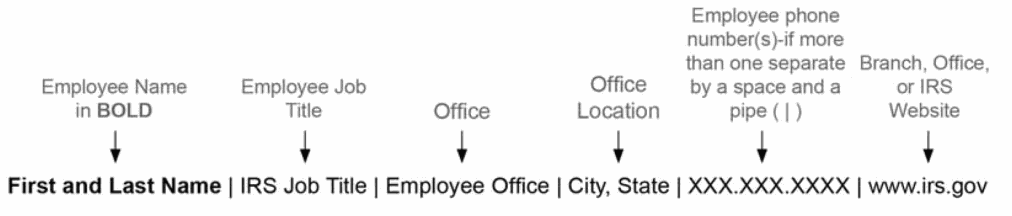
Your email signature section should include only the identifying information that would otherwise be included in any official IRS communication (i.e. business card, memorandum, letter, etc.):
Name
Title
Organization
Street/email address
Telephone/fax numbers
Refrain from including quotes or other personal messages as part of the signature section.
Follow these steps to create an automatic signature in Outlook:
Select Options from the Tools menu. Choose the Mail Format tab. Use the Signatures section at the bottom to create your personal signature line.
Please note: Consistent with IRM 10.8.26.3, Mobile Device IT Roles and Responsibilities, if you’re using a mobile computing device with an email auto-signature capability, configure it so that it does not disclose that the email originated from a smartphone or mobile computing device (e.g., do not have it show “Sent From My Wireless Handheld”).
The following signature line is recommended using 12pt Arial or Helvetica for the PC and 14pt for the Mac, all flush left: